


 Social Wall
 Feed Analytics


How to hide specific posts on X (Twitter) in your feed, using the Hide specific tweets option in the plugin filter settings.
Would you like to hide specific posts from your X (formerly Twitter) feed?
In this guide, we’ll walk you through hiding posts from your feed with the Hide specific tweets filter. All you need is Custom Twitter Feeds Pro and a feed that’s already created.
Requirements: The Hide specific tweets filter is part of the paid version of Custom Twitter Feeds. Our free and paid version comparison lists what each version includes.
- Finding a Post’s ID
- Reaching the Hide Specific Tweets Setting
- Hiding the Posts
- Showing a Hidden Post Again
- Frequently Asked Questions
Finding a Post’s ID
To get started, we’ll find the ID of the post you want to hide.
The plugin hides a post by its ID. To find it, open the post on X and look at the address in your browser’s address bar. The ID is the long number that comes right after /status/ in the address. In https://x.com/smashballoon/status/2119759389322293718, the ID is 2119759389322293718.
Keep that number handy. You’ll need it in the next steps.
Reaching the Hide Specific Tweets Setting
To start, go to Twitter Feed » All Feeds in your WordPress dashboard. The plugin’s menus and screens still use the name Twitter. That’s the name you’ll see in these steps.
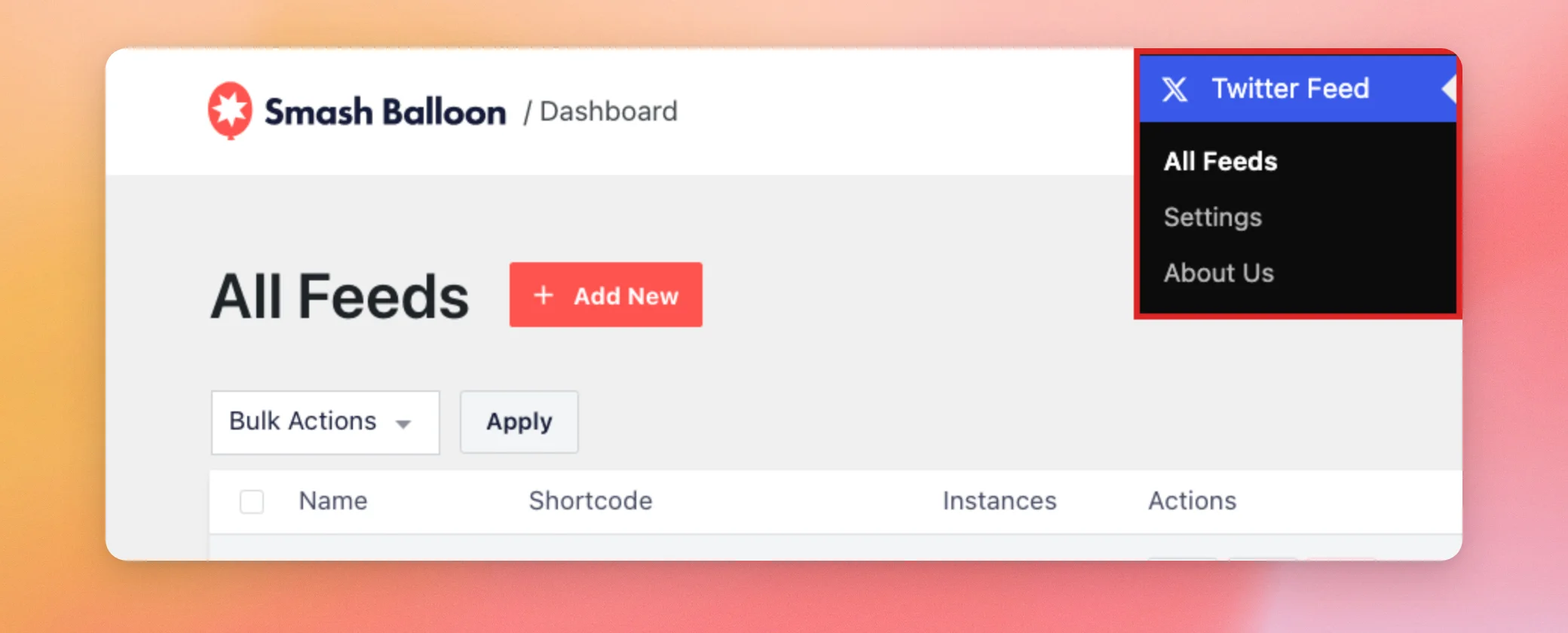
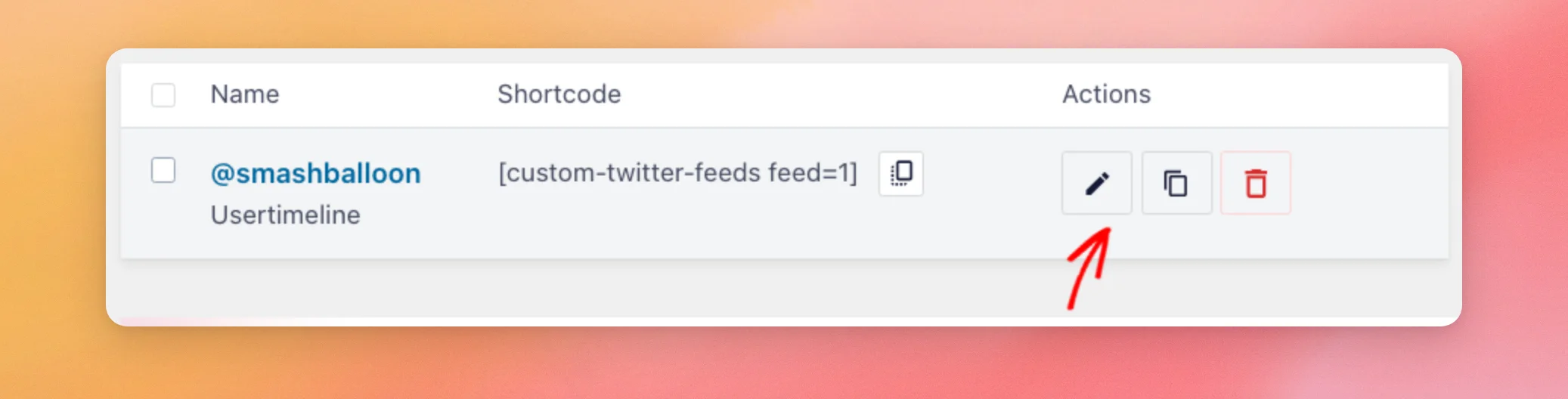
Next, find the feed you want to change and click the pencil icon to edit it.
In the feed customizer, open the Settings tab. Then, click Filters.
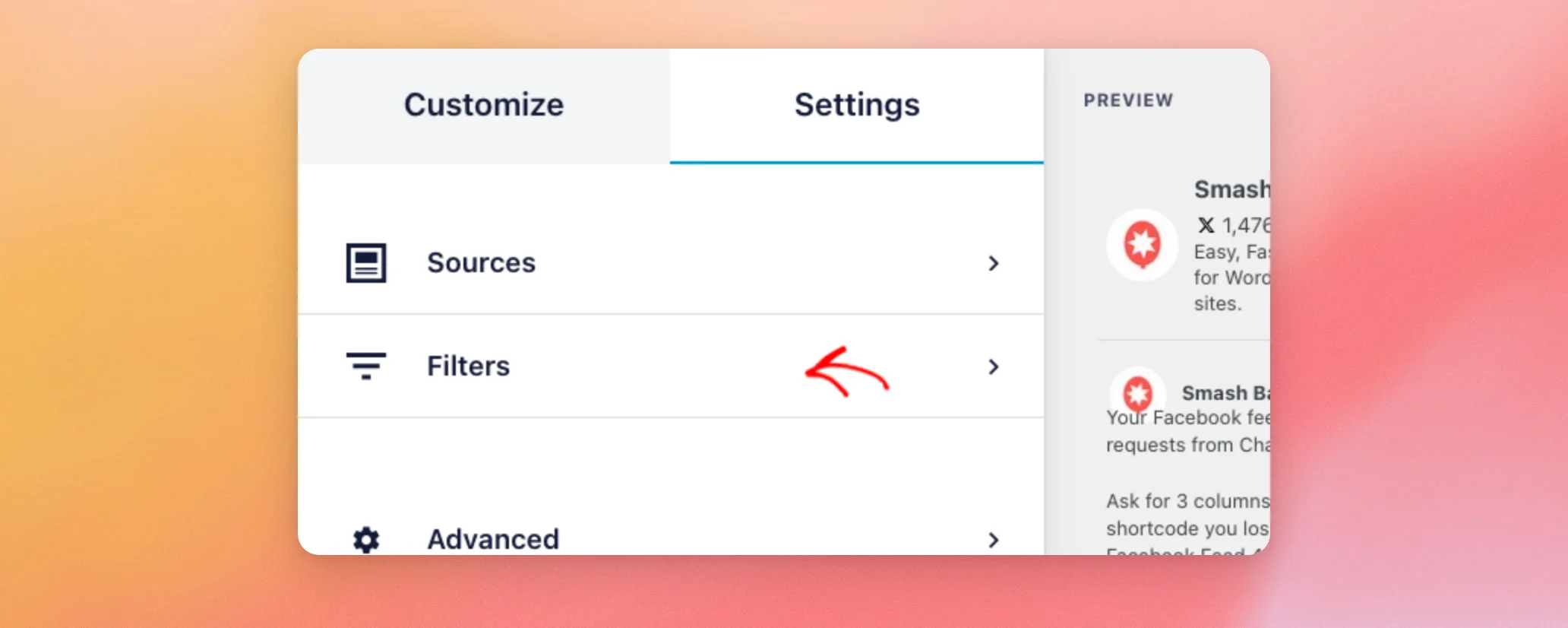
Now that the Filters panel is open, you’re ready to add the post IDs.
Hiding the Posts
The Hide specific tweets box takes the IDs of the posts you want to remove from your feed.
Next, scroll down to Hide specific tweets and paste the post’s ID into the box. To hide more than one post, separate the IDs with commas.
Note: Hashtag and Search feeds can show promoted posts that don’t match your feed settings. The filters on the Settings tab can remove those as well.
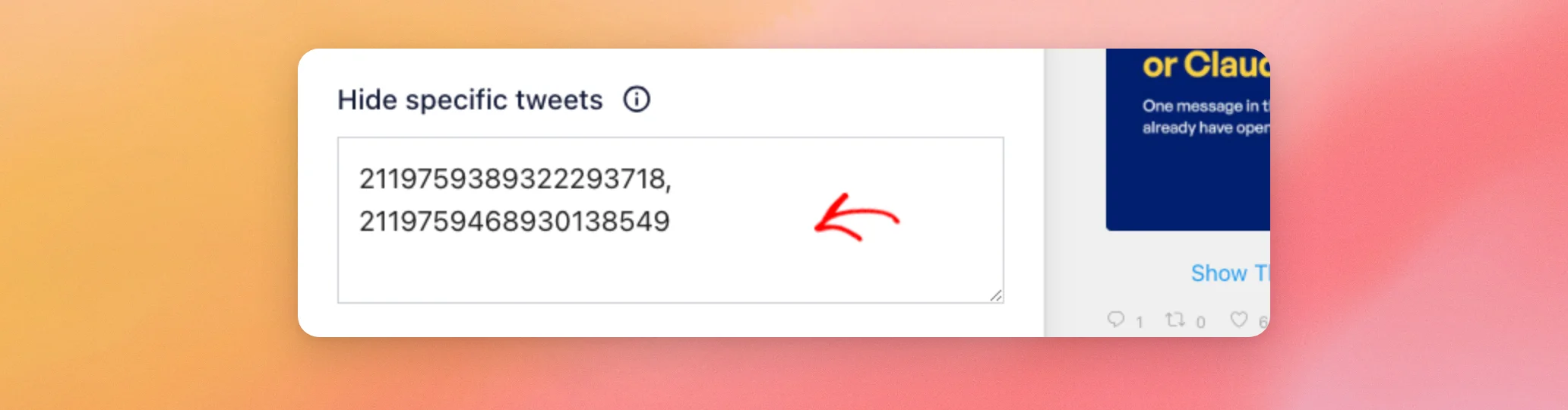
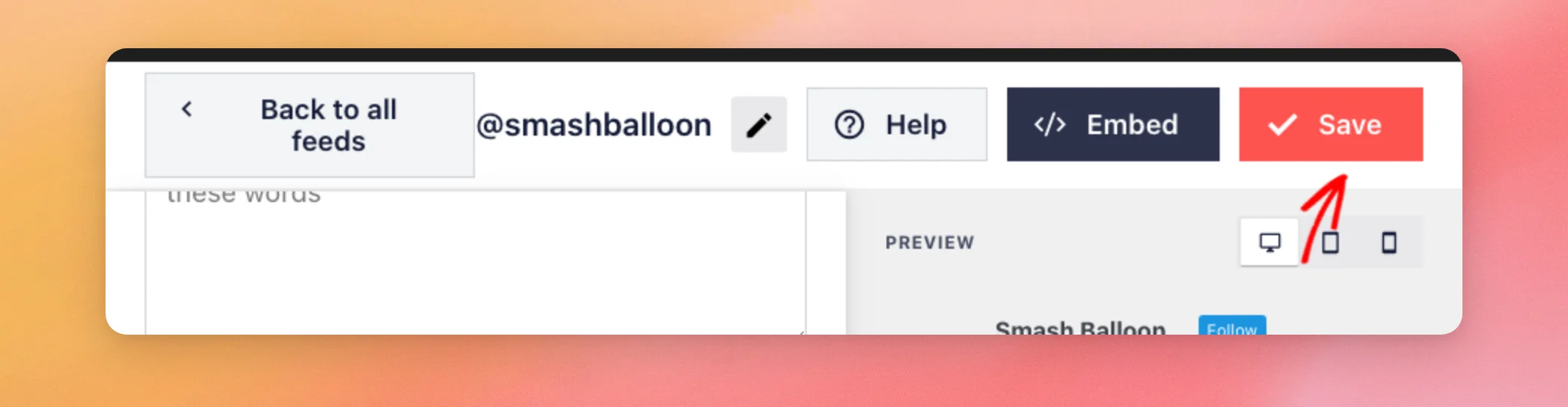
When you’re done adding IDs, click Save at the top of the customizer. The preview updates as you type. Your change is only kept after you save. Then the posts leave your feed, both in the preview and on your site.
Hiding a post isn’t permanent. You can bring it back whenever you like.
Showing a Hidden Post Again
To bring a hidden post back, return to Settings » Filters and delete its ID from the Hide specific tweets box. Then, click Save. The post returns to your feed once you save.
That’s it! You now know how to keep individual posts out of your X feed. Next, you may want to show only posts that include a certain hashtag. See our guide on displaying posts that include a certain hashtag.
Frequently Asked Questions
Below, we’ve answered some of the most common questions about hiding specific posts.
Can I hide more than one post at a time?
Yes. Separate the IDs with commas, as shown in Hiding the Posts above. A space after each comma is fine.
Do I need to remove spaces or a ctf_ prefix from the IDs?
No. The plugin ignores spaces in the list. It also ignores a ctf_ prefix. An ID copied from the page’s code as ctf_ followed by the number works the same as the number alone.
Will the post still show on my website after I save?
No. Once you save the feed, the post is gone from the preview and from the feed on your site. See Hiding the Posts above for the steps.
How do I show a hidden post again?
Delete the post’s ID from the Hide specific tweets box and click Save. See Showing a Hidden Post Again above.




