


 Social Wall
 Feed Analytics


How to install the Date Range extension and use it to show Facebook posts from a specific period only.
Would you like to show only the Facebook posts or events from a certain period in your WordPress feed?
In this guide, we’ll show you how to use the Date Range extension to set a start and end date for a feed. We’ll also cover relative dates that move with the calendar, upcoming events, and the events from the next 30 days.
Requirements: The date range settings come from the Date Range extension. The extension is a separate plugin that must be installed and activated next to Custom Facebook Feed Pro.
Before you get started, Custom Facebook Feed Pro must be installed and activated on your WordPress site. You install the extension the same way as any other WordPress plugin.
Here is what we will cover.
- Turning On the Date Range Extension
- Setting a Date Range
- Using Relative Dates
- Showing Upcoming Events
- Showing Events From the Next 30 Days
- Frequently Asked Questions
Turning On the Date Range Extension
To get started, we’ll turn on the extension in your plugin.
- First, install and activate the extension plugin on your site.
- Next, from your WordPress admin sidebar, go to Facebook Feed » Extensions.
- Then find the Date Range card. If it says Activate, click Activate.
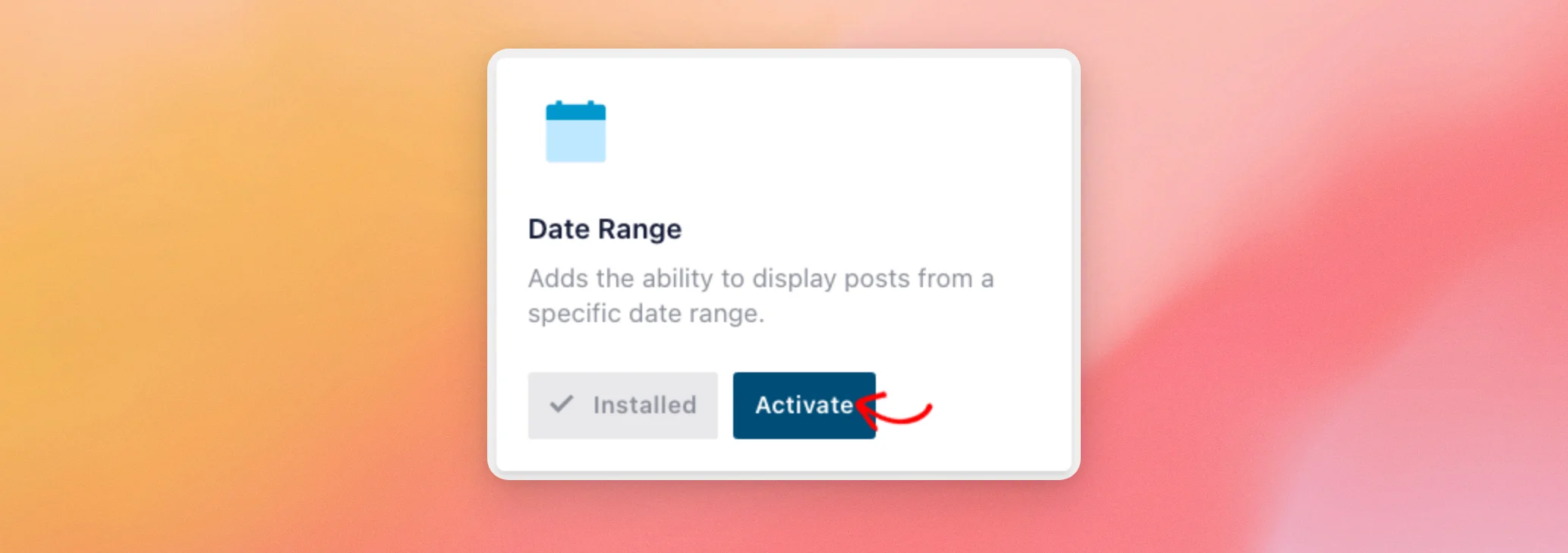
If the card shows an Add link instead of Installed, the extension plugin isn’t on your site yet. The link opens the extension page in a new tab.
Once the extension is active, the card shows Deactivate where Activate was. You can now set a date range on any feed.
Setting a Date Range
From your WordPress admin sidebar, go to Facebook Feed » All Feeds. Then open the feed you want to filter.
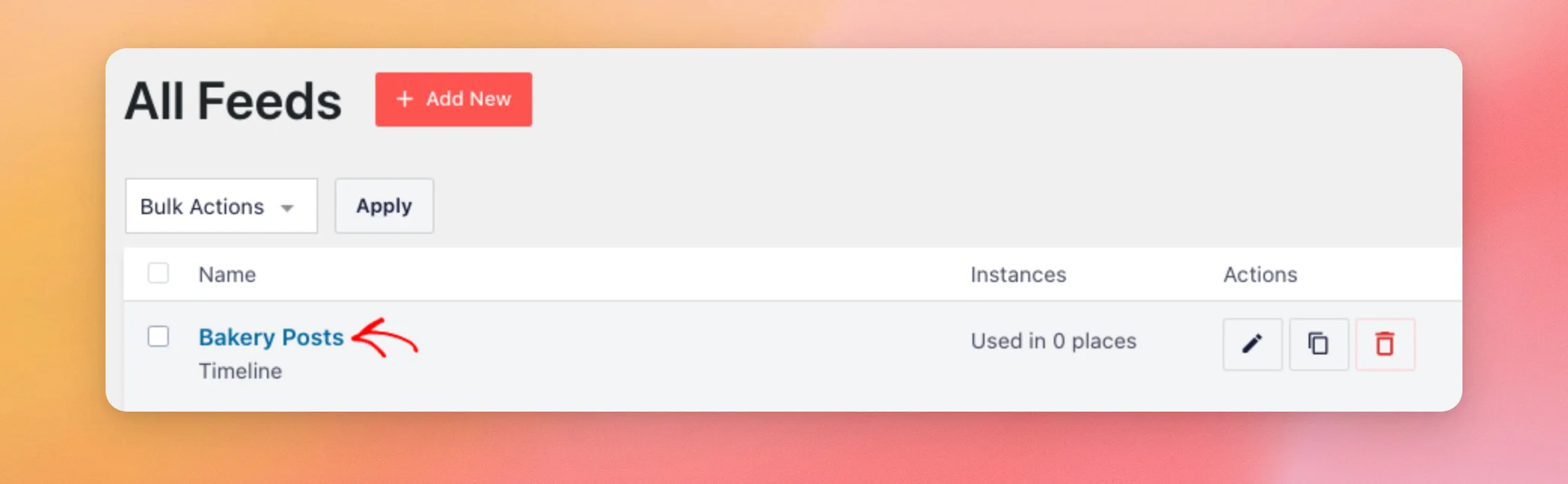
- Next, click the Settings tab. Then click Filters.
- Then turn on Show posts within the date range.
- Under From, choose Specific to pick a fixed date from a calendar. Choose Relative instead to type a moving date, such as “-2 weeks”.
- Under To, choose Specific or Relative in the same way. Then enter the end of the range.
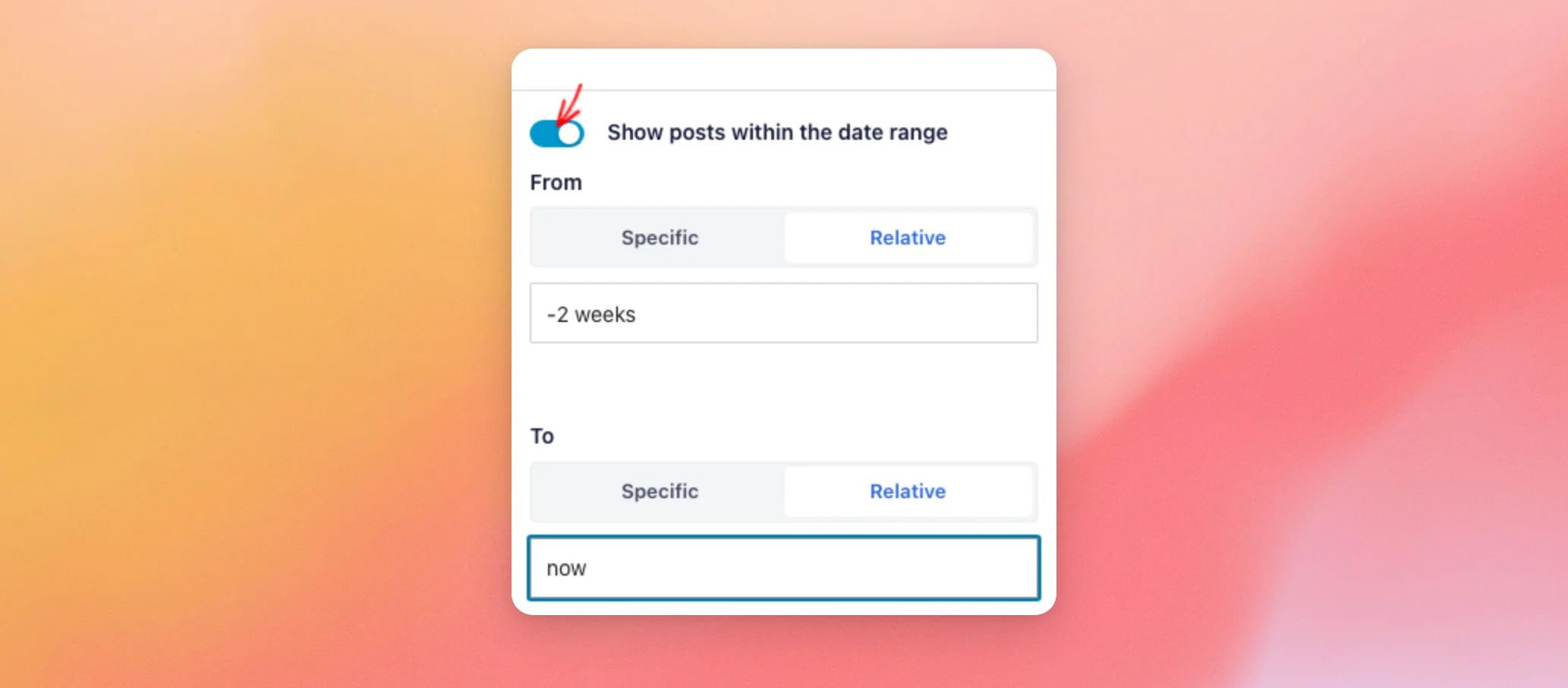
- Finally, click Save in the top right.
The feed now shows only the posts from that period. If you want a period that moves along with today’s date, read the next section.
Using Relative Dates
Relative dates are based on the current date. This means the period moves on its own. For example, a feed that always shows the last two weeks needs no changes later. The plugin reads each value with strtotime, the standard PHP function that turns text such as “-2 weeks” into a date. The What are relative Dates? tooltip in the settings also lists a few examples, such as “-3 months”.
With Relative selected, the From and To boxes read values like the ones below. The plugin shows the placeholders “eg: -1 days” under From and “eg: now” under To.
| Value | What it means |
|---|---|
| -15 minutes | 15 minutes ago |
| -1 hour | One hour ago |
| -2 days | Two days ago |
| -3 weeks | Three weeks ago |
| -1 month | One month ago |
| now | The current time |
| +2 weeks | Two weeks from now |
Here are some common combinations.
- Posts from the last two weeks. From “-2 weeks” and To “now”.
- Posts from the past month. From “-1 month” and To “now”.
- Posts from the last 12 hours. From “-12 hours” and To “now”.
- Posts from between one day ago and 12 hours ago. From “-1 day” and To “-12 hours”.
Relative dates can also point to the future, as the next section shows.
Showing Upcoming Events
You can also set a date range on an Events feed. The plugin adds your From and To dates to the events request in the same way as for posts. From your WordPress admin sidebar, go to Facebook Feed » All Feeds. Then open your Events feed.
- Next, click the Settings tab. Then click Filters.
- Then turn on Show posts within the date range.
- Under From, choose Relative and enter “now”.
- Under To, choose Relative and enter “+2 weeks”.
- Finally, click Save in the top right.
For the next 30 days, use the steps in the next section.
Showing Events From the Next 30 Days
You don’t need custom code to set a 30-day range on an Events feed. Two relative dates are enough.
- From your WordPress admin sidebar, go to Facebook Feed » All Feeds. Then open your Events feed.
- Next, click the Settings tab. Then click Filters.
- Then turn on Show posts within the date range.
- Under From, choose Relative and enter “now”.
- Under To, choose Relative and enter “+30 days”.
- Finally, click Save in the top right.
That’s it! You now know how to limit a feed to a date range, from fixed dates to relative ones. To learn how to place the feed on your site, read our guide on displaying your Facebook feed on a page, post or widget.
Frequently Asked Questions
Below, we’ve answered some of the most common questions about the Date Range extension.
Why are the date range settings dimmed?
The date range settings are dimmed while the Date Range extension isn’t installed and activated. If the Date Range card under Facebook Feed » Extensions shows Activate, click it. If it shows Add, the extension plugin isn’t installed yet.
What is the difference between Specific and Relative dates?
A specific date is a fixed day that you pick from a calendar. A relative date is based on the current date. This means it moves each day. For example, “-1 days” means one day before today.
Can I set a date range on photo, video or album feeds?
Yes. The plugin adds your date range to the requests for timeline posts, photos, videos, albums and events. Set it in the same Filters section of the feed’s Settings tab.




