


 Social Wall
 Feed Analytics


Why an Instagram source becomes invalid, from revoked permissions to a password change, and how to reconnect it.
Would you like to get your Instagram feed working again after its source becomes invalid?
In this guide, we’ll walk you through why an Instagram Feed source becomes invalid, how to reconnect it, and what to do about API error 190 and the Action Required Within 7 Days message. All you need is access to the Instagram account, or to the Facebook account that manages it if you connected with Business Advanced.
Before you get started, make sure Instagram Feed is installed and activated on your WordPress site. If you’re using the free version, see our guide on setting up the free Instagram Feed plugin.
Instagram Feed also tells you when a source stops working.
For details on its notices and weekly email report, see our guide on getting alerts when your Instagram feed stops updating.
Here is what we will cover.
- Why Does a Source Become Invalid?
- Reconnecting Your Source
- API error 190: Error validating access token
- Checking Your Feed’s Source
- Clearing an Old Error Message
- Fixing the Action Required Within 7 Days Message
- Frequently Asked Questions
Why Does a Source Become Invalid?
A source is the Instagram account a feed shows posts from. Instagram Feed connects to it with an access token from Instagram or Facebook. When that token stops working, Instagram Feed marks the source as Source Invalid. Your feed then can’t get new posts.
Meta can end a token at any time. Common reasons include the following.
- The account holder removes Smash Balloon’s app from their Instagram or Facebook settings.
- The account’s password changes on Instagram or Facebook.
- Someone uses the “log out of all devices” option on Instagram or Facebook.
- The permissions on the Facebook Page connected to the Instagram account change.
- Meta flags suspicious activity on the account.
These are Meta’s security measures, and Smash Balloon has no control over them. Reconnecting your source gets a new token.
Rate limits and temporary throttling from Instagram don’t make a source invalid. Instagram Feed keeps showing your feed’s saved posts and retries on its own once the limit clears. You don’t need to reconnect.
My Instagram Source Keeps Expiring
If your feed was working and then stopped on its own, the source’s access token most likely stopped working. Reconnect the source to get a new one, as described in Reconnecting Your Source. If it keeps happening, check the reasons above, such as a password change or a removed app.
To learn how long a connection lasts and how Instagram Feed renews it, see How Long an Instagram Connection Lasts and How It Renews.
Reconnecting Your Source
To get started, we’ll find your invalid source in the plugin’s settings.
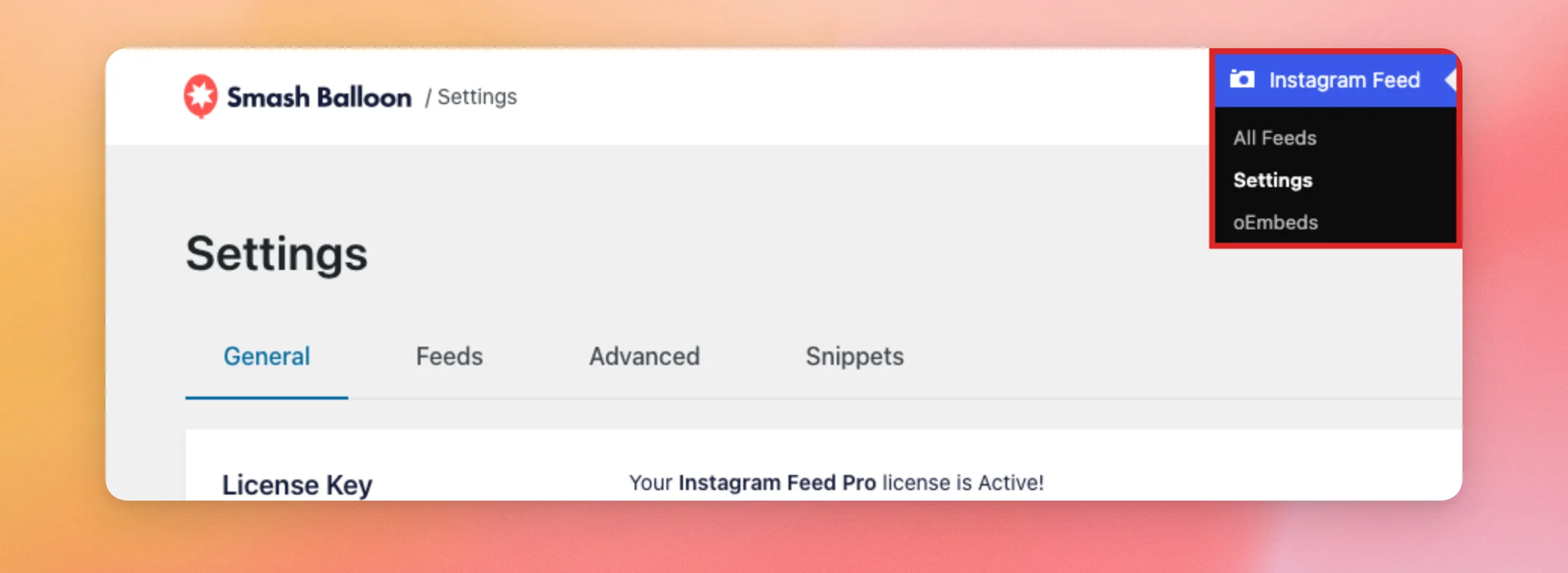
From your WordPress admin sidebar, go to Instagram Feed » Settings.
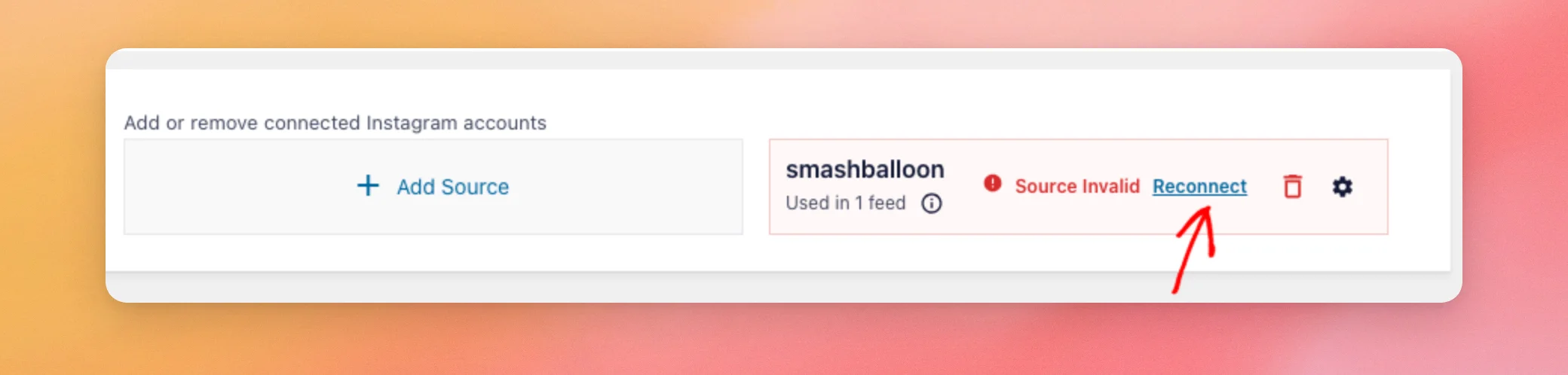
On the General tab, scroll down to Manage Sources. An invalid source shows Source Invalid next to its name. To fix it, click Reconnect.
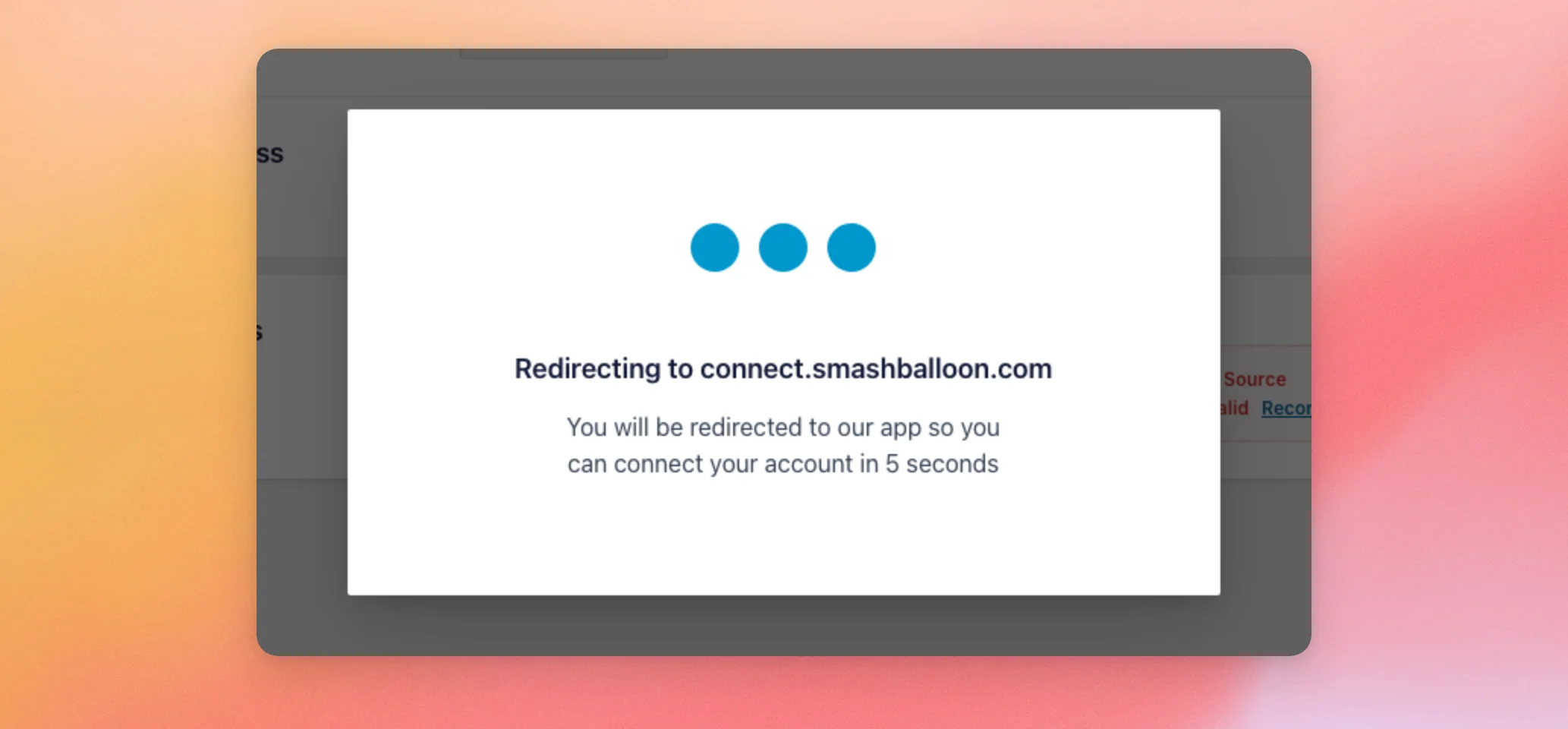
Instagram Feed then sends you to Smash Balloon’s connection page. You don’t need to click anything here. The redirect happens on its own after a few seconds.
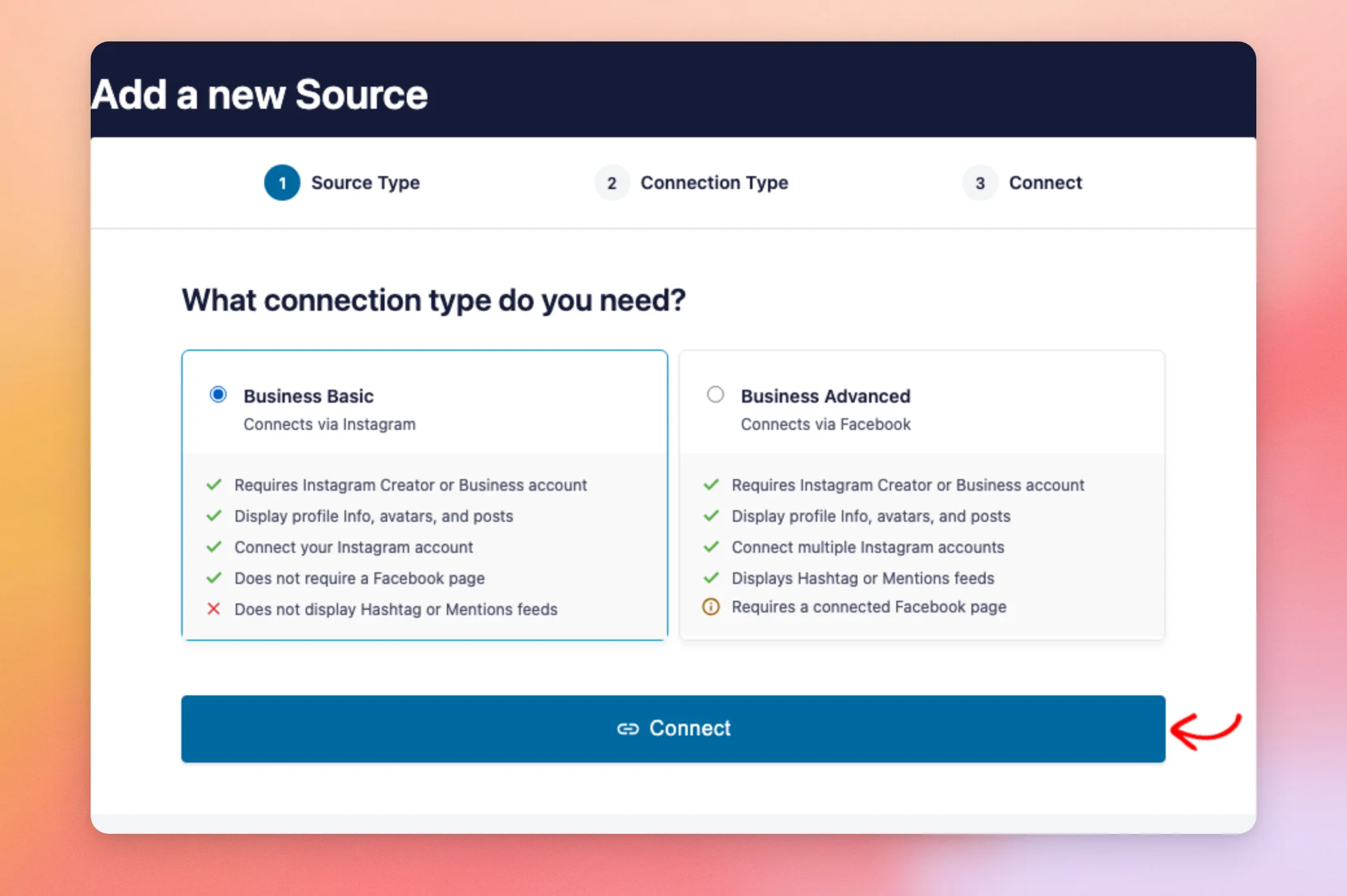
On the connection page, choose the same connection type you used before. If you connected with Business Advanced, select it and follow the steps in our guide on reconnecting an Instagram business profile.
For Business Basic, select Business Basic. Then, click Connect.
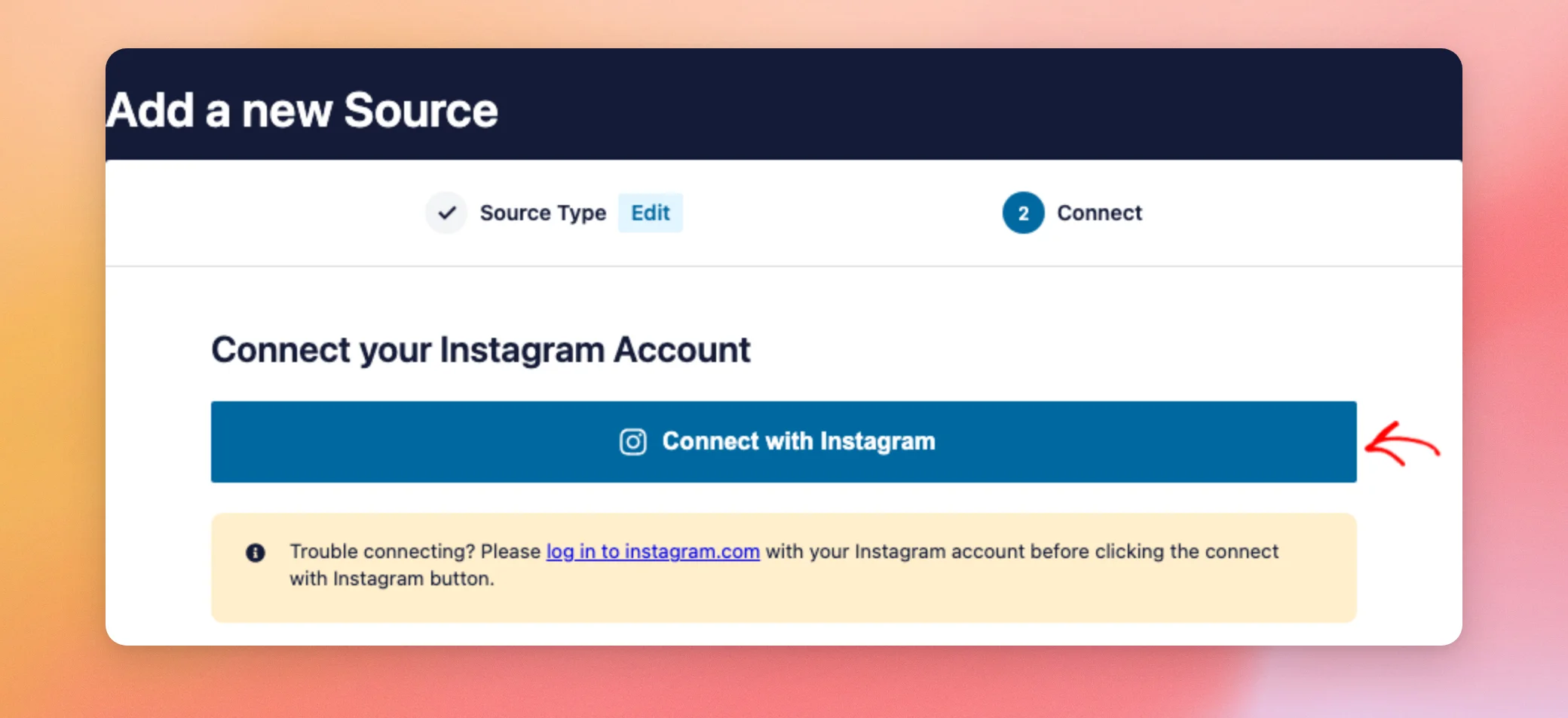
On the next screen, click Connect with Instagram.
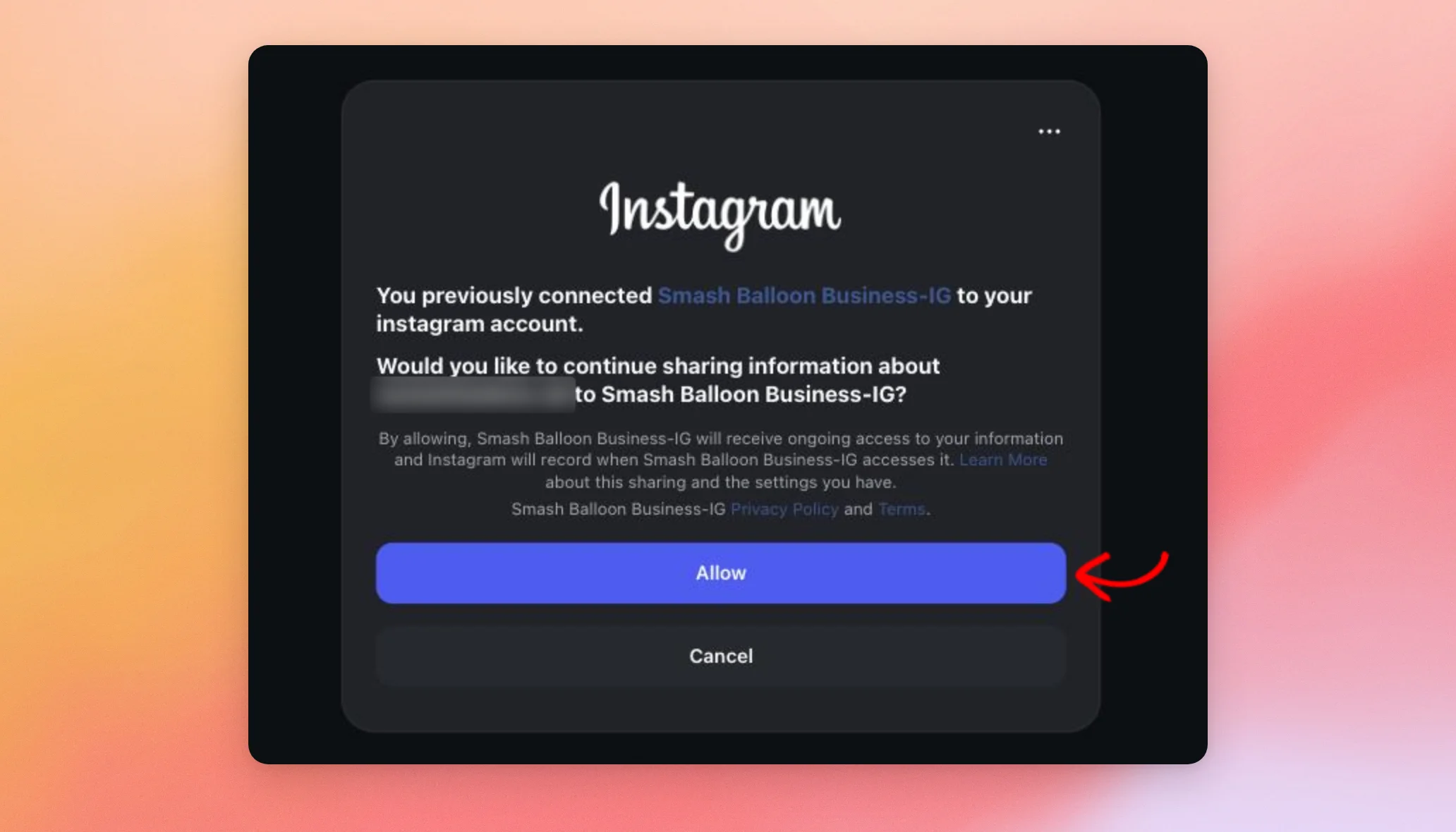
If you aren’t logged in already, Instagram asks you to log in. Then, it asks you to let Smash Balloon access your account. To continue, click Allow.
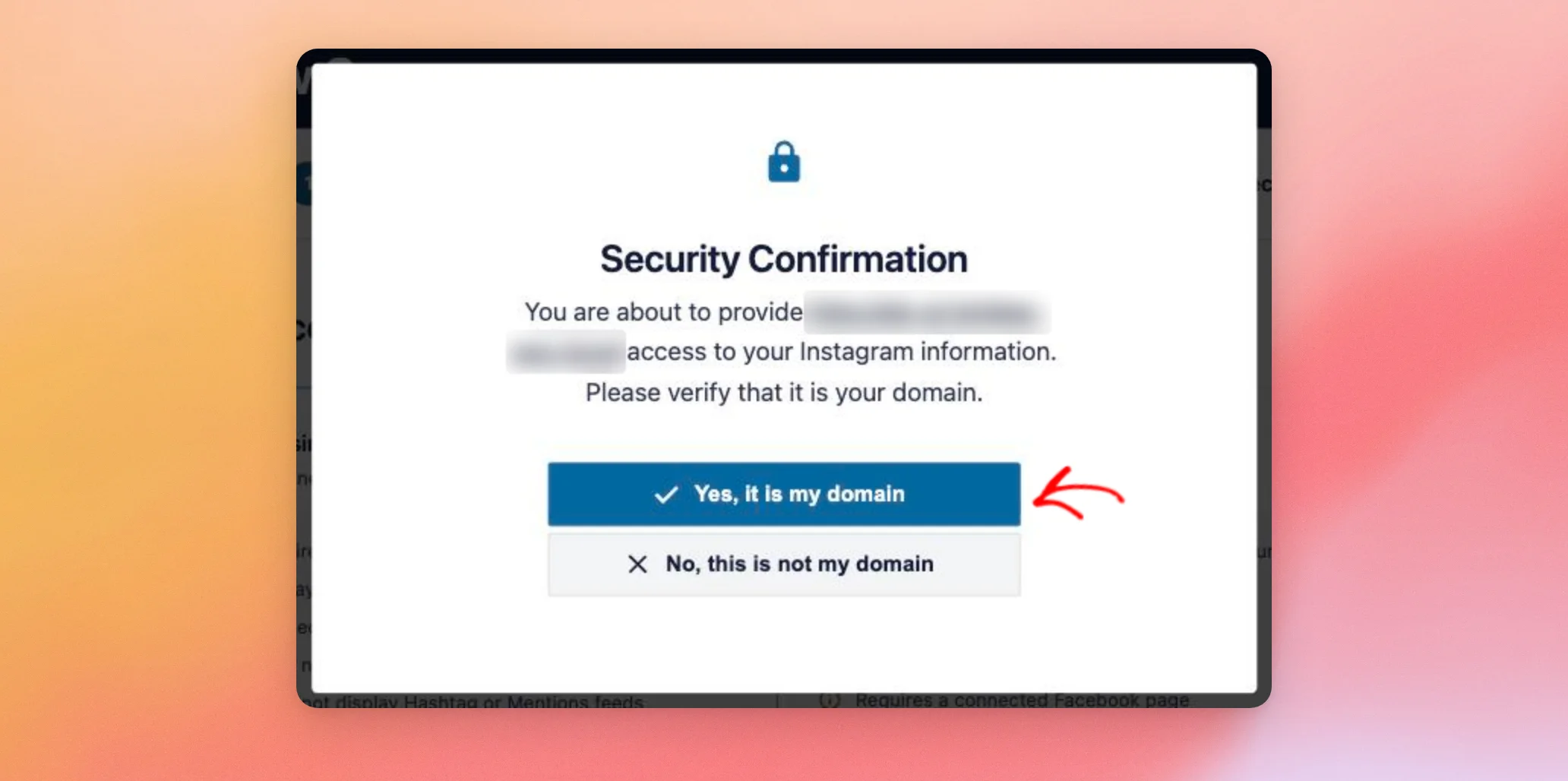
Back on Smash Balloon’s page, a Security Confirmation shows the address of the website you’re connecting. If it’s your site, click Yes, it is my domain.
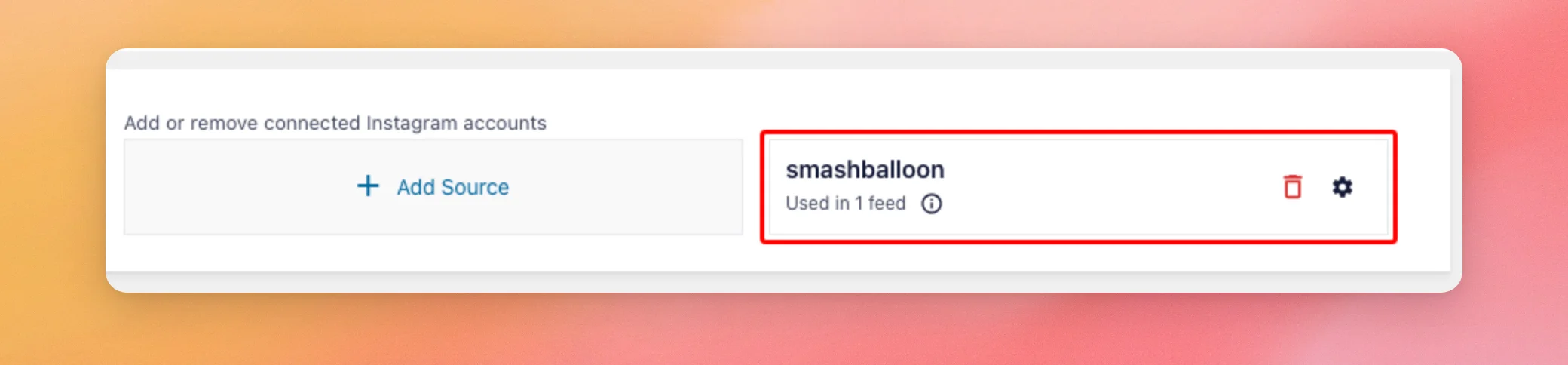
You’re then sent back to Instagram Feed’s settings. Your source no longer shows Source Invalid, and the feeds that use it can get new posts again.
If you connected with Business Advanced before and now connect with Business Basic, a window says the account already exists. It asks if you want to replace it.
In this window, Business Basic is called Personal. Personal accounts can’t show hashtag or tagged posts feeds.
To switch, click Replace with Personal. To keep the account as it was, click Cancel and reconnect with Business Advanced.
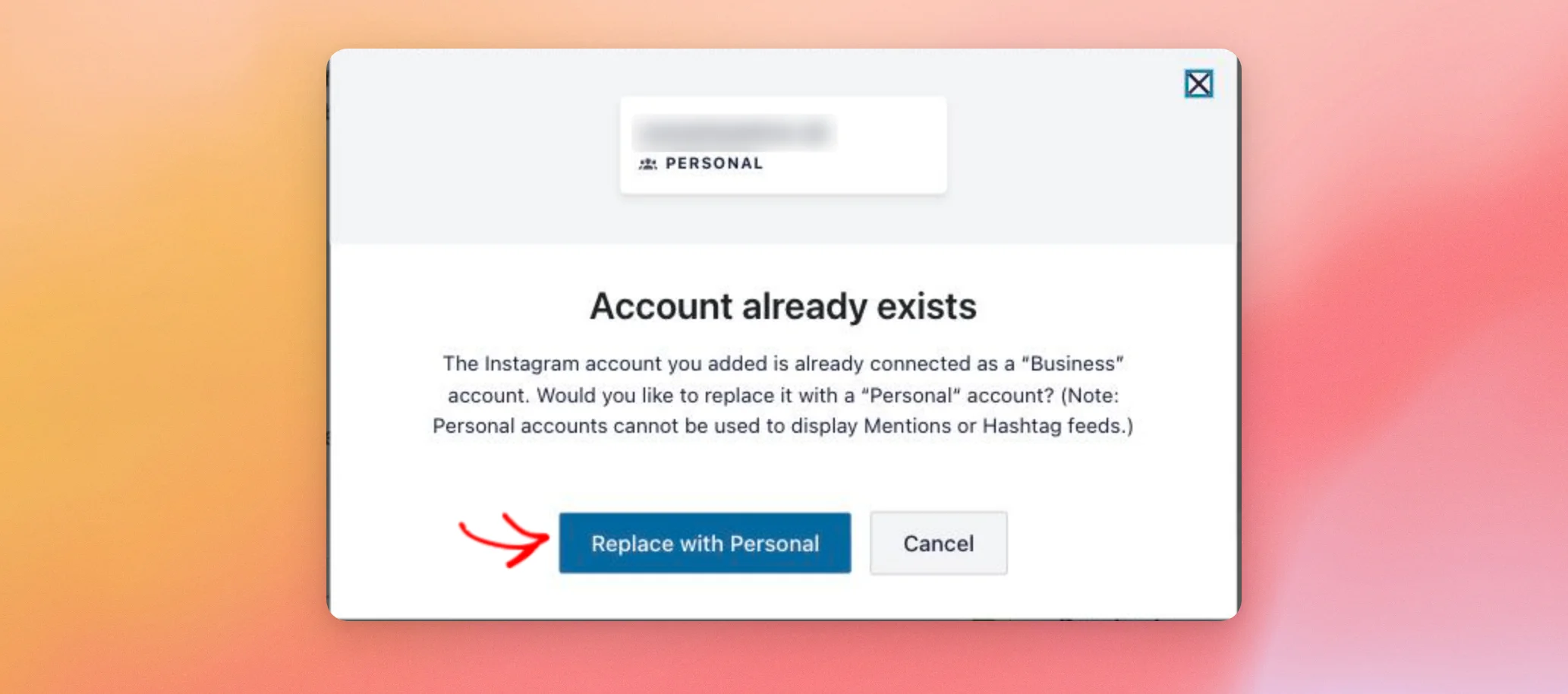
If a source shows Encryption Error instead of Source Invalid, Instagram Feed couldn’t read its access token on your site. The Reconnect link next to it works the same way.
Reconnecting keeps your feeds on the same account, so they usually work again right away.
API error 190: Error validating access token
API error 190 means your Instagram access token is no longer valid. The feed then can’t get new posts from your account. It is listed as error 190 in our Instagram API error message reference.
This usually happens when the password on the Instagram or Facebook account connected to the plugin was changed. It also happens when the session was ended for security reasons. Facebook can do this automatically if it finds suspicious activity.
Instagram Feed names the cause in its error message. For example, the message may say one of the following.
- “The account password was changed, which invalidated the stored access token.”
- “The stored access token has expired.”
- “The Smash Balloon app is no longer authorized for this Instagram account.”
To fix it, reconnect the source by following the steps in Reconnecting Your Source. Reconnecting replaces the access token. You don’t need to remove the source first.
Some causes need a step on Instagram or Facebook as well, and the error message tells you which one.
- If Instagram placed a security checkpoint on the account, the account owner needs to log in to Instagram to clear it.
- If the account is unconfirmed, the account owner needs to confirm it with Instagram.
- If the account lost its administrator, editor, or moderator role on the linked Facebook Page, restore the role. If the Page now requires Two Factor Authentication that the account hasn’t enabled, turn it on. Reconnecting doesn’t fix either one.
When the Smash Balloon app is no longer authorized, the Settings page shows the Action Required Within 7 Days message instead of this error. Also read Fixing the Action Required Within 7 Days Message.
Checking Your Feed’s Source
If a feed still shows no new posts, check the account it uses. In Manage Sources, a source that no feed uses shows Source is not used yet. If the source you reconnected shows it, your feed isn’t using that account.
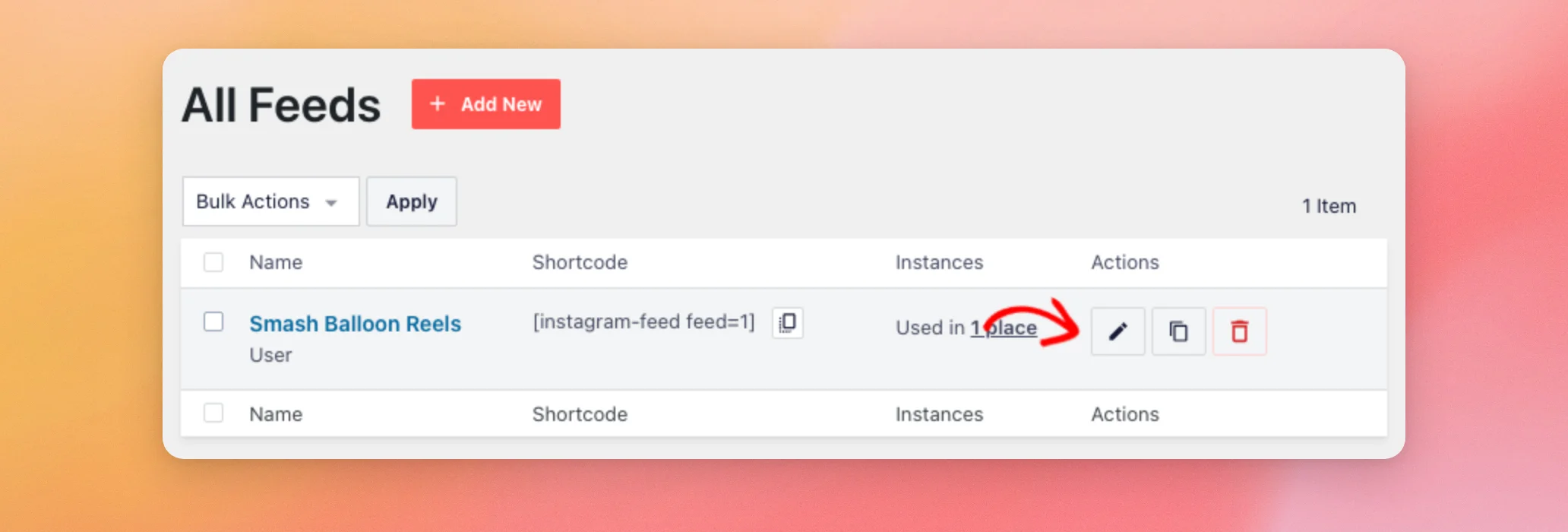
From your WordPress admin sidebar, go to Instagram Feed » All Feeds. Then, click the pencil icon next to the feed.
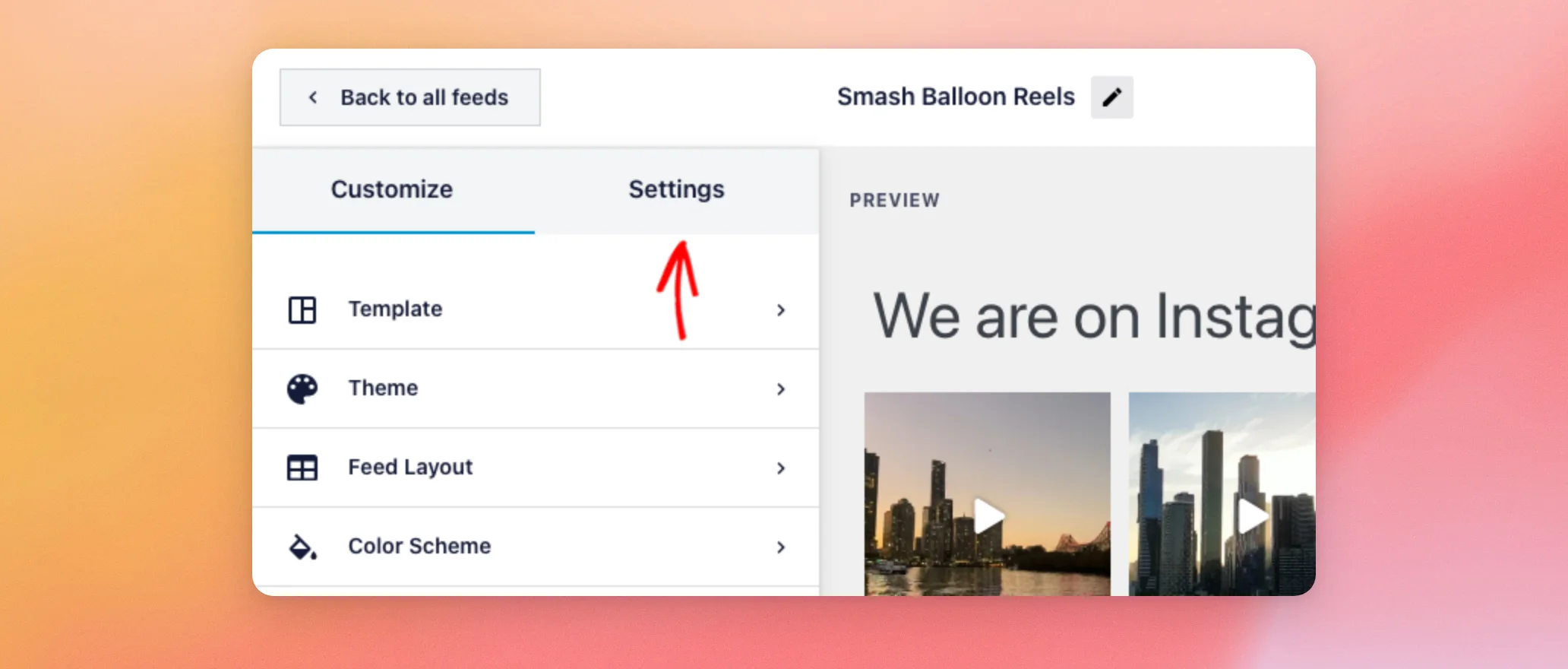
In the customizer, click the Settings tab.
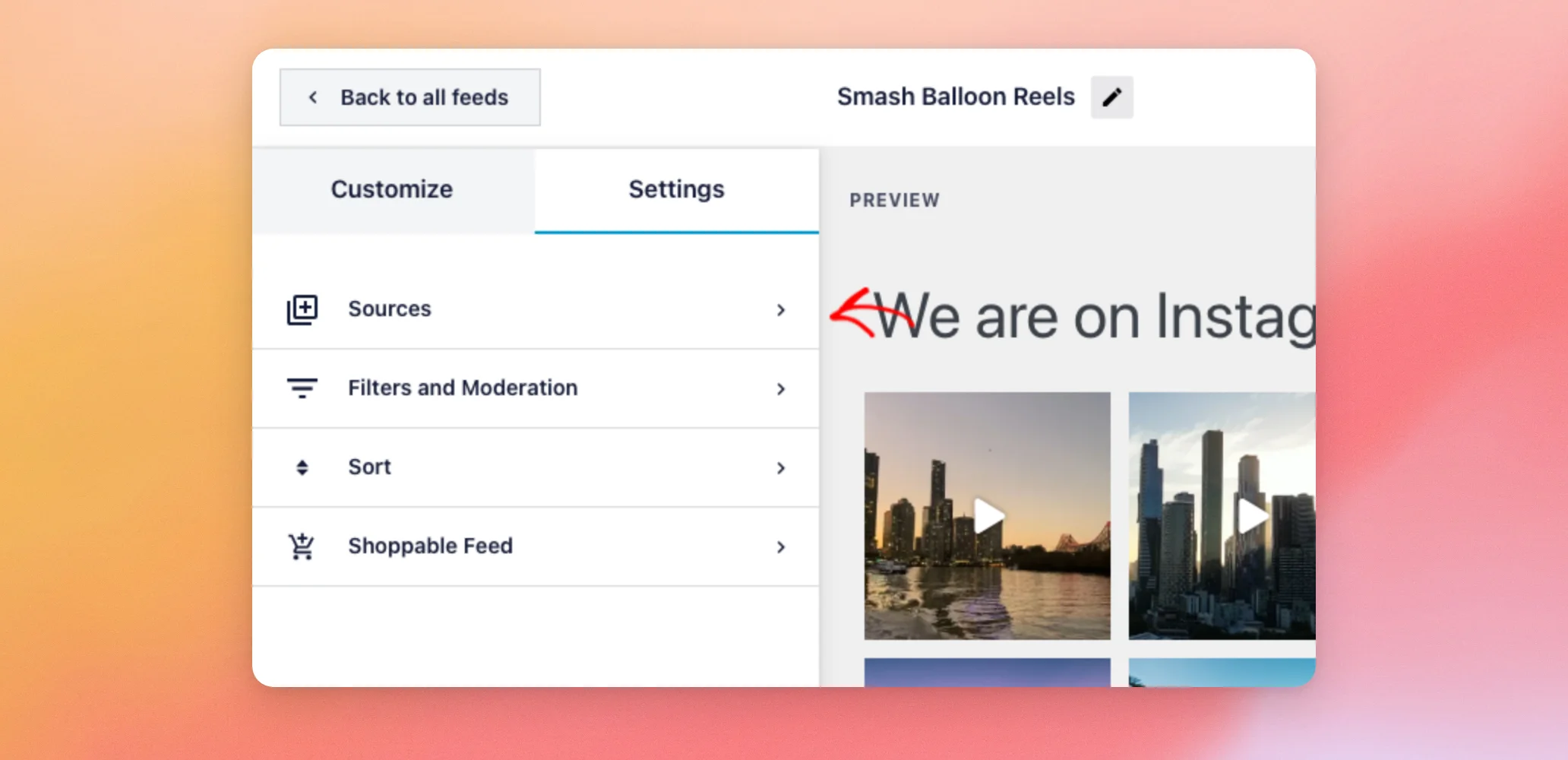
Then, click Sources.
The panel shows the accounts your feed uses. To change them, click Edit Sources.
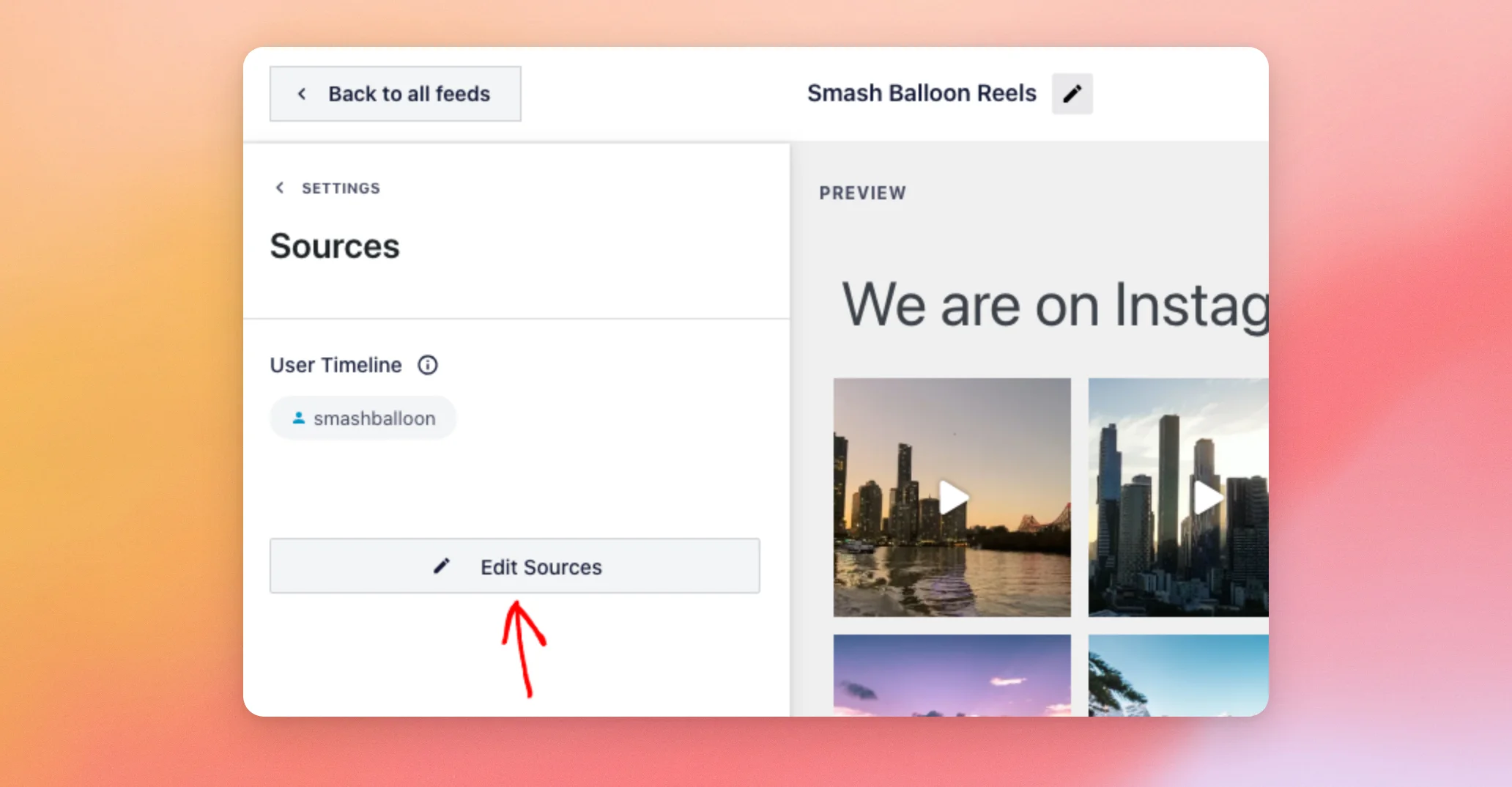
Your account must be listed under User Timeline. If it isn’t, use Add another Source to pick it. When the list is right, click Update.
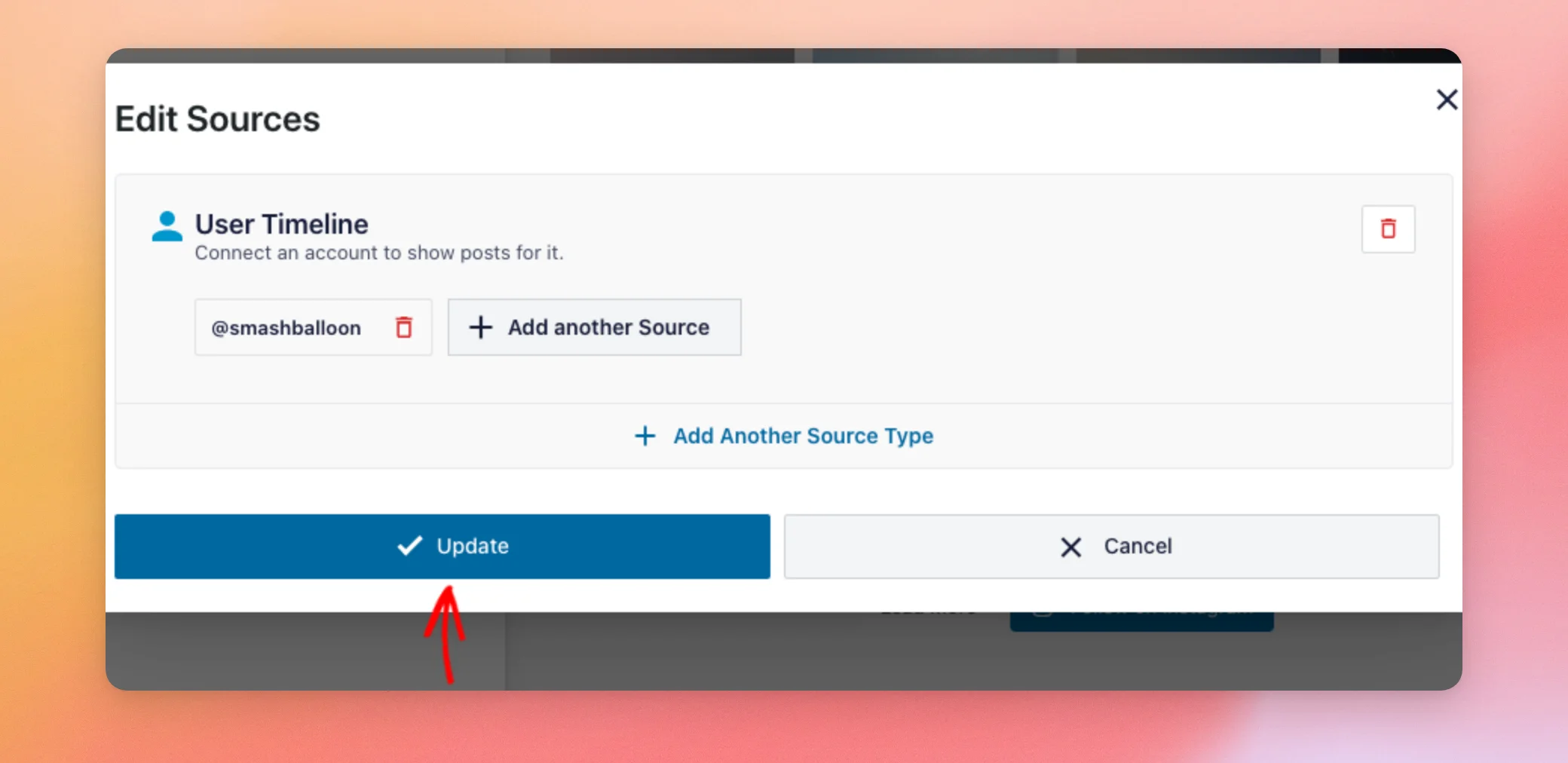
To keep the change, click Save at the top of the customizer.
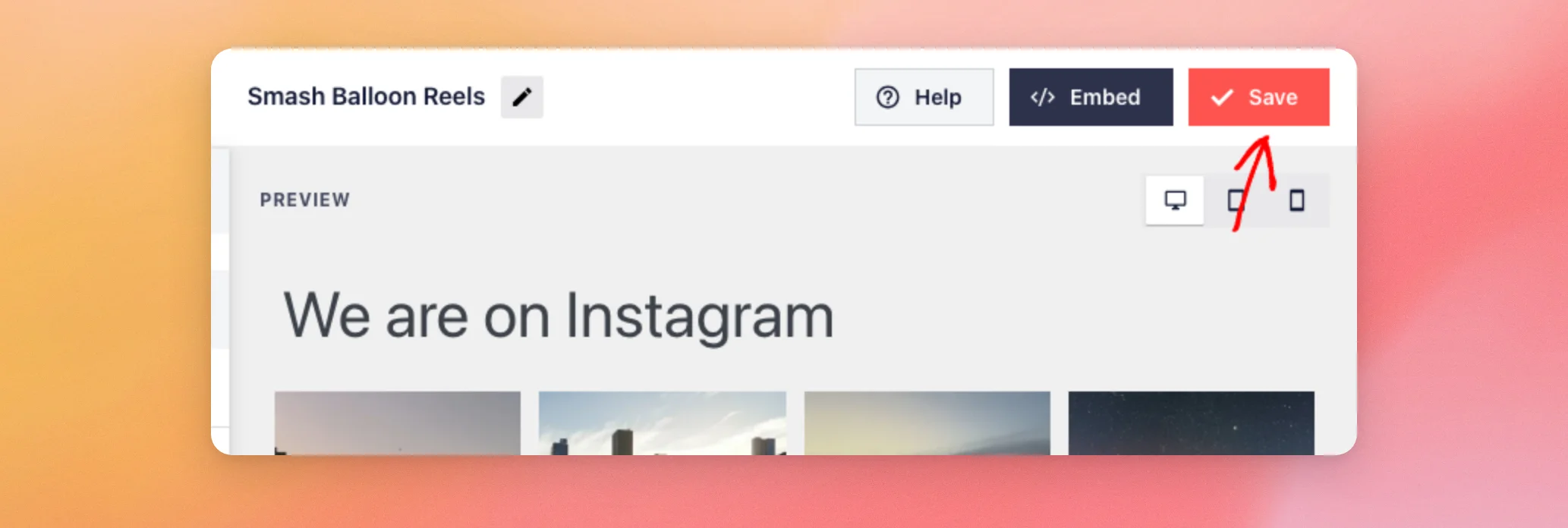
Your feed’s sources are now saved.
Clearing an Old Error Message
If your feed works again but an error message still shows, you can clear Instagram Feed’s error log. From your WordPress admin sidebar, go to Instagram Feed » Settings. Then, click the Advanced tab.
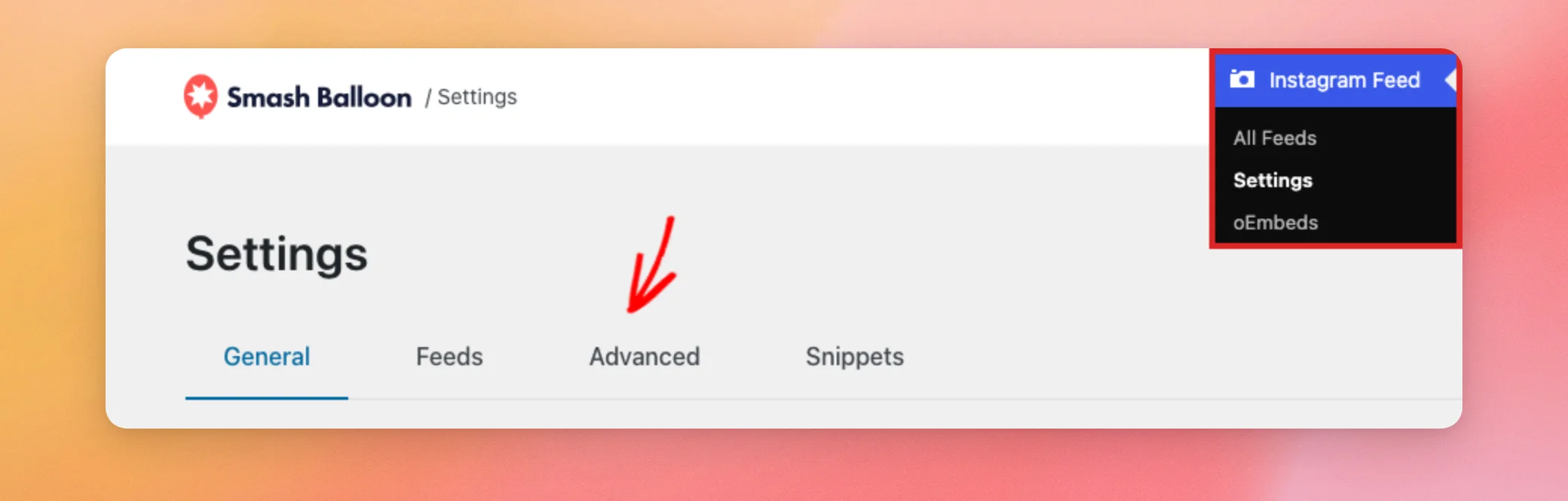
Next to Reset Error Log, click Reset.
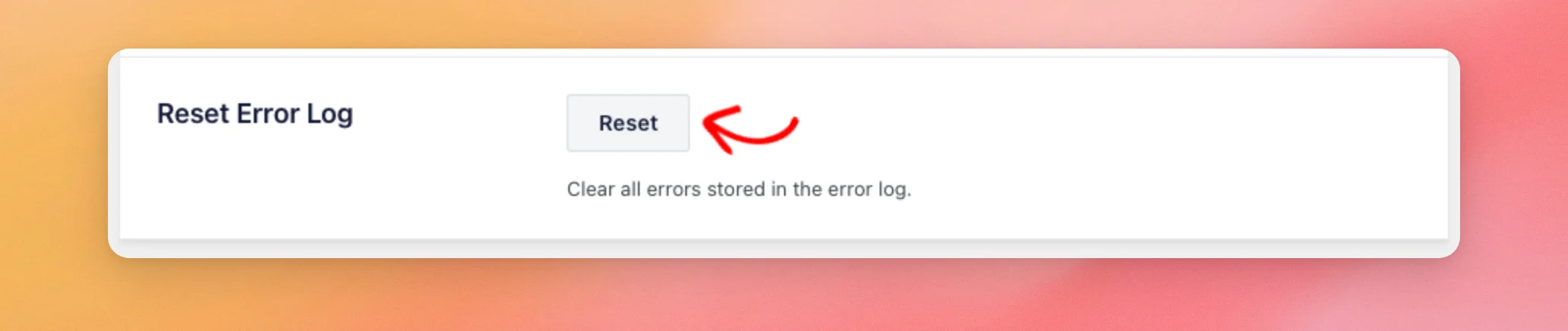
This clears the errors Instagram Feed has stored. It also clears your feeds’ cache. They get fresh posts the next time they load. If your site uses a caching plugin, clear its cache too. See How to Clear Your Cache in WordPress for a step-by-step guide.
If the message you see is Action Required Within 7 Days, the next section explains what it means and how to fix it.
Fixing the Action Required Within 7 Days Message
Instagram Feed shows this message in two cases. It appears on the plugin’s Settings page, and Instagram Feed also sends it by email. The email goes to the addresses set for the Feed Issue Email Reports, or to your site’s admin email.
Both cases come from Meta’s data privacy rules for apps that use Instagram data. They only affect the data Instagram Feed stores on your website. If you don’t fix the message within 7 days, Instagram Feed deletes some of that data. Your posts on Instagram are safe.
When the Smash Balloon App Was Deauthorized
This message means the Smash Balloon app no longer has access to one of your accounts, for example because an account admin removed it. The message names the account by its ID. Other reasons a token stops working, such as a password change, show their own error message and don’t start this 7-day countdown.
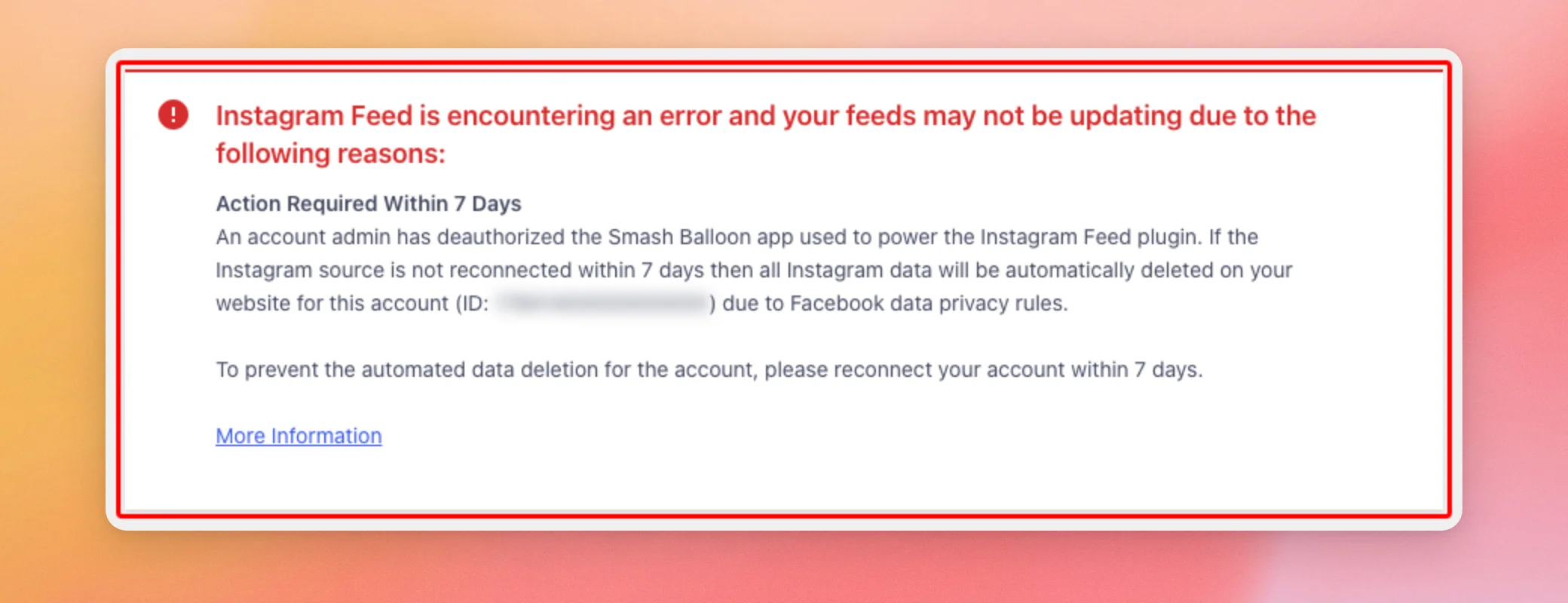
To keep your data, reconnect the account within 7 days, as described in Reconnecting Your Source. Once Instagram Feed connects to the account again, the message and the 7-day countdown clear. The message always reflects the current state of your connection. It doesn’t stay after the problem is fixed.
If it isn’t reconnected in time, Instagram Feed deletes that account’s data from your site. That includes the source, your feeds’ cached posts, and the posts and images it stored. Your feed settings stay. To show posts again, reconnect the account.
When Your Feed Hasn’t Been Viewed in 14 Days
This message appears when no page with your Instagram feed has been viewed for 14 days. Instagram Feed counts a view when it shows the feed on a page. Visits to a cached copy of the page may not count.
To keep your feed’s data, view a page with your feed within 7 days, or click Fix Usage in the message.
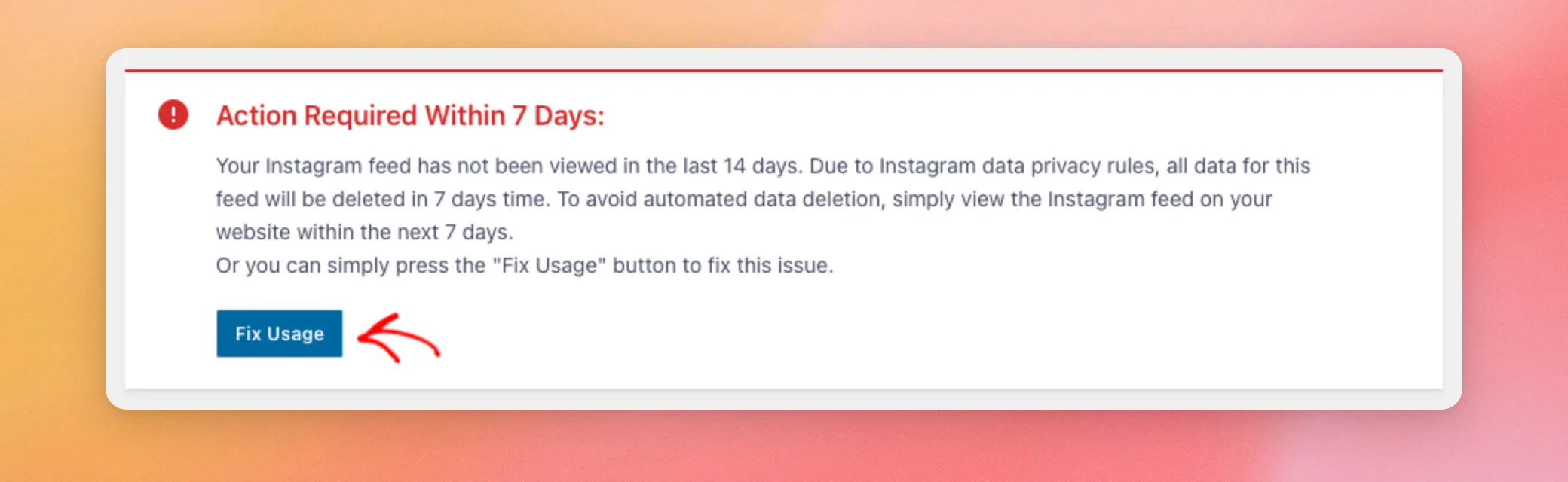
Fix Usage counts as a view. The message then shows a success note. It’s gone once you reload the page.
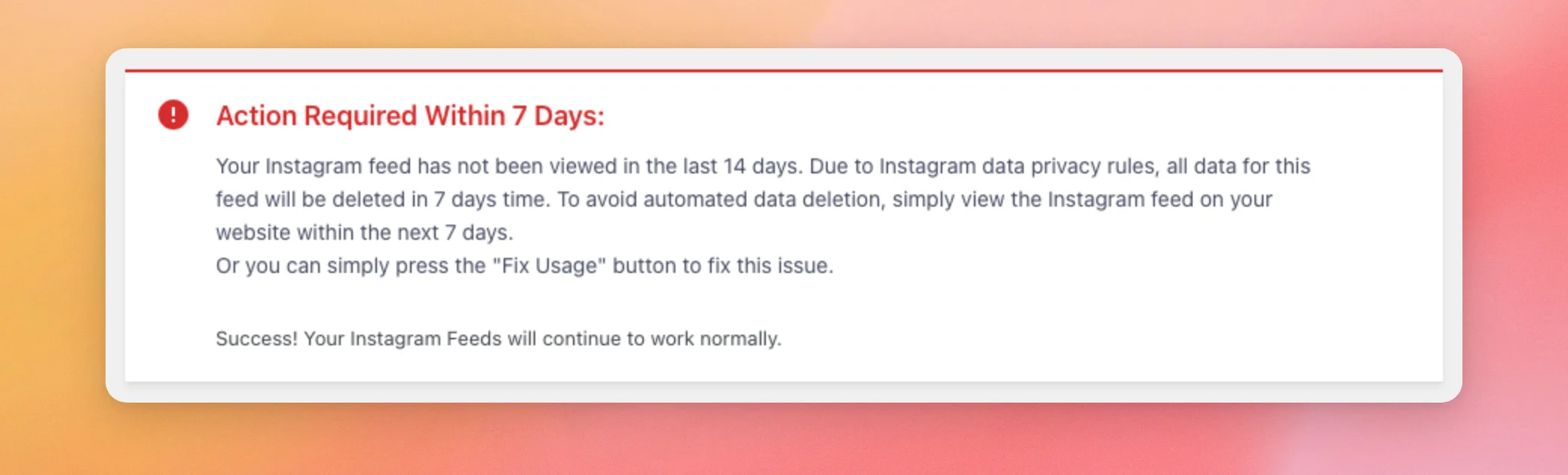
If no one views your feed for 21 days, Instagram Feed deletes its cached posts and the posts and images it stored. Your feed settings stay. After 90 days without views, it also removes your connected accounts.
That’s it! You now know why an Instagram Feed source becomes invalid, how to reconnect it, and how to handle API error 190 and the Action Required Within 7 Days message. Next, see our Instagram API error message reference for other errors you might see.
Frequently Asked Questions
Below, we’ve answered some of the most common questions about invalid Instagram Feed sources.
Do I need to delete my source and add it again?
No. Clicking Reconnect on the source replaces its access token. Your feeds keep using the same account. If you do delete a source, a window asks you to confirm. Clicking Confirm removes the source right away, with no Save Changes step. Feeds that used it stop getting new posts until you add it again.
Will reconnecting change my feeds’ settings?
No. Your feeds keep their settings and their account. They start getting new posts again once the source works.
What’s the difference between Source Invalid and Action Required Within 7 Days?
Source Invalid means the source’s access token stopped working. Your feed then can’t get new posts. Action Required Within 7 Days warns that Instagram Feed will delete data it stored on your site. It shows when the app’s access was removed, or when no one has viewed your feed in 14 days. A source can show Source Invalid without this message, for example after a password change.
Does a rate limit make my source invalid?
No. Rate limits and temporary throttling from Instagram don’t mark a source as Source Invalid or ask you to reconnect. Instagram Feed keeps showing saved posts and retries on its own.
Does Fix Usage fix an invalid source?
No. Fix Usage only counts as a view of your feed. That stops the data deletion for an unviewed feed. An invalid source still needs to be reconnected.
Does Reset Error Log fix an invalid source?
No. Reset Error Log clears stored error messages and your feeds’ cache. An invalid source still shows Source Invalid until you reconnect it. It also doesn’t stop the 7-day countdown in the Action Required message. The countdown ends when the account is reconnected.
Why did my source become invalid if I didn’t change anything?
Meta can end an access token at any time for its own security reasons, for example when it flags suspicious activity on the account. Reconnecting the source gets a new token. The other common causes are listed in Why Does a Source Become Invalid?




