


 Social Wall
 Feed Analytics


Would you like your visitors to see more of your Instagram posts with one click, or as they scroll down the page?
In this guide, we’ll walk you through the Load More button in Instagram Feed. We’ll cover how to turn it on, change its text and colors, and set how many posts each click adds. We’ll also turn on Infinite Scroll, which loads more posts by itself as visitors scroll.
Requirements: The Load More button is part of both the free Instagram Feed plugin and Instagram Feed Pro. Infinite Scroll needs Instagram Feed Pro with an active license, at any license level.
Before you get started, make sure Instagram Feed is installed and activated on your WordPress site.
Your feed first shows a set number of posts. When a visitor clicks Load More, the next posts appear below the ones already showing. Once every post has loaded, the button goes away.
A new feed made from the Default template already has the button turned on.
Here’s what we’ll cover.
- Changing the Load More Button
- Turning On Infinite Scroll
- Setting How Many Posts Each Click Adds
- Saving Your Changes
- Seeing the Load More Button on Your Site
- Frequently Asked Questions
Changing the Load More Button
To get started, we’ll open your feed in the feed editor.
From your WordPress admin sidebar, go to Instagram Feed » All Feeds.
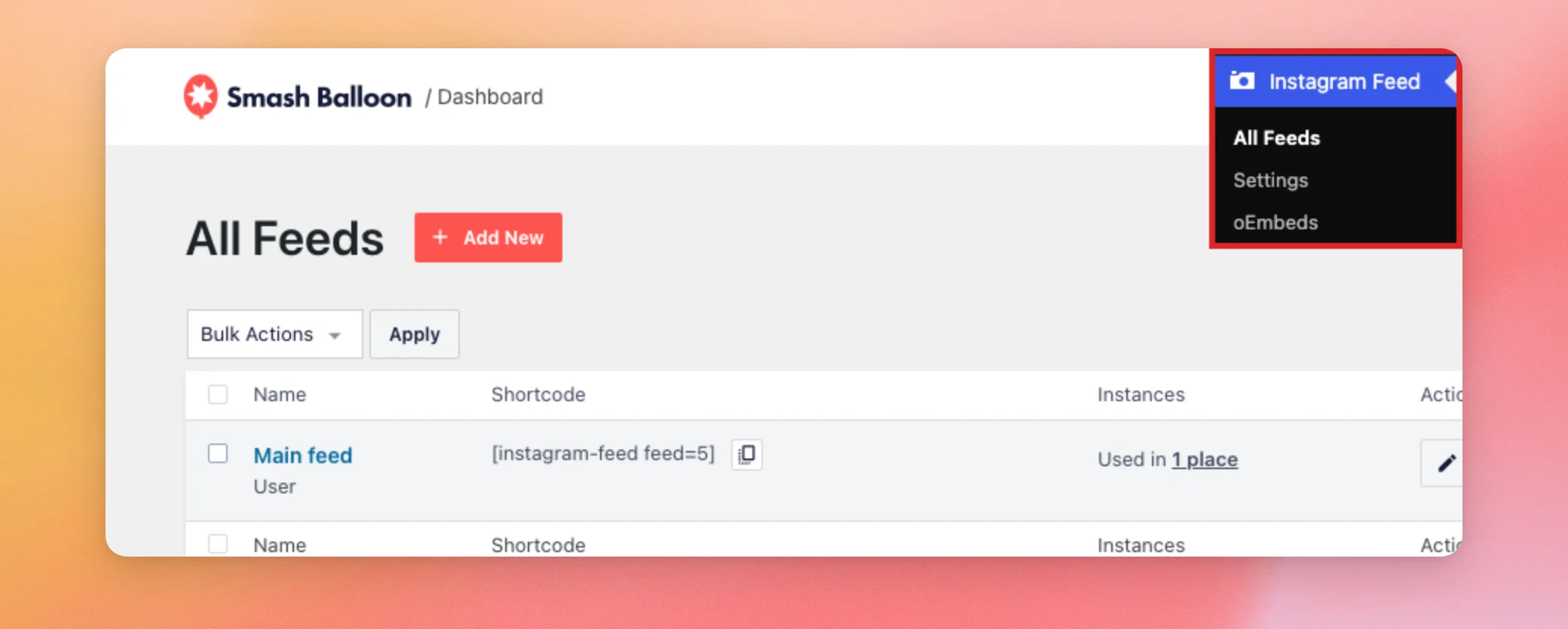
Next, click the name of the feed you want to change. The feed opens in the feed editor.
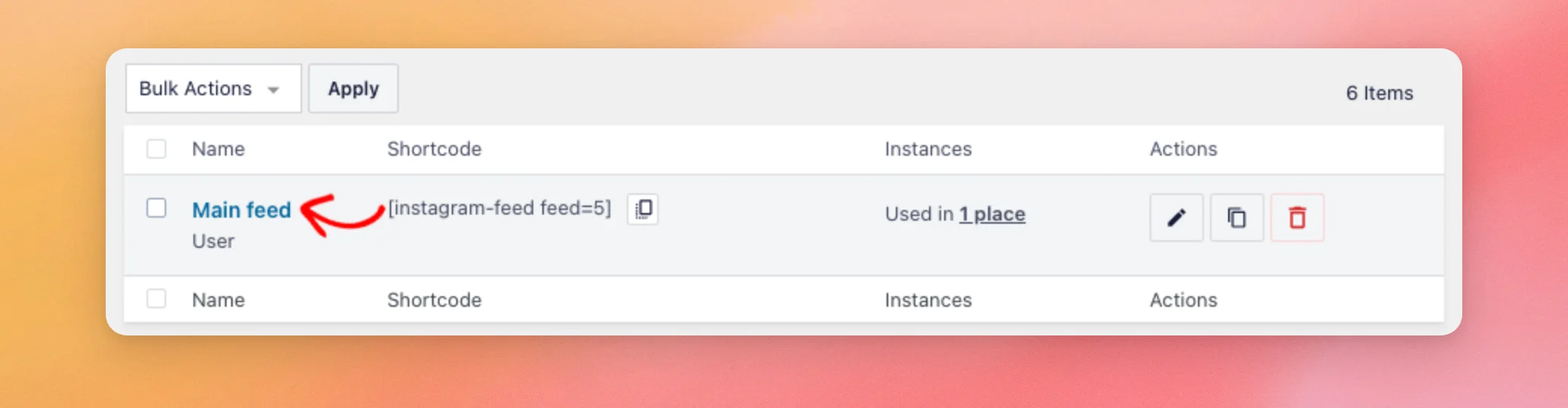
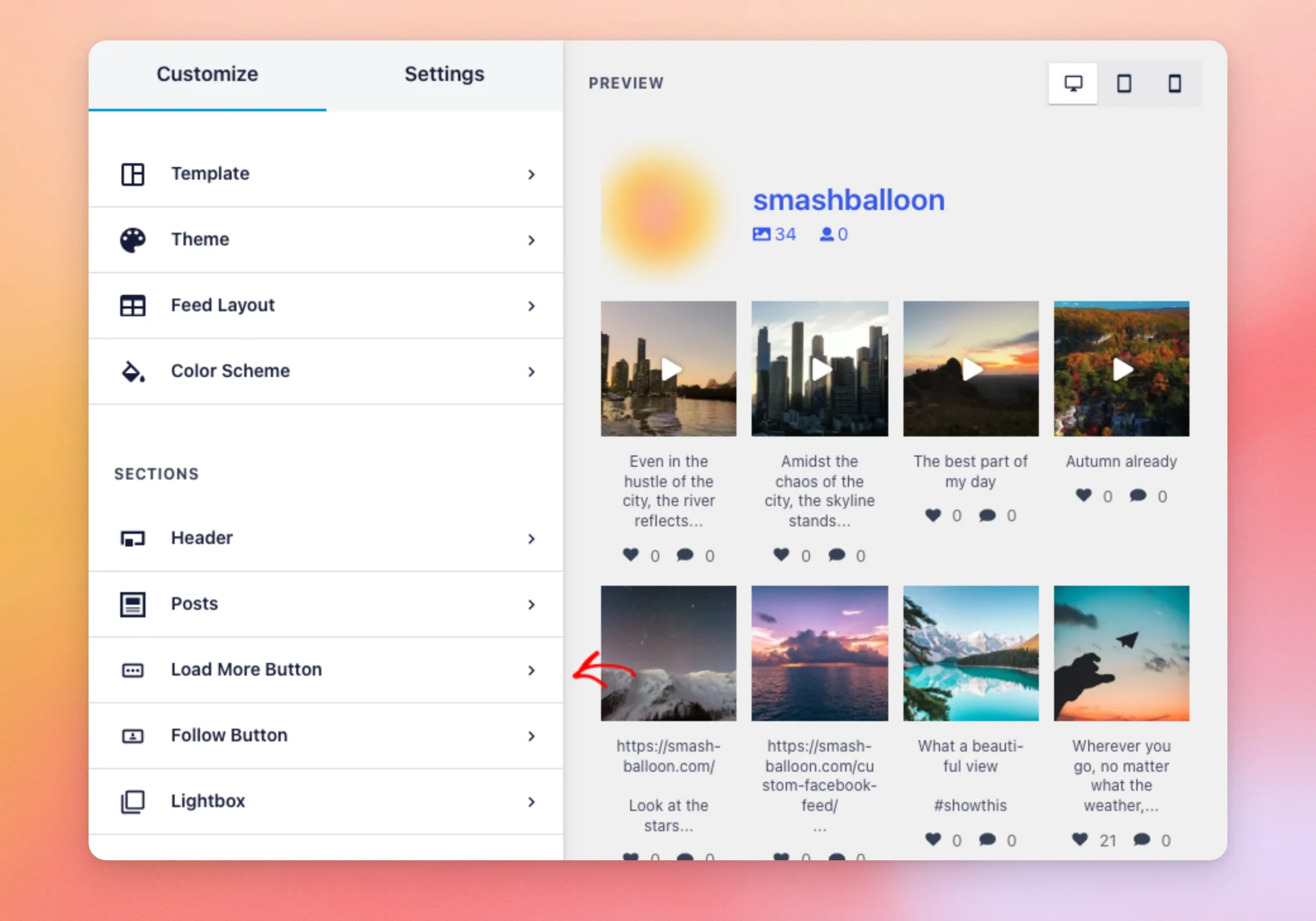
From the list of sections in the Customize tab, click Load More Button.
The Load More Button section holds most of the button’s settings. To show the button on your feed, the Enable switch must be turned on.
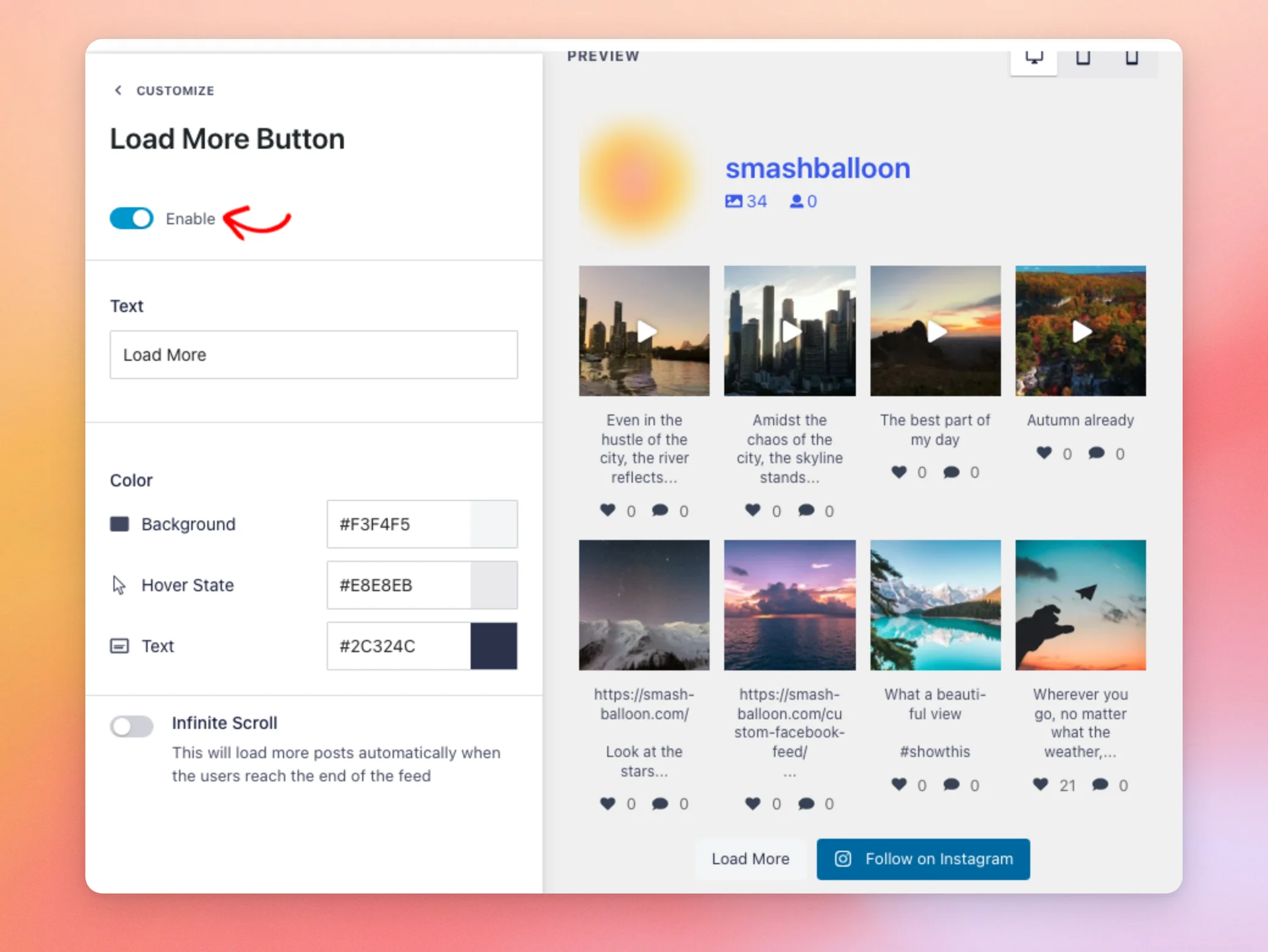
While Enable is on, the section shows these settings.
- Text is the label on the button. The default is Load More.
- Background, under Color, is the color of the button.
- Hover State is the color of the button while a visitor’s pointer is over it.
- Text, under Color, is the color of the button’s label.
- Infinite Scroll loads more posts as visitors scroll. We’ll cover it in the next section.
Turning Enable off hides the button and the rest of these settings.
Next, we’ll turn on Infinite Scroll.
Turning On Infinite Scroll
By default, Infinite Scroll is off. Visitors choose when to load more posts by clicking the button.
When you turn it on, they don’t need to click. As a visitor scrolls down to the bottom of the page, the next posts load by themselves.
Turn it on if you want visitors to keep browsing your posts without stopping to click. If you’re not sure, leave it off.
To turn it on, click the Infinite Scroll switch in the Load More Button section.
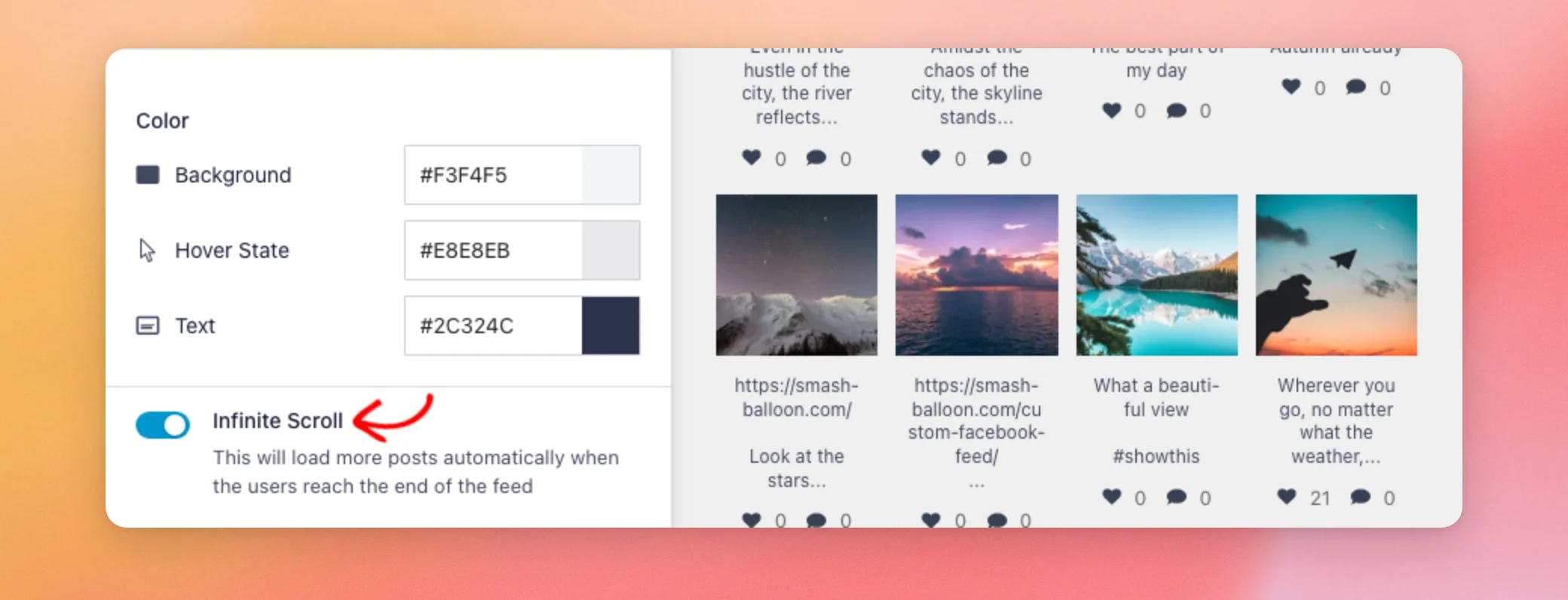
Here’s how Infinite Scroll works on your site.
- Each time it loads, it adds the same number of posts as a click on the button.
- The Load More button still shows, so visitors can also click it.
- Posts load when the visitor nears the bottom of the whole page, not the end of the feed. If your page has other content below the feed, visitors reach that content first.
- If you set a Feed Height in the Feed Layout section, the feed scrolls in its own box. Posts then load when the visitor nears the bottom of that box.
- Once every post has loaded, the button goes away and no more posts load.
Next, we’ll set how many posts each click adds.
Setting How Many Posts Each Click Adds
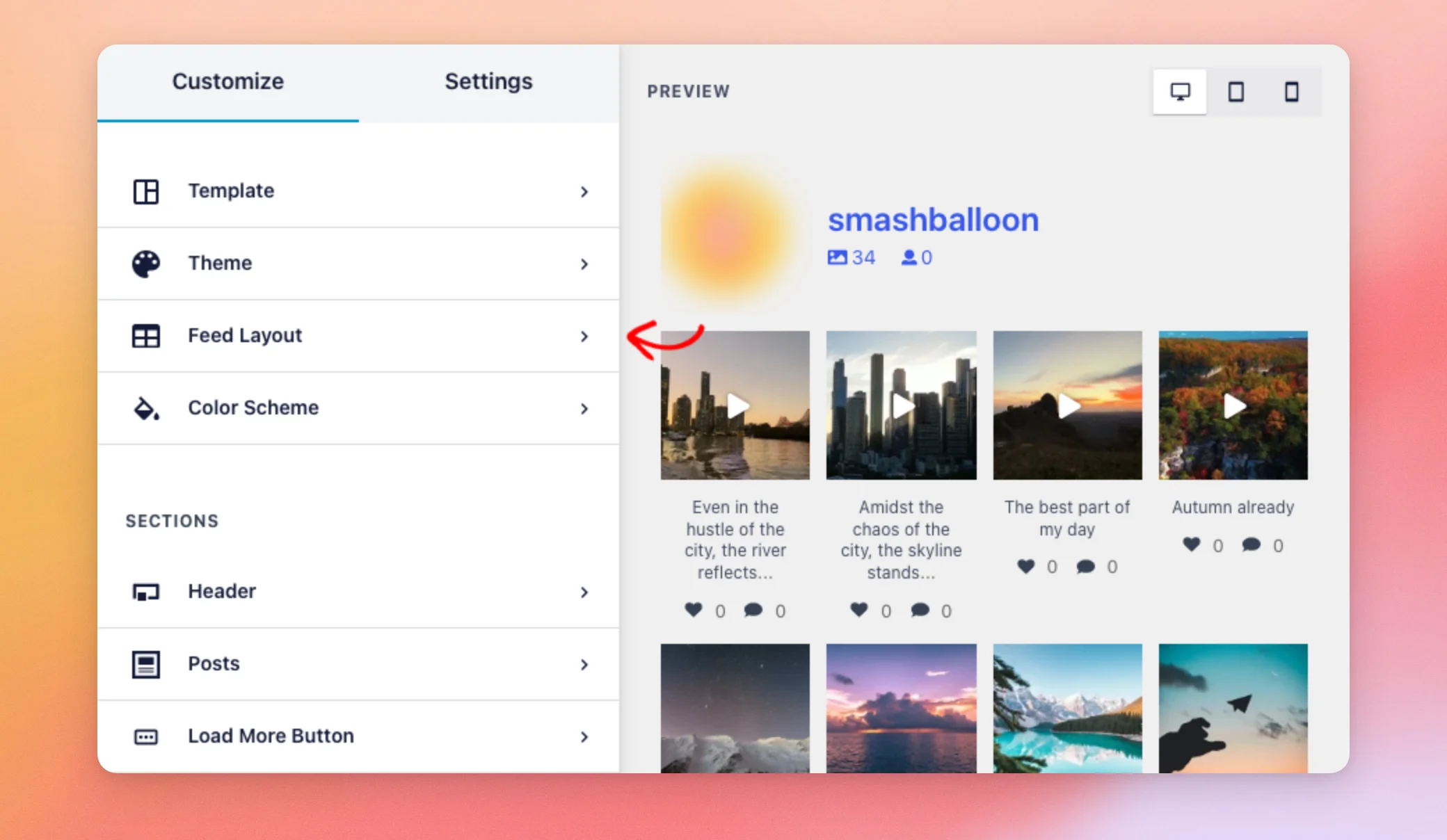
The number of posts each click adds is set in the Feed Layout section, not in the Load More Button section.
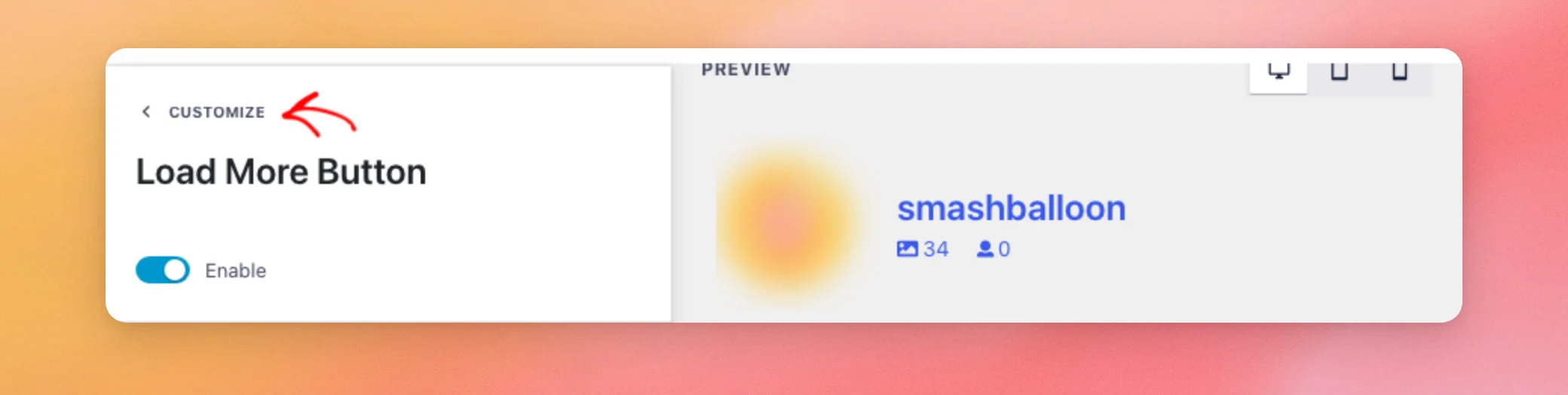
To go back to the list of sections, click Customize at the top of the sidebar.
Then, click Feed Layout.
Under Number of Posts, type the number you want in Desktop.
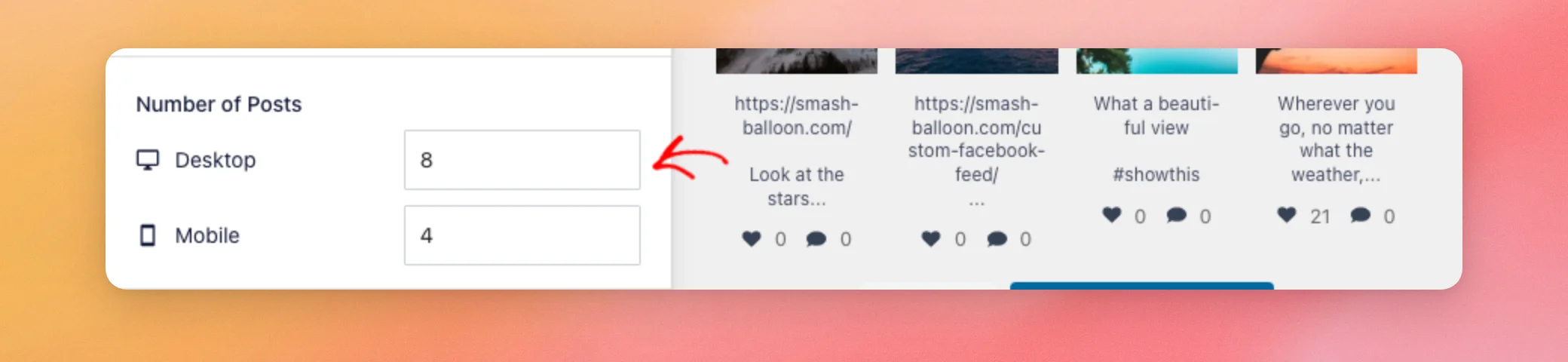
Number of Posts has two fields.
- Desktop is how many posts the feed shows first on screens 480 pixels wide or wider. It’s also how many posts each click on Load More adds, on every screen size.
- Mobile is how many posts the feed shows first on screens narrower than 480 pixels. On those screens, the first click also shows the posts the Mobile number held back.
For example, a new feed made from the Default template shows eight posts on desktop and four on phones. Each click then adds eight more.
On a phone, the first click also shows the four held back. One click takes the feed from four posts to 16.
Once your numbers are set, we’ll save the feed.
Saving Your Changes
When you’re done, click Save at the top of the feed editor.
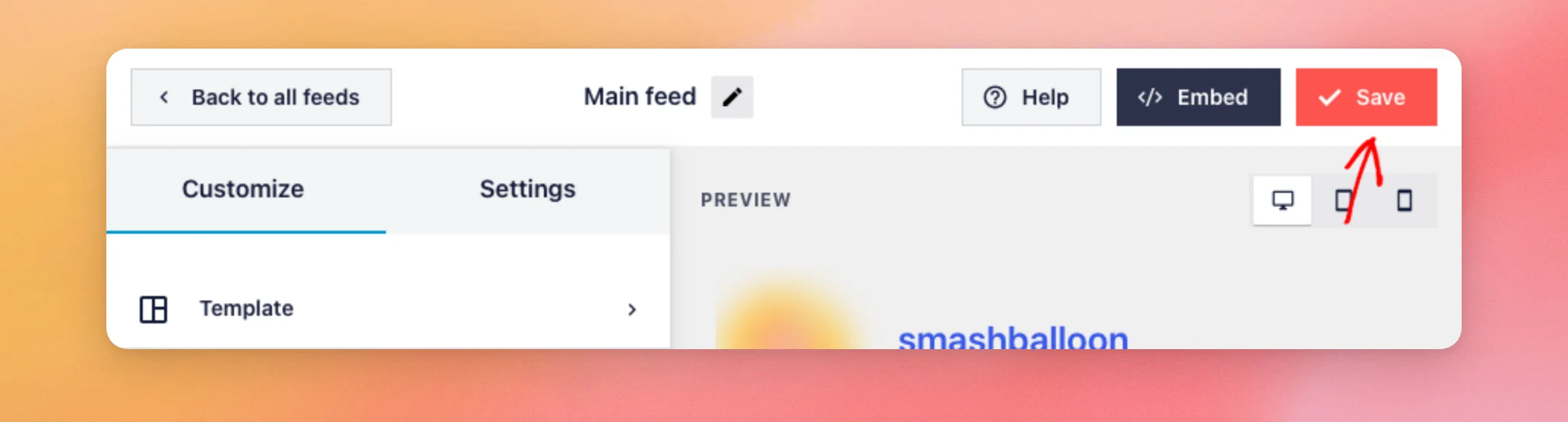
Your changes are now saved. Next, we’ll check the button on your site.
Seeing the Load More Button on Your Site
Now, open a page that shows your feed. The Load More button appears below your posts. To see the next posts, click Load More.
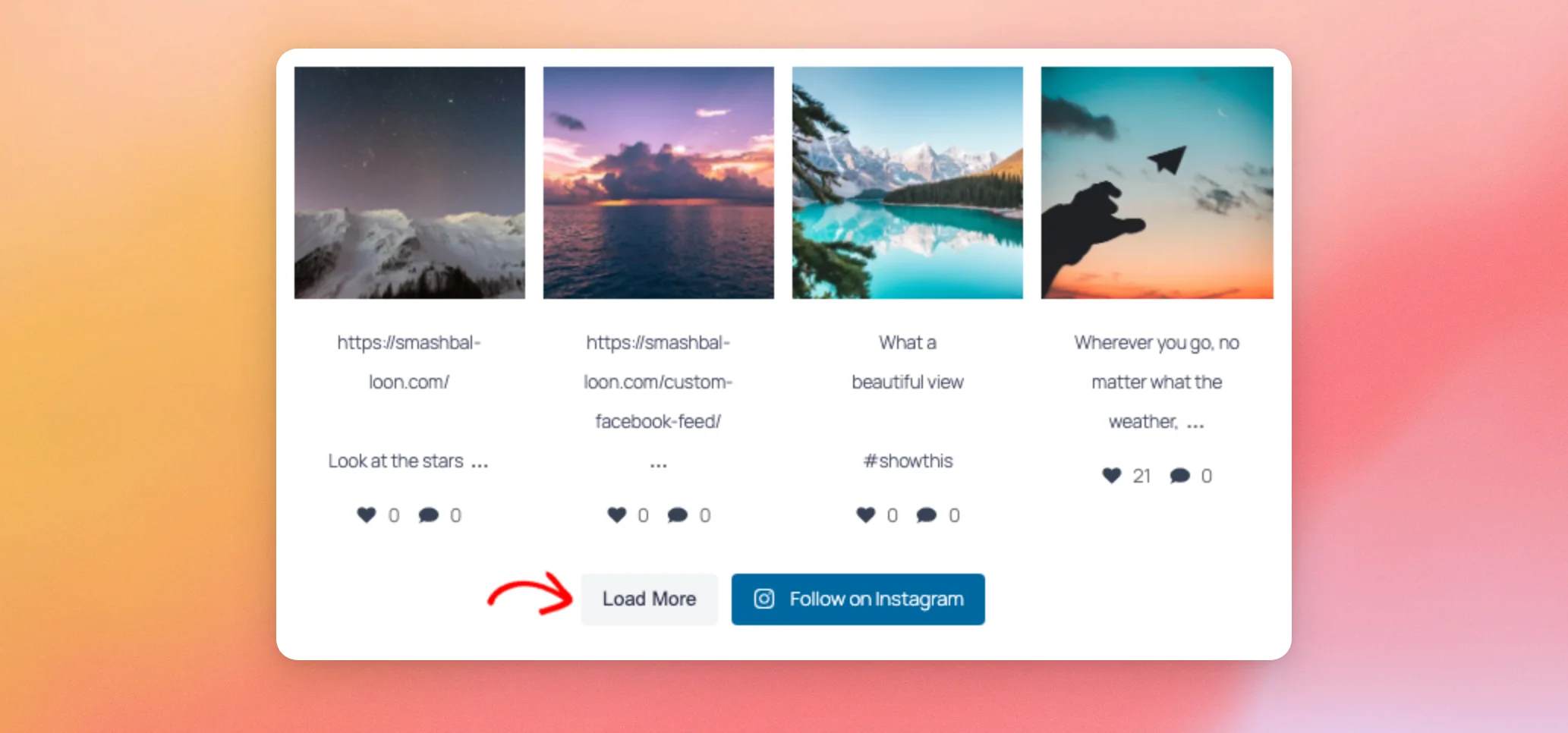
The next posts appear below the ones already showing.
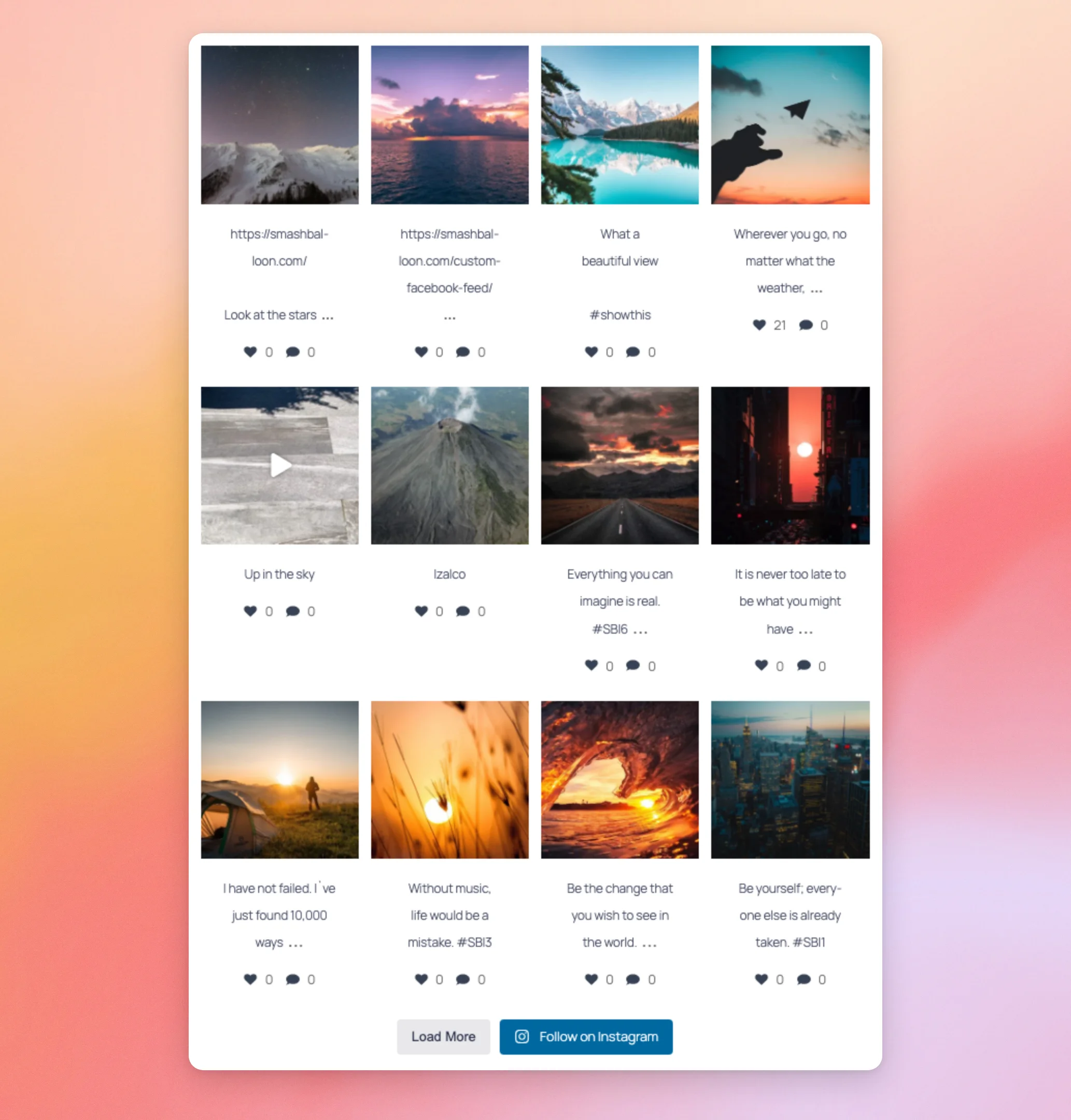
When every post in your feed has loaded, the button goes away.
That’s it! You now know how to set up the Load More button and Infinite Scroll in your Instagram feed. Next, see how to make a page with your feed load faster.
Frequently Asked Questions
Below, we’ve answered some of the most common questions about the Load More button and Infinite Scroll.
Why doesn’t Load More add any posts to my feed?
The button asks your site for the next posts through a WordPress file called admin-ajax.php. If a security plugin or firewall blocks that request, no new posts appear. To fix it, see our guide on admin-ajax requests that aren’t working.
How many posts does Infinite Scroll load on my feed at a time?
The same number as a click on Load More. That’s the Desktop number under Number of Posts in the Feed Layout section.
Can I use Infinite Scroll in the free Instagram Feed plugin?
Infinite Scroll comes with Instagram Feed Pro, at any license level. With the free plugin, visitors load more posts with the Load More button. To compare the two, see the differences between the free plugin and Instagram Feed Pro.




