Social Wall
 Feed Analytics


Would you like to know what each setting on the Social Wall Settings page does before you change it?
This guide walks through the Settings page one tab at a time, covering what each setting does and its default value.
Before you get started, make sure Social Wall is installed and activated on your site.
Note: The defaults listed are the values a new site shows. Until you click Save Changes for the first time, the plugin uses these defaults.
Using the General Tab
In your WordPress admin, go to Social Wall » Settings. The Settings link is at the top of the Social Wall page, next to All Feeds. The Settings page has 3 tabs: General, Feeds, and Advanced. The General tab opens first.
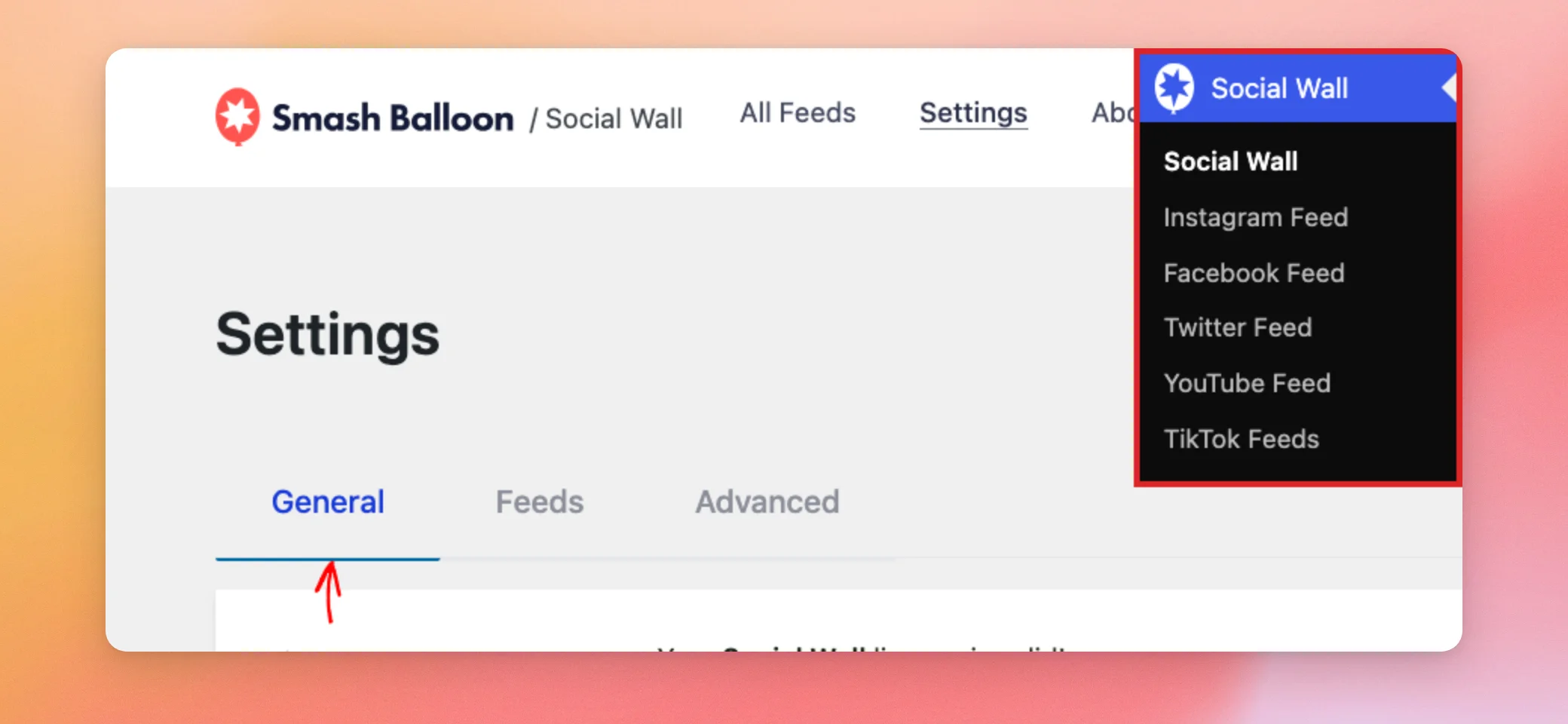
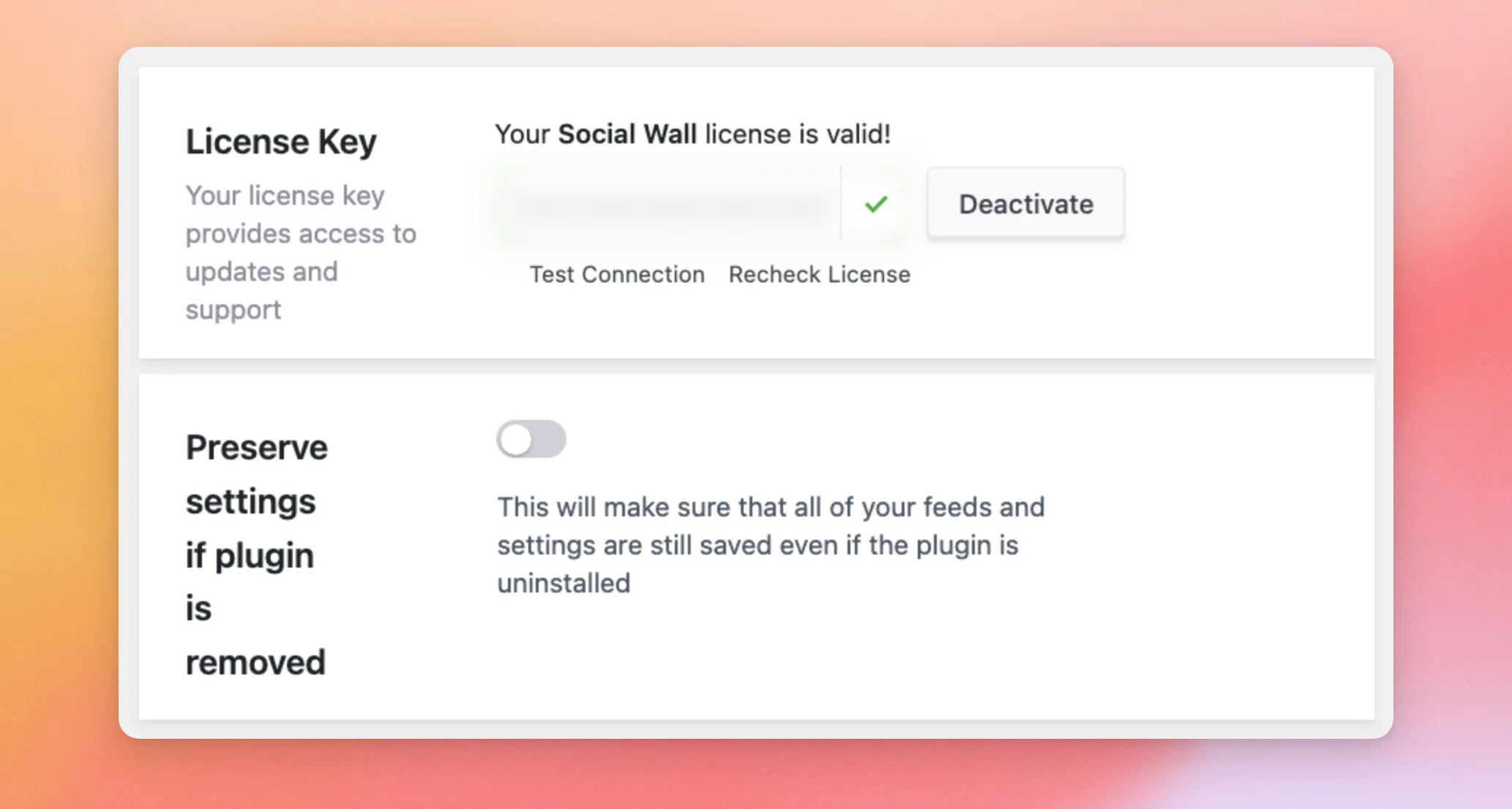
The General tab holds your license and 1 setting for keeping your data.
| Setting | What it does | Default |
|---|---|---|
| License Key | Your license key gives you access to updates and support. The box shows whether your license is valid. The key itself is hidden. Deactivate deactivates the license on this site. Test Connection and Recheck License both check your license again. If the license is inactive, an Activate button shows instead. | Your active license |
| Preserve settings if plugin is removed | When this is off (the default), uninstalling the plugin also deletes its settings. You can turn it on if you plan to reinstall the plugin later. Your settings are then still there. | Off |
Using the Feeds Tab
The Feeds tab holds the caching, GDPR, and custom code settings.
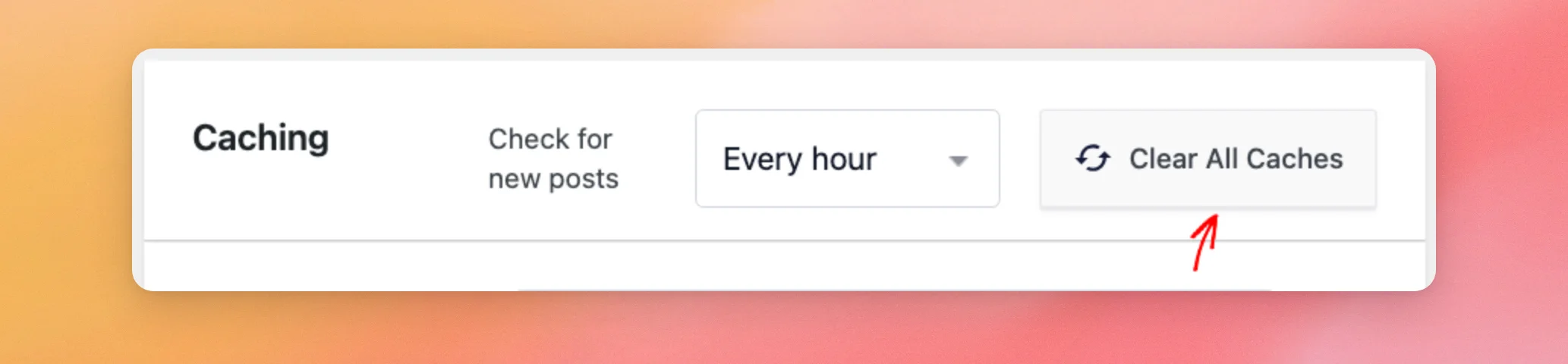
The Caching box has the Check for new posts dropdown and the Clear All Caches button.
| Setting | What it does | Default |
|---|---|---|
| Check for new posts | Sets how often your walls check for new posts. The options are Every 30 minutes, Every hour, Every 12 hours, and Every 24 hours. A shorter time shows new posts sooner. When you change it and save, the plugin schedules its checks again. | Every hour |
| Clear All Caches | Clears the data Social Wall saves for your walls. They’re then built again the next time someone views them. | None |
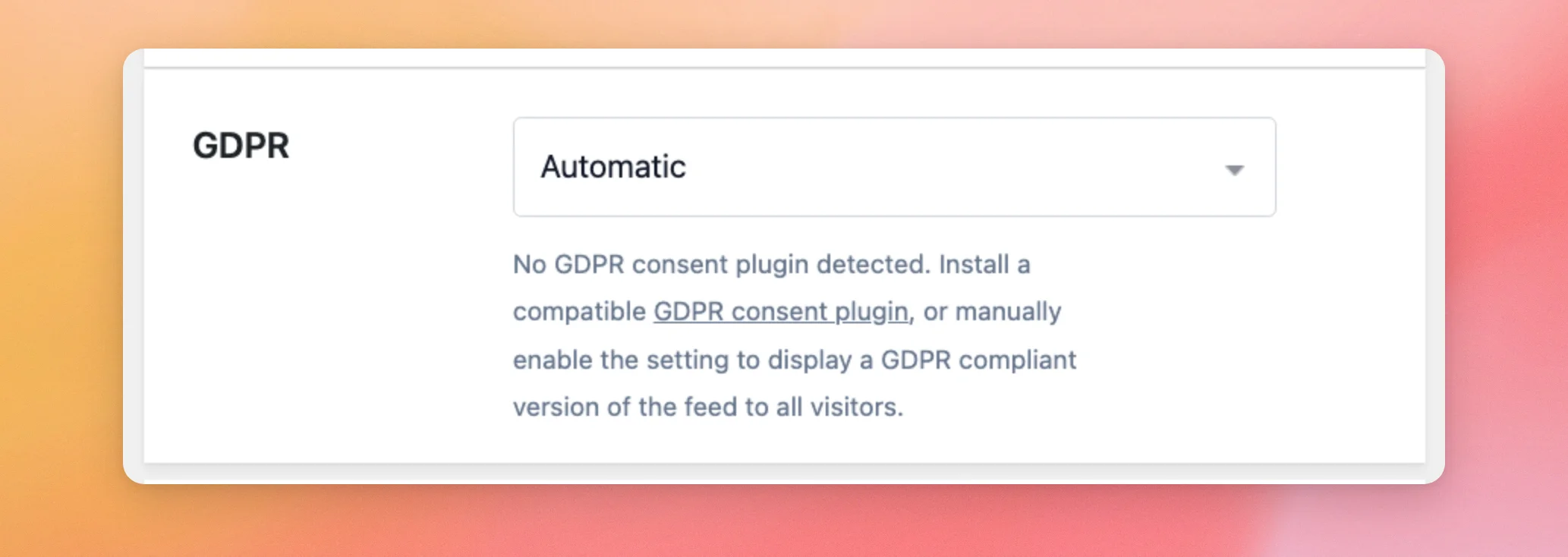
Below it, the GDPR box controls whether your walls follow the GDPR consent rules for your visitors.
| Setting | What it does | Default |
|---|---|---|
| GDPR | Automatic turns on GDPR compliance when the plugin detects a supported consent plugin. The supported plugins are Cookie Notice, GDPR Cookie Consent, CookieYes, Cookiebot, Complianz, and Borlabs Cookie. Yes turns it on for all visitors. No keeps it off. If no consent plugin is detected, the text under the dropdown says so. If you’re not sure, leave it on Automatic. For more, see our guide on GDPR compliance. | Automatic |
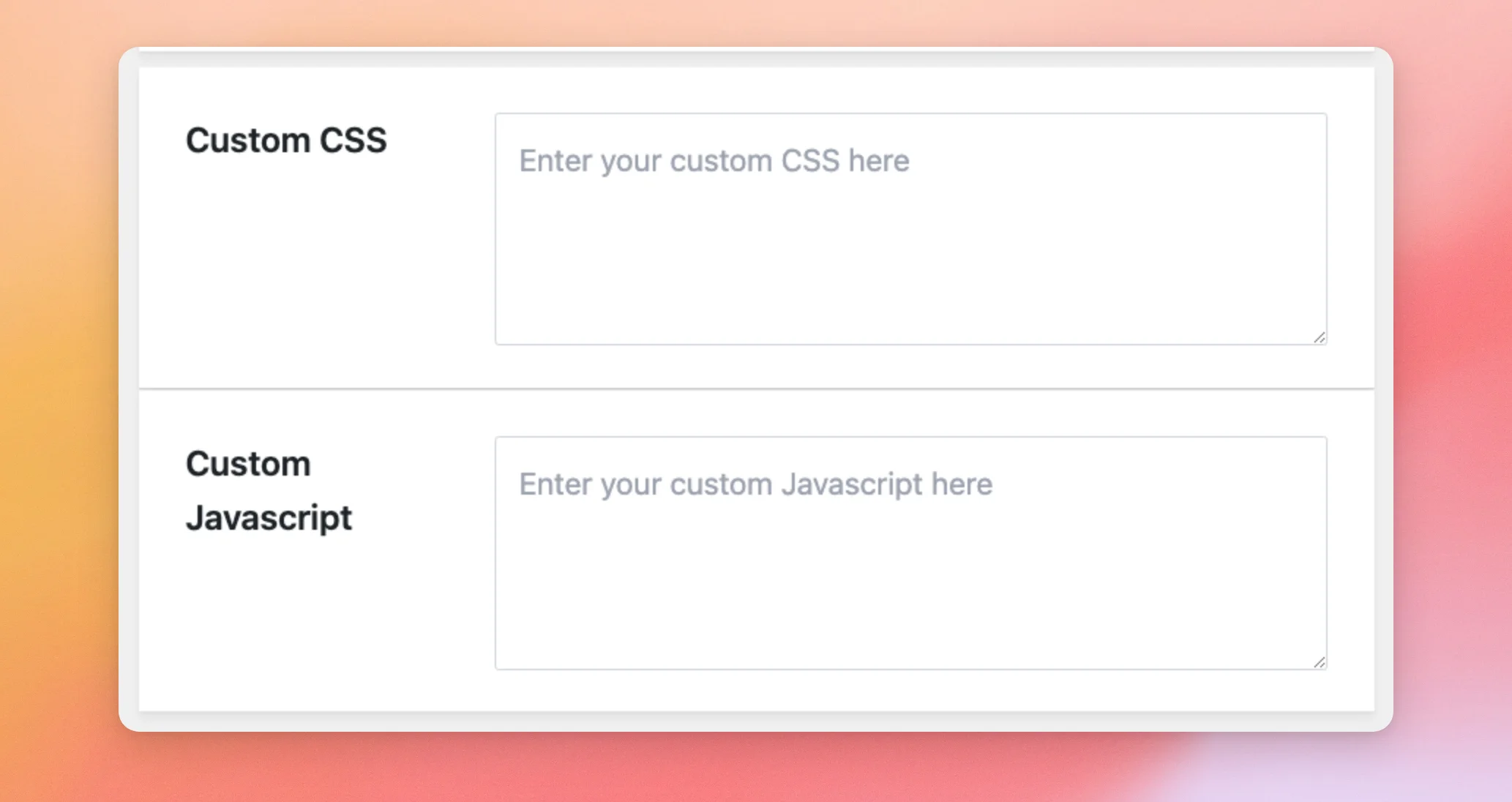
The last 2 boxes on the Feeds tab let you add your own code to your walls.
| Setting | What it does | Default |
|---|---|---|
| Custom CSS | Adds your own CSS to the head section of your site’s pages. You can use it to change how your walls look. | Empty |
| Custom Javascript | Adds your own JavaScript to your walls. The plugin runs it each time a wall finishes loading. | Empty |
Using the Advanced Tab
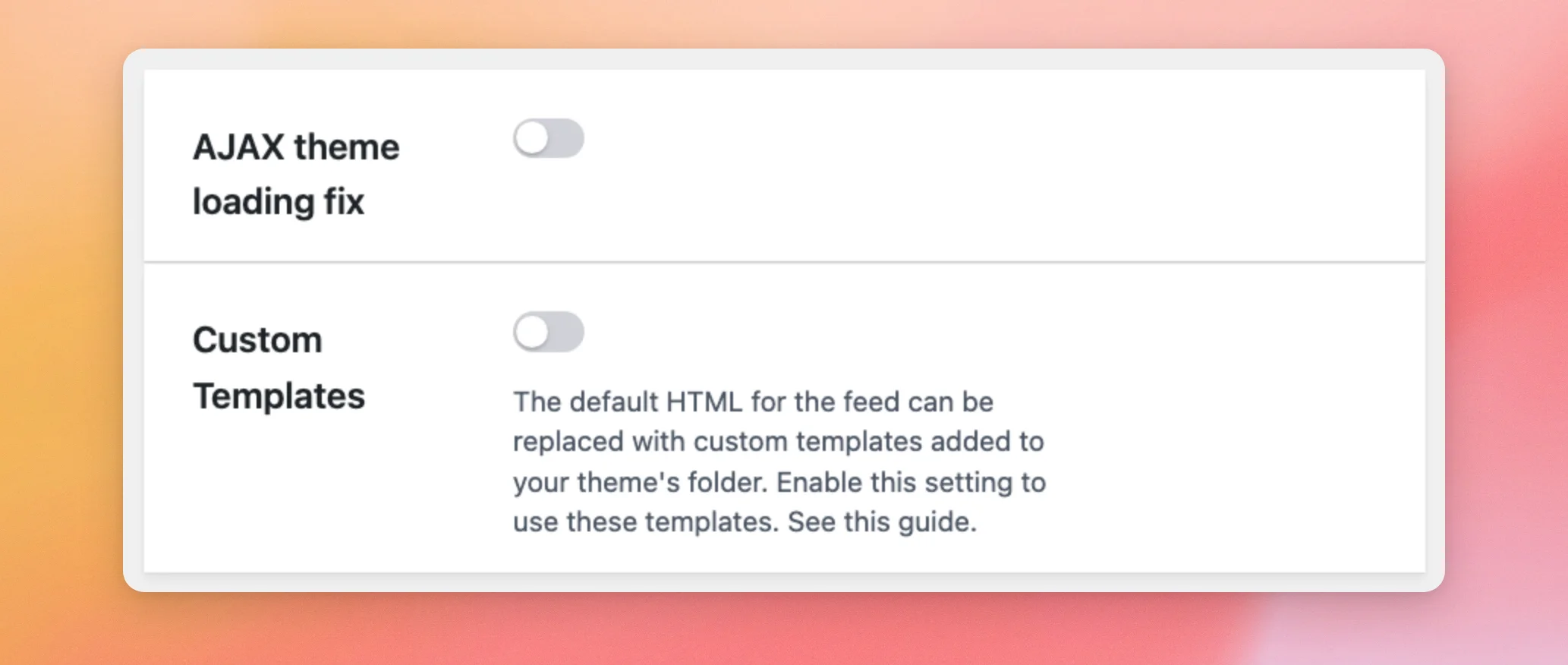
The Advanced tab holds 2 settings.
| Setting | What it does | Default |
|---|---|---|
| AJAX theme loading fix | Meant for themes that load page content with AJAX, without a full page refresh. If you’re not sure whether your theme works this way, leave it off. | Off |
| Custom Templates | Lets you replace the default HTML of your walls with your own templates, saved in your theme’s folder. When it’s off, your walls use the plugin’s own templates. For the steps, see our guide on custom templates. | Off |
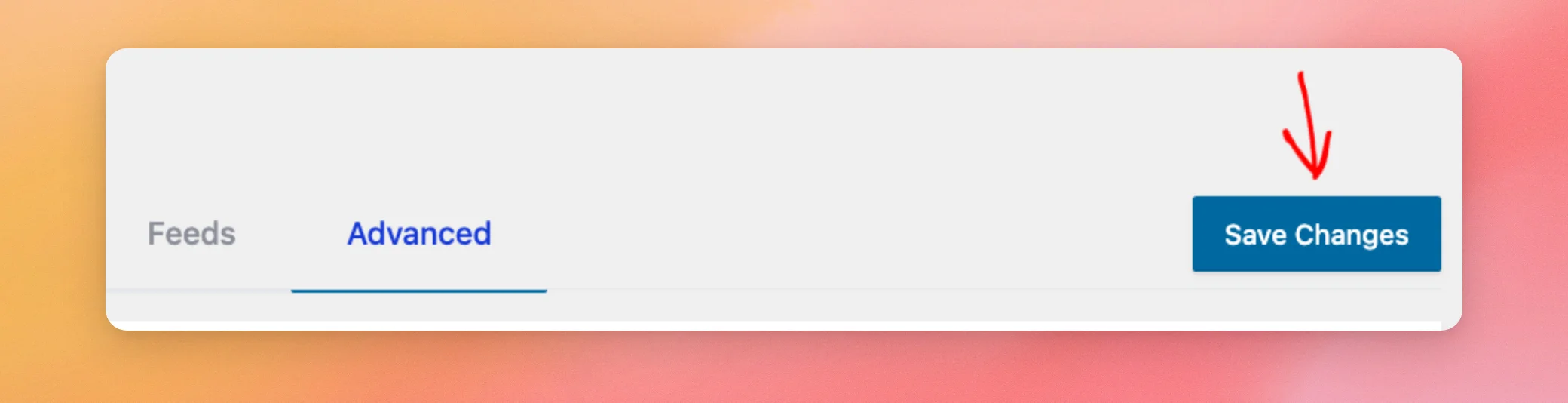
After you change a setting on any tab, click Save Changes. The button is to the right of the tabs, at the top of the page. It’s also at the bottom of each tab.
That’s it! You now know what every setting on the Settings page does and what its default is. To change the HTML of your walls, see our guide on custom templates.
Frequently Asked Questions
Below, we’ve answered some of the most common questions about the Settings page.
Will my settings be kept if I uninstall the plugin?
Only if Preserve settings if plugin is removed is on. It’s off by default. See the General tab section above.
Where are the Custom CSS and Custom Javascript settings?
Both are on the Feeds tab, not the Advanced tab.