Social Wall
 Feed Analytics


How to customize Social Wall feed HTML with PHP template files in your theme, and the maintenance trade-offs.
Would you like to change the HTML of your Social Wall with your own template files?
Social Wall can load its feed, header, item and footer templates from your theme instead of from the plugin. This lets a developer change the markup of a wall without editing the plugin’s files.
This guide walks through turning the setting on, adding the sbsw folder to your theme, and choosing which template files to change.
Before you get started, make sure Social Wall is installed and activated on your site.
Note: Custom templates may need maintenance when you update Social Wall, and they may limit the amount of support we can offer. Your wall works without them, so we recommend starting with the settings in the wall editor.
- Turning On Custom Templates
- Creating the sbsw Folder
- Adding Your Template Files
- Turning On Templates With Code
- Frequently Asked Questions
Turning On Custom Templates
To get started, we’ll turn on the Custom Templates setting.
In your WordPress admin, go to Social Wall » Settings. The Settings link is at the top of the Social Wall page, next to All Feeds. Once Settings opens, click the Advanced tab.
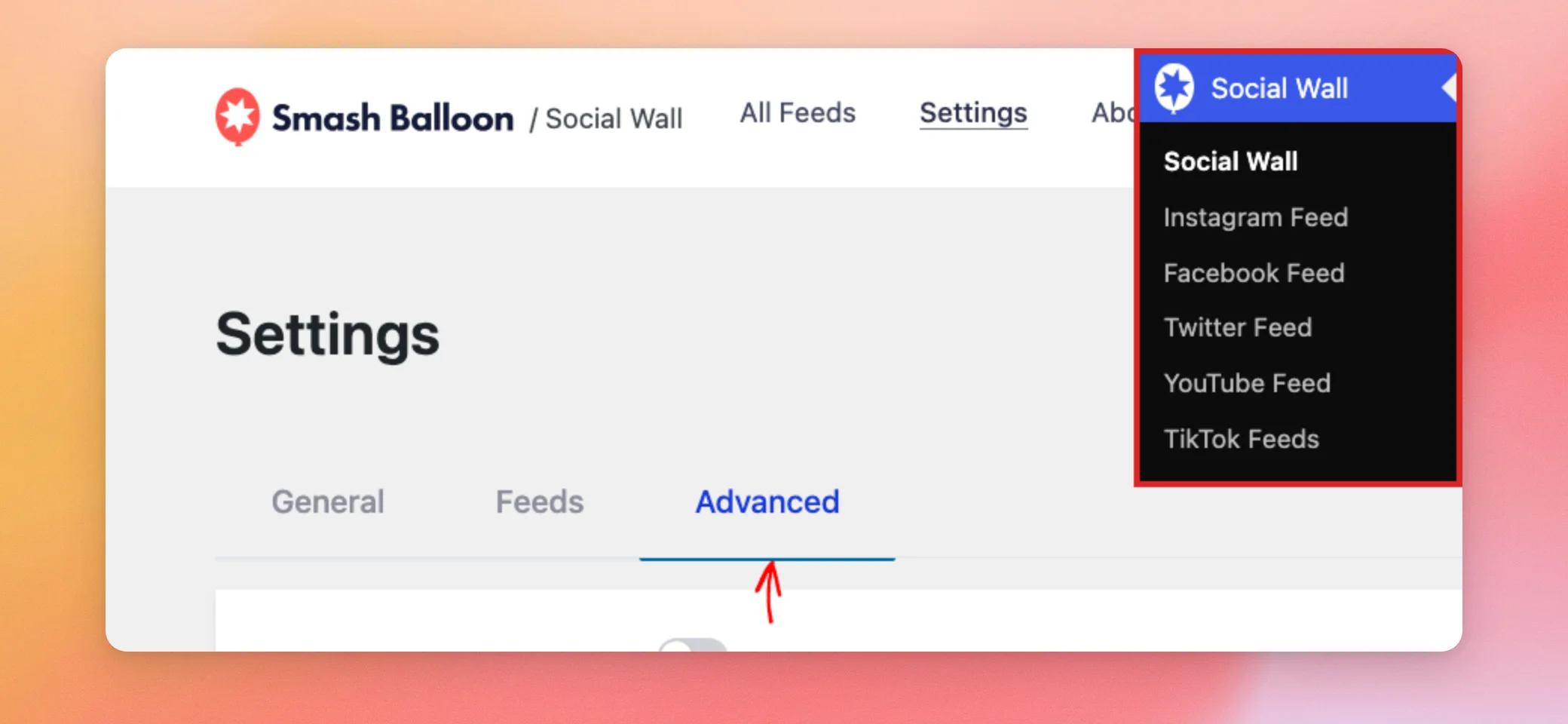
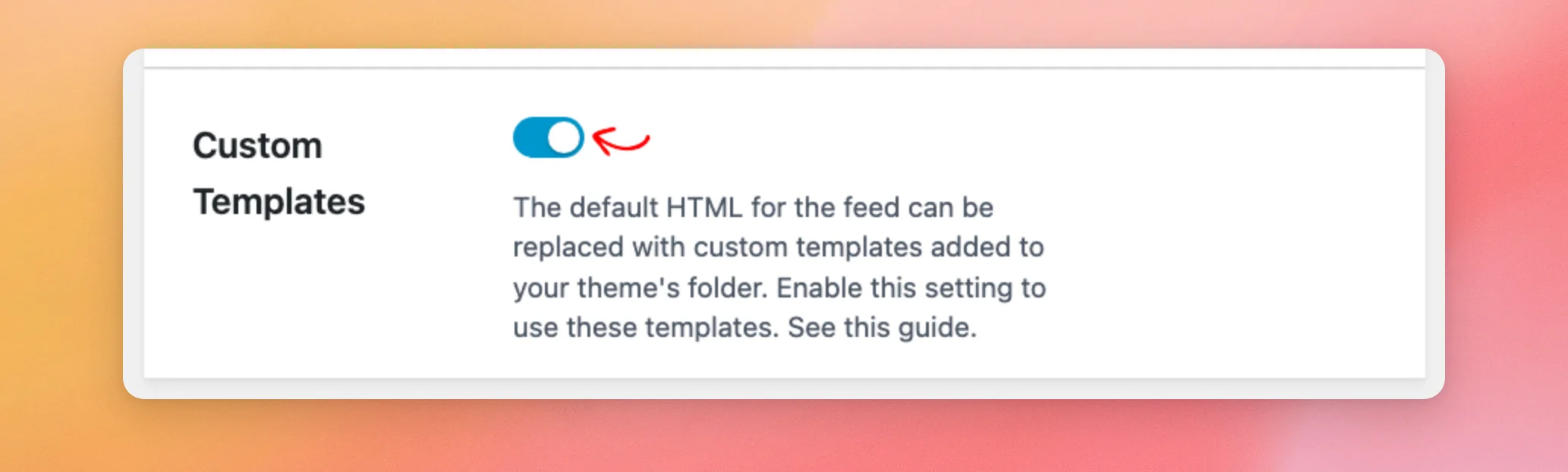
Next, switch on the Custom Templates setting. It’s off by default. Your walls use the plugin’s own templates until you switch it on.
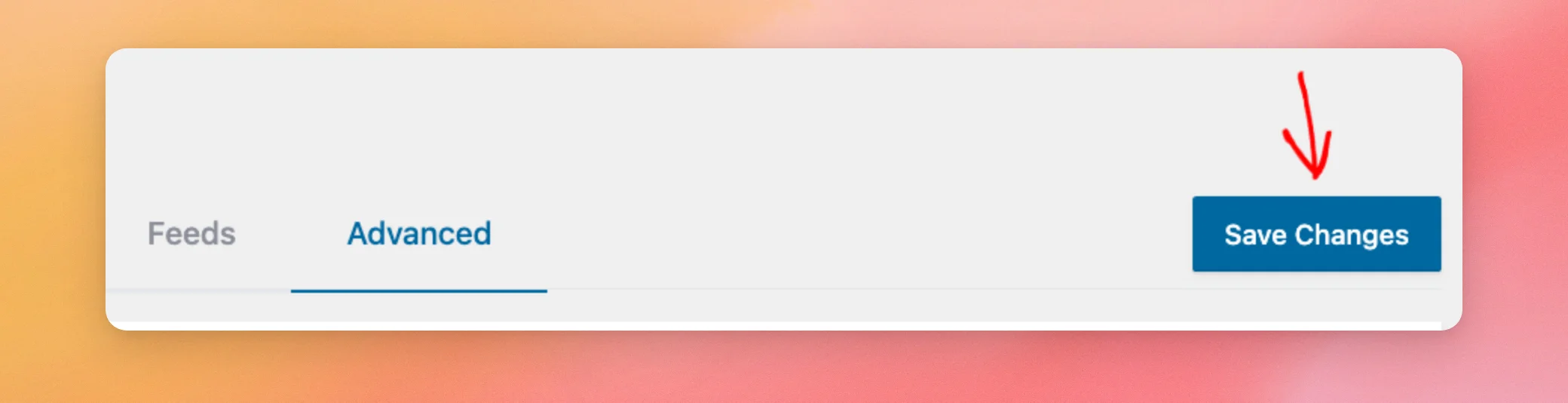
Then click Save Changes at the top of the page.
For every other setting on this page, see our Social Wall settings reference.
With the setting on, Social Wall is ready to look for template files in your theme.
Creating the sbsw Folder
Next, add a folder named sbsw to your active theme. We recommend using a child theme. This way, a theme update doesn’t remove your templates. Social Wall looks in the child theme first, then in the parent theme.
wp-content/themes/your-child-theme/sbsw/Next, you’ll add the template files you want to change.
Adding Your Template Files
Inside the sbsw folder, add only the files you want to change. Social Wall checks for each file on its own. Any file you leave out keeps using the plugin’s version. These are the 4 file names it looks for:
| File | What it controls |
|---|---|
feed.php | The wall’s outer container, which holds the header, the posts, and the footer. |
header.php | The filter bar above the posts. It shows only when the wall uses the Masonry layout, its filter bar is on, and the wall pulls posts from 2 or more plugins. |
item.php | Each post in the wall. |
footer.php | The area below the posts, which holds the Load More button. |
To start, copy the file you want to change from the plugin’s own templates folder into your sbsw folder. Then edit the copy.
wp-content/plugins/social-wall/templates/item.phpNote: The plugin’s templates use variables and functions that Social Wall prepares for them. When you edit your copy, keep that PHP in place and change the HTML around it.
Once the file is saved in your theme, reload the page that shows your wall. The wall now uses your file.
If you prefer code over the setting, there is a second way to turn templates on.
Turning On Templates With Code
You can also turn custom templates on from code, instead of the setting. Social Wall passes the setting through the sbsw_use_theme_templates filter before it looks for your files. Add this to your child theme’s functions.php file:
add_filter( 'sbsw_use_theme_templates', '__return_true' );Return false from the filter to make Social Wall ignore your theme’s templates.
That’s it! Your Social Wall now loads the template files from your theme’s sbsw folder. Next, you can learn what the other settings do in our Social Wall settings reference.
Frequently Asked Questions
Below, we’ve answered some of the most common questions about custom templates.
Do I need to add all 4 template files?
No. See the Adding Your Template Files section above.
Where should I put the sbsw folder?
In your active theme’s folder, or in your child theme if you use one. See the Creating the sbsw Folder section above.
Do custom templates change every wall on my site?
Yes. Custom Templates is a site-wide setting, not a setting for a single wall. Every wall uses your files.