


 Social Wall
 Feed Analytics


Would you like to know what each setting on the TikTok Feeds Settings page does before you change it?
This guide walks through the Settings page one tab at a time, covering what each setting does and its default value.
Before you get started, make sure TikTok Feeds is installed and activated on your site.
Note: This guide covers the paid version of the plugin. The defaults listed are the values a new site shows.
- Using the General Tab
- Using the Feeds Tab
- Using the Advanced Tab
- Using the Code Snippets Tab
- Frequently Asked Questions
Using the General Tab
From your WordPress admin sidebar, go to TikTok Feeds » Settings. The page has 4 tabs: General, Feeds, Advanced, and Code Snippets. The General tab opens first.
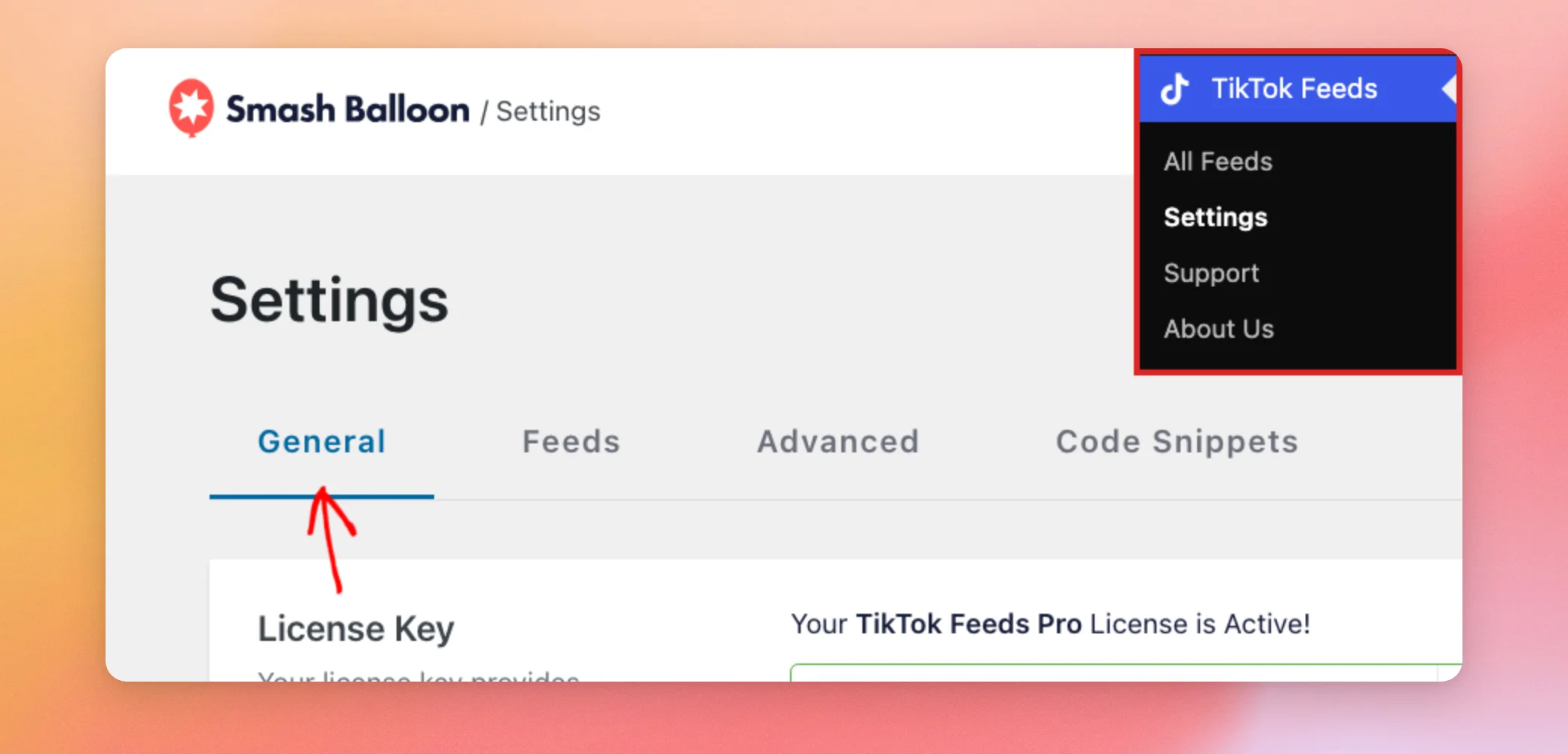
The first group of settings covers your license and the AI tools. The AI Agents and MCP Write Access settings show only on WordPress 6.9 or later.
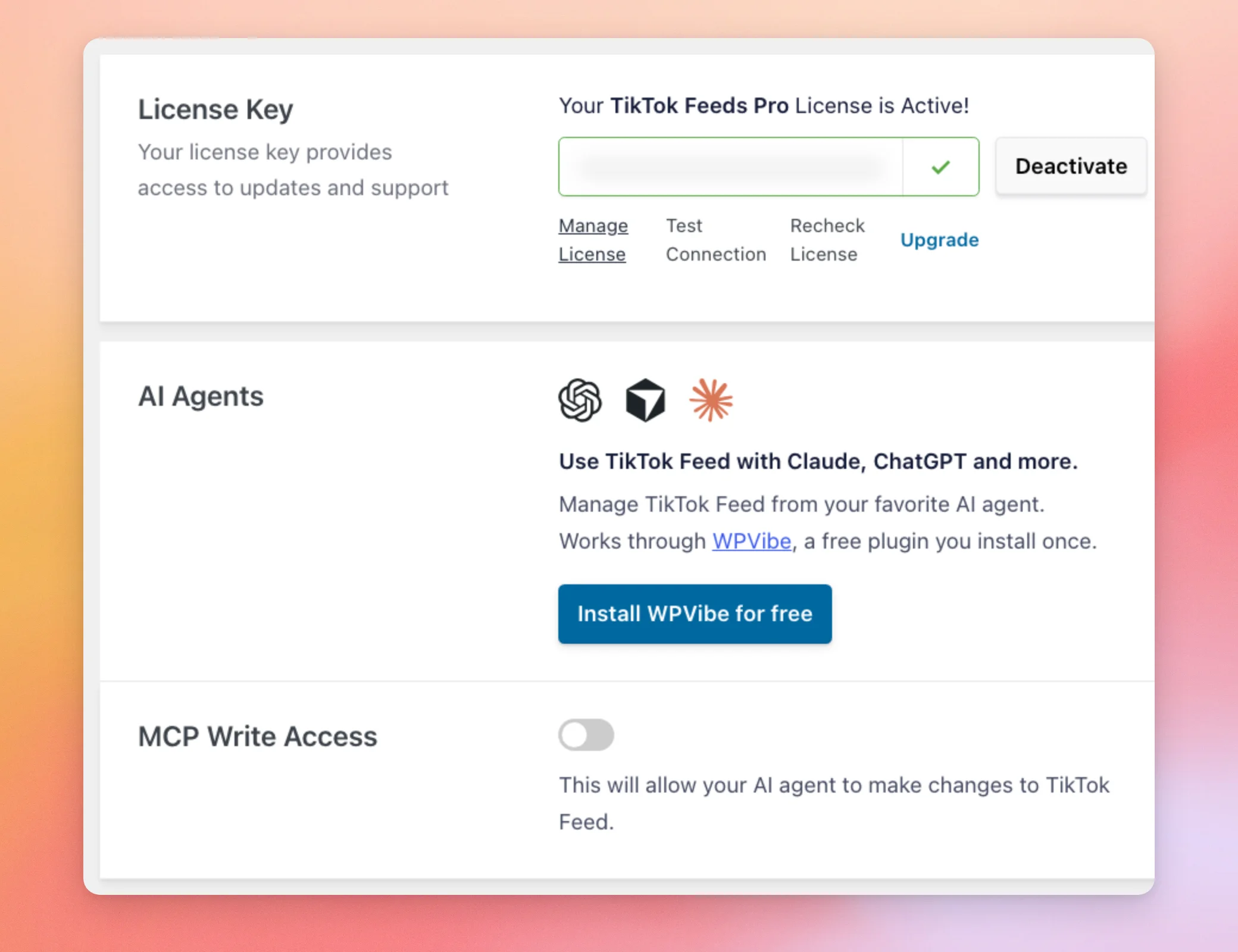
| Setting | What it does | Default |
|---|---|---|
| License Key | Your license key gives you access to updates and support. The box shows whether your license is active. The key itself is hidden. Deactivate deactivates the license on this site. Manage License opens your Smash Balloon account. Test Connection checks that your site can reach the license service. Recheck License refreshes your license details. Upgrade shows the plans you can upgrade to. | Your active license |
| AI Agents | Lets you manage your feeds from an AI agent such as Claude or ChatGPT. It works through WPVibe, a free plugin that you install once with the Install WPVibe for free button. | Not installed |
| MCP Write Access | TikTok Feeds keeps this off by default. That way, your AI agent can only read from the plugin until you choose to allow changes. When it’s on, the agent can also make changes to your feeds. For the steps, see our guide on turning on MCP Write Access. | Off |
Next is Manage Sources, where the TikTok accounts you connect are listed. On a new site it’s empty. The Add Source button adds your first account.
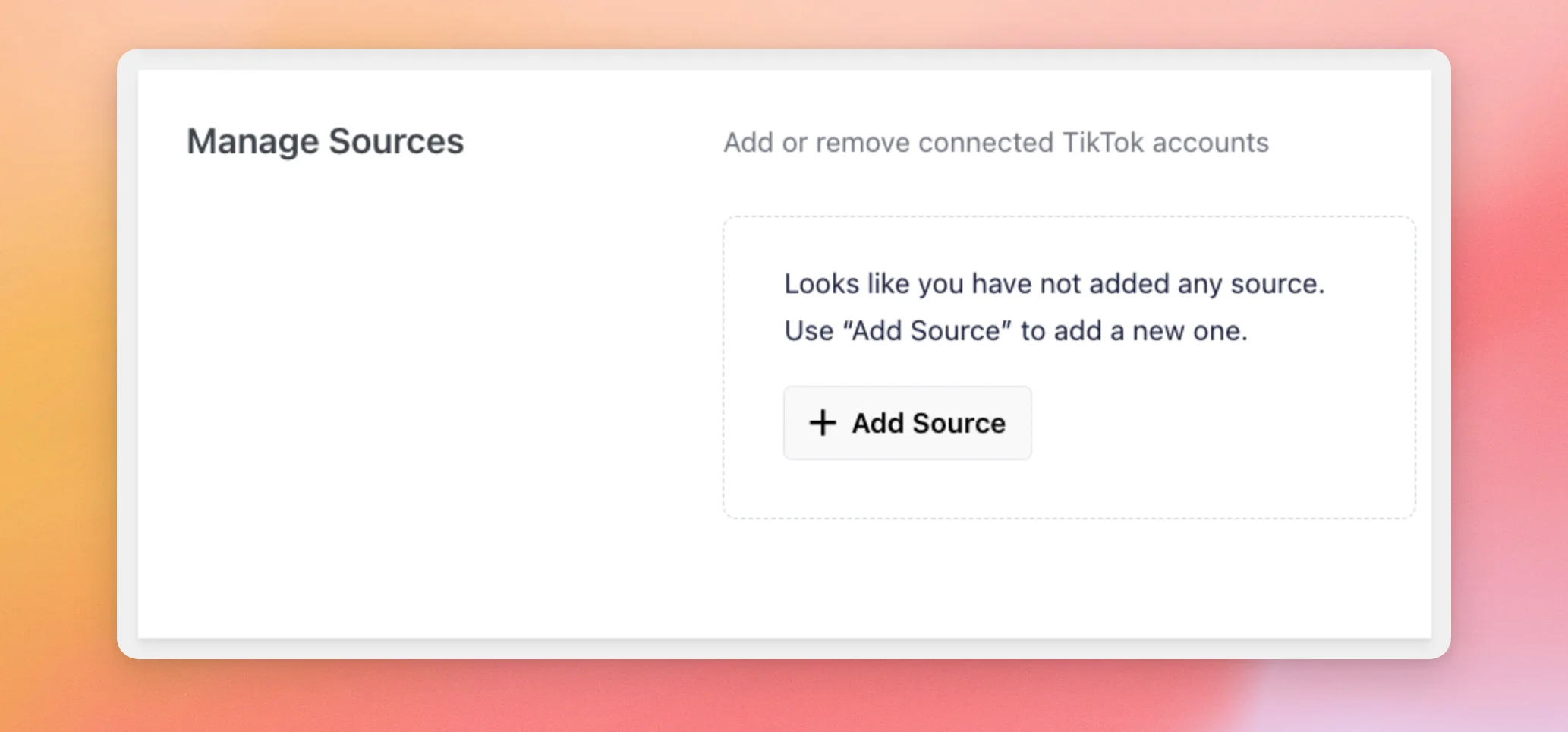
To learn how to connect an account and build your first feed, see our guide on creating a feed.
The next group holds the settings for keeping and moving your feeds.
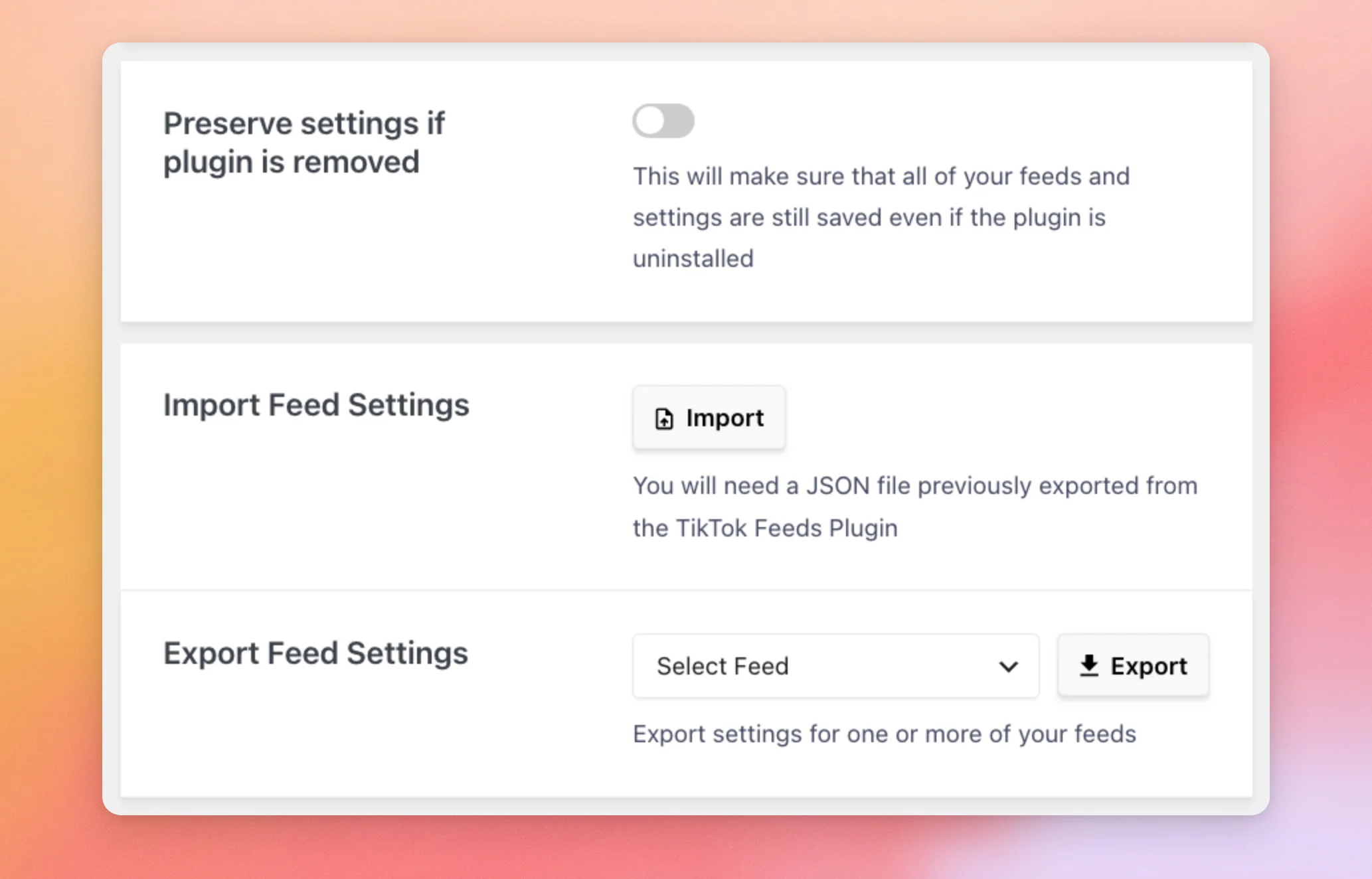
| Setting | What it does | Default |
|---|---|---|
| Preserve settings if plugin is removed | Keeps all of your feeds and settings saved if you uninstall the plugin. If you install it again later, they’re still there. When it’s off, uninstalling the plugin deletes them. Turn it on if you plan to reinstall the plugin later and want your feeds back. | Off |
| Import Feed Settings | Takes a JSON file that you exported earlier from the TikTok Feeds plugin. | No file |
| Export Feed Settings | Lets you choose which of your feeds to export and saves their settings to a file. | No feed selected |
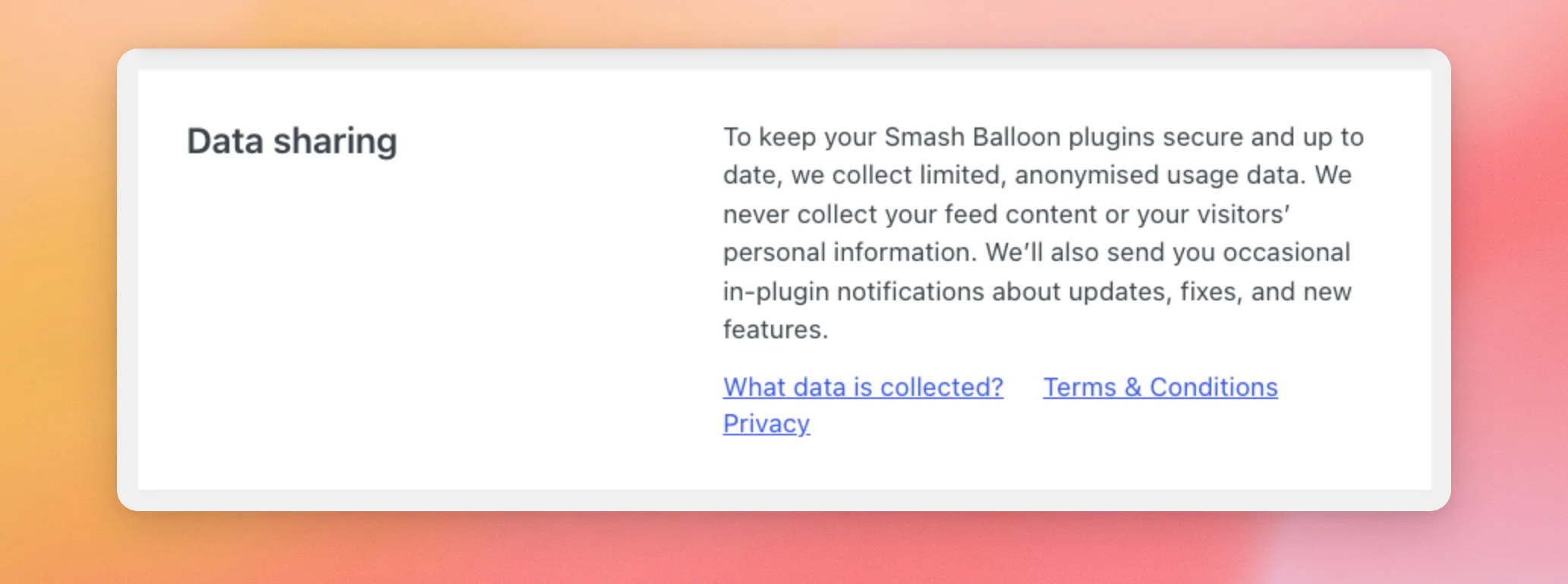
The last box on the General tab is Data sharing. It explains the limited, anonymized usage data Smash Balloon collects to keep your plugins secure and up to date. It also links to what data is collected, the terms and conditions, and the privacy policy. It’s information only, with no setting to change.
For details, see our guide on data sharing.
Using the Feeds Tab
The Feeds tab holds the caching and GDPR settings. To open it, click the Feeds tab.
The Caching box shows a short note about how often new posts are collected, and the Clear All Caches button. Clearing the caches removes the plugin’s saved feed data so your feeds load fresh posts. It also asks common caching plugins to clear theirs. To learn what controls how often your feed refreshes, see our guide on what to do when your feed isn’t updating.
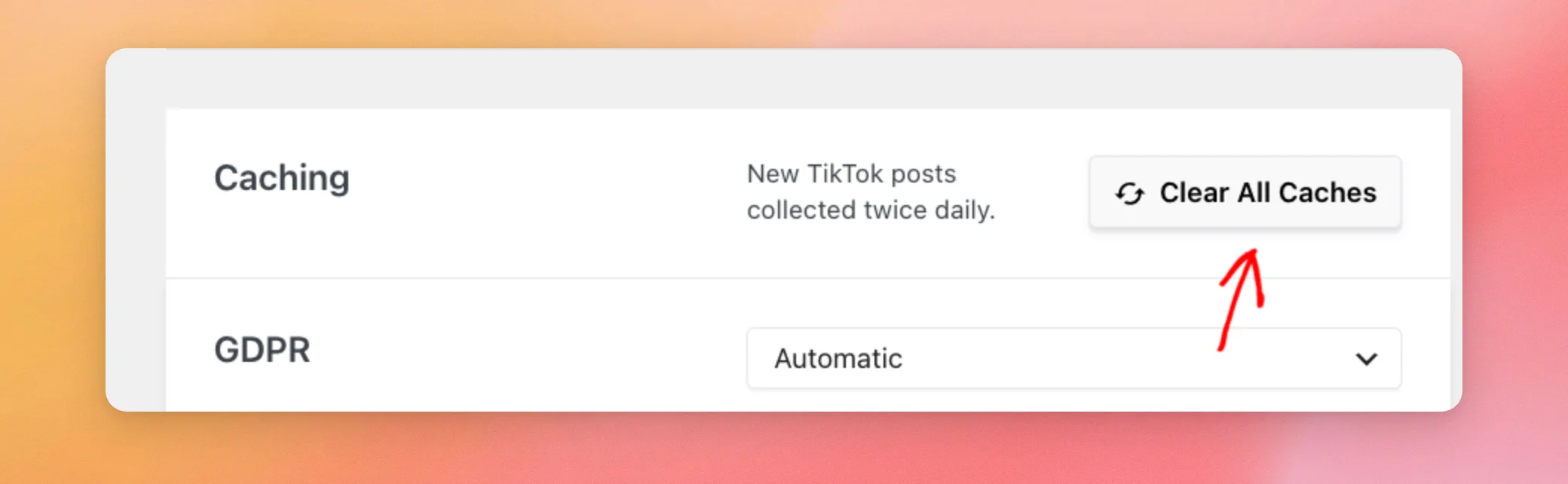
Below it, the GDPR setting controls whether your feeds follow the GDPR consent rules for your visitors.
| Setting | What it does | Default |
|---|---|---|
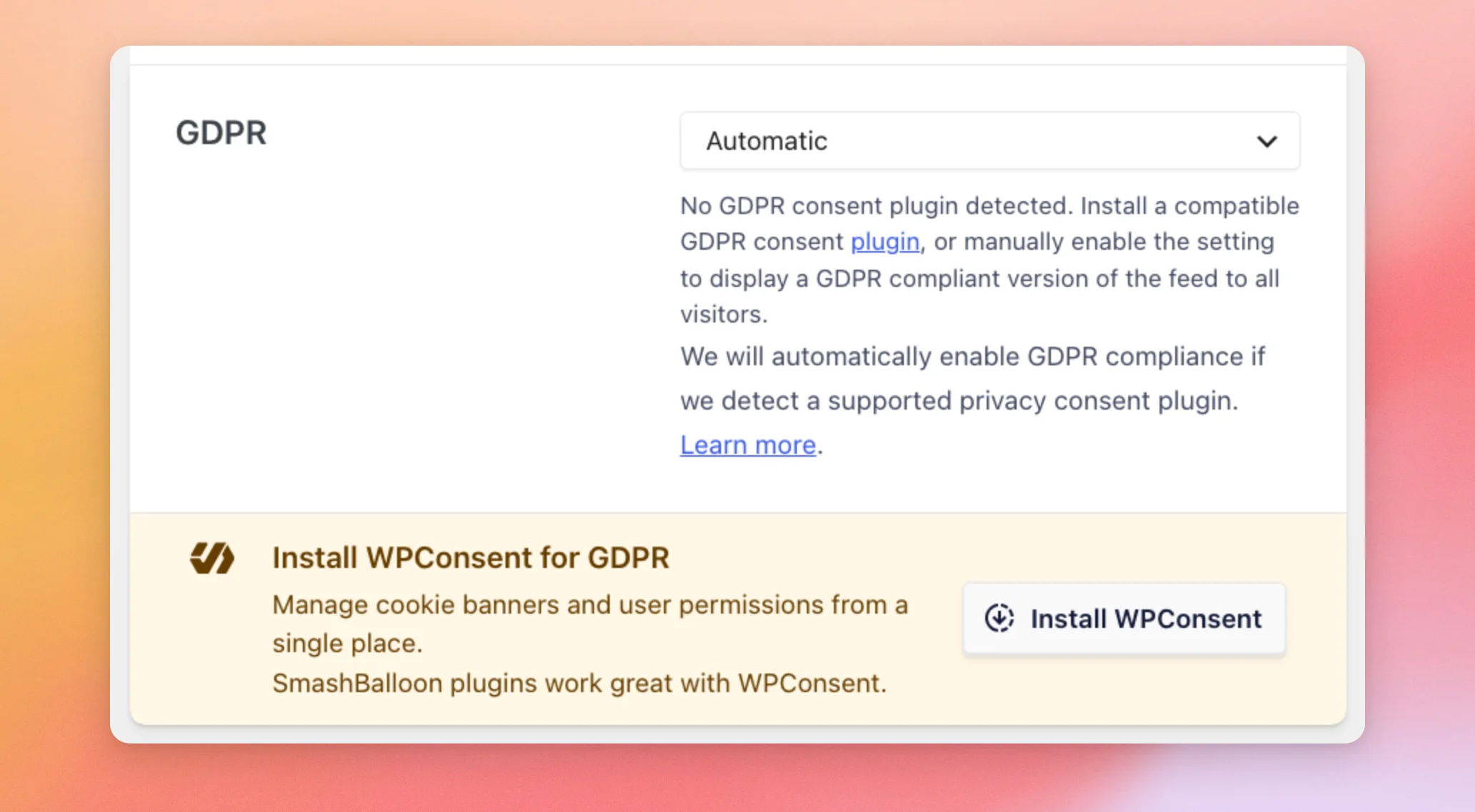
| GDPR | Automatic turns on GDPR compliance when the plugin detects a supported privacy consent plugin. Yes turns it on for all visitors. No keeps it off. While GDPR compliance is on, the feed makes no requests to TikTok until a visitor gives consent. Until then, it shows only locally stored images and links each video to TikTok. When it’s off, the feed loads images and videos directly from TikTok. The text under the dropdown changes to match your choice. If you’re not sure, leave it on Automatic. It turns GDPR compliance on only when a supported consent plugin is detected. For more, see our guide on GDPR compliance. | Automatic |
The Install WPConsent for GDPR banner under the setting offers the free WPConsent plugin for managing cookie banners.
Using the Advanced Tab
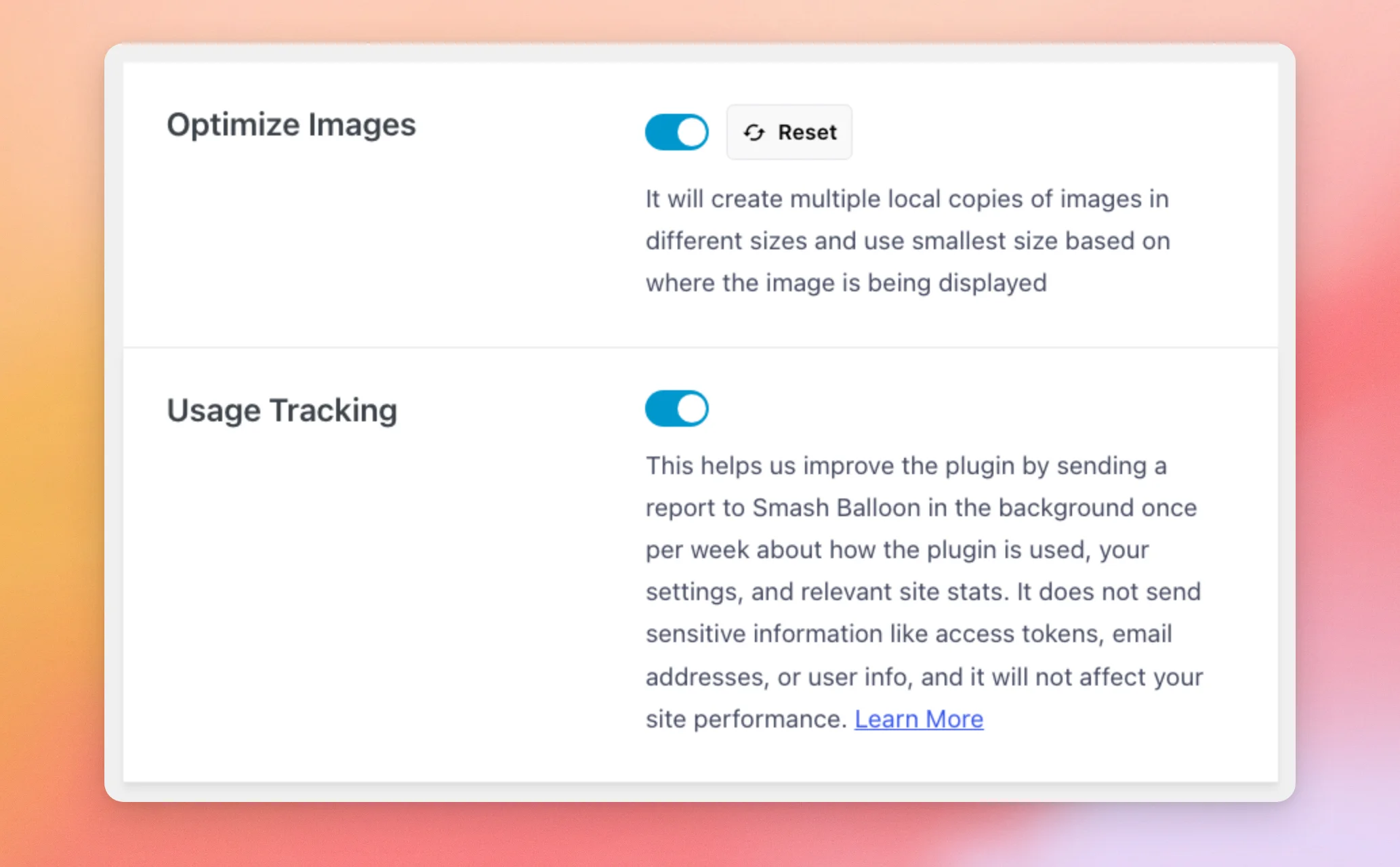
The Advanced tab holds 2 settings. To open it, click the Advanced tab.
| Setting | What it does | Default |
|---|---|---|
| Optimize Images | Creates several local copies of each image in different sizes and uses the smallest one that fits where the image shows. When it’s off, the plugin doesn’t create these copies and loads each image from TikTok instead. The Reset button deletes the stored copies and clears the feed cache. The plugin then creates them again. | On |
| Usage Tracking | Sends Smash Balloon a report once a week about how the plugin is used, your settings, and relevant site stats. It doesn’t send sensitive information such as access tokens, email addresses, or user info. The report helps Smash Balloon improve the plugin, and it doesn’t affect your site’s performance. When it’s off, no report is sent. | On |
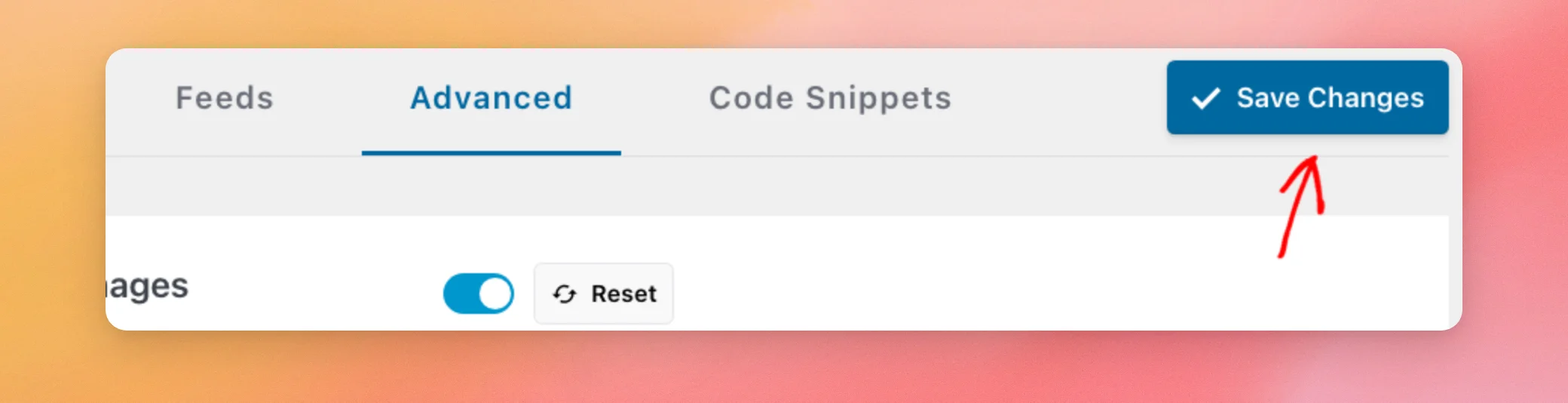
After you change a setting on any tab, click Save Changes. The button is to the right of the tabs, at the top of the page.
Using the Code Snippets Tab
The Code Snippets tab is the last tab on the page. To open it, click the Code Snippets tab.
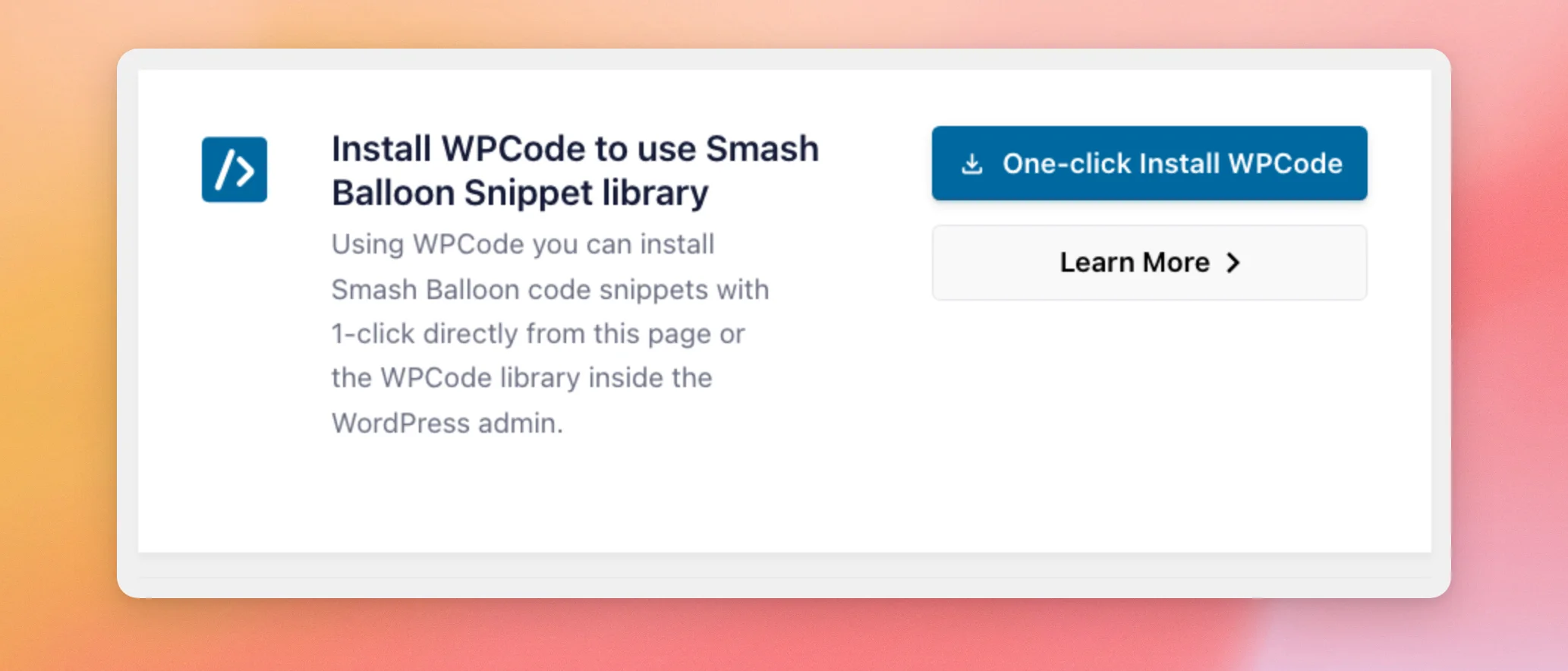
The tab offers WPCode, a free plugin with a library of Smash Balloon code snippets. The One-click Install WPCode button installs the plugin. The Learn More button tells you more about it. The tab has no settings of its own.
That’s it! You now know what every setting on the Settings page does and what its default is. Next, see our guide on what to do when your feed isn’t updating.
Frequently Asked Questions
Below, we’ve answered some of the most common questions about the Settings page.
Does the free version have the same tabs?
Almost. Unless a paid Smash Balloon plugin is active on your site, the free version also has a Data Sharing tab for managing data sharing. The paid version shows that information as the Data sharing box at the end of the General tab instead.
Where do I add a TikTok account?
On the General tab, in the Manage Sources box, use the Add Source button.
Will my feeds and settings be kept if I uninstall the plugin?
Only if Preserve settings if plugin is removed is on. It’s off by default. See the General tab section above.




