


 Social Wall
 Feed Analytics


How the TikTok Feeds plugin handles GDPR, what data is transferred and stored, and where the GDPR setting lives.
Would you like to show your TikTok feed in a way that respects your visitors’ privacy under the GDPR?
You can use the GDPR setting in TikTok Feeds to choose what your feed shows visitors before they give consent.
This guide covers how the GDPR setting works, what changes in your feed before visitors give consent, and which consent plugins it works with.
Before you get started, make sure TikTok Feeds is installed and activated on your site.
Note: For details on how our plugins transfer and store data, see our GDPR disclosure.
- Choosing a GDPR Option
- How Does Your Feed Work Before Consent?
- Swipe View Before Consent
- Using a Supported Consent Plugin
- Using Other Consent Plugins
- Local Images and Your Server
- Frequently Asked Questions
Choosing a GDPR Option
To get started, we’ll open the GDPR setting.
From your WordPress admin sidebar, go to TikTok Feeds » Settings. Then, click the Feeds tab.
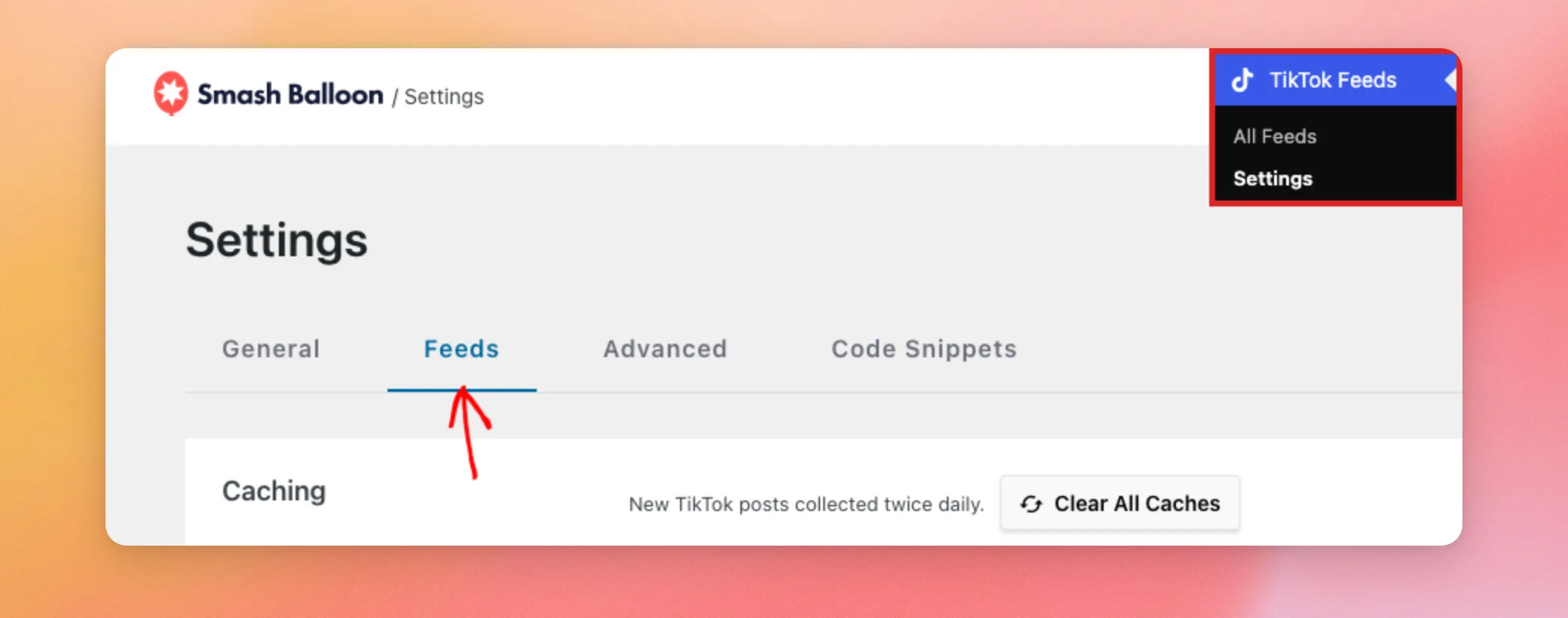
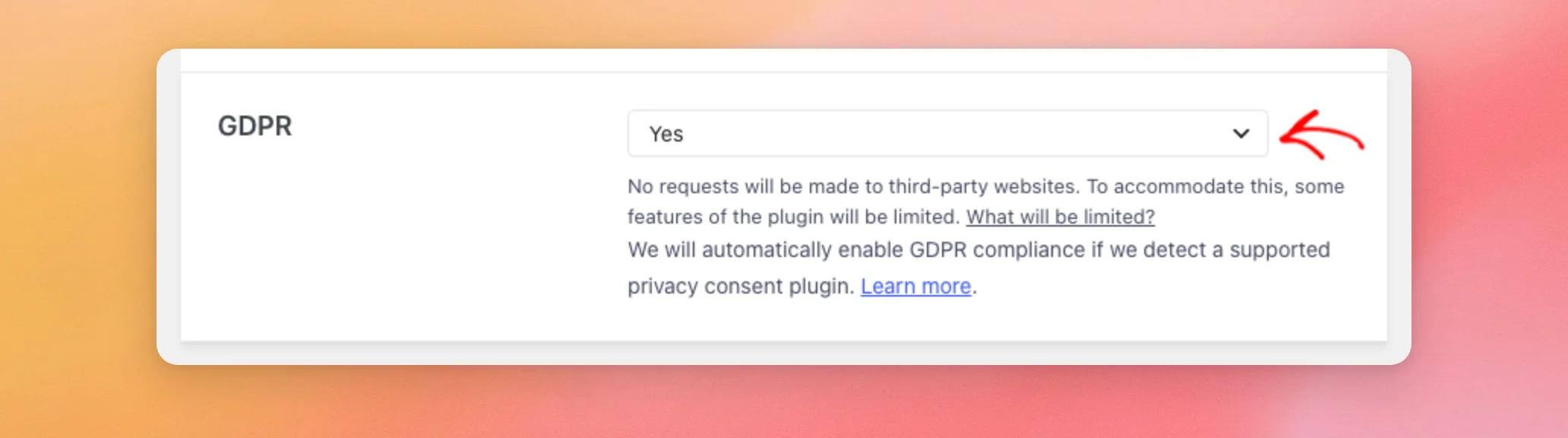
The GDPR setting on this tab has 3 options. Automatic is the default. With it, the plugin detects a supported consent plugin on its own. If your site already uses one, you can leave the setting as it is.
| Option | What your visitors see |
|---|---|
| Automatic | If a supported consent plugin is active, each visitor sees the limited version of the feed until they give consent. If none is active, every visitor sees the full feed, the same as with No. |
| Yes | Every visitor sees the limited version of the feed. A visitor who accepts cookies in a consent plugin that the setting works with then sees the full feed. |
| No | Every visitor sees the full feed. Images and videos can load directly from TikTok. |
To change it, choose an option from the GDPR list. For example, choose Yes to show the limited version of the feed to every visitor.
Then, click Save Changes.
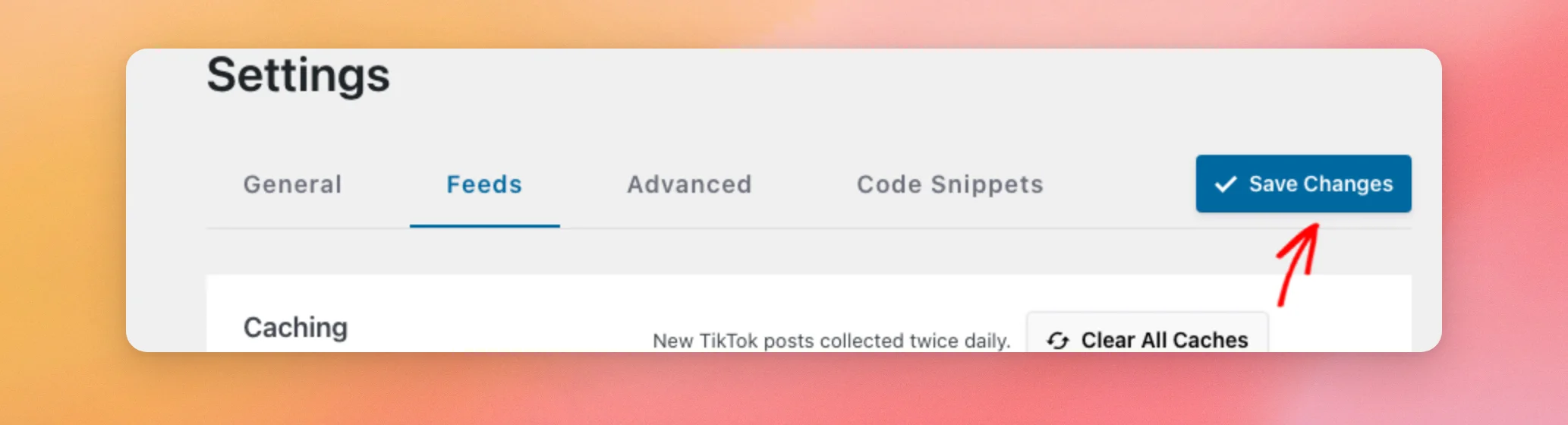
Your GDPR setting is now saved. Next, let’s look at what changes in your feed before a visitor gives consent.
How Does Your Feed Work Before Consent?
Before a visitor gives consent, your feed shows the limited version. Here’s how that changes your feed:
- Only images saved on your site show in the feed. Until a copy of an image is available, a placeholder image shows in its place.
- The profile picture in the feed header shows from a copy saved on your site, or a placeholder if there is no copy yet.
- Videos don’t play. Instead, visitors click a link to view the video on TikTok.
For example, here’s a feed on a site that uses our free consent plugin, WPConsent. The visitor hasn’t chosen anything in the banner yet. As a result, the feed is limited.
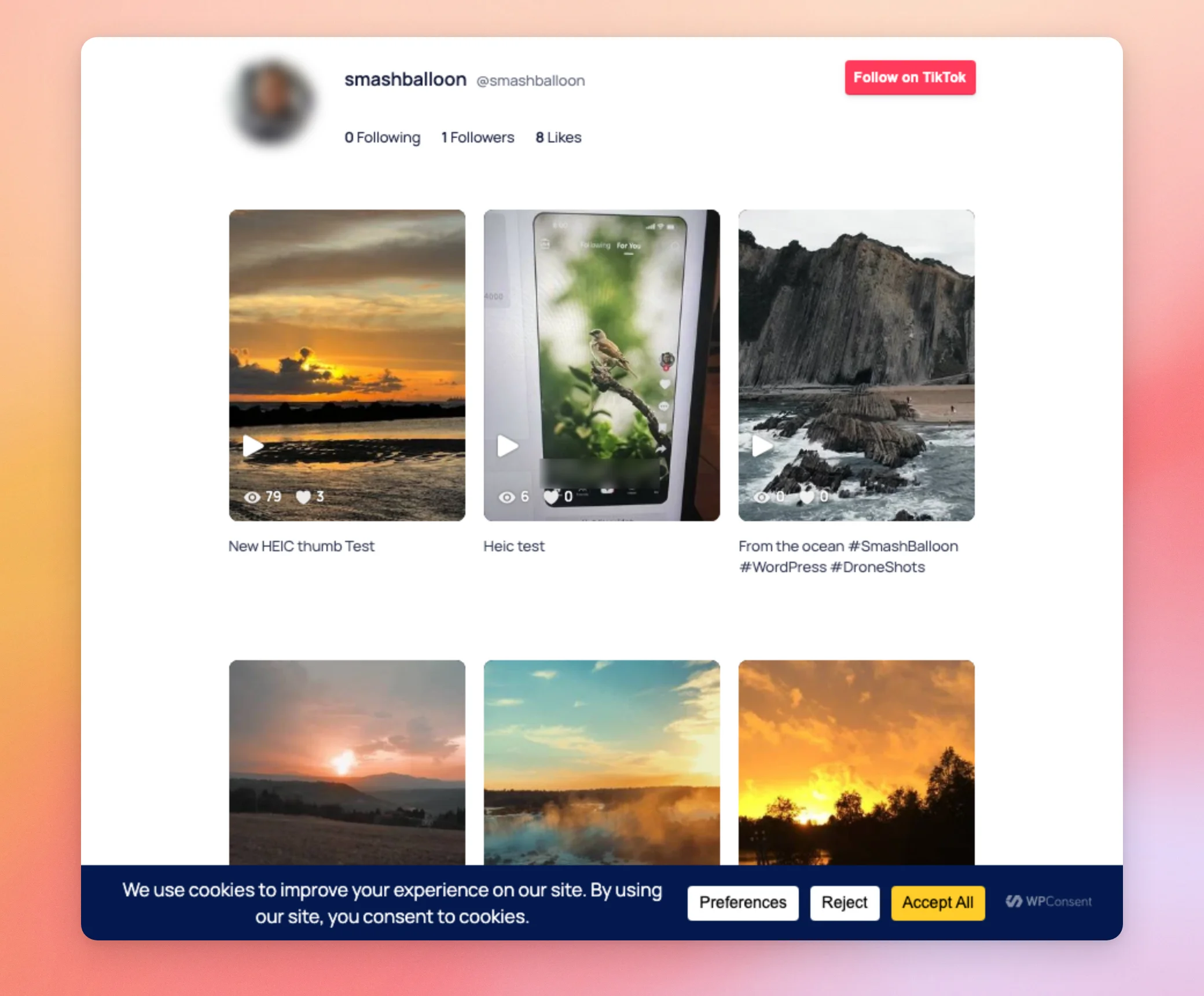
The thumbnails in this feed look the same as they will after consent. That’s because copies of the images are already saved on the site.
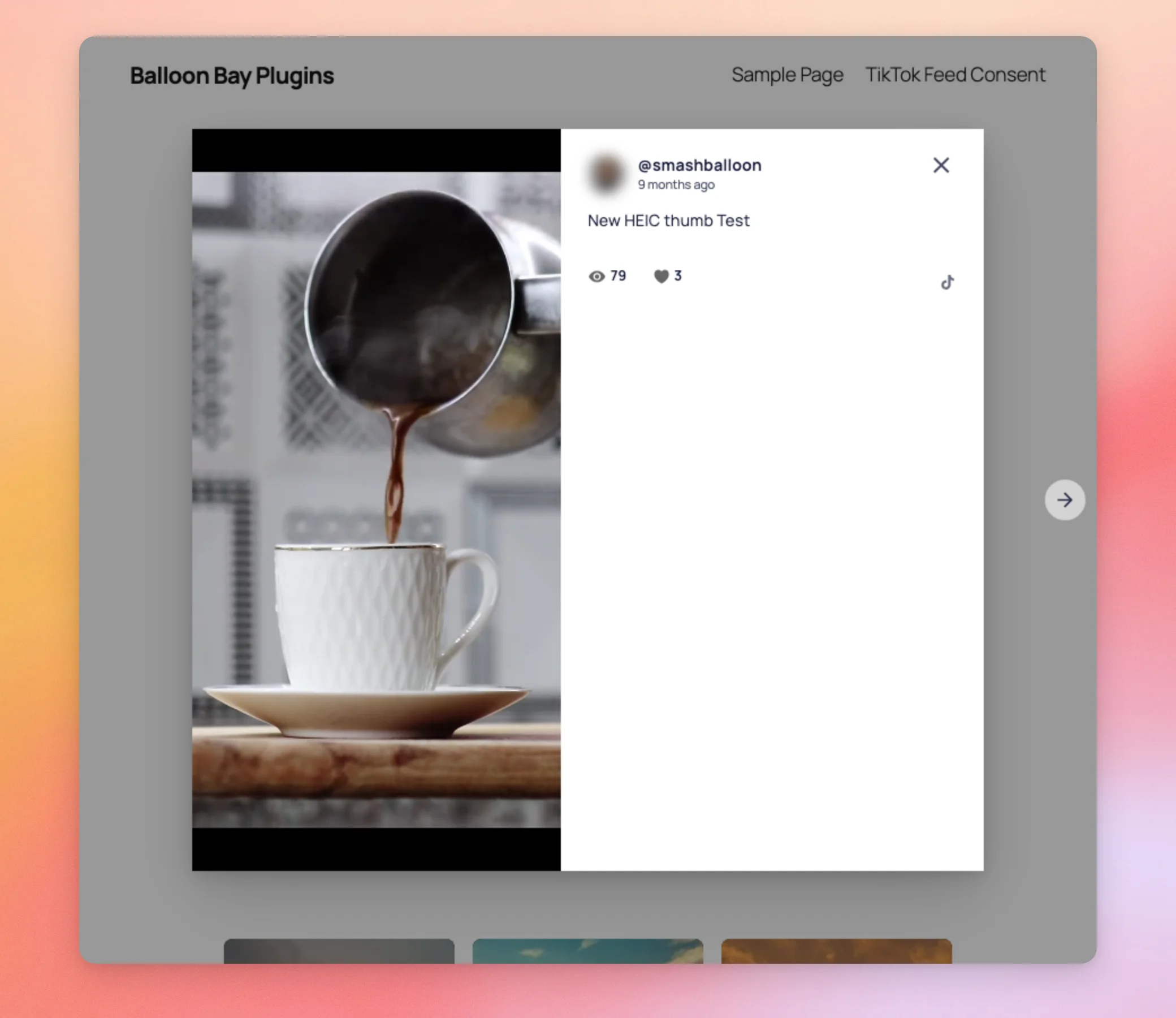
The difference shows when a visitor clicks a video. Before consent, the lightbox opens with a link to view the video on TikTok instead of a player.
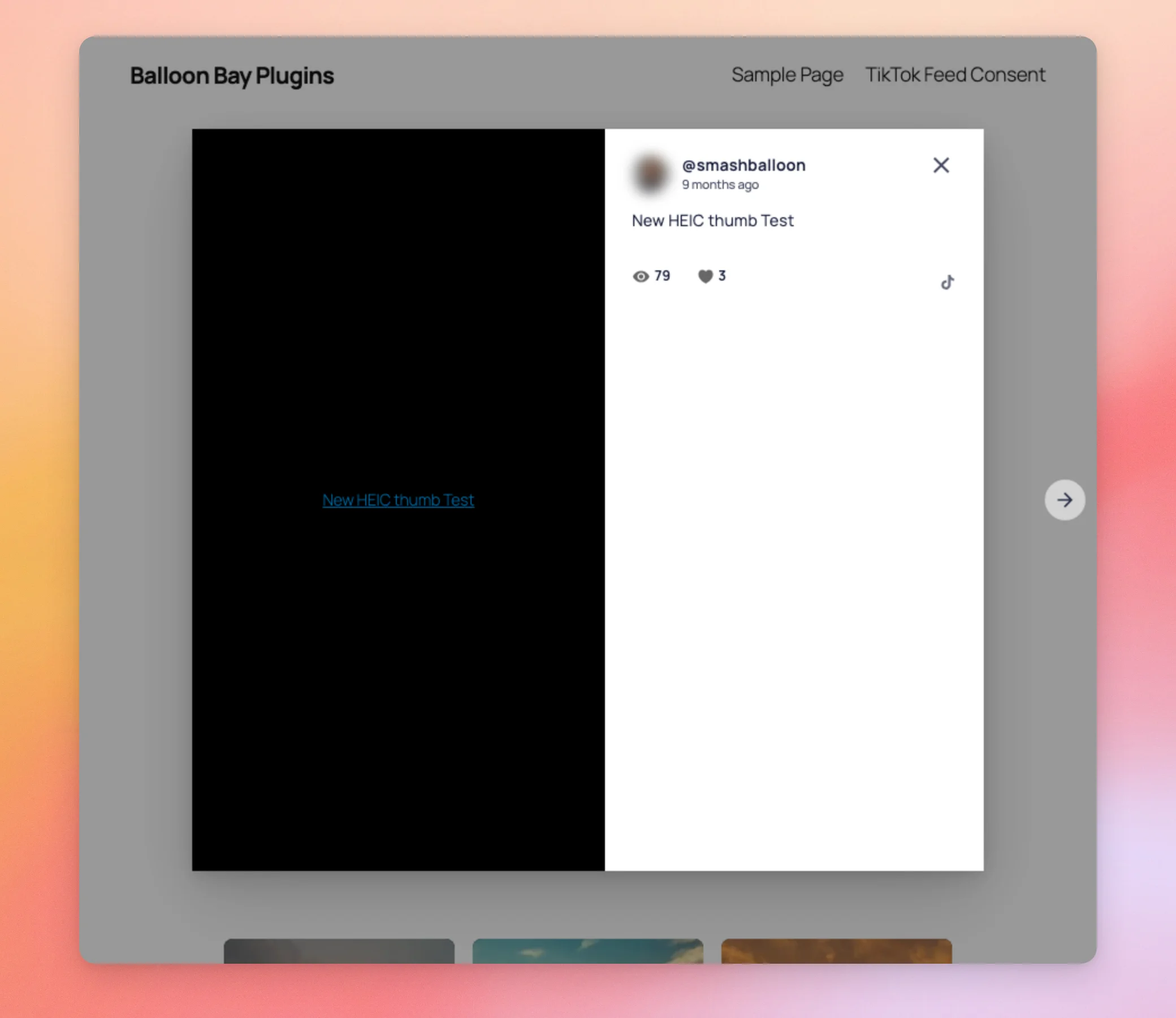
Once the visitor clicks Accept All in the WPConsent banner, they see the full version of the feed. Clicking the same video now opens it in the lightbox player.
Swipe View behaves a little differently. Let’s look at it next.
Swipe View Before Consent
If you chose Swipe as your video player experience, Swipe View only turns on once the visitor has given consent. Before that, clicking a video opens the lightbox with the link to TikTok. After consent, the same click opens Swipe View.
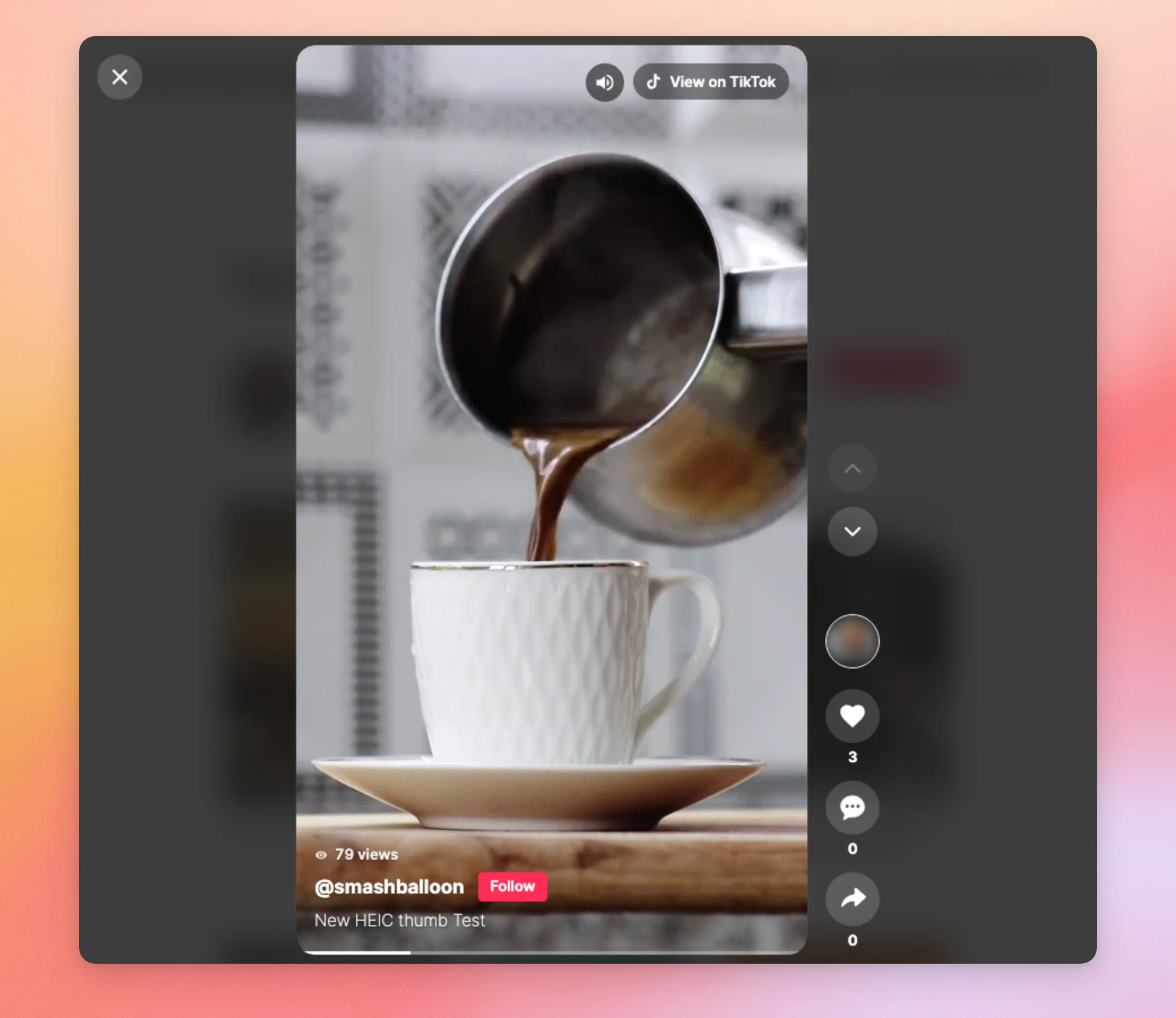
To learn more about Swipe View, see our guide on viewing TikTok videos in Swipe View.
Next, let’s look at the consent plugins the GDPR setting detects.
Using a Supported Consent Plugin
When the GDPR setting is on Automatic, the plugin detects these consent plugins.
| Consent plugin | Name shown in the GDPR setting |
|---|---|
| WPConsent | WPConsent |
| Real Cookie Banner | Real Cookie Banner |
| Cookie Notice & Compliance for GDPR / CCPA | Cookie Notice & Compliance for GDPR / CCPA |
| CookieYes | CookieYes – Cookie Banner for Cookie Consent |
| Cookiebot | Cookiebot |
| Complianz | Complianz |
| Borlabs Cookie | Borlabs Cookie |
| GDPR Cookie Compliance | GDPR Cookie Compliance by Moove |
When one of these plugins is active, its name shows with a green check below the GDPR list on the Feeds tab. This lets you confirm the setting detected it.
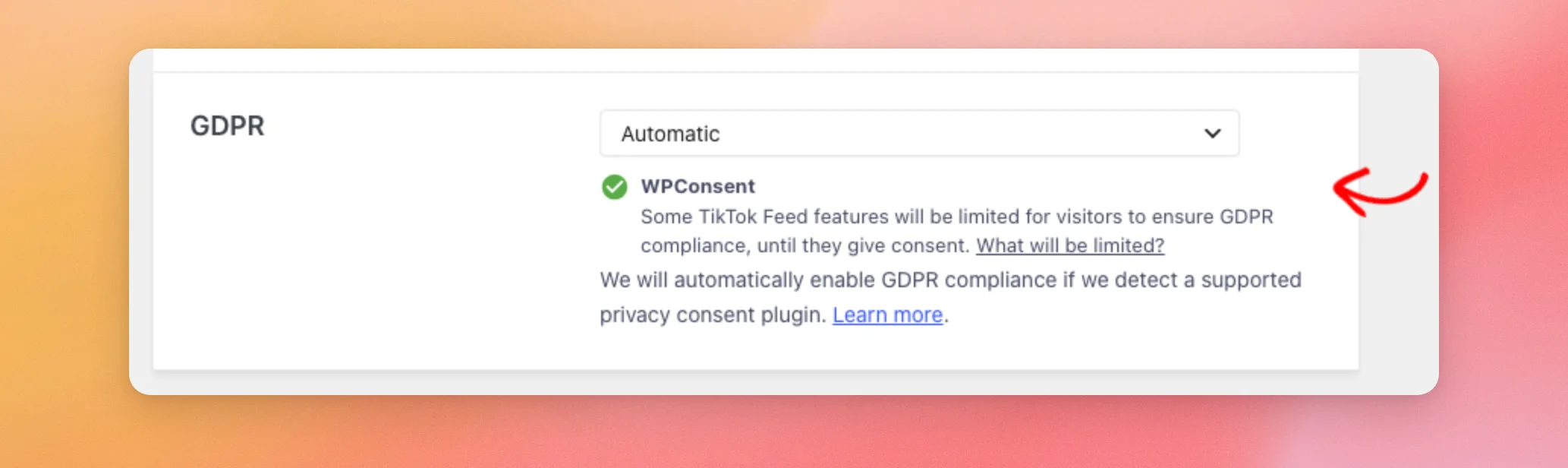
Each visitor then sees the limited version of the feed until they accept cookies in that plugin’s banner. After they accept, they see the full feed.
If you use a consent plugin that isn’t in the table, the next section shows what to do.
Using Other Consent Plugins
If your consent plugin isn’t in the table above, set the GDPR setting to Yes. Every visitor then sees the limited version of the feed.
On Automatic, the plugin doesn’t detect your consent plugin. In that case, every visitor sees the full feed.
The feed only recognizes a visitor’s consent in the plugins from the table above. With a plugin that isn’t in the table, visitors keep the limited version of the feed even after they accept cookies.
Last, let’s look at what the limited version of your feed needs from your server.
Local Images and Your Server
The limited version of your feed relies on copies of your images saved on your own site. Here’s what that needs from your server:
- The plugin saves the copies in a
sb-tiktok-feeds-imagesfolder inside your WordPress uploads folder. It creates the folder when you activate the plugin. - Your server needs an image library that WordPress can use to resize images, either Imagick or GD.
- The Optimize Images setting on the Advanced tab must be on. It’s on by default. When it’s off, the plugin doesn’t save copies of your images. Without those copies, the limited version shows placeholders.
The plugin makes the copies after it fetches new videos. On a new feed, they may take a short while to appear. Until then, the placeholder images show.
That’s it! You’ve chosen how your TikTok feed handles visitor consent. You also know what visitors see before and after they give consent.
Next, see our TikTok Feeds settings reference for every other setting in the plugin.
Frequently Asked Questions
Below, we’ve answered some of the most common questions about the GDPR setting.
Is the GDPR setting in the free version?
Yes. The free version has the same GDPR setting on its Feeds tab.
Why do images still load from TikTok when the setting is on Automatic?
This happens when no supported consent plugin is active. The text below the GDPR list then says that no GDPR consent plugin was detected. Every visitor then sees the full feed. To show the limited version to every visitor, choose Yes instead.
Why do my thumbnails look the same before and after consent?
Before consent, the feed shows copies of your images saved on your site. Once those copies exist, the thumbnails match the full version. The difference shows when a visitor clicks a video. See the How Does Your Feed Work Before Consent section above.




