


 Social Wall
 Feed Analytics


Would you like to change how the video player looks and behaves when visitors play a video from your YouTube feed?
In this guide, we’ll walk through each option in the Video Player Experience panel. For each one, we’ll cover its choices, its default, and the license level it needs.
All you need is a YouTube feed that you can open in the feed editor.
Before you get started, make sure YouTube Feed is installed and activated on your WordPress site.
Here is what we will cover in this guide.
- Seeing the Options at a Glance
- Setting the Player Size Ratio
- Choosing When the Video Plays
- Showing Comments
- Adding a Subscribe Link
- Adding a Call to Action
- Saving Your Changes
- Frequently Asked Questions
Seeing the Options at a Glance
To get started, we’ll open the feed you want to change in the feed editor.
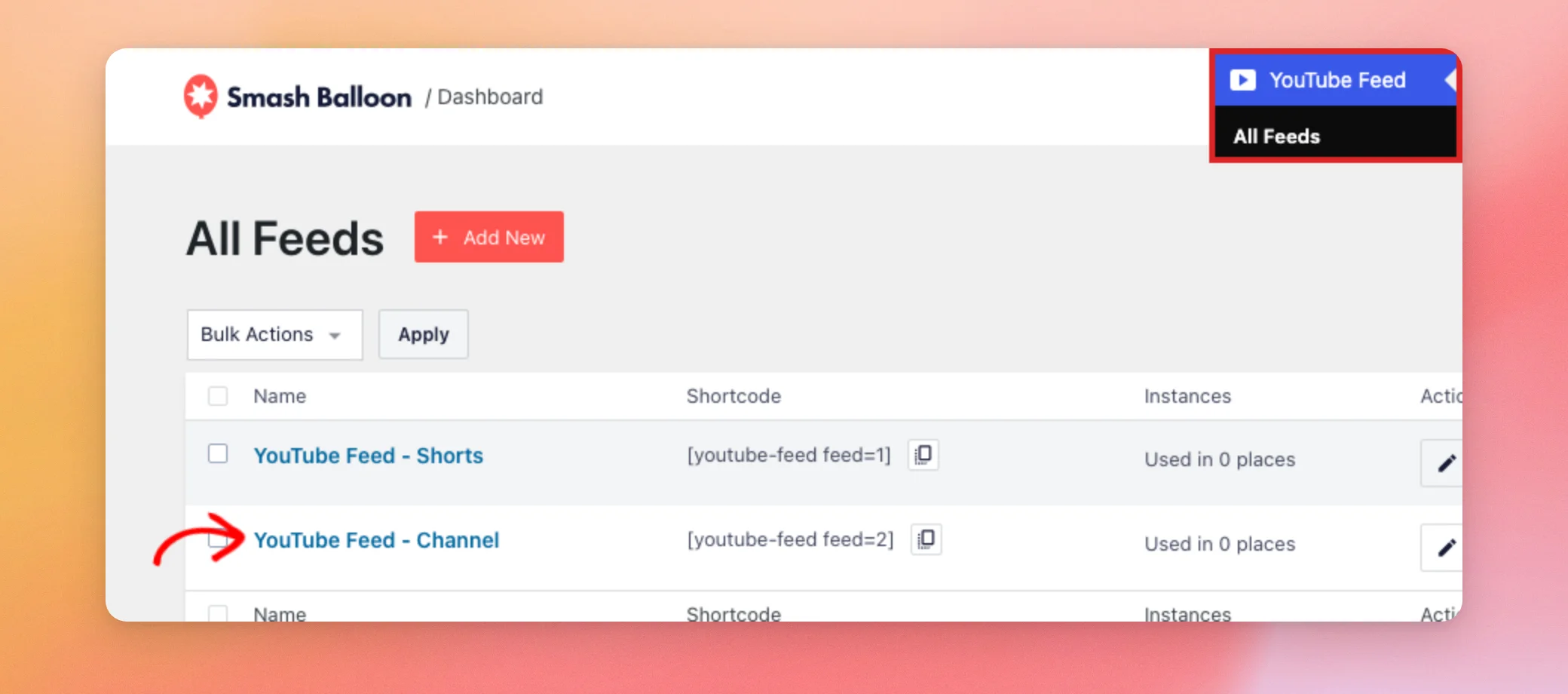
To do this, go to YouTube Feed » All Feeds in your WordPress dashboard. Then click the name of the feed you want to change.
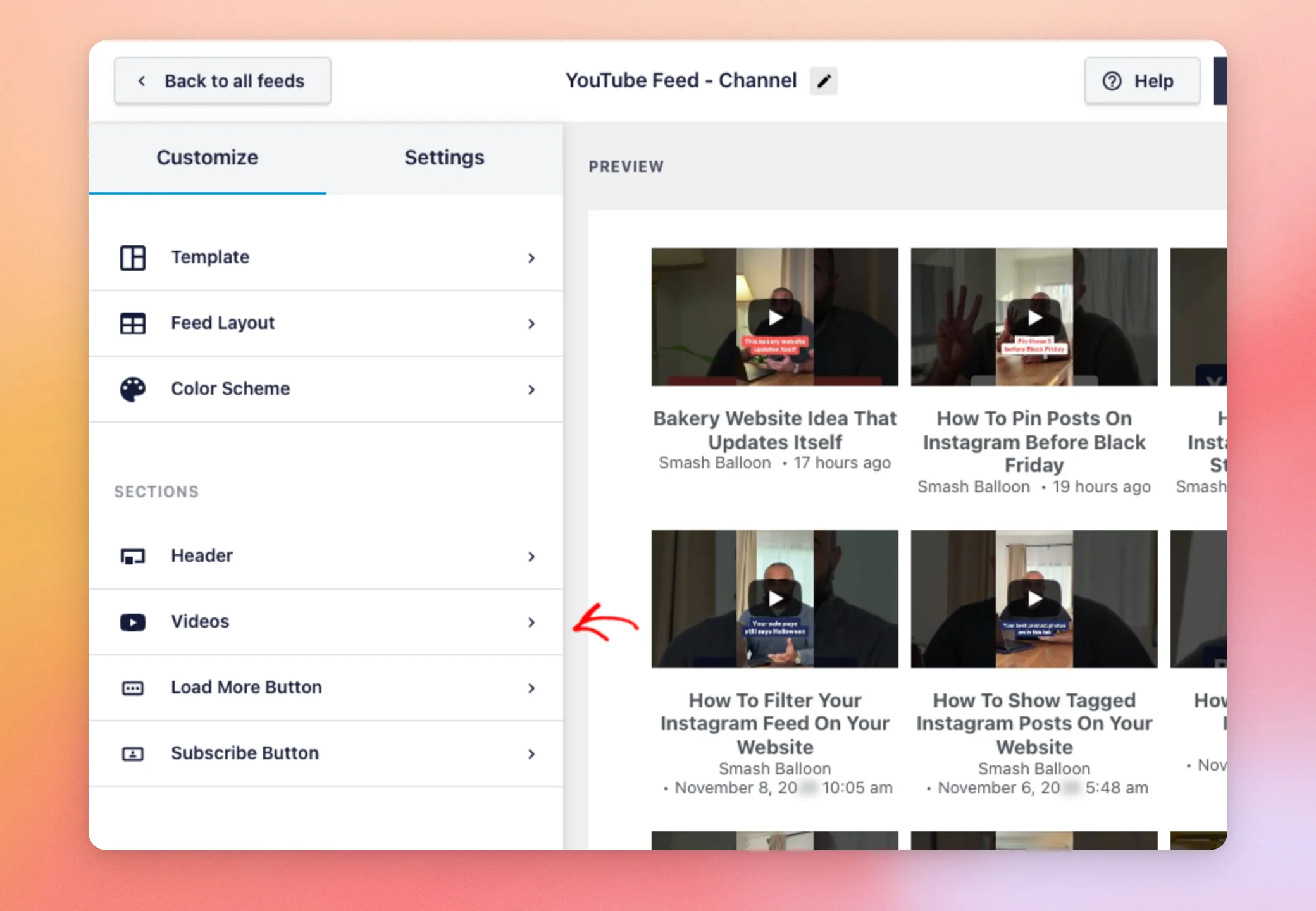
The editor opens on the Customize tab. Under Sections, click Videos.
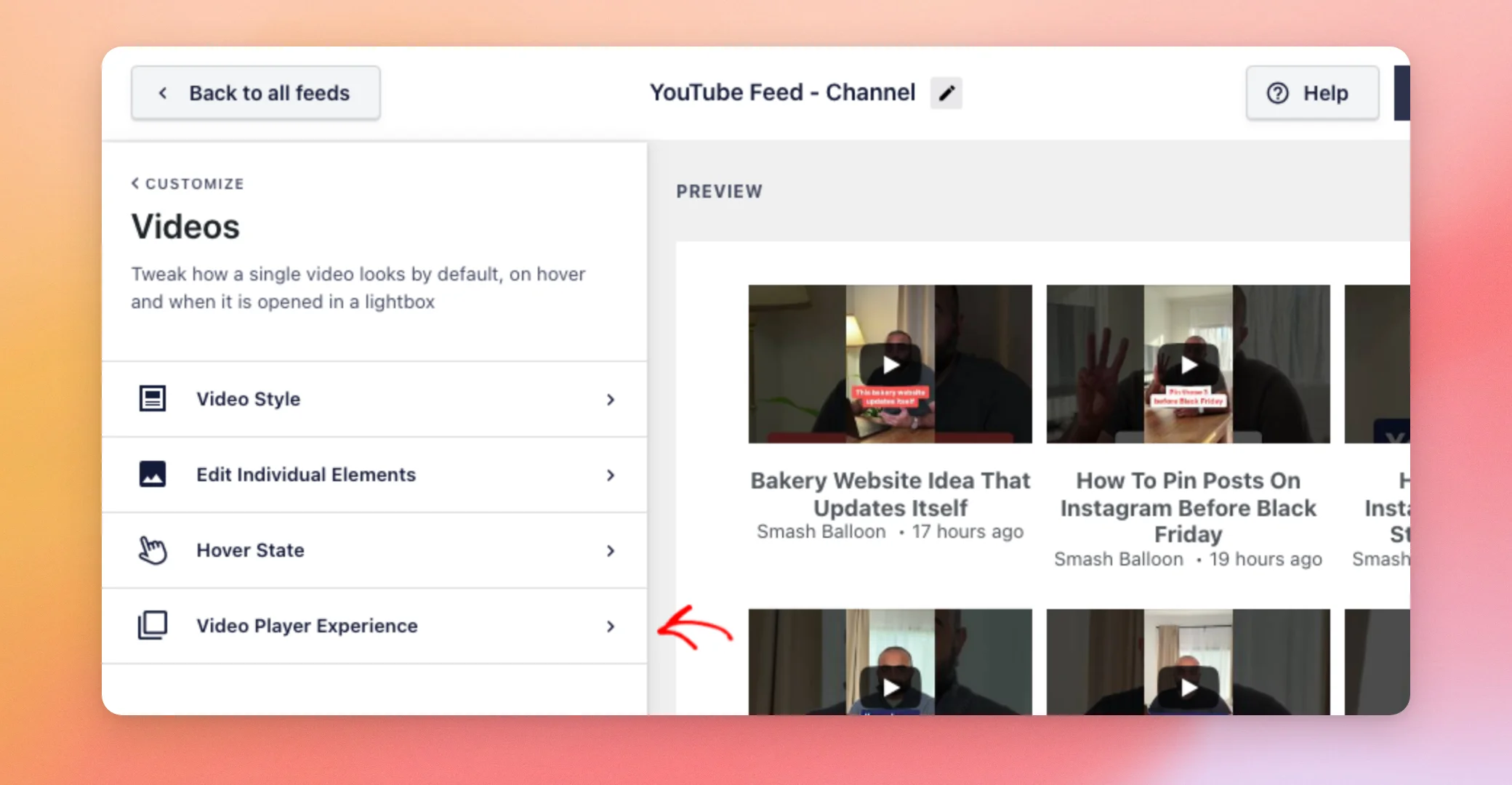
Then click Video Player Experience.
Once the panel is open, take a look at everything it holds. The table below lists every option, in the order it appears. The license level column shows what you need to use the option.
| Option | Choices | Default | License level |
|---|---|---|---|
| Player Size Ratio | 9:16 or 3:4 | 9:16 | All, including the free version |
| When does video play? | Play when clicked or Automatically | Automatically | All, including the free version |
| Comments | On or off | On with the Default template | Any paid license |
| No. of Comments | A number | 20 | Any paid license |
| Subscribe Link | On or off | On | Any paid license |
| Channel Name, Subscriber Count, Button Background, Button Text | A color for each | No color set | Any paid license |
| Call to Action | Set in its own panel | See the guide linked below | Plus license level or higher |
Now we’ll go through each option, starting with the size of the player.
Setting the Player Size Ratio
Player Size Ratio sets how tall the player is compared to its width. At the top of the panel, open the Player Size Ratio list. Then choose 9:16 or 3:4.
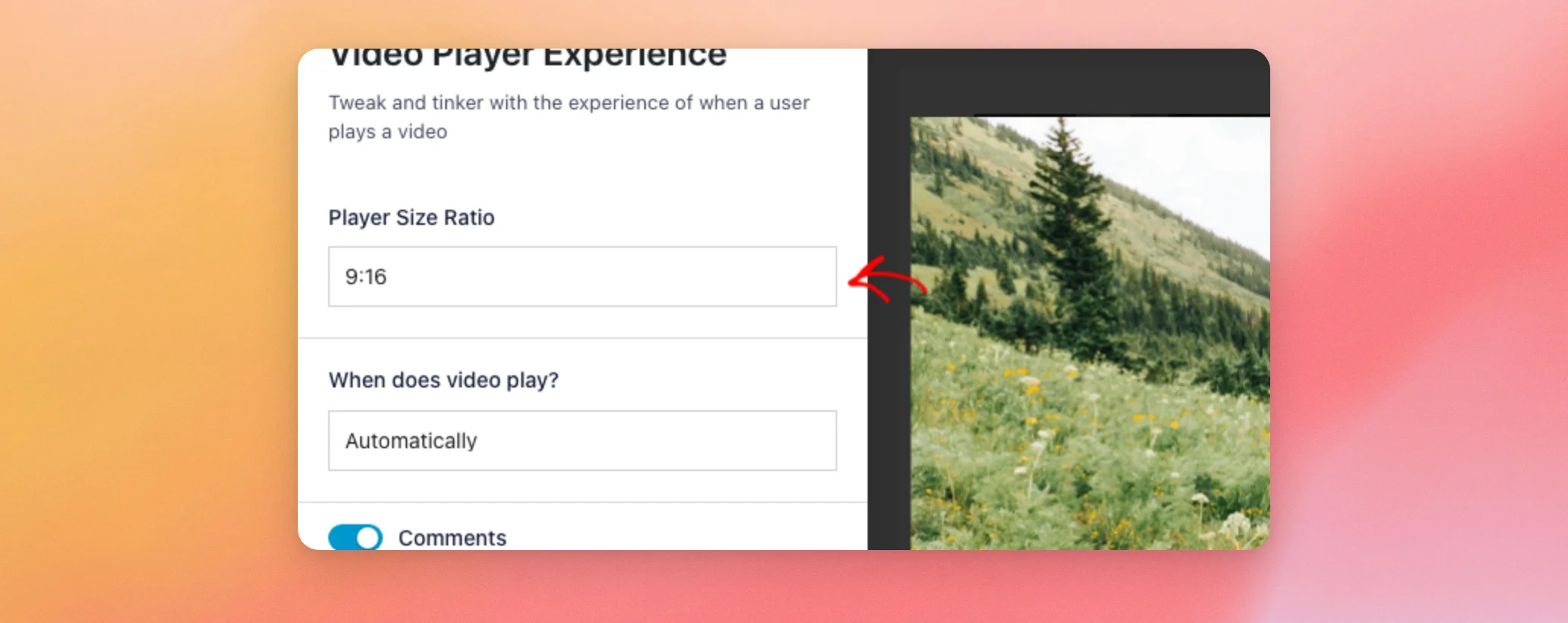
- 9:16 is the default. The player’s height is 9/16 of its width, the widescreen shape of most YouTube videos.
- 3:4 makes the player taller. Its height is 3/4 of its width.
If you’re not sure, leave it at 9:16. If you want a taller player in your Gallery or List layout, 3:4 is the better fit.
When you choose 3:4, the list shows the new ratio.
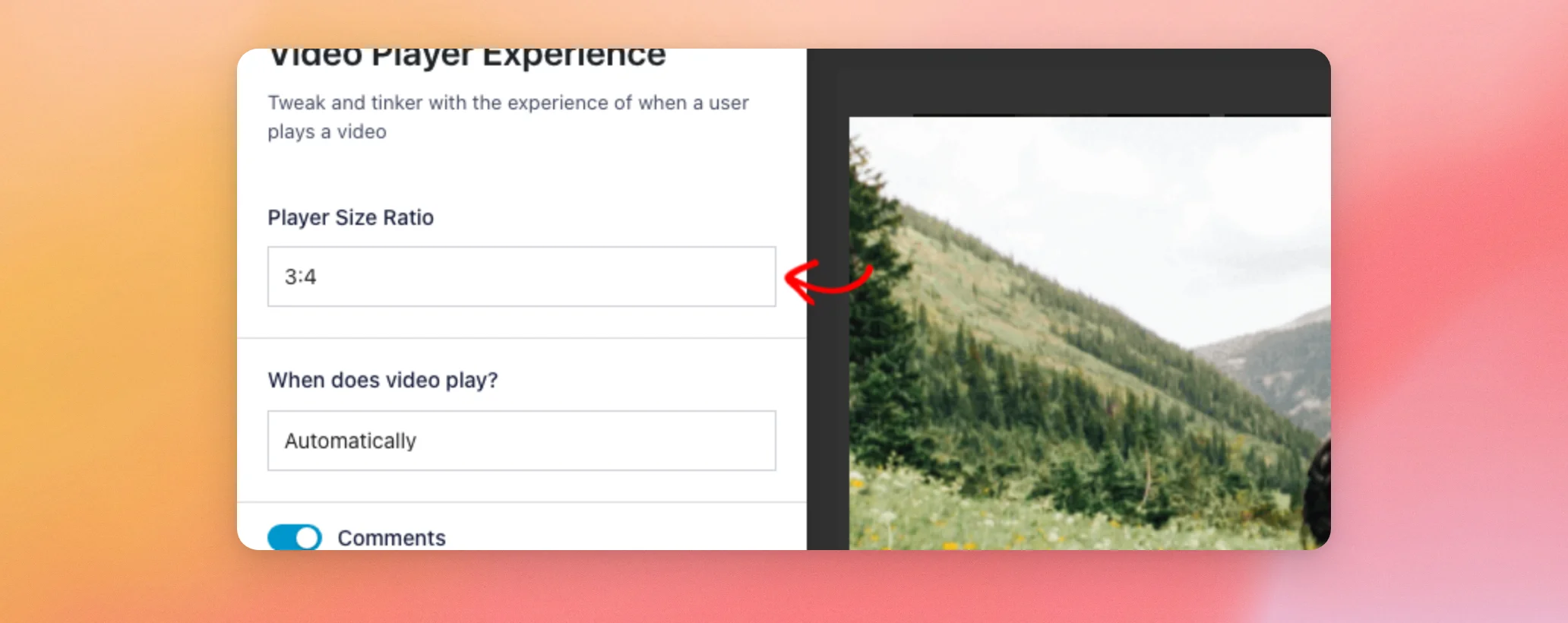
In the Gallery and List layouts, the ratio sets the height of the player in the feed. It is free to use at every license level.
Under Player Size Ratio sits the option that decides when a video starts. You can see the list in the first screenshot of the previous section.
Choosing When the Video Plays
The When does video play? list offers 2 choices, Play when clicked and Automatically. The default is Automatically. It is free to use at every license level.
How each choice behaves depends on your layout. That is why it has its own guide. Our guide to changing when a YouTube video plays covers the Grid, Gallery, and List layouts.
Showing Comments
Comments shows a video’s comments in the player. Further down the panel, switch Comments on to show them or off to hide them. A new feed made with the Default template, the one selected first, has it switched on. The List, Gallery and Widget templates switch it off.
With Comments on, the No. of Comments box sets how many comments show. The default is 20. Next to it, Clear Cache removes all the saved comments in the database.
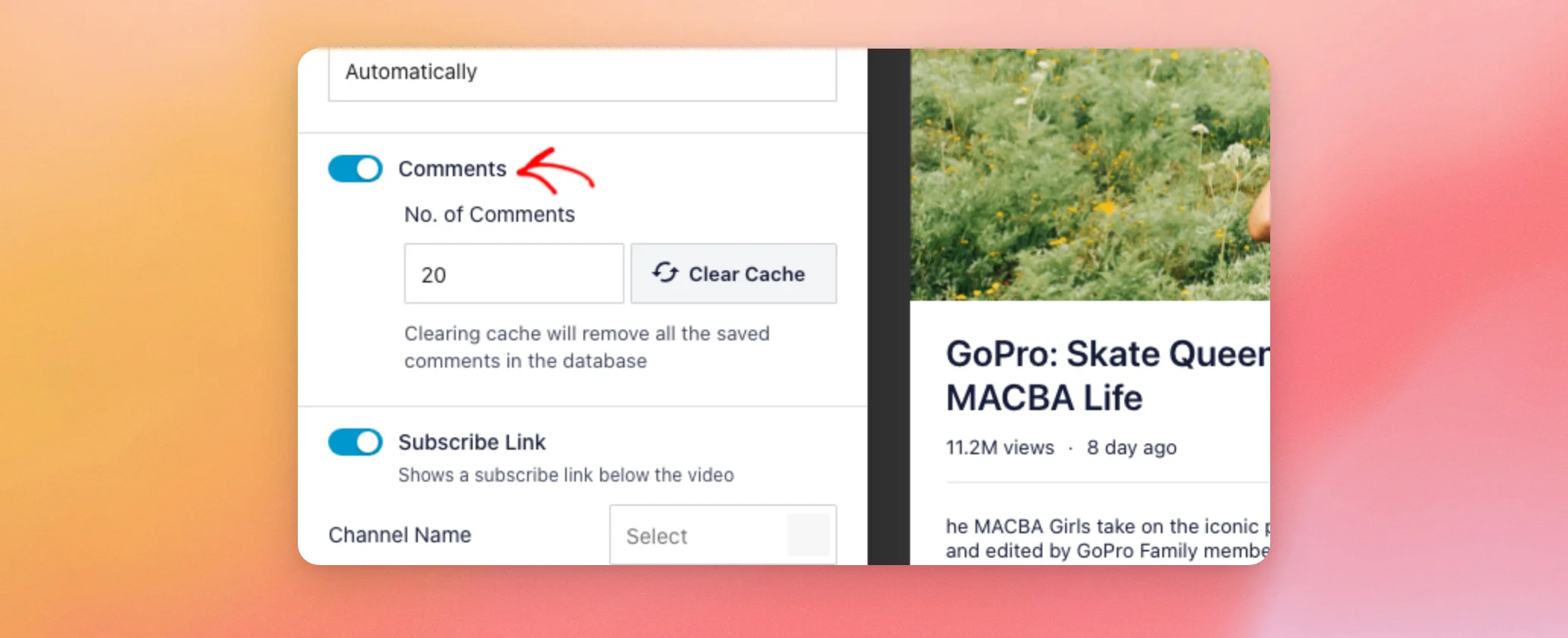
Comments needs a paid license.
Adding a Subscribe Link
The Subscribe Link shows a subscribe link below the video. The Subscribe Link switch shows the link when on and hides it when off. It is on by default.
Under the switch, 4 color options let you style the link. Each one has its own color box.
- Channel Name sets the color of the channel name.
- Subscriber Count sets the color of the subscriber count.
- Button Background sets the color behind the subscribe button.
- Button Text sets the color of the text on the button.
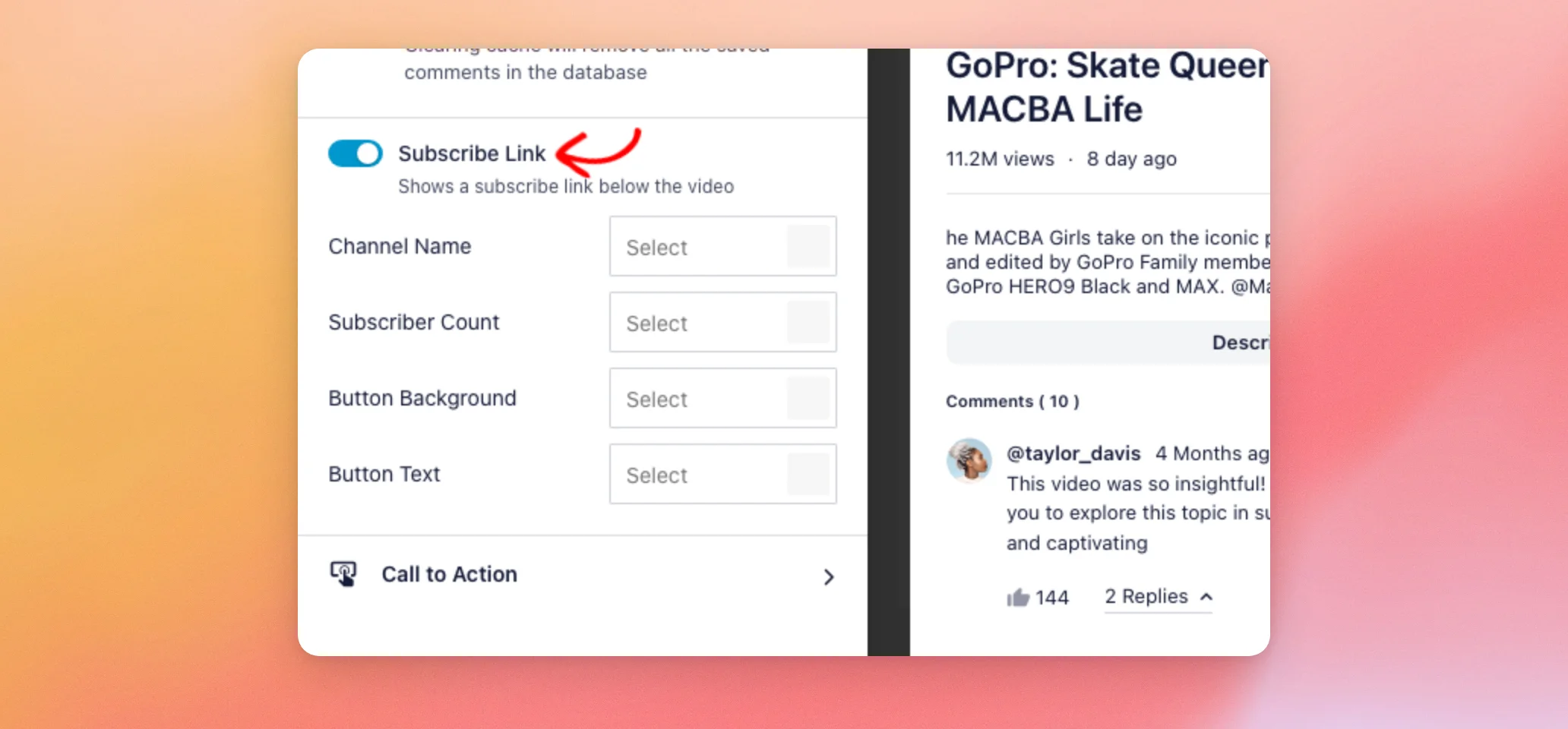
The Subscribe Link needs a paid license. Our Customize tab guide covers Comments and the Subscribe Link in the context of the whole tab.
Adding a Call to Action
At the bottom of the panel is Call to Action. Clicking it opens its own panel. It needs the plus license level or higher.
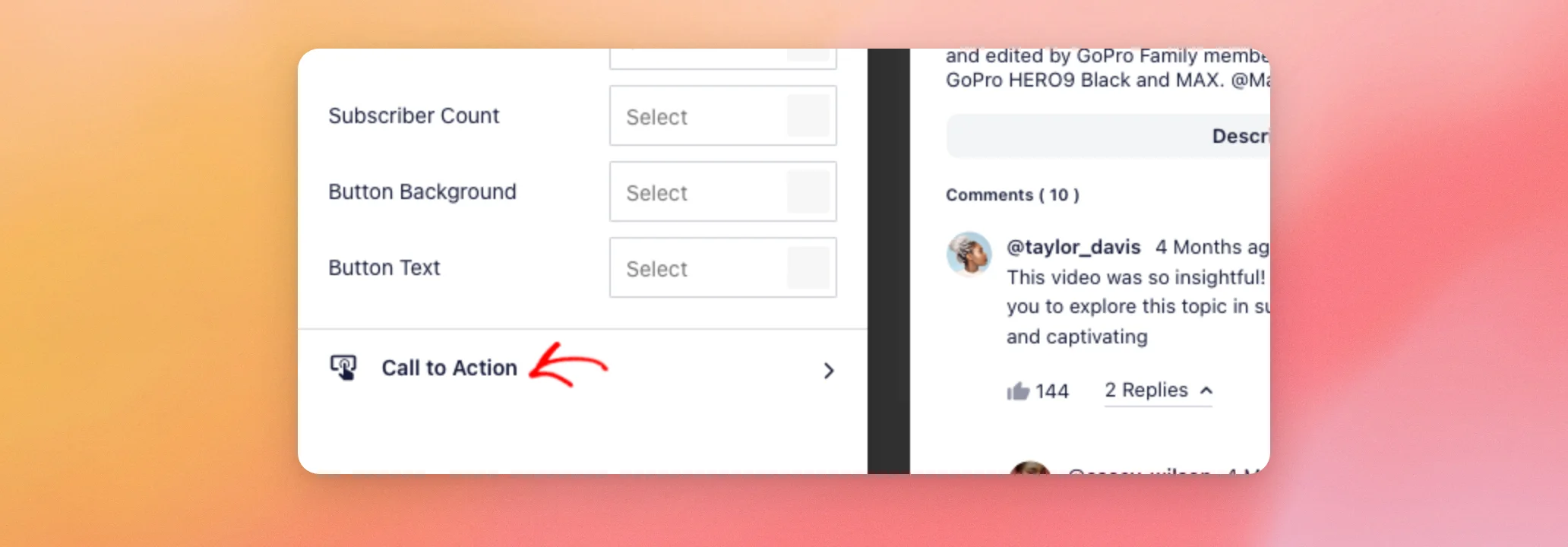
Its options, and what visitors see when a video ends, are in our guide to end-of-video actions.
Once the player looks right, save your changes.
Saving Your Changes
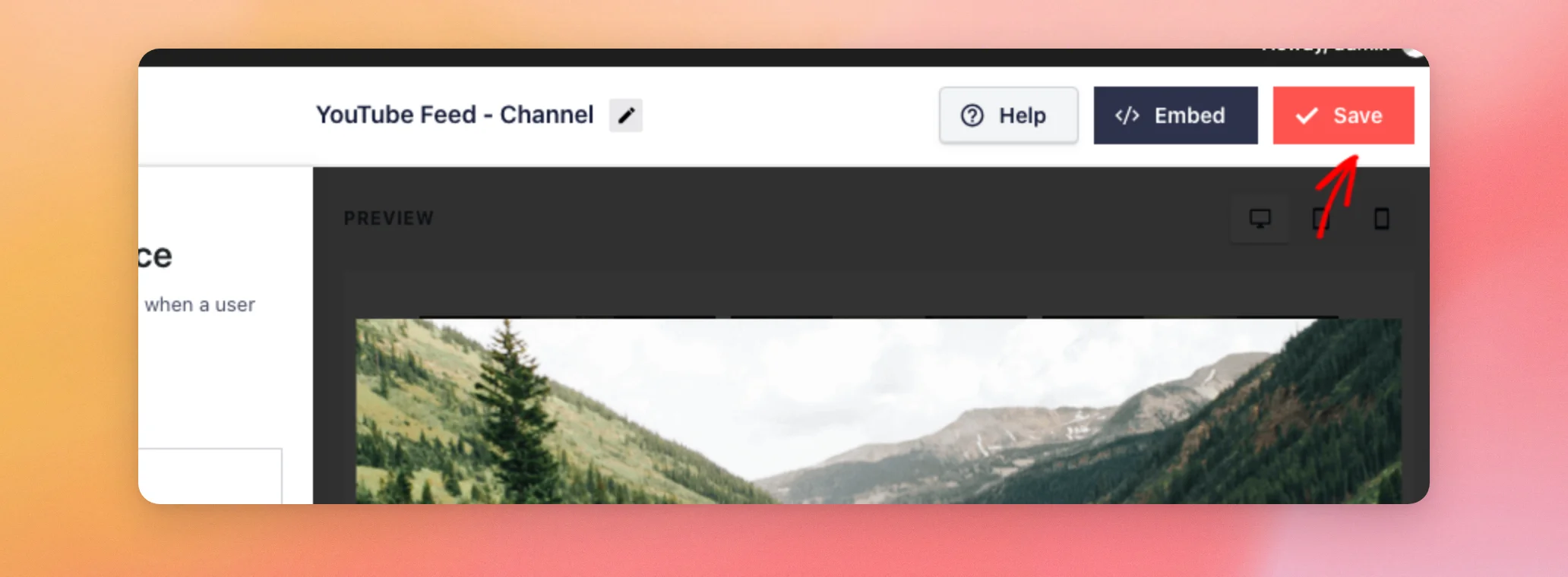
Your changes appear in the preview but are not kept until you save them. When you are happy with the player, click Save in the top right.
That’s it! You now know what every Video Player Experience option does and which license level it needs. To compare the license levels in full, see our Free and paid features guide.
Frequently Asked Questions
Below, we’ve answered some of the most common questions about the Video Player Experience options.
Do my changes show on my site right away?
No, not until you click Save. The Saving Your Changes section above shows where the button is.
Which Video Player Experience options can I use for free?
Player Size Ratio and When does video play? work at every license level, including the free version. Comments and the Subscribe Link need any paid license. The Call to Action needs the plus license level or higher.
What happens when I click Clear Cache next to No. of Comments?
It removes all the saved comments in the database, as the note under the button says.




