


 Social Wall
 Feed Analytics


How to set a YouTube feed video to play on click or automatically, using the lightbox experience setting.
Would you like to choose whether your YouTube videos play automatically or only after a visitor clicks play?
YouTube Feed has a setting for this in the feed editor. This guide shows you where to find it and which feed layouts use it.
Before you get started, make sure YouTube Feed is installed and activated on your WordPress site. You also need at least 1 feed created.
Here is what we will cover:
Choosing When Videos Play
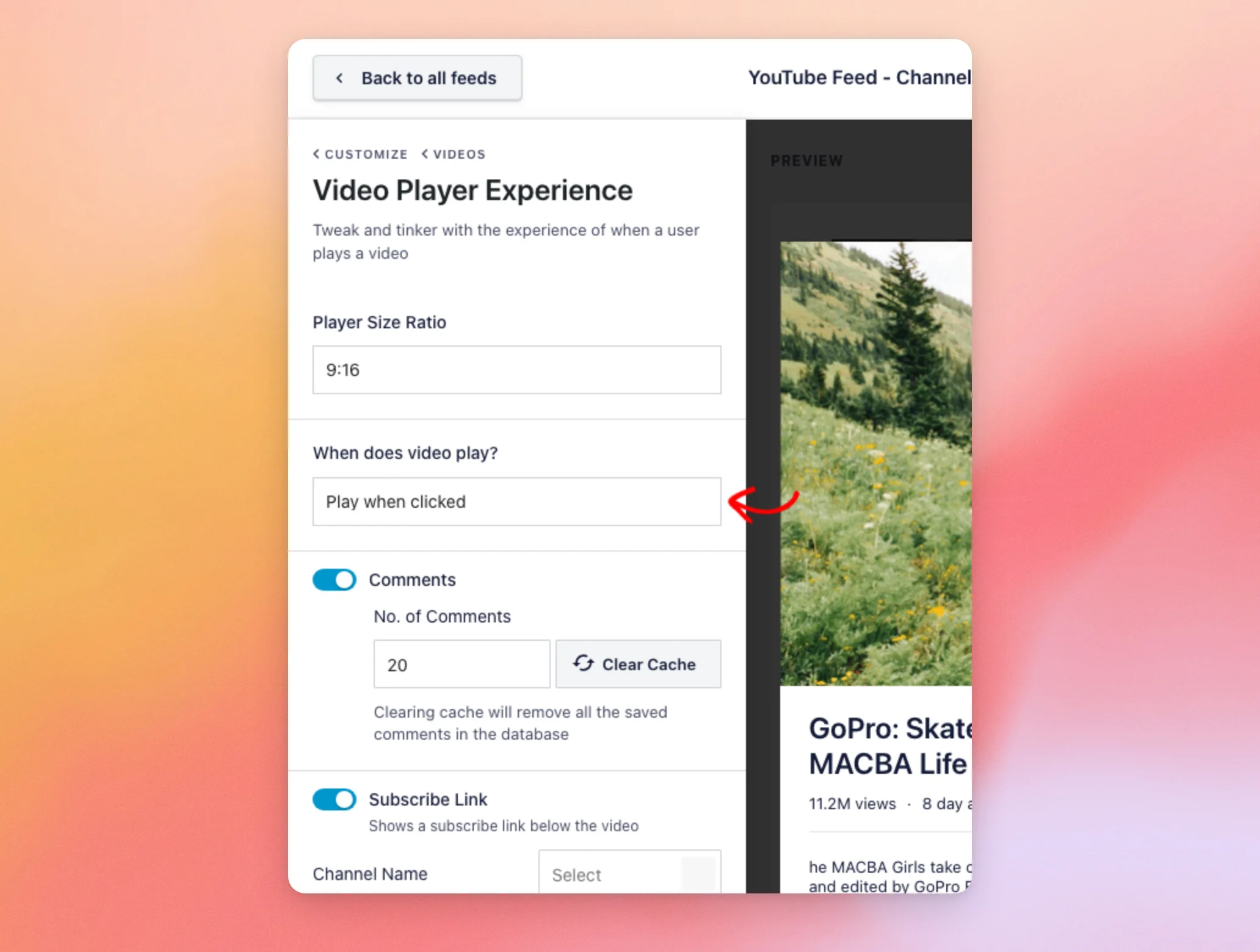
To get started, we’ll open the video player settings of a feed.
The setting is saved with each feed. This means you can set a different choice for each feed on your site.
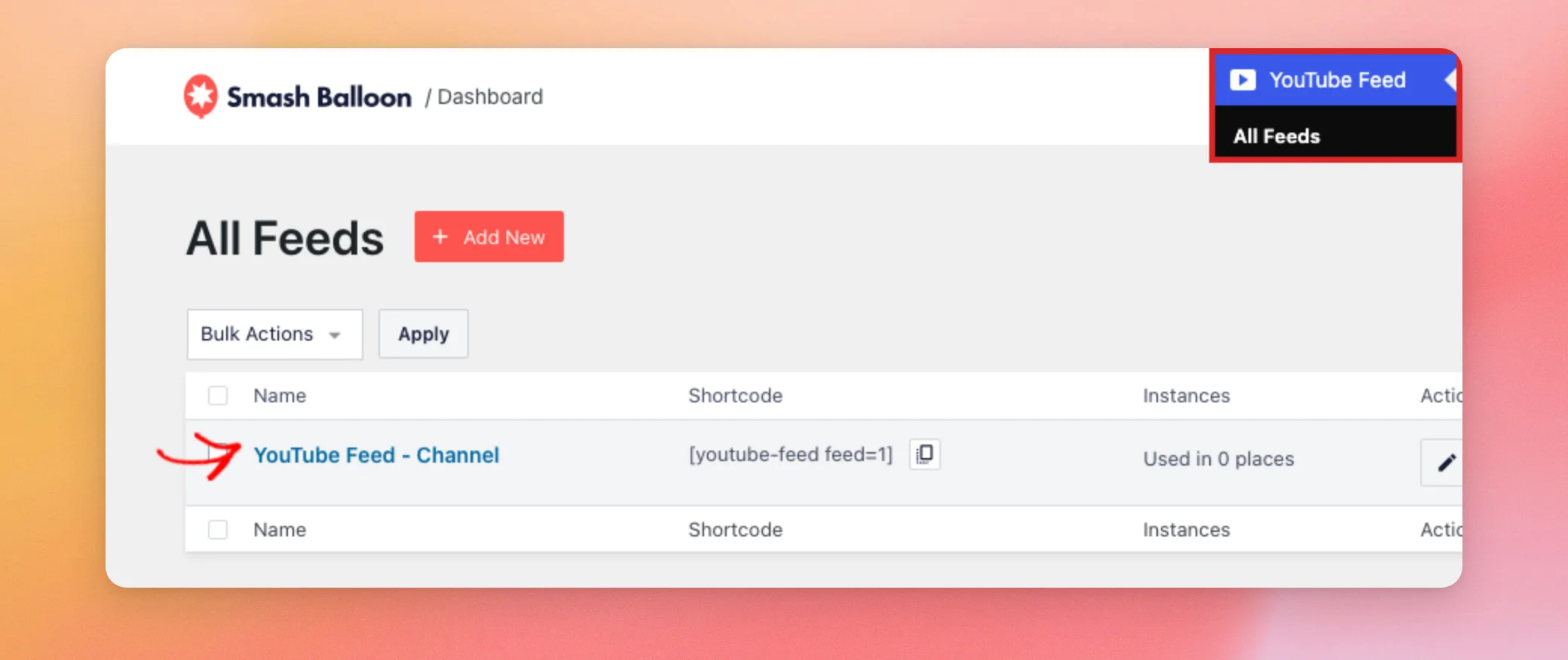
First, go to YouTube Feed » All Feeds in your WordPress dashboard. Then click the name of the feed you want to change.
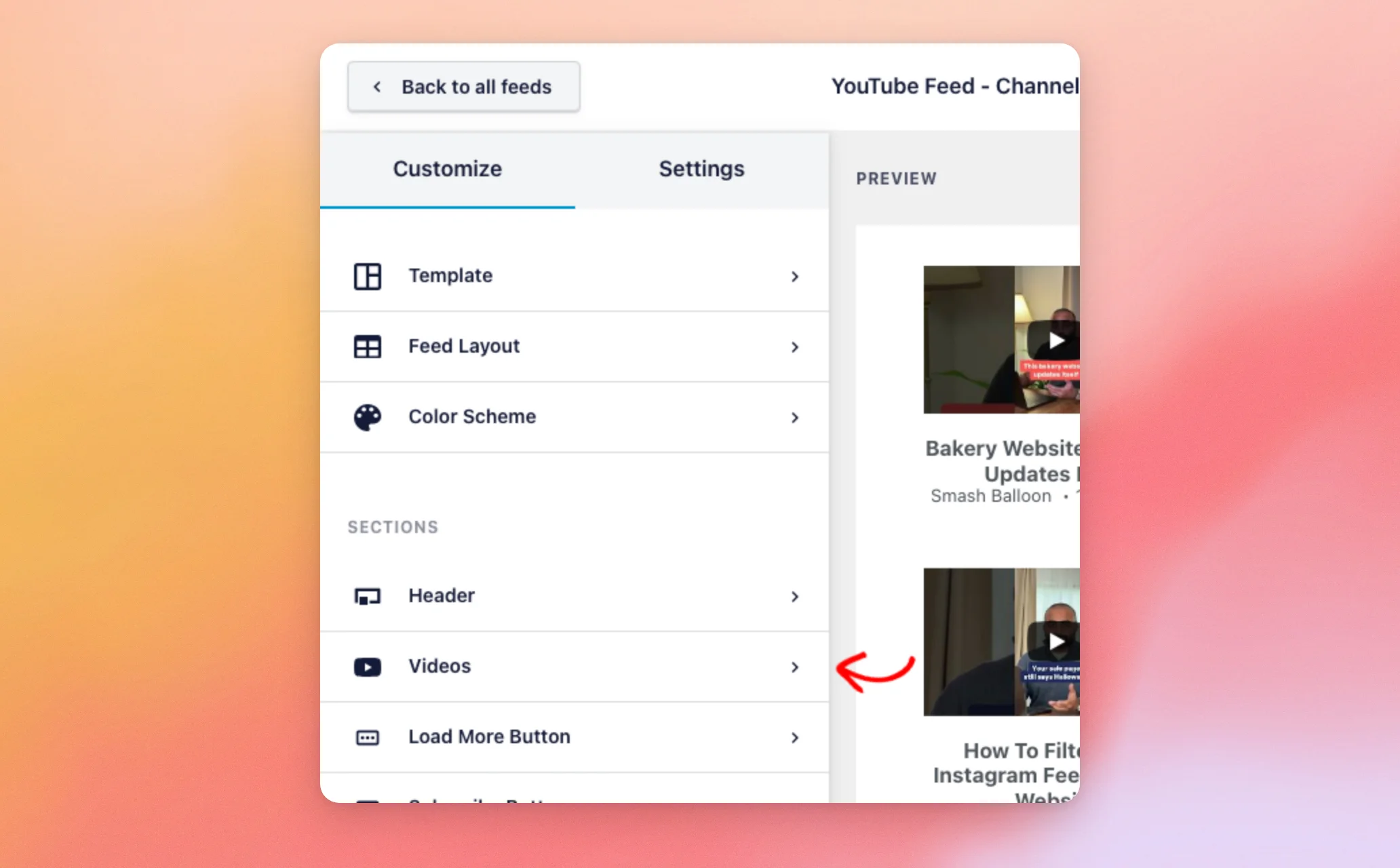
The feed editor opens on the Customize tab. Next, click Videos.
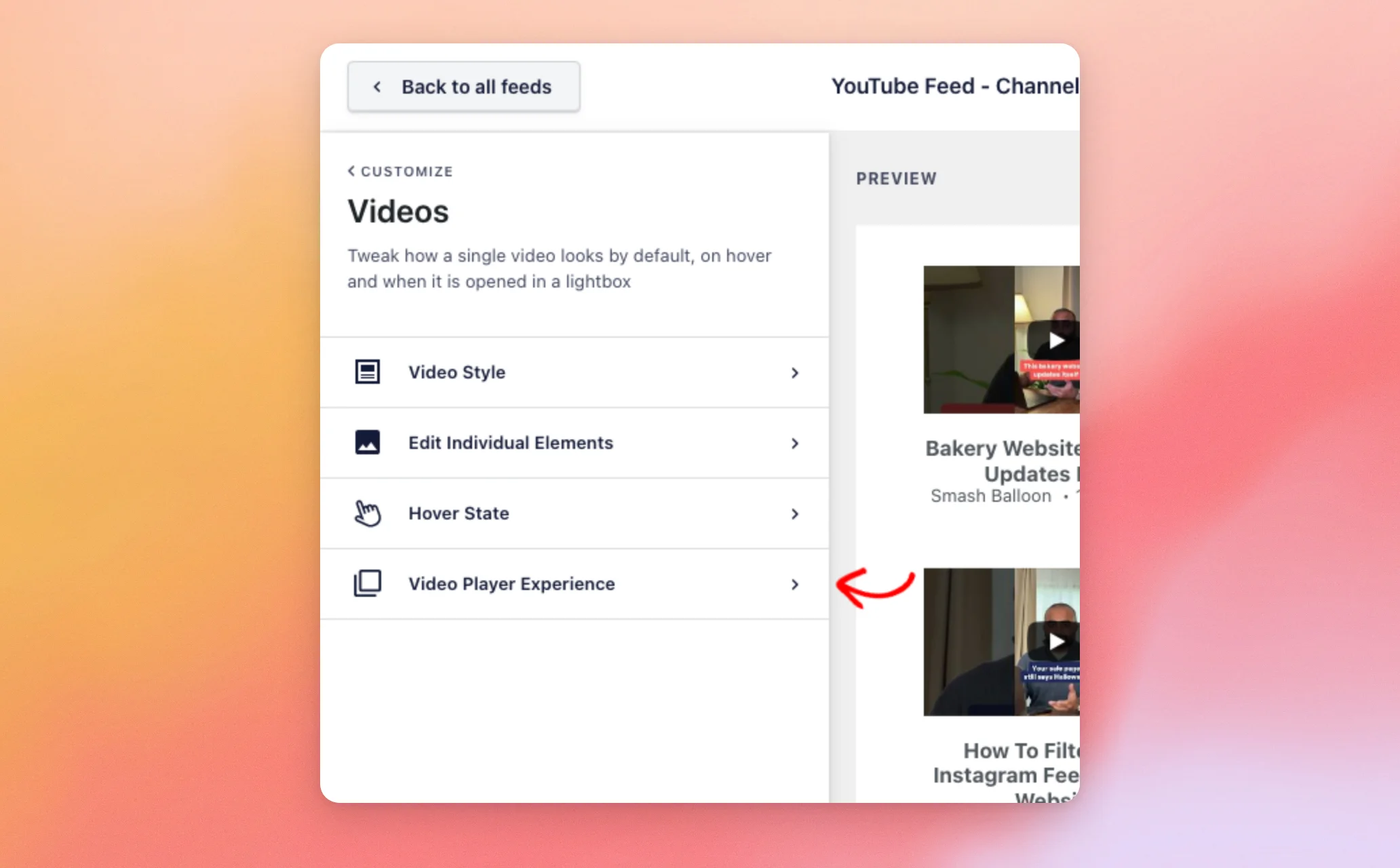
Then click Video Player Experience.
The When does video play? setting has 2 options:
- Play when clicked: the video waits until the visitor clicks play.
- Automatically: the video starts playing as soon as it opens. This is the setting a feed starts with. Of the layouts we tested, only Grid started videos on its own (see Layouts and Autoplay).
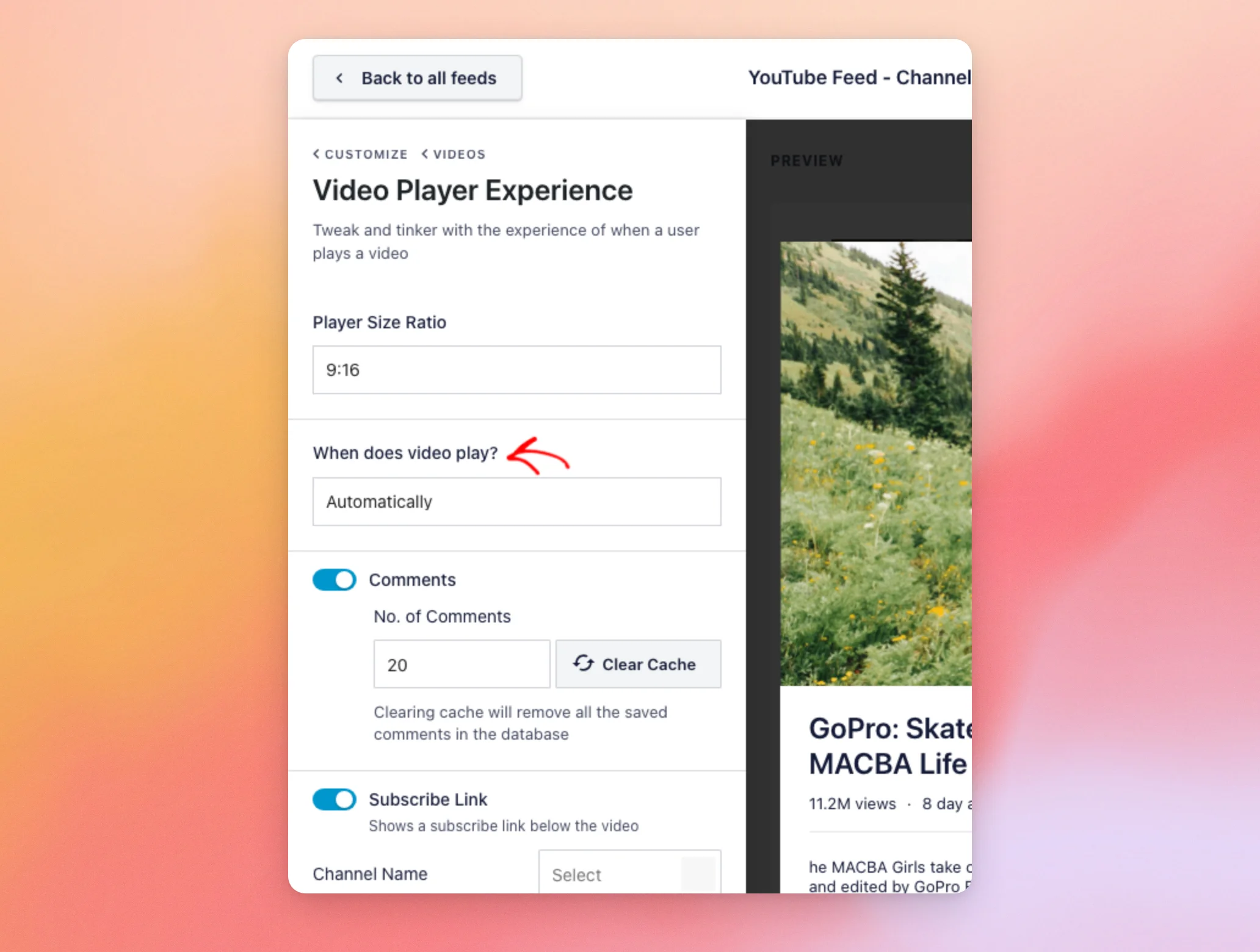
To make visitors click play, choose Play when clicked.
When you are done, click Save at the top right of the editor.
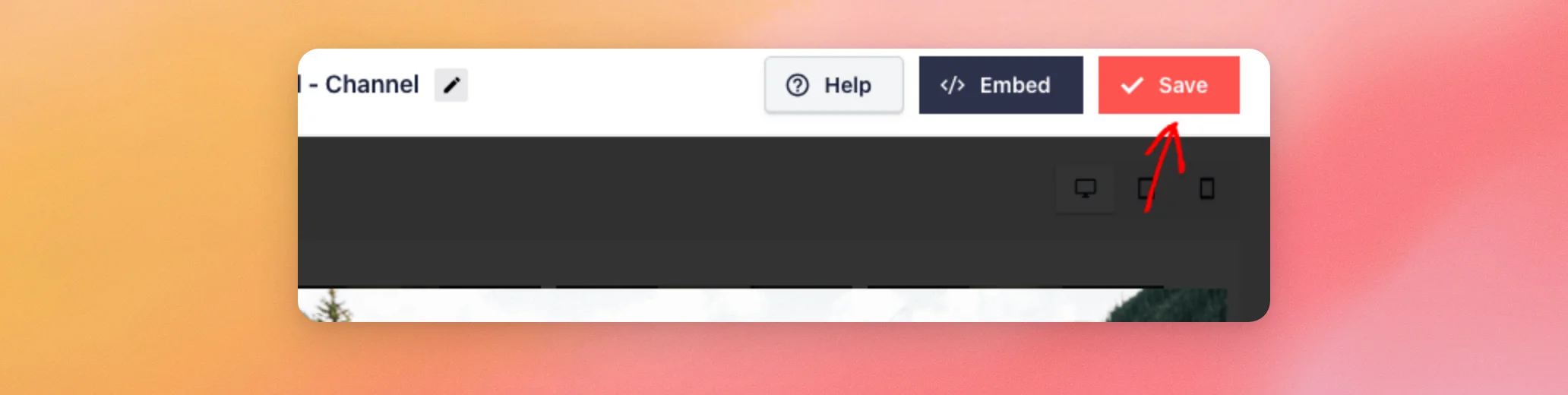
Your choice is now saved for that feed.
Layouts and Autoplay
We tested the setting on the front end of a test site running YouTube Feed 2.11.1. We used a desktop Chromium browser and a visitor who was not logged in. We clicked the first video of the feed.
The results were different for each layout:
- Grid: the video opens in a pop-up. With Automatically, it started playing on its own. With Play when clicked, the pop-up opened and waited for a click on the play button.
- Gallery: the video loaded in the player above the thumbnails and waited for a click on the play button. It did this with both options.
- List: the video loaded in the player and waited for a click on the play button. It did this with both options.
In other words, Automatically only started a video on its own in the Grid layout. We did not test the Carousel and Swipe View layouts. We also did not test opening a second video on the same page.
Browsers can also block a video with sound from starting without a click. Results can vary by browser and device. Our test browser allowed the Grid video to start after the click. We did not test on phones or tablets.
That’s it! You now know how to choose when your videos play and how the Grid, Gallery, and List layouts react to the setting. Next, see how to add an action at the end of your YouTube videos.
Frequently Asked Questions
Below, we’ve answered some of the most common questions about when YouTube videos play.
Which option does my new feed use?
A new feed starts with Automatically. You can change it at any time in Customize » Videos » Video Player Experience.
Does the setting change all of my feeds at once?
No. The setting is saved with each feed, so you need to change it in every feed where you want a different choice.
Why doesn’t my video start on its own in the Gallery or List layout?
In our test on YouTube Feed 2.11.1, the Gallery and List layouts waited for a click on the play button with both options. Only the Grid layout started a video on its own.
See Layouts and Autoplay above for the full results.
Why doesn’t my video start on its own in the Grid layout?
First, check that the feed is set to Automatically and that you clicked Save. Then check that the feed uses the Grid layout. It is the only layout where Automatically started a video in our test.




