


 Social Wall
 Feed Analytics


The three custom displays you can show when a visitor pauses or finishes a video, and where to set them.
Would you like to choose what visitors see when a video in your YouTube feed ends?
In this guide, we’ll show you how to use the Call to Action setting in Feeds for YouTube Pro. You can show other videos from your feed or a button that links to any page. You can also leave the end of the video to YouTube.
Requirements: The Call to Action setting requires Feeds for YouTube Pro. The Custom Link option requires a plus license level or higher.
Before you get started, make sure Feeds for YouTube Pro is installed and activated on your WordPress site. You’ll also need a feed that shows your videos.
Here is what we will cover:
- Find the Call to Action Setting
- Showing Related Videos
- Showing a Custom Link
- Showing the YouTube Default
- Frequently Asked Questions
Find the Call to Action Setting
The Call to Action setting controls what appears over the player when a video ends. It doesn’t appear when a visitor pauses a video.
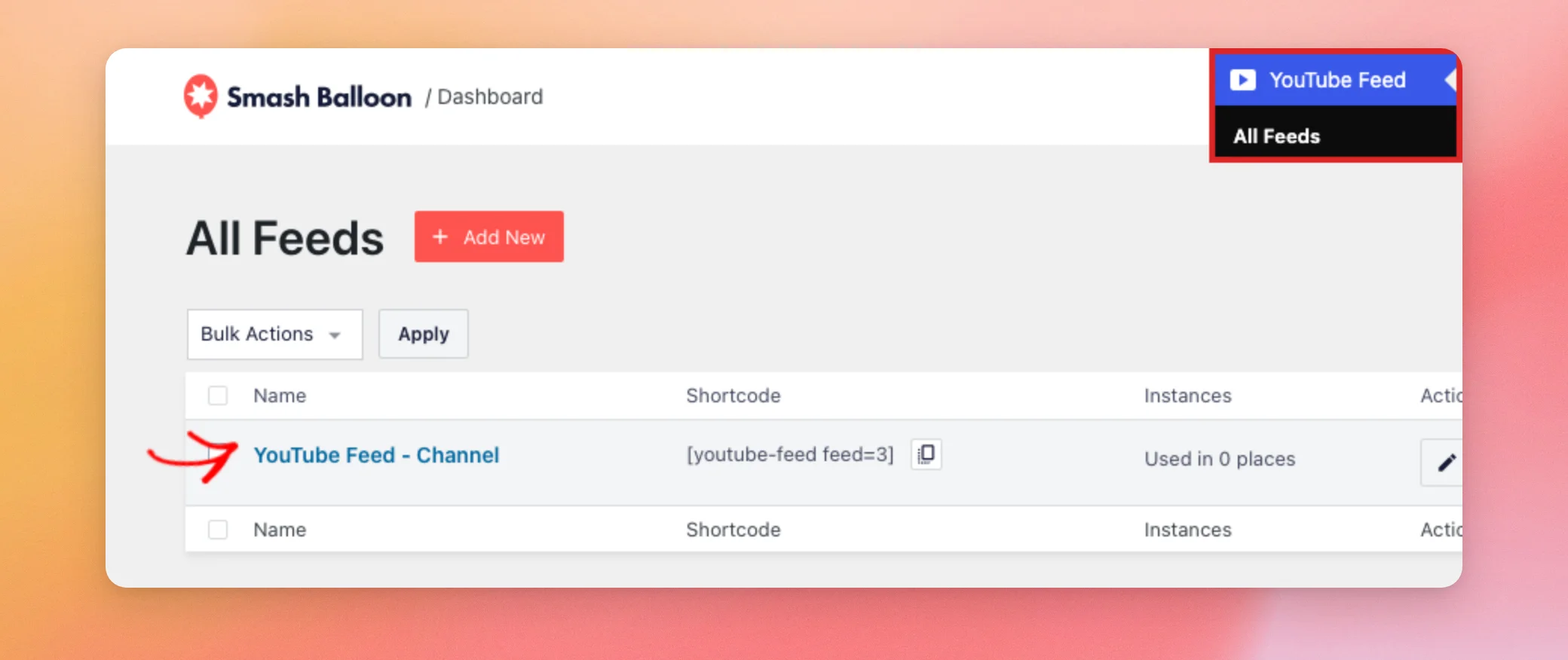
To find it, go to YouTube Feed » All Feeds in your WordPress dashboard. Then, click the name of the feed you want to edit.
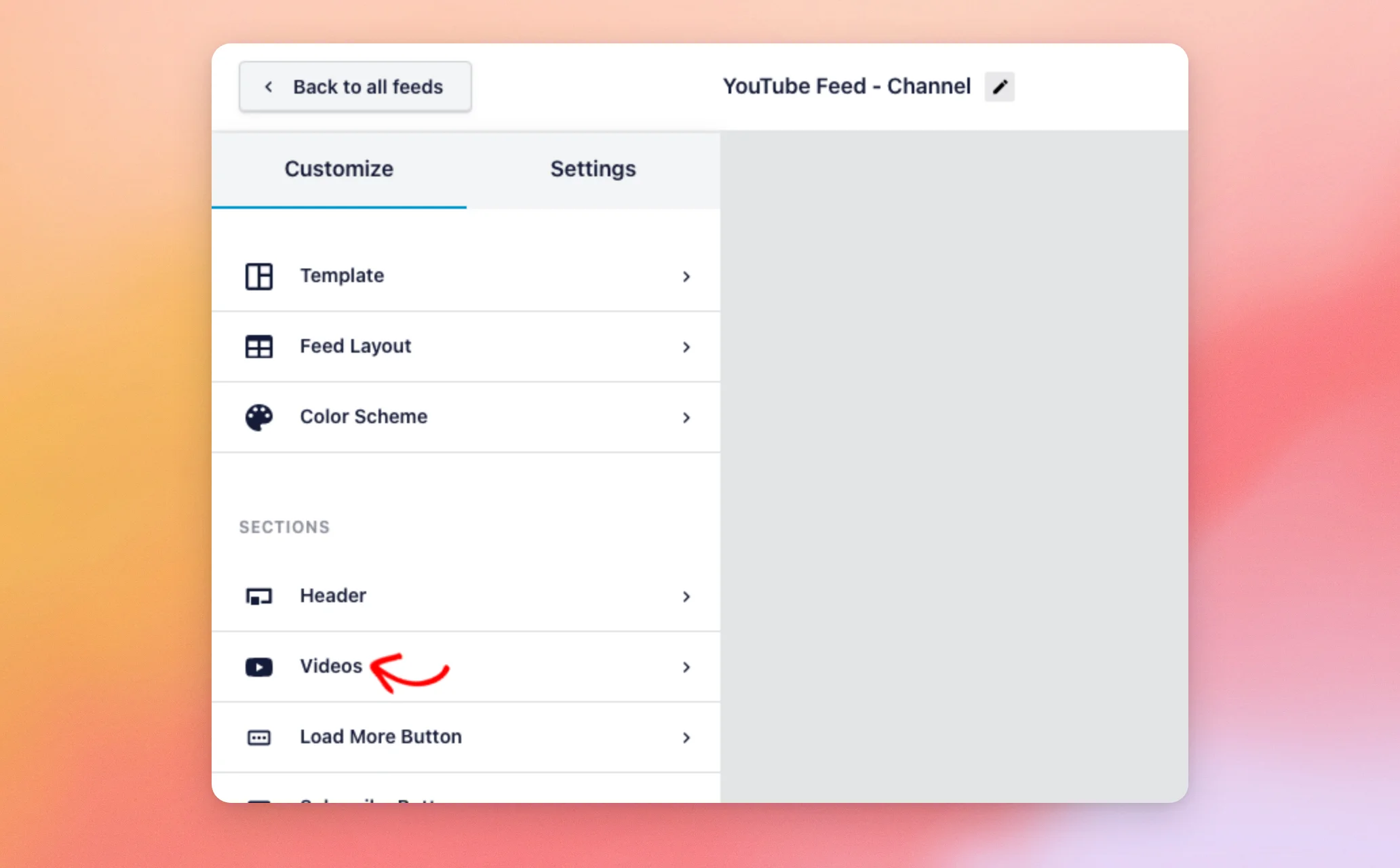
In the Customize tab of the feed editor, click Videos.
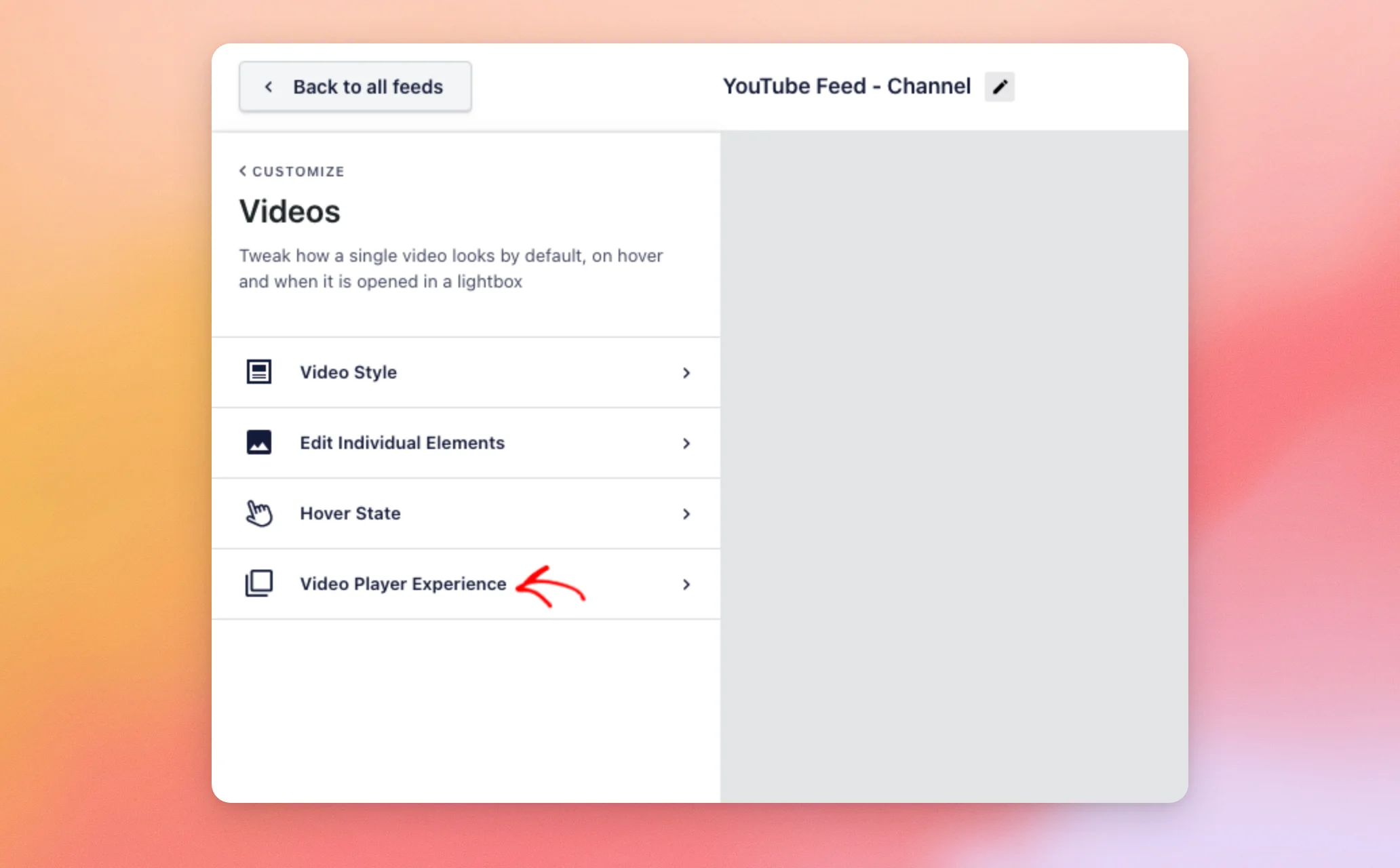
Next, click Video Player Experience.
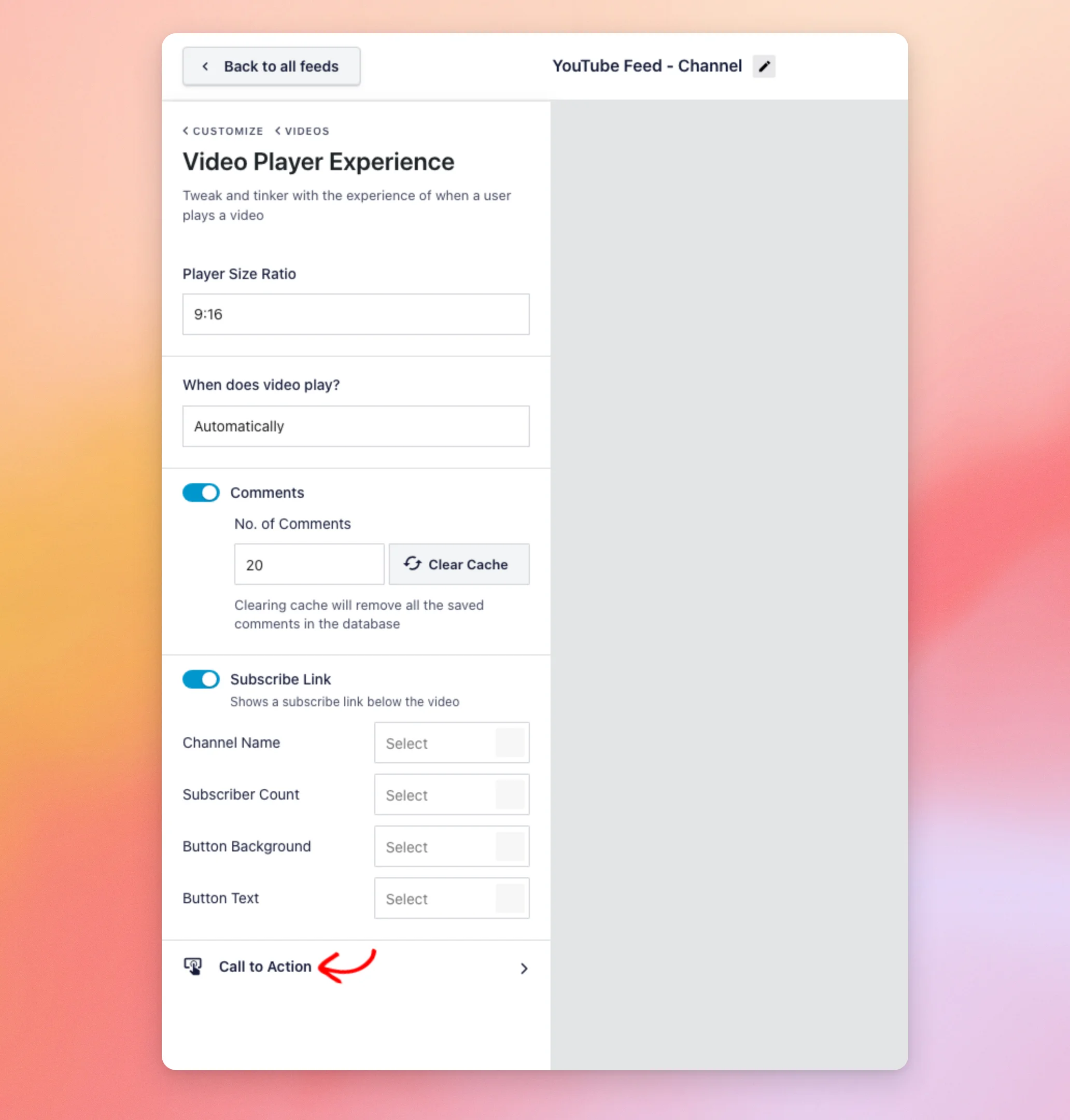
Then, scroll down and click Call to Action.
Call to Action comes in 3 types: Related Videos, Custom Link, and YouTube Default. We’ll look at each one next.
Showing Related Videos
Related Videos is the default. A new feed keeps the focus on your own videos. When a video ends, visitors see other videos from your feed.
To use it, click the Type dropdown. Then, select Related Videos.
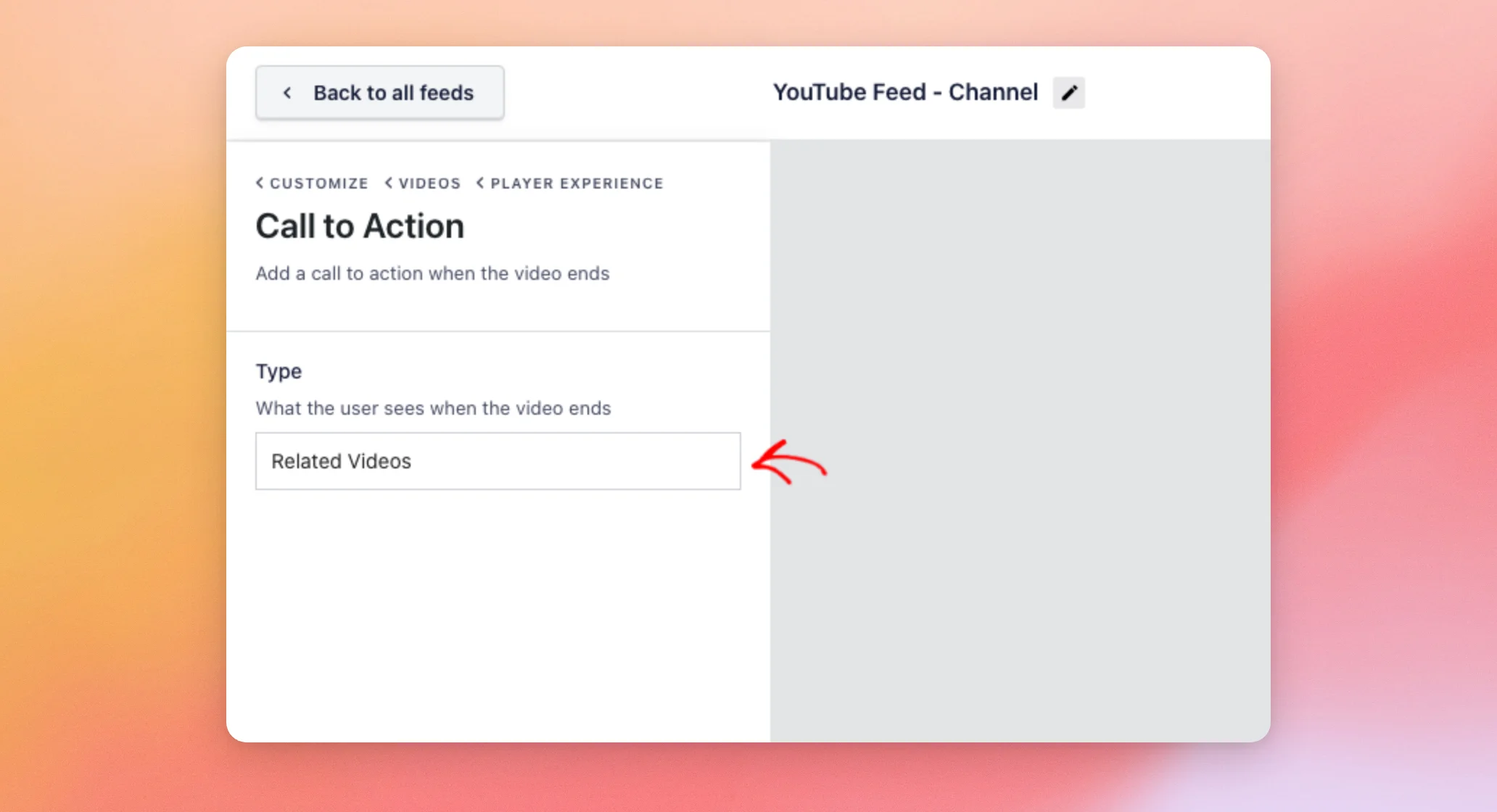
If you changed the type, save your feed the same way as in the Custom Link section below.
Here is what visitors see on your site when a video ends. The player shows a grid of videos from your feed, each with its title. A Replay button sits below them.
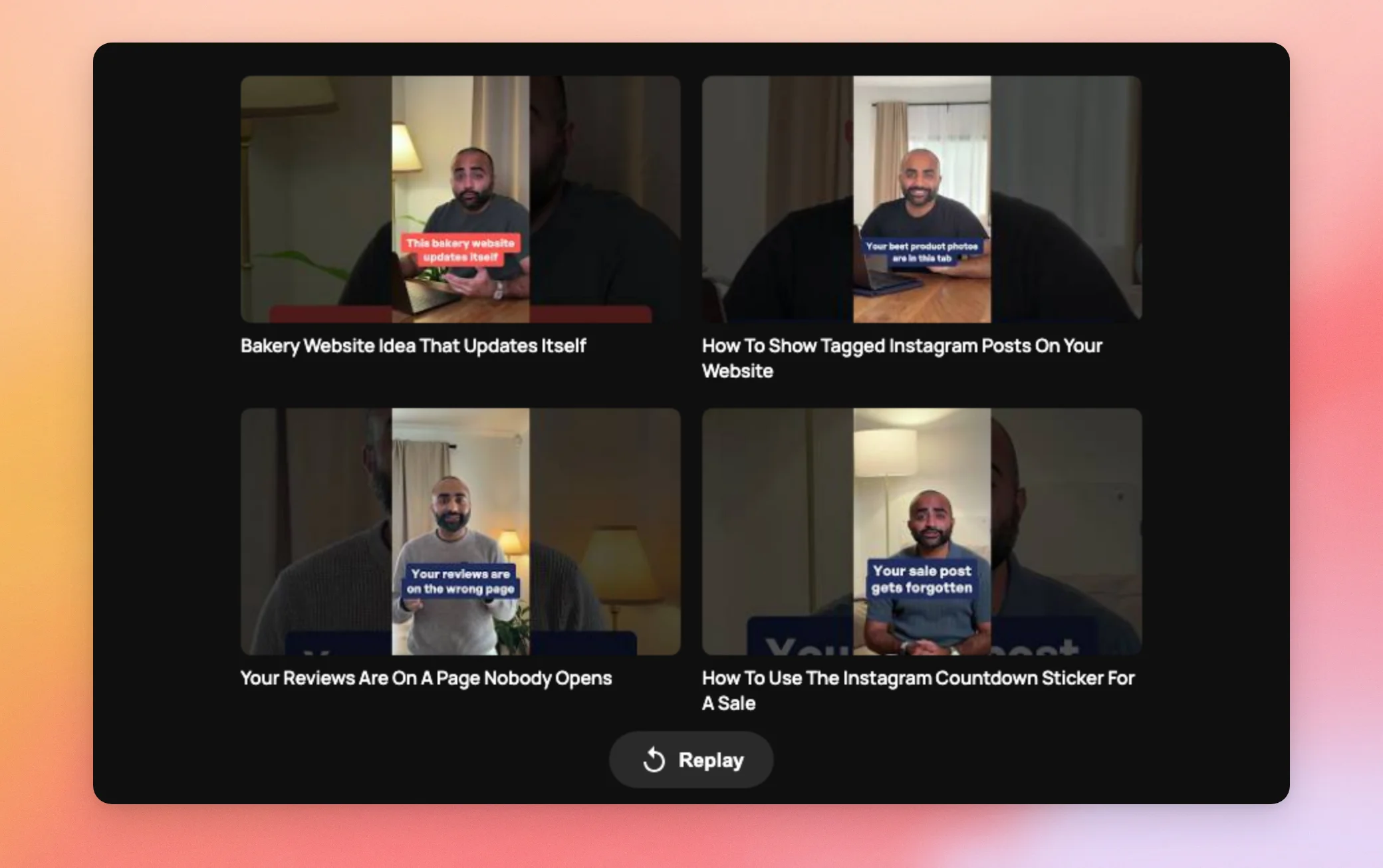
Related Videos is now set up. If you would rather send visitors to a specific page, the next option does that.
Showing a Custom Link
Custom Link shows a button when a video ends. It works well for sending visitors to a shop page, a sign-up page, or an affiliate link.
To use it, click the Type dropdown. Then, select Custom Link.
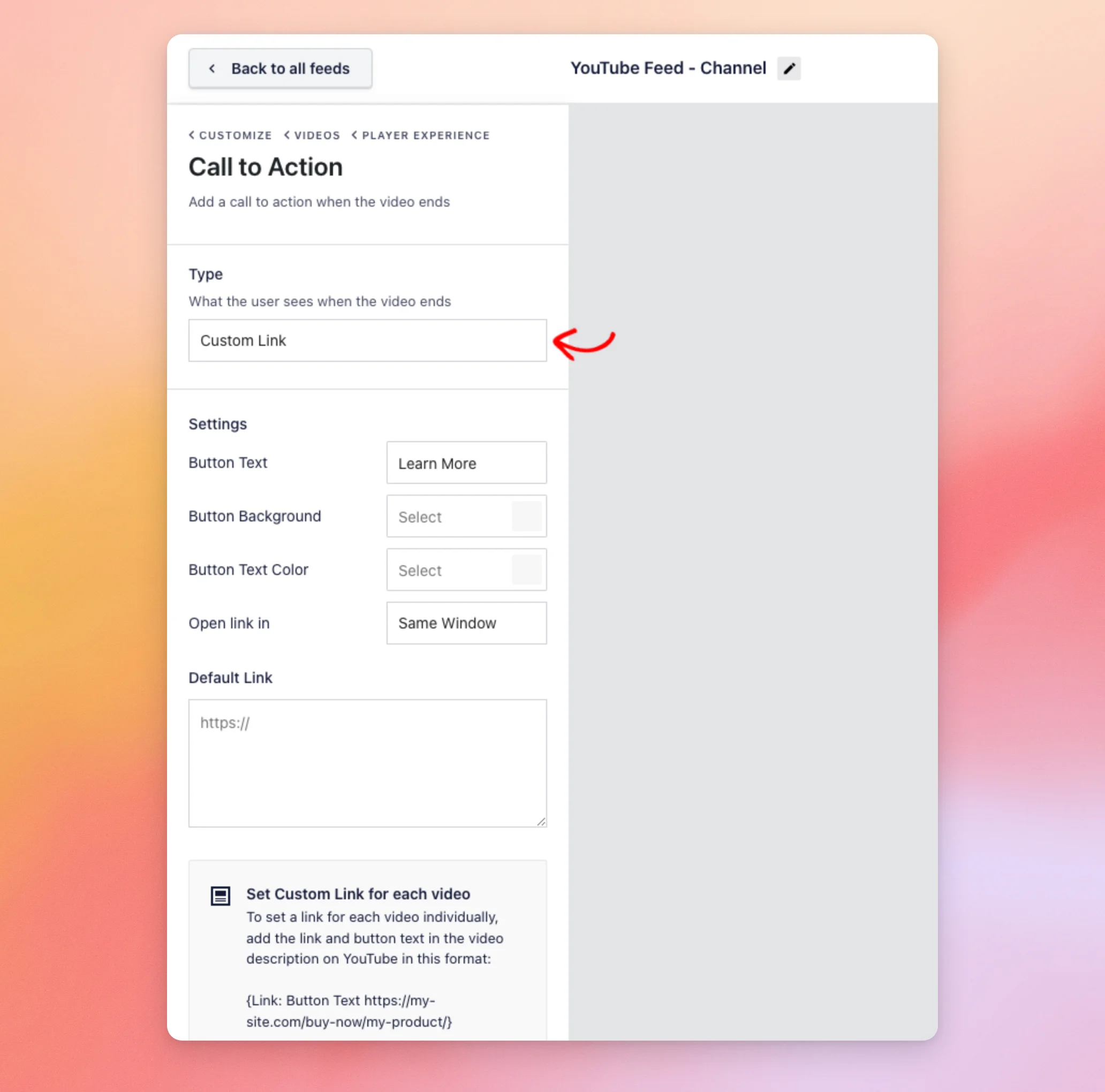
Custom Link has these settings:
- Button Text. The words on the button. The default is “Learn More”.
- Button Background. The color of the button.
- Button Text Color. The color of the words on the button.
- Open link in. The options are Same Window and New Window.
- Default Link. The page the button opens for your videos.
To set up the button, enter your button text. Then, enter the link in the Default Link field.
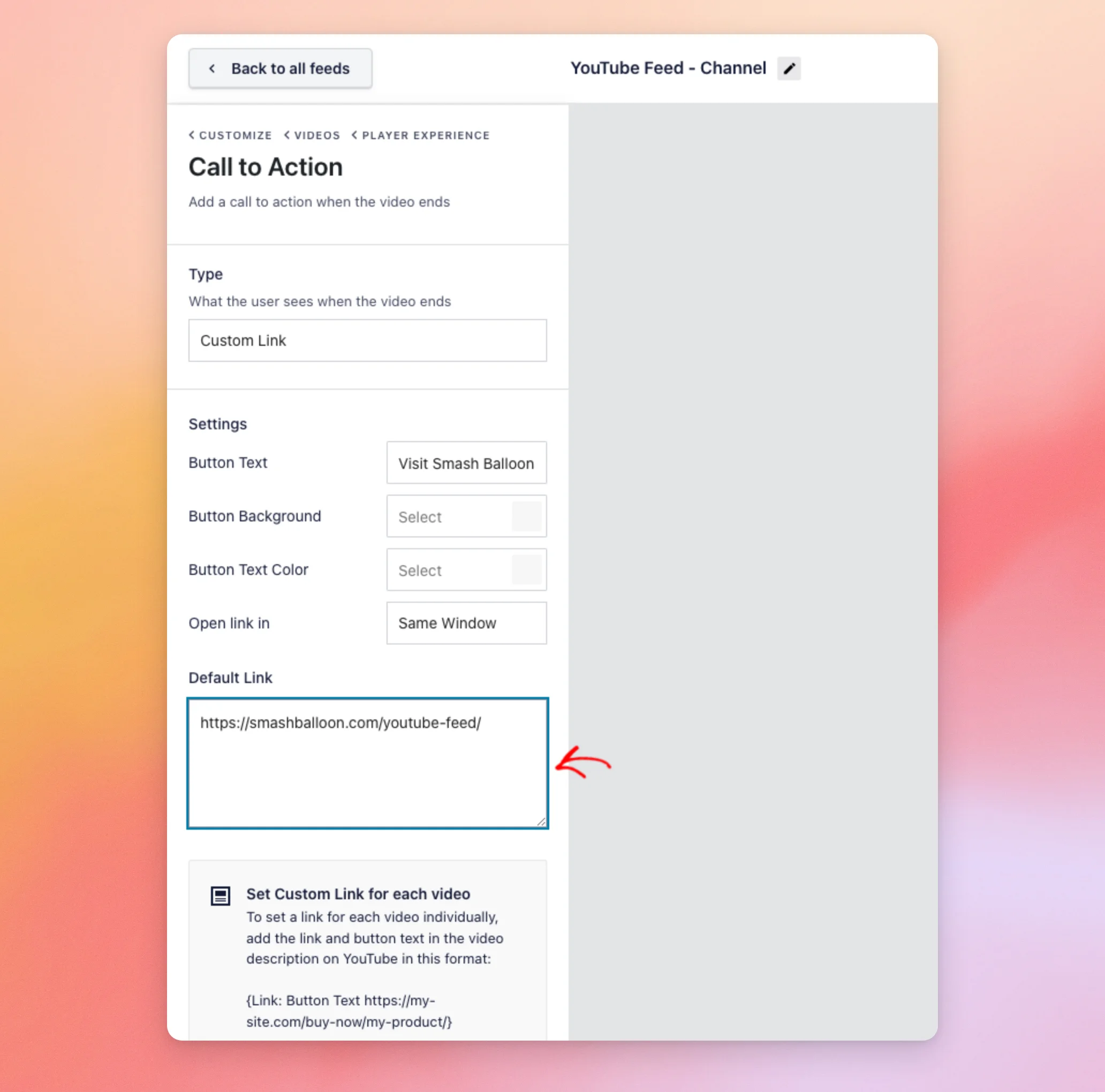
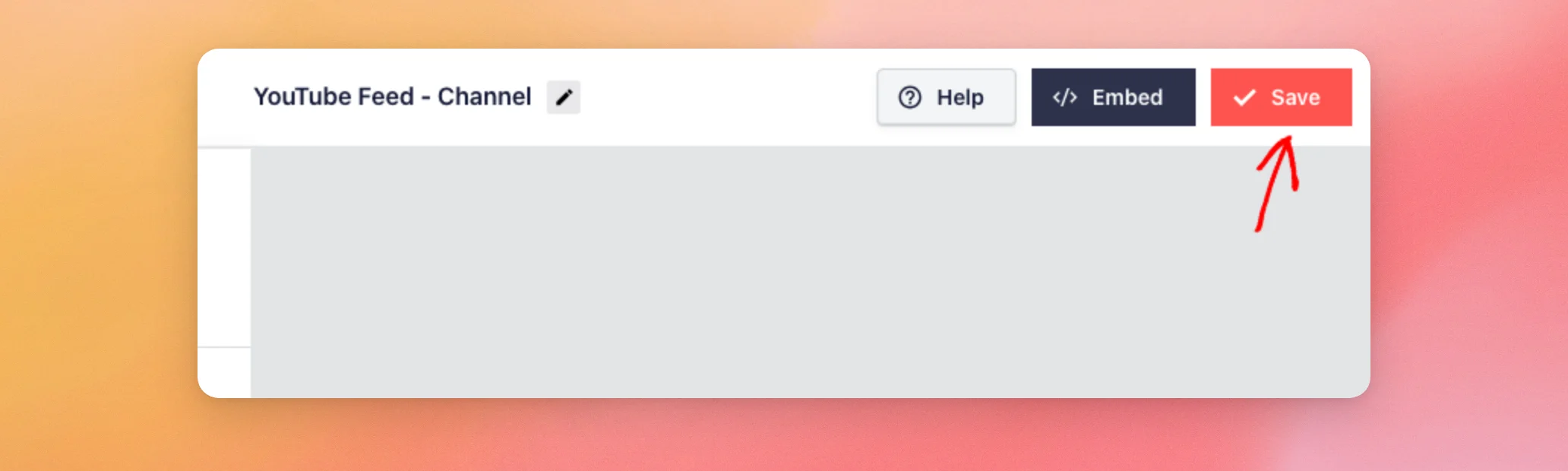
When you’re done, click Save.
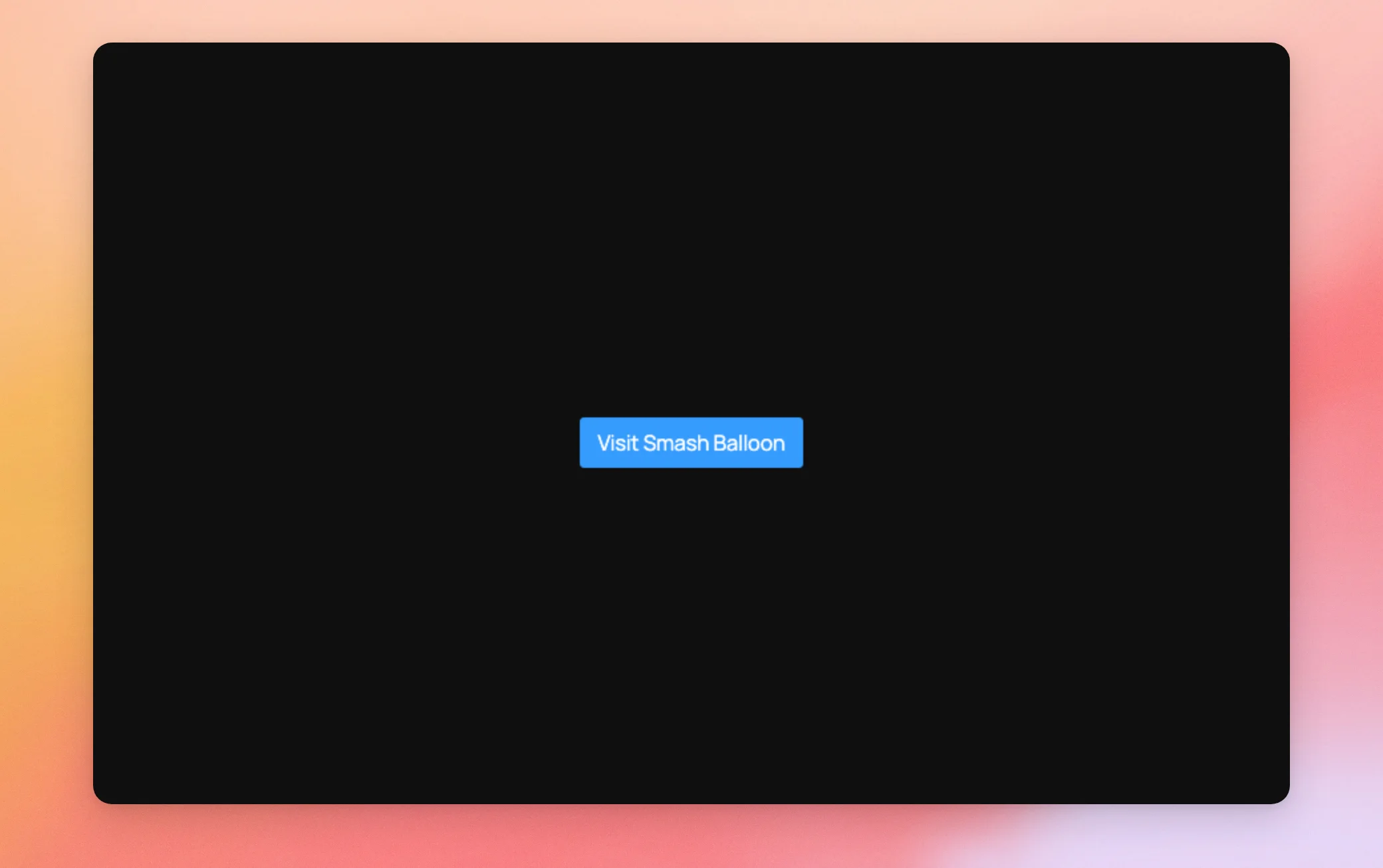
Here is what visitors see on your site when a video ends. The player shows your button.
Setting a Link for Each Video
You can also give each video its own button and link. This is useful when every video promotes a different product.
To do this, add a line like the one below to the video’s description on YouTube.
{Link: Button Text https://my-site.com/buy-now/my-product/}
Replace Button Text with the words you want on the button. Then, replace the web address with your own link. For videos with no line like this, the button uses your Button Text and Default Link settings.
Custom Link gives you full control over what visitors do next. If you would rather leave the end of the video to YouTube, the last option does that.
Showing the YouTube Default
YouTube Default leaves the end of the video to YouTube. For videos with no {Link: ...} line in their description, Feeds for YouTube Pro adds nothing over the player. It suits feeds where you don’t want your own grid or button over the player when a video ends.
To use it, click the Type dropdown. Then, select YouTube Default.
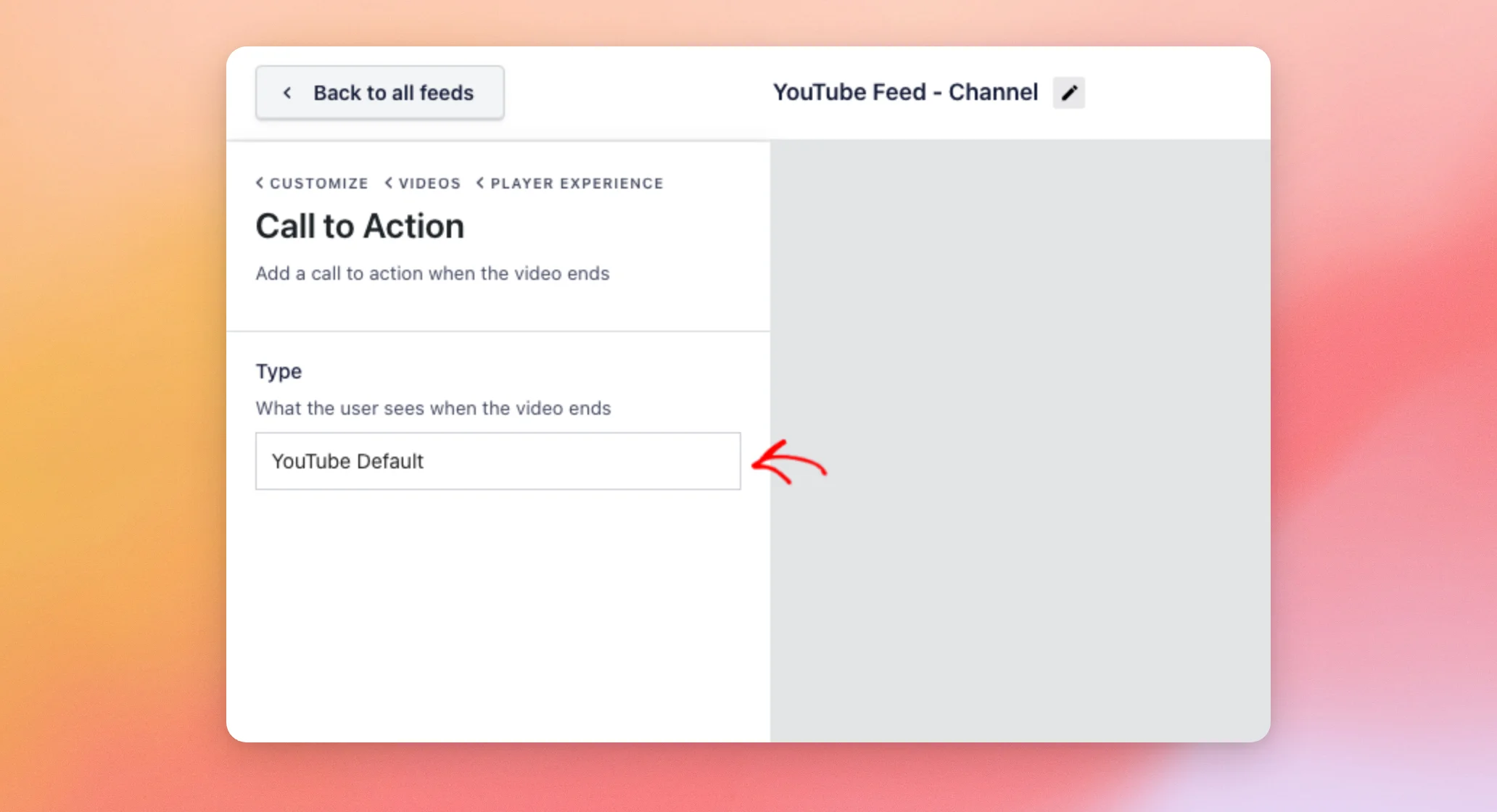
Then, save your feed the same way as above.
That’s it! You now know how to use the Call to Action setting to choose what visitors see when a video in your feed ends. Next, take a look at our guide to the Customize tab to see what else you can change in your feed.
Frequently Asked Questions
Below, we’ve answered some of the most common questions about the Call to Action setting.
Does the Call to Action appear when a visitor pauses a video?
No. It appears only when a video ends.
Which option does a new feed use?
Related Videos. You can change it any time in Customize » Videos » Video Player Experience » Call to Action.
Do I need a paid license to use the Call to Action setting?
Yes. The Call to Action setting is part of Feeds for YouTube Pro. The Custom Link option needs a plus license level or higher.
Do the Related Videos come from my feed?
Yes. Related Videos shows other videos from the same feed. YouTube Default leaves the end of the video to YouTube.
Can I use a different link for each video?
Yes. Add the button text and link to the video’s description on YouTube. For the exact format, see the Setting a Link for Each Video section above.




