


 Social Wall
 Feed Analytics


Would you like to start a feed from a ready-made design instead of setting every layout option yourself?
In this guide, we’ll show you what each of the seven feed templates sets up and how to pick one when you create a feed. We’ll also cover how to switch an existing feed to another template. All you need is Custom Twitter Feeds Pro with a license that includes templates.
Requirements: Feed templates need the plus license level or higher. Older Personal, Business, and Developer licenses include them too. The free and paid version comparison lists what each version includes.
Before you get started, make sure Custom Twitter Feeds Pro is installed and activated on your site.
- What Does Each Template Set Up?
- Choosing a Template for a New Feed
- Switching a Feed to Another Template
- Frequently Asked Questions
What Does Each Template Set Up?
A template is a starting point. It sets the layout, the number of posts, the header, and the look of each post for you. The plugin offers these seven templates, listed here as they appear in the picker.
| Template | What it sets up |
|---|---|
| Default | A single list of four posts with the standard header and a line between posts. |
| Masonry Cards | A masonry layout of nine posts shown as cards, in three columns on desktop, two on tablets, and one on phones. |
| Simple Carousel | A carousel of six post cards, three at a time on desktop, with a text header and autoplay on. |
| Simple Cards | A single list of four posts with the standard header, each one shown as a card. |
| Showcase Carousel | A carousel of six posts, one at a time, with no header and autoplay on. |
| Latest Tweet | One post only, with no header. |
| Widget | A single list of four post cards with the standard header. |
You can still change any of these settings afterward in the feed customizer.
Choosing a Template for a New Feed
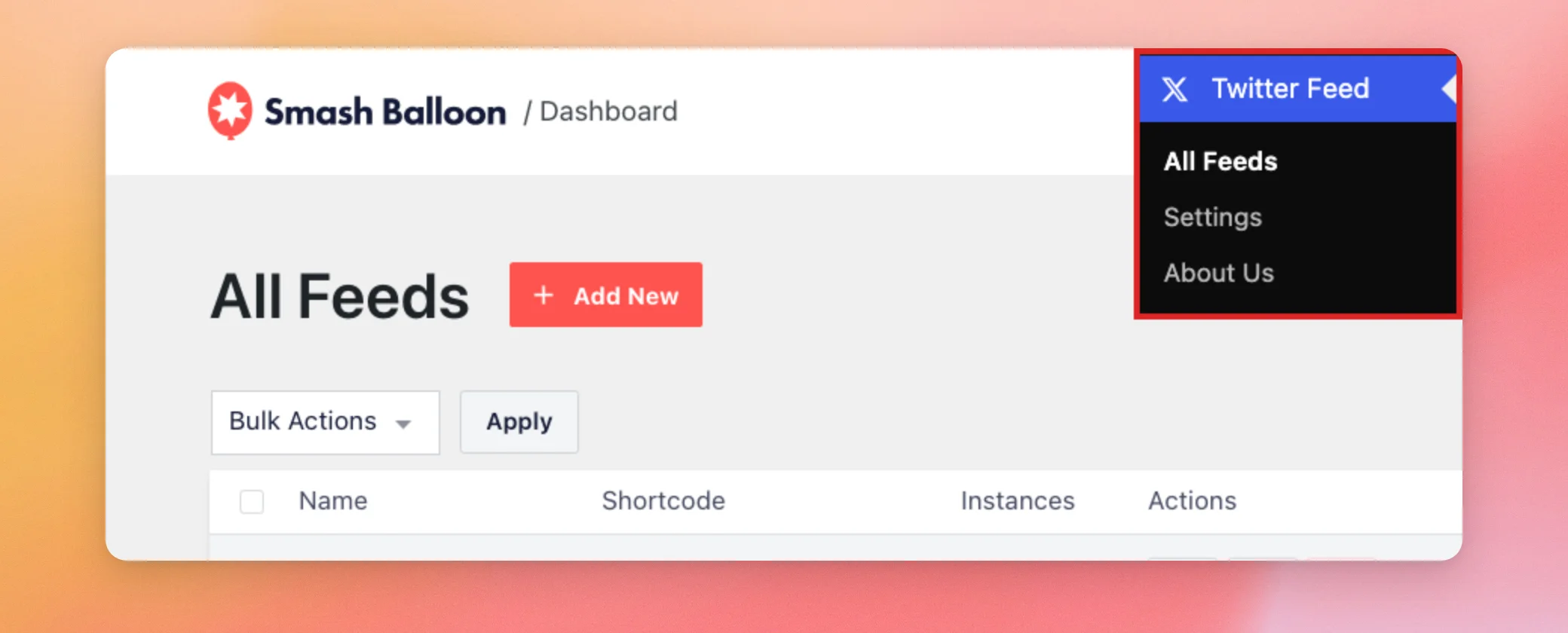
To start, go to Twitter Feed » All Feeds from your WordPress admin sidebar. The plugin’s menus and screens still use the name Twitter. That’s the name you’ll see in these steps.
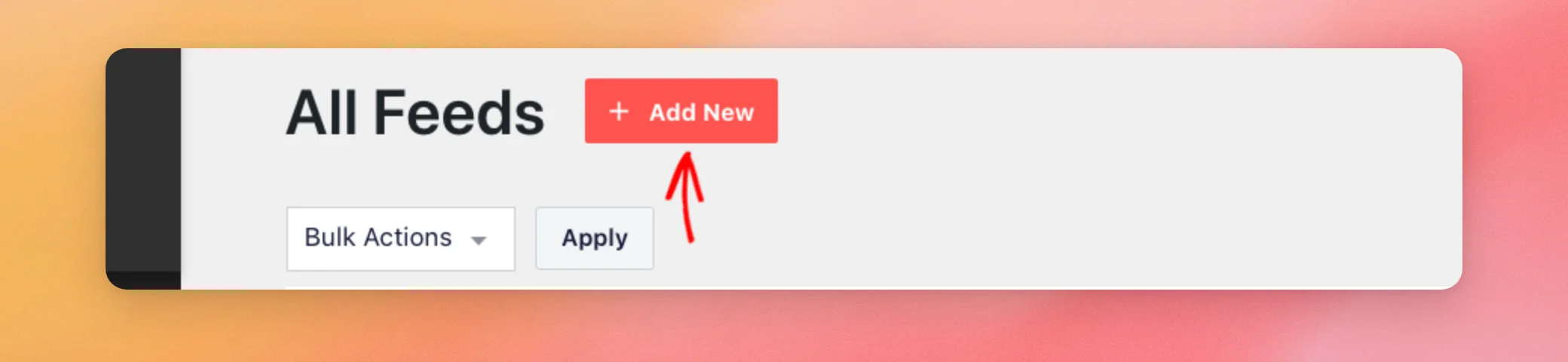
Next, click Add New.
On the next two screens, choose your feed type and enter the account or term for the feed. After each one, click Next. Our setup guide walks through both screens.
The next screen is Start with a template. To choose one, click the template you want.
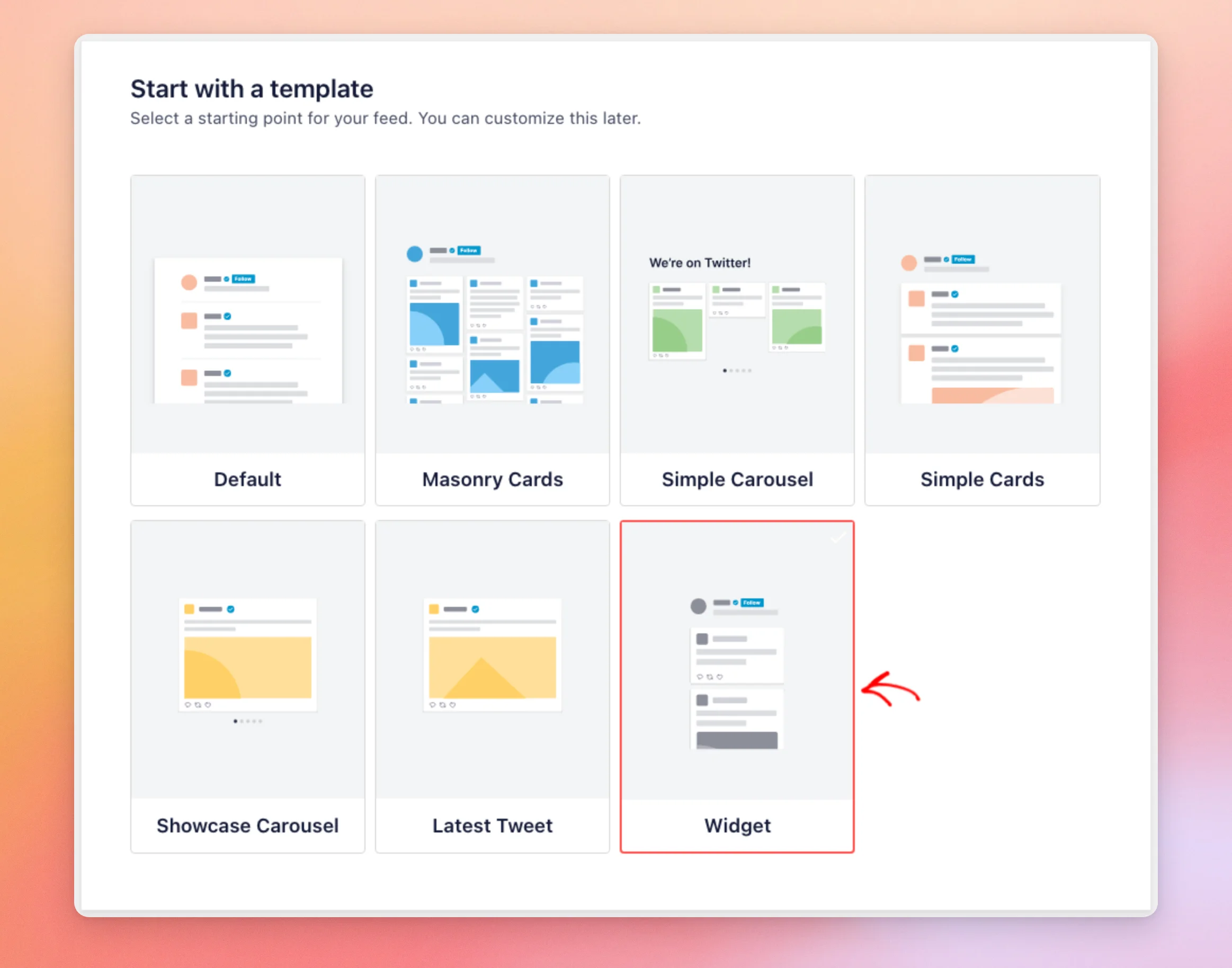
The template you choose gets a red outline and a check mark. Default is selected until you pick another.
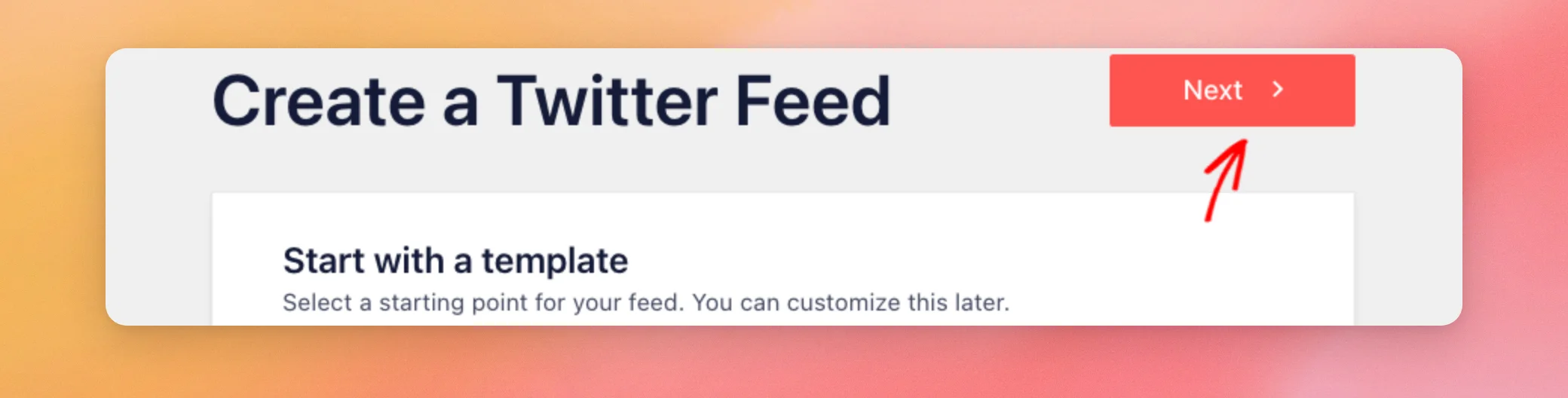
When you’re happy with your choice, click Next at the top or bottom of the screen. The plugin creates the feed and opens it in the customizer.
Your new feed now starts with the template you chose.
Switching a Feed to Another Template
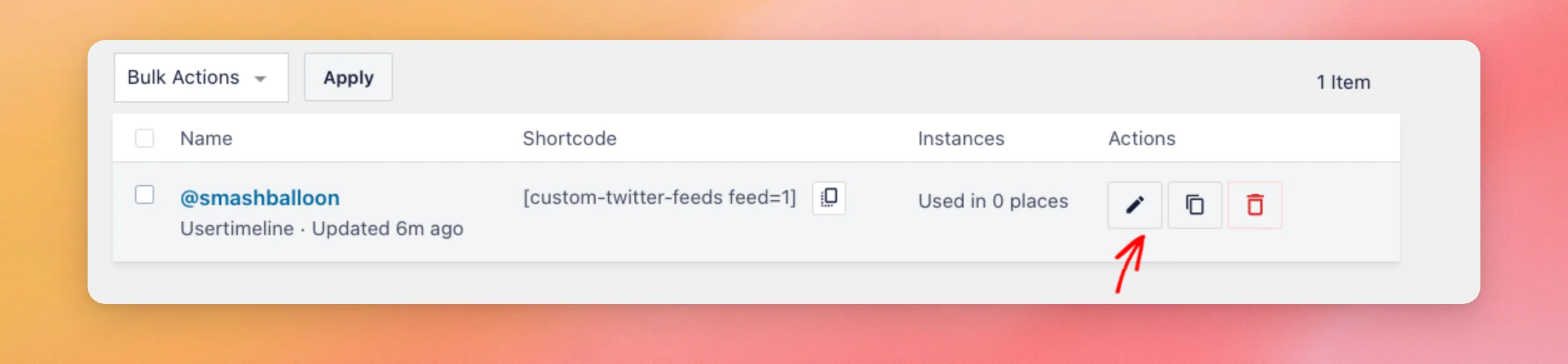
You can change a feed’s template at any time. First, open the feed’s customizer by clicking the pencil icon next to the feed on the All Feeds page.
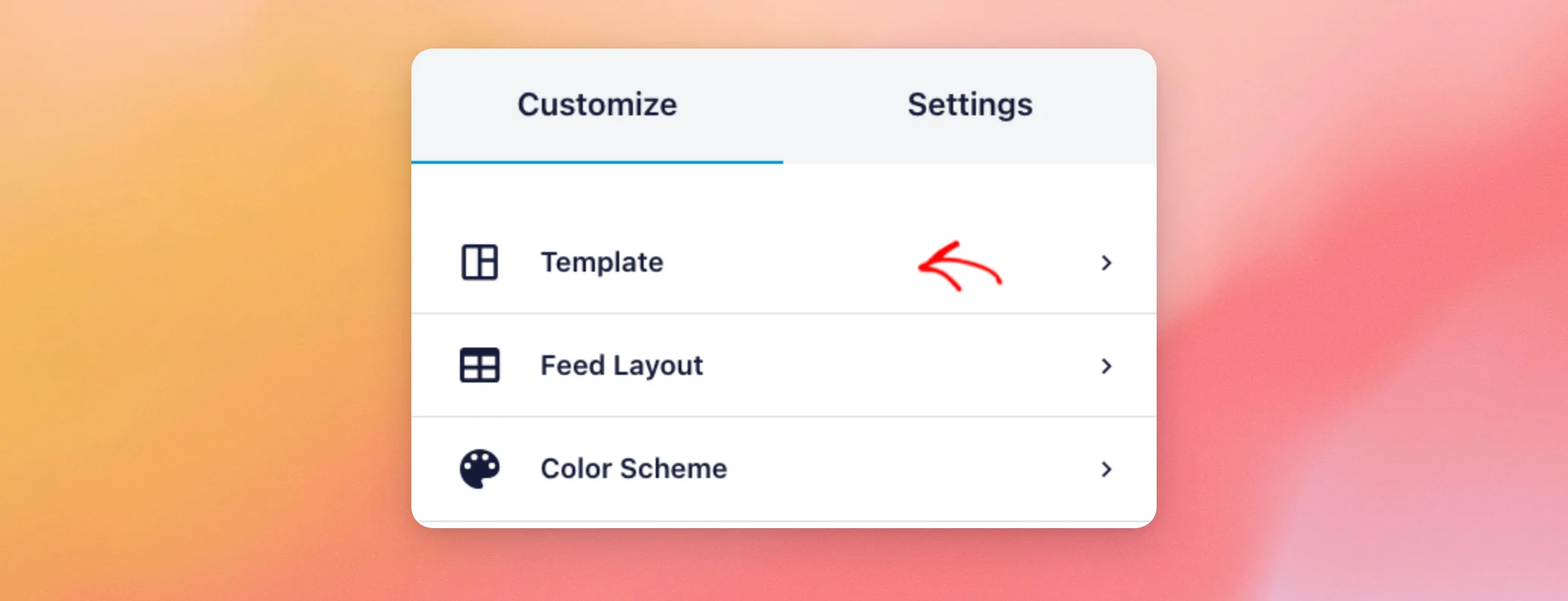
Then, on the Customize tab, click Template.
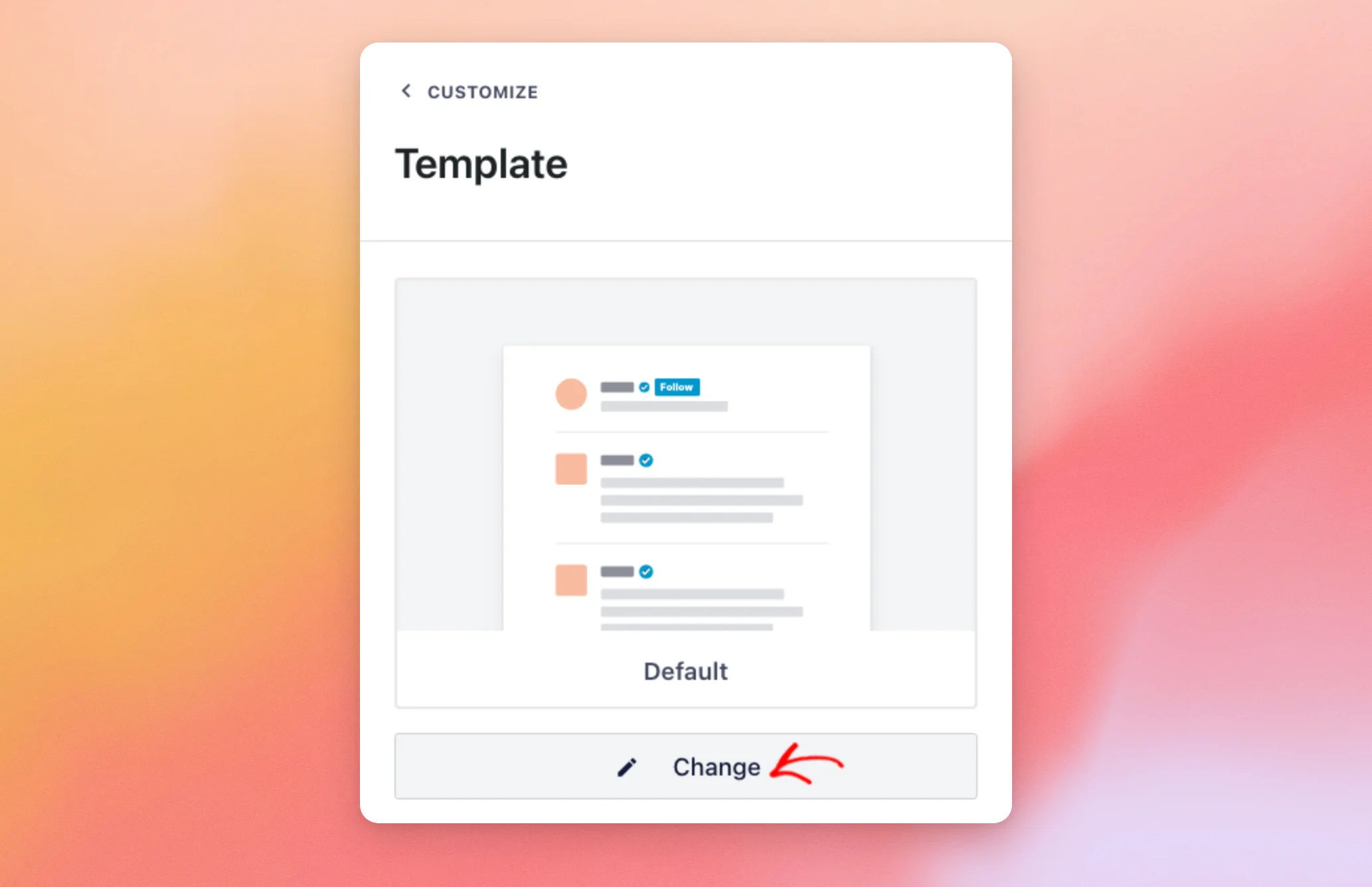
The panel shows the template the feed uses now. To switch, click Change.
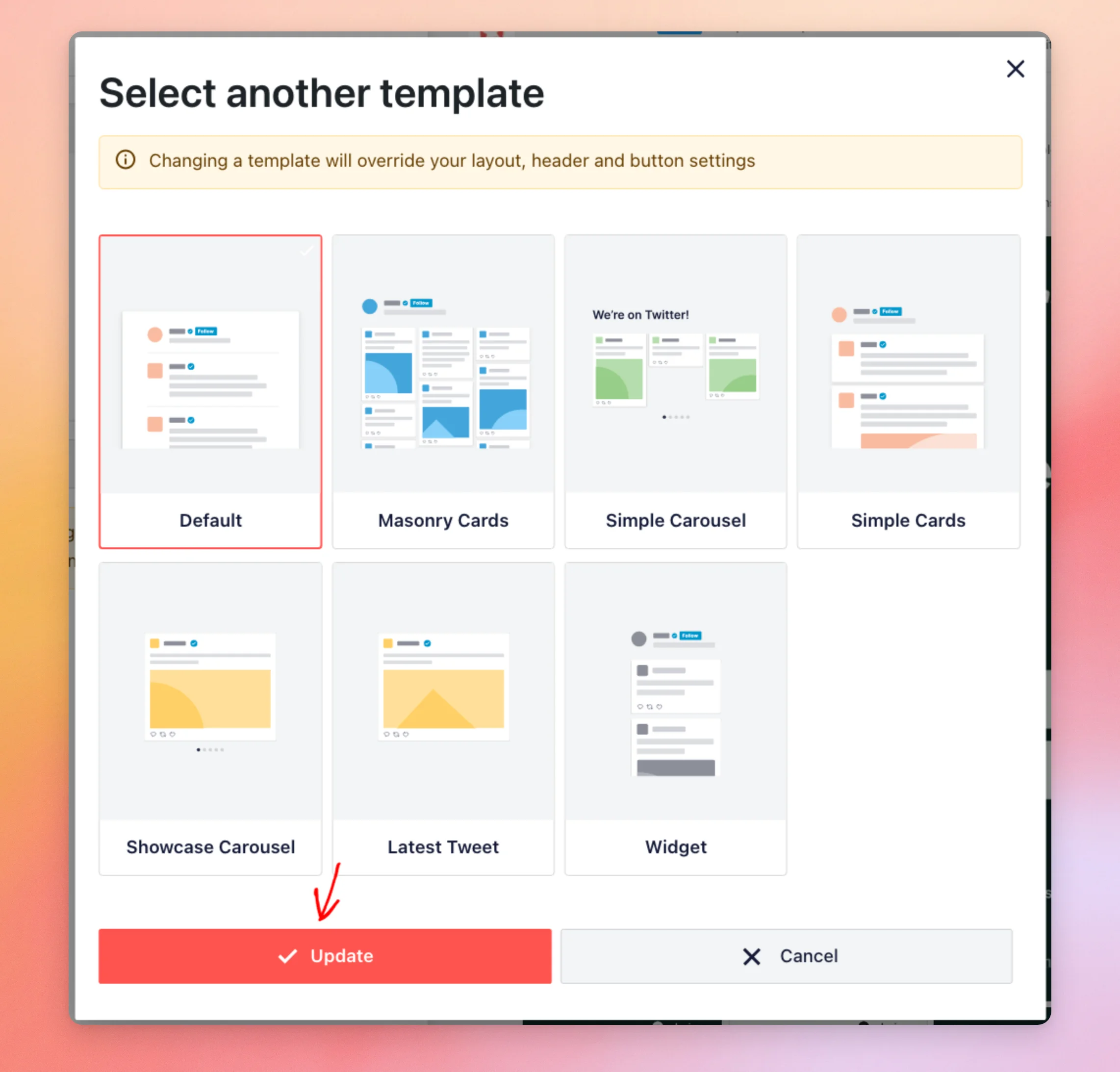
The Select another template window opens. It warns you that changing a template will override your layout, header and button settings.
Next, click the new template. Then click Update. To leave the feed as it is, click Cancel instead.
The preview refreshes with the new template. For example, choosing Masonry Cards turns the posts into a masonry layout of cards.
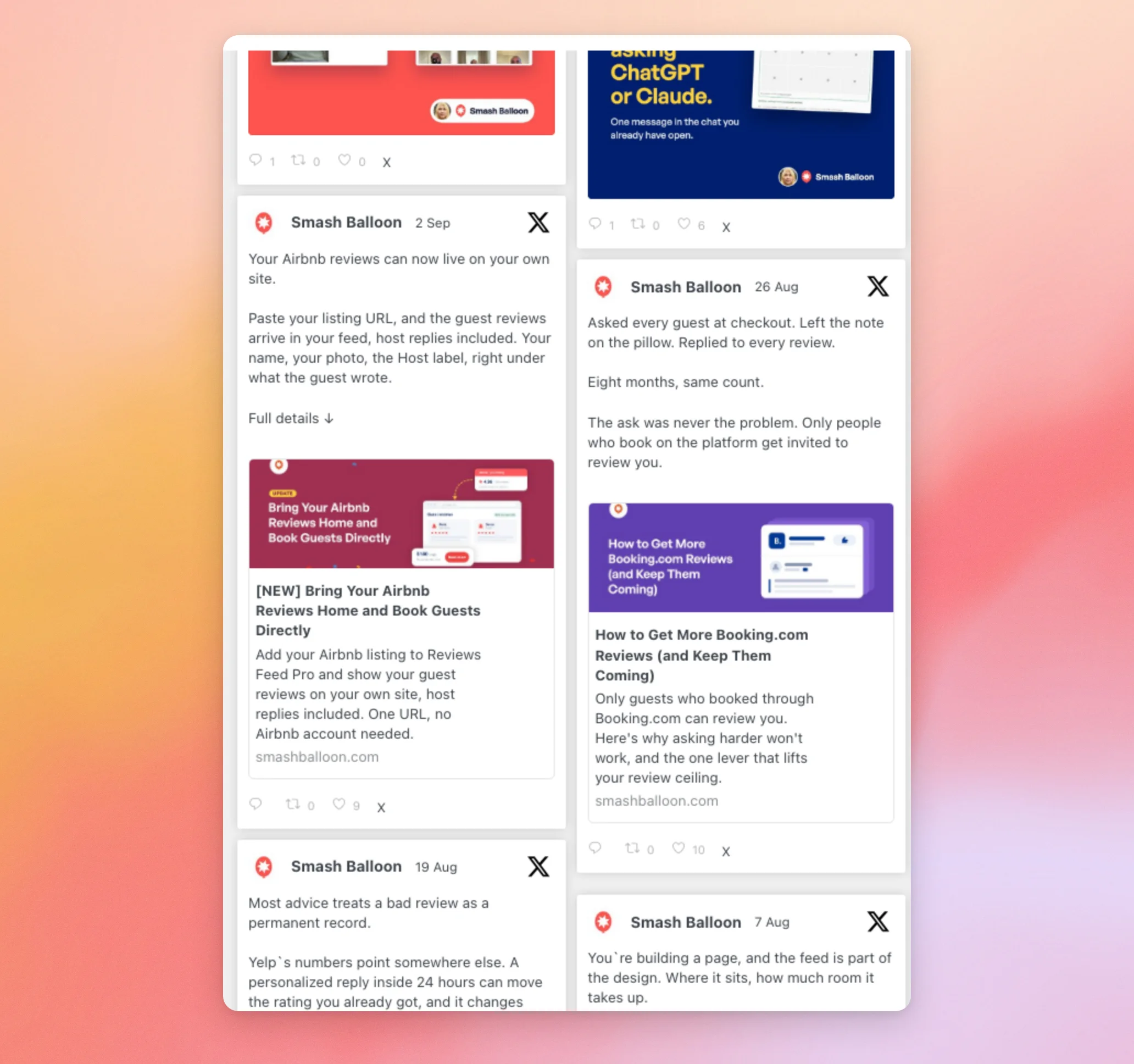
Choosing Latest Tweet shows a single post with no header. The Load More button still shows below it.
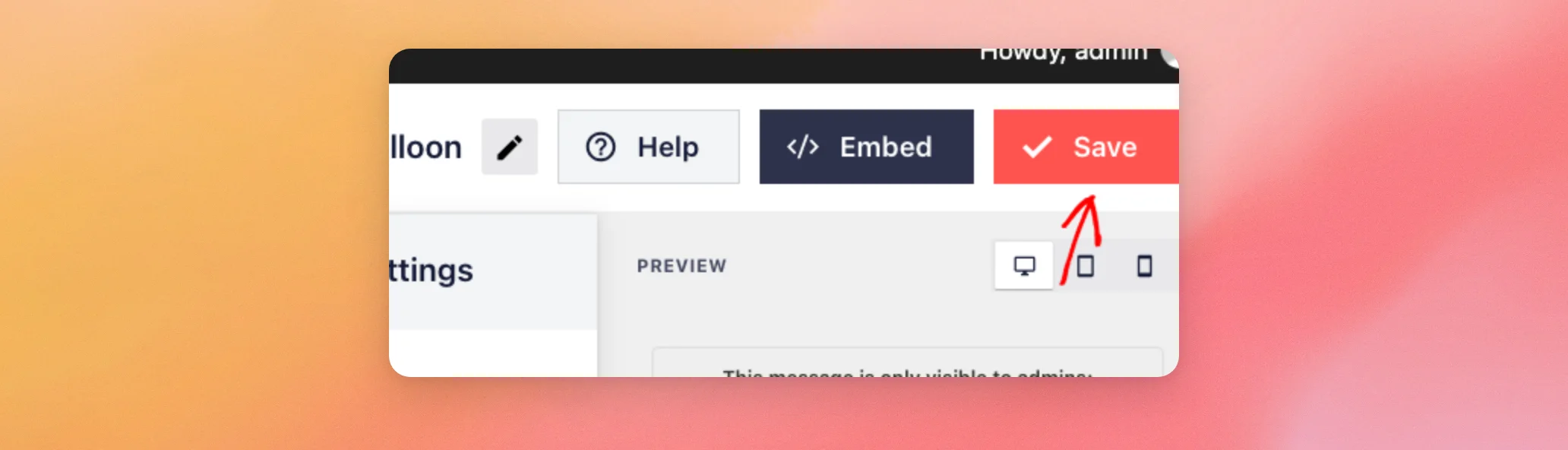
When you like the result, click Save at the top of the customizer. The template change only applies to your feed after you save.
That’s it! You now know how to start a feed from a template and how to switch it later.
Next, if you also want to change the feed’s HTML, see our guide on creating custom templates.
Frequently Asked Questions
Below, we’ve answered some of the most common questions about feed templates.
Which license level do I need for feed templates?
The plus license level or higher, and older Personal, Business, and Developer licenses. With a license that doesn’t include templates, the new feed screen skips the template step. The plugin shows an upgrade notice when you try to pick one.
Will switching templates change my layout and header settings?
Yes. The window warns that changing a template will override your layout, header and button settings. The number of posts and the look of each post also change to the new template’s values. Pick the template first, then adjust your own settings. See Switching a Feed to Another Template above.
Can I still customize a feed that uses a template?
Yes. A template only sets the starting values. Every option in the feed customizer stays available.




