


 Social Wall
 Feed Analytics


Would you like to show the reviews from your Facebook Page on your WordPress site?
In this guide, we’ll show you how to connect your Facebook Page to Reviews Feed and create a feed with it.
Requirements: Facebook sources require the Plus license level or higher of Reviews Feed.
Before you get started, make sure the latest version of Reviews Feed is installed and activated on your WordPress site. You also need a Facebook profile that has access to your Page.
- Connecting Your Facebook Page
- Creating a Feed With Your Facebook Page
- What Does Your Facebook Feed Show?
- Managing Your Facebook Sources
- Frequently Asked Questions
Connecting Your Facebook Page
To get started, we’ll create a new feed and connect your Facebook Page as its source.
From your WordPress admin sidebar, go to Reviews Feed » All Feeds. Then, click Add New.
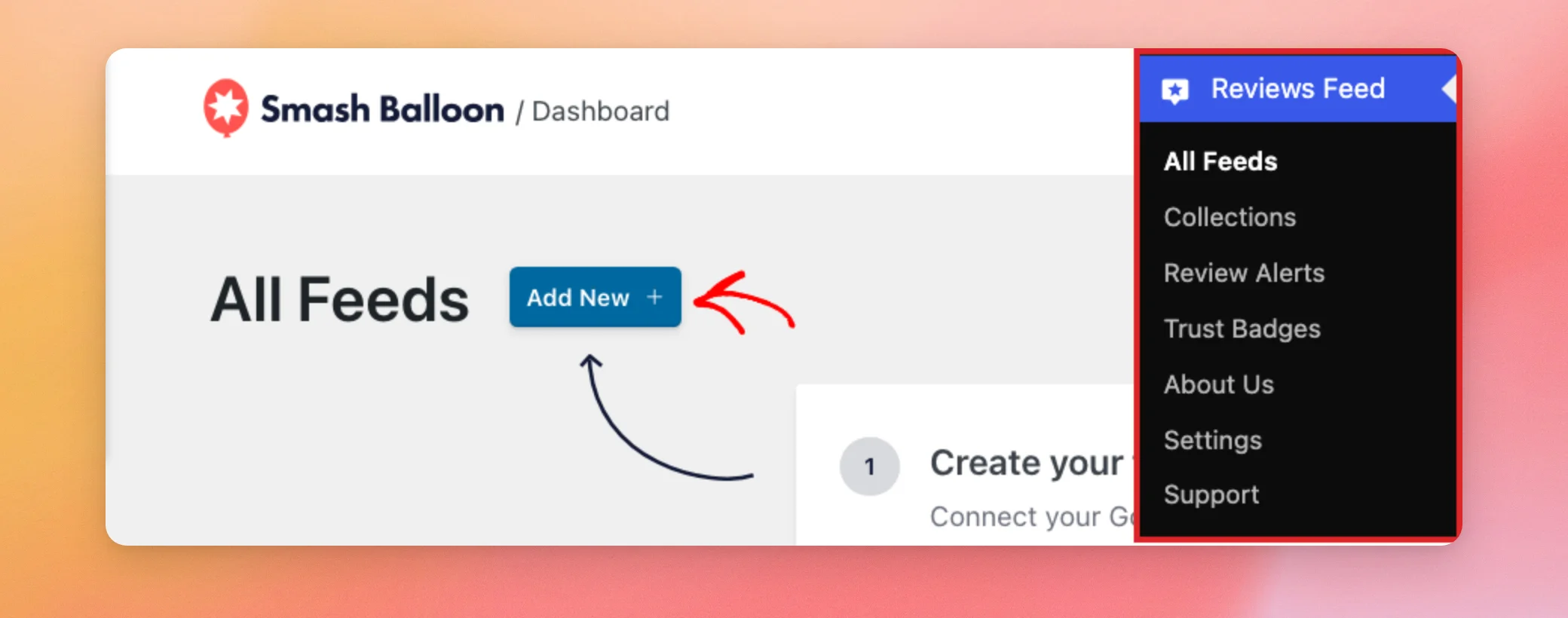
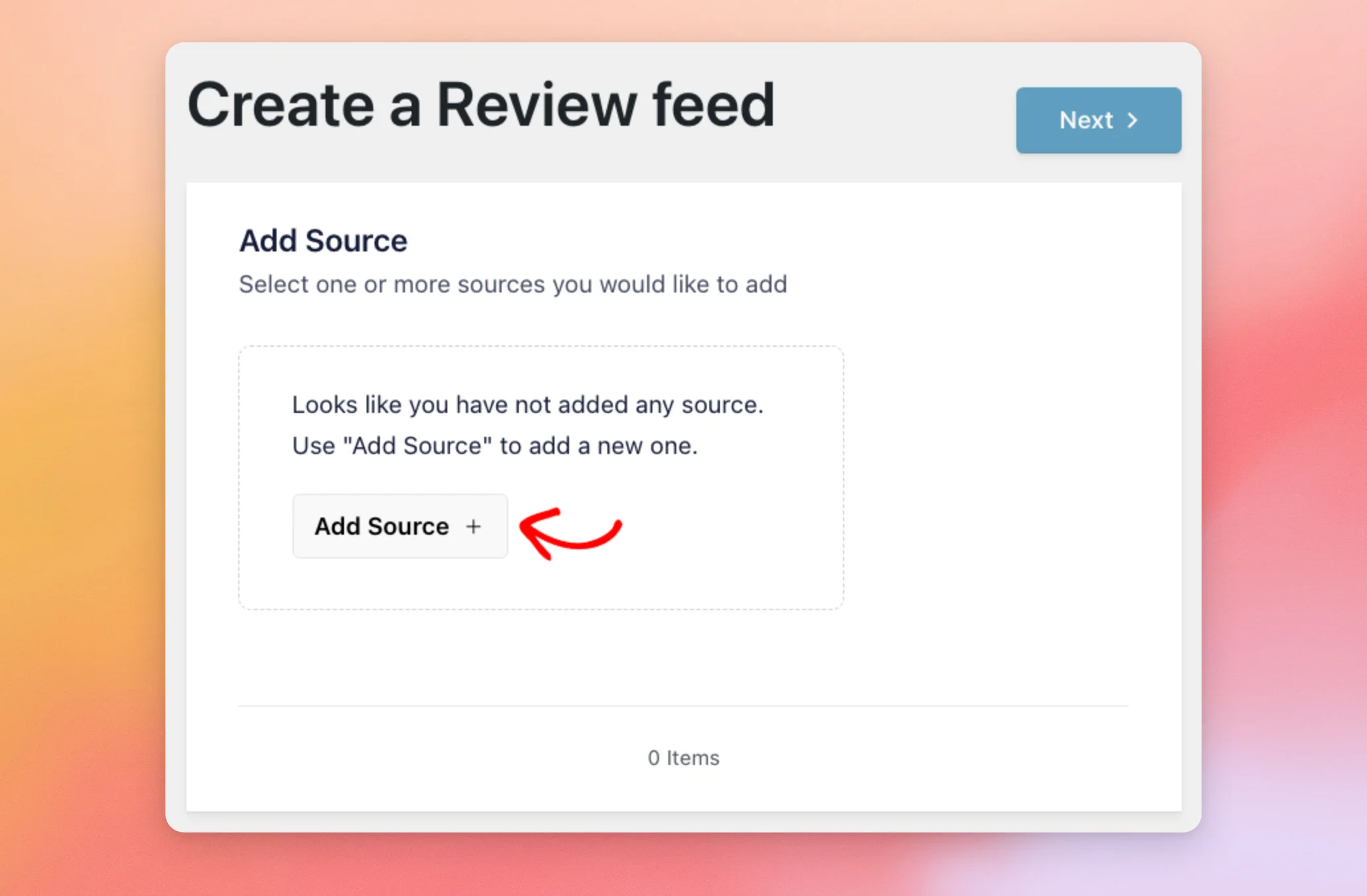
This opens the Create a Review feed page. In the Add Source section, click Add Source. If your site already has a source, click Add New in that section instead. It opens the same window.
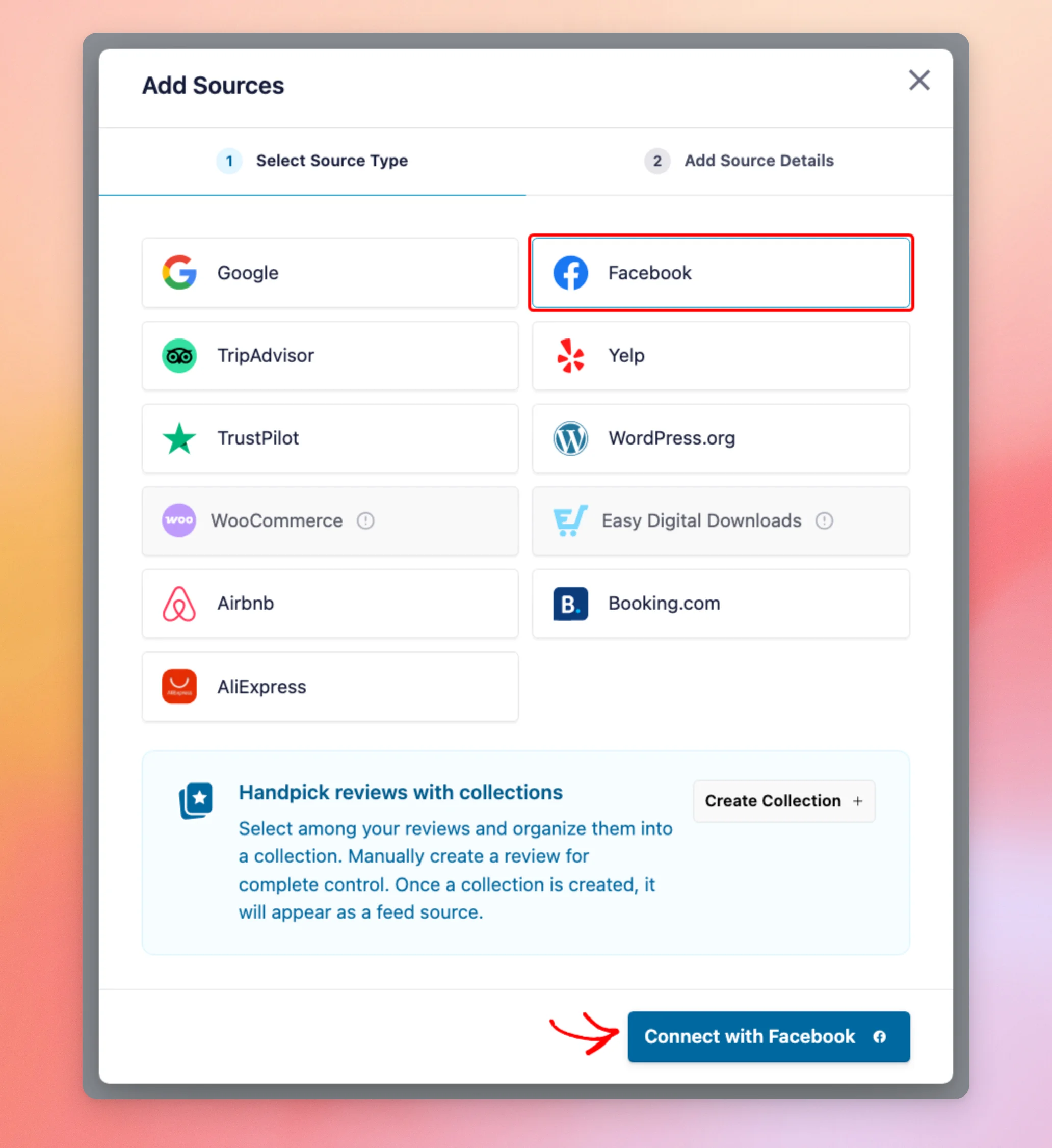
In the Add Sources window, select Facebook. Then, click Connect with Facebook.
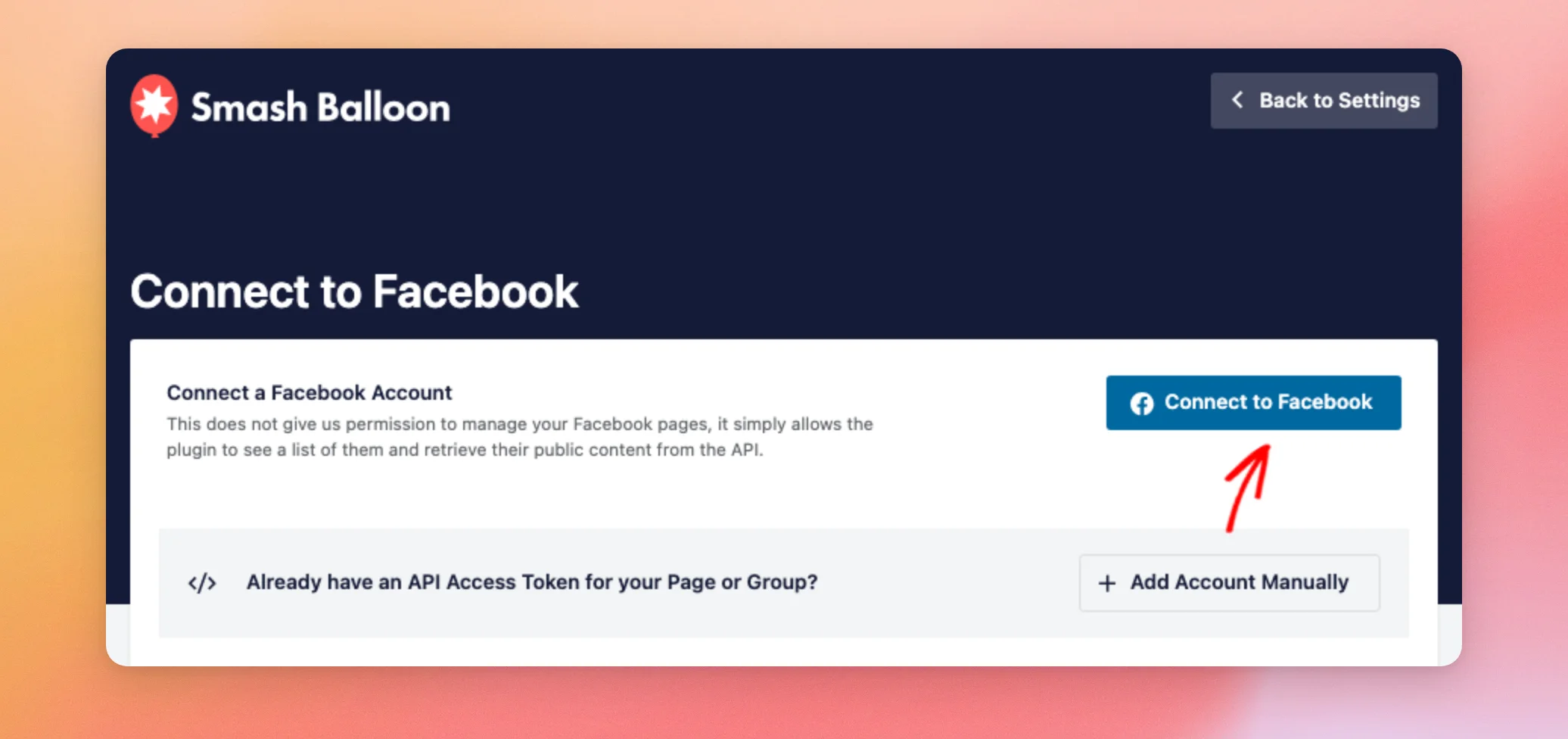
Reviews Feed takes you to Smash Balloon’s Connect to Facebook page. As the page explains, connecting doesn’t let us manage your Facebook Pages. It only lets the plugin see a list of your Pages and get their public content.
Further down, the page lists the four Facebook permissions the connection asks for and what each one is for.
When you’re ready, click Connect to Facebook.
Next, enter your Facebook login details if Facebook asks for them. Then, allow Smash Balloon WordPress to see your Pages by following Facebook’s prompts.
Facebook then sends you back to your WordPress site. The Add Sources window opens on its Add Source Details step and lists the Pages your Facebook profile has access to.
In the list, check the box next to your Page. Then, click Add Pages as Source.
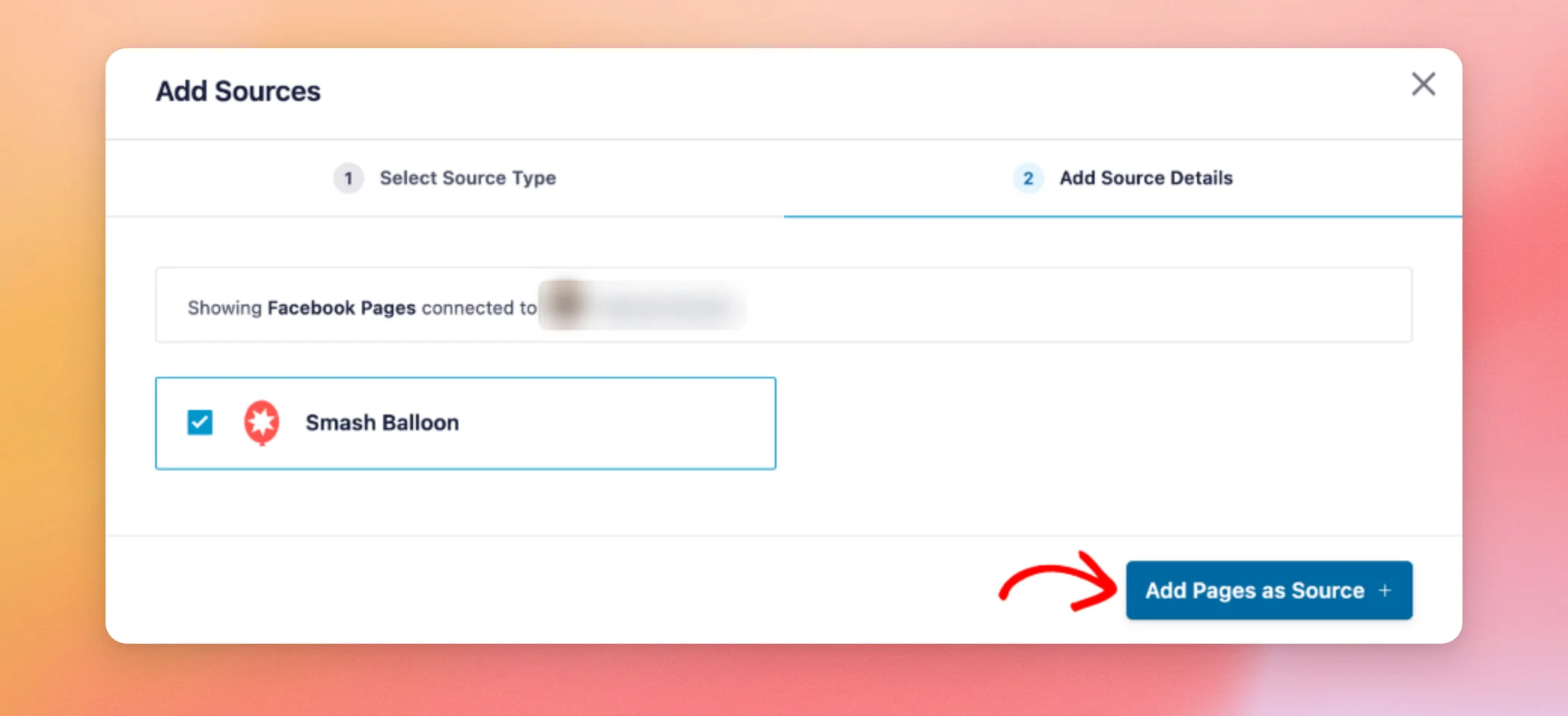
You can check more than one Page here. Each Page you check becomes its own source.
Reviews Feed closes the window and shows a “Facebook Sources Added” message. Your Page is now saved as a source.
Next, we’ll use this source to create your feed.
Creating a Feed With Your Facebook Page
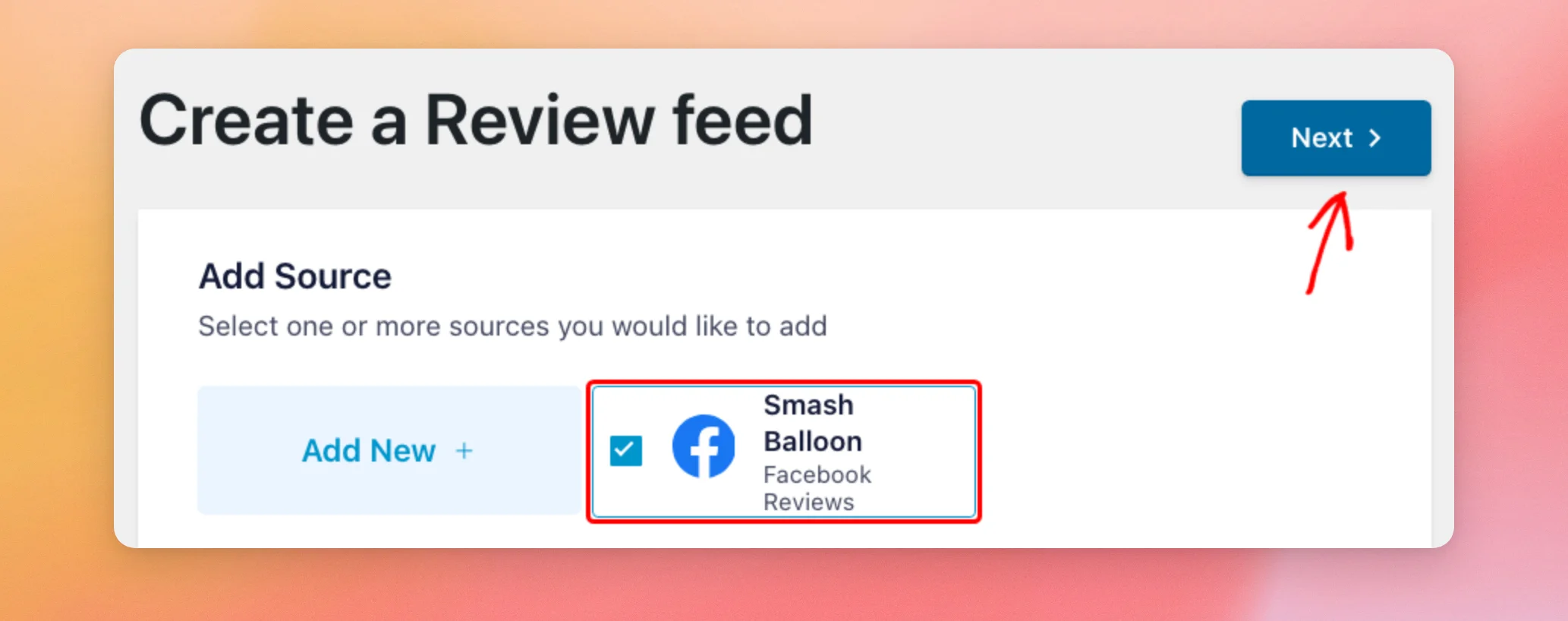
Back on the Create a Review feed page, your Page shows in the Add Source section with “Facebook Reviews” under its name. Its box must be checked for the feed to use this source. Then, click Next.
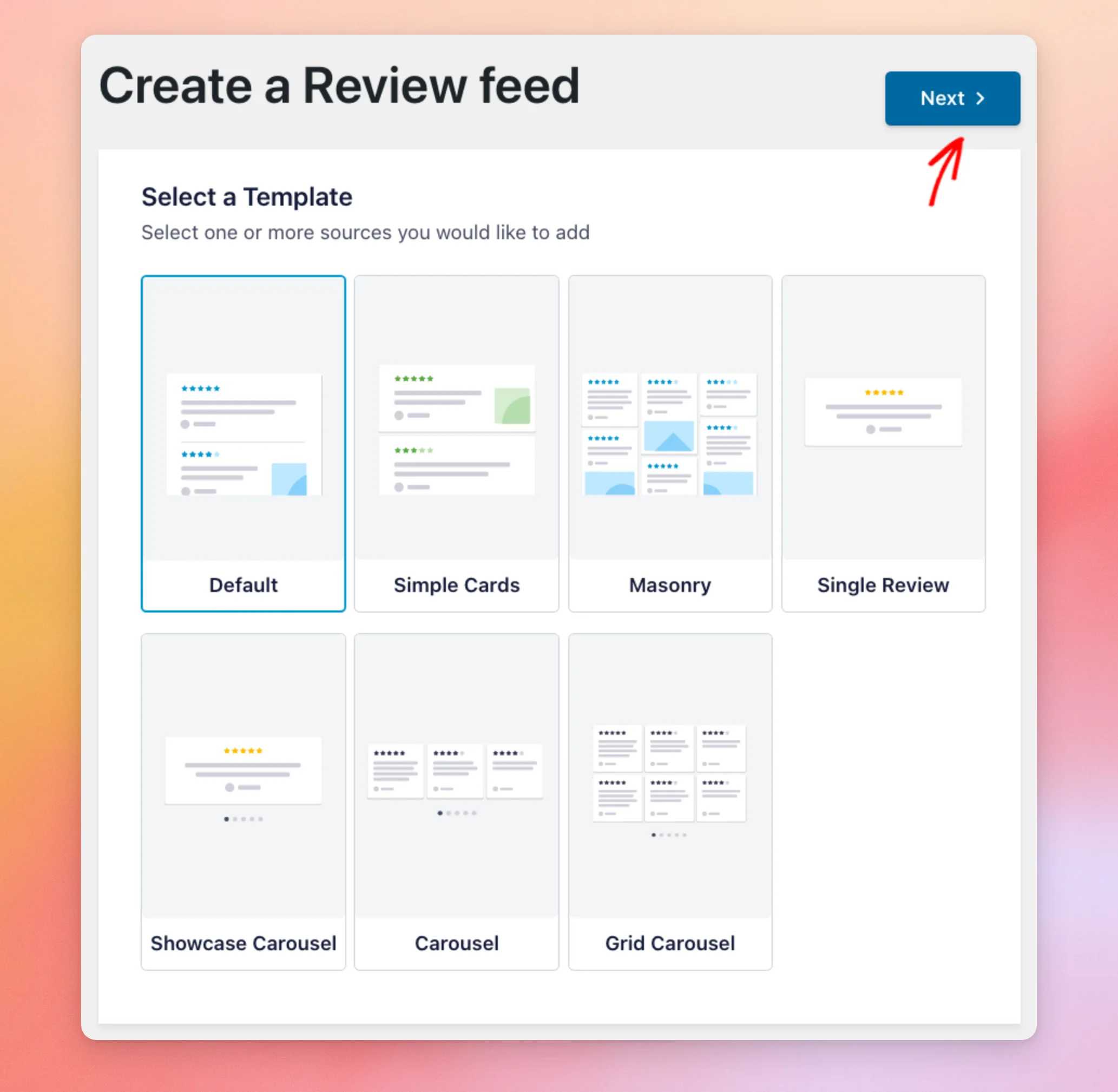
Next, choose a template for your feed. Default is selected to start with. If you’re not sure which to pick, keep Default. Then, click Next.
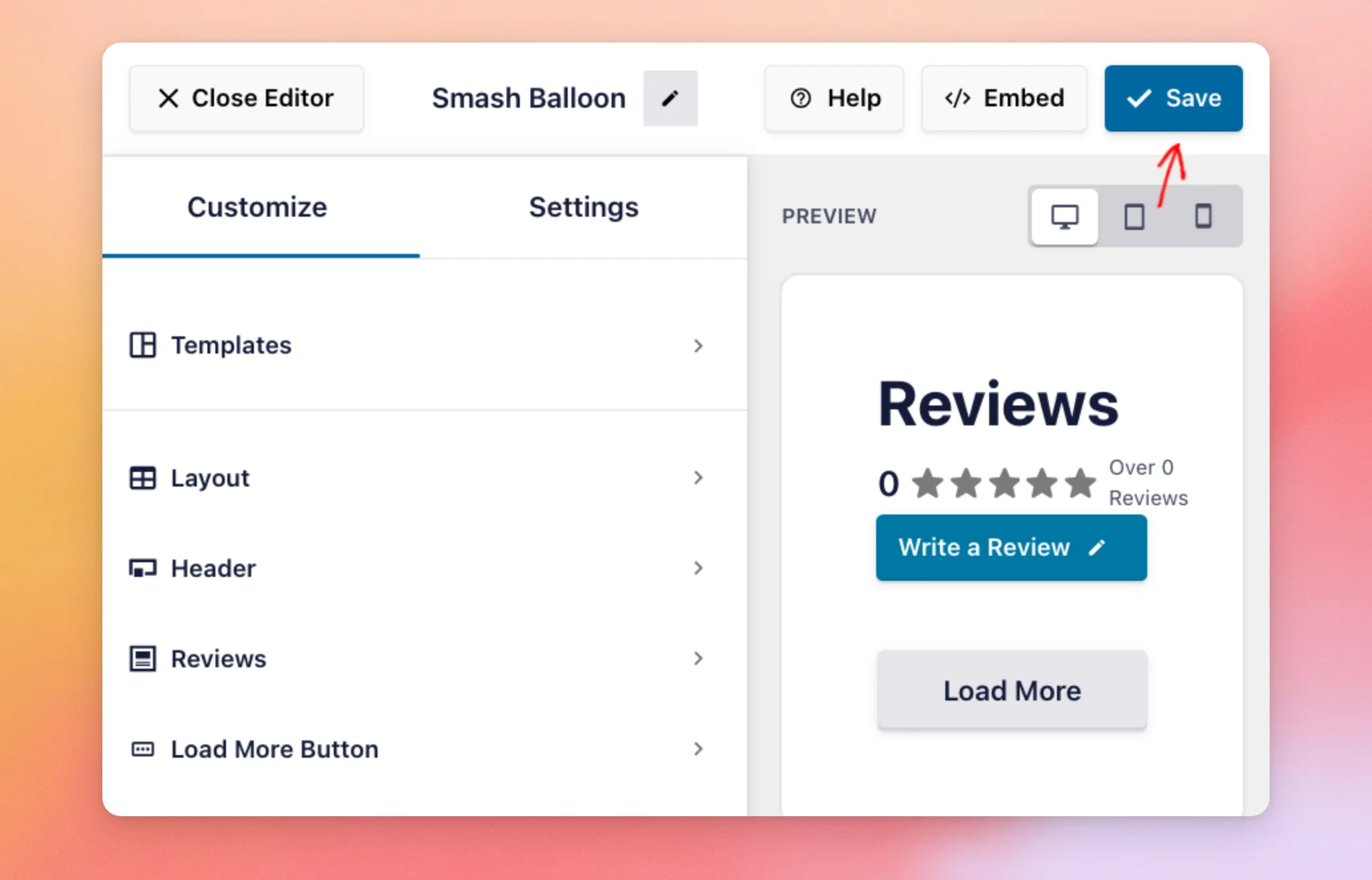
Reviews Feed creates your feed and opens it in the feed editor. The Customize tab on the left holds the options for your feed’s look. The preview on the right shows your feed.
To learn about each option, see our guide to customizing the look of your reviews feed.
If your Page has no recommendations yet, the preview has no reviews to show.
See the What Does Your Facebook Feed Show section for details.
When you’re happy with your feed, click Save.
For more on each step of creating a feed, see our guide to creating a feed with Reviews Feed. To add your feed to a page, see displaying your reviews feed.
What Does Your Facebook Feed Show?
Facebook calls its reviews recommendations. Each one either recommends your Page or doesn’t. Because of this, a recommendation has no star rating.
Reviews Feed shows a review that recommends your Page with five stars. A review that doesn’t recommend your Page shows with one star. In the feed editor, an info icon next to a Facebook review’s stars reads “Facebook reviews are only based upon a positive or negative recommendation.”
If your Page has no recommendations yet, your feed has no reviews to show. When you view your feed on your site while logged in as a WordPress admin, a “No Posts Found.” message shows above the feed’s header. A line on top of it notes that only WordPress admins can see it.
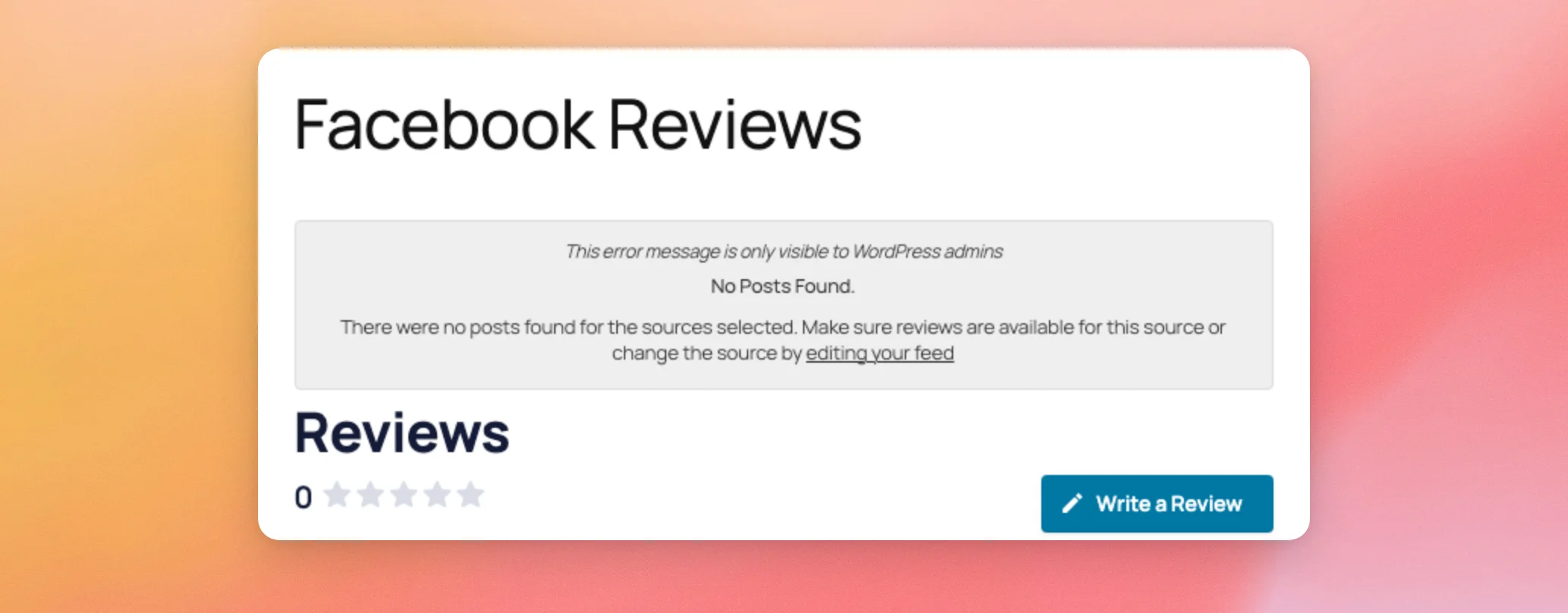
Your visitors don’t see this message. They see the feed’s header with a count of 0 and no reviews under it.
For more on this message, see our error message reference.
Managing Your Facebook Sources
Reviews Feed keeps your Facebook Page as a source. This means you can choose it again when you create another feed. You can also see all your sources in one place.
From your WordPress admin sidebar, go to Reviews Feed » Settings.
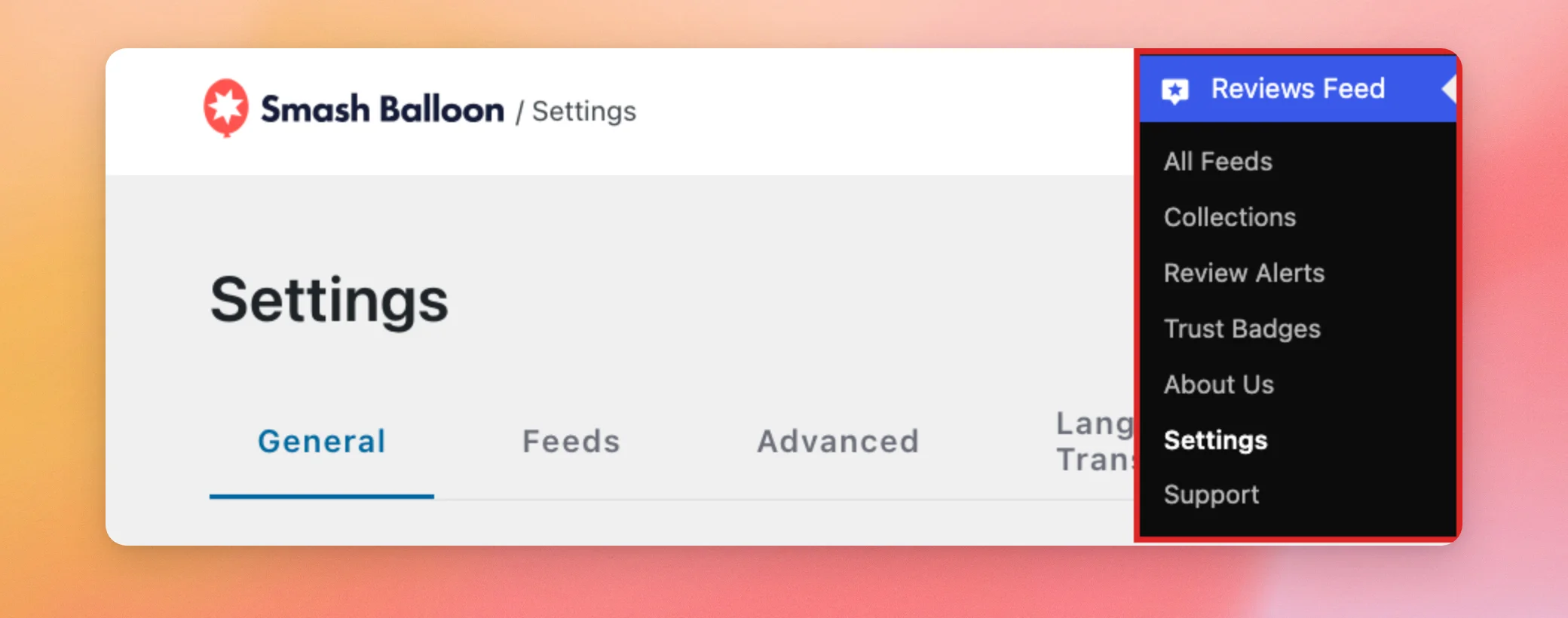
On the General tab, find the Manage Sources section. It lists your Facebook Page with “Facebook Reviews” under its name.
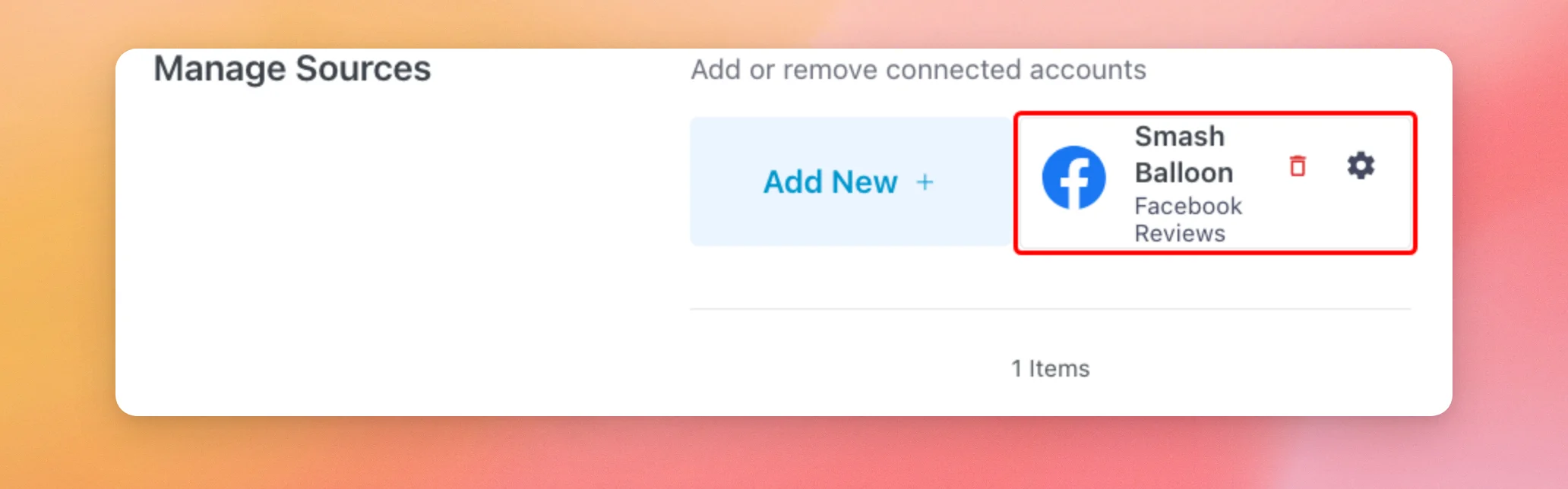
The gear icon on the source shows its ID, with a button to copy it. The trash icon removes the source.
For everything else in this section, see the Manage Sources section of our settings reference.
That’s it! You’ve connected your Facebook Page to Reviews Feed and created a feed with it. Next, check out our guide to displaying your reviews feed to add it to a page on your site.
Frequently Asked Questions
Below, we’ve answered some of the most common questions about adding a Facebook source.
Why does my Facebook feed say “No Posts Found.”?
This message shows when the feed has no reviews to show, such as when your Facebook Page has no recommendations yet. Only WordPress admins see it. Your visitors see the feed’s header with no reviews under it.
See the What Does Your Facebook Feed Show section for more details.
Why do my Facebook reviews show five stars or one star?
Facebook reviews don’t have star ratings. Each one either recommends your Page or doesn’t. Reviews Feed shows a review that recommends your Page with five stars. A review that doesn’t recommend your Page shows with one star.
Can I connect my Page with an access token instead?
Yes. On the Connect to Facebook page, click Add Account Manually. Reviews Feed opens the Add a Source Manually window in your WordPress dashboard.
Keep the Source Type set to Page because Facebook reviews belong to Pages. Then, enter your Page’s ID in the Facebook Page or Group ID field and your token in the Facebook Access Token field. The Add button turns on once both fields have a value. Once it turns on, click it to add the source.
If Reviews Feed can’t connect with the ID and token you entered, see this message in our error message reference.
Why isn’t my Page in the list after I connect?
The Add Source Details step lists the Pages your Facebook profile has access to. If your Page isn’t there, connect again with a Facebook profile that has access to the Page.
Can I add more than one Facebook Page?
Yes. In the Add Source Details step, check each Page you want. Each one becomes its own source. When you create a feed, you can select one or more sources for it.
Can I add a Facebook source from the Settings page?
Yes. From your WordPress admin sidebar, go to Reviews Feed » Settings. In the Manage Sources section, click Add New. The same Add Sources window opens. From there, you follow the same steps. The only difference is that Facebook sends you back to the Settings page.
How do I remove a Facebook source?
From your WordPress admin sidebar, go to Reviews Feed » Settings. In the Manage Sources section, click the trash icon on the source.
See the Manage Sources section of our settings reference for more details.




