


 Social Wall
 Feed Analytics


Would you like to show your hotel, restaurant, or attraction reviews from TripAdvisor on your WordPress site?
In this guide, we’ll show you how to add a TripAdvisor source to Reviews Feed and which TripAdvisor links it accepts. All you need is the link to your business’s page on TripAdvisor.
Requirements: TripAdvisor feeds require the Elite license level of Reviews Feed.
Before you get started, make sure the latest version of Reviews Feed is installed and activated on your WordPress site.
- Finding Your TripAdvisor Link
- Adding the TripAdvisor Source
- Fixing a Link That Doesn’t Work
- Frequently Asked Questions
Finding Your TripAdvisor Link
Each TripAdvisor source in Reviews Feed is one business. Reviews Feed finds the business by its location ID. That’s the number right after “-d” in the business’s TripAdvisor link.
To get the link, open your business’s own page on TripAdvisor. Then, copy the address from your browser’s address bar.
Reviews Feed accepts any of these:
- The link to a hotel page. It contains
Hotel_Review. - The link to a restaurant page. It contains
Restaurant_Review. - The link to an attraction page. It contains
Attraction_Review. - The link to one review of the business. It contains
ShowUserReviews. Reviews Feed adds the business the review belongs to. - The location ID on its own, such as
1234567.
For example, here’s how a hotel link looks. Its location ID is 1234567, the number after “-d”. The number after “-g” points to the destination, not your business. Don’t use that one.
https://www.tripadvisor.com/Hotel_Review-g123456-d1234567-Reviews-Business_Name.html
Links from TripAdvisor’s country sites work too, such as tripadvisor.co.uk. The link also works without the https:// at the start.
Once you have your link, the next step is adding it to Reviews Feed.
Adding the TripAdvisor Source
To get started, we’ll create a new source for your TripAdvisor business.
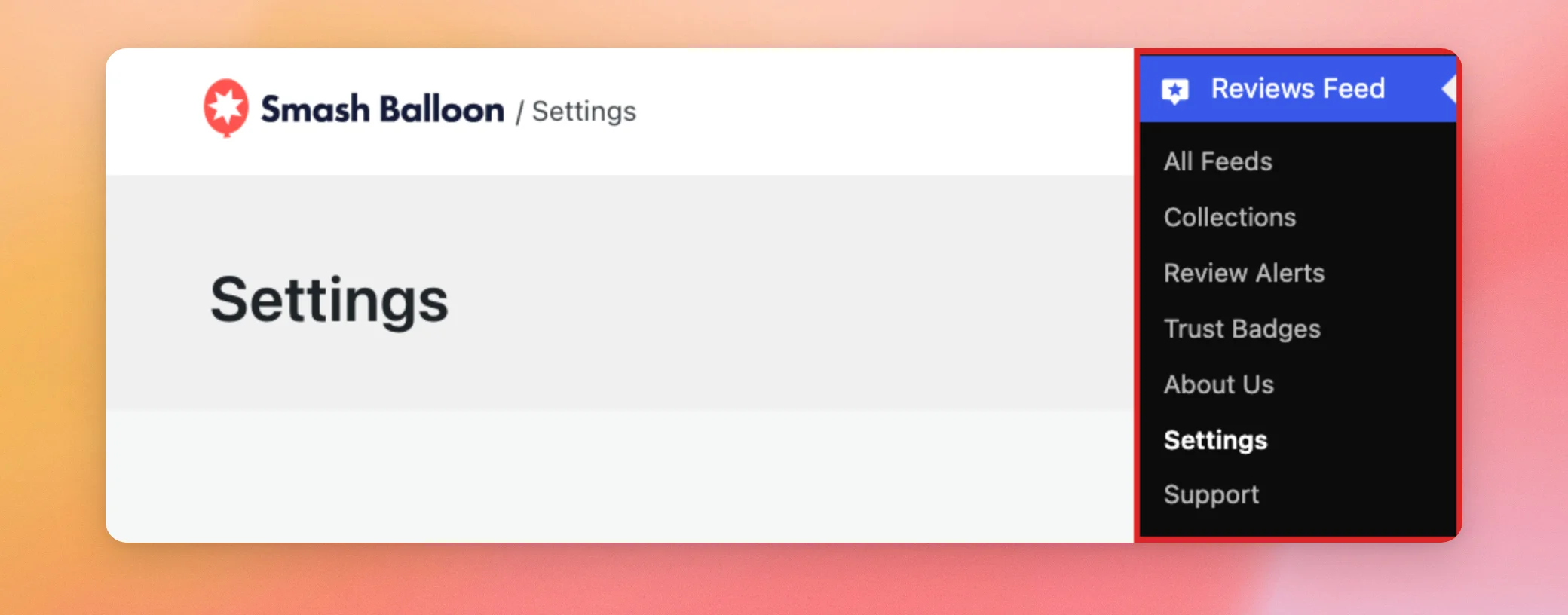
From your WordPress admin sidebar, go to Reviews Feed » Settings.
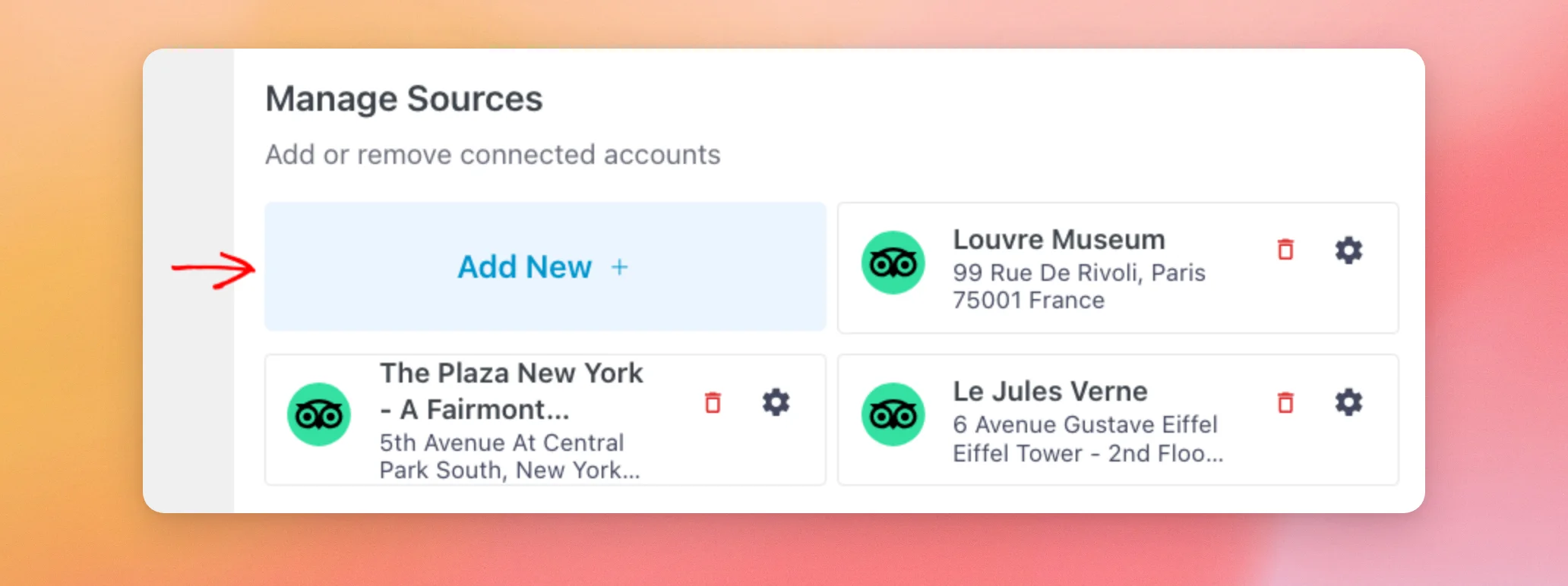
On the General tab, find the Manage Sources section. Then, click Add New.
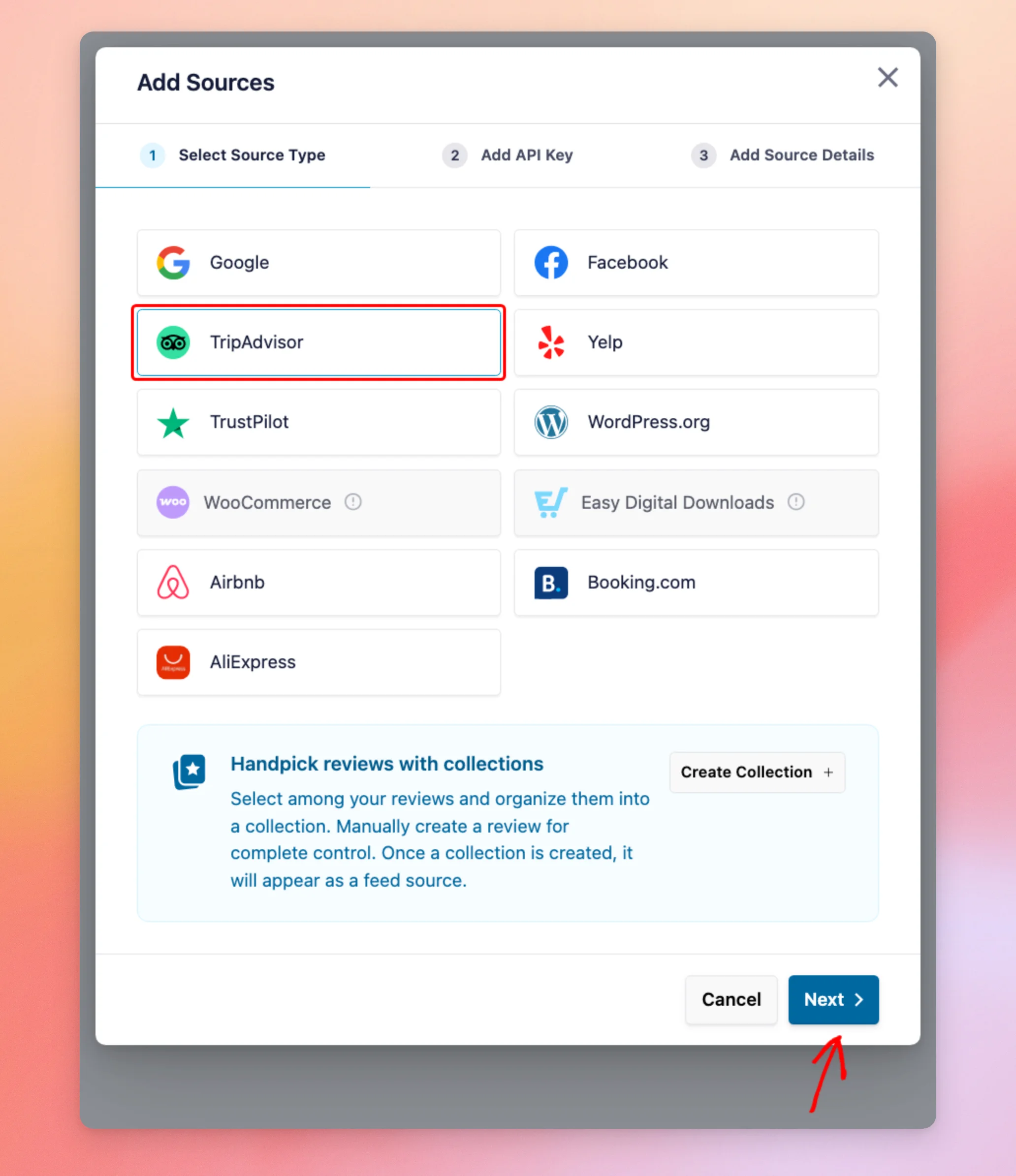
In the Add Sources window, select TripAdvisor. Then, click Next.
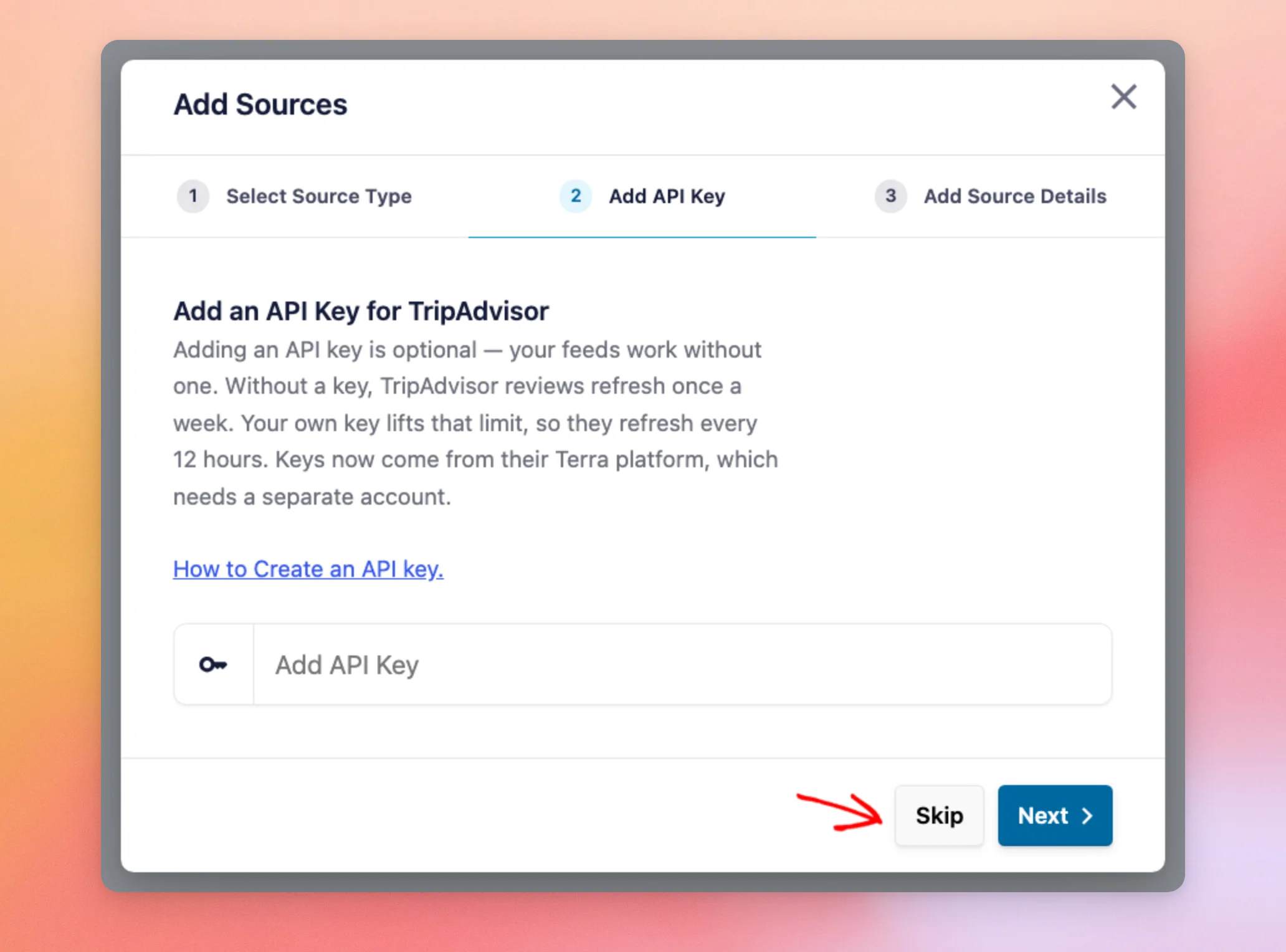
Next, Reviews Feed asks for a TripAdvisor API key. A key is optional.
Without a key, your TripAdvisor reviews refresh once a week. With your own key, they refresh every 12 hours.
If you don’t have a key, click Skip. To get one, see our guide to creating a TripAdvisor API key.
Now, paste your TripAdvisor link into the Page URL field. Then, click Finish.
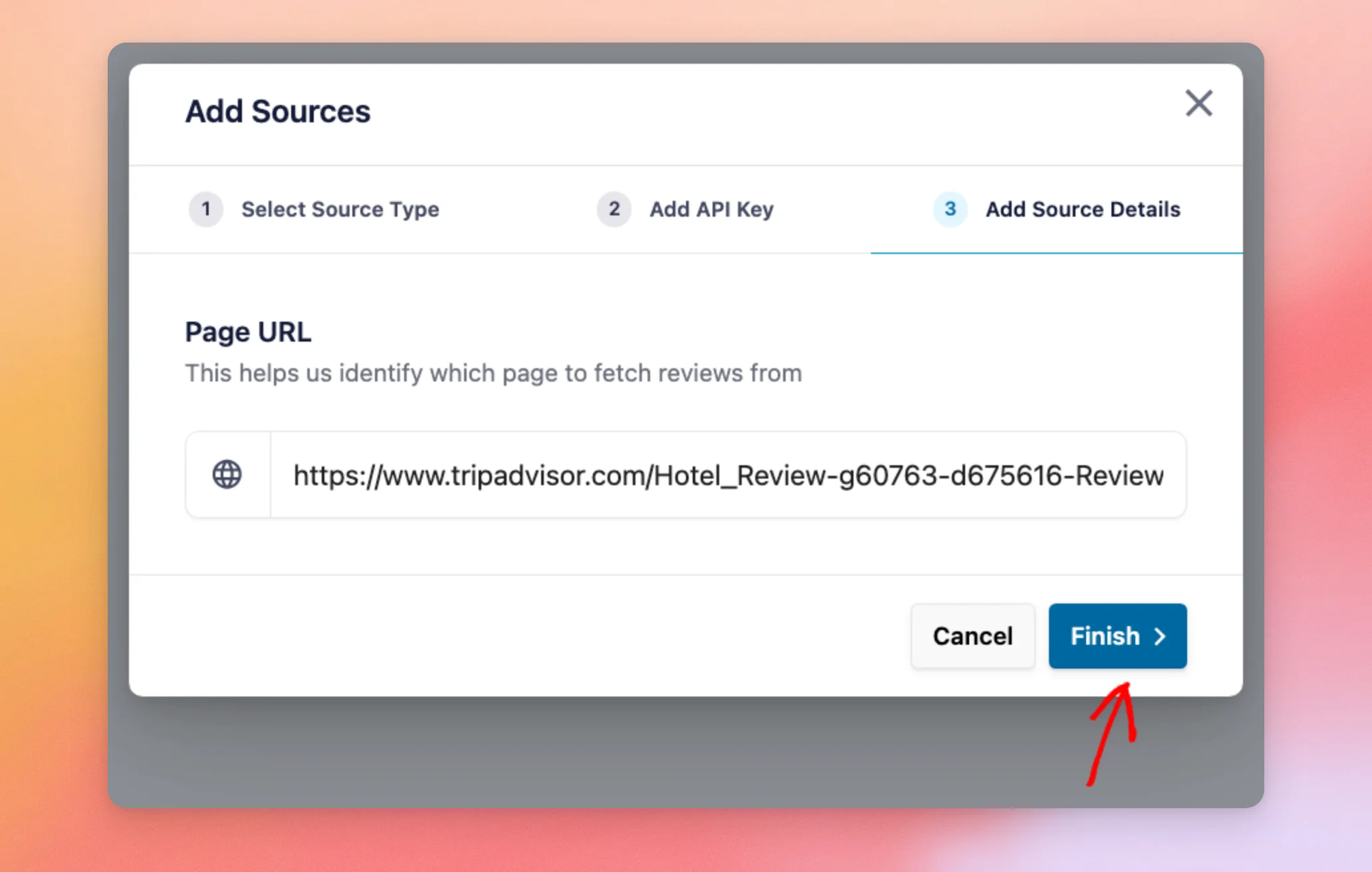
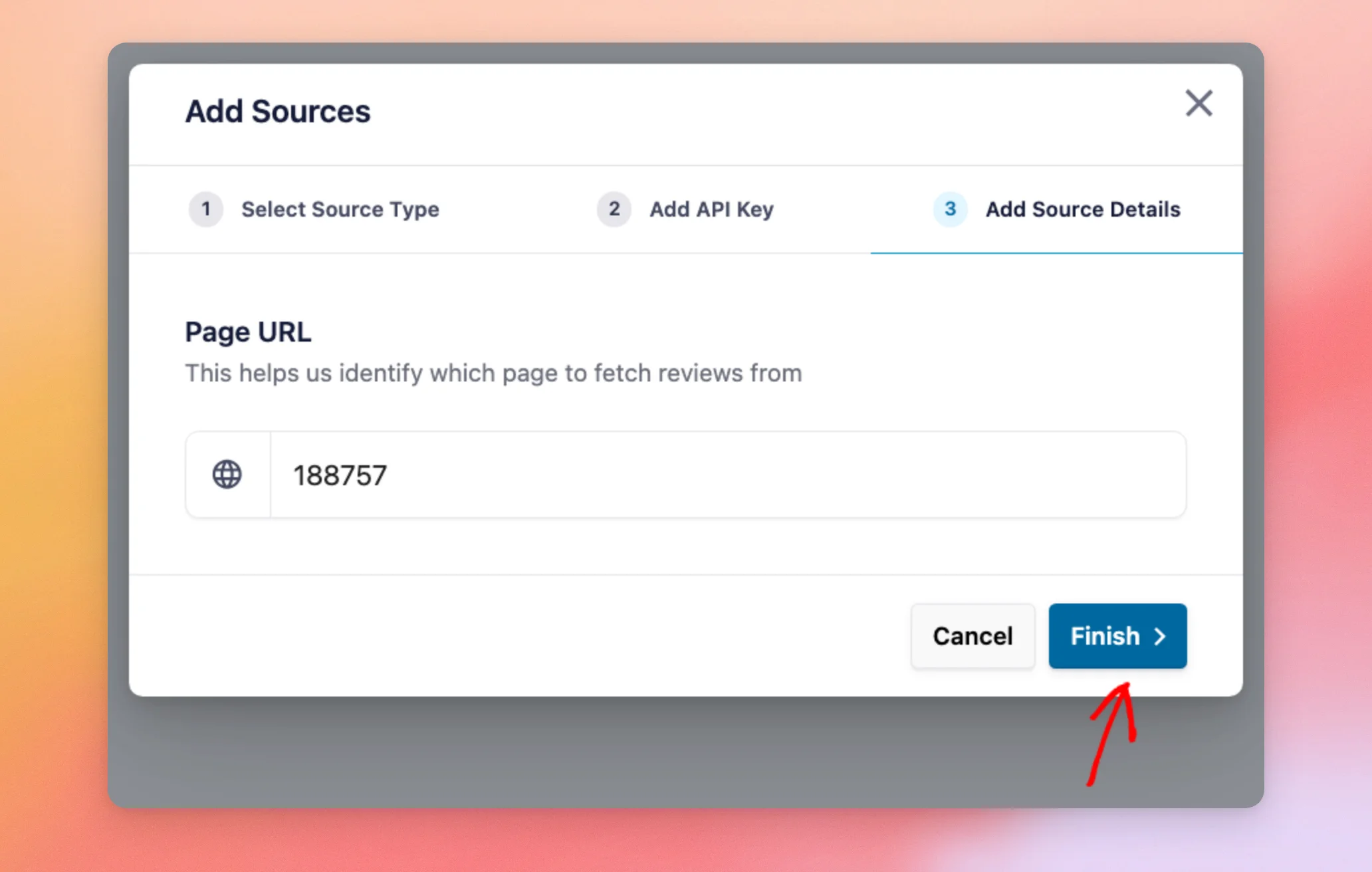
Instead of the link, you can type the location ID on its own. If you’re not sure which to use, paste the link. Reviews Feed finds the location ID for you.
To use the ID, type the number. Then, click Finish. Reviews Feed adds the business with that location ID.
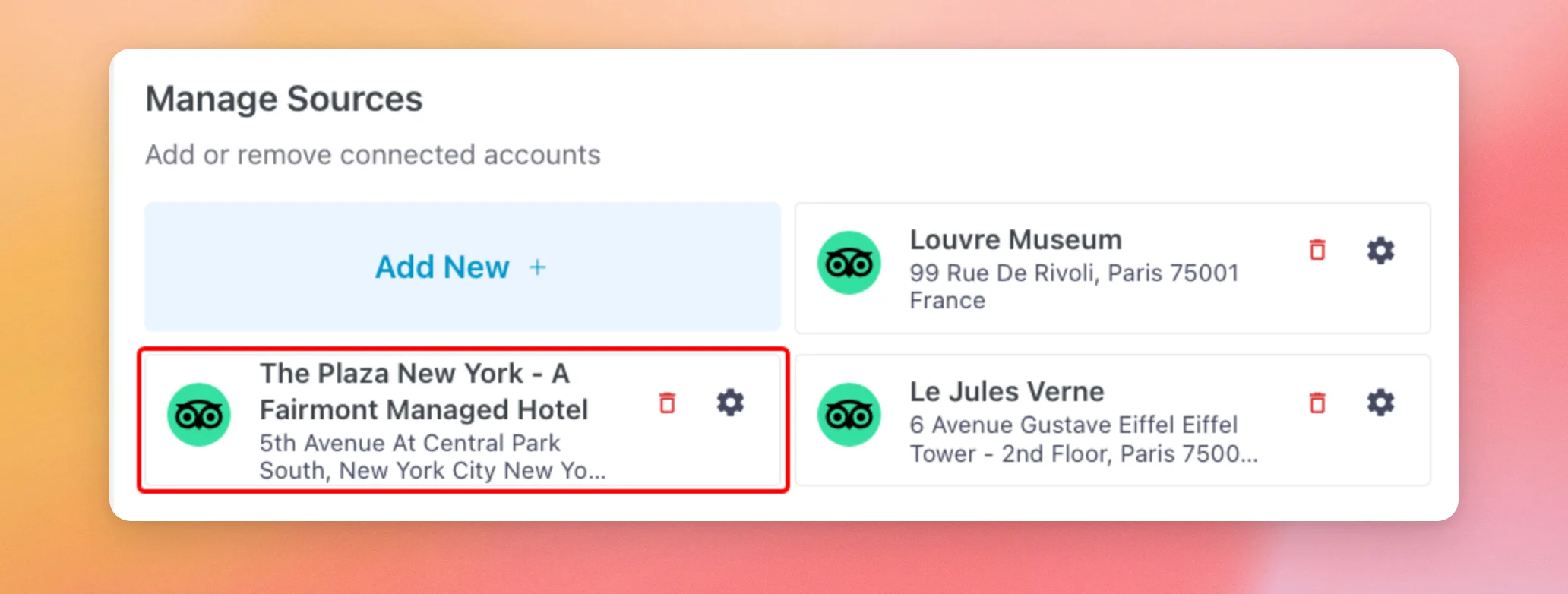
When Reviews Feed accepts the link or the location ID, it shows “Source added successfully” and closes the window. Your business now shows in the Manage Sources section with its name and address.
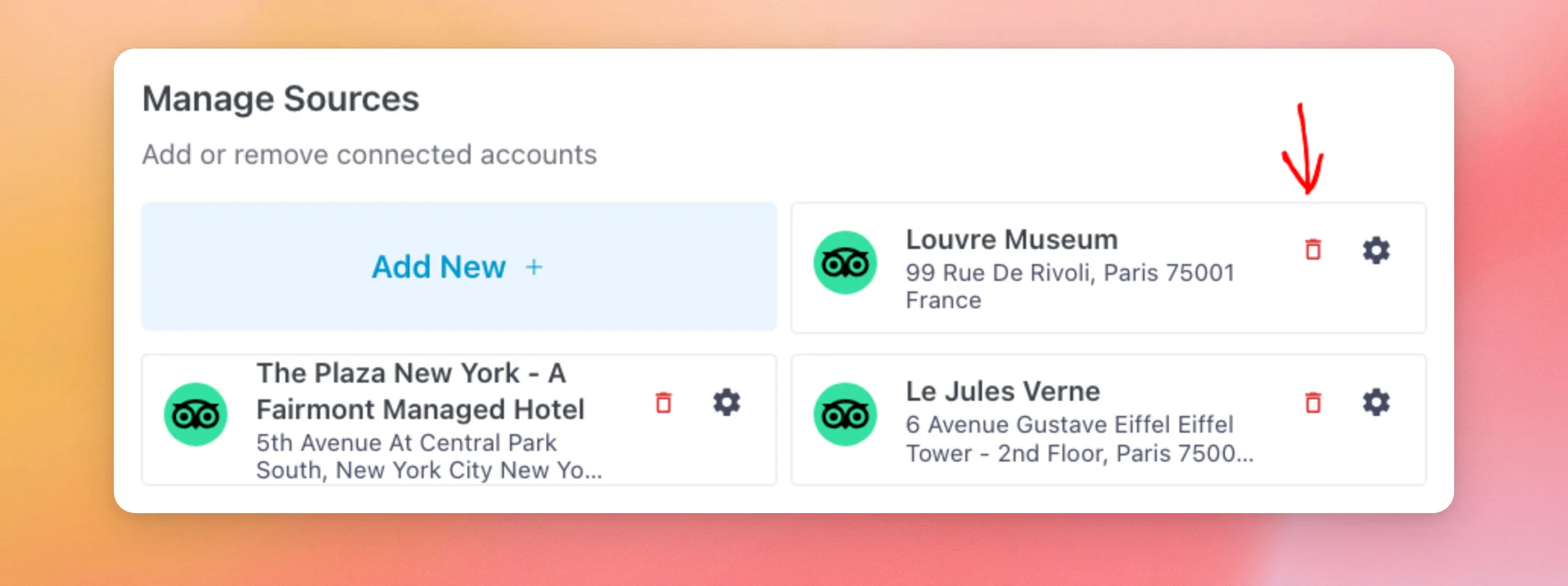
Without an API key, you can add up to three TripAdvisor sources. To make room for another one, click the trash icon on a source you no longer use.
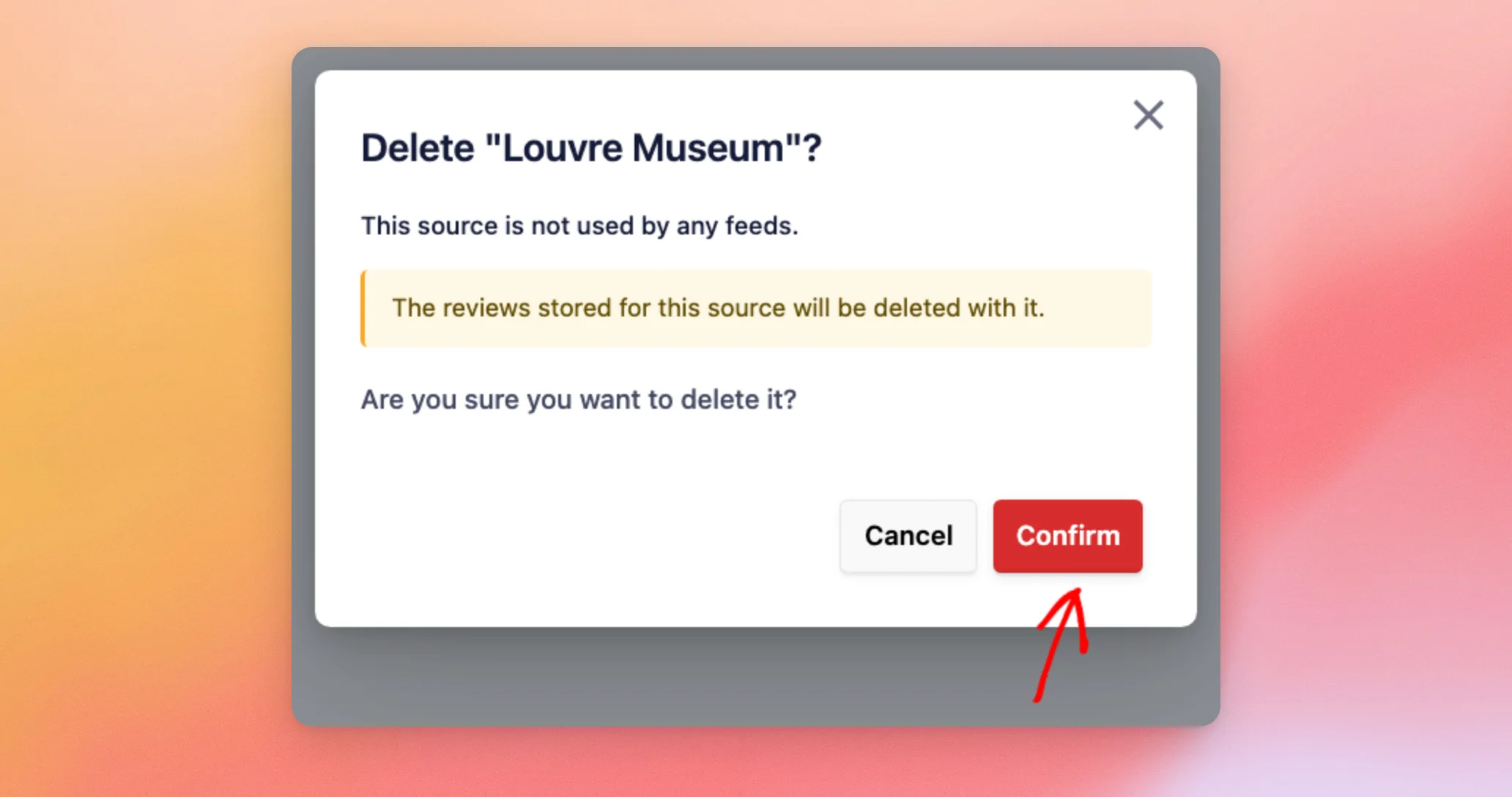
Reviews Feed asks you to confirm and notes that the reviews stored for that source are deleted with it. If you’re sure, click Confirm. Deleting a source frees its place.
You can also add a source while you create a feed. The same Add Sources window opens there.
If Reviews Feed doesn’t accept your link, the next section explains how to fix it.
Fixing a Link That Doesn’t Work
Reviews Feed needs a link to one business. When you paste something else, a message under the Page URL field tells you what the link points to. Reviews Feed checks this before it adds anything.
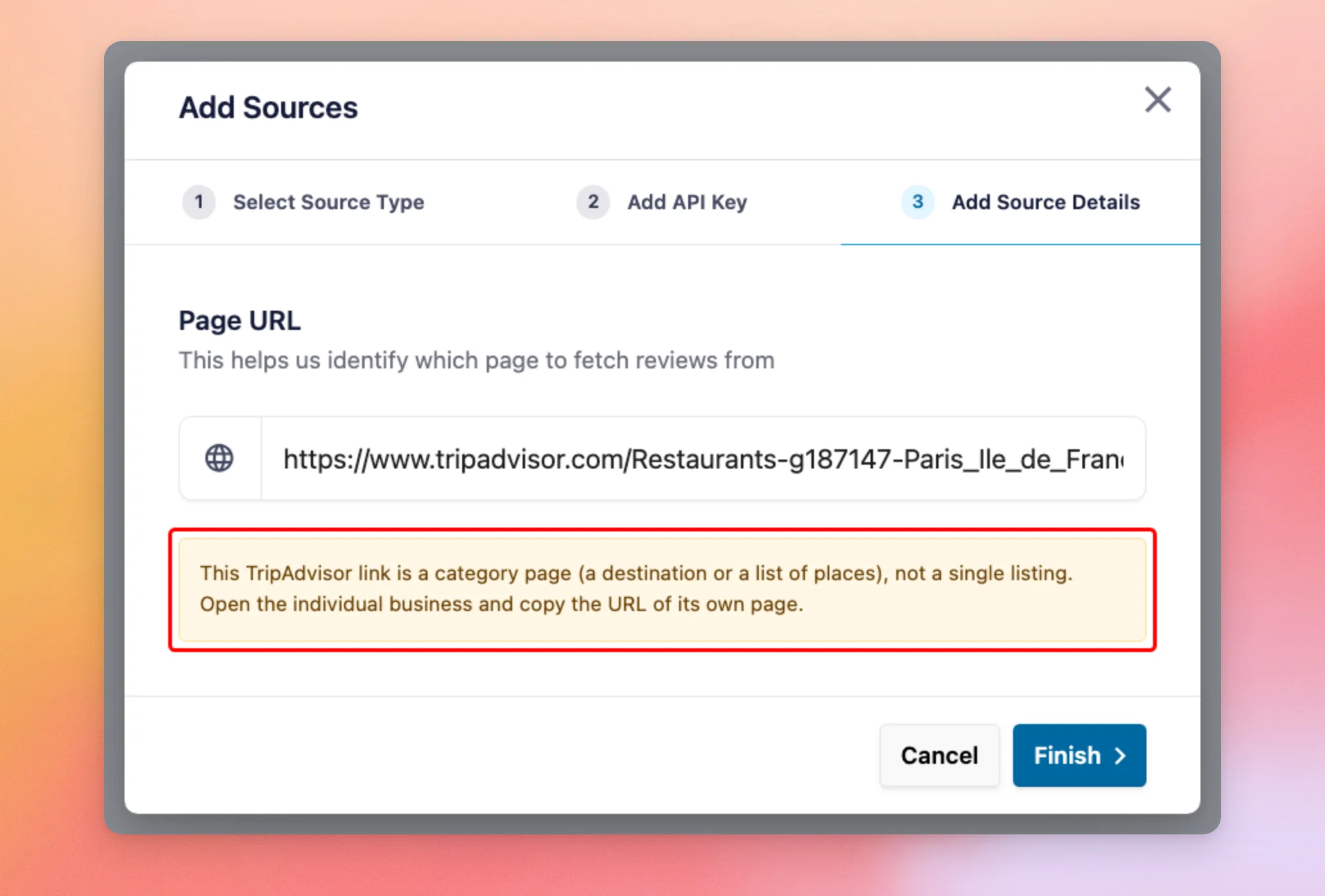
Here’s what each message means and how to fix it.
| The message starts with | What it means | How to fix it |
|---|---|---|
| This TripAdvisor URL is for a tour or experience (Viator) | The link is for a tour or experience, not a hotel, restaurant, or attraction. | Use the link to a hotel, restaurant, or attraction instead. |
| This TripAdvisor link is a member profile | The link opens a TripAdvisor member’s page, not a business. | Open the business’s own page and copy its link. |
| This TripAdvisor link is a category page | The link opens a destination or a list of places, such as all the restaurants in a city. | Open your business from the list and copy the link of its own page. |
| We could not find a TripAdvisor location ID in that | The field has no link and no location ID, such as when you type the business’s name. | Paste the link, or the number after “-d” on its own. |
| Enter a listing URL or ID first | The field is empty. | Paste your link into the field before you click Finish. |
Two other messages can show after you click Finish:
- “Could not connect this source, please make sure you have provided the right info.” This shows when the number you entered isn’t a TripAdvisor location ID. The window stays open for you to check the number after “-d” and try again.
- “Source Limit Exceeded. Please enter API Key.” This shows when you already have three TripAdvisor sources and no API key. To add another one, delete a source you no longer use, or add your own API key.
For every Reviews Feed message, see our error message reference.
That’s it! You’ve added your TripAdvisor business as a source in Reviews Feed. Next, check out our guide to creating a feed with Reviews Feed to show its reviews on your site.
Frequently Asked Questions
Below, we’ve answered some of the most common questions about adding a TripAdvisor source.
Do I need a TripAdvisor API key?
No. Without a key, your TripAdvisor reviews refresh once a week. With your own key, they refresh every 12 hours. You can add up to three TripAdvisor sources without a key. To get a key, see our guide to creating a TripAdvisor API key.
Where do I find my TripAdvisor location ID?
It’s in your business’s TripAdvisor link, right after “-d”. In a link with -g123456-d1234567-, the location ID is 1234567. You can paste the whole link instead. Reviews Feed finds the ID for you.
Can I show reviews of a tour or experience?
No. Reviews Feed accepts hotels, restaurants, and attractions. If you paste a link to a tour or experience, the message under the Page URL field explains what to use instead.
See Fixing a Link That Doesn’t Work for what each message means.
Can I use a link from my own country’s TripAdvisor site?
Yes. Reviews Feed reads the location ID from the link. Links from TripAdvisor’s country sites work too, such as tripadvisor.co.uk.
How do I remove a TripAdvisor source?
From your WordPress admin sidebar, go to Reviews Feed » Settings. In the Manage Sources section, click the trash icon on the source. Then, click Confirm. Without an API key, this frees a place for another TripAdvisor source.




