


 Social Wall
 Feed Analytics


Would you like to display your Facebook feed on a WordPress page, post or widget area?
Every feed you create in Facebook Feed gets its own number, and that number is how WordPress knows which feed to show. This guide covers adding the feed with the Embed button in the feed builder, a block, a shortcode, a widget or a theme template. If you are not sure where to start, use the Embed button.
Before you get started, make sure Facebook Feed is installed and activated on your site and that you have created a feed. If you have not, follow our guide on setting up the free Custom Facebook Feed plugin, or on installing and configuring the paid plugin.
Here is what we will cover.
- Using the Embed Button in the Feed Builder
- Using the Block
- Using the Shortcode
- Using a Widget
- Using Elementor
- Adding the Feed to a Theme Template
- Frequently Asked Questions
Using the Embed Button in the Feed Builder
To get started, we’ll use the Embed button in the feed builder. It shows your feed’s shortcode and can take you straight to a page or to the Widgets screen.
- In your WordPress dashboard, go to Facebook Feed » All Feeds.
- Click the name of the feed you want to display.
- At the top of the feed builder, click Embed.
The Embed Feed window shows your feed’s shortcode and a Copy button beside it. Below the shortcode, you can choose how to add the feed.
- Click Add to a Page. Next, select a page from the list and click Add. The page opens in the editor in a new tab and shows a short tip about adding the block. From there, add the block as described in Using the Block.
- Click Add to a Widget to open the Widgets screen in WordPress. From there, follow the steps in Using a Widget.
The Embed button is not shown for legacy feeds. Legacy feeds are shortcodes from before version 4. For those, copy the shortcode from your page or post instead.
If you would rather work inside the editor, the Facebook Feed block does the same job.
Using the Block
If you use the WordPress block editor, the Facebook Feed block is the simplest option.
- Open the page or post where you want the feed to appear.
- Click the plus button to add a block. Next, search for Facebook Feed. You will also find it in the Smash Balloon category.
- Click the block to add it to the page.
- Choose your feed from the dropdown in the block. If you have not created a feed yet, click the Create Facebook Feed button that the block shows instead.
- Save or publish the page.
For more on the block editor, see our guide on using Facebook Feed with the WordPress block editor.
If you prefer to paste code instead, the shortcode works almost anywhere on your site.
Using the Shortcode
You can paste a shortcode into any page, post or widget where you want the feed to show up. The shortcode looks like this.
[custom-facebook-feed feed=1]The number after feed= is the number of your feed. Yours may be different from this example. To find it, go to Facebook Feed » All Feeds and look in the Shortcode column. The button to the right of the shortcode copies it to your clipboard.
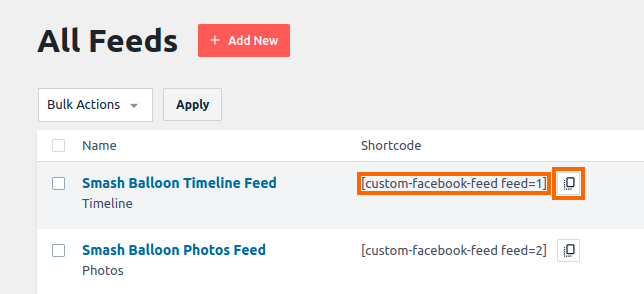
In the block editor, add a Shortcode block to your page or post and paste the shortcode into it. In the classic editor, paste it straight into the content. For more on shortcodes, see How to Add a Shortcode in WordPress.
Widget areas accept the same shortcode, along with a few other options.
Using a Widget
To show the feed in a sidebar, footer or other widget area, go to Appearance » Widgets. What you add depends on your theme’s widget screen.
- If the screen uses blocks, add the Facebook Feed block or a Shortcode block, as described above.
- If the screen has a Text widget, paste the shortcode into it.
- If you use Facebook Feed Pro, you can also drag the Facebook Feed widget into the widget area. Then choose your feed in the Feed field, which starts on “Select your feed”. Next, click Save.
If you build your pages with a page builder, the next section covers Elementor.
Using Elementor
Facebook Feed has its own Elementor widget. For the steps to add it, see our guide on adding Smash Balloon feeds to Elementor.
If you work with theme files directly, the last option takes a single line of PHP.
Adding the Feed to a Theme Template
You can also place the feed directly in a template file of your theme with the WordPress do_shortcode function. To do this, add the following line to the template where you want the feed to appear.
<?php echo do_shortcode('[custom-facebook-feed feed=1]'); ?>As before, replace the 1 with the number of your own feed. Template files are overwritten when your theme updates. It is best to make this change in a child theme. See How to Create a WordPress Child Theme for a step-by-step guide.
That’s it! You now know how to display your Facebook feed on a page, post, widget area or theme template. Next, you can style your feed with our custom snippets for Facebook Feed.
Frequently Asked Questions
Below, we’ve answered some of the most common questions about displaying your Facebook feed.
Where do I find my feed’s number?
To find it, go to Facebook Feed » All Feeds and look in the Shortcode column. You can also open the feed in the builder and click Embed. Both show the full shortcode and the number after feed=.
I can’t find a block called Custom Facebook Feed. Where is it?
The block is named Facebook Feed and sits in the Smash Balloon category. To find it, search for Facebook Feed in the block inserter.
Can I choose a post with the Add to a Page button?
The Add to a Page list shows the pages on your site. To add a feed to a post, use the Facebook Feed block or paste the shortcode into the post.




