


 Social Wall
 Feed Analytics


Yes. How to add the Custom Facebook Feed block in the block editor and point it at the right feed.
Would you like to add a feed from Custom Twitter Feeds or Custom Facebook Feed to a page with the WordPress block editor?
In this guide, we’ll walk you through adding a feed with the Twitter Feed block and the Facebook Feed block.
Before you get started, make sure Custom Twitter Feeds is installed and activated on your site. For a Facebook feed, you need Custom Facebook Feed installed and activated. You also need at least 1 feed already created.
- Adding the Feed Block
- Choosing a Feed
- Opening the Feed Customizer From the Block
- Adding a Feed With a Shortcode
- Adding a Feed With Elementor
- Frequently Asked Questions
Adding the Feed Block
To get started, open the page or post where you want the feed. Next, click the + button to add a block.
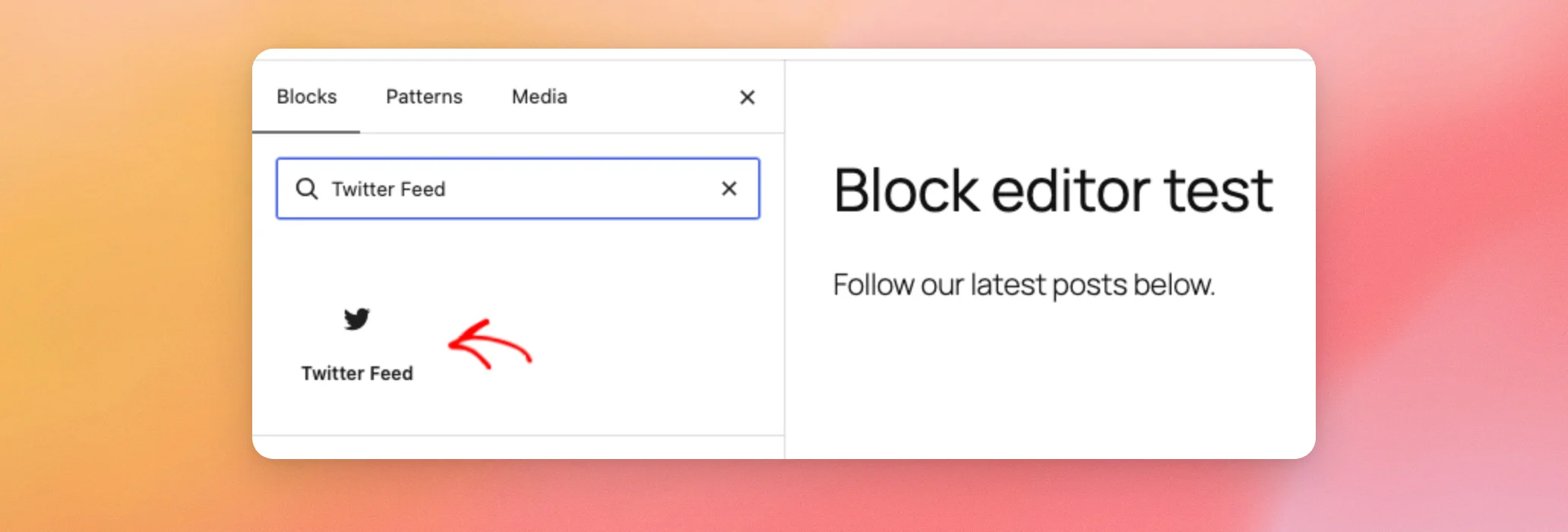
In the search box, type the name of the feed type. For a Custom Twitter Feeds feed, search for Twitter Feed. For a Custom Facebook Feed feed, search for Facebook Feed. Then, click the block to add it to the page.
The Facebook Feed block turns up the same way.
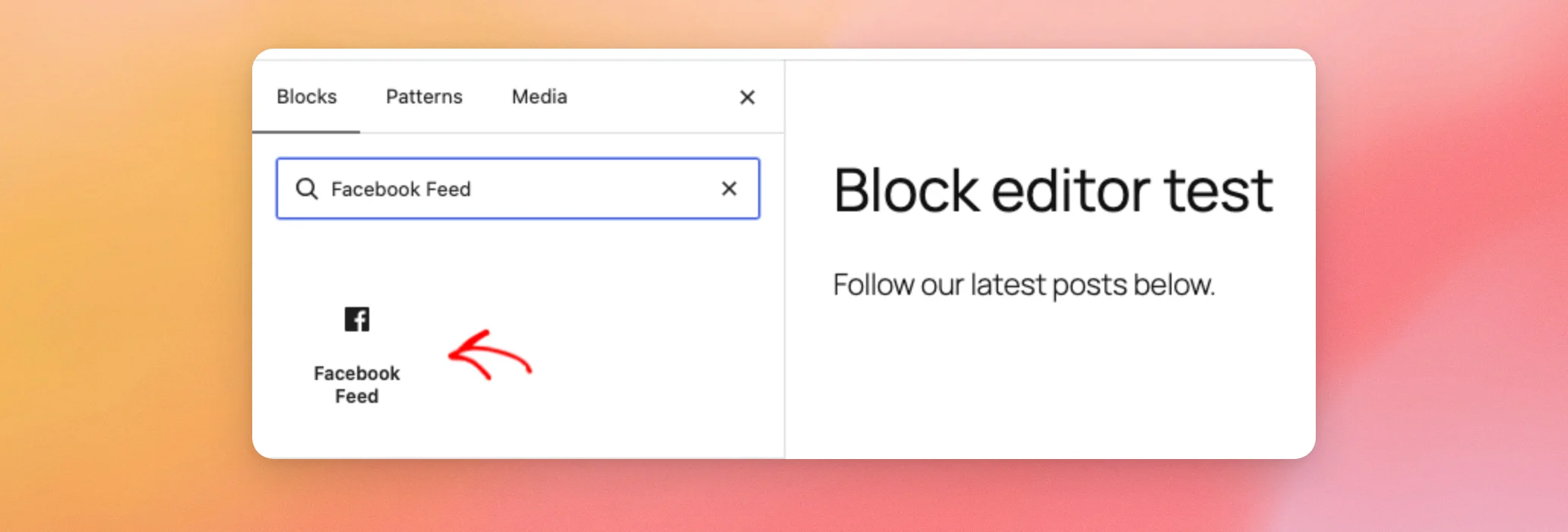
Note: Searching for the plugin name, such as “Custom Twitter Feeds”, doesn’t find the block. The block name, such as “Twitter Feed”, does.
If you haven’t created a feed yet, the block shows a Create Facebook Feed button, or Create Twitter Feed for X feeds. This button appears in place of the Select a Feed dropdown covered in the next section. It opens the feed builder, where you can create your first feed before returning to the page.
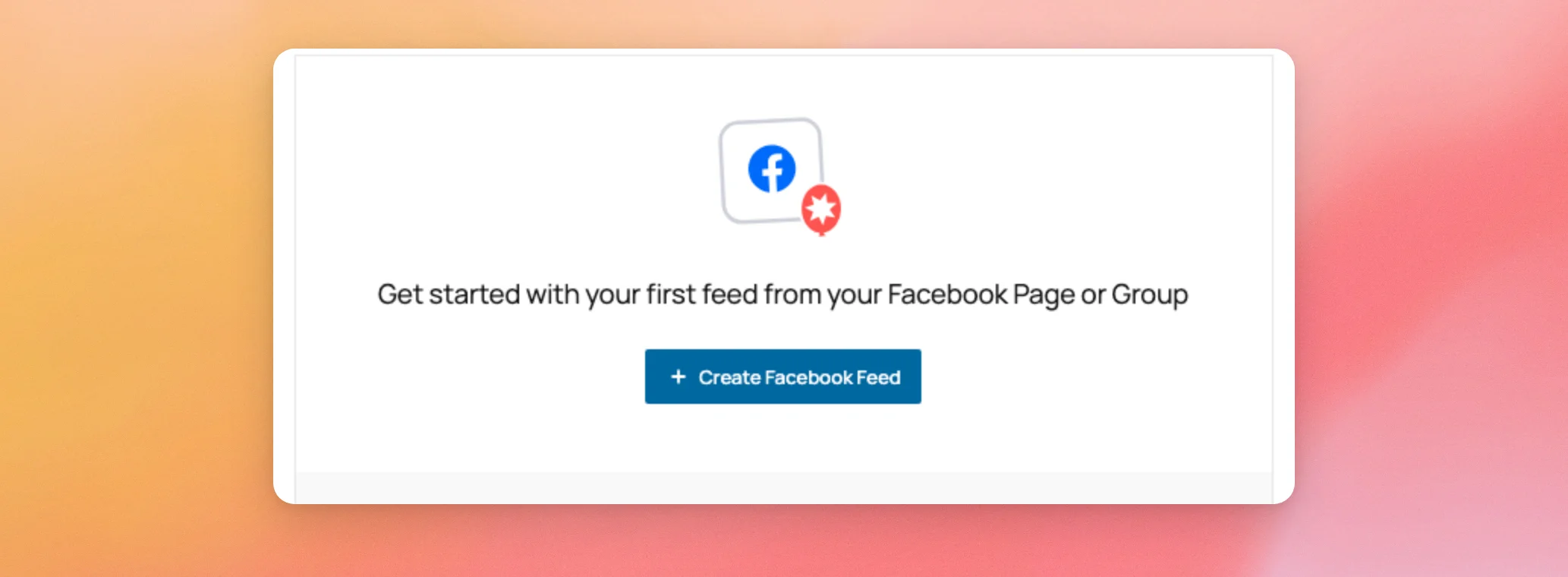
Once you have a feed, you’re ready to add it to the block.
Choosing a Feed
Once the block is on the page, click it to select it. In the block settings on the right, open Feed Settings. Then use the Select a Feed dropdown to choose the feed you want to show.
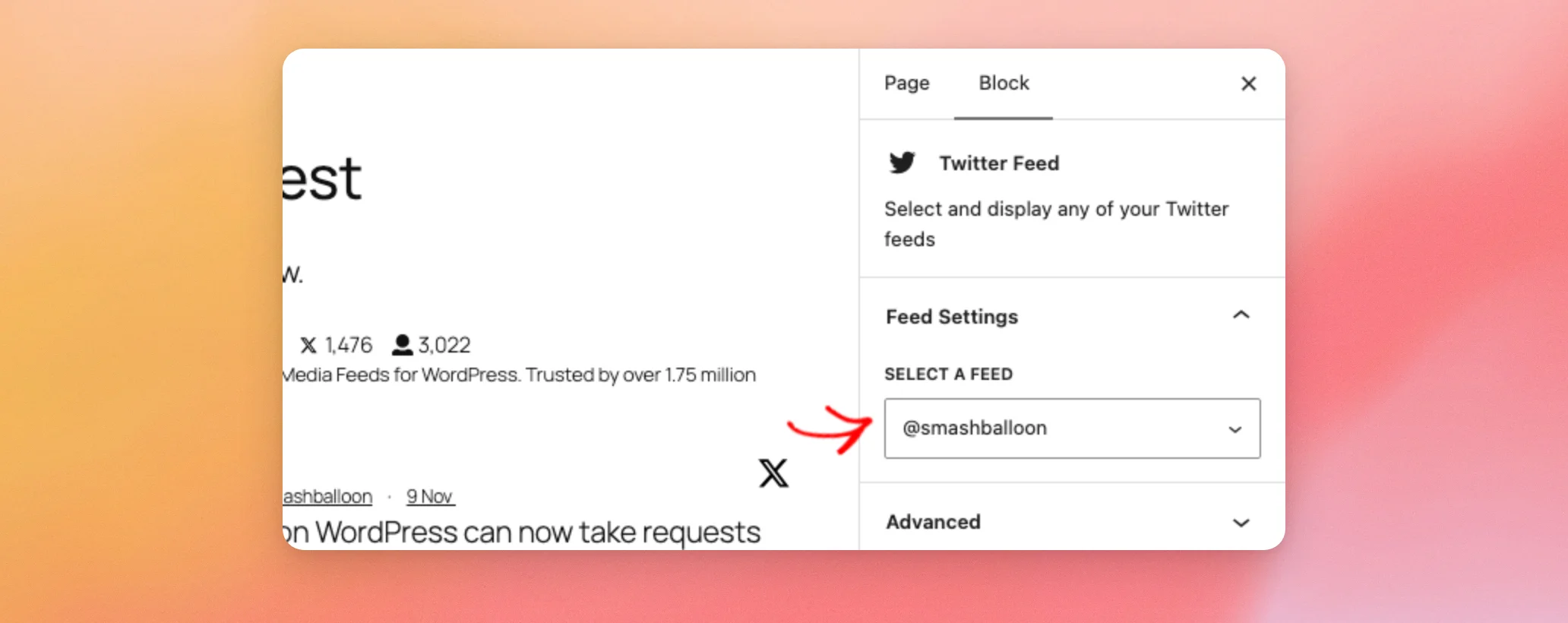
Choosing a feed sets it on the block right away, and its posts appear in the editor preview. There’s no separate button to apply it. The Facebook Feed block works the same way.
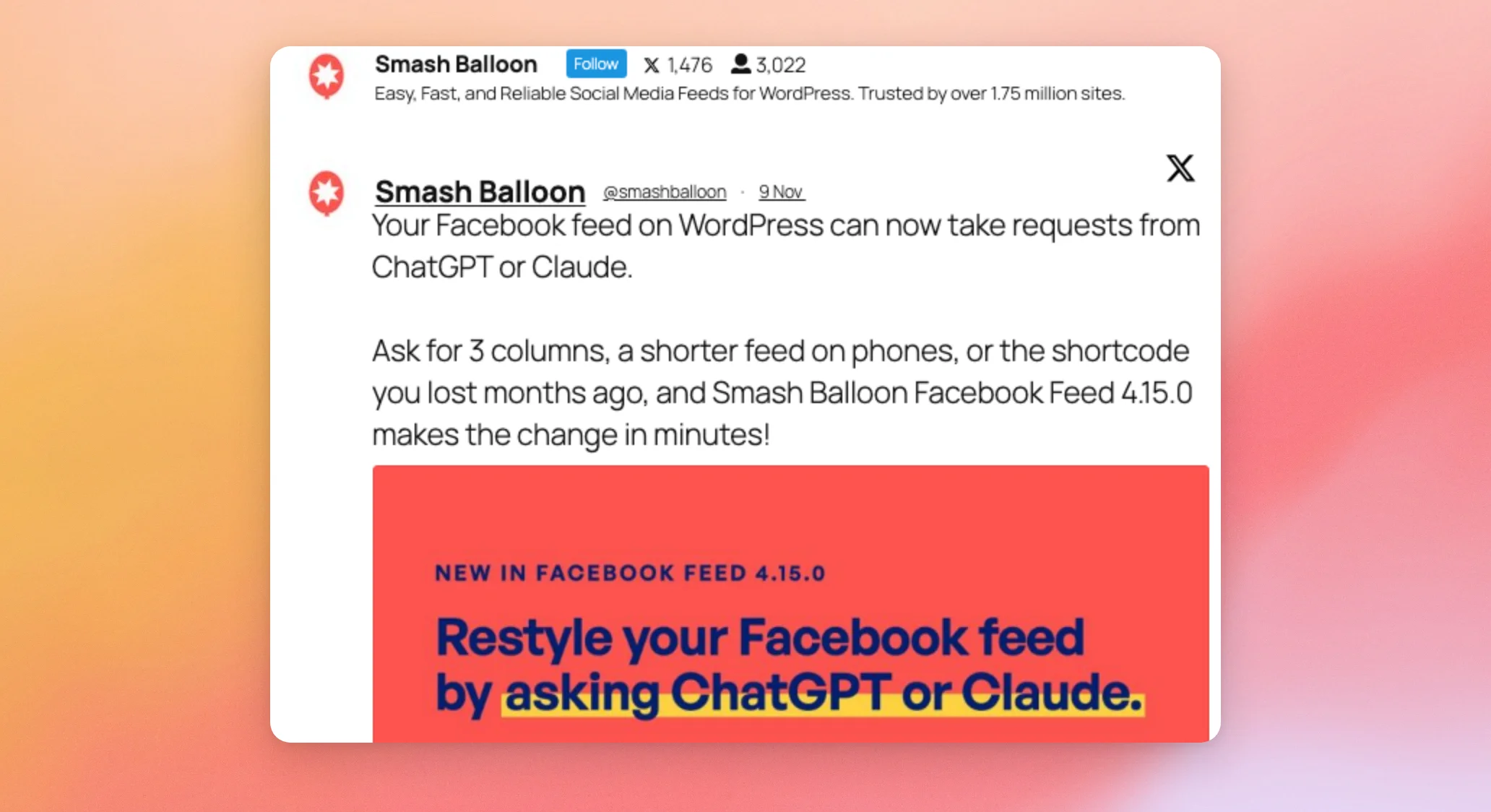
When you’re happy with it, click Publish or Save to save the page.
Your page is now saved with the feed on it.
Opening the Feed Customizer From the Block
To change how the feed looks, you don’t need to leave the page behind. With the block selected, click the brush icon in the block toolbar. This icon is labeled Customizer.
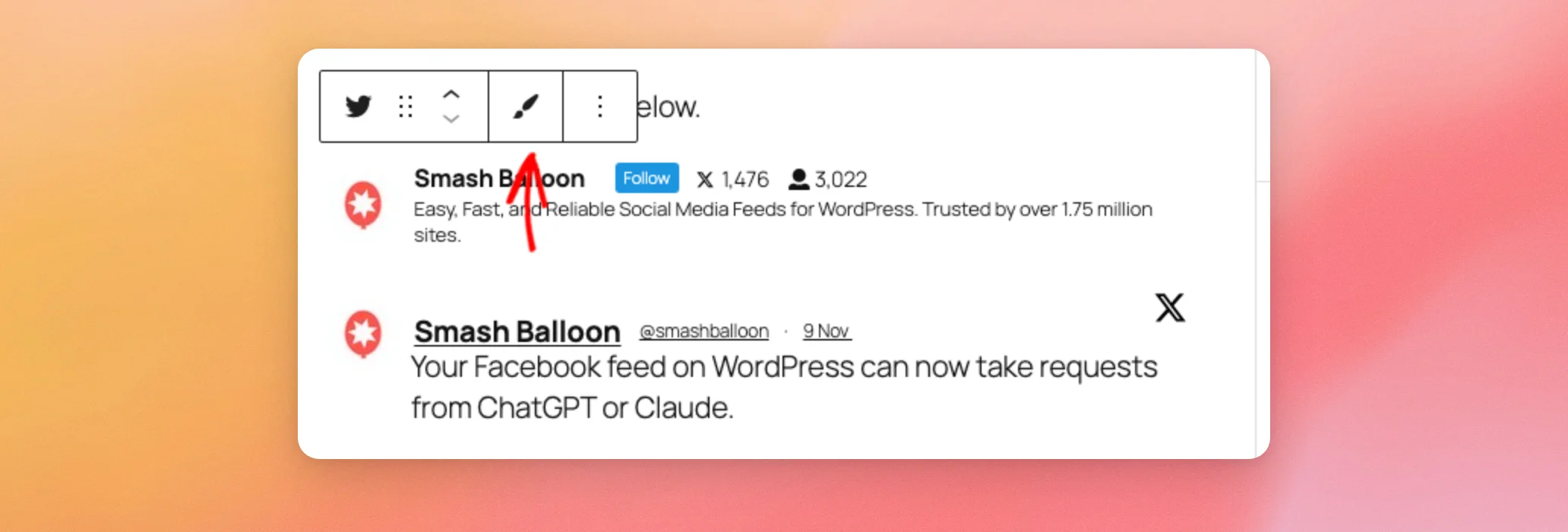
The customizer for that feed opens in a new browser tab. Your page stays open in the editor.
Adding a Feed With a Shortcode
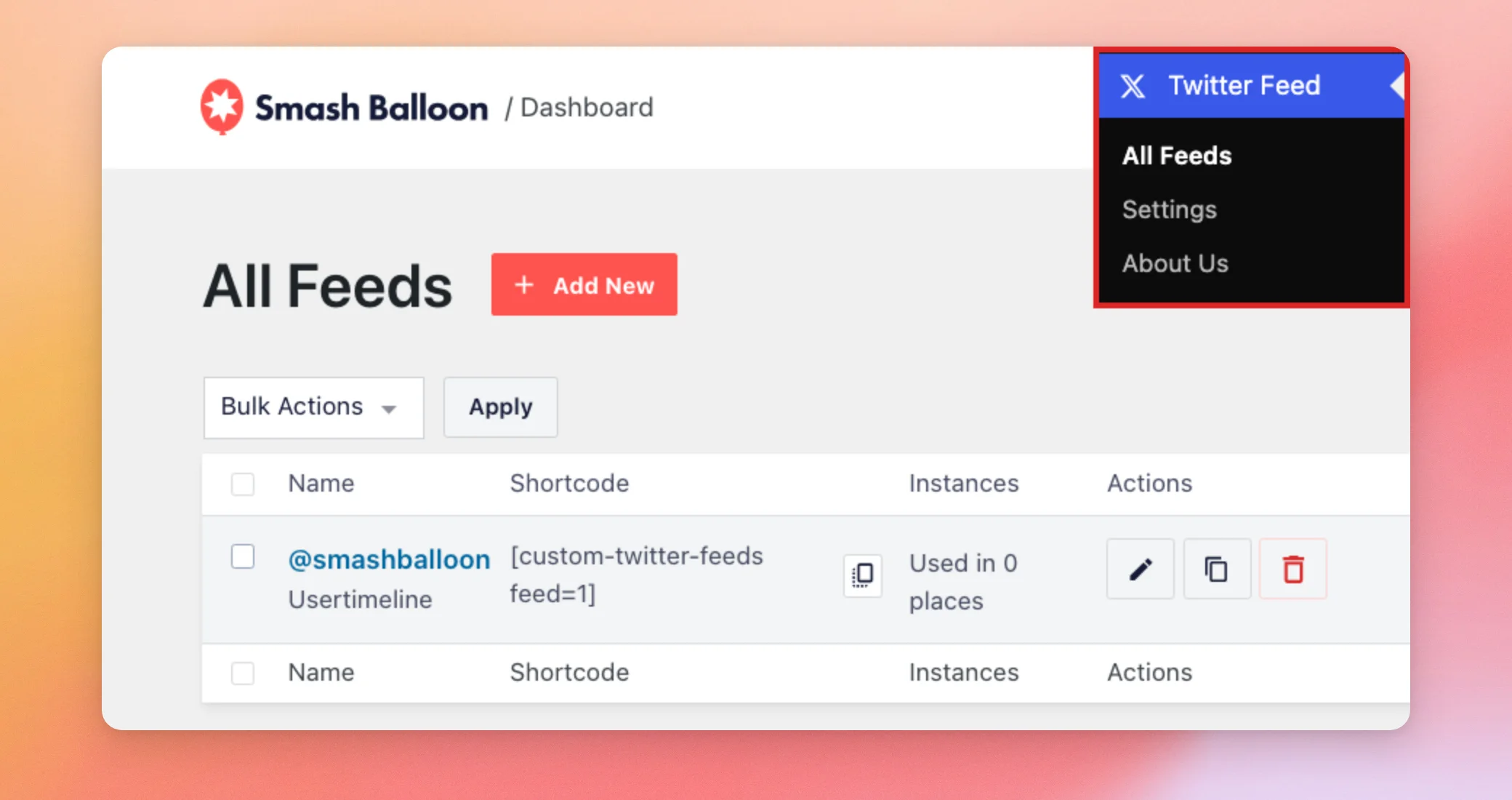
If you prefer, you can paste a feed’s shortcode into a Shortcode block instead. From your WordPress admin sidebar, go to Twitter Feed » All Feeds or Facebook Feed » All Feeds. Each feed’s shortcode is listed in the Shortcode column. For Custom Twitter Feeds, it looks like [custom-twitter-feeds feed=1], where the number is the feed’s ID. For Custom Facebook Feed, it looks like [custom-facebook-feed feed=1].
Adding a Feed With Elementor
If you build your pages with Elementor, you don’t need the block editor at all. Our Smash Balloon Elementor widgets guide covers adding a feed there.
That’s it! You’ve added a feed with the block editor. Next, learn how to hide specific posts from your X feed.
Frequently Asked Questions
Below, we’ve answered some of the most common questions about using the plugin with the block editor.
I can’t find the block when I search for the plugin name. Where is it?
The blocks are named Twitter Feed and Facebook Feed. Search for those names instead. Searching for “Custom Twitter Feeds” or “Custom Facebook Feed” doesn’t return either block. Adding the Feed Block above walks through the search.
The block asks me to create a feed. Why isn’t my feed listed?
The block lists only the feeds you’ve already created. If none exist yet, it shows the Create Facebook Feed or Create Twitter Feed button instead of the dropdown. Adding the Feed Block above explains what that button does.
Where do I find a feed’s number for the shortcode?
The shortcode, with the feed’s number in it, is in the Shortcode column at Twitter Feed » All Feeds or Facebook Feed » All Feeds. Adding a Feed With a Shortcode above shows how to use it.




