


 Social Wall
 Feed Analytics


How to give editors access to X (Twitter) feed settings, using a role editor plugin or the manage_twitter_feed_options capability.
Would you like to let users with the Editor role open the Custom Twitter Feeds settings without making them Administrators?
By default, only Administrators see the Twitter Feed menu. In this guide, we’ll show you 2 ways to give Editors access. A short code snippet opens the full menu, including Settings. A role editor plugin such as Members adds All Feeds and About Us to their menu.
Before you get started, make sure Custom Twitter Feeds Pro is installed and activated on your site.
- What Editors Can Open
- Opening the Full Menu With a Code Snippet
- Opening All Feeds With a Role Editor Plugin
- Removing the Access Again
- Checking What an Editor Sees
- Frequently Asked Questions
What Editors Can Open
You can use either method, and you don’t need both. They give Editors different amounts of access.
- The code snippet opens the whole Twitter Feed menu to Editors. They get All Feeds, Settings and About Us.
- The role editor plugin adds the plugin’s own capability to the Editor role. Editors then see All Feeds and About Us in the menu, but not Settings.
If Editors need to open Settings, use the code snippet. To learn more about what each role can do, see WordPress User Roles and Permissions.
Opening the Full Menu With a Code Snippet
To get started, we’ll change who can open the plugin’s pages.
The plugin checks 1 filter, ctf_settings_pages_capability, to decide who can open its pages. The snippet below changes that filter so any user who can edit other people’s posts gets in. That’s every Editor and Administrator.
We’ll use the free WPCode plugin to add the snippet. See How to Easily Add Custom Code in WordPress for more on adding code safely. From your WordPress dashboard, go to Code Snippets » Add Snippet.

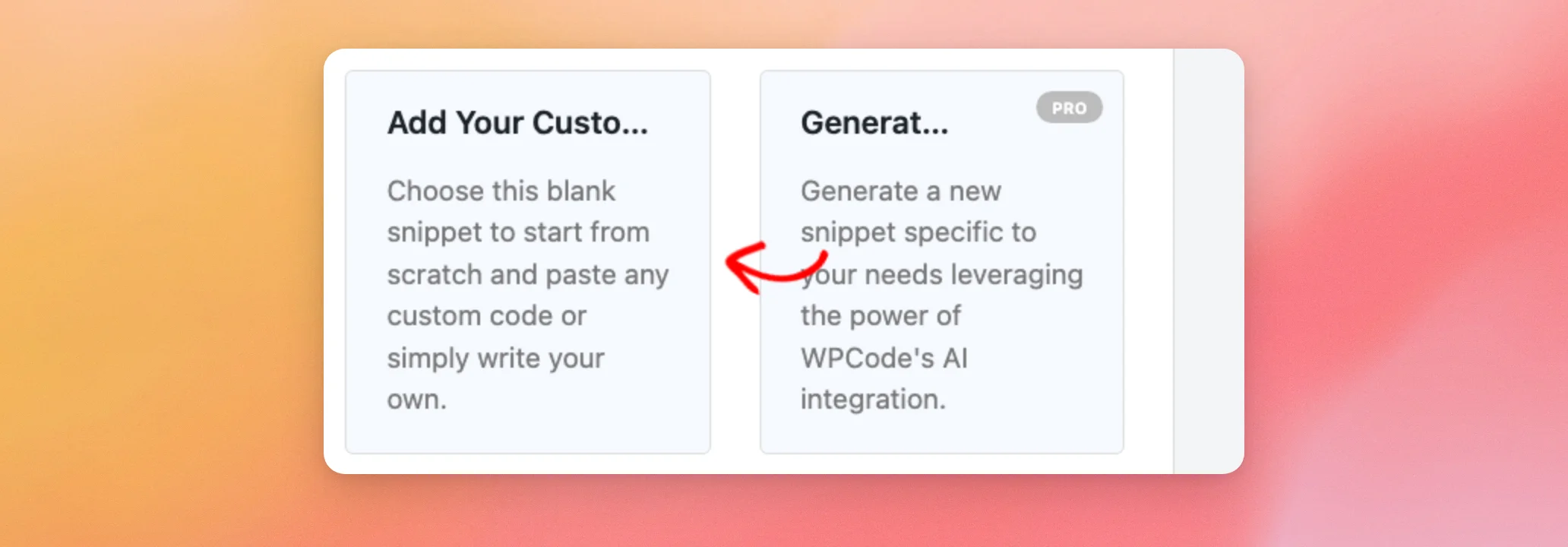
Next, click Add Your Custom Code (New Snippet).
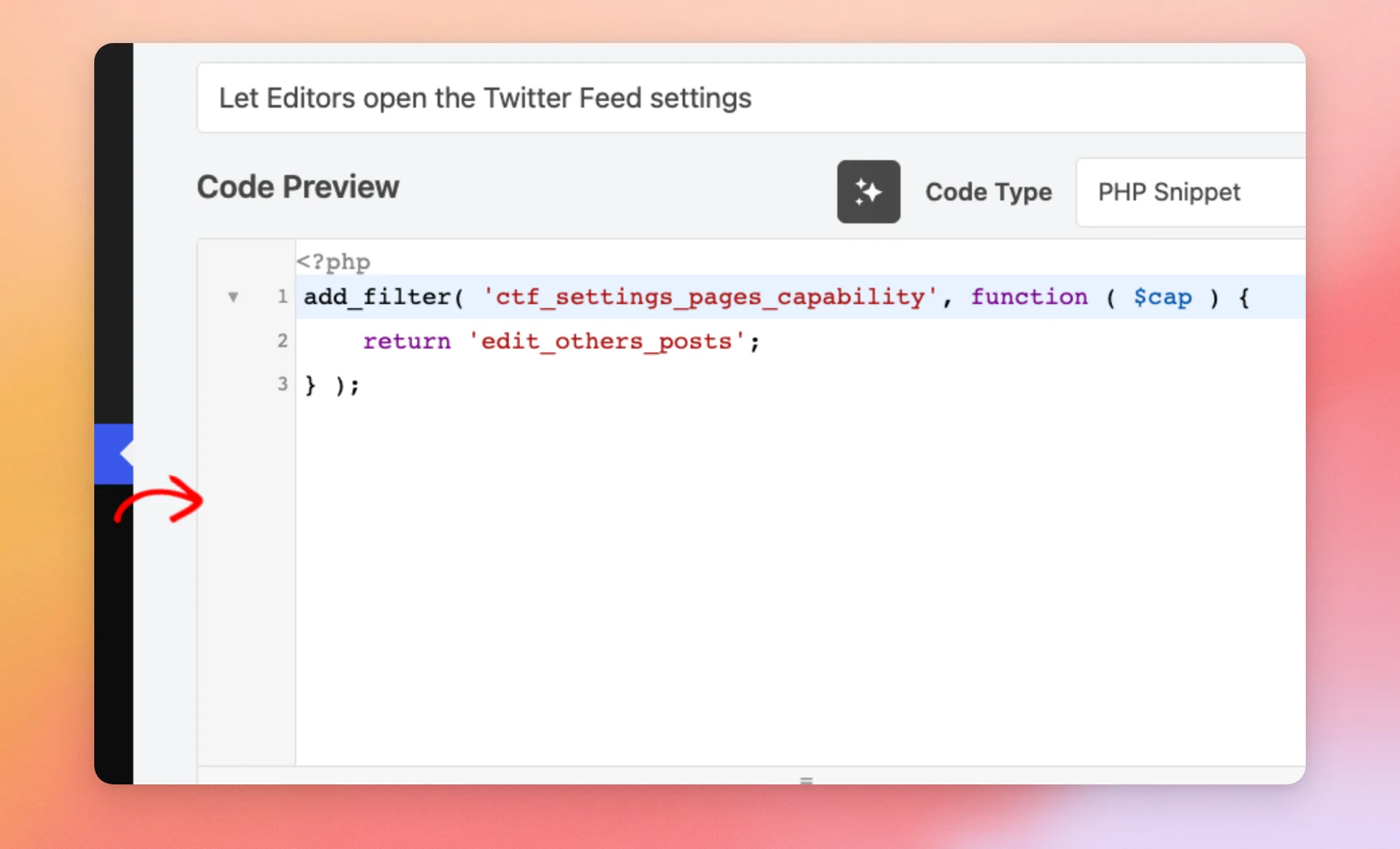
Next, enter a title such as Let Editors open the Twitter Feed settings. The Code Type must be set to PHP Snippet. Then paste this code into the code box. The box already starts with an opening PHP tag. Don’t add one of your own.
add_filter( 'ctf_settings_pages_capability', function ( $cap ) {
	return 'edit_others_posts';
} );
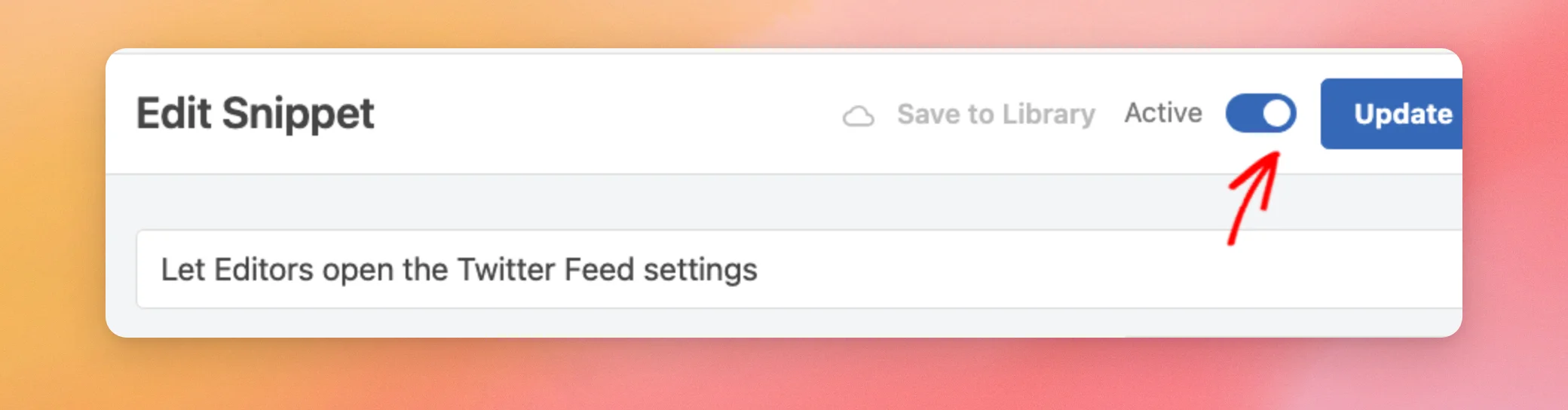
Now switch the Active toggle on.
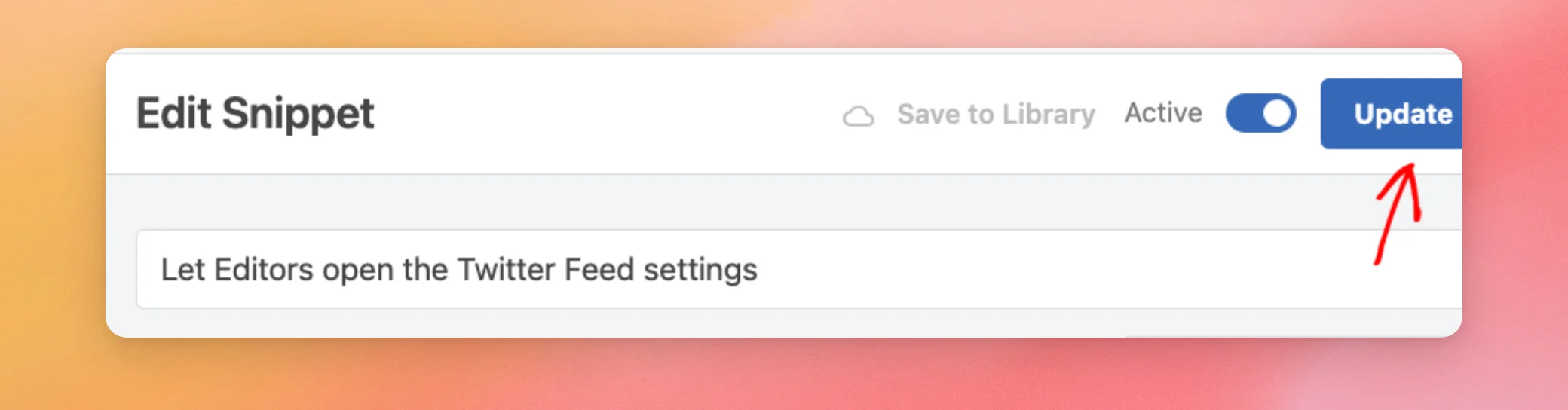
When done, click Save Snippet. On a snippet you’ve already saved, the same button reads Update.
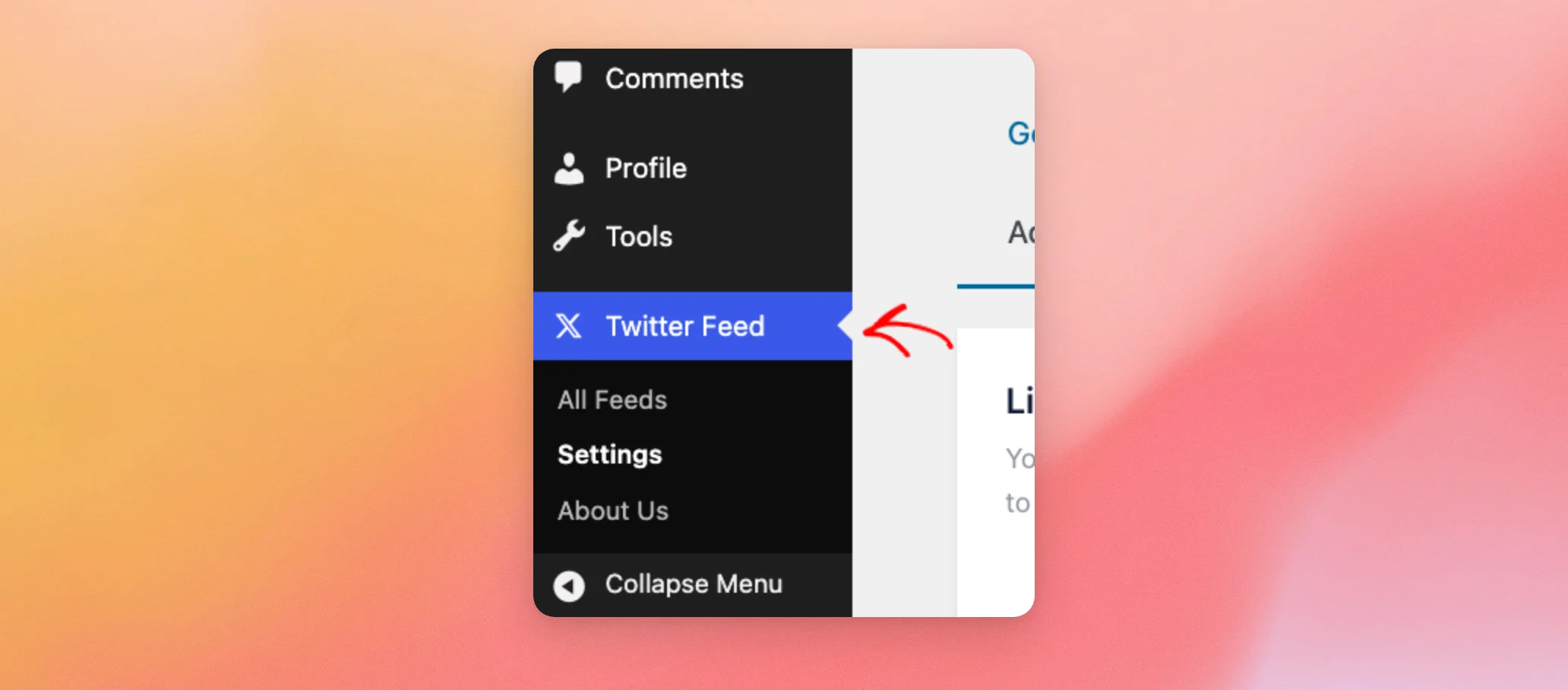
From now on, Editors get the Twitter Feed menu in their dashboard, with All Feeds, Settings and About Us.
Opening All Feeds With a Role Editor Plugin
The plugin has its own capability named manage_twitter_feed_options, which only Administrators have. A role editor plugin, such as the free Members plugin, can add it to the Editor role. If you already added the snippet above, you don’t need this method. If you need to install a plugin first, see How to Install a WordPress Plugin for a step-by-step guide.
With Members active on your site, go to Members » Roles in your WordPress dashboard.

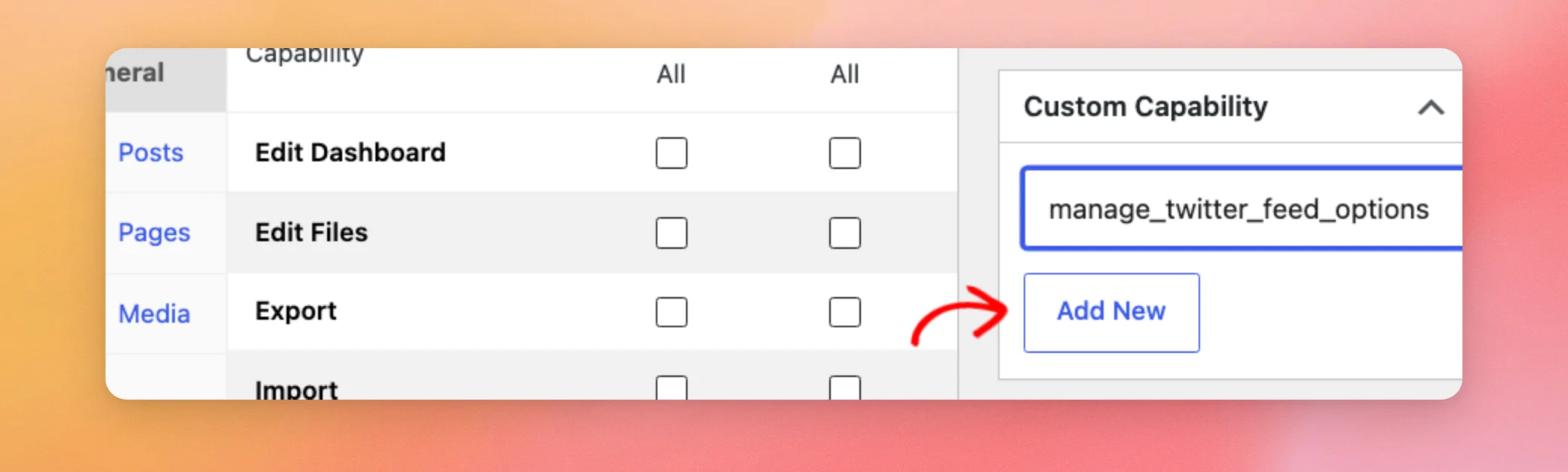
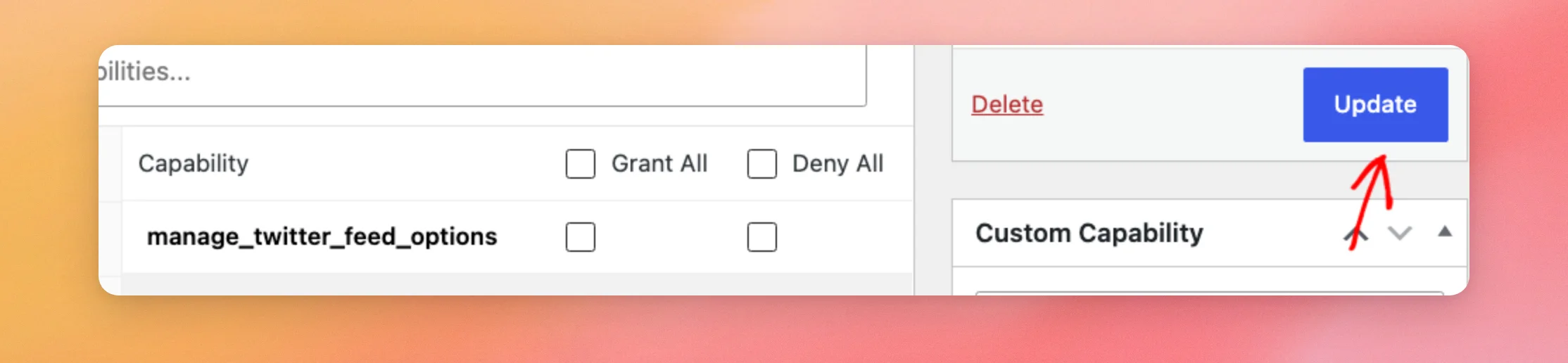
Next, edit the Editor role. In the Custom Capability box, type manage_twitter_feed_options. Then click Add New.
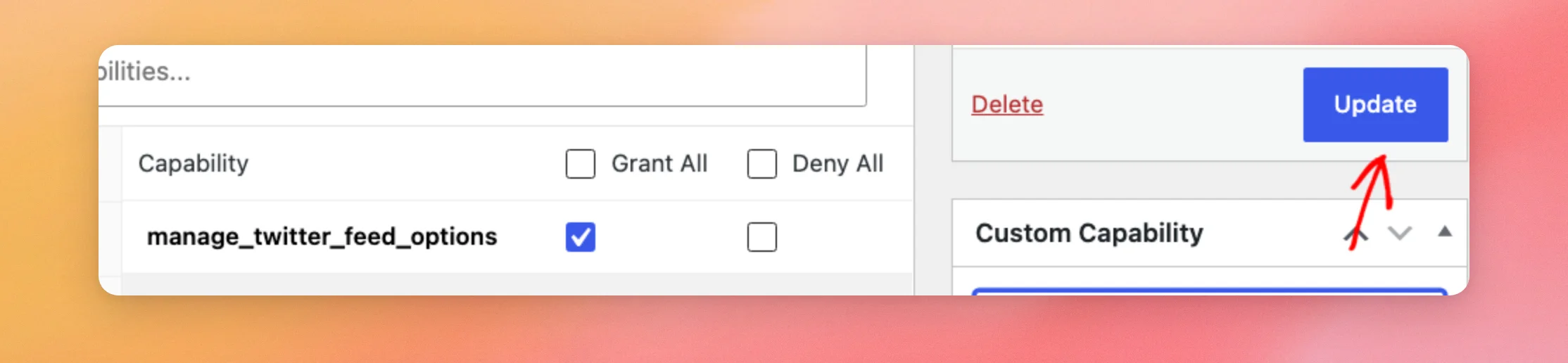
The capability now shows in the list with its Grant box ticked. When done, click Update.
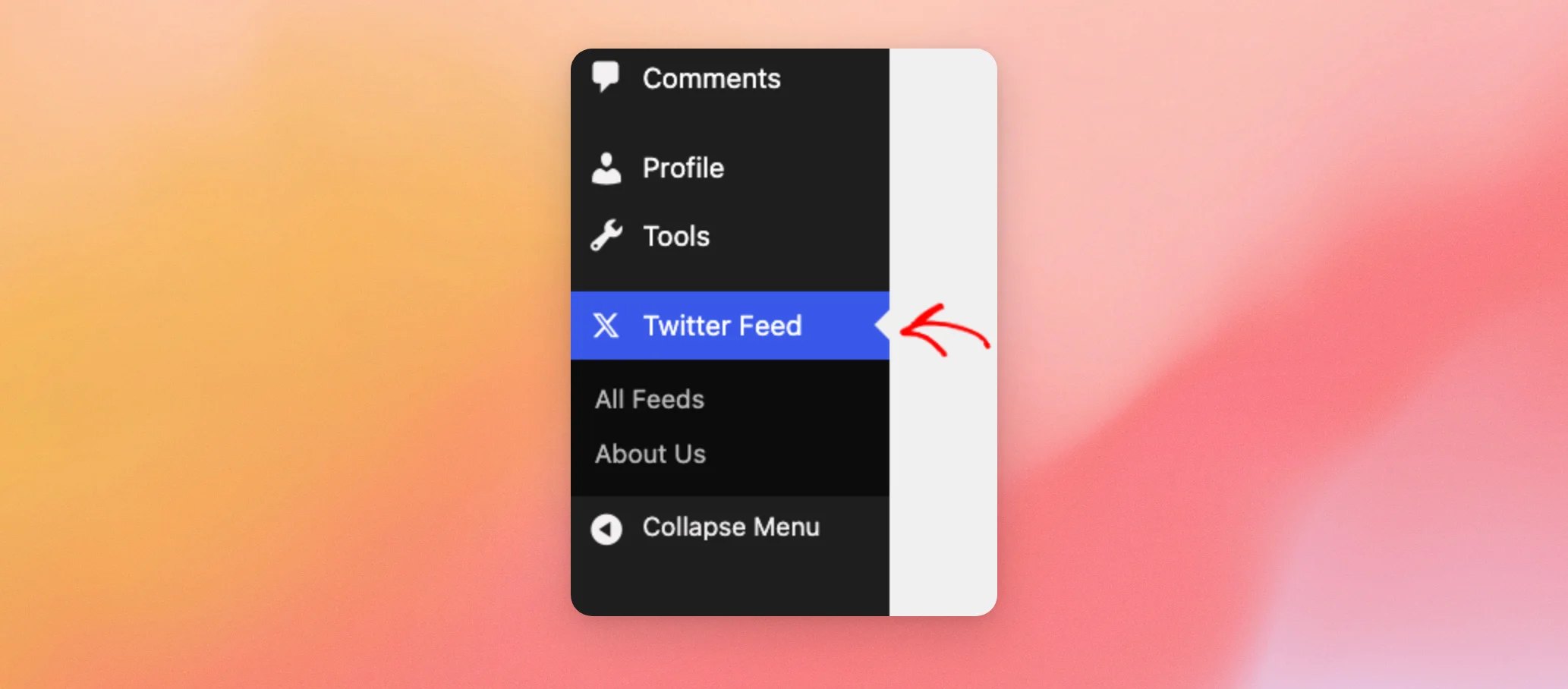
Editors now see the Twitter Feed menu, with All Feeds and About Us. Settings doesn’t show in their menu with this method. Use the code snippet if Editors need it.
Removing the Access Again
To take the access away from Editors, undo the method you used.
For the code snippet, switch the Active toggle off and click Update, or delete the snippet.
For the role editor plugin, go back to Members » Roles and edit the Editor role. Next, untick the Grant box for manage_twitter_feed_options. Then click Update. Editors no longer see the Twitter Feed menu.
Checking What an Editor Sees
You can check the result without asking an Editor to sign in. With the free User Switching plugin active on your site, go to Users » All Users.

Next, click the Switch To link under the Editor’s name.
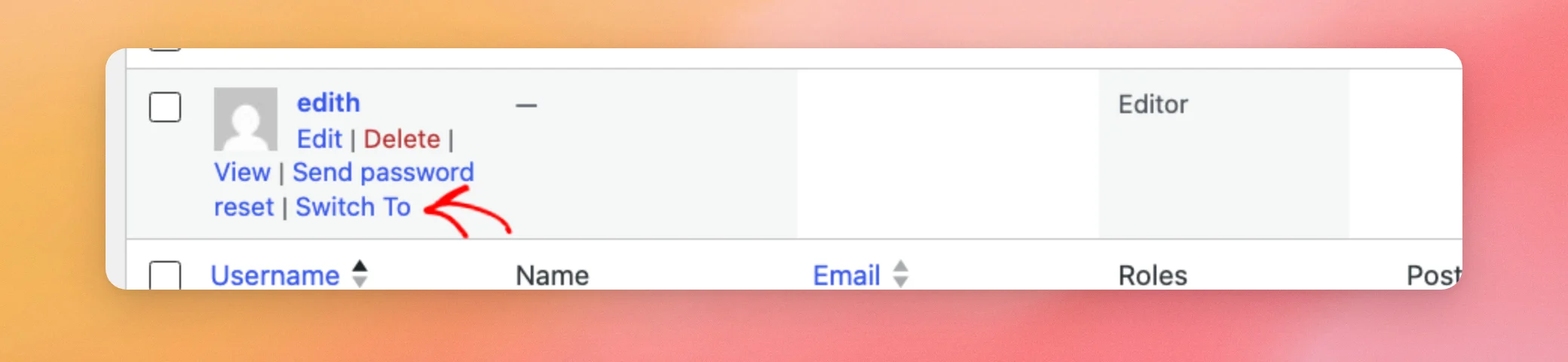
Your dashboard then shows what that Editor has access to. The account menu at the top right has a Switch back to link that returns you to your own account.
That’s it! You now know how to give Editors access to the Custom Twitter Feeds menu and how to remove it again. Next, check out our guide on feed caches in your database to learn more about how the plugin stores your feeds.
Frequently Asked Questions
Below, we’ve answered some of the most common questions about Editor access to the plugin.
Which users can open the menu after I add the snippet?
Editors and Administrators can. Users with the Author role don’t see the Twitter Feed menu. The snippet lets in anyone who has the edit_others_posts capability. WordPress gives that to Editors and above.
Can I use a different capability in the snippet?
Yes. The word on the return line is the WordPress capability a user needs to open the plugin’s pages. Replace edit_others_posts with another capability. Only users with it will see the menu.
Do Editors see Settings with the role editor plugin?
No, not on the current version of Custom Twitter Feeds Pro. With the capability alone, Editors see All Feeds and About Us in the menu. The Settings menu item stays hidden for them. If Editors need Settings, use the code snippet instead.
Do I need to use both methods?
No. Pick one. The code snippet alone gives Editors the full menu, and the role editor plugin alone shows them All Feeds and About Us.




