


 Social Wall
 Feed Analytics


Would you like to give your Facebook feed a ready-made layout and design, without setting up each option by hand?
In this guide, we’ll walk you through feed templates and feed themes in Custom Facebook Feed Pro. You’ll see how to pick them when you create a feed and how to change them later in the feed editor.
Requirements: Feed templates are available with the Plus and Elite license levels. Feed themes are available with the Elite license level. To compare them, see our guide on license levels.
Before you get started, make sure Custom Facebook Feed Pro is installed and activated on your WordPress site, and that you’ve connected a Facebook Page.
Here is what we will cover.
- What Templates and Themes Do
- Choosing a Theme and a Template for a New Feed
- Changing the Template of a Feed
- Changing the Theme of a Feed
- Frequently Asked Questions
What Templates and Themes Do
A template is a starting point for your feed’s settings. It sets the layout, the number of posts, the post style, the header and the Load More button. You can still change each of those settings after you pick a template. Start with the one closest to the look you want.
For a Timeline feed, these are the templates you can choose from.
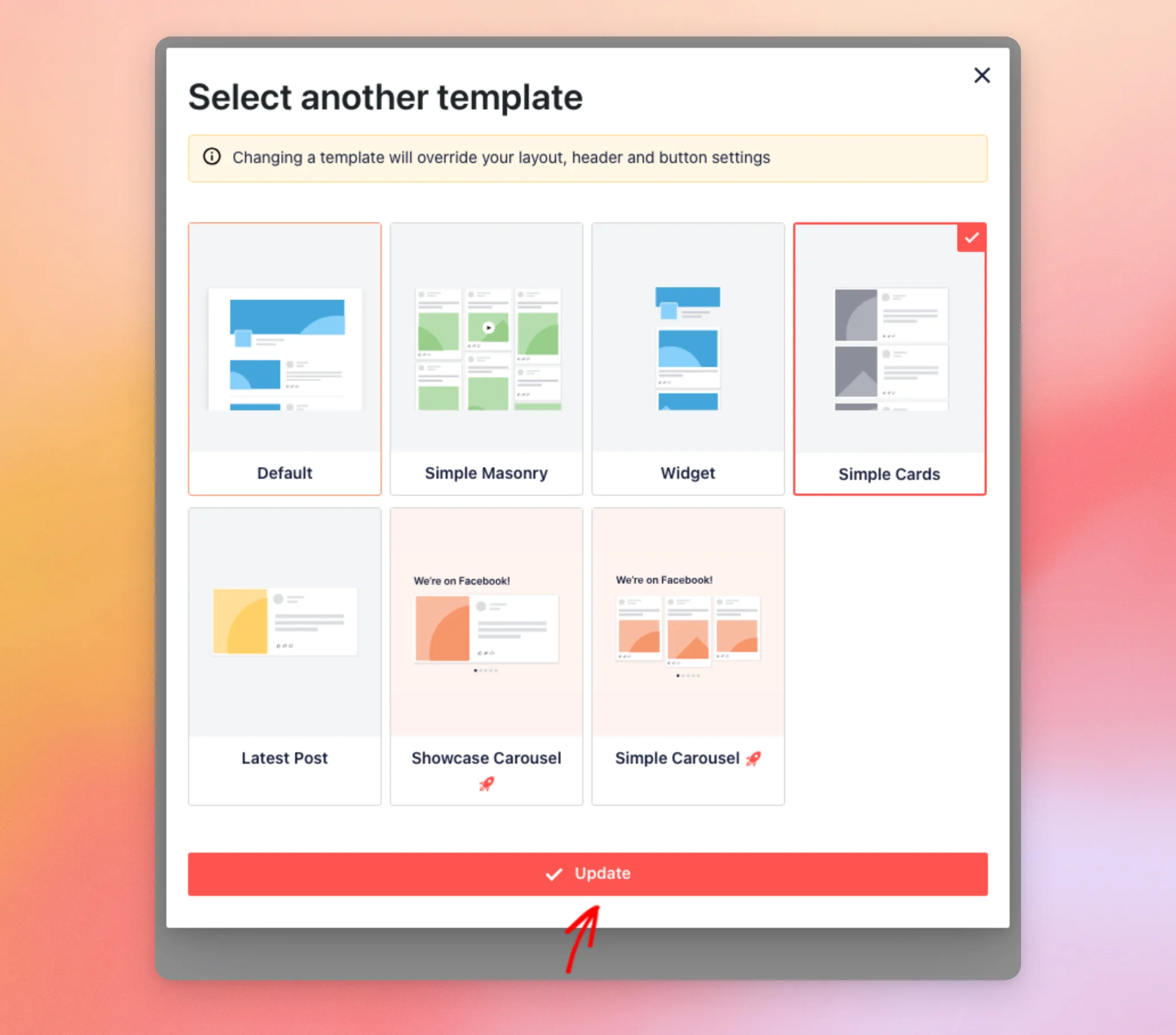
- Default shows three posts in a list, with a Load More button and a header that shows your cover photo, Page name and bio.
- Simple Masonry shows nine posts in a masonry grid of three columns, with a Load More button and no header.
- Widget shows two posts in a list, with the same kind of header as Default and no Load More button.
- Simple Cards shows six posts in a list of cards, with a Load More button and no header.
- Latest Post shows only your most recent post, with no header and no Load More button.
- Showcase Carousel shows six posts in a carousel, one post at a time, with a text header.
- Simple Carousel shows six posts in a carousel, three at a time on desktops and one on mobile devices, with a text header.
Photos, Videos, Albums and Single Album feeds get settings that suit their content. Some templates also go by a different name in other feed types. In feed types other than Timeline and Events, Simple Cards is called Large Grid. In Photos and Single Album feeds, Latest Post is called Single Photo. In Albums feeds, it’s called Latest Album.
Note: The Showcase Carousel and Simple Carousel templates have a rocket icon because they need the Carousel extension. For details, see our guide on using the Carousel extension.
A theme is a preset design for your whole feed. It changes how the header and posts look, such as your profile picture shape and the like, comment and share icons. A theme doesn’t change your layout or your other settings. This means you can try a different theme without losing them. There are five themes, called Default, Modern, Social Wall, Outline and Overlap.
Choosing a Theme and a Template for a New Feed
When you create a feed, the plugin asks you to pick a theme and a template.
To get started, go to Facebook Feed » All Feeds in your WordPress dashboard. Then, click Add New.
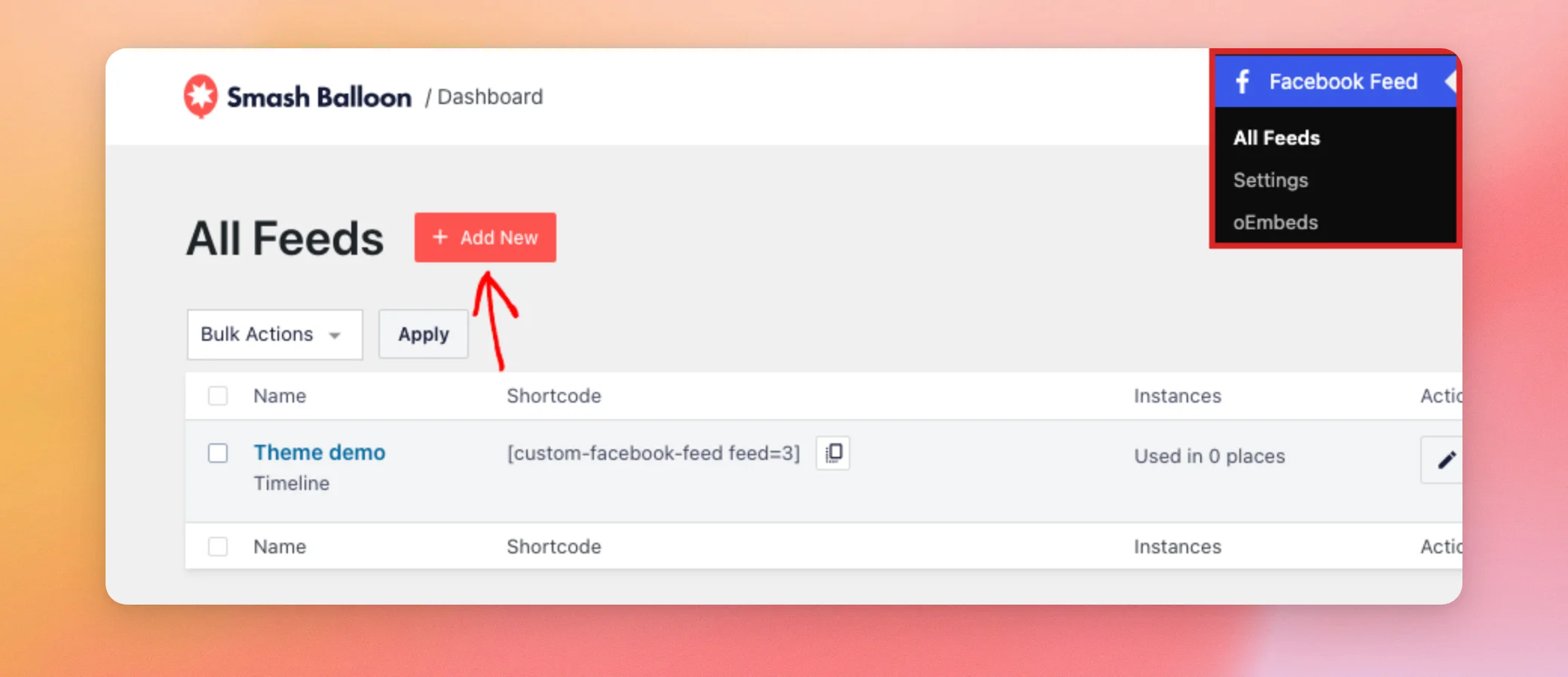
Next, choose a feed type and click Next. On the Select a Source screen, choose your Facebook Page and click Next again.
On the Start with a Theme screen, choose a theme. Then, click Next.
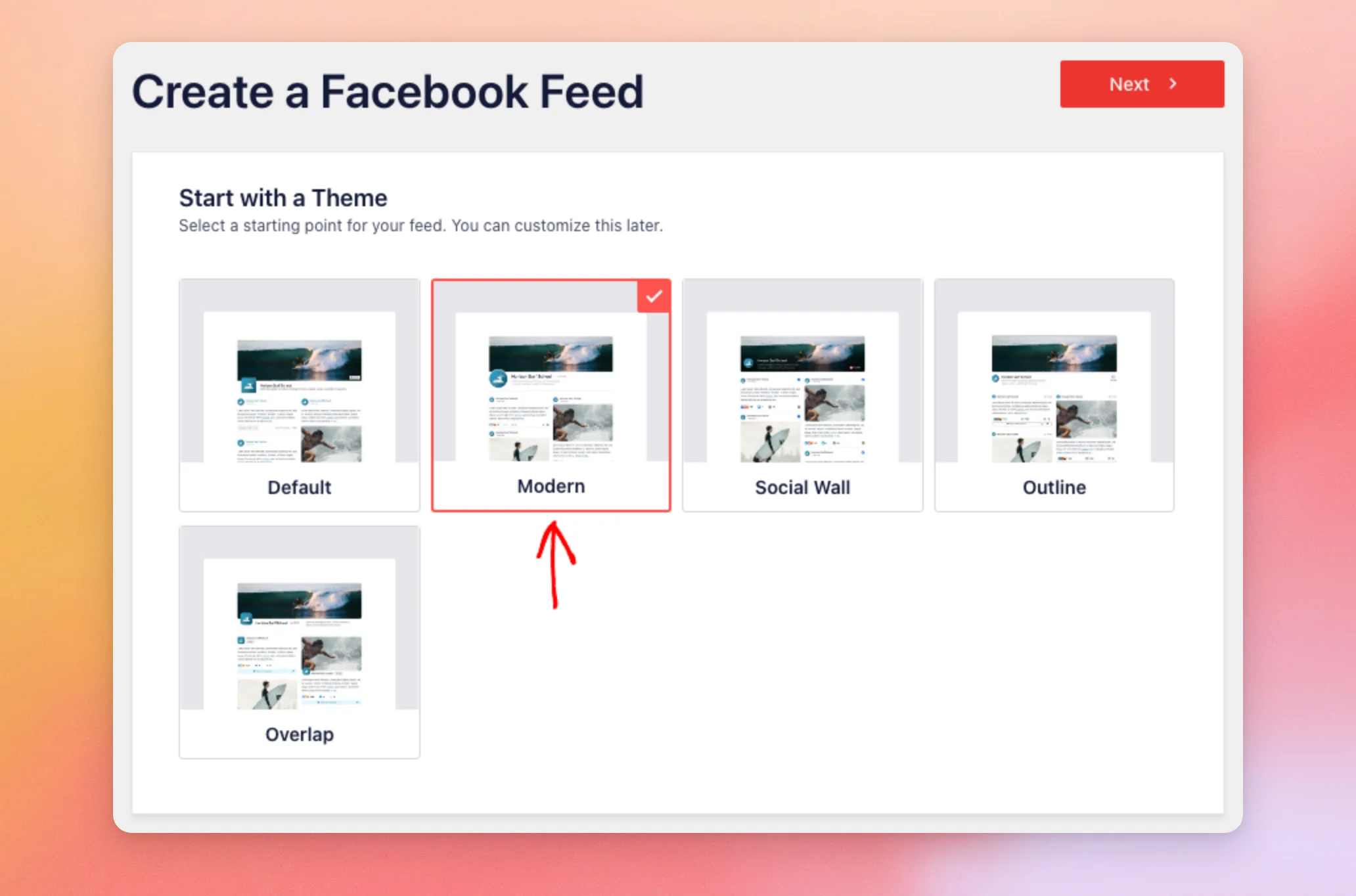
The Start with a Theme screen only shows when your license level includes feed themes. If you don’t see it, your feed uses the Default theme.
On the Start with a template screen, choose a template. Then, click Next.
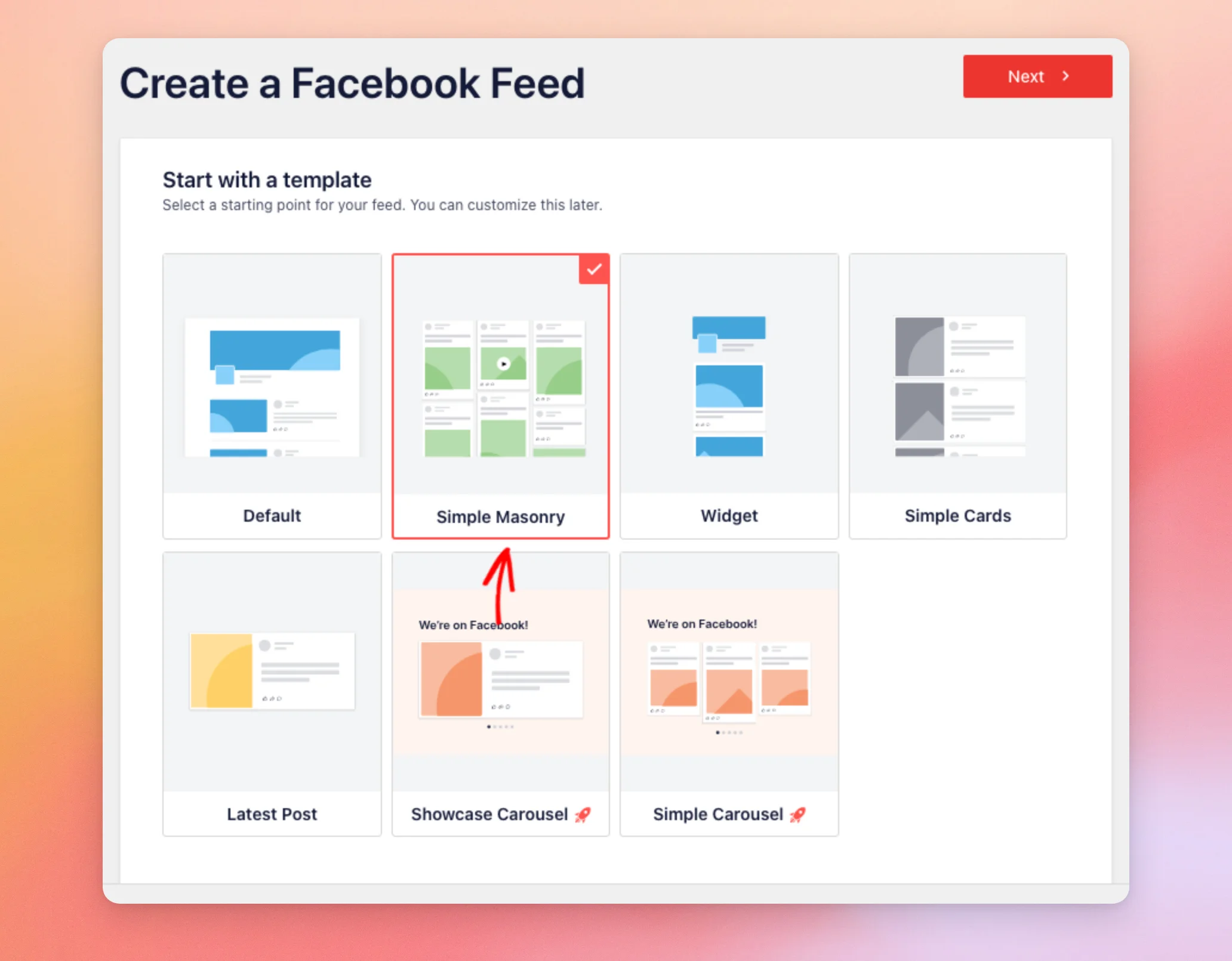
Your new feed then opens in the feed editor with the settings of the template you picked. Videos, Single Album and Single Featured Post feeds ask for a few more details first.
Changing the Template of a Feed
You can switch an existing feed to a different template at any time.
To do this, go to Facebook Feed » All Feeds and click the name of your feed. The feed editor opens on the Customize tab.
At the top of that tab, click Template. Then, click Change.
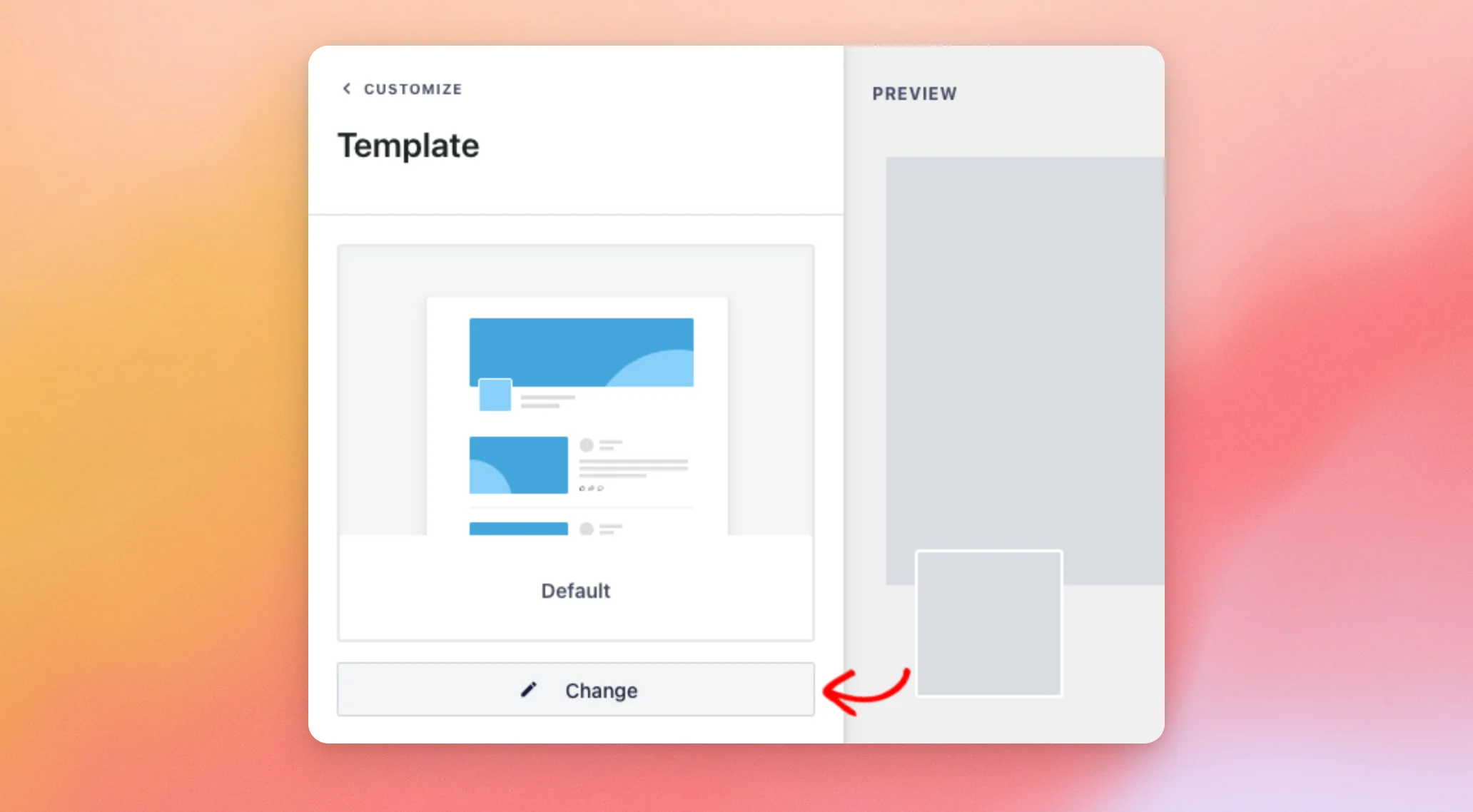
The Select another template popup opens. It warns that changing a template overrides your layout, header and button settings.
Next, choose a template and click Update.
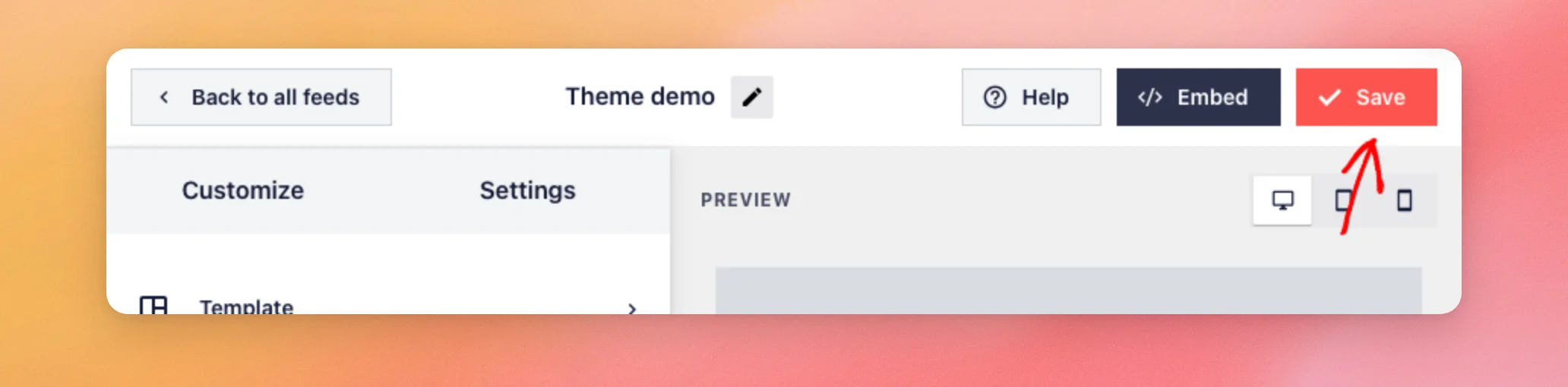
The preview shows your feed with the new template. Nothing changes on your site yet. To keep it, click Save at the top of the feed editor.
Your feed now uses the new template.
Changing the Theme of a Feed
You can also switch an existing feed to a different theme.
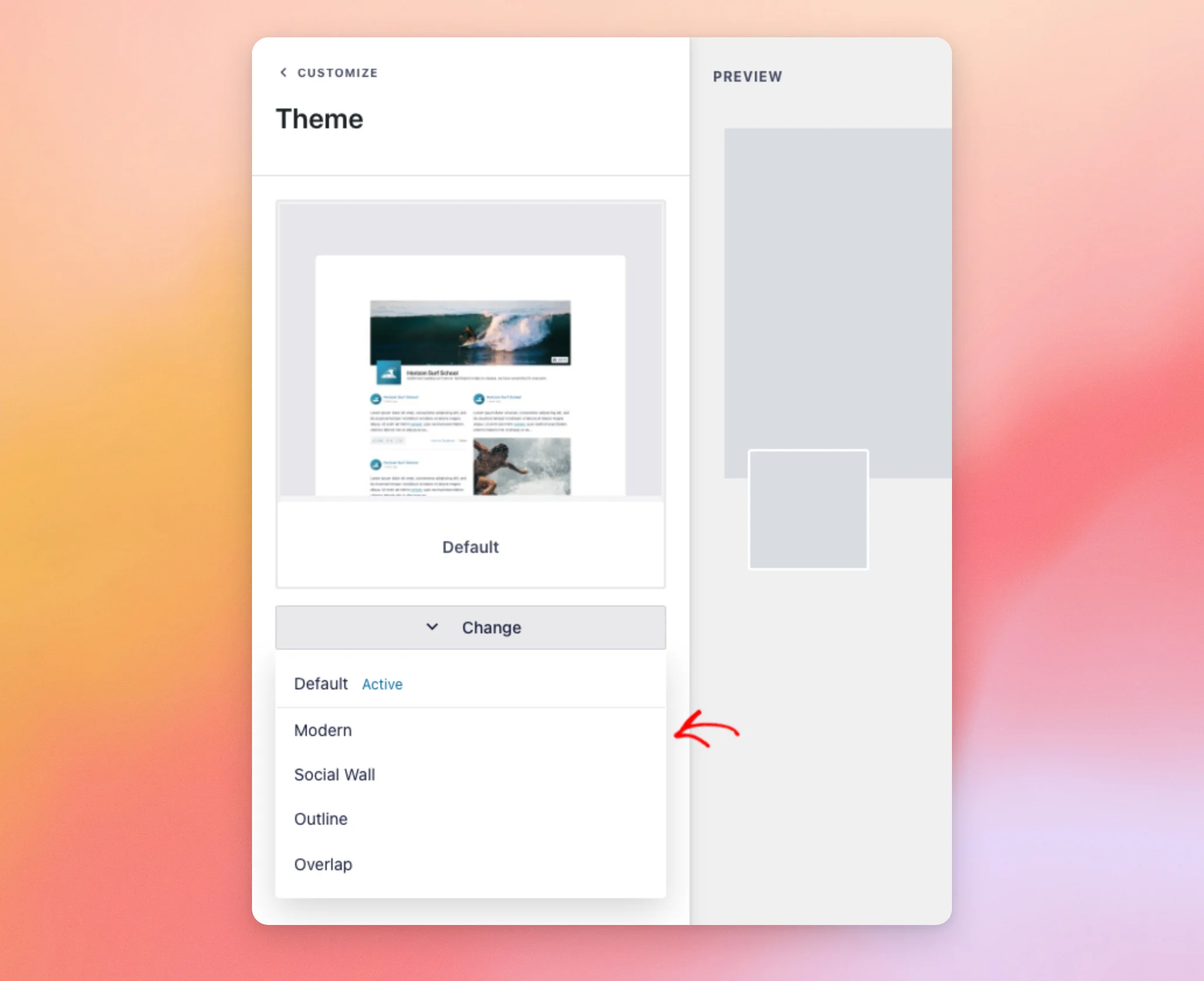
To do this, open your feed in the feed editor. On the Customize tab, click Theme. Then, click Change.
A list of the themes opens. Your current theme says Active. When you move your mouse over a theme, a sample image of it appears. To switch, click the theme you want.
The preview updates right away. For example, here is a feed with the Default theme. It has a square profile picture and a gray bar with the like, comment and share counts under each post.
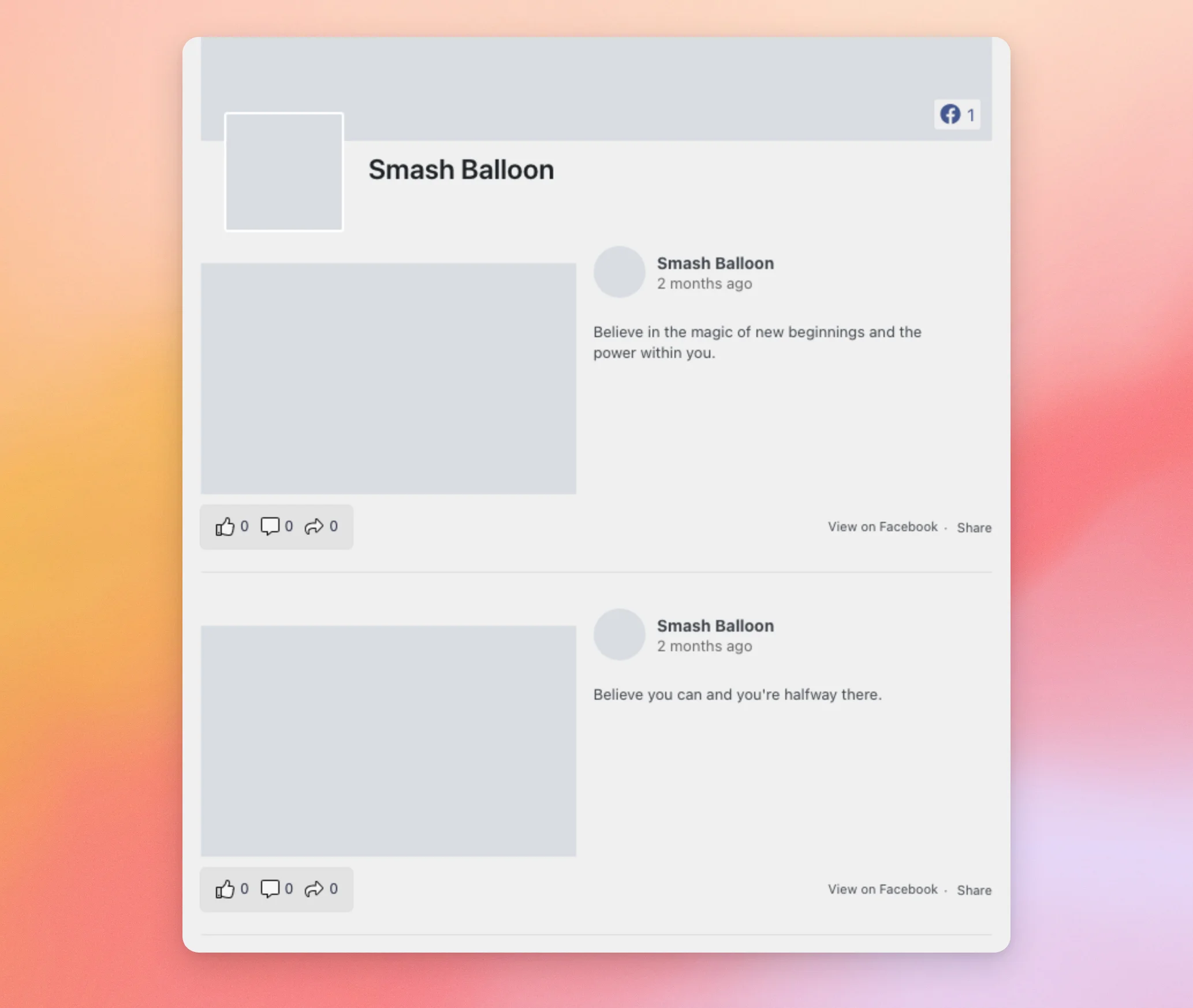
Here is the same feed with the Modern theme. The profile picture is round, the like count shows next to the Page name, and the like, comment and share icons sit inside each post.
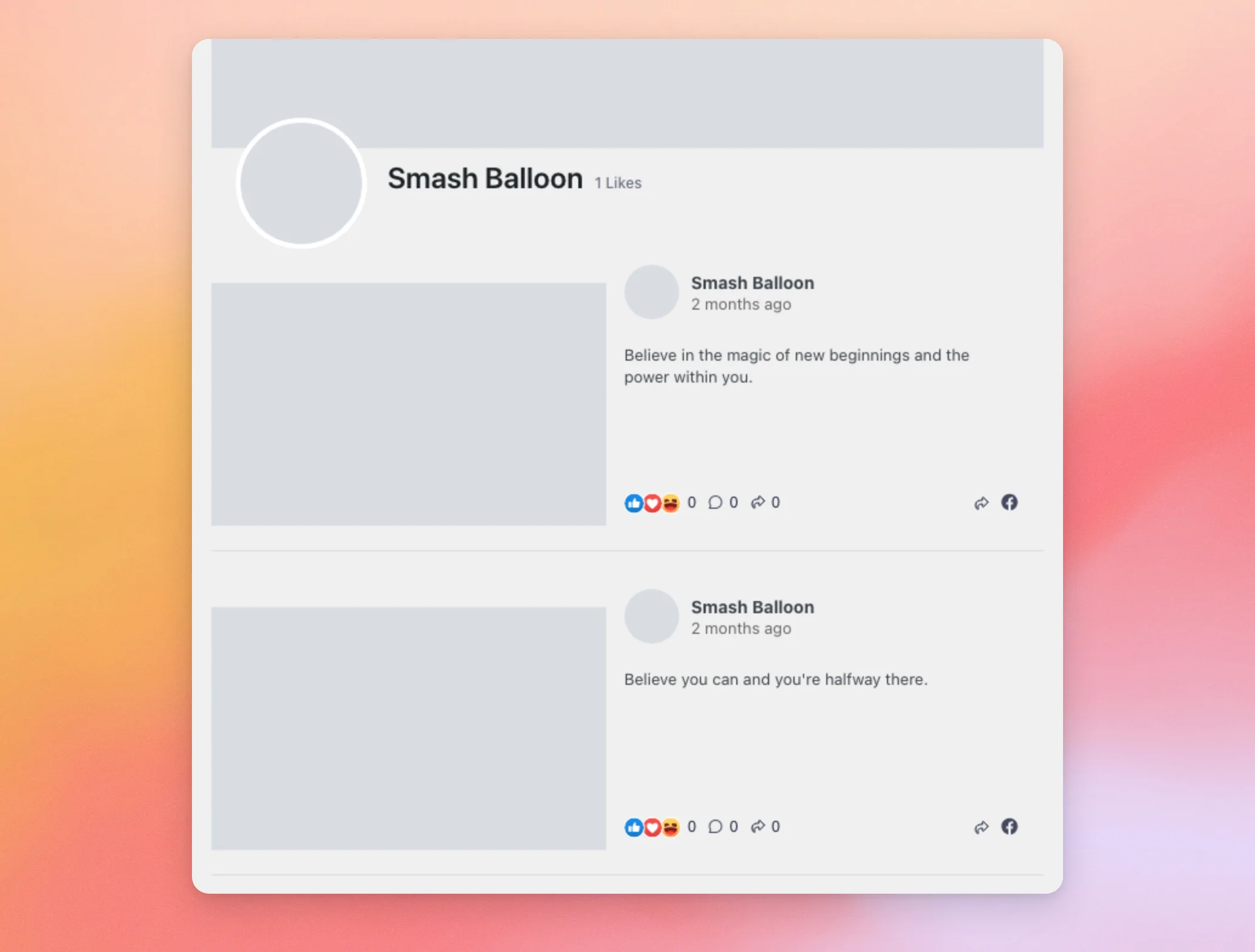
When you’re happy with the theme, click Save at the top of the feed editor.
That’s it! You now know how to choose a template and a theme for your Facebook feed, and how to change them later. Next, take a look at our guide on showing your Facebook feed as a carousel.
Frequently Asked Questions
Below, we’ve answered some of the most common questions about feed templates and feed themes.
Why don’t I see the Start with a Theme screen?
The plugin only shows that screen when your license level includes feed themes. Otherwise, it goes from the Select a Source screen straight to the Start with a template screen. Your feed then uses the Default theme.
Why did my carousel template change back to Default?
The Showcase Carousel and Simple Carousel templates need the Carousel extension. When it isn’t active, choosing one of them opens an upgrade message. On the Start with a template screen, the selection then goes back to Default. To fix this, turn on the Carousel extension. Then choose the template again.
Does changing the template keep my customizations?
Not all of them. A new template replaces your layout, number of posts, post style, header and Load More button settings with its own. Nothing changes on your site until you click Save. This means you can close the feed editor without saving to keep your current settings.
Does changing the theme reset my other settings?
No. Picking a theme only changes the theme. Your layout, number of posts and other settings stay the same.
What happens to my theme if my license level doesn’t include feed themes?
Your feeds show the Default theme on your site, even if a different theme is saved in the feed.




