


 Social Wall
 Feed Analytics


Would you like to find your feed reports in WordPress and check whether anyone else on your site can see them?
In this guide, we’ll show you where Feed Analytics appears in your admin and how its platform list and Settings page work. We’ll also cover who can see it.
Before you get started, make sure Feed Analytics is installed and activated on your site.
- Finding the Feed Analytics Menu
- Using the Platforms List
- Seeing the Install and Activate Prompts
- Managing Your License in Settings
- Knowing Who Can Open Feed Analytics
Finding the Feed Analytics Menu
Feed Analytics has its own menu in the WordPress admin sidebar. It sits at the top level, not under another Smash Balloon plugin. To open your reports, go to Feed Analytics » All Platforms.
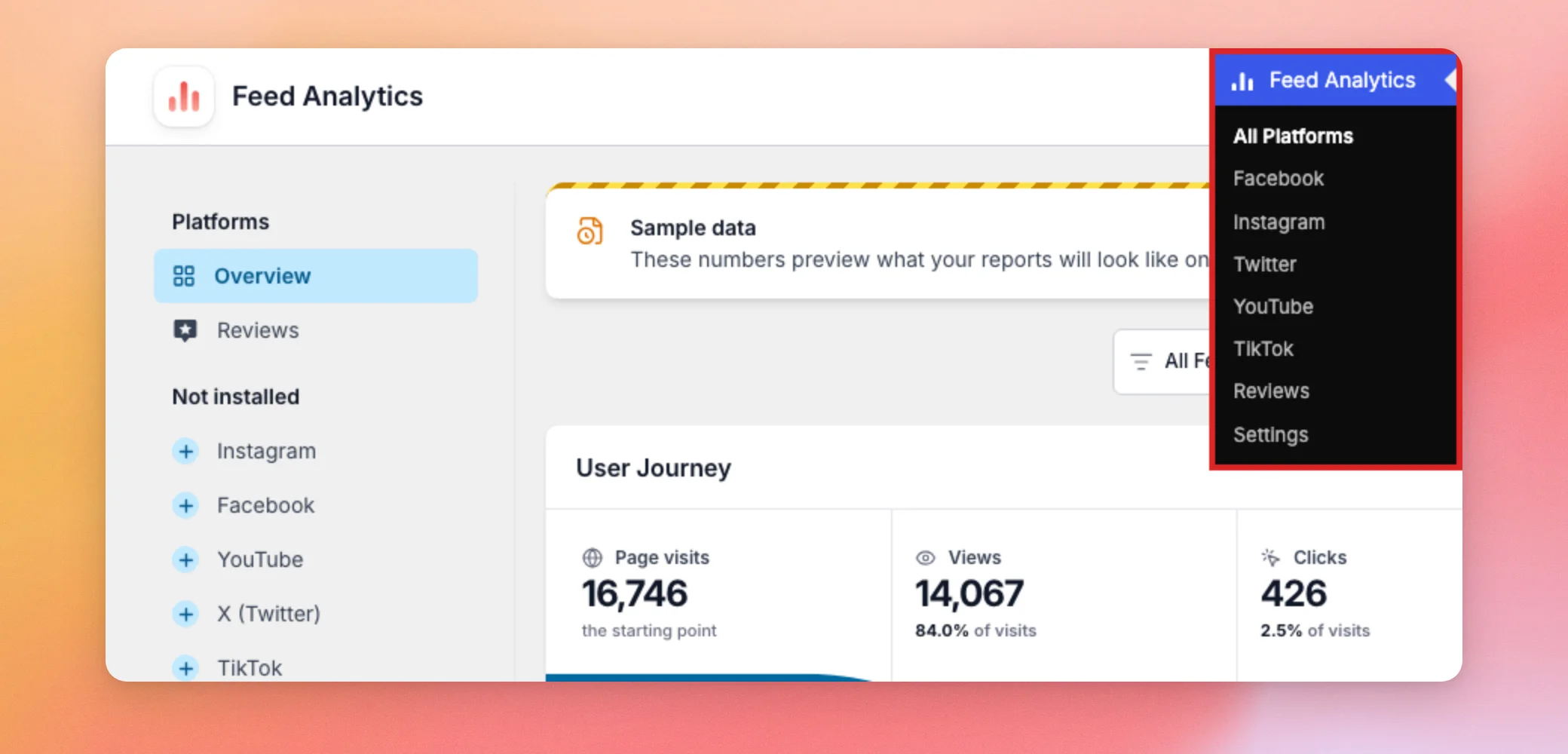
The menu lists these pages.
- All Platforms
- YouTube
- TikTok
- Reviews
- Settings
All Platforms shows the Overview report. Each platform item opens the same screen with that platform already selected. Settings holds your license. We’ll cover it below.
The WordPress Dashboard also has a Smash Balloon Pro Analytics widget with a View Detailed Analytics button that opens All Platforms. To learn what the reports show, see Reading Your Feed Analytics Dashboard.
Next, we’ll look at the platform list inside the report.
Using the Platforms List
On every report page, a Platforms list runs down the left side. Overview comes first. It shows all your platforms together. Below it is 1 item for each Smash Balloon feed plugin that is active on your site. Selecting one opens that platform’s report.
Platforms whose feed plugin is not active sit under a second heading called Not installed. Each has a plus sign next to its name. For example, if only Reviews has an active feed plugin, Instagram, Facebook, YouTube, X (Twitter), and TikTok are listed under Not installed. To see what Feed Analytics offers for a missing platform, click its name, such as Instagram.
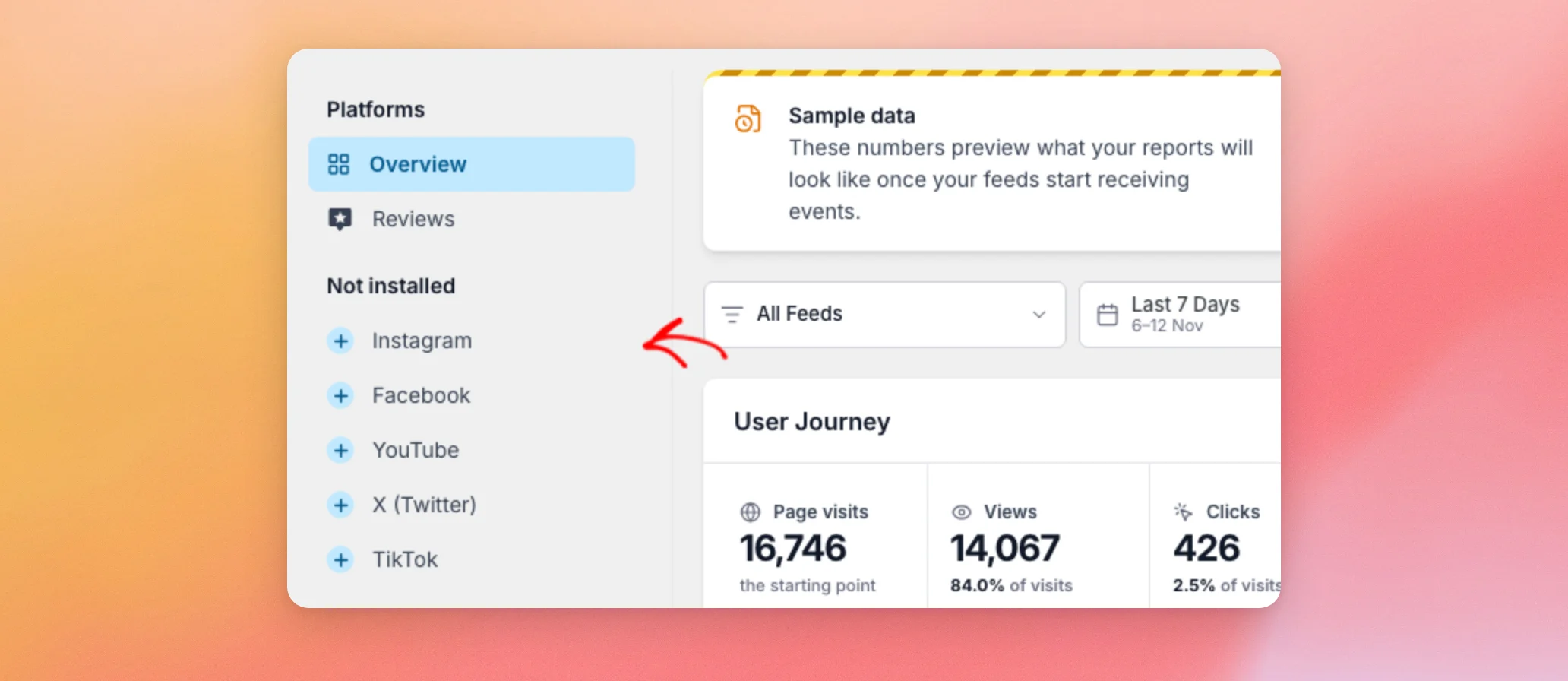
You may notice that the list says “X (Twitter)”, while the WordPress menu says “Twitter”. They are the same platform.
The Settings page does not have this list.
Now, let’s see what a missing platform shows.
Seeing the Install and Activate Prompts
When you open a platform whose feed plugin is not active, Feed Analytics shows a prompt instead of a report. For Instagram, it reads “Set up Instagram Feed to start measuring engagement.” The text under it says the feed plugin is included in your plan. It also says its data appears on this page once you build a feed.
The button under the text depends on what is on your site.
- If the feed plugin is not on your site, the button reads Install Instagram Feed.
- If the feed plugin is on your site but turned off, the button reads Activate Instagram Feed.
To install the feed plugin from here, click Install Instagram Feed. This opens the WordPress plugin installer, which installs the free Instagram Feed plugin from WordPress.org. It needs a user who is allowed to install plugins. Installing does not activate the plugin. When you come back to the Instagram page, the button reads Activate Instagram Feed. Nothing is installed or activated until someone clicks a button.
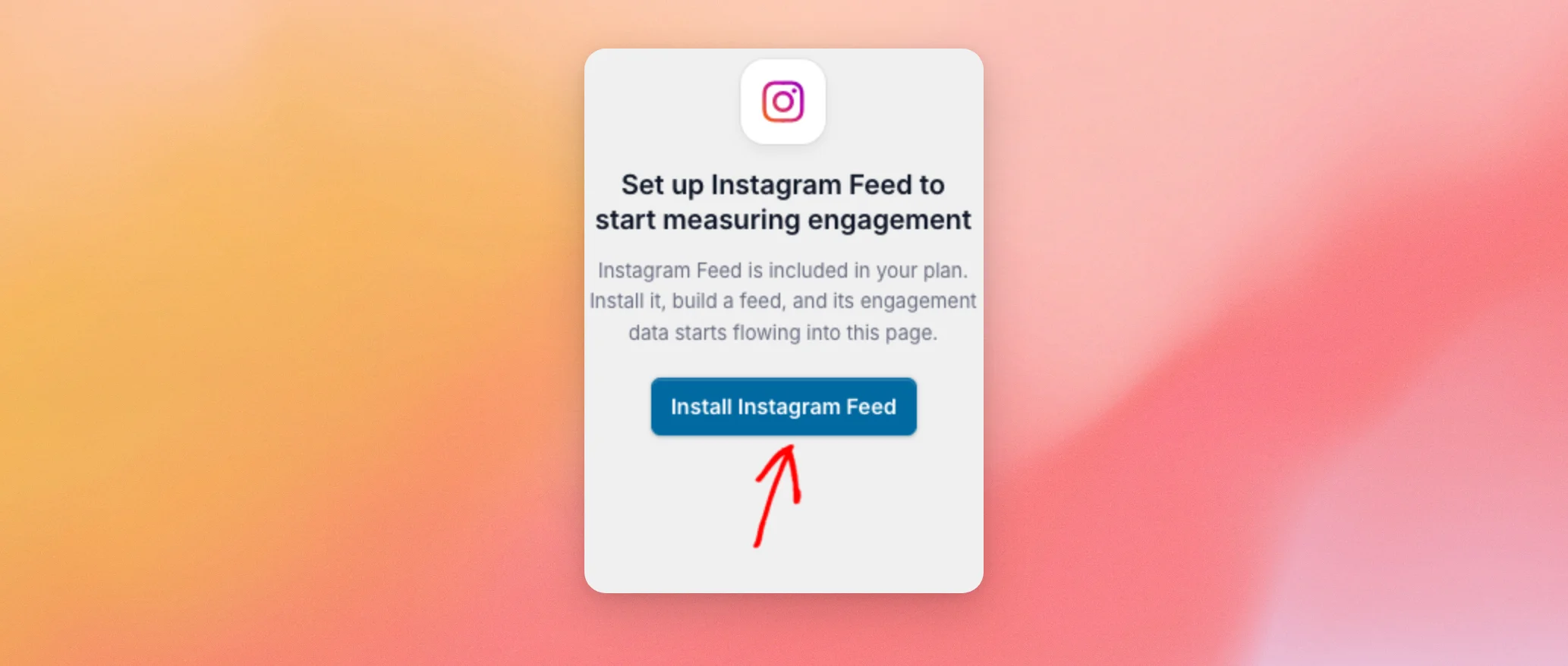
Installing the feed plugin does not create a feed. Once the plugin is active, build a feed with it. Its numbers then start to appear on the Instagram page.
If the free version of a feed plugin is active, its platform is listed with your active platforms instead. Its page also shows a card that reads “You already own Instagram Feed Pro.” The card’s Install Instagram Feed Pro button opens a Smash Balloon page in a new tab.
Next, we’ll look at the Settings page.
Managing Your License in Settings
From your WordPress admin sidebar, go to Feed Analytics » Settings. This page holds only your license.
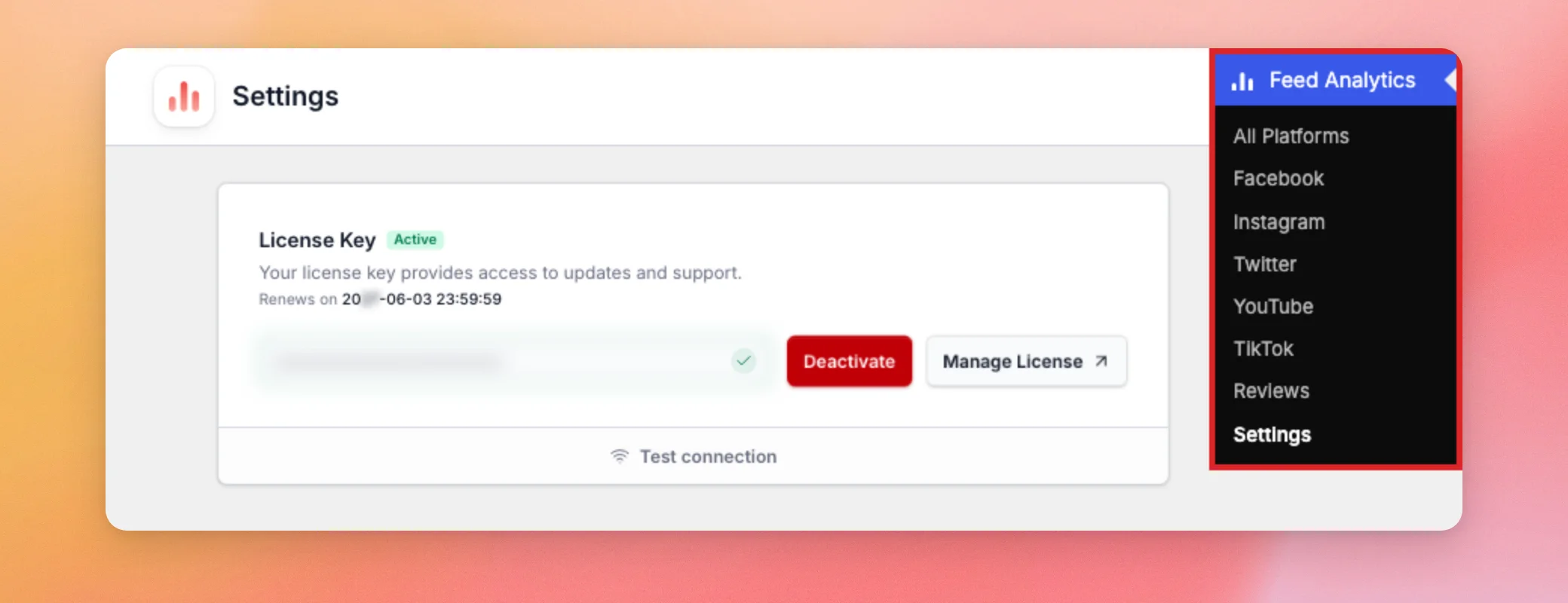
The License Key box shows these items.
- An Active label when the license is in use on your site.
- The date the license renews.
- Your license key, hidden behind dots.
- A Deactivate button, which removes the license from this site.
- A Manage License button, which opens your Smash Balloon account in a new tab.
- A Test connection link, which checks that your site can reach the license server.
If you have not activated a license yet, the report page asks for one first. For the steps, see Setting Up the Feed Analytics Pro Plugin.
Last, let’s look at who can open all of these pages.
Knowing Who Can Open Feed Analytics
By default, only administrators can open Feed Analytics. That keeps your reports with the people who run your site. When you activate the plugin, it adds a permission called manage_sb_analytics to the Administrator role. The menu and every page under it need that permission.
Editors, Authors, Contributors, and Subscribers do not have it. They do not see the Feed Analytics menu. The plugin has no setting for giving the permission to other roles. If you want another role to open the reports, a role management plugin can add manage_sb_analytics to that role.
The same permission also lets a user see the Reviews report, export the numbers, and switch between sample and real data.
Some actions need more than that permission.
- Activating, deactivating, or testing the license needs a user who can manage options, which is what administrators can do.
- Installing a feed plugin from the prompts needs a user who can install plugins.
- Activating a feed plugin from the prompts needs a user who can activate plugins.
Visitors do not need an account for Feed Analytics to count what they do with your feeds. The permission only controls who can read the reports.
That’s it! You now know where to find Feed Analytics and who can see it. To learn what each report shows, read Reading Your Feed Analytics Dashboard.
Frequently Asked Questions
Below, we’ve answered some of the most common questions about finding Feed Analytics and who can open it.
Why is Feed Analytics missing from my WordPress menu?
The menu shows only to administrators, or to users who have been given the manage_sb_analytics permission. If you are an administrator, Feed Analytics must be active on the Plugins page for the menu to appear. If you are not, ask an administrator on your site for access.
Can Editors or other roles open Feed Analytics?
Not by default. See the Knowing Who Can Open Feed Analytics section above.
Why does the WordPress menu say Twitter while the report says X (Twitter)?
They are the same platform. The report’s Platforms list uses the name “X (Twitter)”. The WordPress menu item uses “Twitter”.
Why is a platform listed under Not installed?
Feed Analytics reports on the Smash Balloon feed plugins that are active on your site. A platform whose feed plugin is missing or turned off is listed under Not installed. Its page offers an install or activate button.
Will Feed Analytics install a feed plugin without asking?
No. See the Seeing the Install and Activate Prompts section above.
Does the Settings page have any options besides my license?
No. See the Managing Your License in Settings section above.




