


 Social Wall
 Feed Analytics


Would you like to find out why your Feed Analytics reports show sample data, zeros, or nothing at all?
In this guide, we’ll walk you through the causes in the order they usually happen and what to check for each one.
Before you get started, make sure Feed Analytics is installed and activated on your site and that at least 1 Smash Balloon feed is on a page.
- How Feed Analytics Collects Data
- Checking Whether You Are Seeing Sample Data
- Checking That a Feed Is on a Published Page
- Viewing Your Site Without an Administrator Login
- Checking the Tracking Request in Your Browser
- Checking That the Tracking Script Loads
- Updating the Reviews Feed Plugin
- Choosing a Longer Timeframe
How Feed Analytics Collects Data
Feed Analytics counts what visitors do on your own pages.
A small script, tracking.js, loads in the footer of your front-end pages. When it finds a Smash Balloon feed on the page, it records views, clicks, and profile visits. It then sends them to your site in small batches. The script sends a batch about every 5 seconds.
That means a report stays empty until 3 things line up. A feed has to be on a published page and the script has to load there. The batch then has to reach your site and be accepted. The sections below follow that path.
Checking Whether You Are Seeing Sample Data
If the numbers look too good to be true, they may be sample data. Feed Analytics shows sample numbers until your feeds record real activity. This lets you see what the reports will look like.
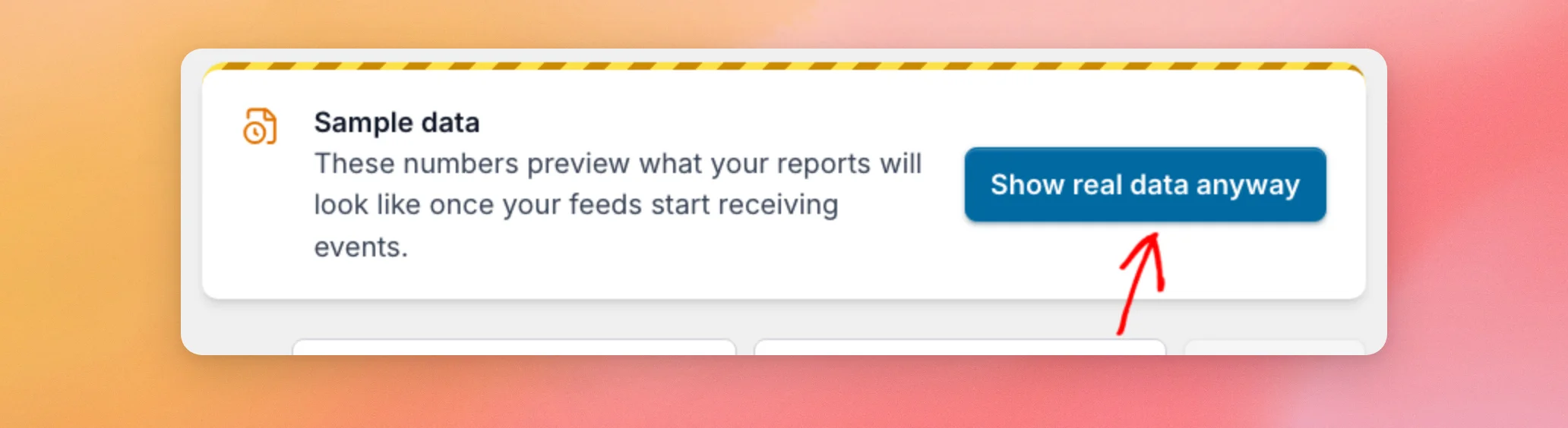
On the Feed Analytics screen, a sample data report starts with a banner called Sample data. Unless you turned sample data on yourself, real numbers replace it on their own. This happens once a recorded event is older than today (UTC), or when more than 10 events arrive in one day.
To see your real numbers right away, click Show real data anyway in the banner. The page reloads and shows only what was recorded, which may be all zeros at first. For the full story, see Why Am I Seeing Sample Data in Feed Analytics?
If you see a Tracking is active banner instead, Feed Analytics found your feeds but has no events to show for the selected timeframe yet. The banner says data appears as visitors interact with your feeds, usually within a few days. If neither banner is the cause, the next thing to check is the feed itself.
Checking That a Feed Is on a Published Page
Feed Analytics only records activity from feeds it knows about, on pages visitors can open. It recognizes feeds from the Smash Balloon Instagram, Facebook, X (Twitter), YouTube, TikTok, and Reviews plugins. A feed that is saved but not added to a page records nothing.
- Open the page that holds your feed in a new tab.
- Confirm the feed appears on the page, not just in the feed builder.
- If the feed is missing, add it to the page first. The doc for your feed plugin shows how.
If you have not created a feed yet, the Feed Analytics screen shows a button to create your first feed instead of numbers. Once the feed is on a page, the next thing to check is how you view that page.
Viewing Your Site Without an Administrator Login
Feed Analytics ignores visits from administrators. This keeps the time you spend checking your own pages out of your numbers. When an administrator is logged in, the site answers the tracking request with “ignored” and stores nothing. Visits from other logged-in roles, such as Editors, are counted.
- Open a private or incognito window in your browser.
- Go to the page with your feed. Because you are logged out, the visit counts.
- Scroll until the feed is on screen and leave it there for a few seconds. A view counts when at least 20% of the feed, or enough of it to fill half the screen, stays on screen for 2 seconds.
Remember that sample data may still cover the reports until real events arrive. The sample data section above shows how to switch to your real numbers. Once you are logged out and the feed is on screen, the next step is to check whether your browser sent the tracking request.
Checking the Tracking Request in Your Browser
If real visits do not show up, check whether your browser sent the tracking request and whether your site accepted it.
- In the private window, open the page with your feed.
- Open your browser’s developer tools. In most browsers, press F12, or right-click the page and choose Inspect.
- Click the Network tab. Then reload the page.
- In the filter box, type
capture. - Scroll the feed into view and wait about 10 seconds. A request ending in
sb/analytics/v1/captureappears. - Click the request and read its status code.
If no request appears at all, go to the next section. If a request appears, the status code tells you what happened.
| Status | What it means | What to do |
|---|---|---|
| 200 | Your site accepted the request. If the response says ignored, you were logged in as an administrator. | Repeat the test in a private window. |
| 401 or 403 | Your site refused the request. This happens when the page is opened from a different web address than the one your site uses. For example, the page may be opened through a proxy, a CDN domain, or a mirror. The request is also refused when the browser marks it as coming from another site. | Open the page at your site’s own address and test again. If you serve pages from another domain on purpose, contact our support team. |
| 413 | The request held more than 100 events. The Feed Analytics script never sends more than 100 at once. | Contact support if you see this. |
| 429 | 1 IP address sent more than 300 events in a minute. This limit only applies on sites that use a persistent object cache. Feed Analytics tries again later on its own. | Wait a minute and test again. |
| 400 | The request held no events, or none of them were valid. | Contact support if you see this. |
| 500 | Your site could not save the events. Feed Analytics tries again later on its own. | Check your site’s error log or contact support. |
Only a 429 or a 500 and higher is retried. After a 400, 401, 403, or 413, the script drops that batch. The browser console only shows a message about a dropped batch when debugging is on for the script. For this check, use the Network tab rather than the Console tab. If no request shows up in the Network tab, the tracking script is the next thing to check.
Checking That the Tracking Script Loads
If the Network tab shows no capture request even with a feed on screen, the script is probably not running. 2 things can stop it. Either the page does not load it or a caching or optimization plugin changed or delayed it.
- In the private window, open the page with your feed.
- Right-click the page and choose View Page Source.
- Search for
build/tracking.js. If it is missing, try the caching plugin steps below first. If it is still missing after that, your theme may not load the standard footer. The script depends on it. To fix this, ask your theme developer to confirm the theme callswp_footer(). - If the file is listed, open the developer tools and click the Network tab. Then reload the page and type
trackingin the filter box. The file loads with a 200 status. - Search the page source for
sbAnalytics. The script only starts when the page includes this block of tracking details.
If the script file is missing from the source, never loads, or never runs, check your caching or optimization plugin.
- Open the settings of your caching or optimization plugin.
- Find the options for minifying, combining, or delaying JavaScript.
- Add
build/tracking.jsto the exclusion list of each option that is on. - Clear your site cache (see How to Clear Your Cache in WordPress for a step-by-step guide). Then test again in a private window.
Once the request reaches your site, the next two sections cover gaps specific to the Reviews report and the timeframe you picked.
Updating the Reviews Feed Plugin
The Reviews report needs a recent version of the Reviews Feed plugin. If it is out of date, you see a Reviews Feed needs an update banner on the Reviews screen. The banner shows your installed version and the version you need. It also has an Update Reviews Feed button that takes you to your Plugins page. Update the plugin there. Then reload Feed Analytics.
If activity numbers in the Reviews report, such as impressions and profile visits, read 0, nothing was recorded for your review feeds in the selected timeframe. Try a longer timeframe first. Then confirm that a Reviews feed is on a published page and test again as described above. To learn what each section of the report shows, see Using the Feed Analytics Reviews Report. If the report is empty on other screens too, the timeframe is the next thing to check.
Choosing a Longer Timeframe
Until you pick another timeframe, the report covers the last 7 days. If your first events are older, or the totals look empty, click the Last 7 Days menu and choose a longer timeframe. The choices are Last 30 Days, Last 6 Months, Last 1 Year, and All Time.
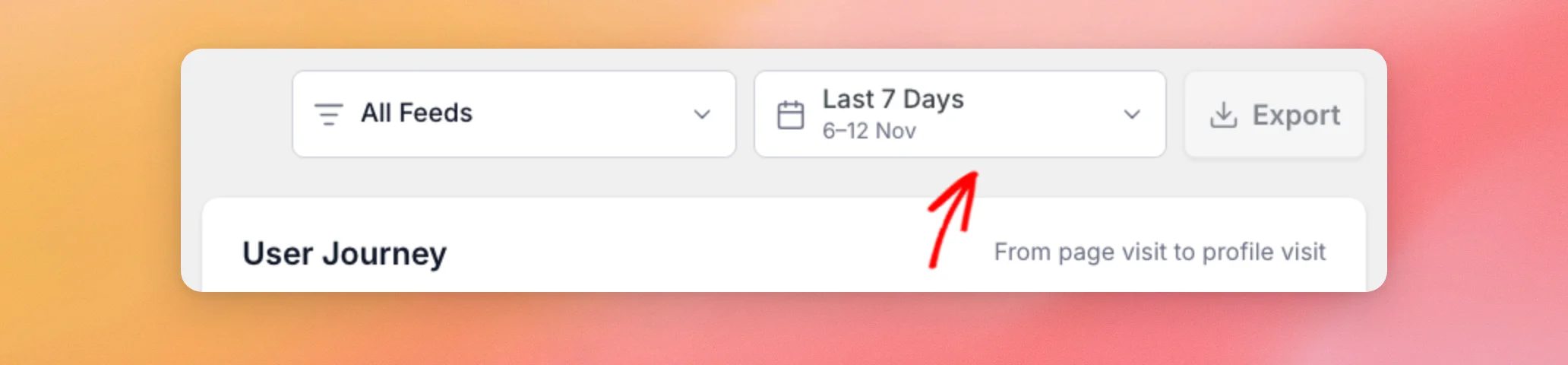
Also check that the platform and feed filters are not set to a feed that has no events.
That’s it! You now know how to find out where tracking stops on your site. To learn what each number on the dashboard counts, see Reading Your Feed Analytics Dashboard.
Frequently Asked Questions
Below, we’ve answered some of the most common questions about empty Feed Analytics reports.
Do my own visits count when I am logged in?
It depends on your role. Visits by administrators are ignored. Visits by other logged-in users, such as Editors, are counted, and so are visits from logged-out visitors. To test without your administrator login, see the Viewing Your Site Without an Administrator Login section above.
How long does it take for events to show up?
The tracking script sends events about every 5 seconds while the page is open. Feed Analytics itself tells you to expect data “usually within a few days” for a new setup. The reports may stay low at first. If sample data is showing, click Show real data anyway to see the real numbers sooner.
Why does the report still show sample data after a few visits?
Unless you turned sample data on yourself, it stays on until an event older than today (UTC) exists, or more than 10 events arrive in one day. Administrator visits do not count toward either. Click Show real data anyway to switch it off yourself.
Do I lose events if my site is busy or my visitors share an internet connection?
On sites that use a persistent object cache, your site limits each IP address to 300 events per minute. If a request is refused for that reason, the tracking script keeps the events and tries again while the page is open. Busy offices and schools that share 1 address may reach the limit sooner.




