


 Social Wall
 Feed Analytics


Would you like to see how your customer reviews perform on your website?
In this guide, we’ll show you how to read the Feed Analytics Reviews report. It shows your overall rating and how fresh your reviews are. It also shows where your reviews come from, which feeds get the most attention, and how each review performs on your site.
Before you get started, make sure Feed Analytics is installed and activated on your site. You also need Reviews Feed installed and active, with at least 1 Reviews feed on your site. If you don’t have feeds yet, you can still preview this report with sample data, as we’ll cover at the end.
- Opening the Reviews Report
- Reading Your Reputation and Freshness
- Checking Your Review Sources
- Comparing Your Review Feeds
- Checking Recent Reviews
- Changing the Timeframe
- When the Reviews Report Is Empty
Opening the Reviews Report
From your WordPress admin sidebar, go to Feed Analytics » Reviews.
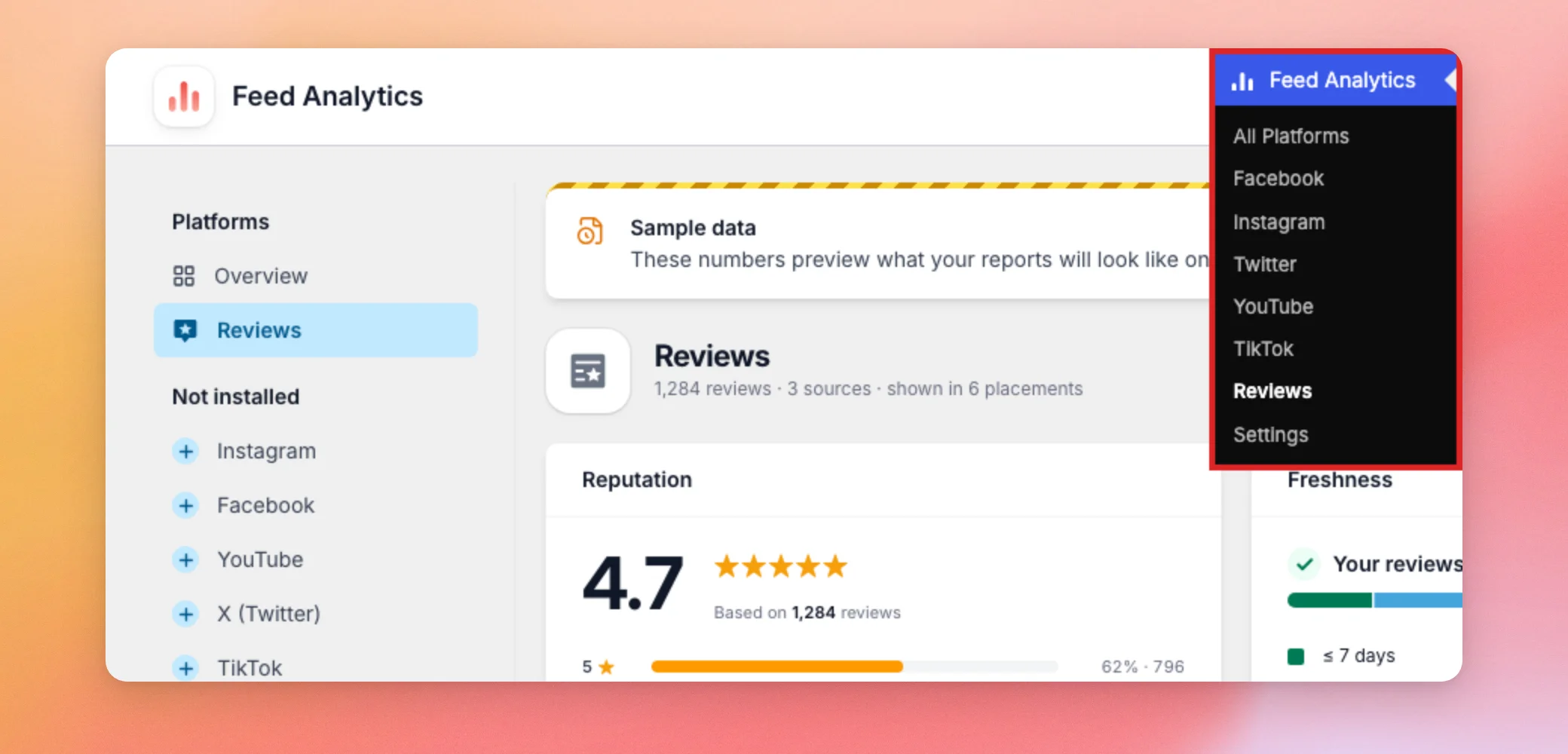
At the top of the report, a summary line shows how many reviews, sources, and placements the report covers. A placement is a page where a Reviews feed appears on your site.
Next, we’ll look at your overall rating.
Reading Your Reputation and Freshness
The first 2 cards give you a quick health check of your reviews.
Reputation
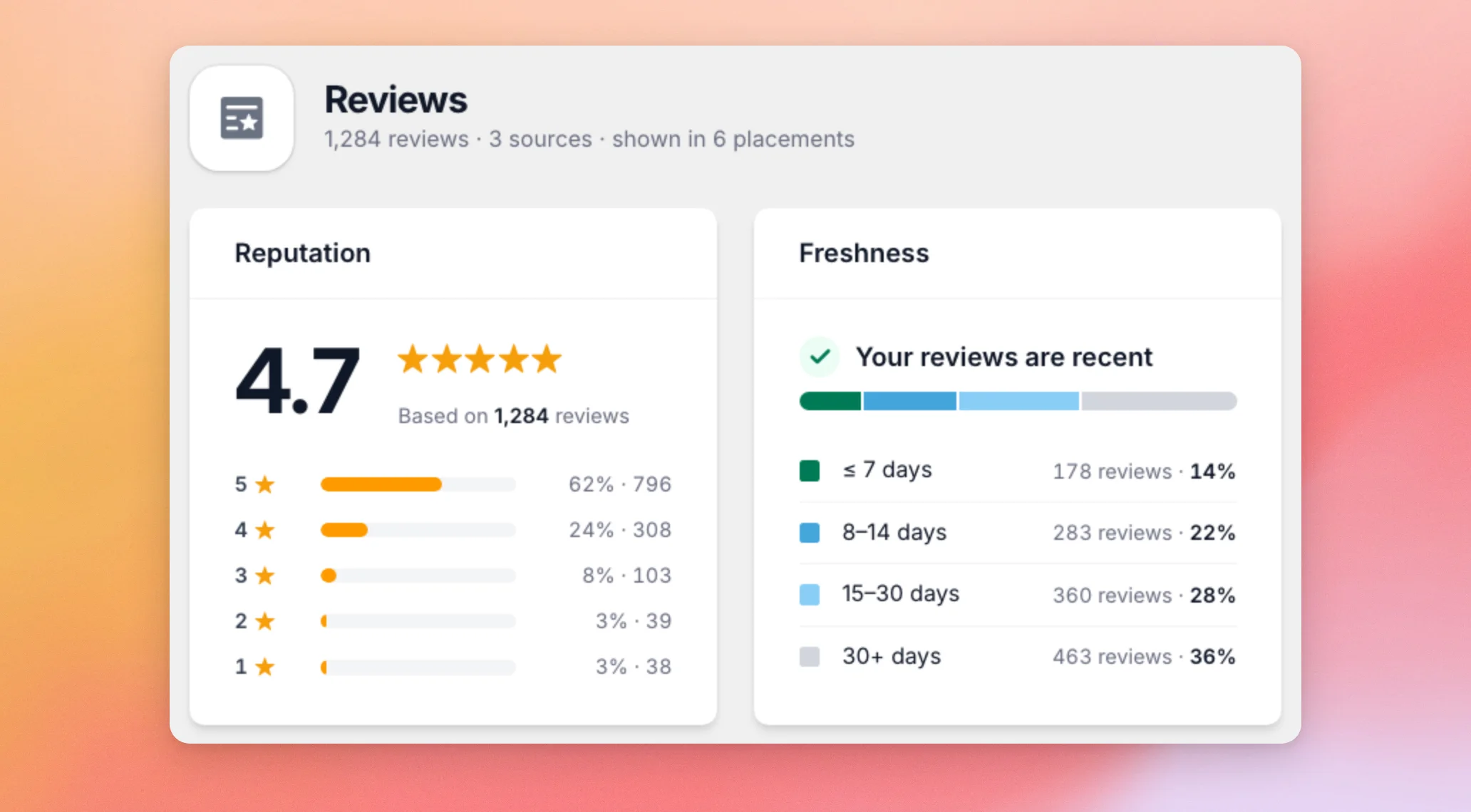
The Reputation card shows your average star rating out of 5 and how many reviews it is based on. Below that, a bar for each star level shows how many reviews gave that rating. Each bar shows a share and a count.
Freshness
The Freshness card shows how recent your reviews are. It groups them into 4 age ranges. These are 7 days or less, 8 to 14 days, 15 to 30 days, and more than 30 days. Each range shows a count and a share of your reviews.
The heading tells you the result. It reads “Your reviews are recent” when at least 25% of your reviews are 14 days old or newer. Otherwise, it reads “Your reviews are getting stale.”
Visitors tend to trust recent reviews more. This card helps you decide when it is time to collect new ones. Next, let’s see where your reviews come from.
Checking Your Review Sources
The Review sources table lists every platform your reviews come from, such as Google, Trustpilot, or Yelp.
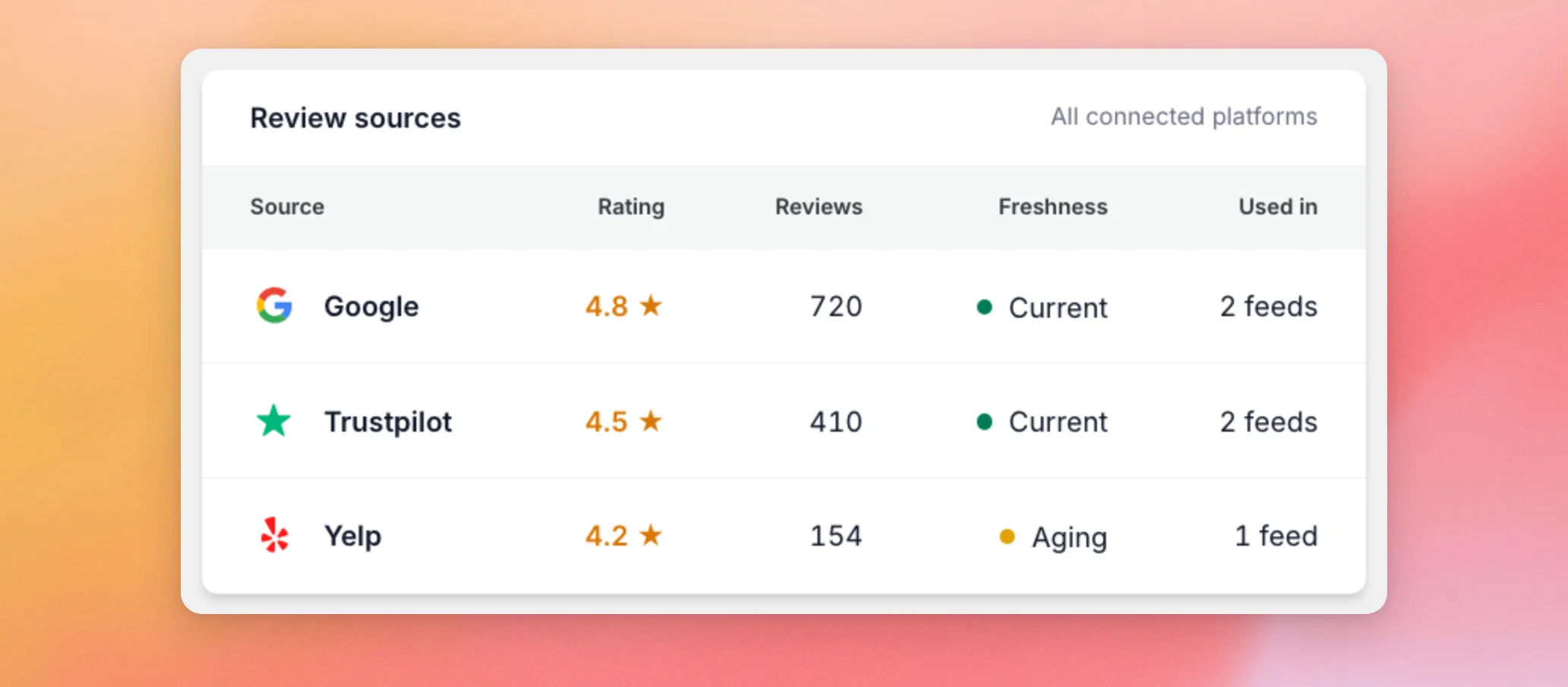
Each row shows:
- The source name.
- The average rating of that source.
- The number of reviews it contributes.
- The freshness of the source.
- How many of your feeds use it, in the Used in column.
In the Freshness column, each source shows as Current or Aging. This tells you which platform needs new reviews first. Next, let’s compare your review feeds.
Comparing Your Review Feeds
The Your review feeds table lists each Reviews feed on your site. It shows the sources the feed uses and how many times visitors saw the feed (Impressions). Profile visits counts clicks on the button in the feed’s header. A final row adds up all your feeds.
To see where a feed appears, click its row. For example, click Storefront reviews to expand it.
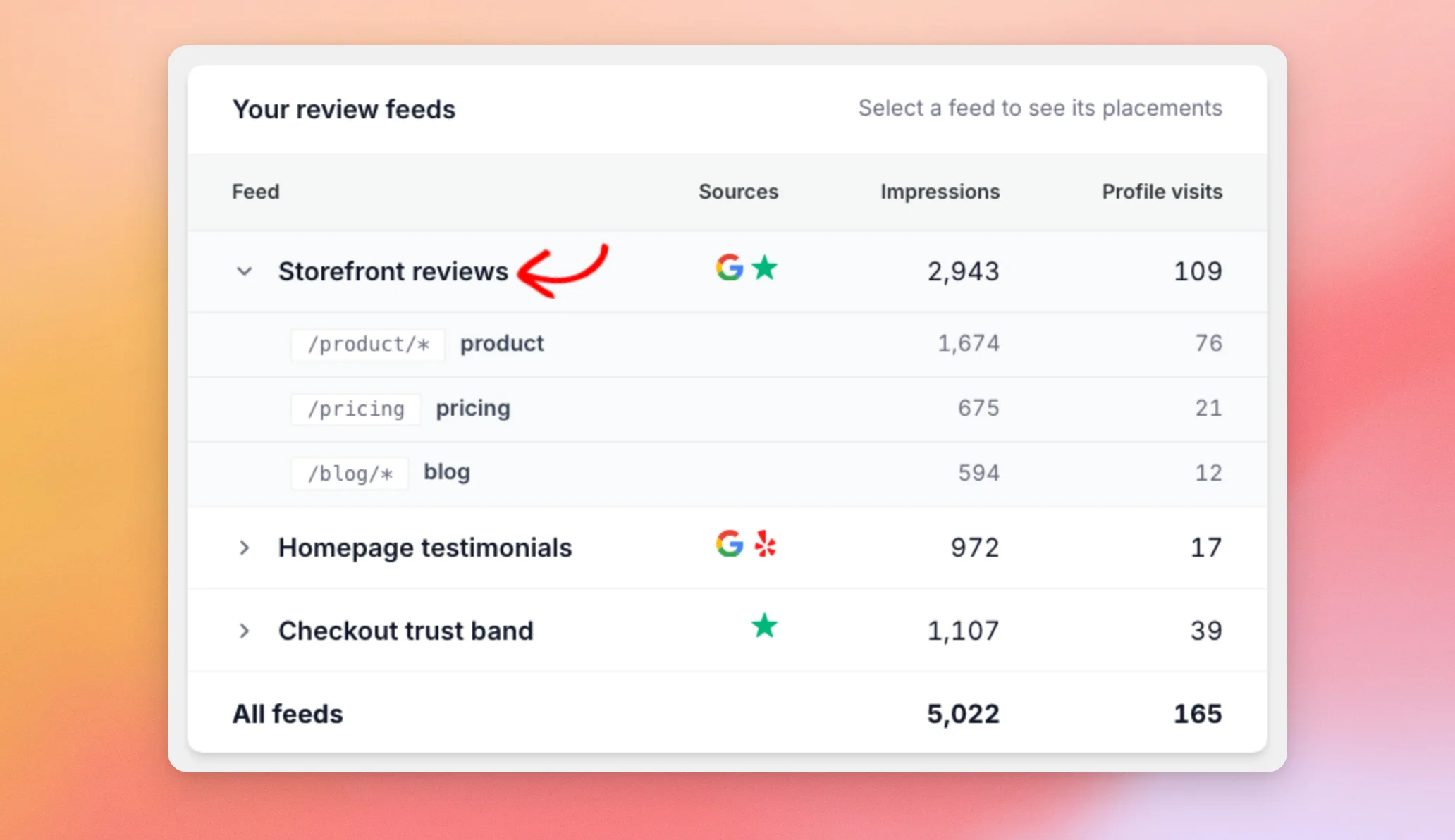
The row expands to show each placement where the feed appears, with its impressions. This helps you spot which pages bring your reviews the most attention. Next, let’s look at individual reviews.
Checking Recent Reviews
The Recent reviews section lists your latest reviews on the left. Each one shows the reviewer, the stars, and the start of the review text. It also shows how many times the review was shown, its read rate, and its clicks.
Above the list, the All sources and All feeds filters narrow it down. To see how a single review performs, click it. For example, click James T. to open its details.
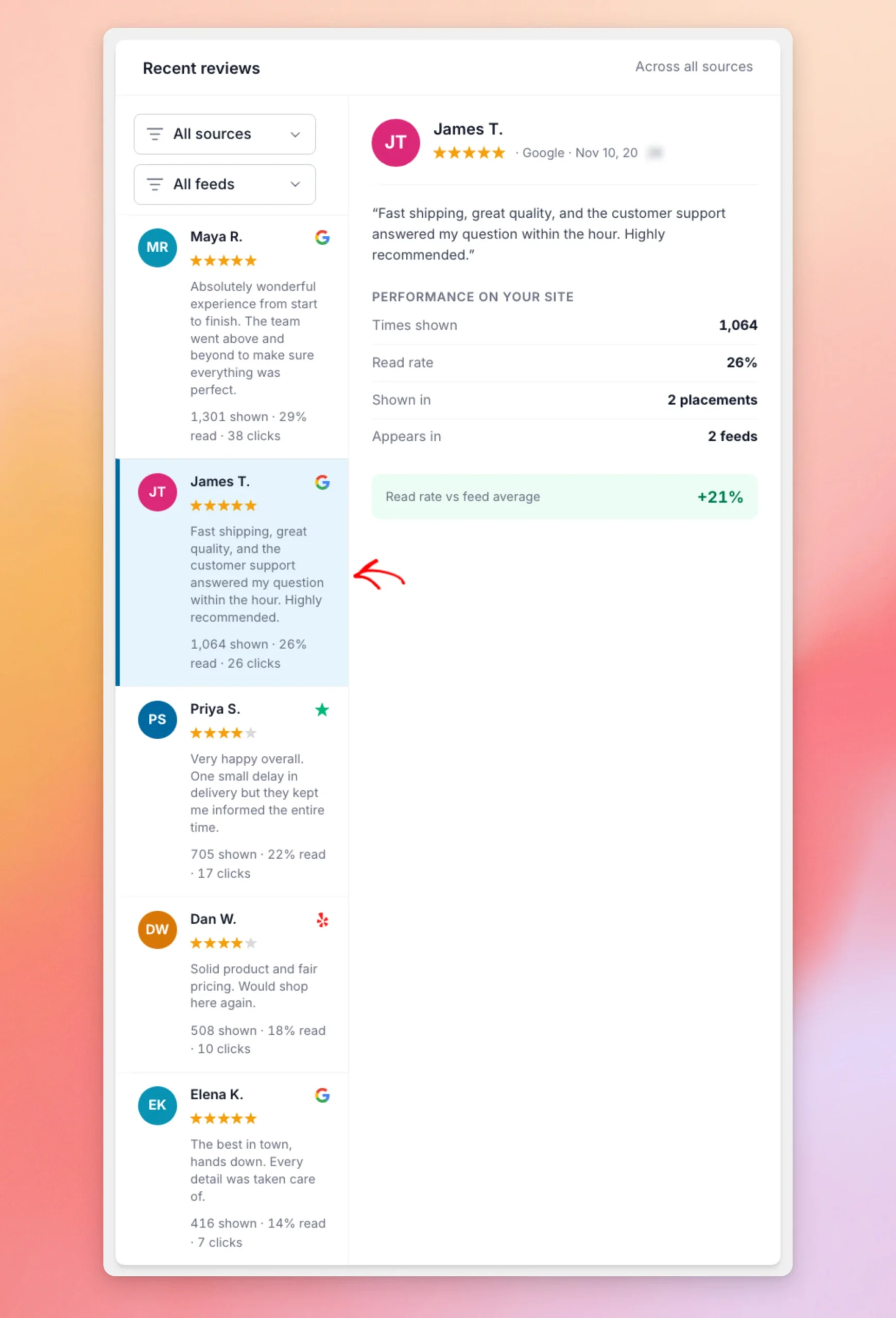
The panel on the right shows the full review. Under Performance on your site, you see:
- Times shown, how often visitors saw the review.
- Read rate, the share of those times that led to a click on the review.
- Shown in, the number of placements.
- Appears in, the number of feeds.
When other recent reviews in the same feed have a read rate too, the Read rate vs feed average box compares the review with them.
A review whose read rate is well above its feed average is a strong one to feature. Now, let’s look at which dates the report covers.
Changing the Timeframe
The Reviews report uses the same timeframe as the Feed Analytics Overview. With sample data on, the Reviews report has no timeframe picker. To change it, pick a different timeframe on the Overview. Then open Reviews again. With sample data off and your own Reviews feeds in place, the picker also shows at the top of the Reviews report. For the steps, see Reading Your Feed Analytics Dashboard.
The timeframe applies to the Recent reviews list and to activity numbers, such as impressions and profile visits. Your rating and the Freshness card look at all of your reviews. Next, let’s cover what you see when the report has no numbers.
When the Reviews Report Is Empty
You may see the Reviews report without numbers in 3 cases. Until your own numbers arrive, you can also preview the report with sample data.
You Have No Reviews Feeds Yet
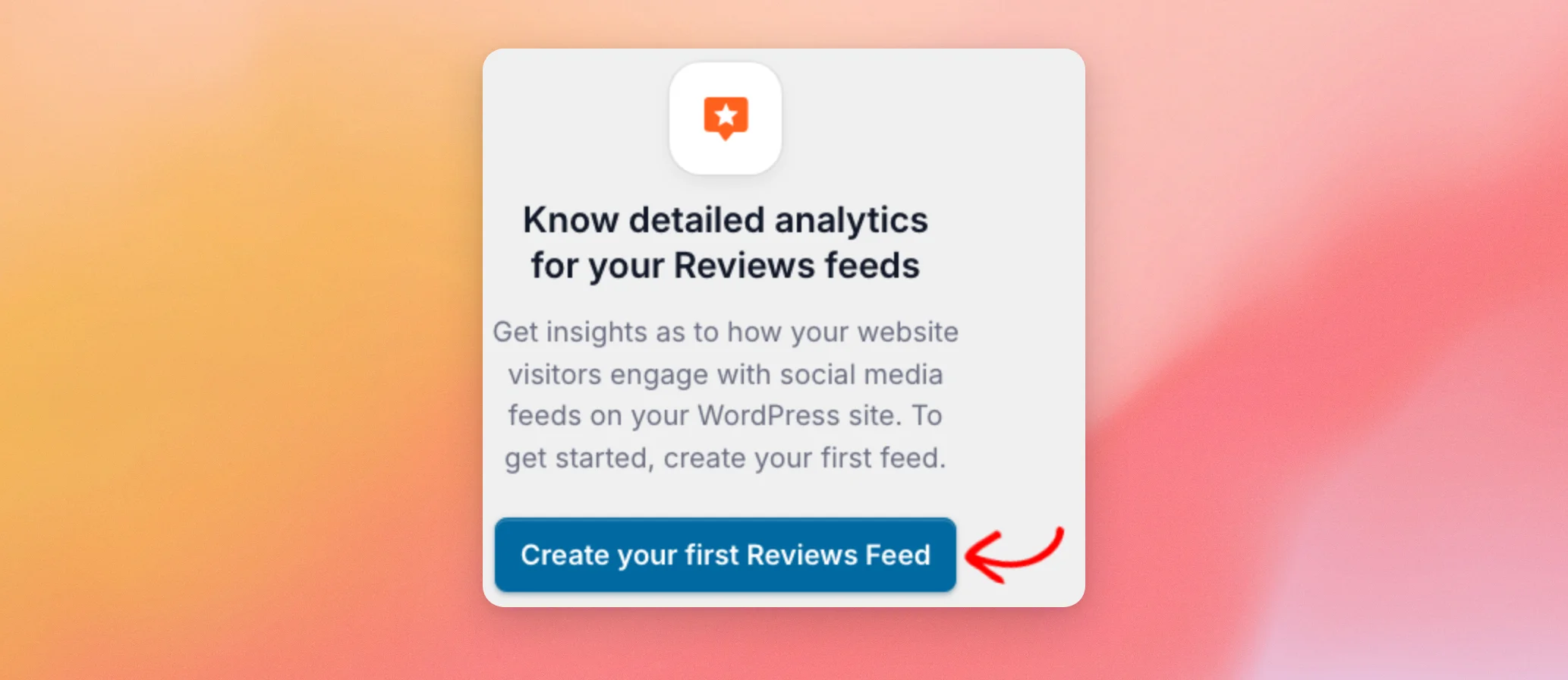
If you have no Reviews feeds and sample data is off, the report shows a welcome message. Below the message, click Create your first Reviews Feed to build one.
There Is No Activity in the Timeframe
If your feeds exist but nothing was recorded in the selected timeframe, activity numbers such as impressions and profile visits read 0. Try a longer timeframe (see Changing the Timeframe). You can also check back once visitors have interacted with your reviews. If the Recent reviews list is empty, it reads “No reviews in this period yet.”
Your Reviews Feed Needs an Update
If your Reviews Feed plugin is too old, a banner reads “Reviews Feed needs an update.” It shows your installed version and asks you to update to 2.13.0 or newer. The banner has an Update Reviews Feed button. After the update, open the report again.
Previewing with Sample Data
To preview this report before your feeds record real activity, use the sample data. The numbers in this guide come from it. To learn when it shows and how to switch it, see Why Am I Seeing Sample Data in Feed Analytics?
That’s it! You now know how to check your rating and review freshness, compare your sources and feeds, and spot the reviews that perform best on your site. Next, learn how to read the rest of your Feed Analytics Dashboard.
Does the Reviews report use my real reviews?
Yes, once sample data is off. The report combines the reviews from your Reviews Feed plugin with the activity Feed Analytics records on your site. With sample data on, every number is an example that comes with the plugin.
Why does the Reviews report say my Reviews Feed needs an update?
Your Reviews Feed plugin is too old to send review data to Feed Analytics. For the fix, see the Your Reviews Feed Needs an Update section above.
Why do my review impressions read 0?
Nothing was recorded for your review feeds in the selected timeframe. For what to do, see the There Is No Activity in the Timeframe section above.




