


 Social Wall
 Feed Analytics


Would you like to know why your Feed Analytics numbers look made up, and how to see your real numbers instead?
In this guide, we’ll explain when Feed Analytics shows sample data, when it switches to real data, and how to switch between the two yourself.
Before you get started, make sure Feed Analytics is installed and activated on your site. To learn what each report shows once your numbers are real, see Reading Your Feed Analytics Dashboard.
- Recognizing Sample Data
- Knowing Why Sample Data Shows
- Knowing When Real Data Takes Over
- Switching Between Sample and Real Data
- Exporting While Sample Data Shows
Recognizing Sample Data
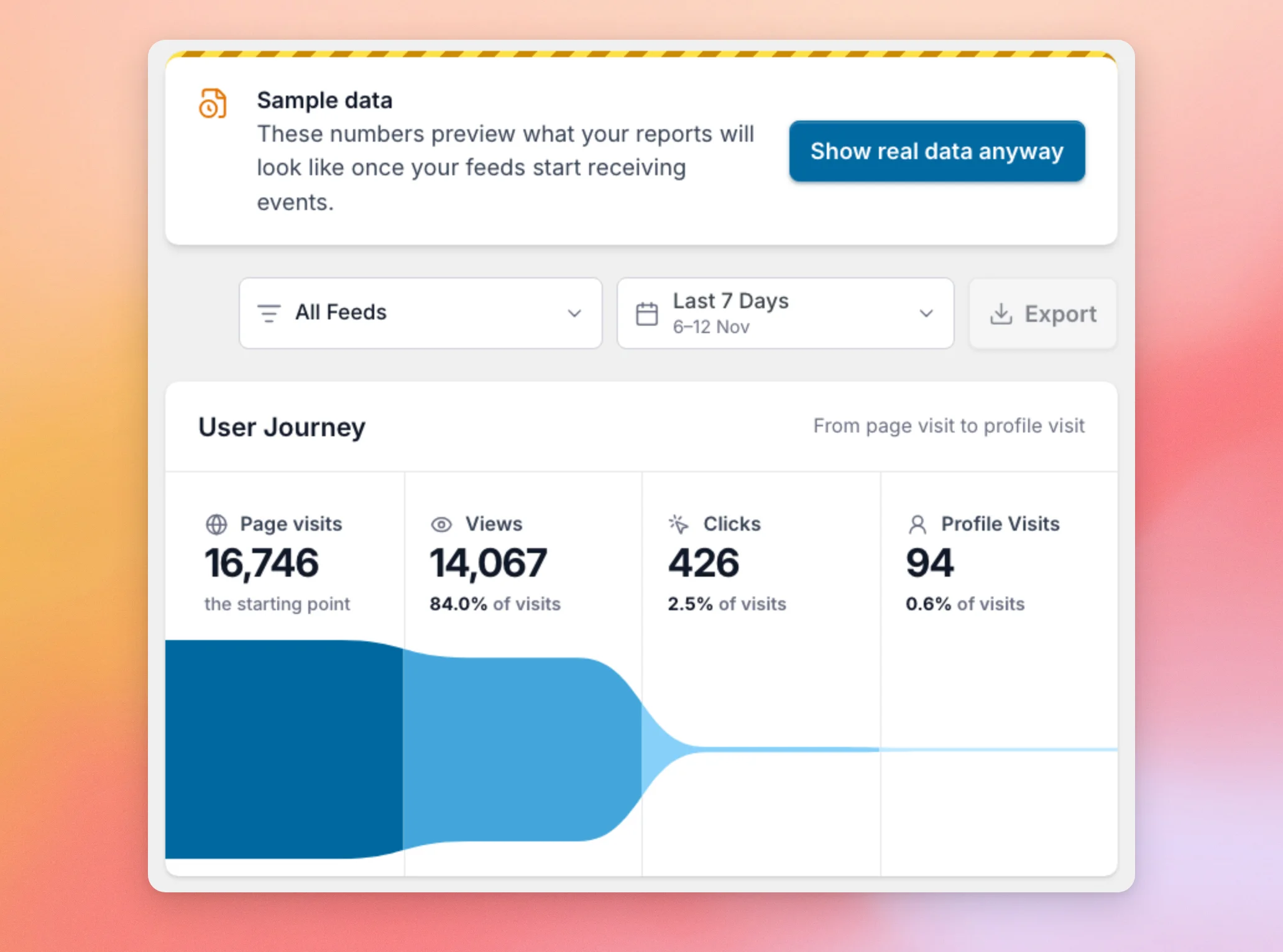
When Feed Analytics shows sample data, a banner called Sample data sits at the top of the report. It reads, “These numbers preview what your reports will look like once your feeds start receiving events.”
Everything under that banner is an example that comes with the plugin. The feed names, the posts, and every number are made up. None of it comes from your site or your visitors.
If you open the feed filter, the feeds listed have names that start with “Demo.”
The WordPress Dashboard also has a Smash Balloon Pro Analytics widget. It follows the same setting, so it shows a Sample data label whenever the report does. Before you have any feeds, the widget can show sample data even while Feed Analytics shows its welcome screen.
Next, we’ll look at why Feed Analytics shows sample data in the first place.
Knowing Why Sample Data Shows
Feed Analytics shows sample data so you can preview your reports before your feeds start receiving events. Which of the 3 cases below applies depends on whether you have feeds and whether you turned sample data on yourself.
You Have No Feeds Yet
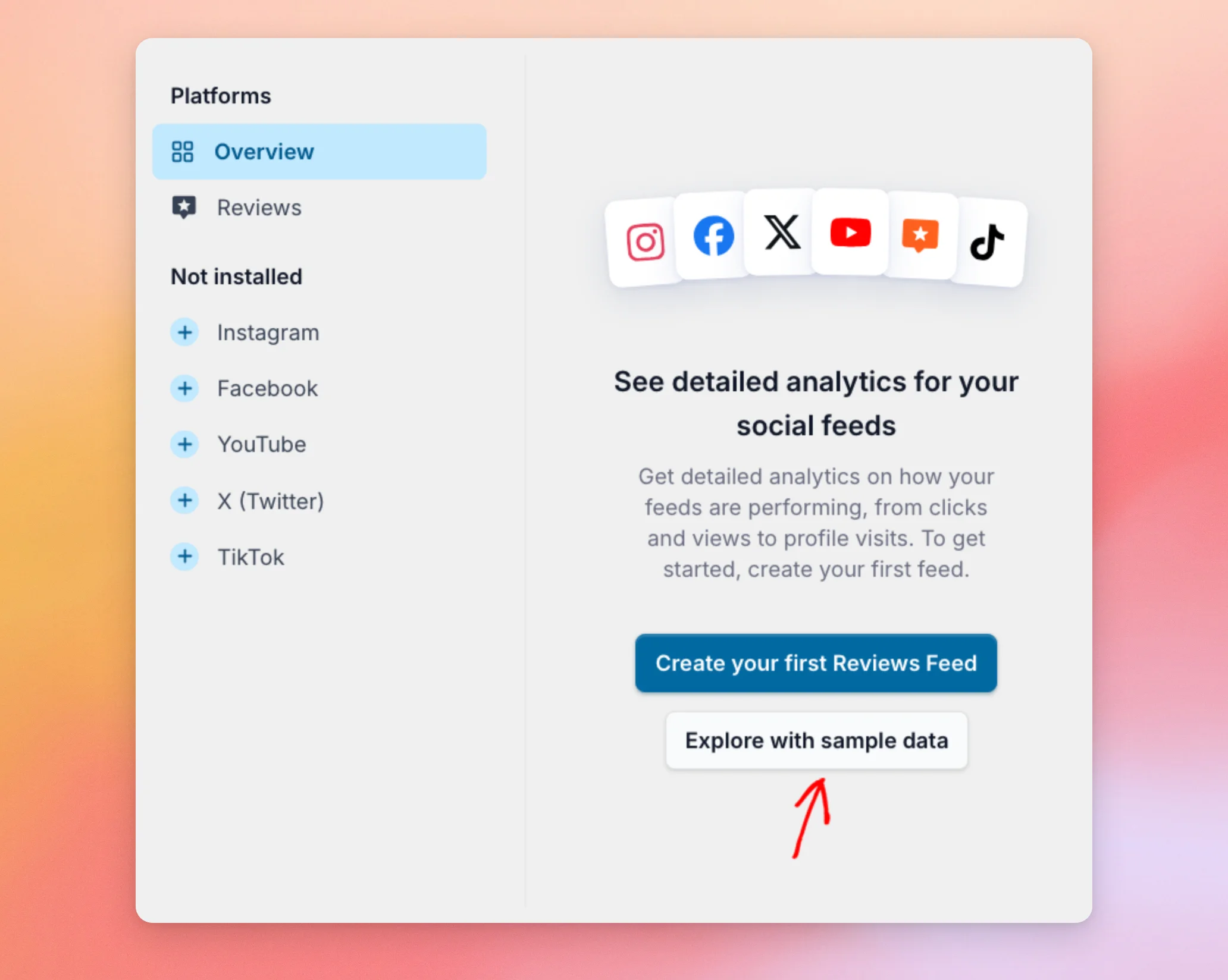
Feed Analytics reports on feeds you have added to your site with a Smash Balloon feed plugin. If you have no feeds, it does not show sample data on its own. It shows a welcome screen instead.
To preview the reports, click Explore with sample data. The welcome screen also has a button to create your first feed. On a site with only Reviews Feed, it reads Create your first Reviews Feed.
You Have Feeds but No Real Events Yet
As soon as you have at least 1 feed, Feed Analytics turns sample data on by itself. It stays on until your feeds record enough real activity. The next section explains when that happens.
You Clicked Explore with Sample Data
When you use Explore with sample data, Feed Analytics keeps sample data on until you turn it off yourself. This stays true even after your feeds record real events.
If you see sample data on a site that already has visitors, this is the most likely reason. We’ll show you how to turn it off below.
The setting belongs to your whole site, not to your browser or your user account. If another administrator clicked Explore with sample data, you see sample data too.
Now, let’s see how Feed Analytics moves on to your real numbers.
Knowing When Real Data Takes Over
If you have not turned sample data on yourself with Explore with sample data or Show sample data, Feed Analytics switches to real data for good once either of these is true:
- Your feeds recorded an event on any day before today.
- Your feeds recorded more than 10 events today.
Feed Analytics counts days in UTC. A new day starts at midnight UTC. That may not match midnight where you live.
The check runs when you open Feed Analytics or the WordPress Dashboard, not at the moment an event arrives. Once either of these is true, the next time you open the report, the Sample data banner is gone and the numbers are your own. Sample data does not come back by itself.
Visits from administrators are not counted. If you test your feed while logged in as an administrator, it does not move you toward real data. For tips on what to check when no real events arrive, see Troubleshooting Feed Analytics When No Data Shows.
You do not have to wait for any of this. You can switch yourself, as we’ll show next.
Switching Between Sample and Real Data
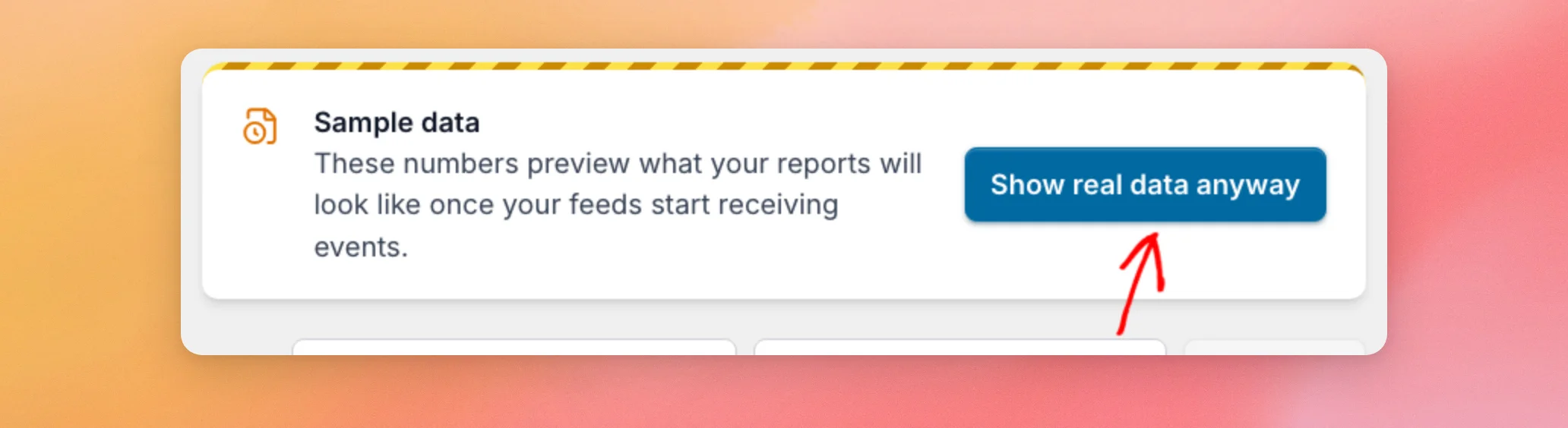
From your WordPress admin sidebar, go to Feed Analytics » All Platforms. Next, click Show real data anyway on the Sample data banner to see your real numbers now. The page reloads with your real data.
What you see next depends on your feeds:
- If you have no feeds, you see the welcome screen again.
- If you have feeds and no events yet, you see a Tracking is active banner. It reads, “Data appears here as visitors interact with your feeds, usually within a few days.”
- If you have real events, you see your reports with your own numbers.
The Tracking is active banner has a Show sample data button. It brings sample data back. On the welcome screen, the Explore with sample data button does the same. Either way, sample data then stays on until you turn it off yourself, even after real events arrive.
Once Show real data anyway has switched your site to real data, Feed Analytics keeps it that way. Sample data only returns when you turn it back on.
If the page shows “Could not dismiss demo data. Please try again.” or “Could not load sample data. Please try again.”, the change did not save. To try again, click the button.
Last, let’s look at what happens when you try to export.
Exporting While Sample Data Shows
You cannot export sample data. While it shows, the Export button is grayed out. Its tooltip reads, “Sample data can’t be exported.” That keeps made-up numbers from leaving the dashboard as if they were yours.
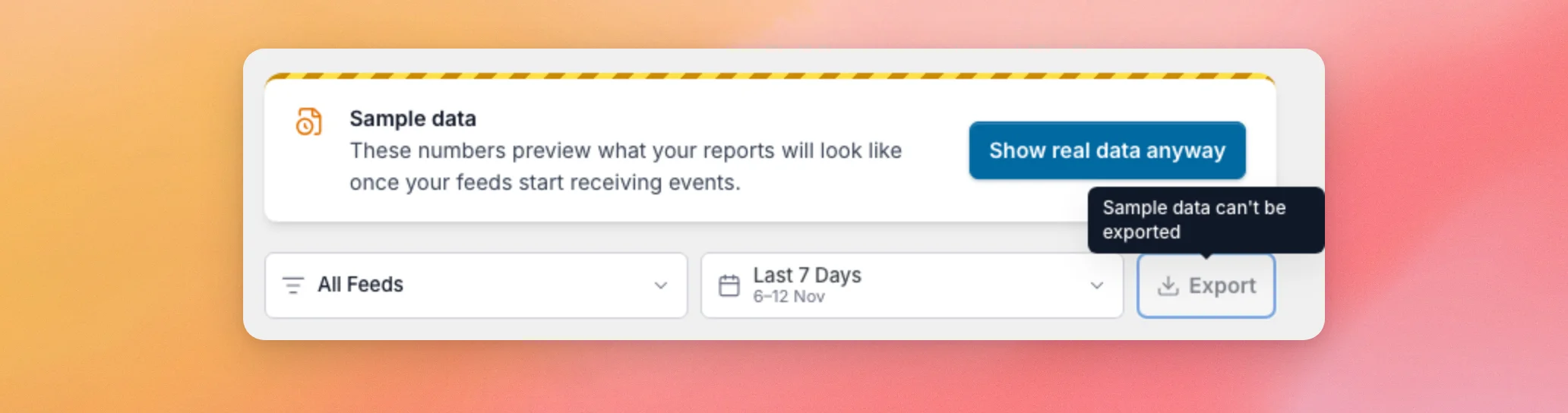
To export, first switch to real data in the Switching Between Sample and Real Data section. For the steps after that, see Exporting Your Feed Analytics Data.
That’s it! You now know why Feed Analytics shows sample data and how to switch to your real numbers. Next, learn what each report on the dashboard shows in Reading Your Feed Analytics Dashboard.
Why do I still see sample data after visitors viewed my feed?
There are 2 common reasons. If you clicked Explore with sample data or Show sample data, sample data stays on until you click Show real data anyway. If you did not, Feed Analytics switches only after an event on a day before today (UTC) or more than 10 events today, and it checks when you open the report. Visits from administrators are not counted.
Are the sample numbers from my site?
No. The sample data is a set of example feeds, posts, and numbers that comes with the plugin. It is not read from your site, your visitors, or your social accounts.
Does sample data change the real data my feeds collect?
No. Feed Analytics shows either sample data or real data and never combines them. Switching between the two changes what the report displays, not the events your feeds record.
Will deactivating Feed Analytics reset my sample data choice?
No. The plugin does not clear this setting when you deactivate or delete it.
Why is Export grayed out?
Export is turned off while sample data shows. Switch to real data first. See Exporting While Sample Data Shows above.




