


 Social Wall
 Feed Analytics


Would you like to choose how a video opens when visitors click it in your TikTok feed?
In this guide, we’ll walk you through the 3 choices in the Video Player Experience setting: a lightbox, an inline player, and Swipe View. For each one, we’ll cover how it looks for your visitors and the license level it needs.
Requirements: The lightbox works with every version of the plugin, including the free Feeds for TikTok plugin. The inline player and Swipe View require TikTok Feeds Pro with a basic license level or higher.
Before you get started, make sure TikTok Feeds is installed and activated on your WordPress site. You will also need a feed that shows your TikTok videos. If you don’t have one yet, see our guide on creating a TikTok feed.
Here is what we will cover:
- Seeing the Options at a Glance
- Editing Your Feed’s Video Player Experience
- Playing Videos in a Lightbox
- Playing Videos Inline
- Playing Videos in Swipe View
- Saving Your Choice
- How Templates Affect Your Choice
- Frequently Asked Questions
Seeing the Options at a Glance
Each feed has its own Video Player Experience setting. It controls what happens when a visitor clicks a video. The table below lists the 3 choices.
| Choice | What visitors see | License level |
|---|---|---|
| In a lightbox | The video opens in a window on top of your page. | All, including the free plugin |
| Inline | The video plays in place, inside its own spot in the feed. | Basic license level or higher |
| Swipe | The video opens in a fullscreen, vertical player that visitors can move through one video after another. | Basic license level or higher |
New feeds made from the Default template start with In a lightbox. Some other templates start with Inline, as we’ll cover in How Templates Affect Your Choice. Next, we’ll open the setting.
Editing Your Feed’s Video Player Experience
To get started, we’ll open the feed in the feed editor.
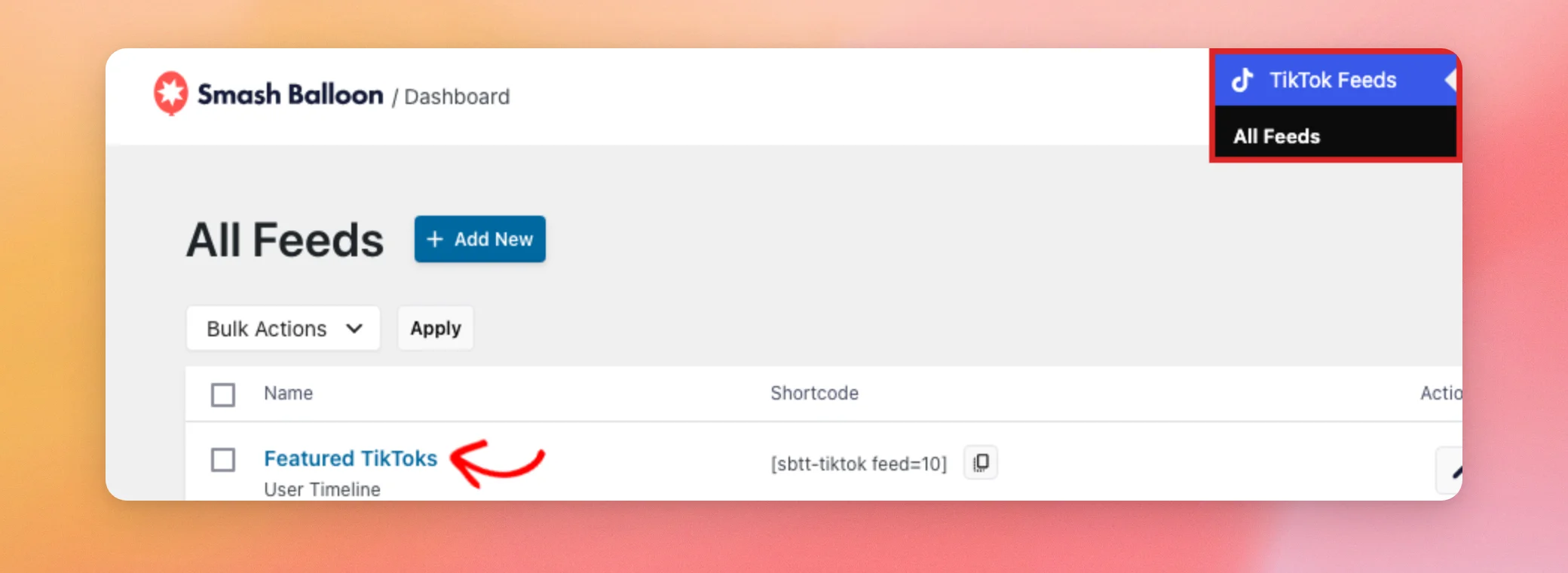
From your WordPress admin sidebar, go to TikTok Feeds » All Feeds. Then, click the name of the feed.
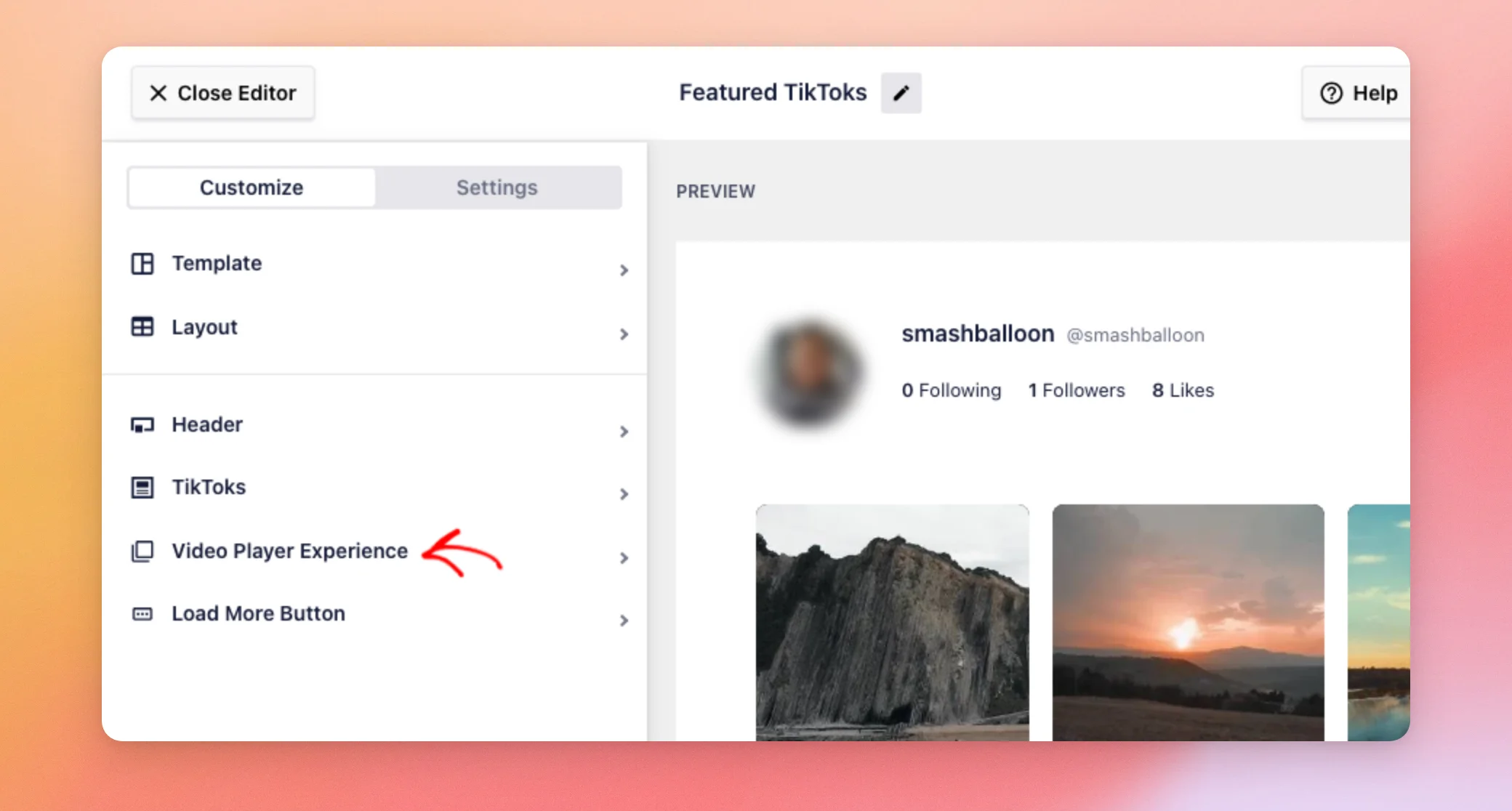
The feed editor opens on the Customize tab. Next, click Video Player Experience.
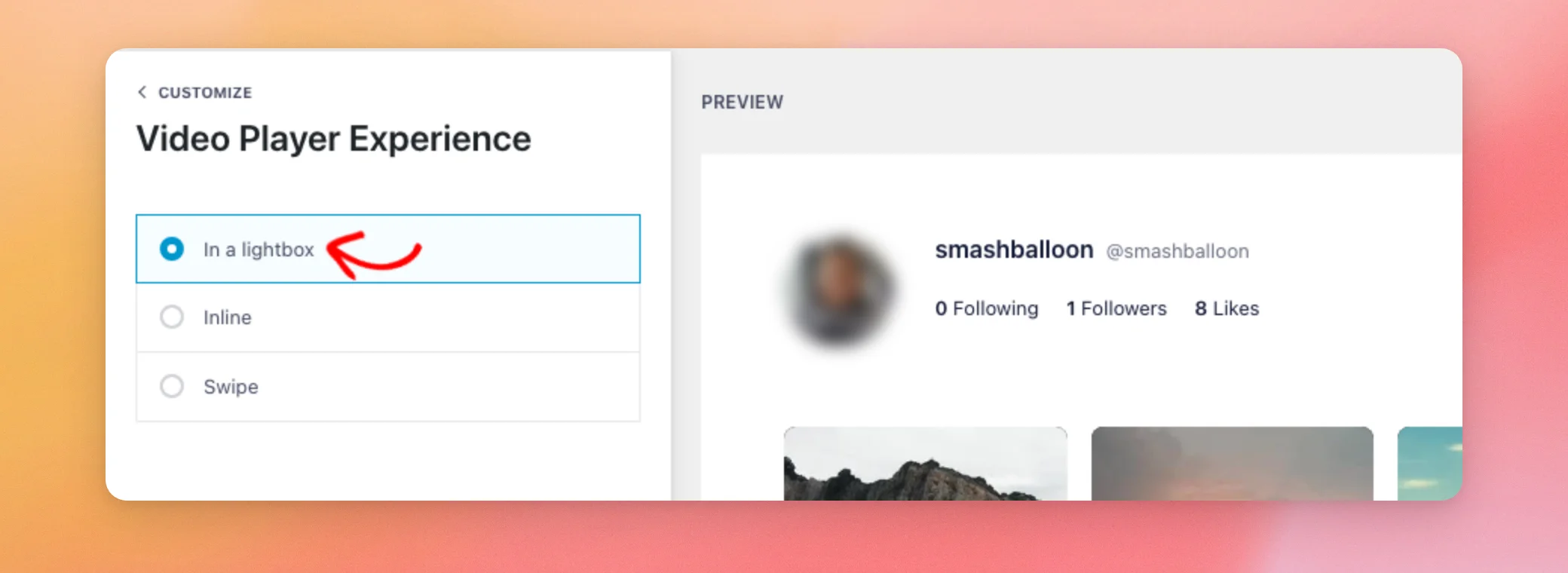
You will see the 3 choices. We’ll go through them one by one.
Playing Videos in a Lightbox
In a lightbox is the default choice for feeds made from the Default template. Visitors can watch each video without leaving your page. When they close the lightbox, they’re right back at your feed. If your feed uses another choice, select In a lightbox to switch back.
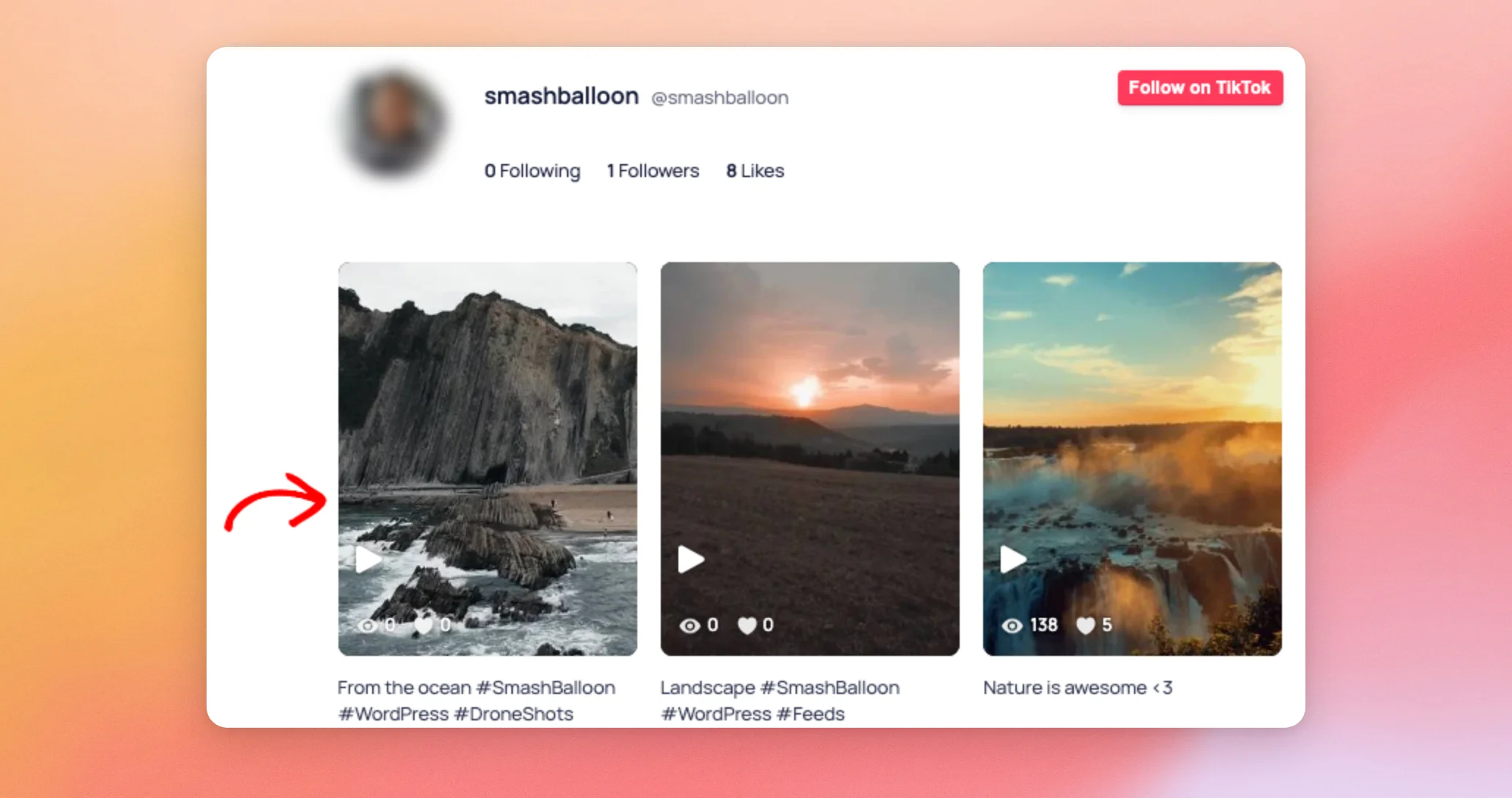
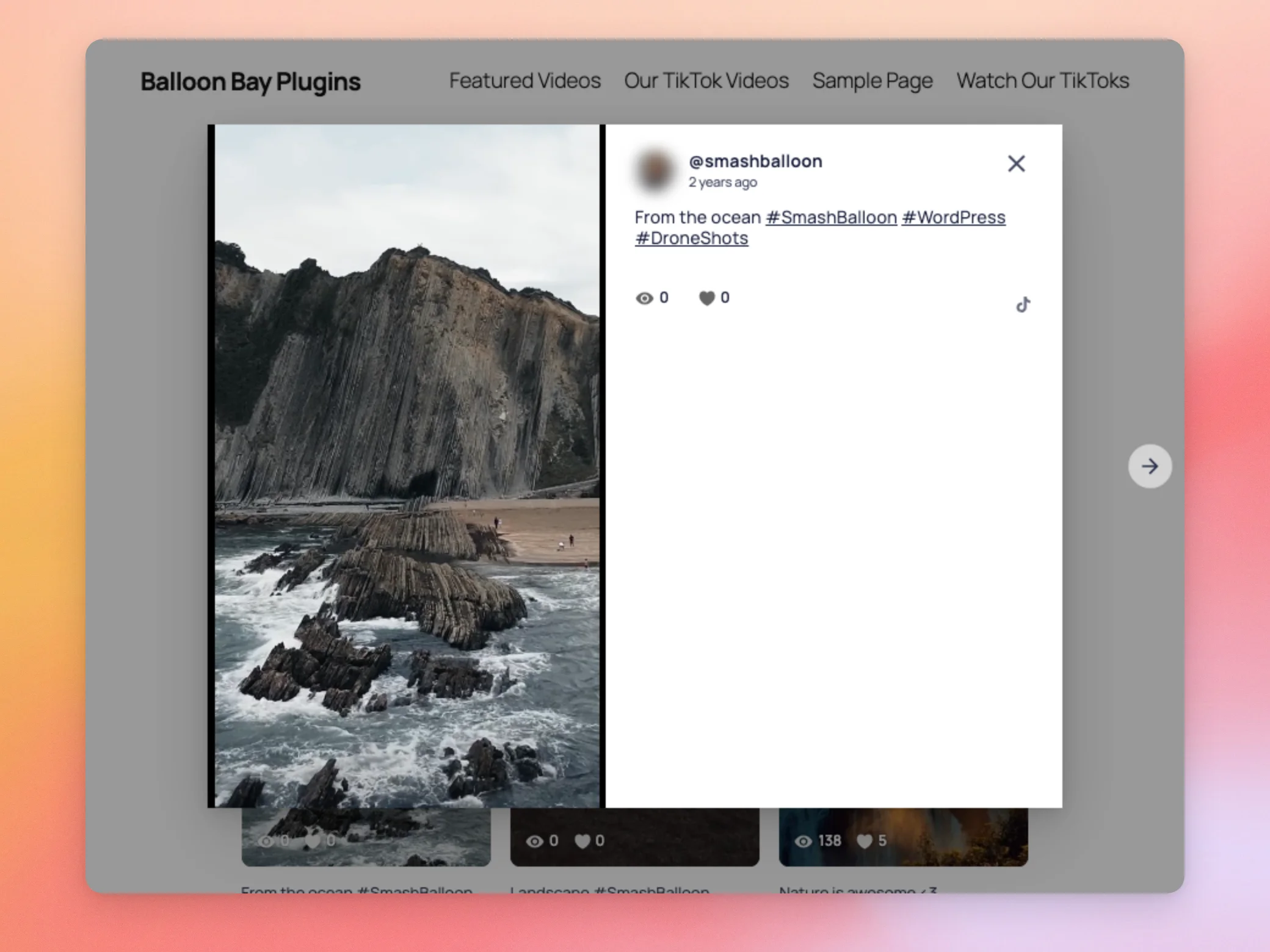
Here is how it works for your visitors. On the front end of your site, a visitor clicks a video in your feed.
The video opens in a window on top of your page. With TikTok Feeds Pro, it starts playing, and the username, the caption, and the view and like counts show beside it. Visitors can click the arrow beside the window to move to the next video. They can click the X to close it.
Now that you know how the lightbox works, let’s look at the inline player.
Playing Videos Inline
With the inline player, videos play right in the feed, without a window on top of the page. To use it, select Inline.
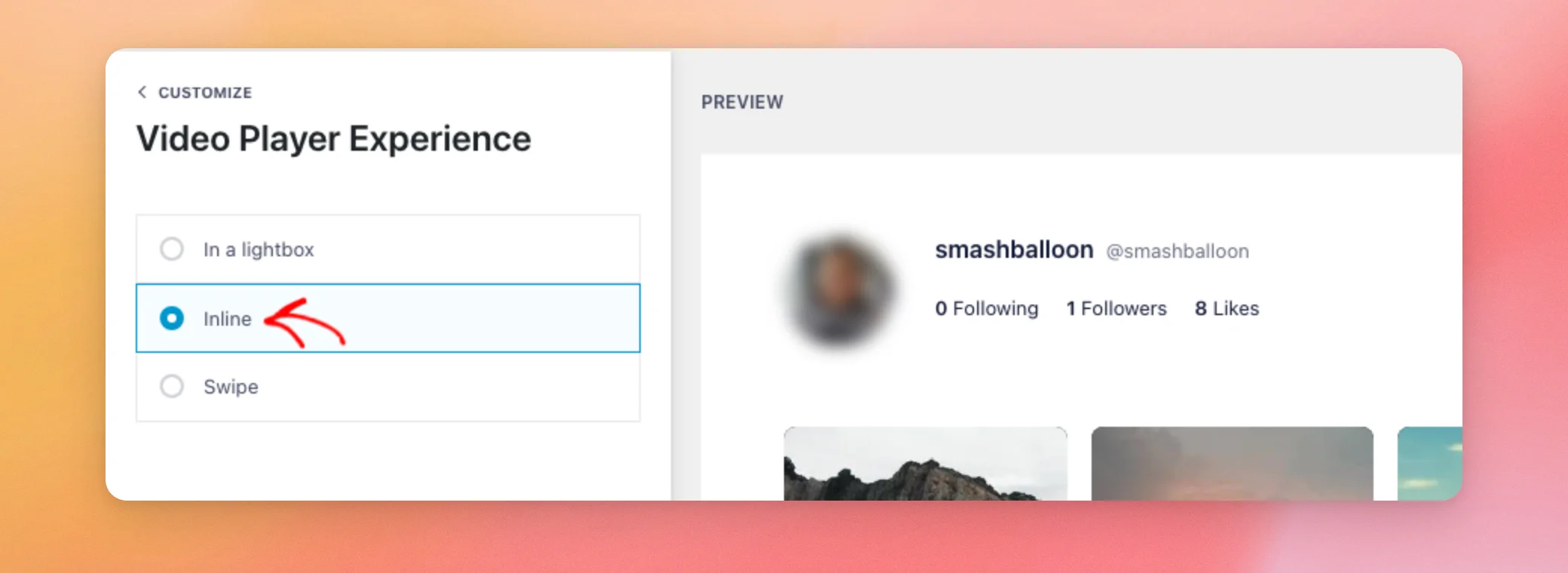
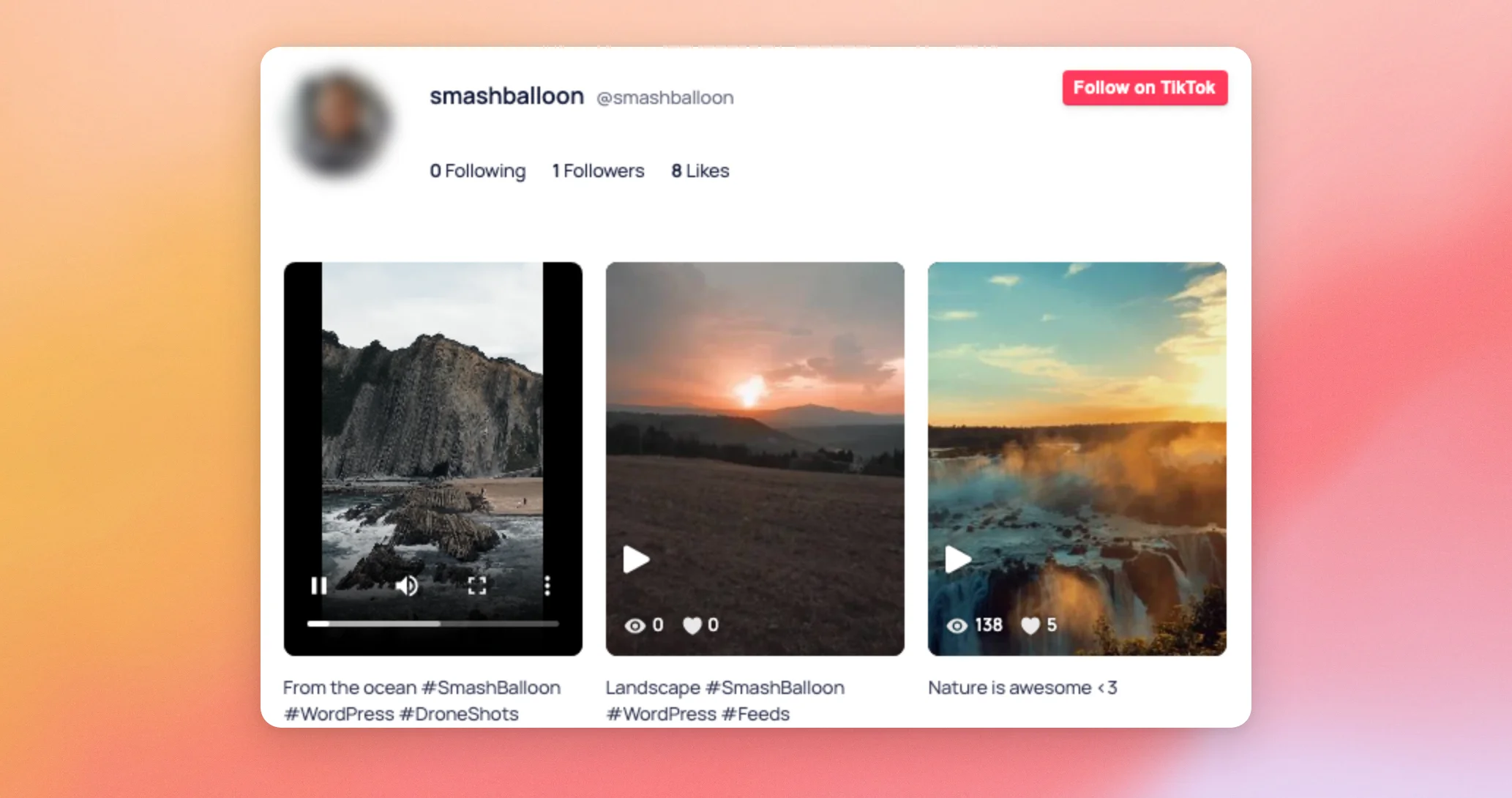
When a visitor clicks a video on the front end, it starts playing in its own spot in the feed. The player shows your browser’s own video controls, such as play and pause, sound, and fullscreen.
Now that you know how the inline player works, let’s look at Swipe View.
Playing Videos in Swipe View
Swipe View opens a video in a fullscreen, vertical player. Visitors can move from one video to the next. To use it, select Swipe.
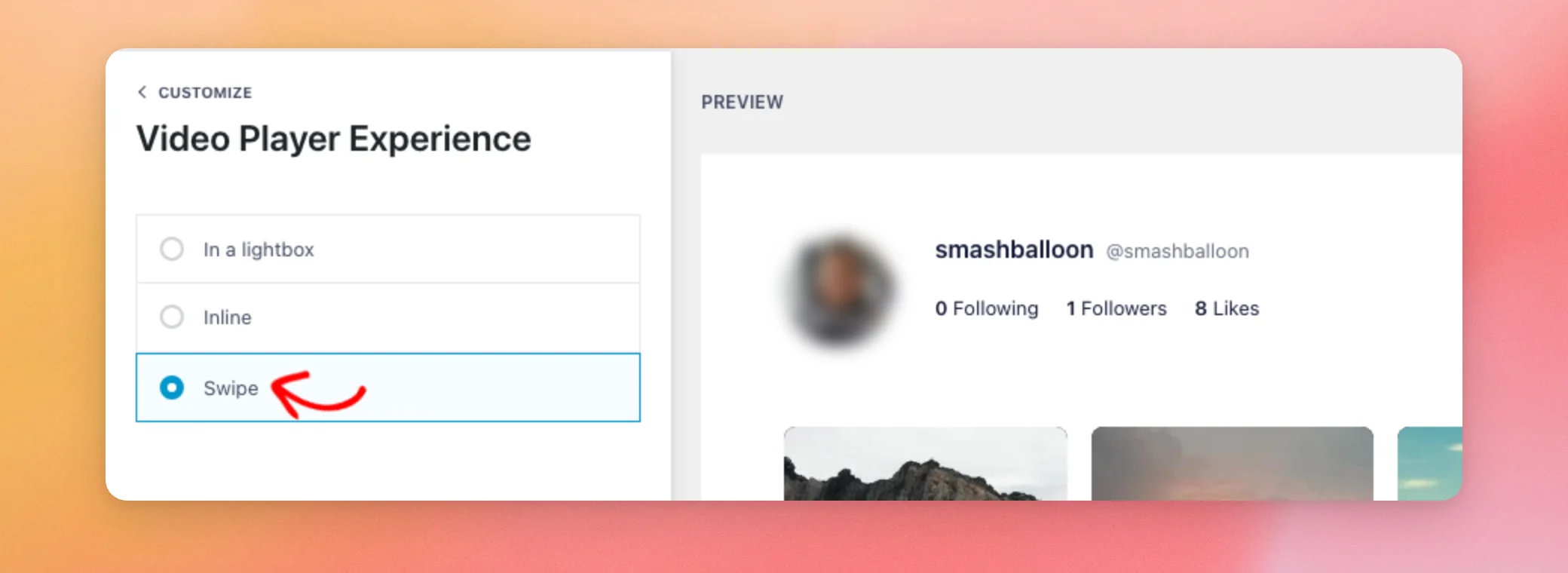
When a visitor clicks a video on the front end, it opens in the player.
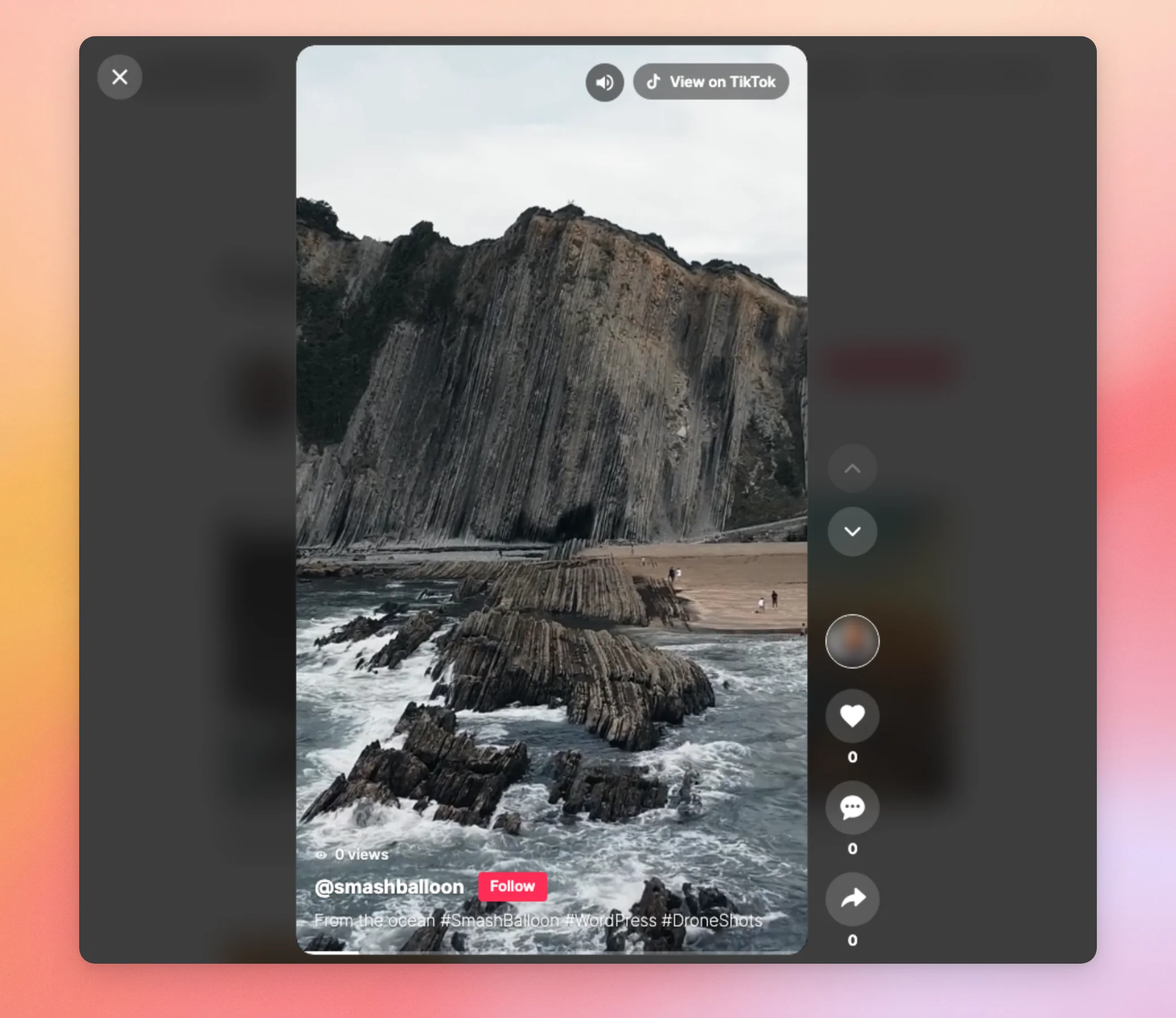
For everything visitors can do in this player, see our guide on viewing TikTok videos in Swipe View.
Saving Your Choice
When you’re happy with your choice, click Save at the top of the feed editor.
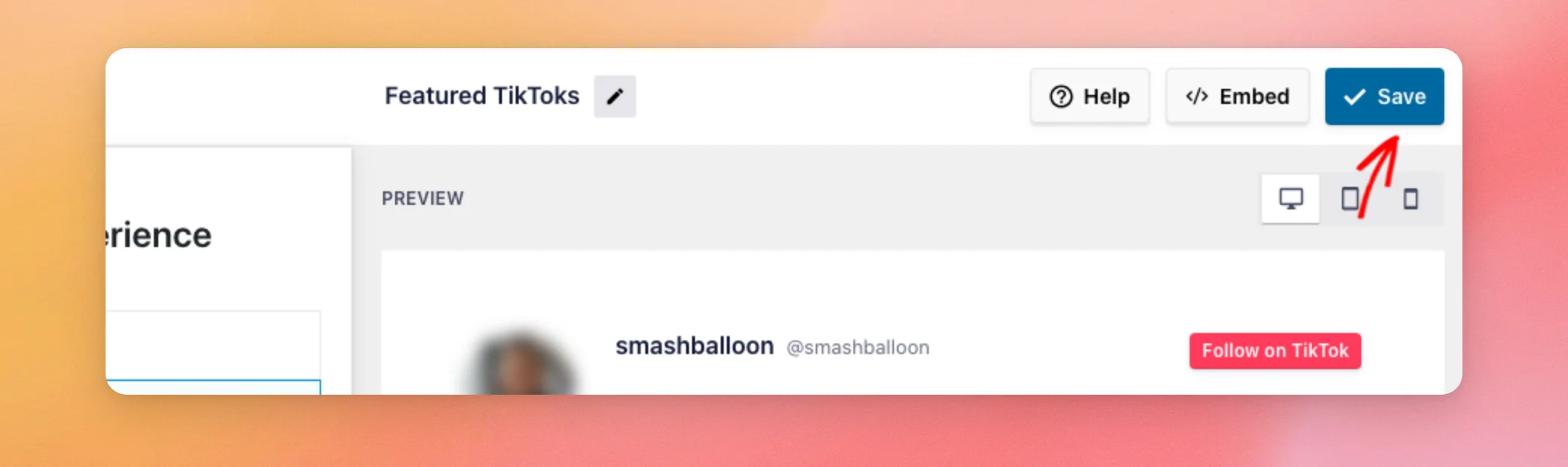
Then, open the page where your feed is shown and click a video to see the result. To add a feed to a page, see our guide on adding your feed to a page.
Your choice is now live. Picking a new template later can change it. Next, let’s look at how templates affect your choice.
How Templates Affect Your Choice
Each feed template comes with its own Video Player Experience choice. This means that when you pick a template, the choice can change. The templates start like this:
- In a lightbox: Default, Cards, Carousel, and Showcase Carousel.
- Inline: List, Latest Video, Gallery, and Widget.
If you change your feed’s template, open Video Player Experience again and check that it is still the choice you want. For more about templates and layouts, see our feed editor reference.
That’s it! You now know how to choose whether your TikTok videos open in a lightbox, play inline, or open in Swipe View. Next, take a look at our guide on viewing TikTok videos in Swipe View.
Frequently Asked Questions
Below, we’ve answered some of the most common questions about how TikTok videos open in your feed.
Which choice does a new feed use?
A new feed starts with the choice that its template sets. The Default template uses In a lightbox. See How Templates Affect Your Choice for the other templates.
Can I use the inline player or Swipe View with the free plugin?
The inline player and Swipe View need TikTok Feeds Pro with a basic license level or higher. In the free Feeds for TikTok plugin, videos open in a lightbox. When you click Inline or Swipe there, the plugin shows an upgrade prompt.
Can I use different choices in different feeds?
Yes. Each feed has its own Video Player Experience setting. One feed can open videos in a lightbox while another plays them inline.
Why did my choice change after I picked a template?
Each template comes with its own Video Player Experience choice. Picking a template can change it. See How Templates Affect Your Choice for the choice each template uses. After you pick a template, you can select the choice you want in Video Player Experience and click Save.
Why do my videos still open the old way after I save?
If your site uses a caching plugin, visitors can still see a copy of the page from before you saved your feed. In that case, clear your site’s cache. See How to Clear Your Cache in WordPress for a step-by-step guide.
Does Swipe View work with GDPR mode?
When GDPR mode is on, Swipe View only turns on once the visitor has given consent.
How do I go back to the lightbox?
In the feed editor, click Video Player Experience. Then, select In a lightbox. When you’re done, click Save.




