


 Social Wall
 Feed Analytics


Would you like to place a YouTube feed on your site without pasting a shortcode?
In this guide, we’ll walk you through four other ways to add a feed. These are the YouTube Feed block in the block editor, a widget area, the Elementor widget, and the Divi module.
Before you get started, make sure YouTube Feed is installed and activated, and that you have created at least one feed. Our guide to setting up the feeds covers both steps. It also shows how to place a feed with the shortcode instead.
Not sure which way to go? If you build your pages with Elementor or Divi, use the Elementor widget or the Divi module. For a regular page or post, use the block. To show a feed in a footer or sidebar, use a widget area.
- Adding the YouTube Feed Block
- Choosing a Feed in the Block
- Changing How the Feed Looks From the Block
- Adding a Feed to a Widget Area
- Adding a Feed With Elementor
- Adding a Feed With Divi
- Frequently Asked Questions
Adding the YouTube Feed Block
To get started, open the page or post where you want the feed. Next, click the + button to add a block.
In the search box, type YouTube Feed. Then, click the YouTube Feed block to add it to the page.
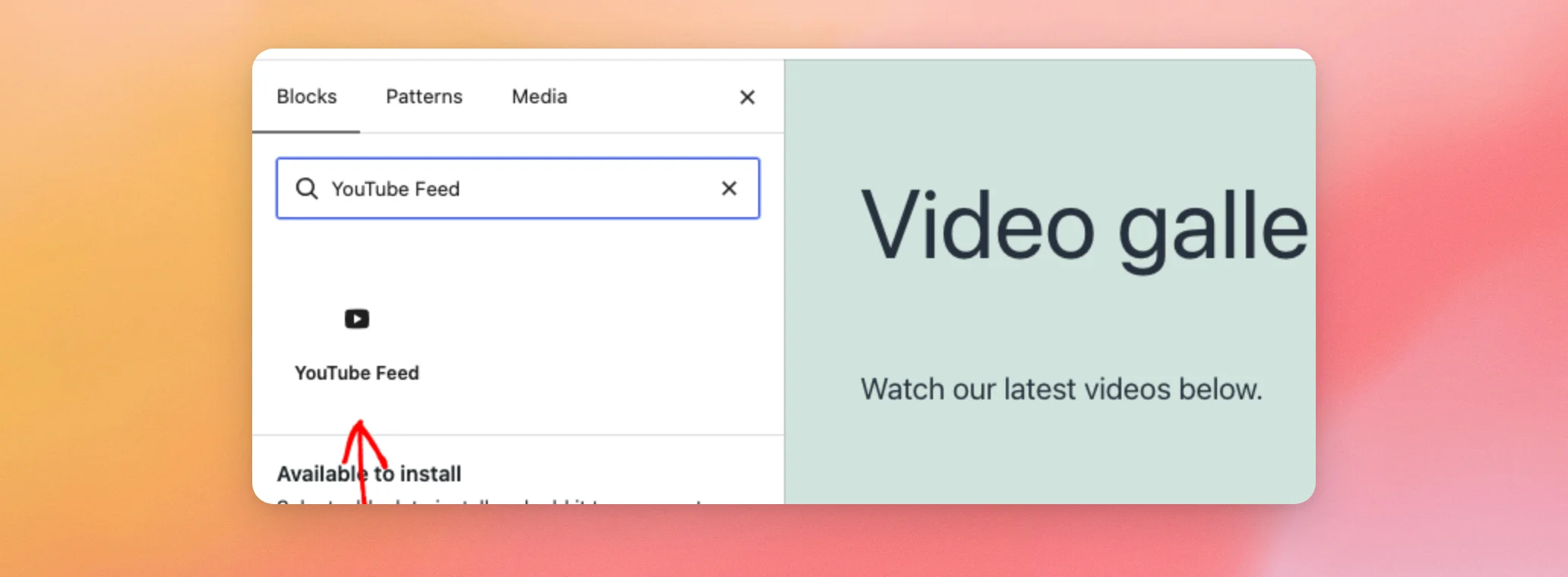
Note: WordPress also has its own block called YouTube Embed. It shows a single video, not a feed. Only the block named YouTube Feed shows a feed.
With the block on the page, you are ready to choose which feed it shows.
Choosing a Feed in the Block
Once the block is on the page, click it to select it. In the block settings on the right, find the Feed Settings section. Then use the Select a Feed dropdown to choose the feed you want to show.
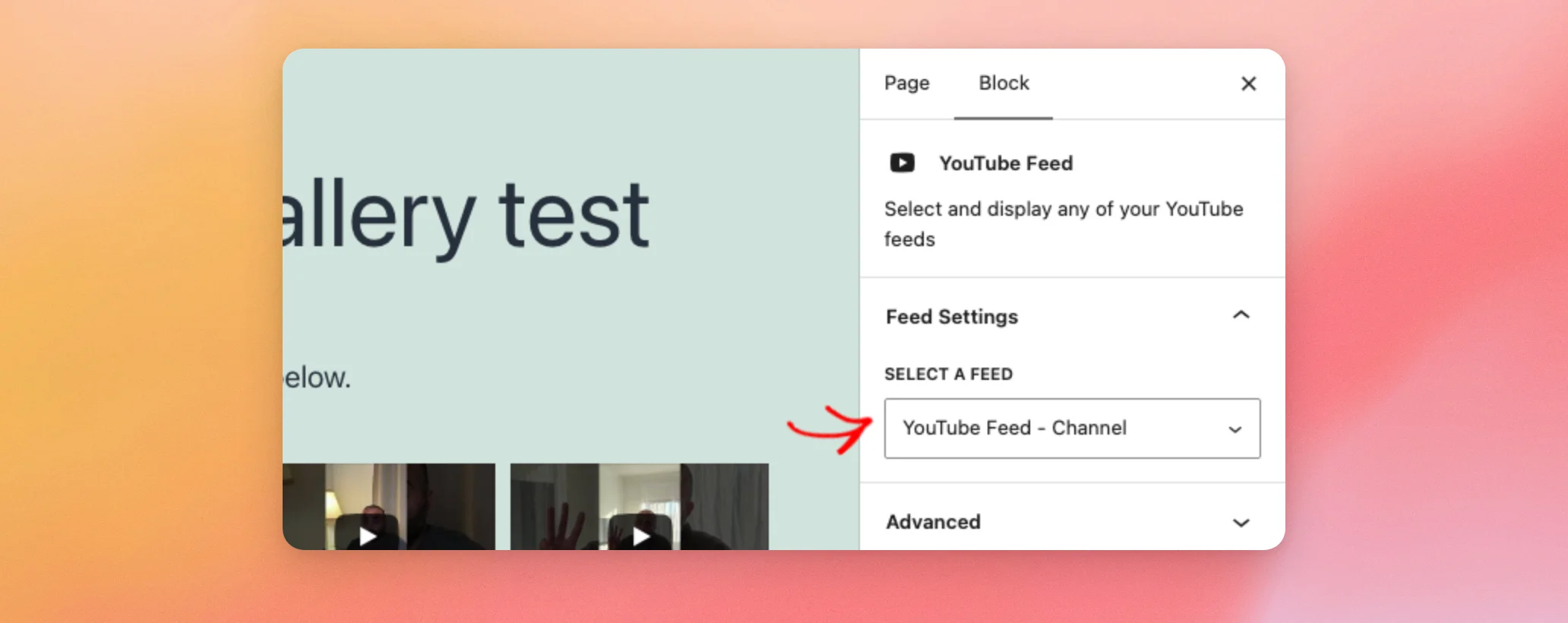
The videos from that feed appear in the editor preview right away.
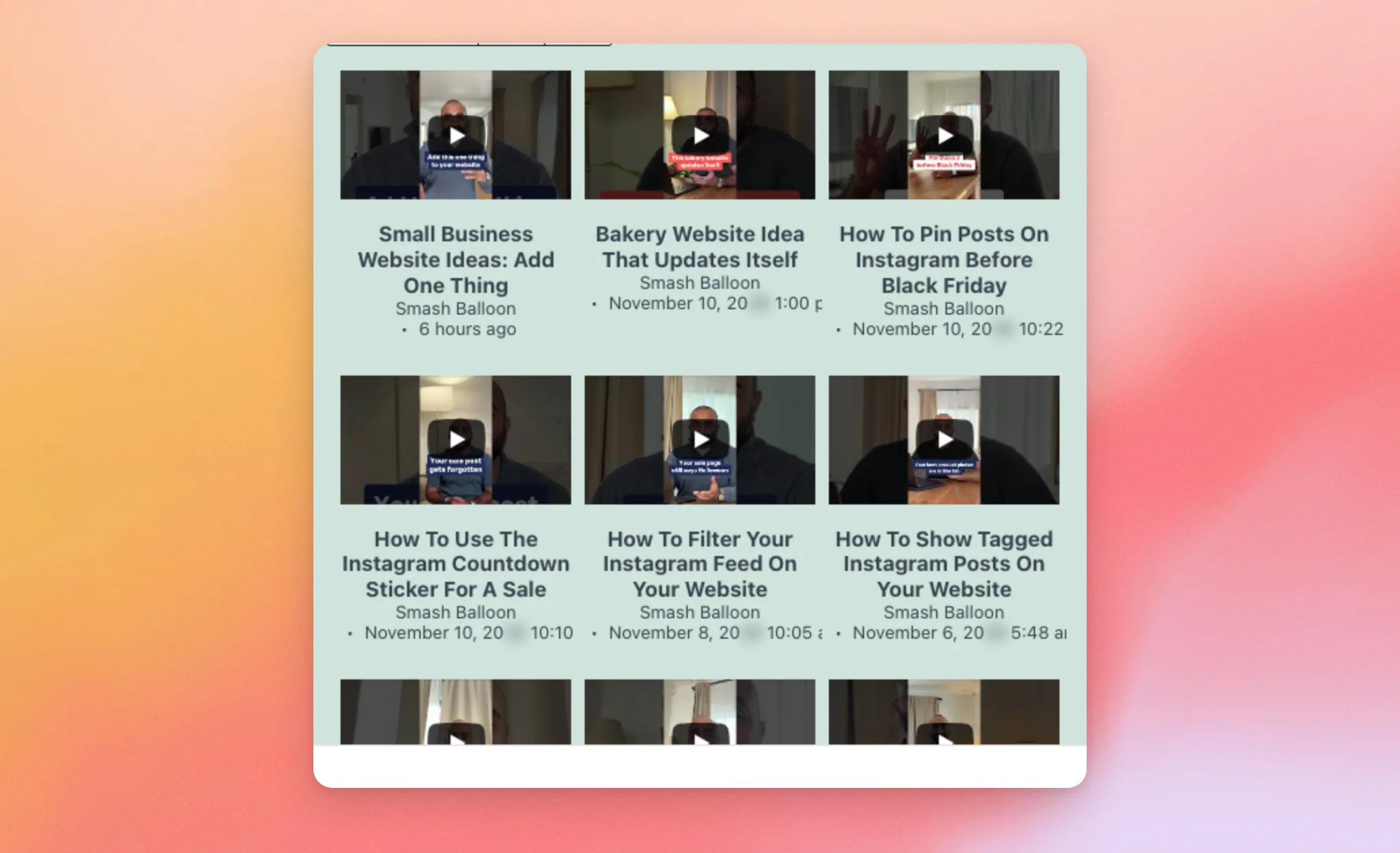
When you’re happy with it, save the page the way you normally do.
If you want to show more than one feed on the same page, see our guide to displaying multiple YouTube feeds.
Next, you can open the feed’s Customizer straight from the block.
Changing How the Feed Looks From the Block
With a feed chosen, click the brush icon in the block toolbar.
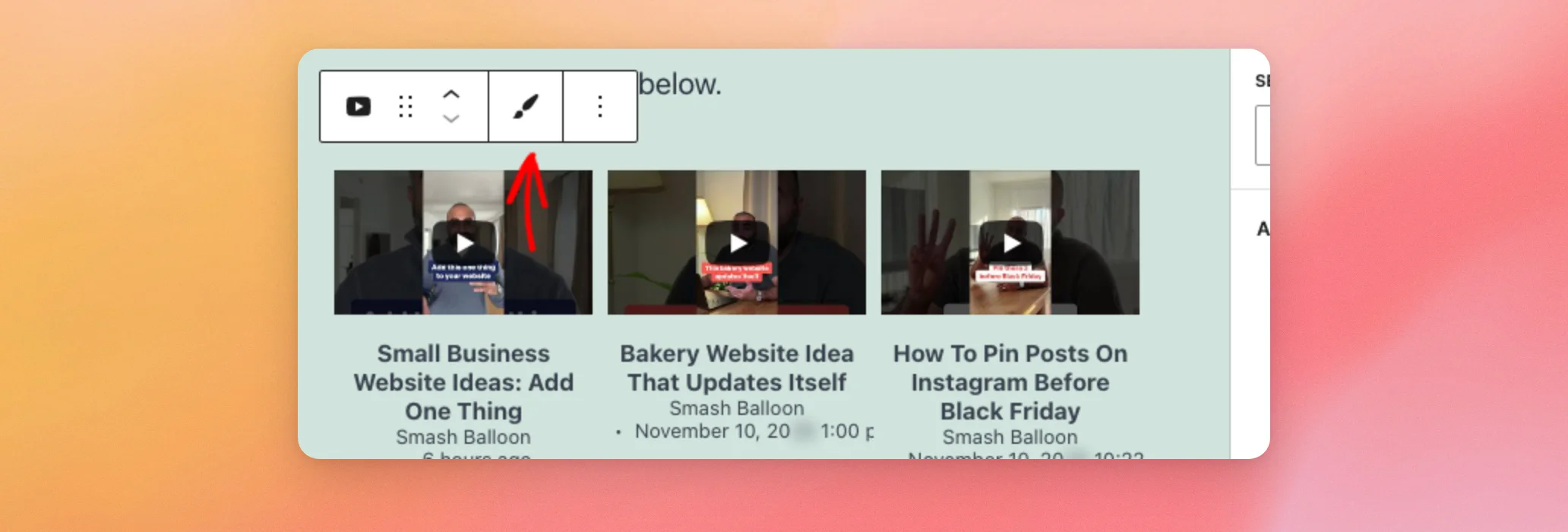
The Customizer for that feed opens in a new browser tab, and your page stays open in the editor. The brush icon shows up in the toolbar once a feed is chosen.
Besides pages and posts, you can also show a feed in a widget area.
Adding a Feed to a Widget Area
If your theme has widget areas, such as a footer or a sidebar, you can add a feed there too. From your WordPress admin sidebar, go to Appearance » Widgets. Widget areas use the same block inserter, so the YouTube Feed block is available here as well.
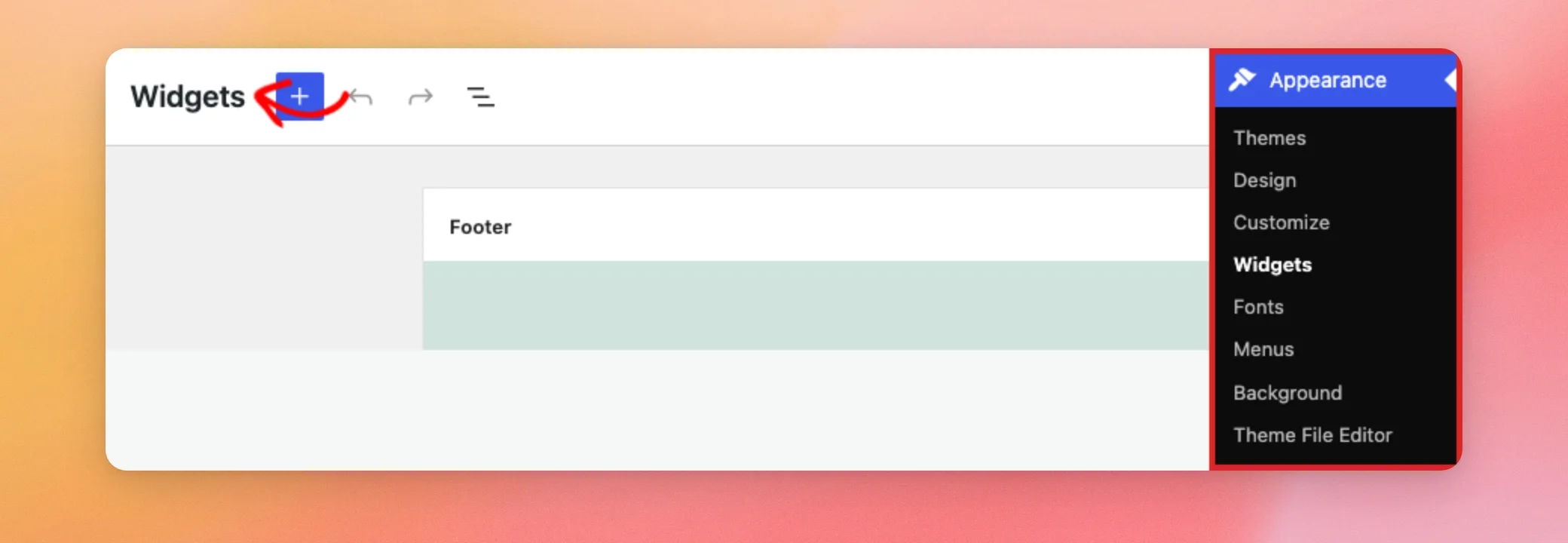
Next, click the + button at the top of the screen and type YouTube Feed in the search box. Then, click the YouTube Feed block to add it to the widget area. If widgets are new to you, see How to Add and Use Widgets in WordPress for a general overview.
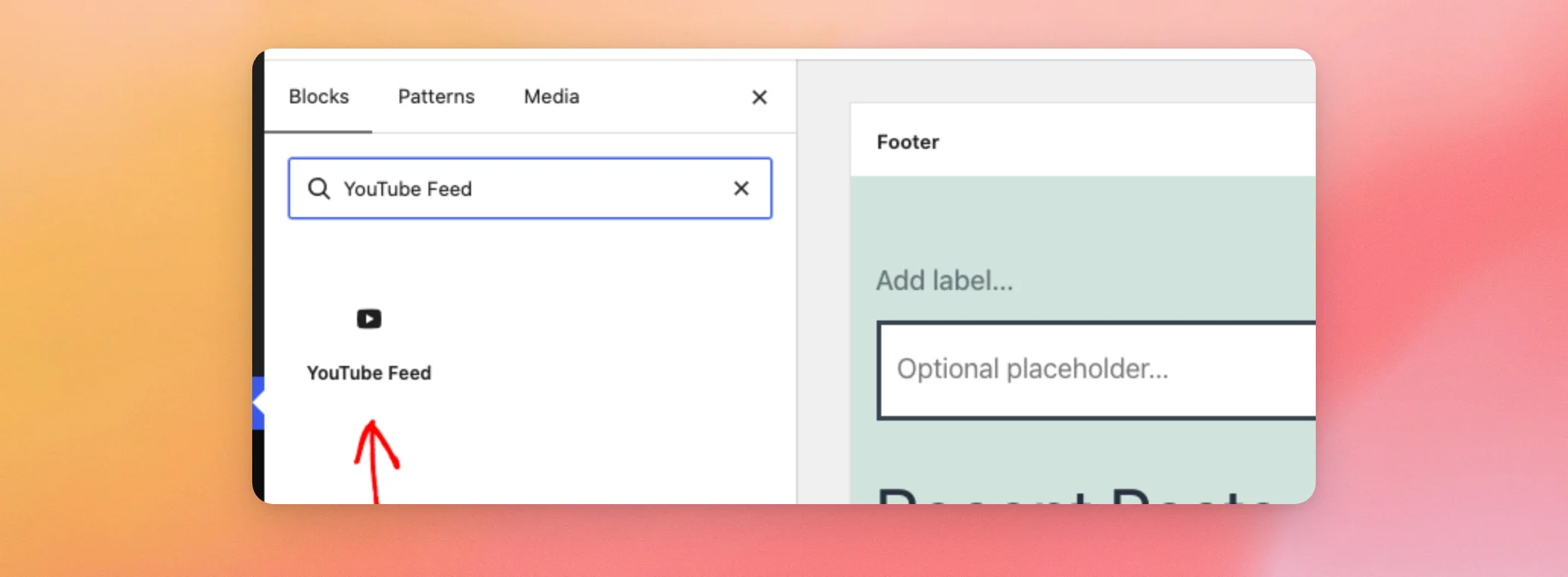
Next, choose a feed in the block settings, just as you did on a page. Then click Update to save the widget area.
Note: The Appearance » Widgets screen is available with themes that use widget areas. Block themes, which edit these areas in the Site Editor, don’t show it.
If you build your pages with Elementor, there is a dedicated widget as well.
Adding a Feed With Elementor
First, open the page in the Elementor editor. Then, in the search box at the top of the Elements panel, type YouTube Feed.
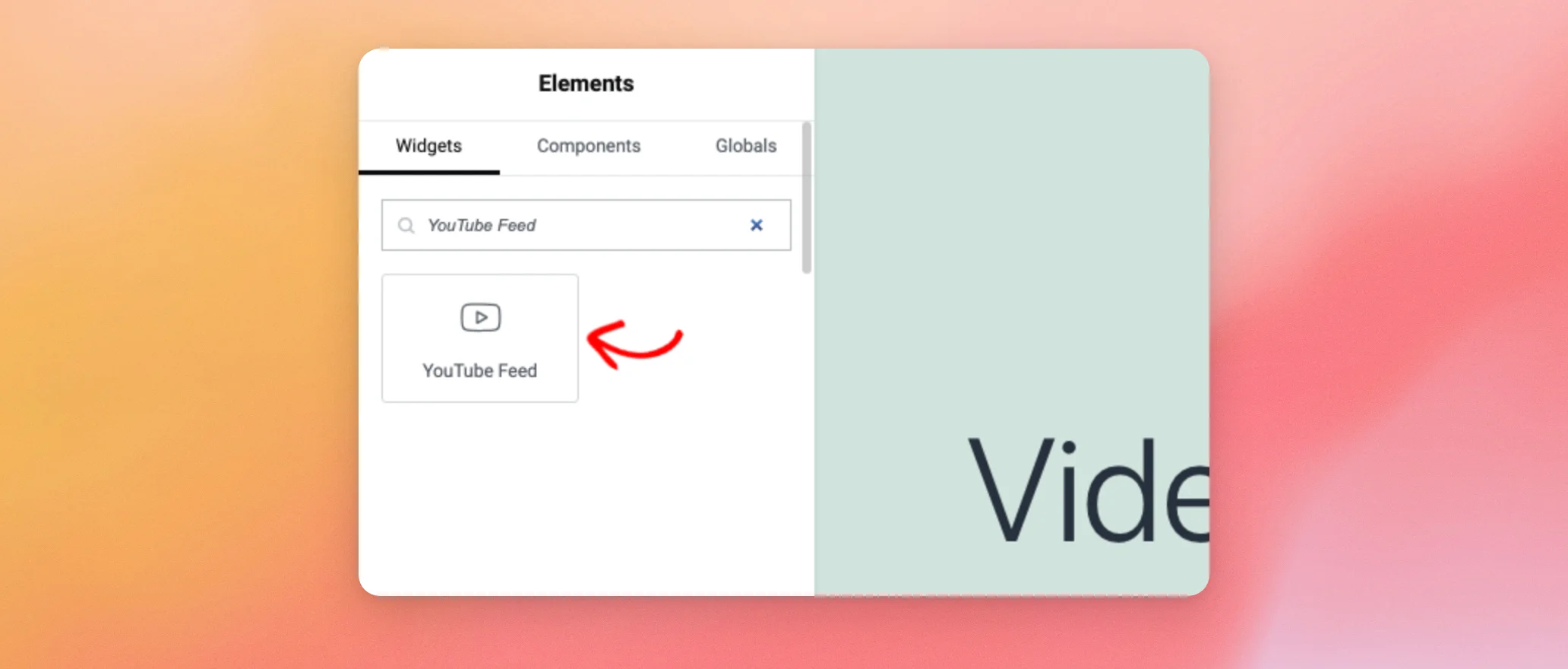
Next, drag the YouTube Feed widget onto the page. Then, in the Content tab on the left, use the Select a Feed dropdown to choose your feed.
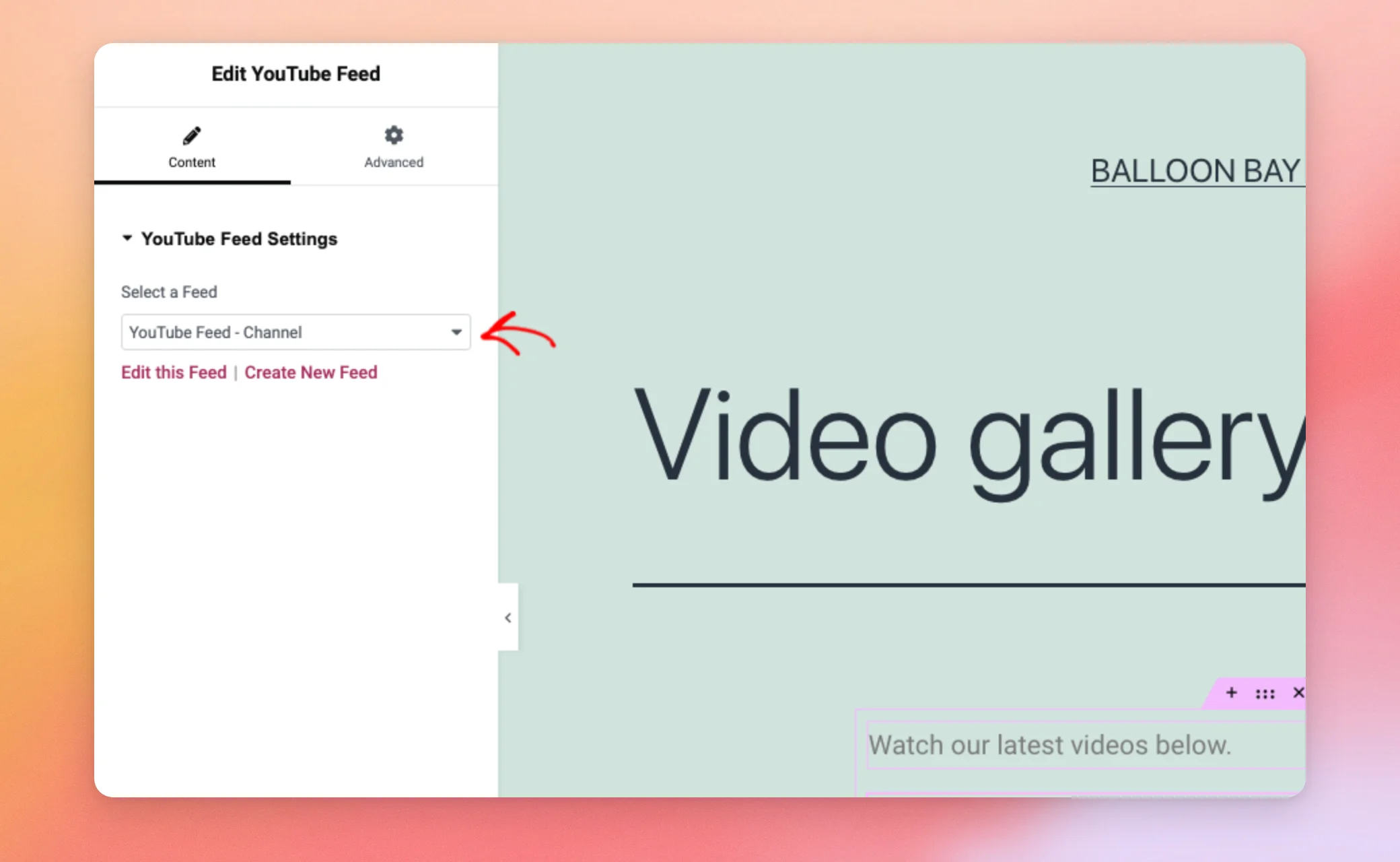
Below the dropdown, Edit this Feed opens the feed in the Customizer. Create New Feed starts a new feed. When you’re done, save the page the way you normally do in Elementor. Your feed is now on the page.
Adding a Feed With Divi
If you build your pages with Divi, YouTube Feed adds a module named YouTube Feed. In the Divi Builder, add a new module and choose YouTube Feed.
In the module settings, use the Feed field to choose which of your feeds to show. The module then shows that feed on the page, the same as a feed added with the shortcode.
That’s it! You now know how to place a YouTube feed with the block, in a widget area, with Elementor, or with Divi. To show more than one feed on the same page, see our guide to displaying multiple YouTube feeds.
Frequently Asked Questions
Below, we’ve answered some of the most common questions about placing a feed.
I searched for the plugin name and the block didn’t show up. Where is it?
Search for the block name, YouTube Feed. Pick the block named YouTube Feed, not WordPress’s YouTube Embed. Adding the YouTube Feed Block above shows the search.
I don’t see the brush icon in the block toolbar. Why?
The brush icon appears once you’ve chosen a feed in the block. To make the icon show up, choose one with the Select a Feed dropdown. Choosing a Feed in the Block above shows the dropdown.




