


 Social Wall
 Feed Analytics


Would you like to show your Google and Yelp reviews on your site without creating an API key?
In this guide, we’ll show you how to add Google and Yelp sources to Reviews Feed without an API key and what to expect afterward. All you need is the Place ID of your Google listing or the link to your business’s page on Yelp.
Note: You can add Google and Yelp sources without an API key on any license level, including the free version. The steps in this guide use the paid version. The free version has a few extra limits. We cover them in the Limits in the Free Version section below.
Before you get started, make sure Reviews Feed is installed and activated on your WordPress site.
- Adding a Google Source Without an API Key
- Adding a Yelp Source Without an API Key
- What Are the Limits Without an API Key?
- Deciding When to Add an API Key
- Frequently Asked Questions
Adding a Google Source Without an API Key
To get started, we’ll add a Google source.
Reviews Feed finds your Google listing by its Place ID.
If you don’t have yours yet, see our guide on how to get the Google Place ID.
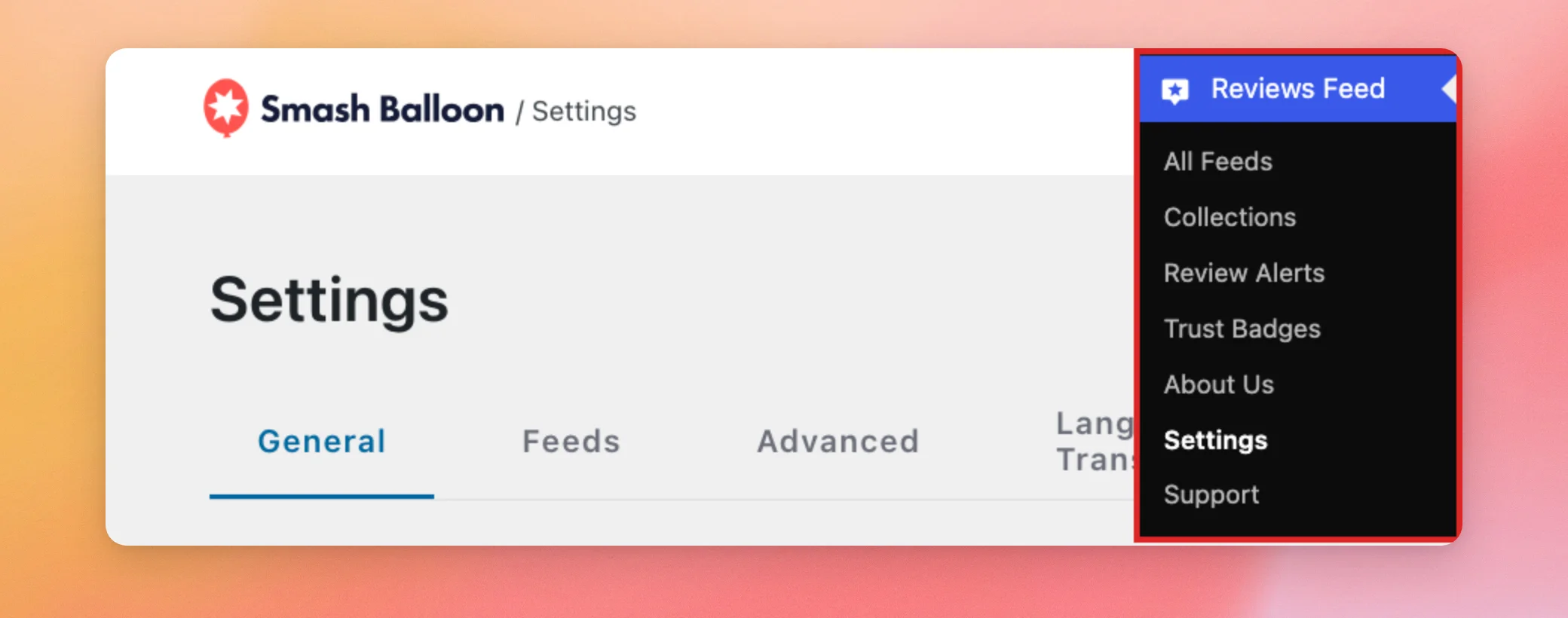
In your WordPress dashboard, go to Reviews Feed » Settings.
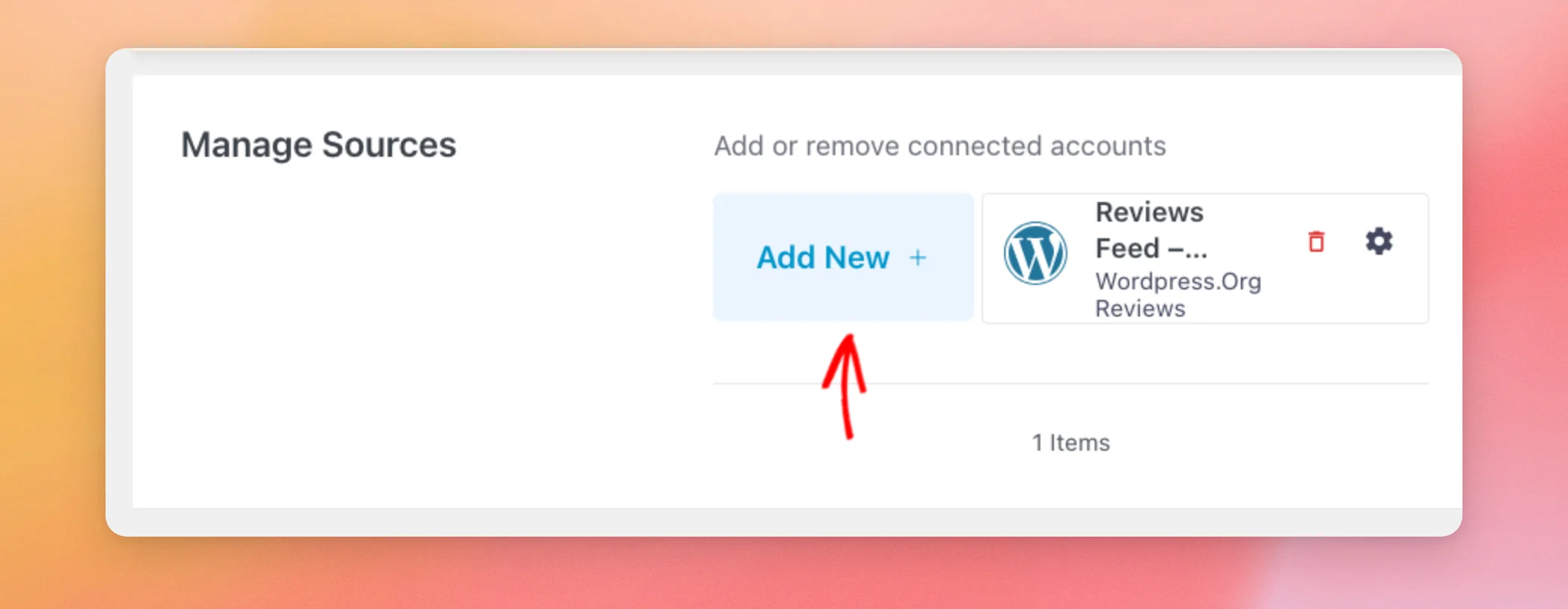
On the General tab, find the Manage Sources section. Then, click Add New. If you haven’t added a source yet, this button is called Add Source.
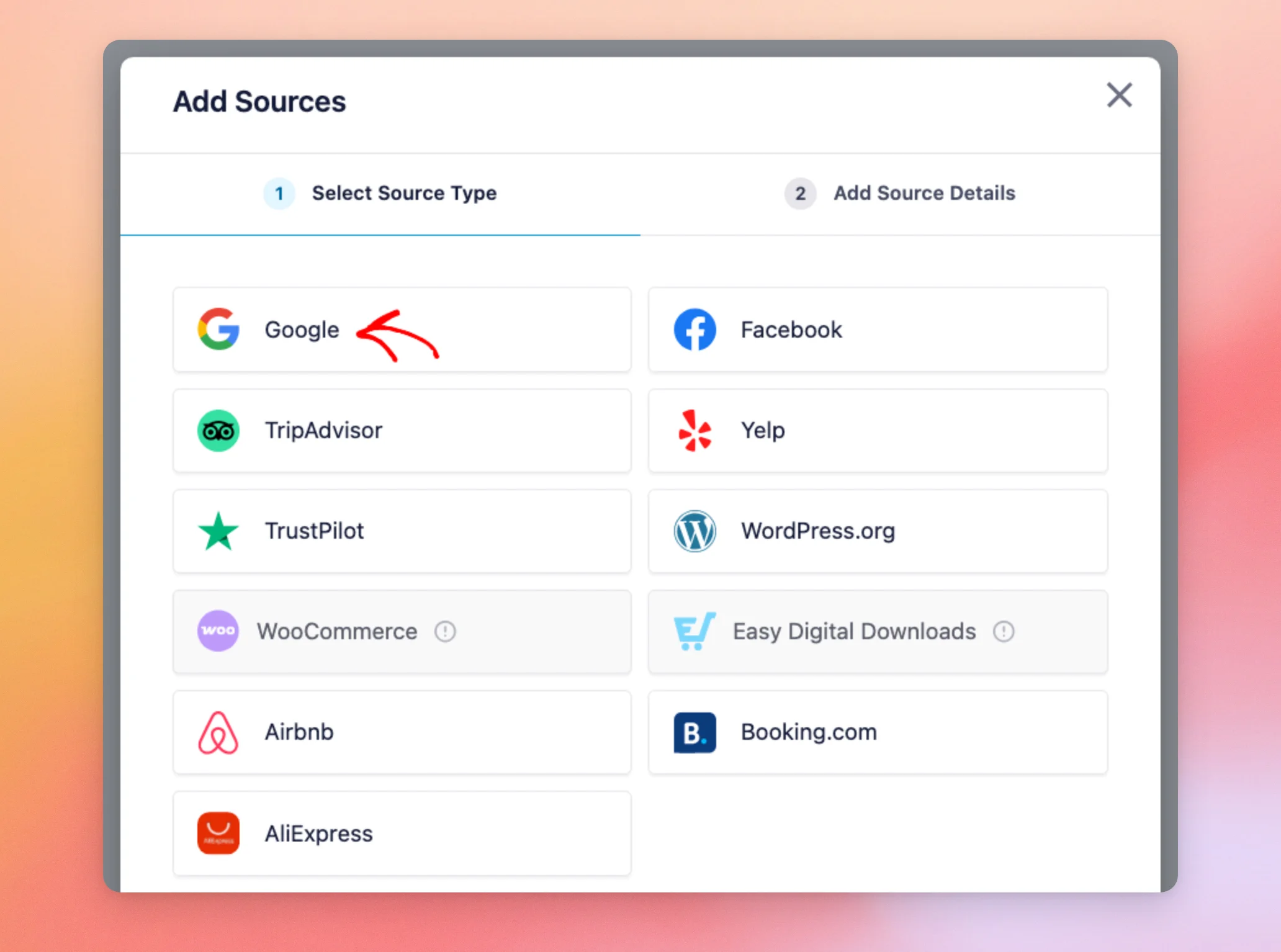
In the Add Sources window, select Google.
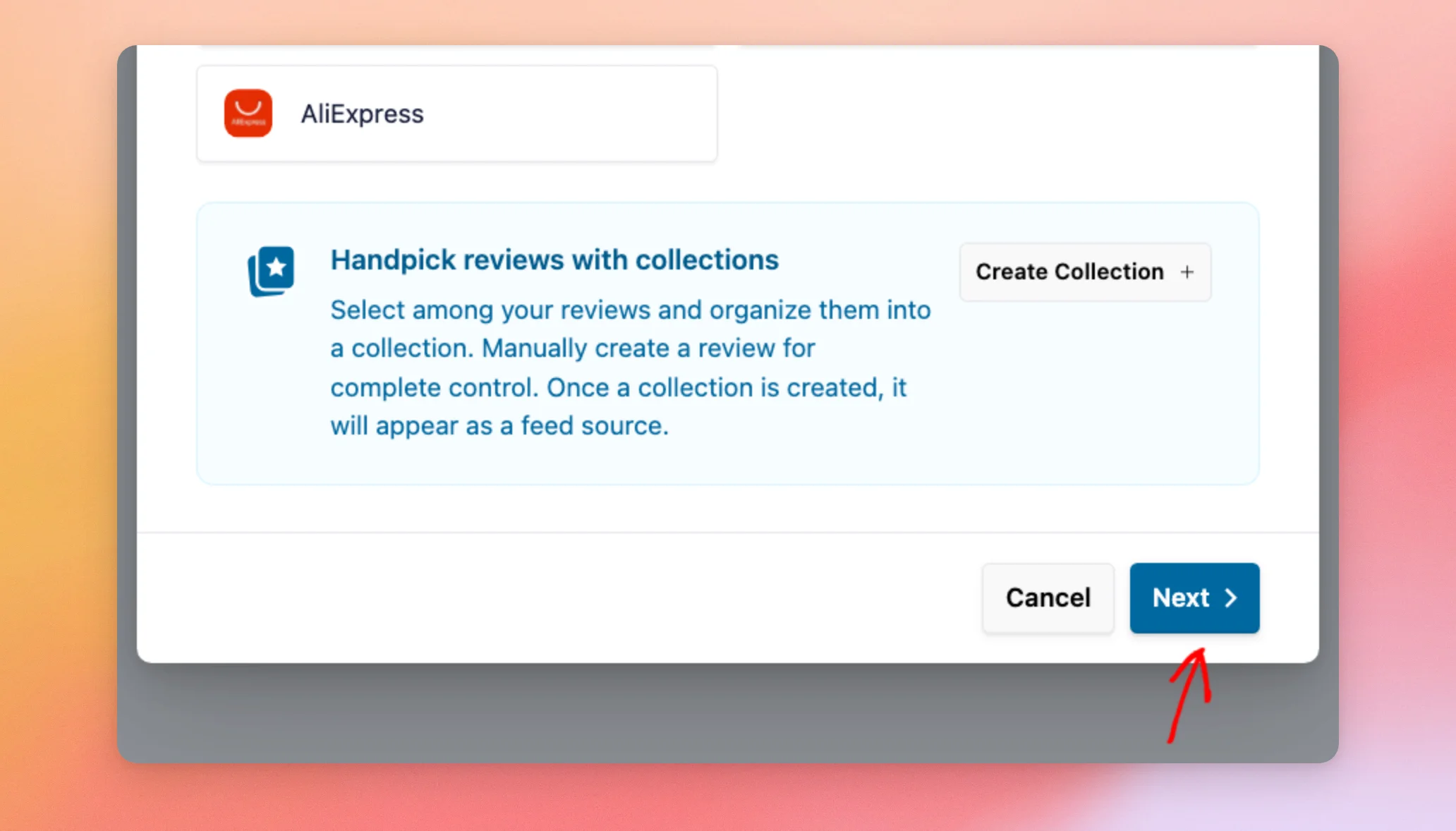
Then, click Next at the bottom of the window.
If a message about the source limit opens instead, see the What Are the Limits Without an API Key? section below.
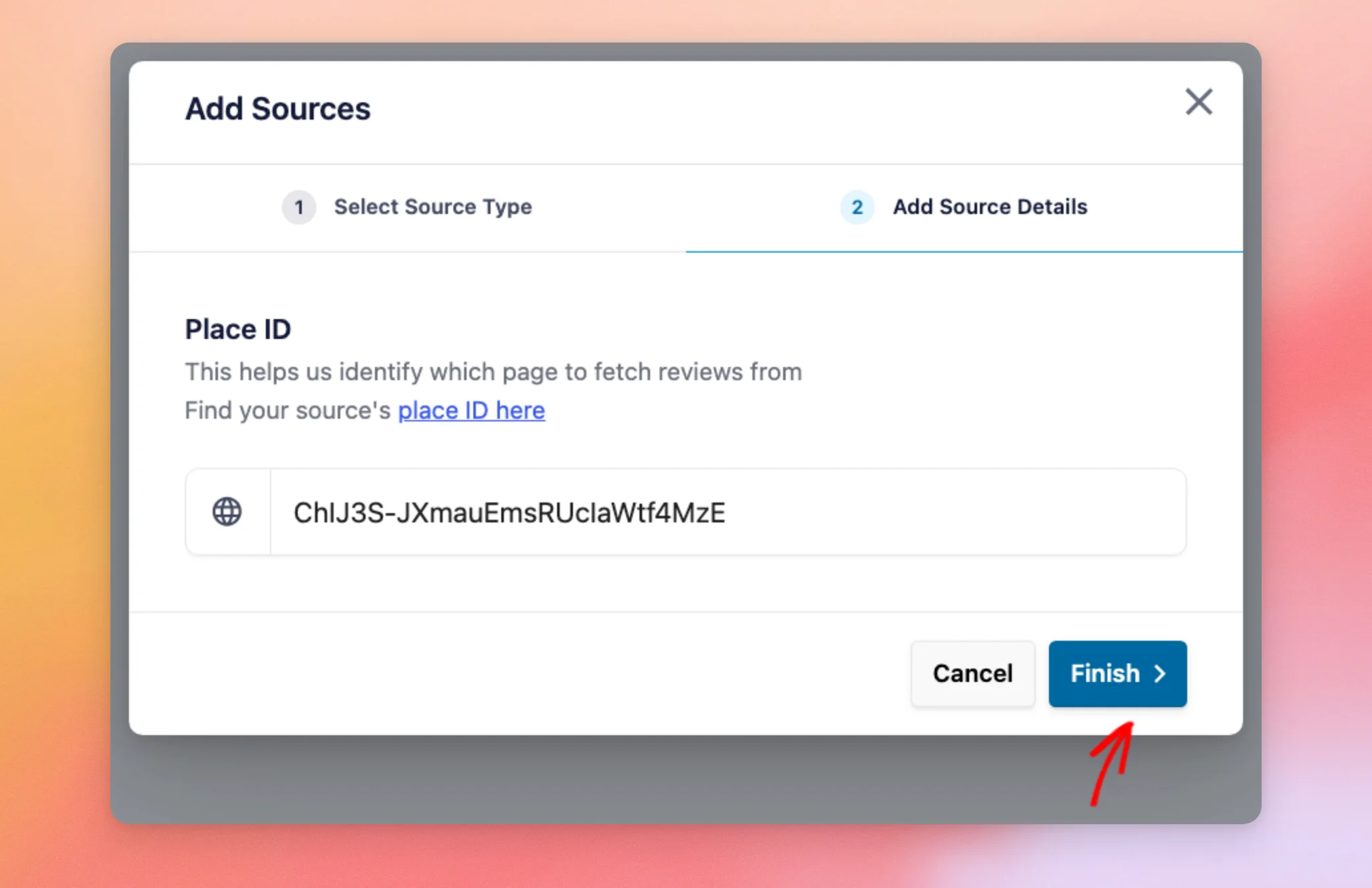
In the Add Source Details step, paste your Place ID into the Place ID field. Then, click Finish.
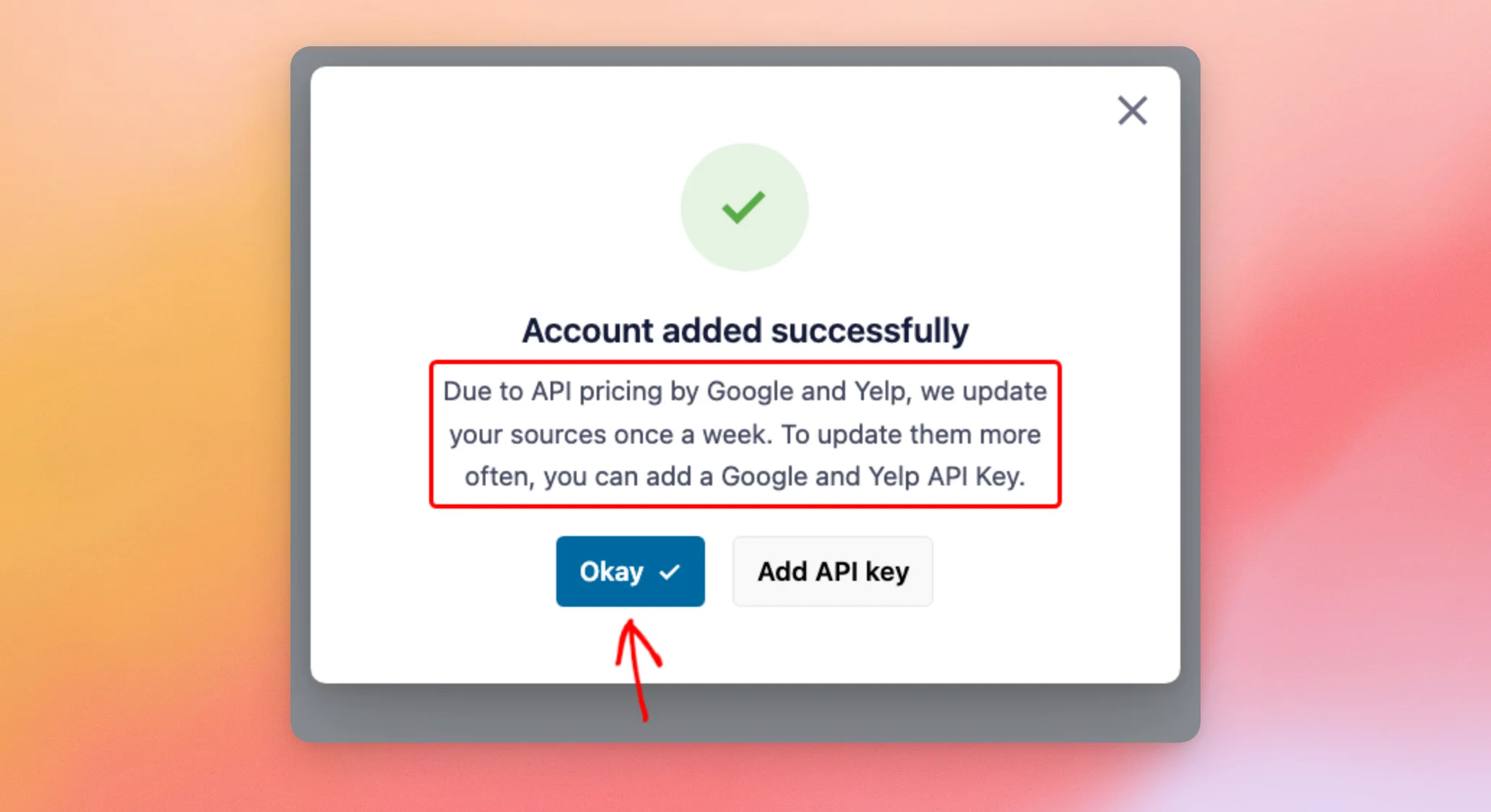
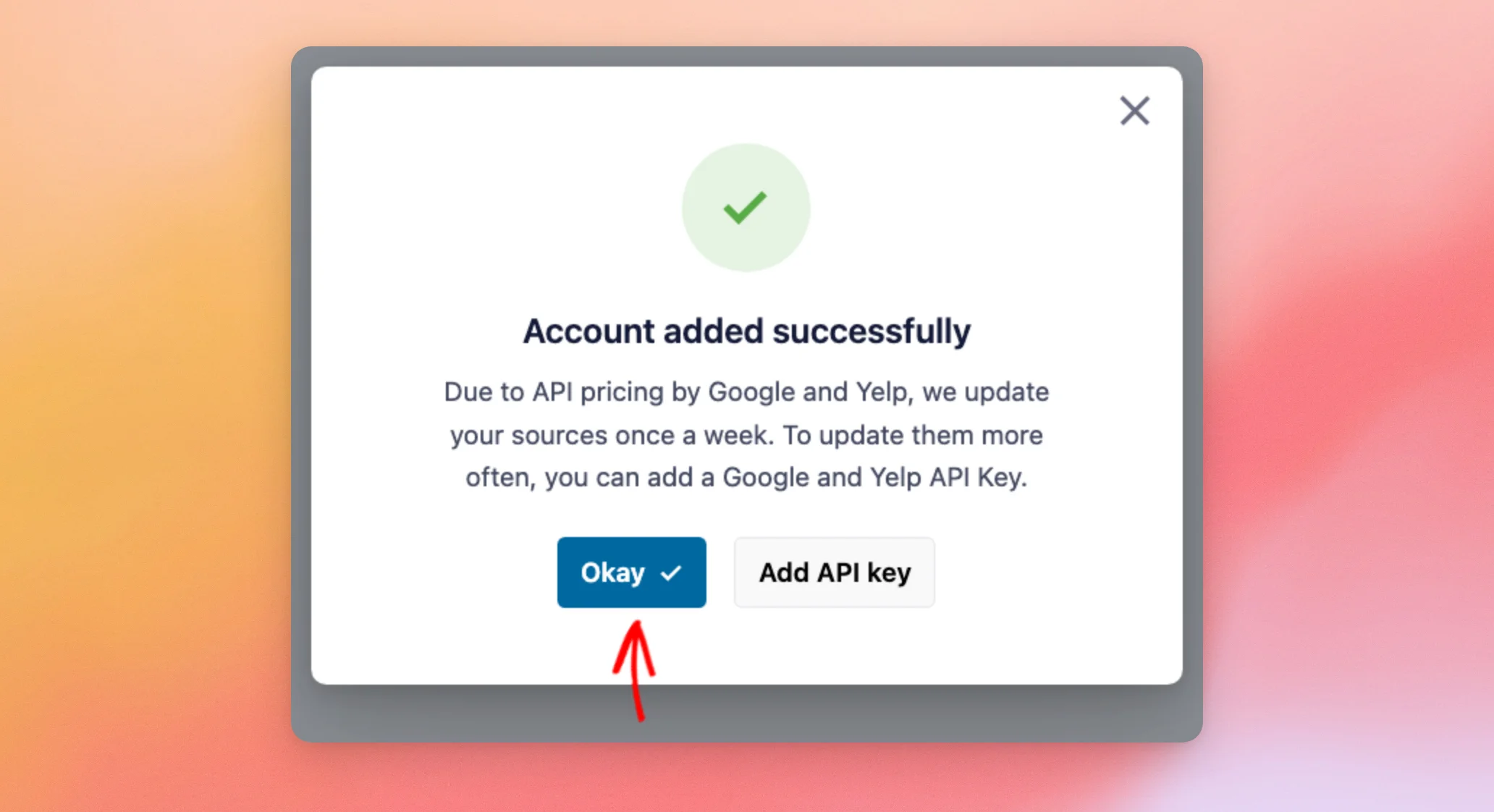
Reviews Feed adds your Google source without asking for an API key. It then shows an “Account added successfully” message. This message explains that sources without a key update once a week.
Once you’ve read the message, click Okay to close it.
Now that your Google source is ready, let’s add a Yelp source.
Adding a Yelp Source Without an API Key
Reviews Feed finds your Yelp business by the link to its page on Yelp.
To get the link, open your business’s page on Yelp. Then, copy the address from your browser’s address bar. It looks like https://www.yelp.com/biz/your-business-name.
Back in Reviews Feed, open the Add Sources window again from the Manage Sources section. Then, select Yelp.
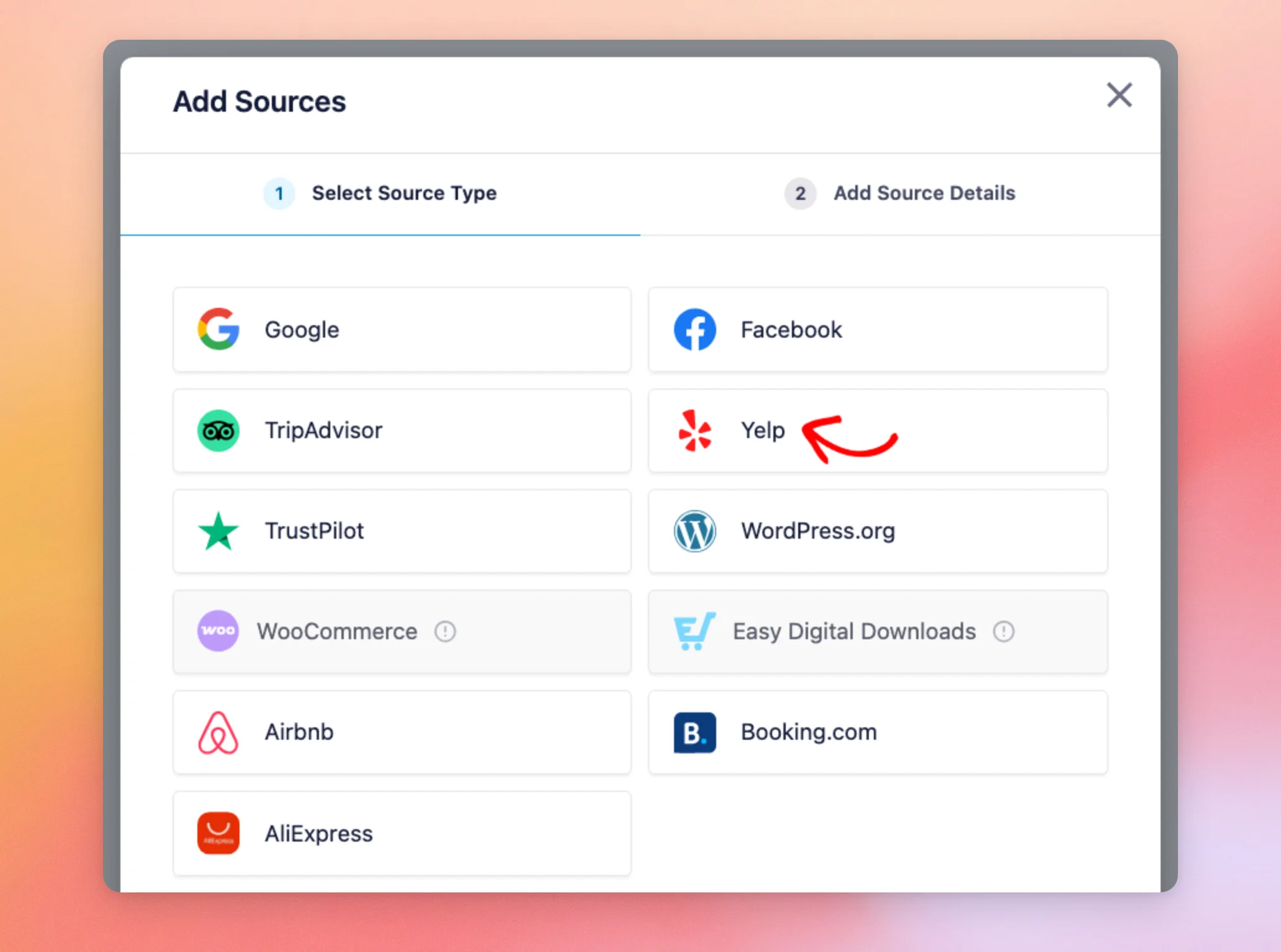
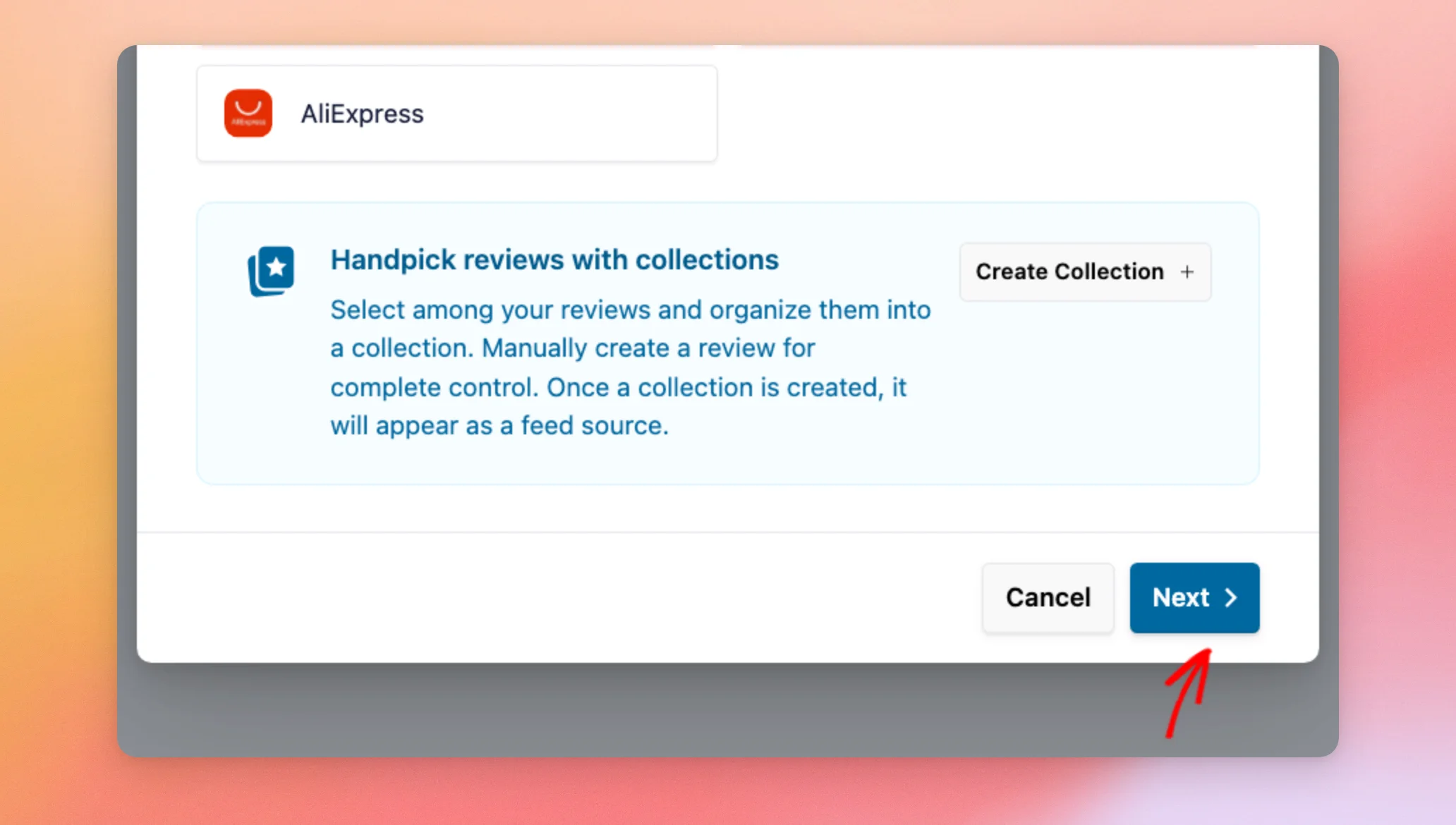
After that, click Next at the bottom of the window.
In the Add Source Details step, paste the link to your Yelp page into the Page URL field. Then, click Finish.
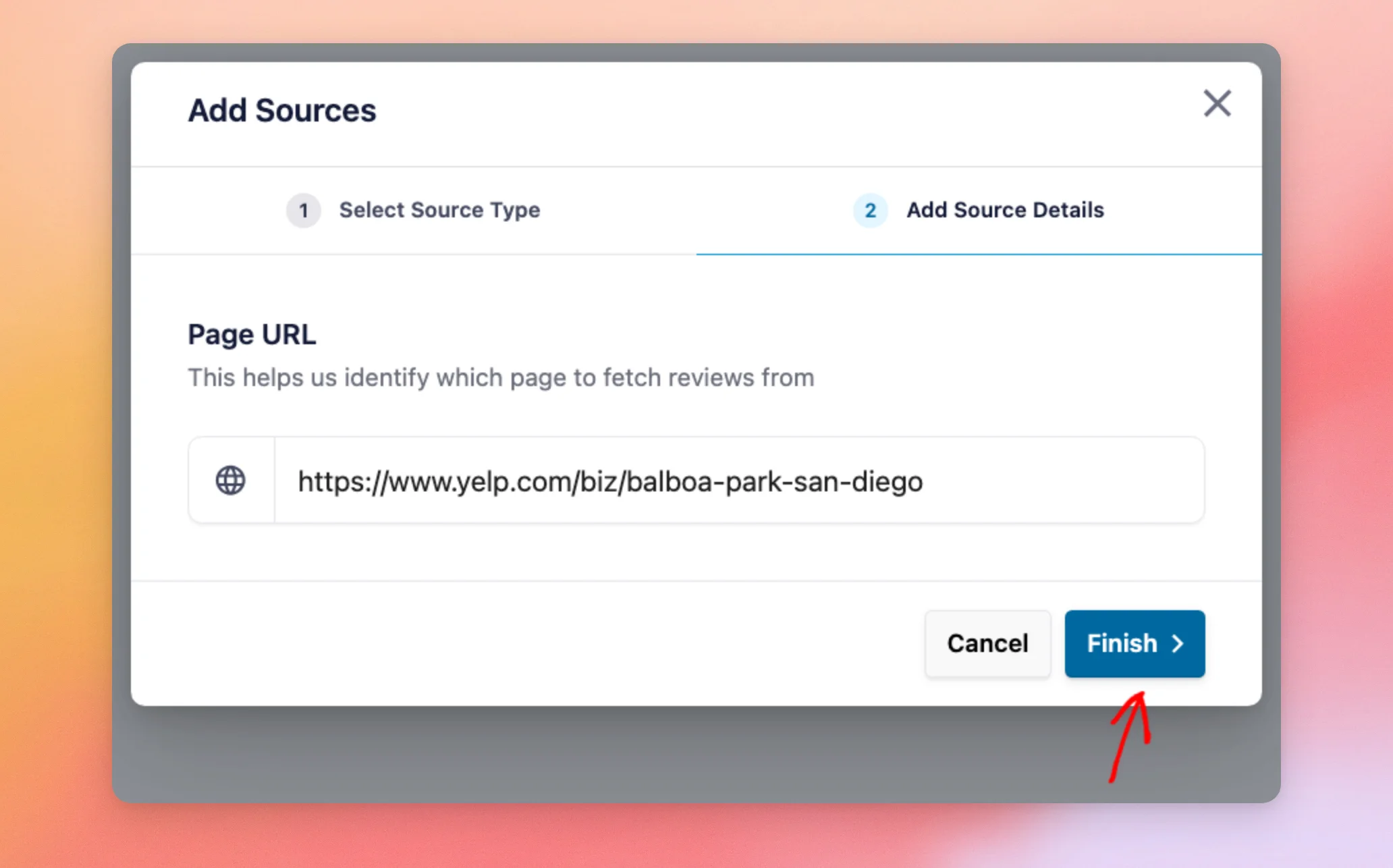
Reviews Feed adds your Yelp source and shows the same “Account added successfully” message. Then, click Okay to close it.
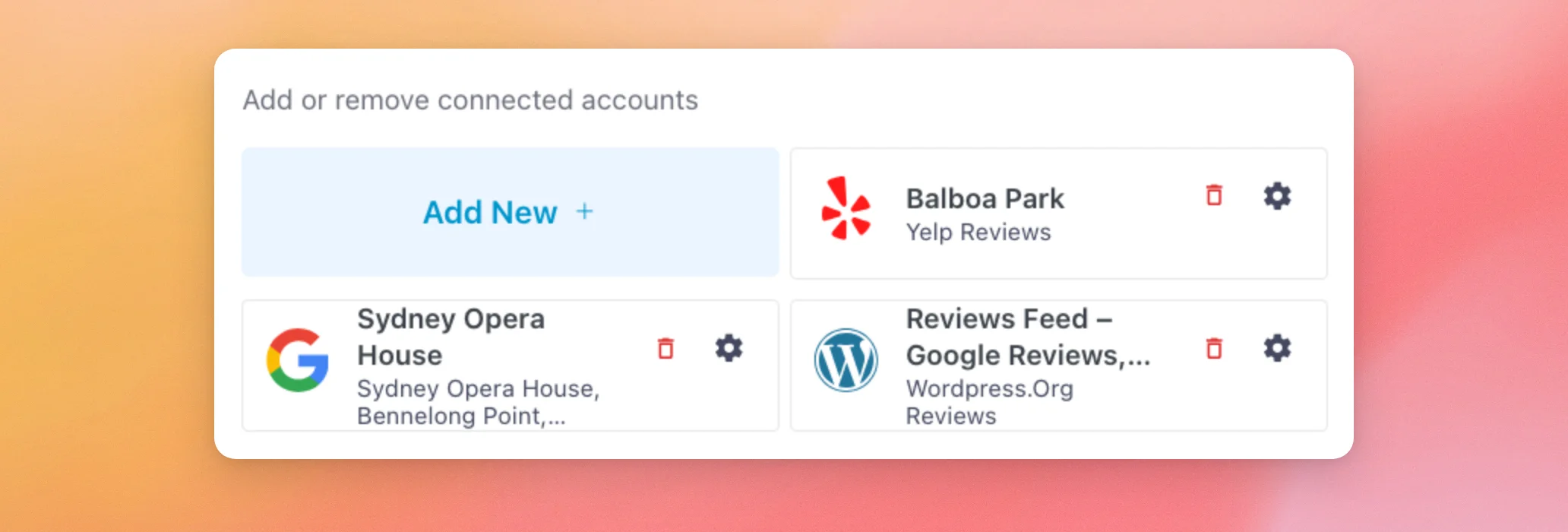
Your new Google and Yelp sources now show up in the Manage Sources list.
Now that both sources are added, let’s look at the limits that apply without an API key.
What Are the Limits Without an API Key?
Without your own key, Reviews Feed connects to Google and Yelp for you. Because of Google’s and Yelp’s API pricing, the number of sources you can add this way is limited.
We’ll start with the limits in the paid version.
Limits in the Paid Version
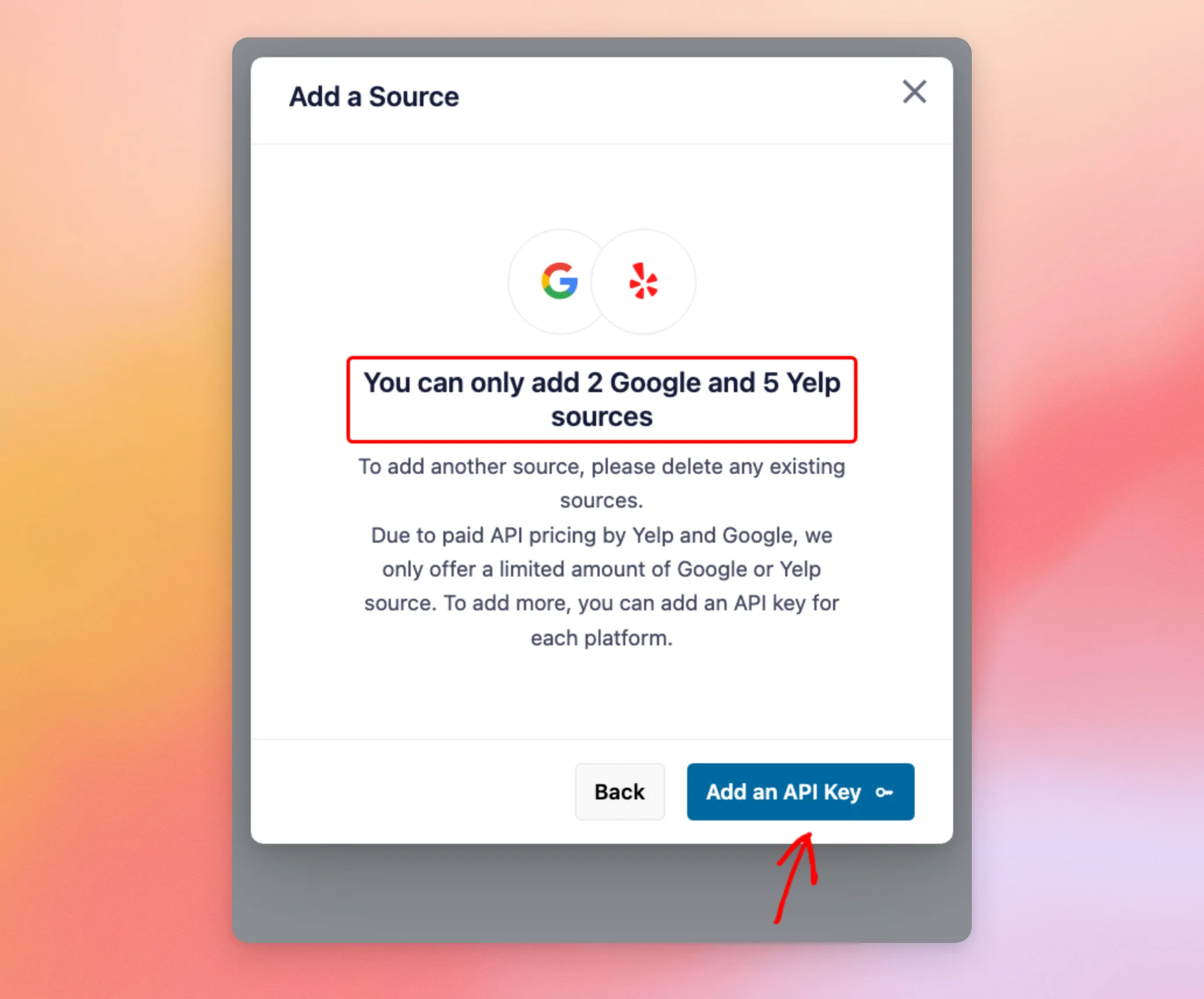
In the paid version of Reviews Feed, you can add up to two Google sources and five Yelp sources without an API key. Because of the same API pricing, Reviews Feed updates these sources once a week.
Trying to add a third Google source or a sixth Yelp source opens the limit window instead of the Add Source Details step.
To add more sources, click Add an API Key. You can also delete a source you no longer need from the Manage Sources list.
If you don’t have a key yet, see the Deciding When to Add an API Key section below for our key guides.
Next, let’s look at the limits in the free version.
Limits in the Free Version
In the free version, Reviews Feed first asks you to verify your email address. This confirms it’s you. After that, you can add one source without an API key, from either Google or Yelp.
Reviews Feed then fetches the latest ten reviews for that source. To fetch more reviews, you can add an API key or upgrade to a paid license.
To compare the two versions, see our guide on the differences between Reviews Feed free and paid.
Next, let’s look at when it makes sense to add an API key.
Deciding When to Add an API Key
You don’t need an API key to show Google or Yelp reviews. A key is worth adding when you want your reviews to update more often, or when you need more sources than the limits above.
Each key only covers its own platform. A Google key lifts the limit for Google sources. A Yelp key lifts the limit for Yelp sources.
To create a key and add it to Reviews Feed, see our guides on creating a Google API key and creating a Yelp API key.
That’s it! You’ve added Google and Yelp sources to Reviews Feed without an API key.
Next, to show these reviews on your site, see our guide on creating a reviews feed.
Frequently Asked Questions
Below, we’ve answered some of the most common questions about Google and Yelp sources without an API key.
Do I need an API key to show Google or Yelp reviews?
No. In the paid version, you can add up to two Google sources and five Yelp sources without a key. They update once a week. In the free version, you can add one Google or Yelp source after you verify your email address.
If I add a Google API key, does it also lift the Yelp limit?
No. A Google key only lifts the limit for Google sources. Your Yelp sources keep their own limit until you add a Yelp key. We cover this in the Deciding When to Add an API Key section above.
What happens when I delete a source to make room for another one?
Reviews Feed asks you to confirm before it deletes the source. The reviews stored for that source are deleted with it. Once the source is gone, you can add a new one in its place.
Why does the free version ask me to verify my email?
Reviews Feed checks that it’s you before you add a Google or Yelp source without a key in the free version. The verification window says it takes less than two minutes. If you add your own Google or Yelp API key instead, you can add a source from that platform without verifying your email.
Why do I only see a few reviews from my Google or Yelp source?
In the free version, Reviews Feed fetches only the latest ten reviews for your source. We cover this in the Limits in the Free Version section above.
To learn more, see our guide on why you might only see a few reviews.




