Social Wall
  Feed Analytics

How to show Instagram Stories on your site with Instagram Feed Pro, and why they draw more engagement than grid posts.
Instagram Stories are some of the most-watched content on the platform — they sit at the top of every follower’s feed, they disappear after 24 hours, and they get vastly higher engagement than grid posts because of that urgency. The problem is that they only exist inside the Instagram app. Visitors who land on your website never see them. Instagram Feed Pro fixes that: you can show a row of your active Stories on any page of your WordPress site, with the same circular avatars and tap-to-expand lightbox that customers already recognise from Instagram itself.
This guide walks through adding a Stories row to an Instagram feed for the first time.
This feature requires Instagram Feed Pro with a connected Business or Creator account. The Stories option only appears for Business and Creator profiles — Personal Instagram accounts don’t expose Stories data through the API. If you connected a Personal account during setup, you’ll need to convert it to a Business or Creator profile in the Instagram app, then reconnect it under Instagram Feed → Settings → Sources.
Before You Start
Confirm that the Instagram account you want to pull Stories from is connected as Business or Creator. Go to Instagram Feed → Settings → Sources and check the badge next to your account name — it should read “Business Basic” or “Business Advanced” (not “Personal”).
You’ll also need at least one active Story on the account before you can preview the feed in the customizer. Stories expire after 24 hours, so if it’s been a quiet day on the account, post a quick story before continuing.
Step 1. Create a New Feed
From the WordPress admin sidebar, click Instagram Feed → All Feeds. To create a new feed, click the Add New button in the top-right.
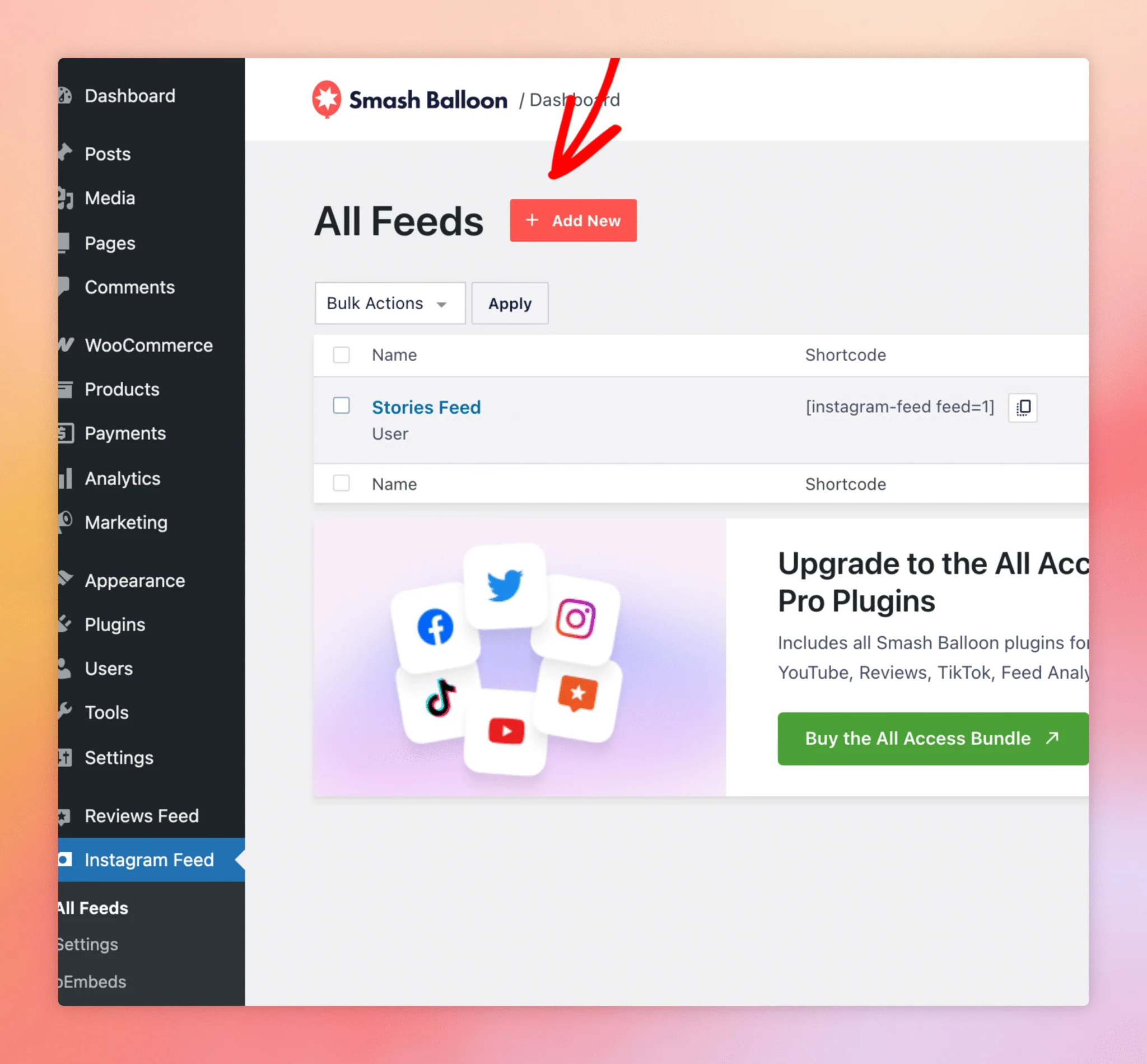
Step 2. Pick the User Timeline Feed Type
Instagram Feed Pro builds Stories on top of a regular User Timeline feed — Stories appear as a row at the top of the feed, not as a separate feed type. So pick User Timeline from the feed-type picker, then click Next.
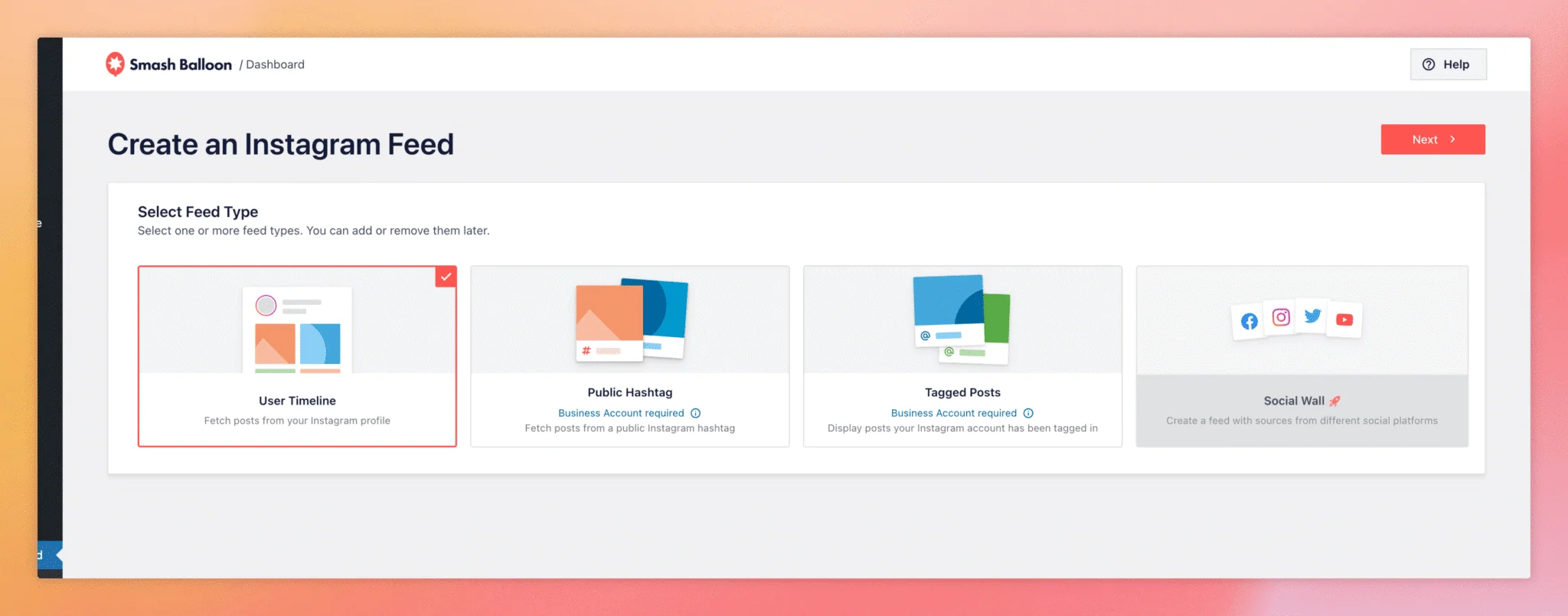
On the next screen, select your Business or Creator account as the source and click Next again to create the feed and open it in the customizer.
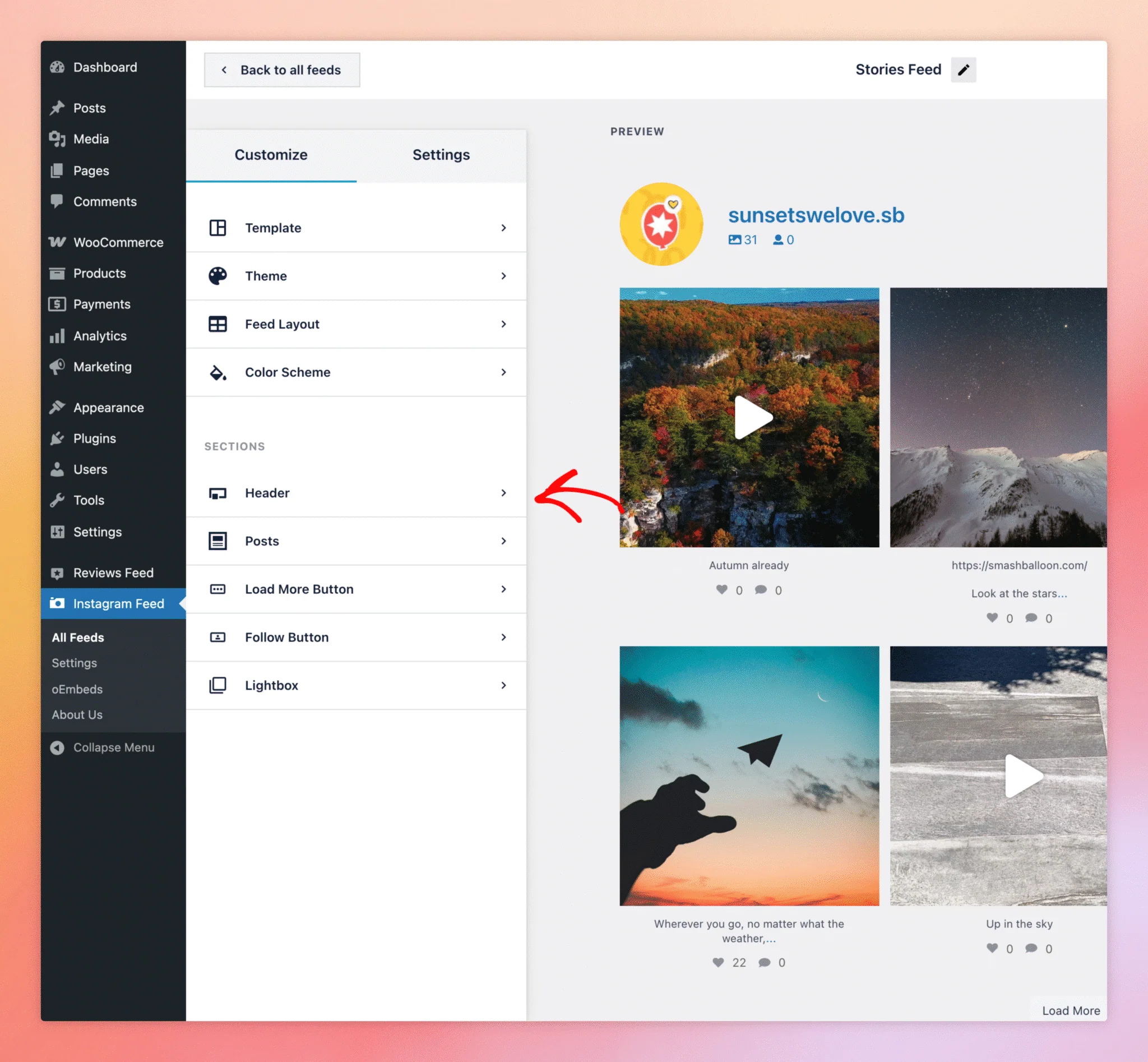
Step 3. Open the Header Section
The Stories toggle lives inside the Header section of the customizer sidebar — the same panel where you’d configure the account avatar, follower count, and bio that show above the feed. Click Header in the left sidebar.
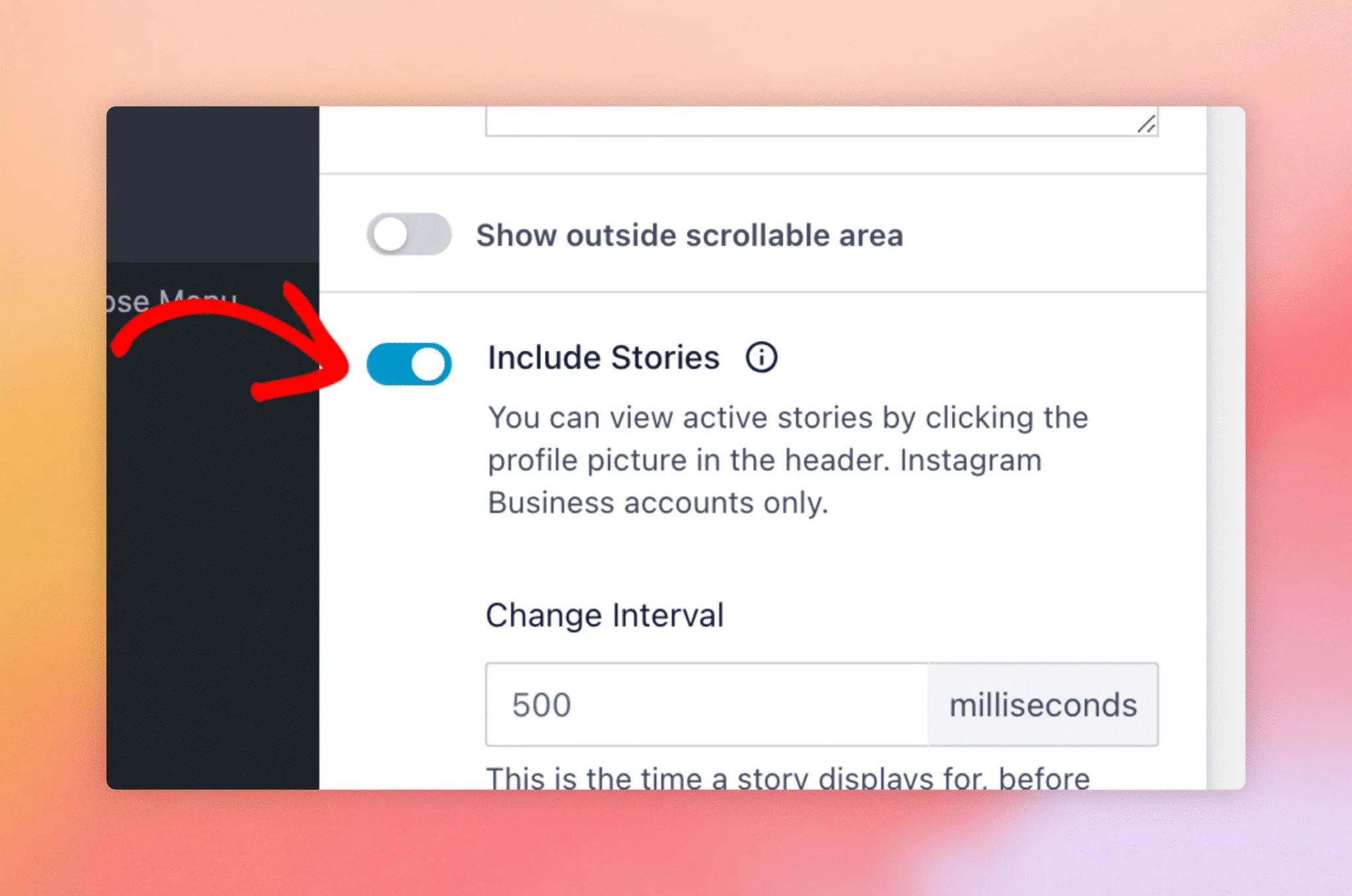
Step 4. Enable the Stories Row
Inside the Header section you’ll find the Show Stories toggle along with sizing, count, and styling options for the Stories row. Switch the toggle on and the preview pane updates immediately — you should see a row of circular Story avatars appear above the feed.
Save the feed with the Update button in the top-right of the customizer, then embed it on a page using the Embed button. The recommended way is via the Instagram Feed block — click Add to a Page to launch the WordPress block editor with the block already inserted. The shortcode (e.g., [[instagram-feed feed=1]]) is also available for legacy themes or the Classic Editor.
Why don’t I see the Stories toggle in my customizer?
Stories require a connected Instagram Business or Creator account. Personal accounts don’t have access to the Stories API, so the toggle is hidden when the feed’s source is a Personal profile.
Will Stories from accounts I tag also appear?
No. Only Stories posted by the connected account itself show up in the feed. Tagged Stories from other accounts are not accessible through the Instagram API.
How long do Stories stay in the feed?
The same 24 hours they exist on Instagram. Once a Story expires on Instagram, Instagram Feed Pro removes it from your site automatically on the next data refresh.
Can I show Stories from multiple Instagram accounts in one feed?
Yes — add multiple Business or Creator accounts as sources for the same feed, and the Stories row will combine active Stories from all of them.
Do Stories tap to expand like they do on Instagram?
Yes. Clicking a Story circle opens it in a full-screen lightbox with the same swipe-through experience customers see on the app.