


 Social Wall
 Feed Analytics


How to change your Smash Balloon account password, who can access your account, and what to do about a lockout.
Would you like to change your Smash Balloon account password or get back into your account after a lockout?
In this guide, we’ll walk you through changing and resetting a password, who can access your account, and what a lockout means. All you need is your Smash Balloon account login, or access to the account’s email address to reset a password you forgot.
- Changing Your Password
- Resetting a Password You Forgot
- Sharing Access to Your Account
- How Account Lockouts Work
- Getting Help When You Can’t Log In
- Frequently Asked Questions
Changing Your Password
While you’re logged in to your account, you change your password in your profile. If you can’t log in, you reset it from the login page, as the next section explains.
To get started, log in to your Smash Balloon account on the account login page. Then open the Profile section.
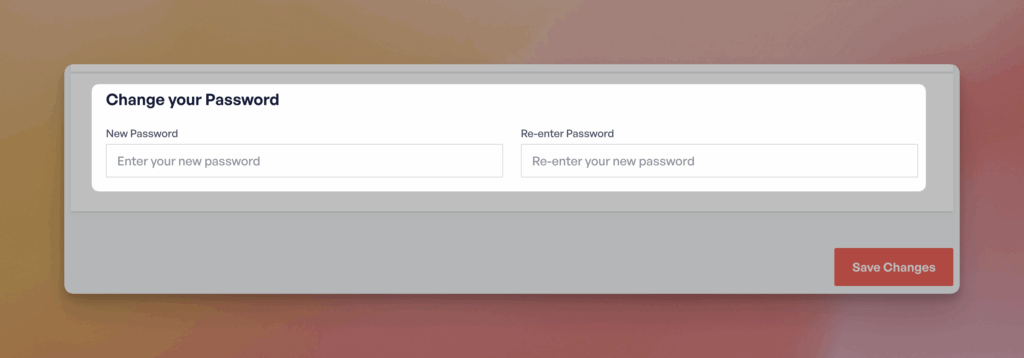
In the Change your Password box, enter your new password in the New Password field and again in the Re-enter Password field. When you’re done, click Save Changes.
If you forgot your password instead, we’ll reset it from the login page next.
Resetting a Password You Forgot
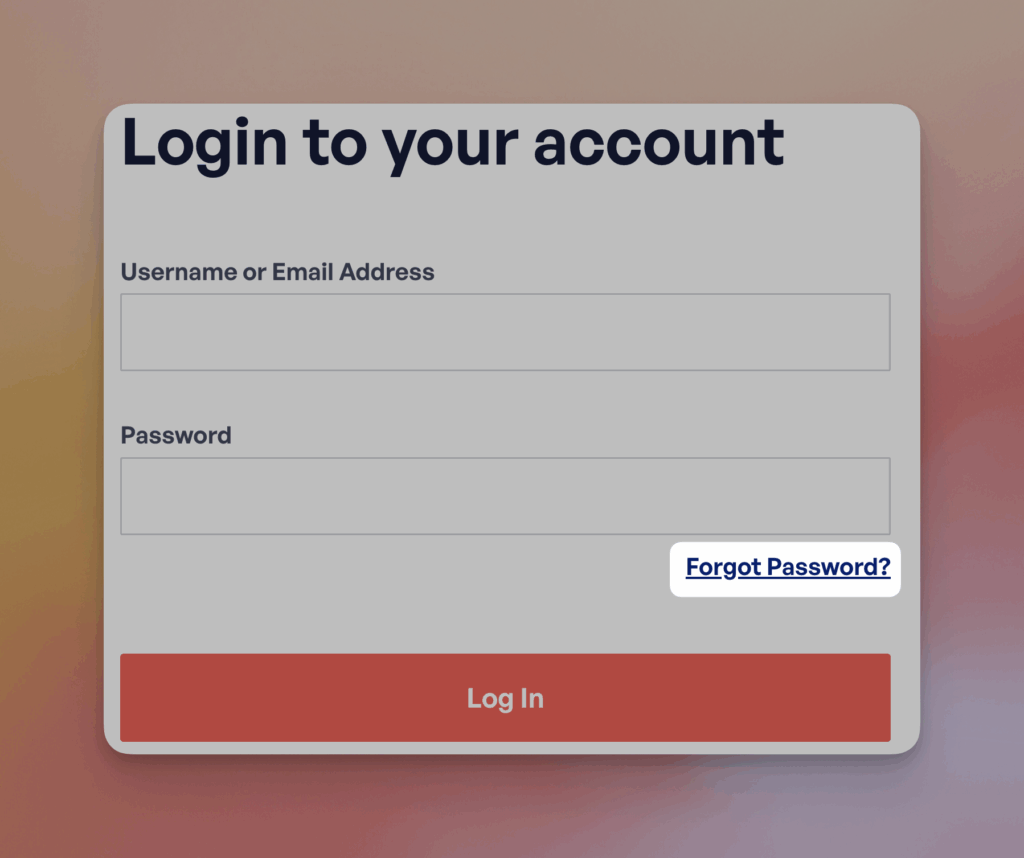
You can reset your password from outside your account too. On the account login page, click the Forgot Password? link below the Password field. We then send the new password to the email address of the account.
If the reset page doesn’t work or the email doesn’t arrive, jump to Getting Help When You Can’t Log In.
Sharing Access to Your Account
Anyone you share your account login name and password with can access your Smash Balloon account. We don’t recommend sharing them. Sharing can happen in these cases.
- More than one IT staff member manages your sites and needs access to the plugin file or other account information.
- The plugin was purchased under your name or email. You’ve asked someone else to build or manage your site and given them access to download the plugin.
To find out who owns a license and how to hand it to someone else, see the Plugin and License Ownership section of our User Accounts guide.
Next, we’ll look at how account lockouts work.
How Account Lockouts Work
To reduce hacking attempts, we limit how many times someone can try to access an account. After too many failed attempts, the account is subject to a lockout.
A lockout temporarily blocks the IP address, which is the location the login attempts come from. Resetting the password doesn’t fix it. The address itself is blocked.
If more attempts keep failing, the next steps are stricter.
- Attempts from a different IP address get that address blocked too.
- The length of the lockout increases.
- Eventually the account itself is locked down, no matter which IP address the request comes from.
To reduce the chance of a lockout, check these before you try again.
- Caps Lock must be off, because passwords are case sensitive.
- Any password auto-fill tool on your computer must be switched off, because it can insert an old saved password into the field.
- The Forgot Password? link on the login page gets you a new password by email, so you don’t have to guess.
If you’re already locked out, the next section explains what to do.
Getting Help When You Can’t Log In
If your account is locked, or the reset page itself fails, we can reset the password for you. To do this, open a support ticket and ask for a password reset.
You can still get your plugin without logging in. The purchase receipt email we sent after your purchase carries direct download links. To find it, search your inbox for that email.
That’s it! You now know how to change or reset your password and what to do about a lockout. Next, see our User Accounts guide to learn how accounts and license ownership work.
Frequently Asked Questions
Below, we’ve answered some of the most common questions about passwords and lockouts.
Why doesn’t resetting my password fix a lockout?
A lockout blocks the IP address your login attempts come from. A new password can’t be used from a blocked address. If you’re locked out, see Getting Help When You Can’t Log In.
Can I download my plugin if I can’t log in?
Yes. The purchase receipt email has direct download links for the plugin. If you can’t find it, contact us and we’ll send fresh links.




