


 Social Wall
 Feed Analytics


How the plugin protects page speed, starting with caching API responses so it does not request videos on every visit.
Would you like to show YouTube videos on your site without slowing down your pages?
YouTube Feed is built to have as little effect on page speed as possible.
This guide covers how the plugin does that, which settings you can change, and how to check whether a caching plugin is getting in the way.
Before you get started, make sure YouTube Feed is installed and activated on your WordPress site.
Here is what we will cover:
- How the Plugin Keeps Page Loads Fast
- Caching Video Data
- Saving Videos as Posts
- Loading Video Players
- Using Caching Plugins
- Frequently Asked Questions
How the Plugin Keeps Page Loads Fast
YouTube Feed loads its CSS and JavaScript files only on pages that show your videos, such as a page with a feed. Other pages don’t load these files. The main CSS and JavaScript files are minified to keep them small.
The plugin also caches your video data, saves videos as posts after the page loads, and waits to load the video players. Each of these is covered below.
Caching Video Data
When the plugin asks YouTube for your videos, it saves the result. Visitors then see the saved copy. Your site doesn’t contact YouTube on every page view.
The plugin refreshes this saved copy on a schedule, in the background. By default, it does this every hour. That keeps new videos coming into your feed. Visitors still see the saved copy in the meantime.
To change how often, go to YouTube Feed » Settings. Next, click the Feeds tab. Then, choose an option in the Caching box.
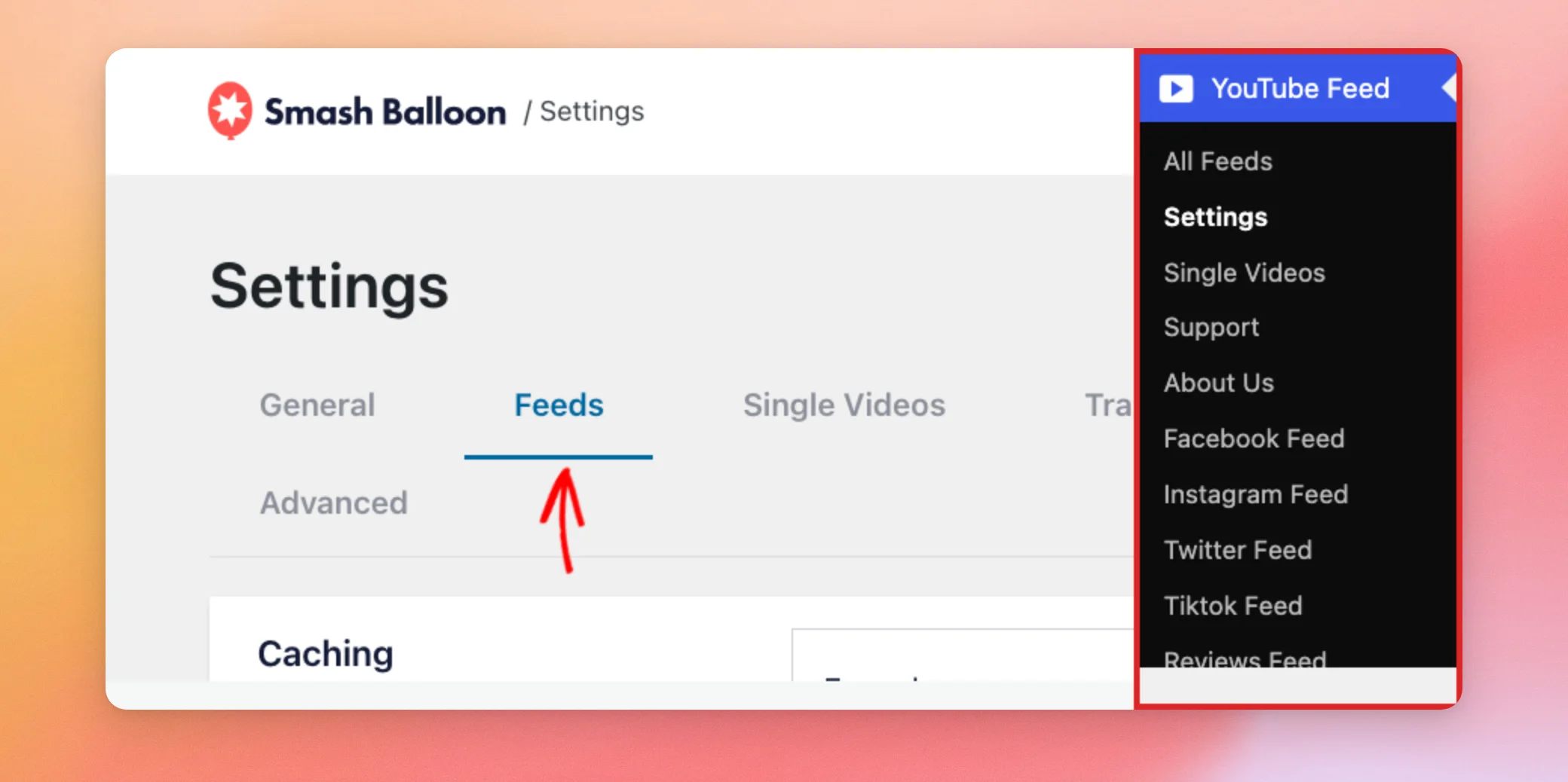
- Every 30 minutes
- Every hour
- Every 12 hours
- Every 24 hours
The background refresh relies on WordPress’s scheduled tasks (WP-Cron). Feeds that haven’t been viewed in 30 days are skipped until someone views them again.
To refresh your feeds right away, click Clear All Caches. This also resets the schedule.
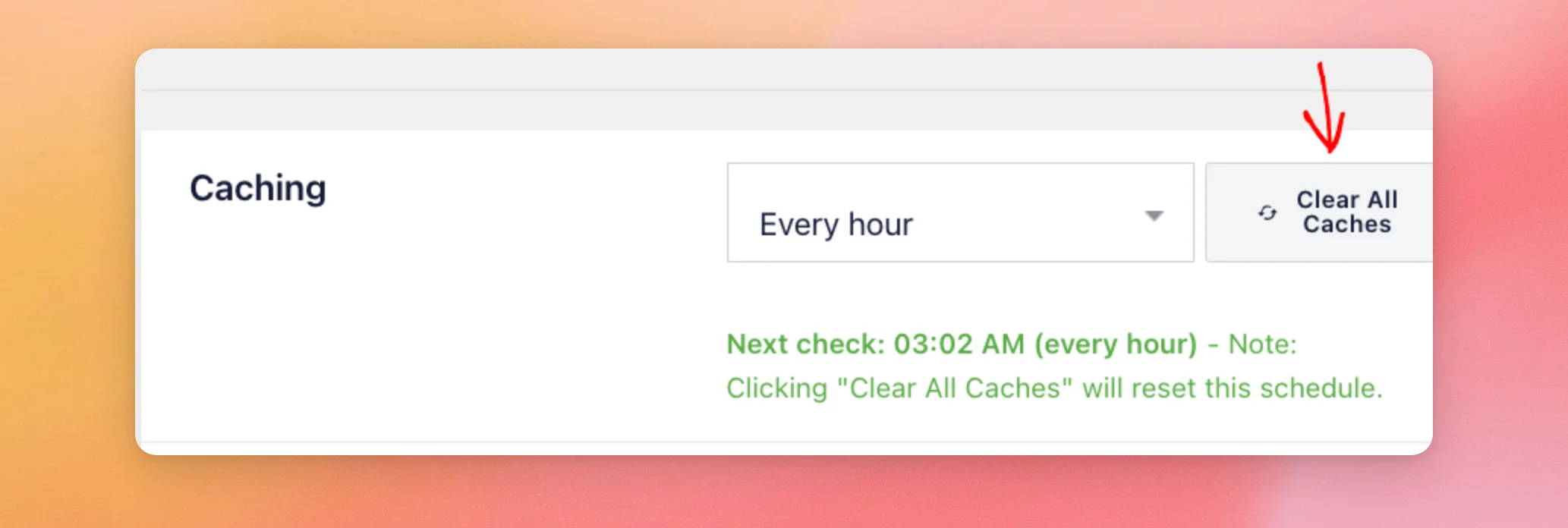
Next, we’ll look at how the plugin saves your videos as posts.
Saving Videos as Posts
By default, after a page has finished loading, the plugin saves each video in your feed as its own post. This works on every license level. Visitors never wait for it. It happens after the page is shown.
These posts are what the Single Videos page works with. Only that page needs the plus license level or higher.
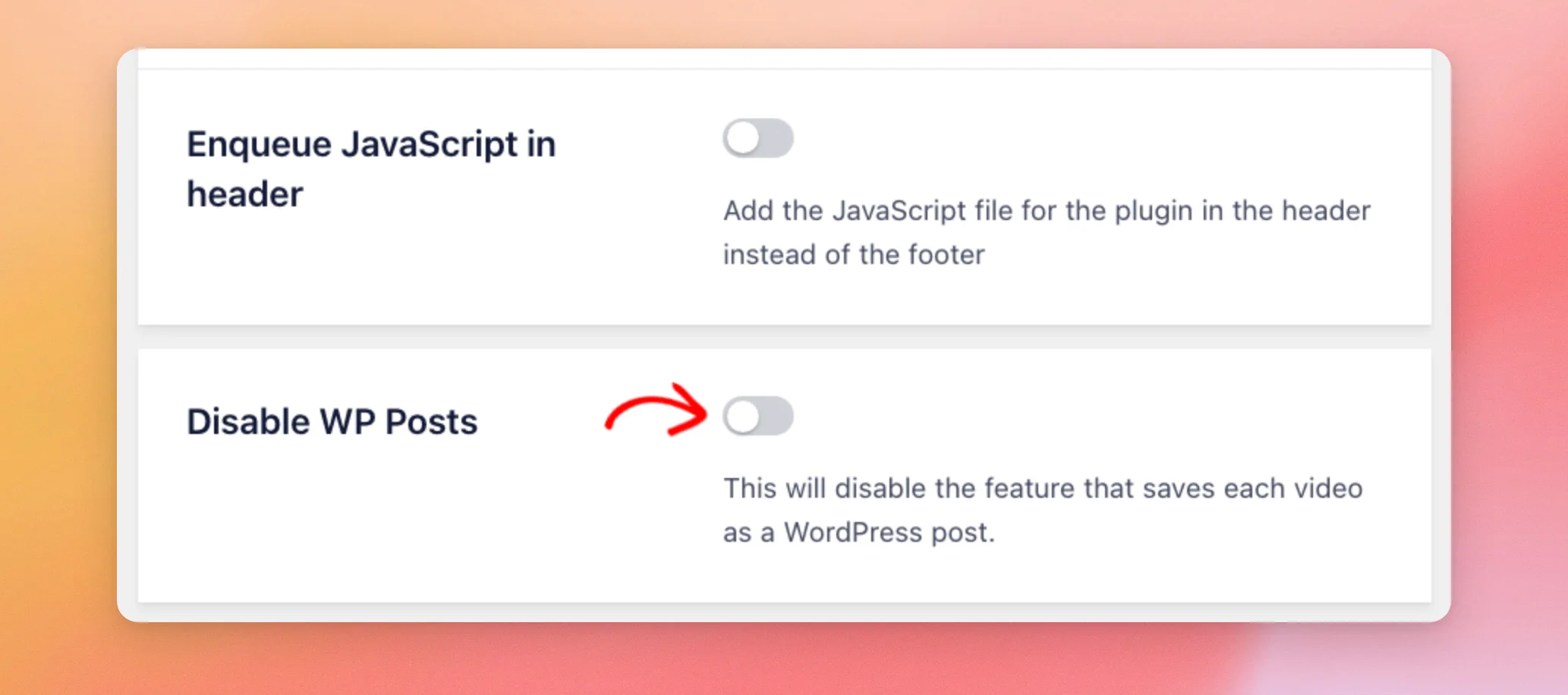
If you don’t want the plugin to save videos as posts, the Disable WP Posts setting stops it. This setting is off by default. You only need to change it if you want to stop the posts.
Posts the plugin has already saved stay on your site. Turning this on only stops new ones from being saved.
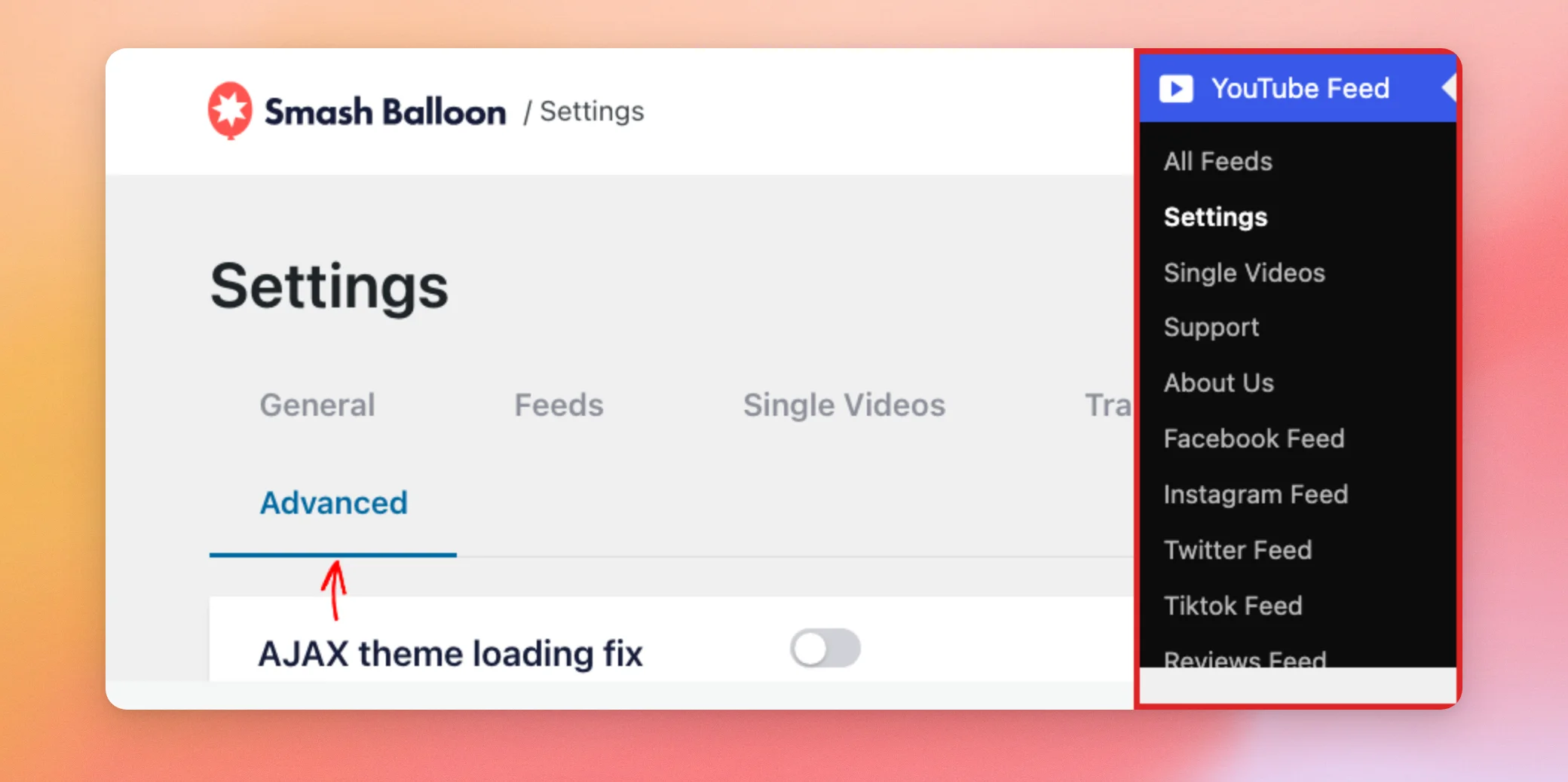
First, go to YouTube Feed » Settings. Then, click the Advanced tab.
Next, turn on Disable WP Posts. This stops the plugin from saving each video as a WordPress post.
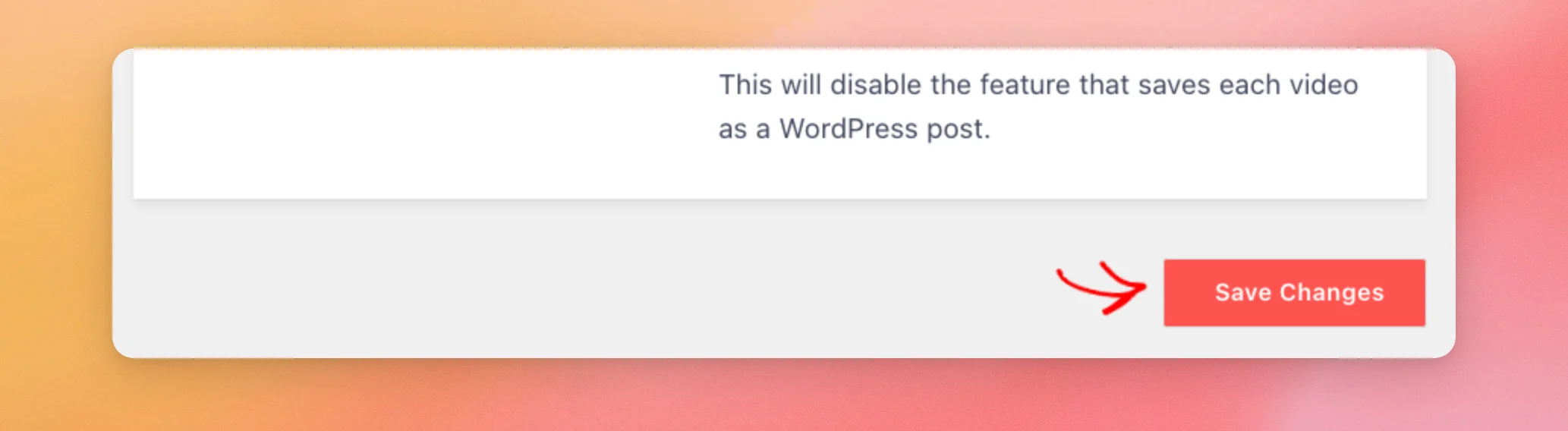
When you’re done, click Save Changes.
Next, we’ll look at when the video players load.
Loading Video Players
YouTube Feed leaves Load iFrames on Page Load off by default. With it off, the YouTube video player doesn’t load until a visitor interacts with the feed. That way, the page opens without loading the player first.
If you’d rather have the players ready on page load, you can change this for each feed. Open your feed in the feed editor. Then, click the Settings tab. Next, click Advanced.
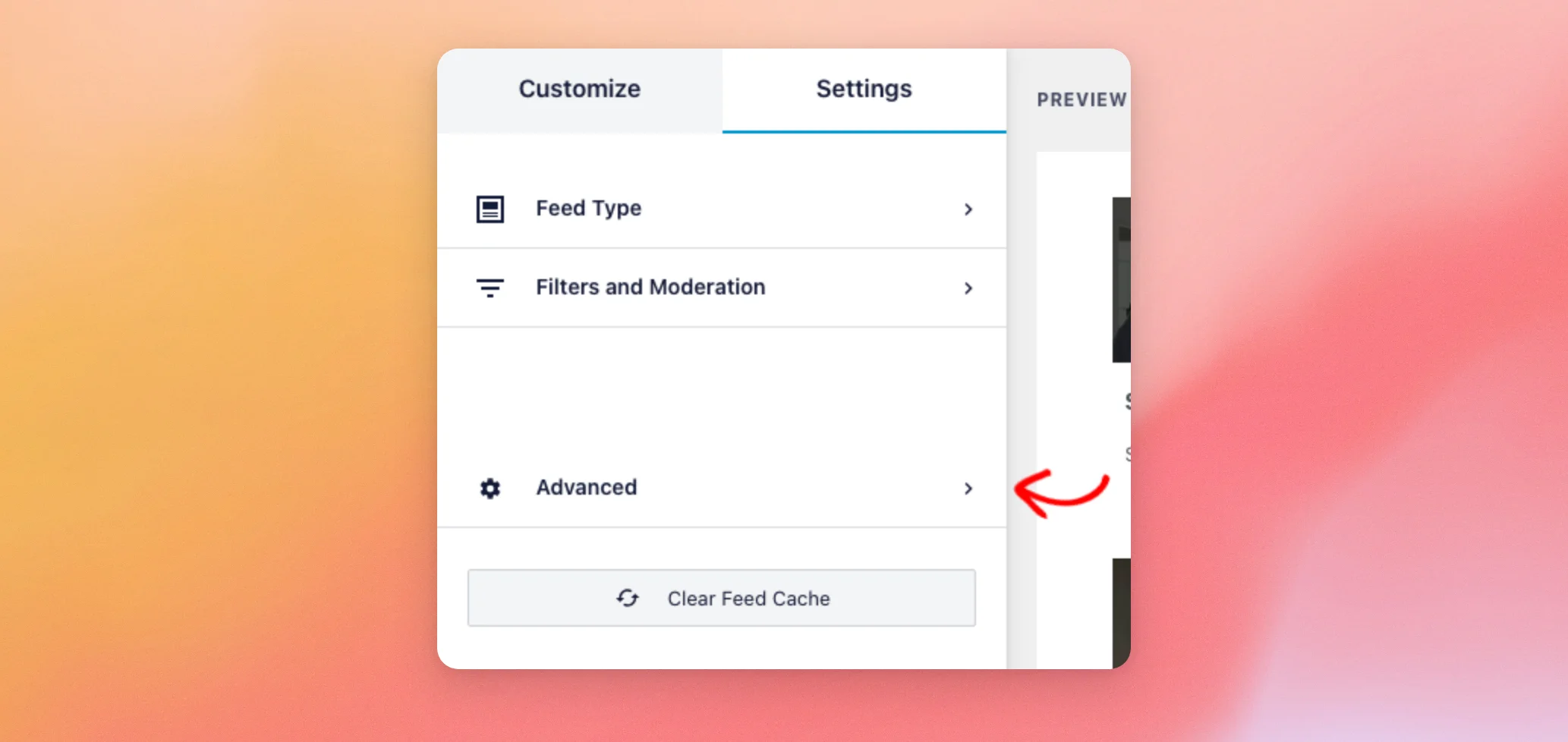
Then, turn on Load iFrames on Page Load.
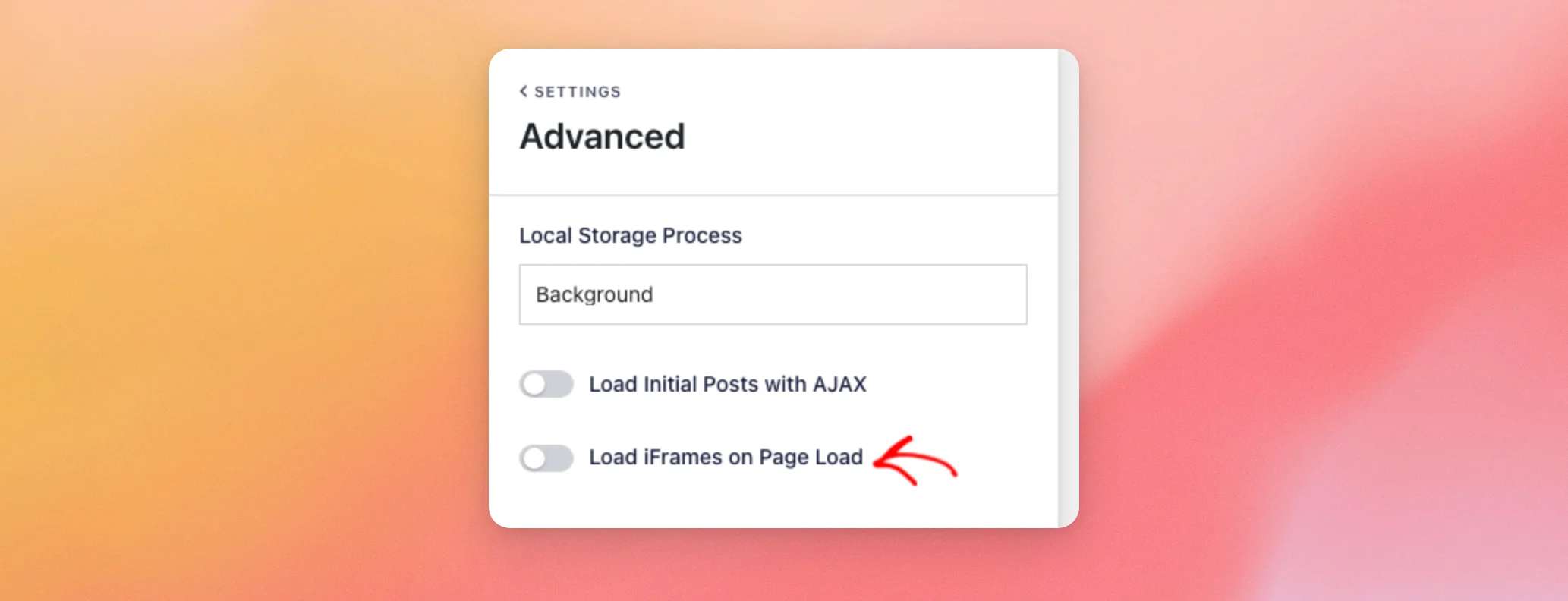
When you’re done, click Save at the top of the feed editor.

The same Advanced section also has the Local Storage Process setting. It controls when videos are saved as posts. Background, the default, saves them after the page loads. Page saves them while the page loads. None doesn’t save them.
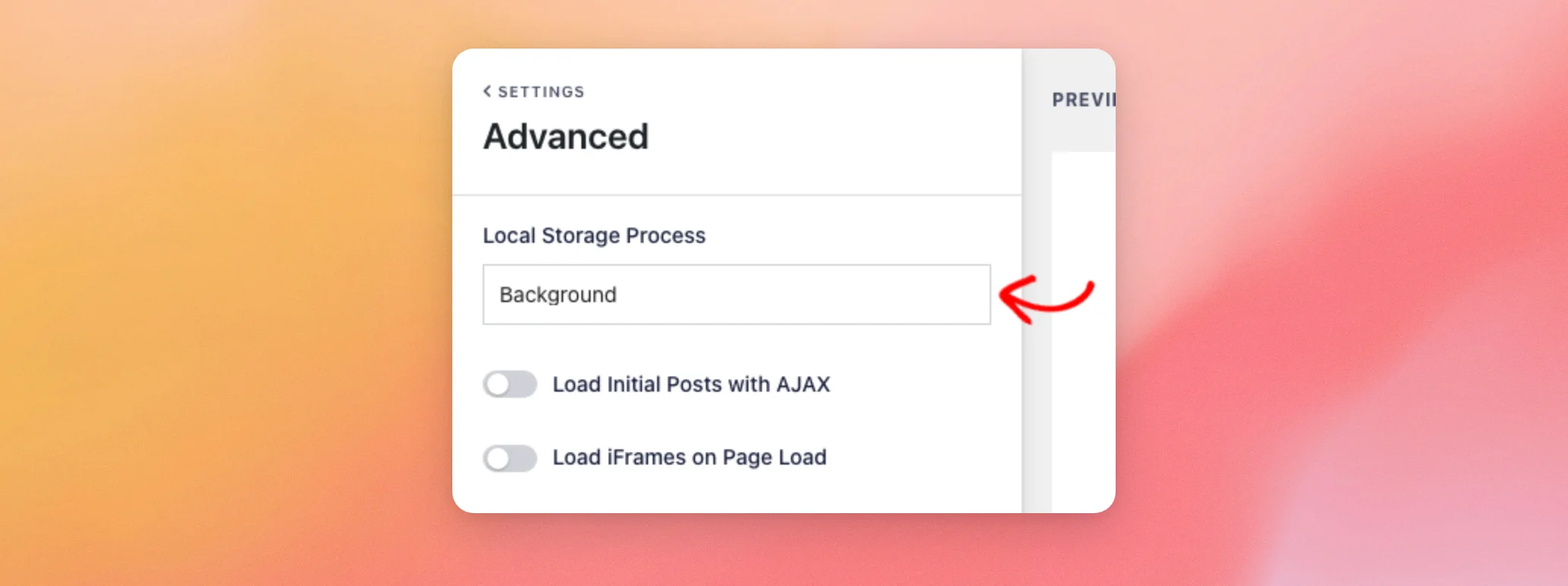
That section also includes Load Initial Posts with AJAX, which is off by default.
Next, we’ll cover what to check if you use a caching plugin.
Using Caching Plugins
YouTube Feed should work with most caching plugins, such as W3 Total Cache. Sometimes, you may need to adjust their settings so your feed can update.
If your feed isn’t updating, turn off page caching or object caching in your caching plugin. Then, check your feed again.
If it updates, the caching plugin was the cause. Next, turn the setting back on. Then, ask the caching plugin’s support how to exclude your feed page.
If the problem remains after that, please contact our support team.
That’s it! You now know how YouTube Feed uses cached videos, posts saved after the page loads, and delayed video players to keep your pages fast. You also know how to check a caching plugin when your feed won’t update. Next, take a look at our guide on YouTube Feed errors if your feed shows a message instead of your videos.
Frequently Asked Questions
Below, we’ve answered some of the most common questions about page speed.
Do I need a paid license for the plugin to save videos as posts?
No. See the Saving Videos as Posts section above.
Will the plugin’s files load on every page of my site?
No. See the How the Plugin Keeps Page Loads Fast section above.
How do I make my feed update right away?
On the Feeds tab of YouTube Feed » Settings, click Clear All Caches. The Caching Video Data section above shows where to find it.




