


 Social Wall
 Feed Analytics


Pro and free are separate plugins. How to check which one is active, and what to do if the Lite version is still installed.
Would you like to switch from a free Smash Balloon feed plugin to the paid version so the new features work on your site?
The free and paid versions are separate plugins. Installing the paid version doesn’t replace the free one. The free plugin can keep running while the new features stay out of reach.
This guide shows you how to check which plugin is active, remove the free plugin and set up the paid one with your license. The screenshots use YouTube Feed, and the Facebook, Instagram, and X (Twitter) feed plugins work the same way.
- Checking Which Plugin Is Active
- Saving Your Settings
- Removing the Free Plugin
- Installing the Paid Plugin
- Activating the Plugin and Your License
- Fixing the Stopped Loading Notice
- Frequently Asked Questions
Checking Which Plugin Is Active
To get started, we’ll check which plugin is running on your site.
In your WordPress dashboard, go to Plugins » Installed Plugins. The paid plugin has “Pro” in its name, for example Feeds for YouTube Pro Elite. The free plugin doesn’t, for example Smash Balloon YouTube Feed.
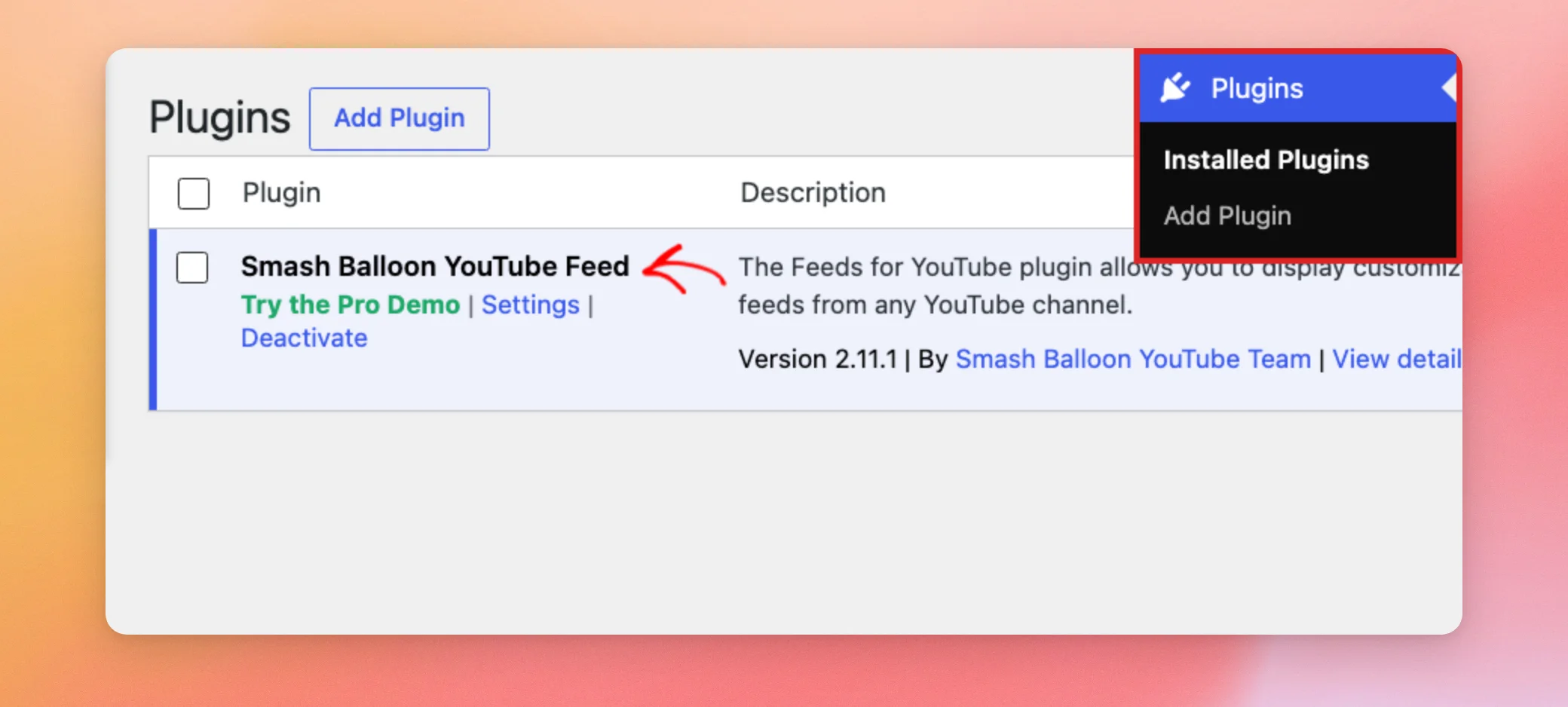
Next, open the plugin’s Settings page. For YouTube Feed, that’s YouTube Feed » Settings. On the free plugin, the dashboard menu also has a green upgrade item.
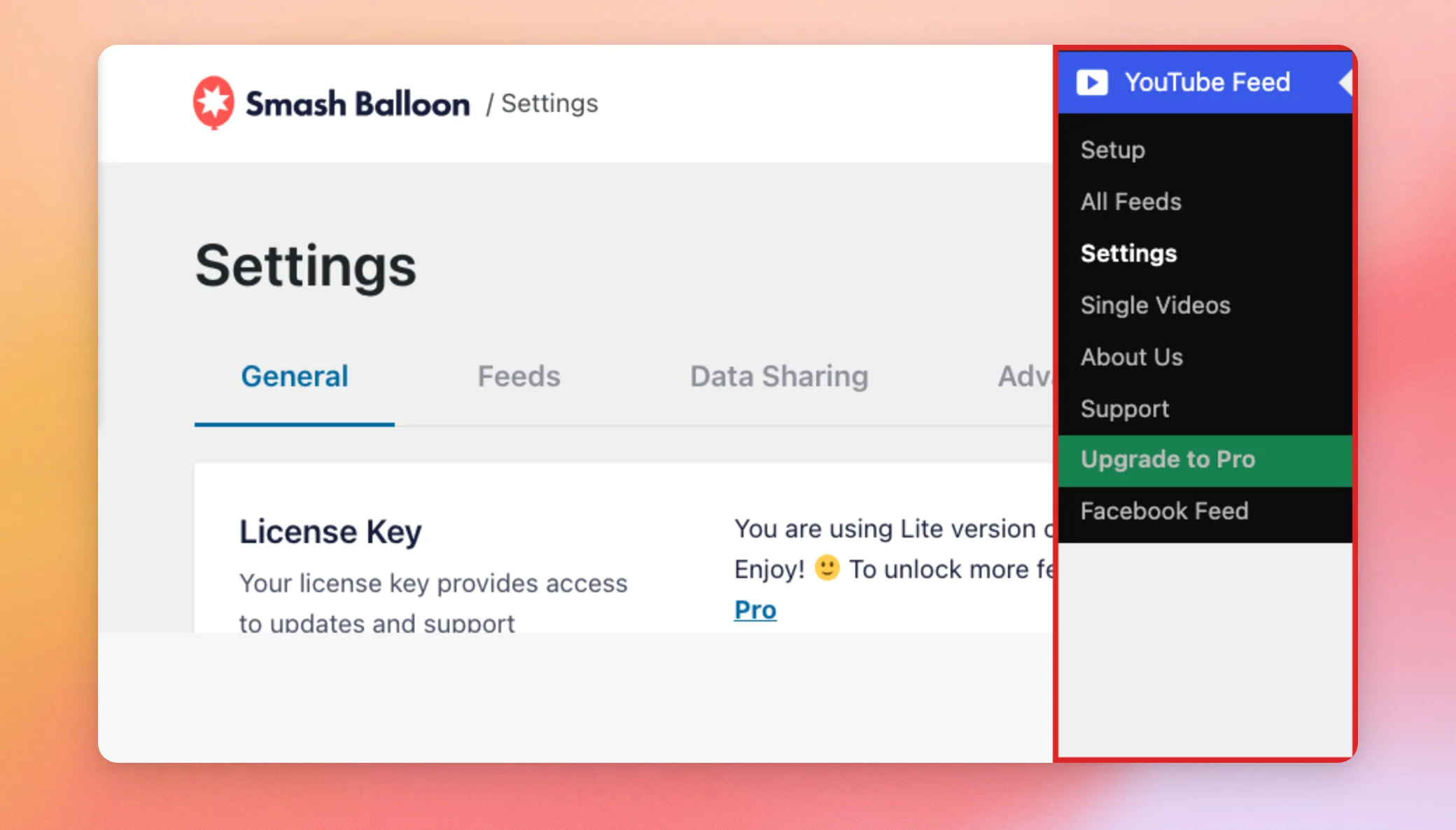
On the General tab, find the License Key box. When the free plugin is active, the box says no license is needed.
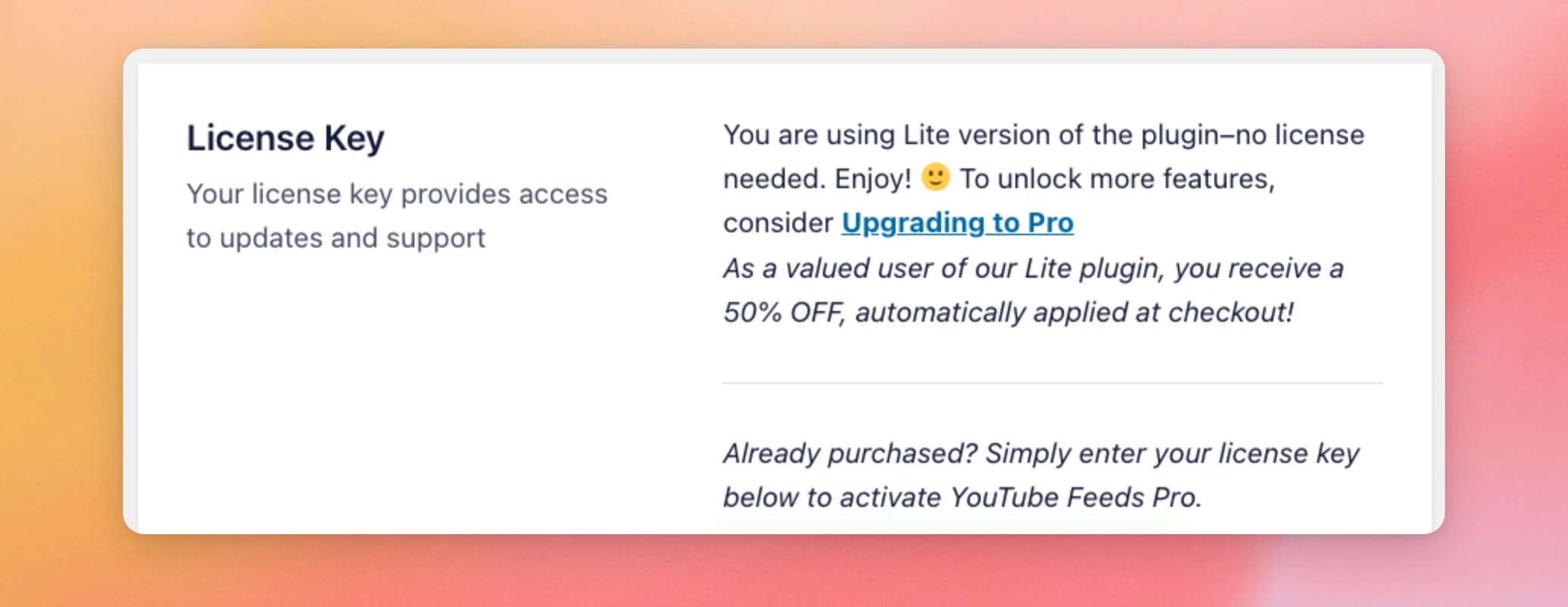
If you see that message, the free plugin is the one that’s running. Keep going with the steps below.
Each plugin has its License Key box and the setting we’ll use next on the General tab of its Settings page. Here’s where to find them.
| Plugin | Where to find it |
|---|---|
| Facebook Feed | Facebook Feed » Settings |
| Instagram Feed | Instagram Feed » Settings |
| X (Twitter) Feed | Twitter Feed » Settings on the paid plugin, Twitter Feeds » Settings on the free plugin |
| YouTube Feed | YouTube Feed » Settings |
Saving Your Settings
Before you remove the free plugin, we’ll turn on a setting that keeps your feeds and settings saved.
On the General tab of the Settings page, scroll down to Preserve settings if plugin is removed. Then, click the toggle to turn it on.
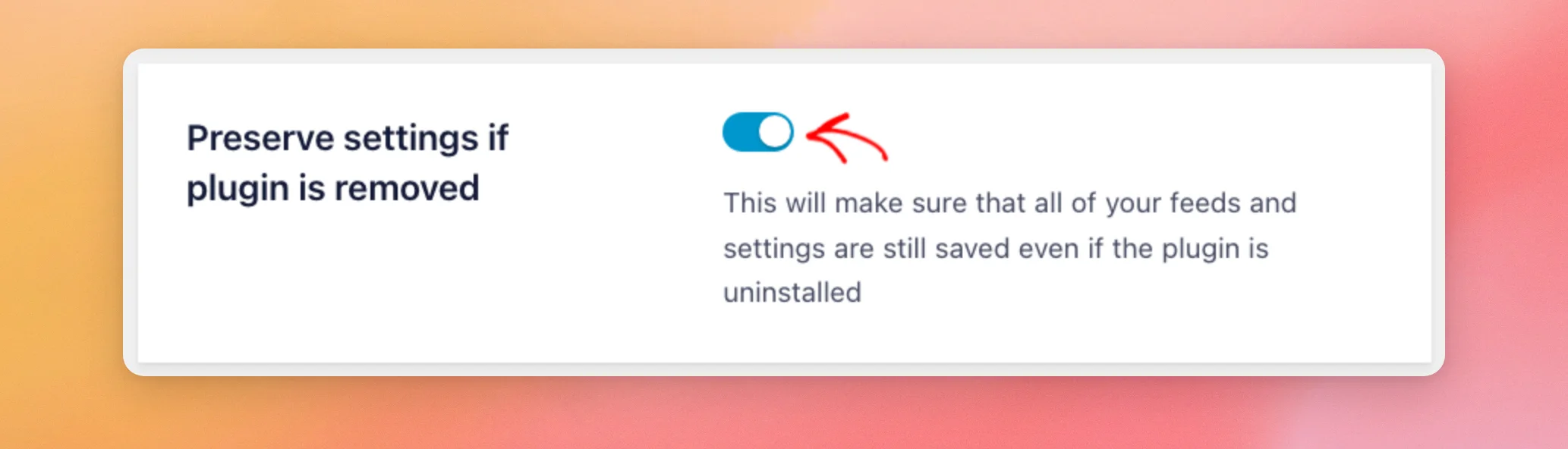
Then, click Save Changes.
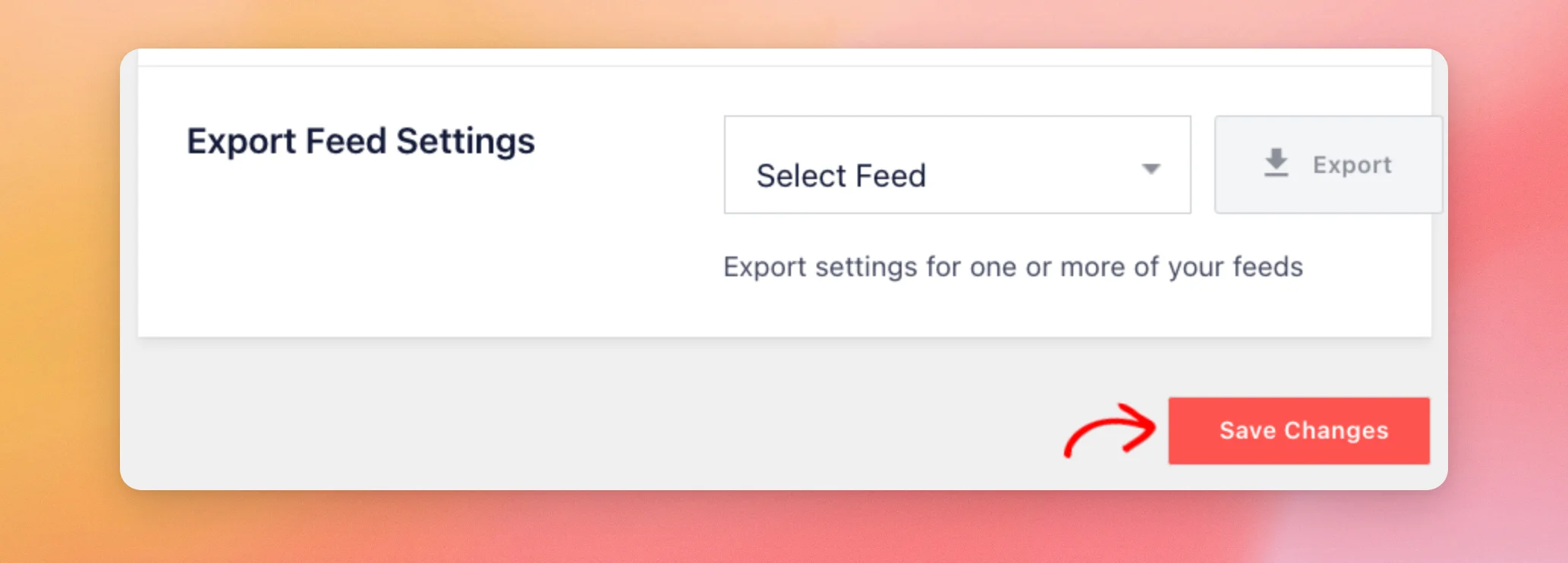
This setting is off by default. Deleting the plugin then cleans up after itself. It removes your feeds and your settings along with it. On YouTube Feed, it also removes your license information. Turning the setting on keeps all of that saved for the paid plugin.
Removing the Free Plugin
Now that your settings are saved, we’ll remove the free plugin.
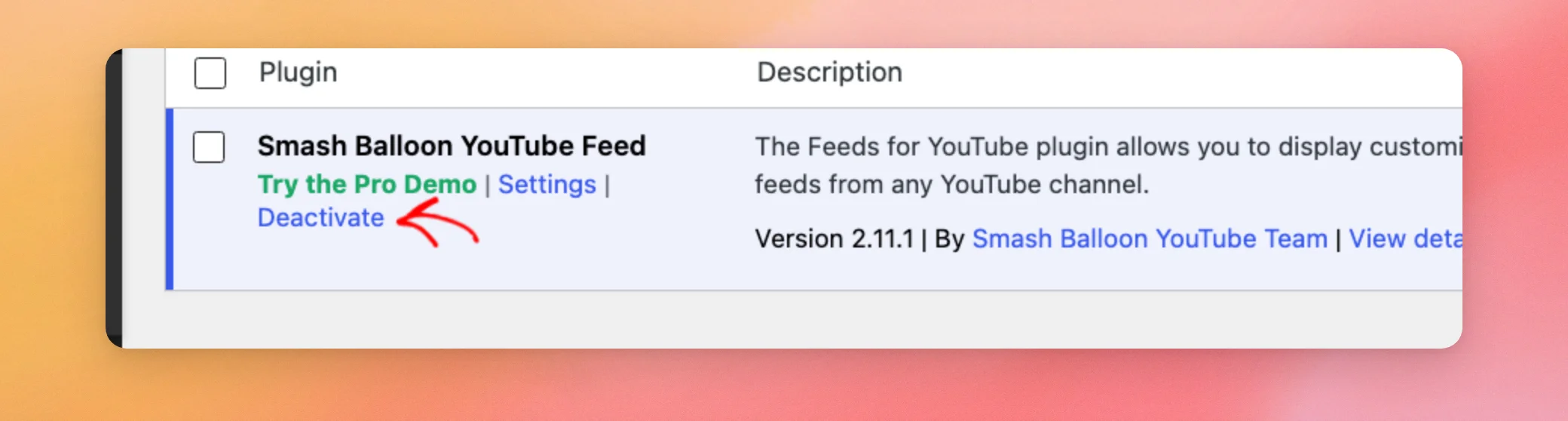
To do this, go to Plugins » Installed Plugins and find the free plugin. Then, click Deactivate.
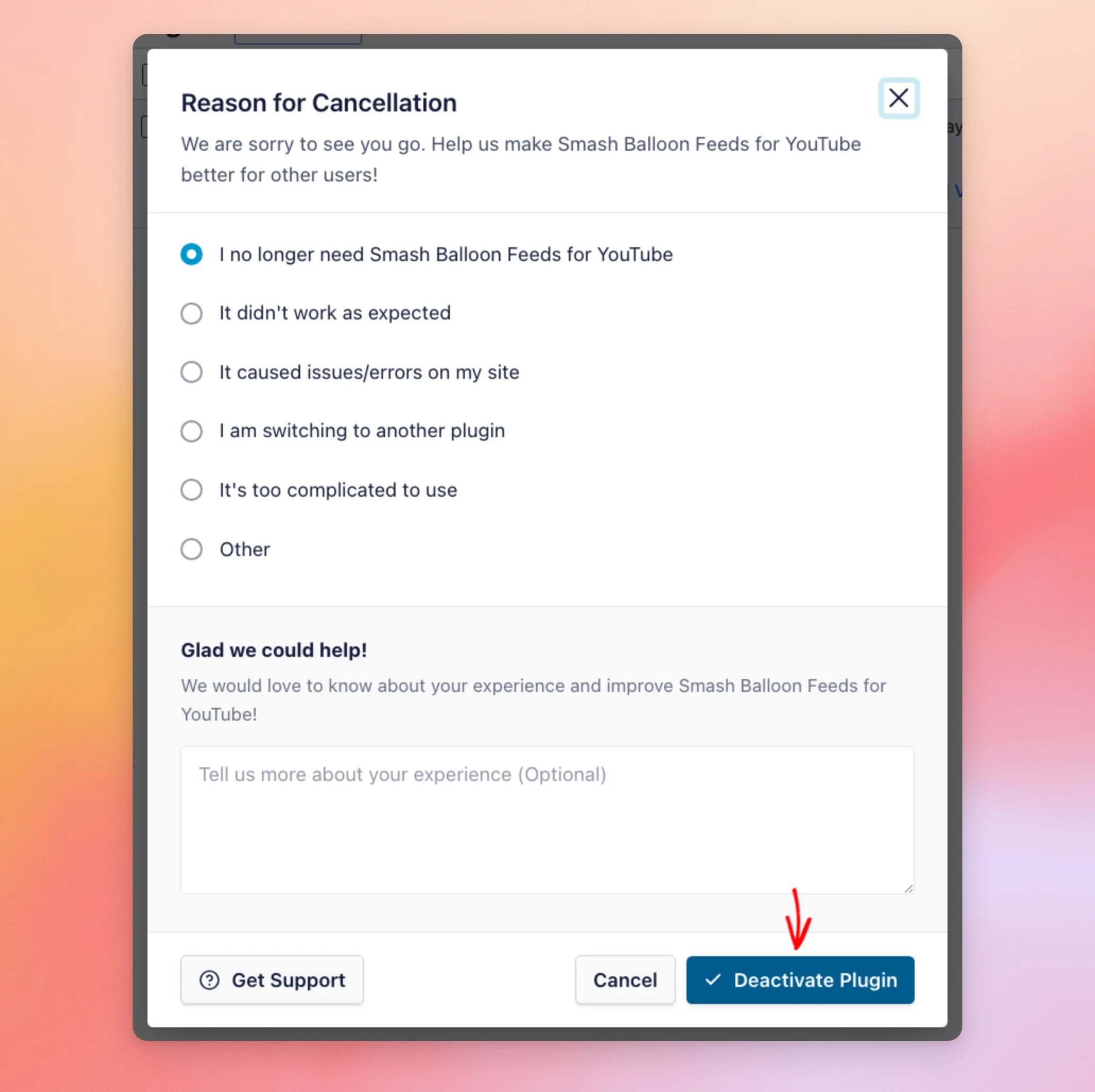
A Reason for Cancellation window opens. A reason is already selected, so you can pick a different one or leave it as it is. Then, click Deactivate Plugin.
Once the plugin is deactivated, click Delete on the same row and confirm.
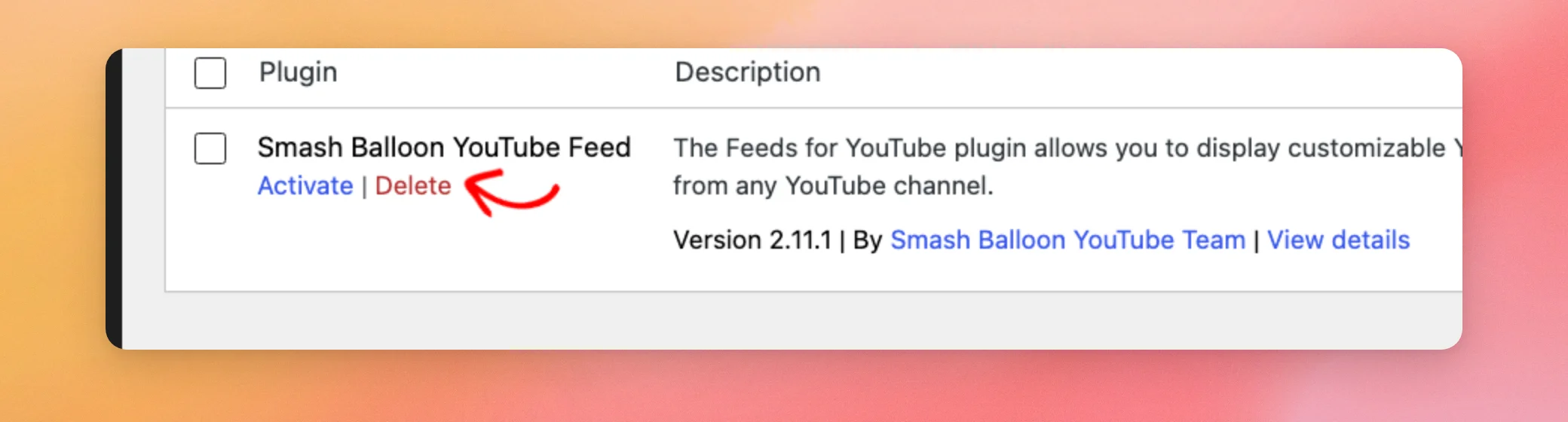
The free plugin is now removed. You’re ready to install the paid one.
Installing the Paid Plugin
Next, we’ll install the paid plugin.
First, log in to your Smash Balloon account and open the Downloads tab. Then, click the download link for your plugin to save its .zip file to your computer. You don’t need to unzip it.
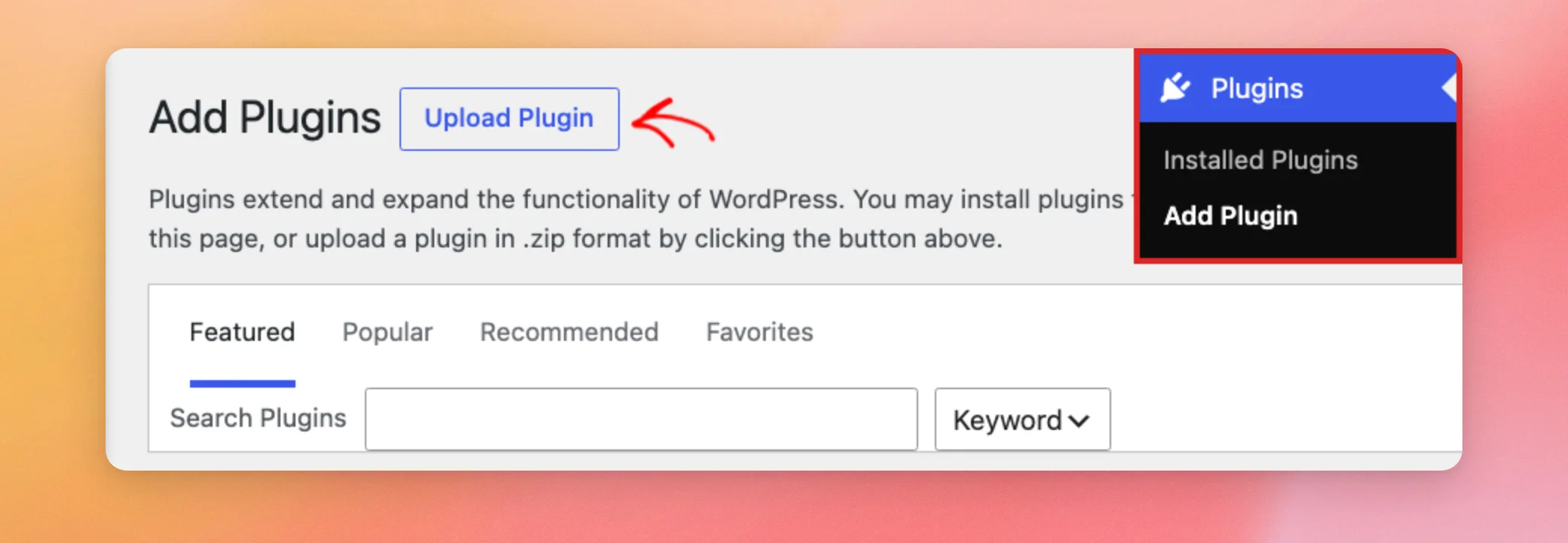
Back in your WordPress dashboard, go to Plugins » Add Plugin. Then, click Upload Plugin.
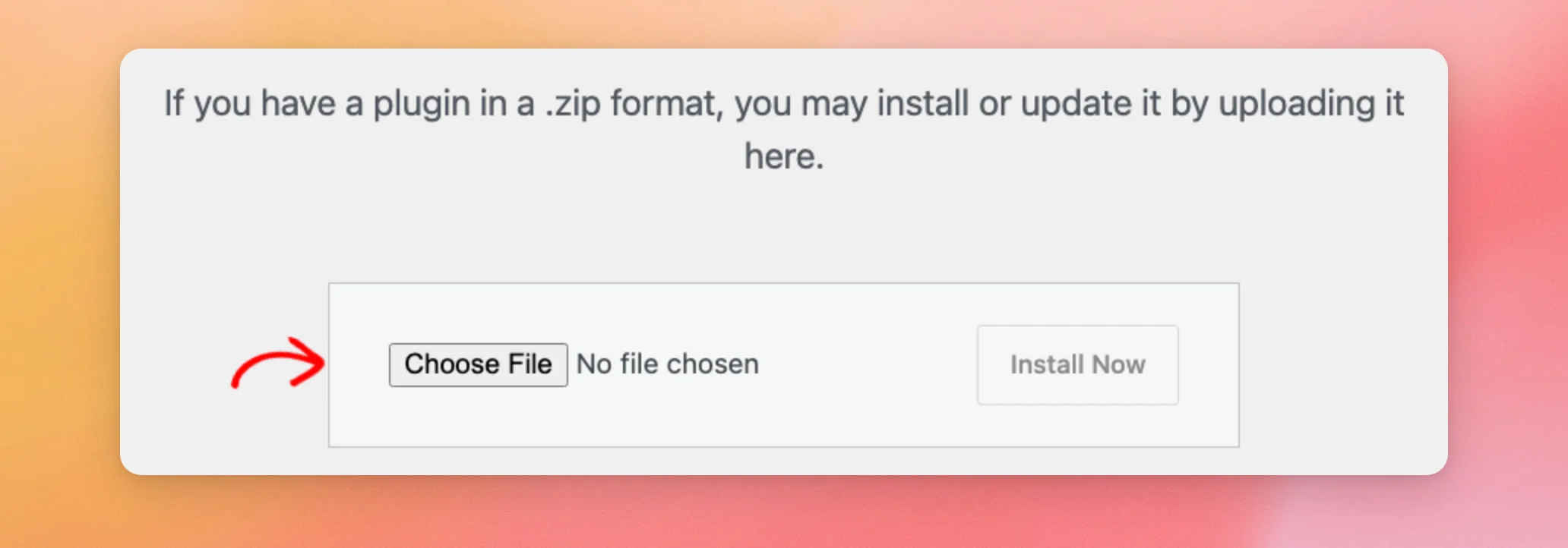
Next, click Choose File and select the .zip file you downloaded.
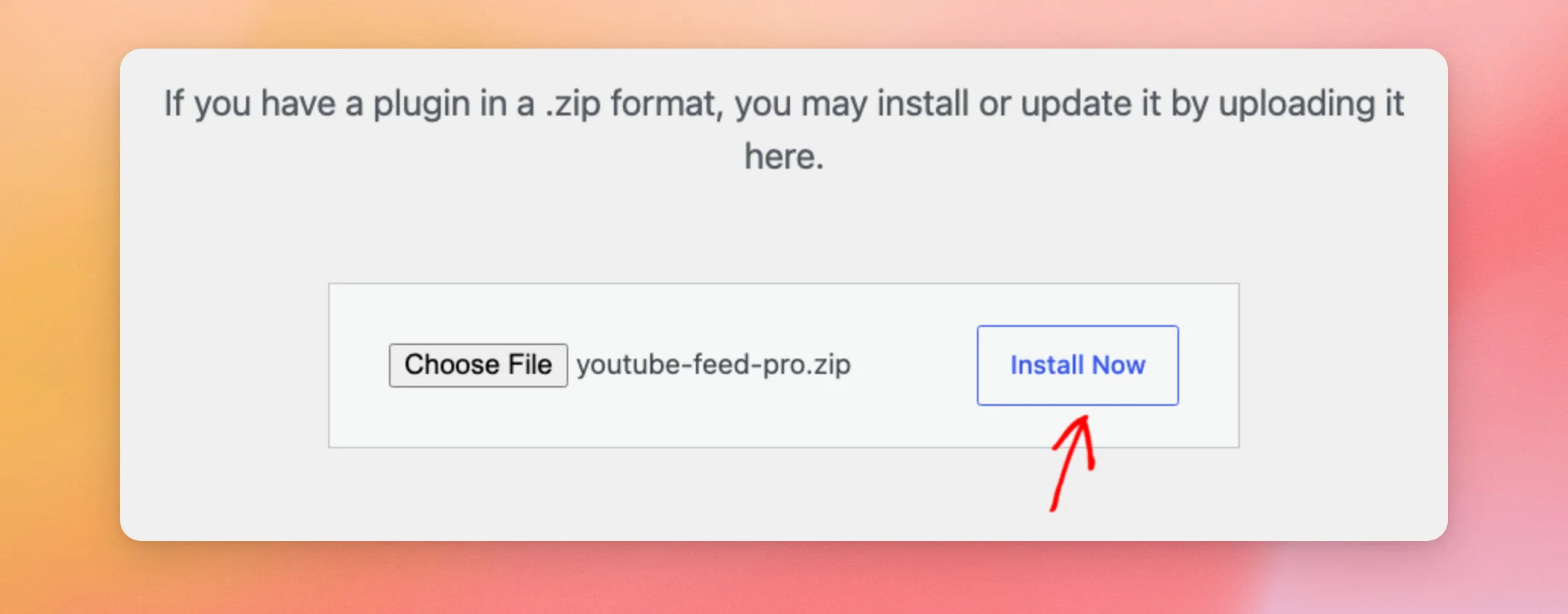
After you pick the file, click Install Now.
Once the installation finishes, you’re ready to activate the plugin and your license.
Activating the Plugin and Your License
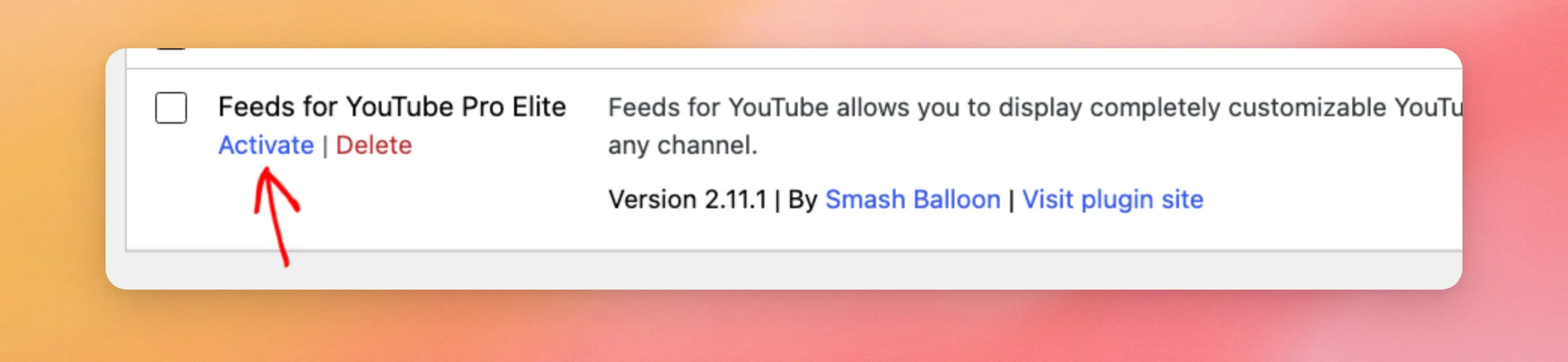
When the installation finishes, click Activate Plugin. You can also go to Plugins » Installed Plugins and click Activate under the paid plugin.
Then, use the table above to find the plugin’s Settings page and open the General tab. In the License Key box, paste your license key into the field and activate it. You can find your key in your Smash Balloon account.
When your license is active, the box says the license is Active.
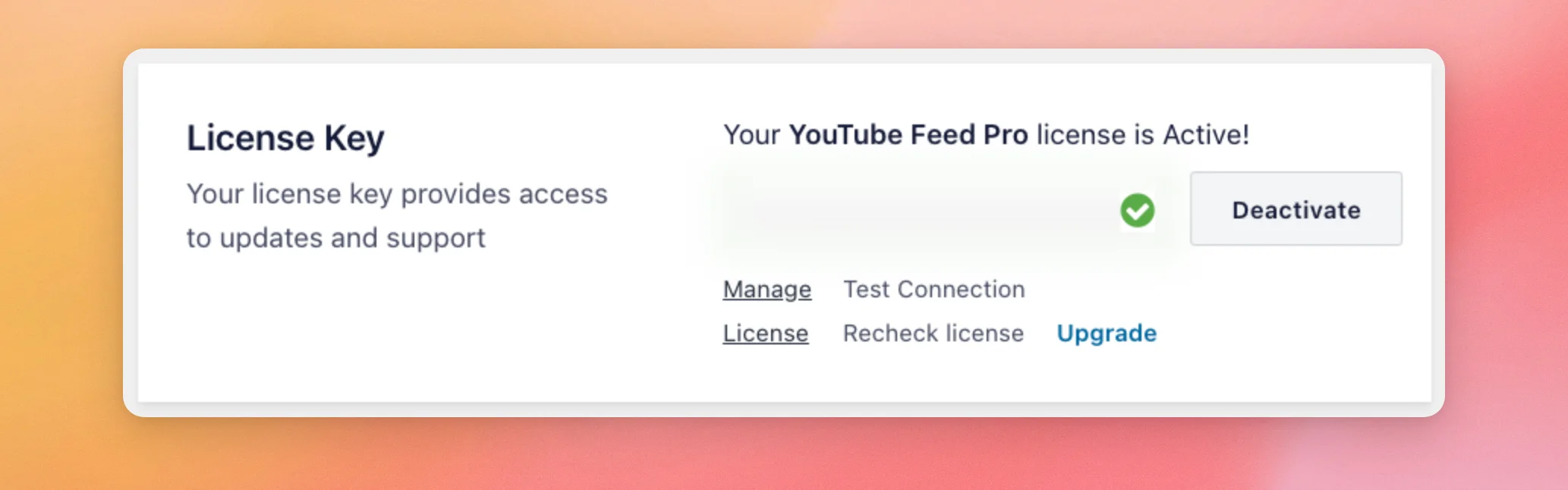
If the license doesn’t activate, see My License Key Won’t Activate. To learn how licenses work, see Licenses Explained.
Last, scroll down to Preserve settings if plugin is removed. If it was on before you removed the free plugin, it’s still on. Your feeds and settings are still there.
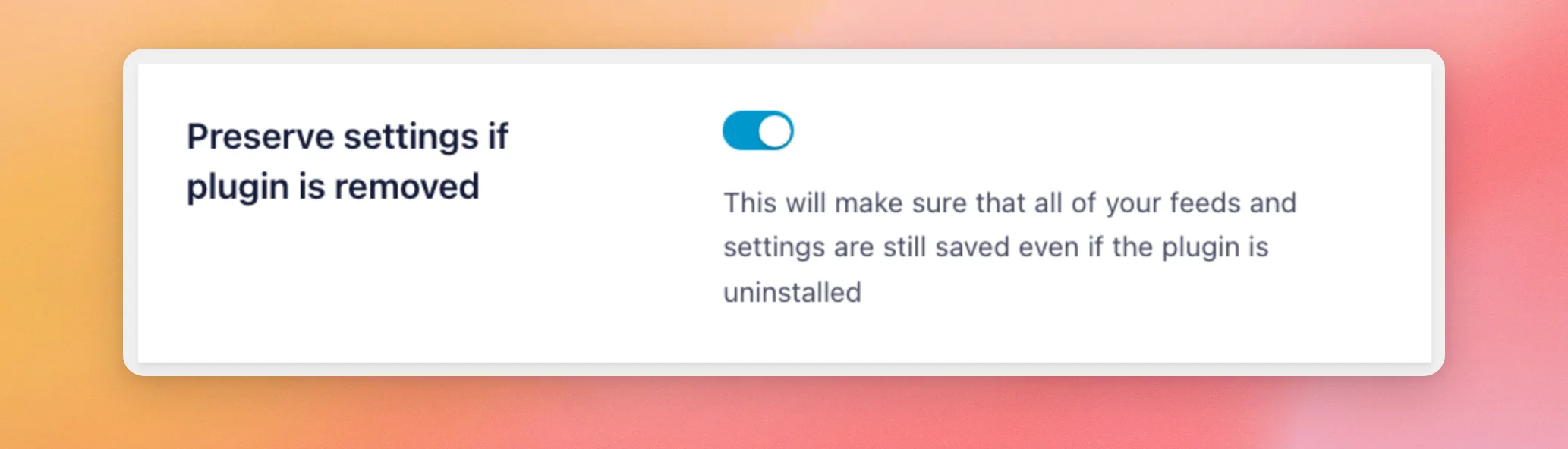
Your paid plugin is now set up.
Fixing the Stopped Loading Notice
On YouTube Feed, you can activate the paid plugin before you remove the free one. WordPress then activates it and shows both plugins as active.
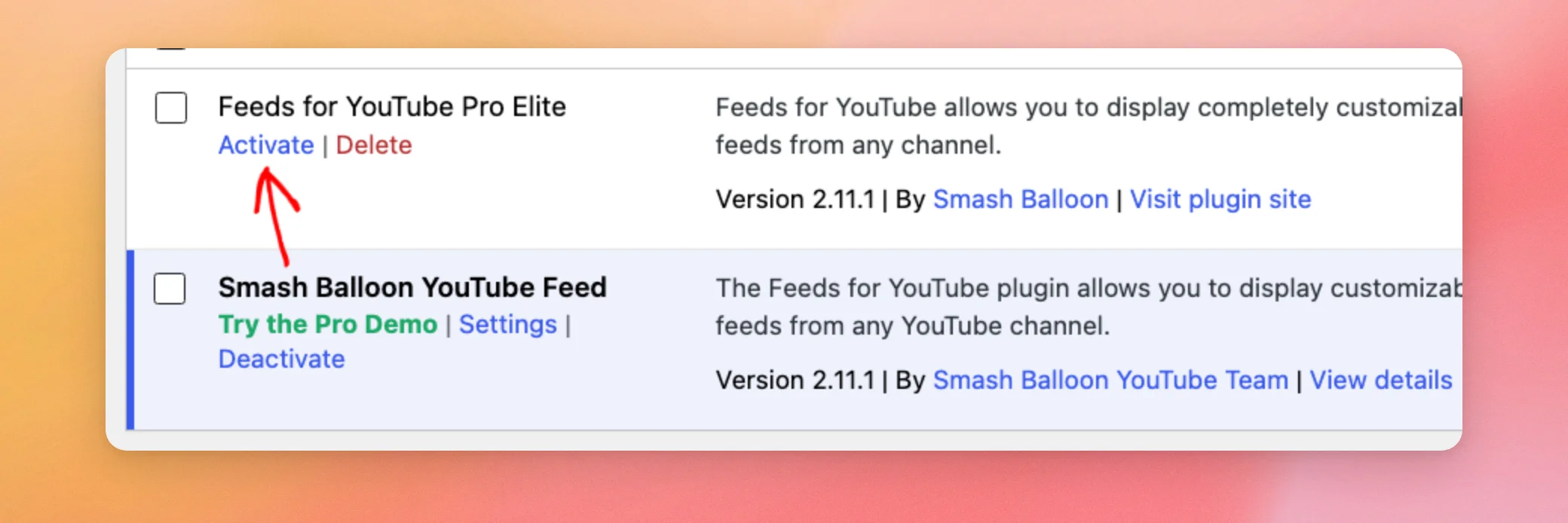
Your dashboard then shows a red notice that the plugin has stopped loading.
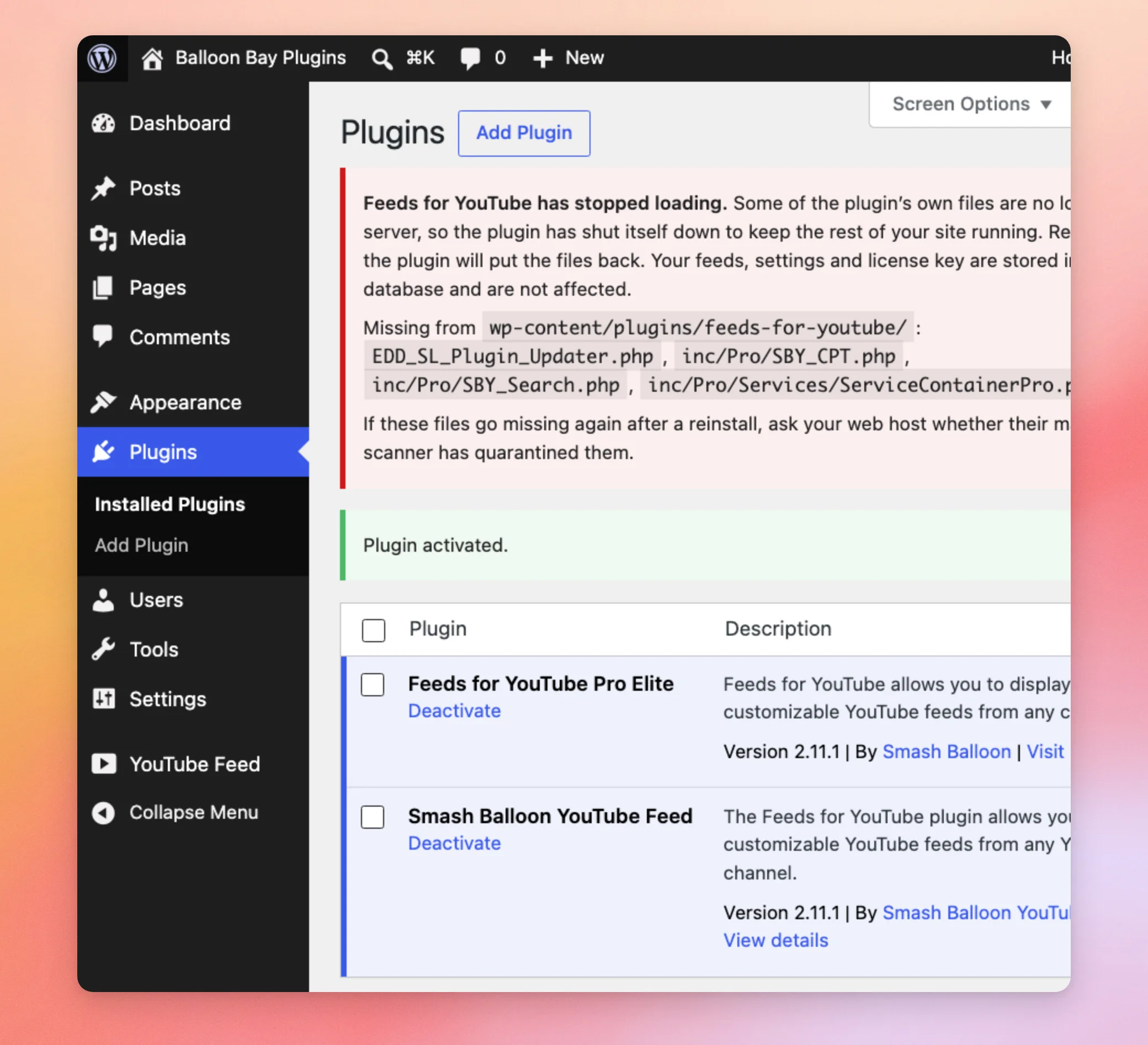
To fix it, deactivate the free plugin as shown in Removing the Free Plugin. The notice goes away and the paid plugin runs.
Preserve settings if plugin is removed must be on before you delete the free plugin, as shown in Saving Your Settings. The free and paid plugins share this setting. Your feeds and settings stay saved when you delete the free one.
That’s it! The free plugin is removed. The paid plugin is running on your site with your license active.
Next, to keep the paid plugin up to date, see our guide on manually updating the plugin.
Frequently Asked Questions
Below, we’ve answered some of the most common questions about switching to the paid version.
Will my feeds and settings carry over to the paid plugin?
They do when Preserve settings if plugin is removed is on before you delete the free plugin. The free and paid plugins share their settings. With that setting on, the paid plugin finds them. On YouTube Feed, with it off, deleting the free plugin removes your settings, your license information, your feeds and the video data saved on your site.
What does “You have reached the maximum number of sites available in your plan” mean?
It appears when you activate your license. It means your license is already active on as many sites as your plan allows. To free up a spot, deactivate the license on a site you no longer use. You can also upgrade your plan.
For more, see My License Key Won’t Activate.
Do the other Smash Balloon plugins work the same way?
Yes, for the Facebook, Instagram, and X (Twitter) feed plugins. Like YouTube Feed, each one has a free and a paid plugin. Each one also has its License Key box and Preserve settings if plugin is removed on the General tab of its Settings page. The table in Checking Which Plugin Is Active lists the menu for each one.




