


 Social Wall
 Feed Analytics


How to display user, hashtag and search results together in a single X (Twitter) feed with the Pro plugin.
Would you like to show posts from an account, a hashtag, and a search together in one X (formerly Twitter) feed on your WordPress site?
In this guide, we’ll walk you through combining more than one feed type in a single Custom Twitter Feeds feed. All you need is a paid license level that includes the feed types you want to combine.
Requirements: Combining feed types needs the plus license level or higher. Each feed type has its own license level, listed in the table below. Older Personal, Business, and Developer licenses include every feed type.
Before you get started, make sure the paid version of Custom Twitter Feeds is installed and activated on your WordPress site.
- Choosing Your Feed Types
- Adding a Term for Each Type
- Adding Another Type to an Existing Feed
- Staying Within the Limit
- Frequently Asked Questions
Choosing Your Feed Types
The plugin offers four feed types. Which ones you can use depends on your license level.
| Feed type | What it shows | License level |
|---|---|---|
| User Timeline | Posts from one or more accounts | Every paid license level |
| Hashtag | Public posts that contain a hashtag | Plus license level or higher |
| Search | Posts that match a search term | Elite license level |
| Lists | Tweets from a publicly available list, as the card describes it | Elite license level |
The plugin’s menus and screens still use the name Twitter. That’s the name you’ll see in these steps.
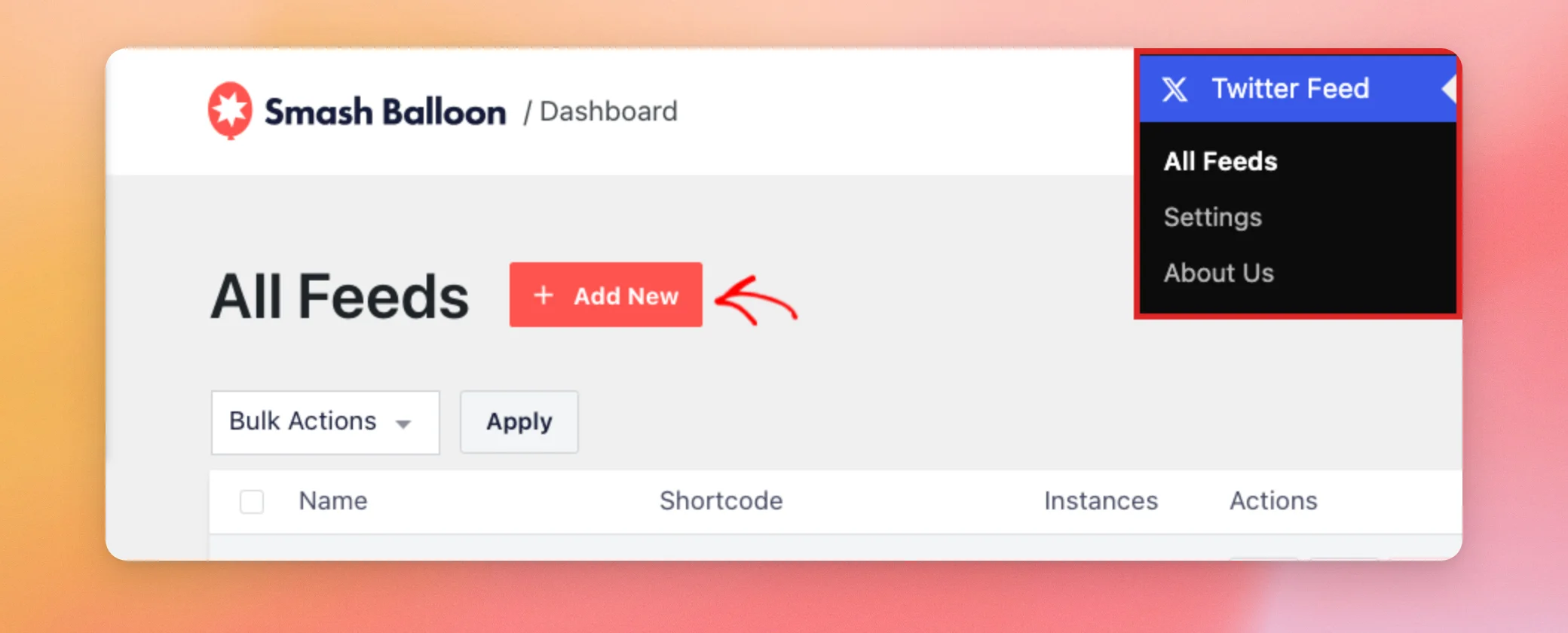
To get started, we’ll add a new feed. From your WordPress dashboard, go to Twitter Feed » All Feeds. Then, click Add New.
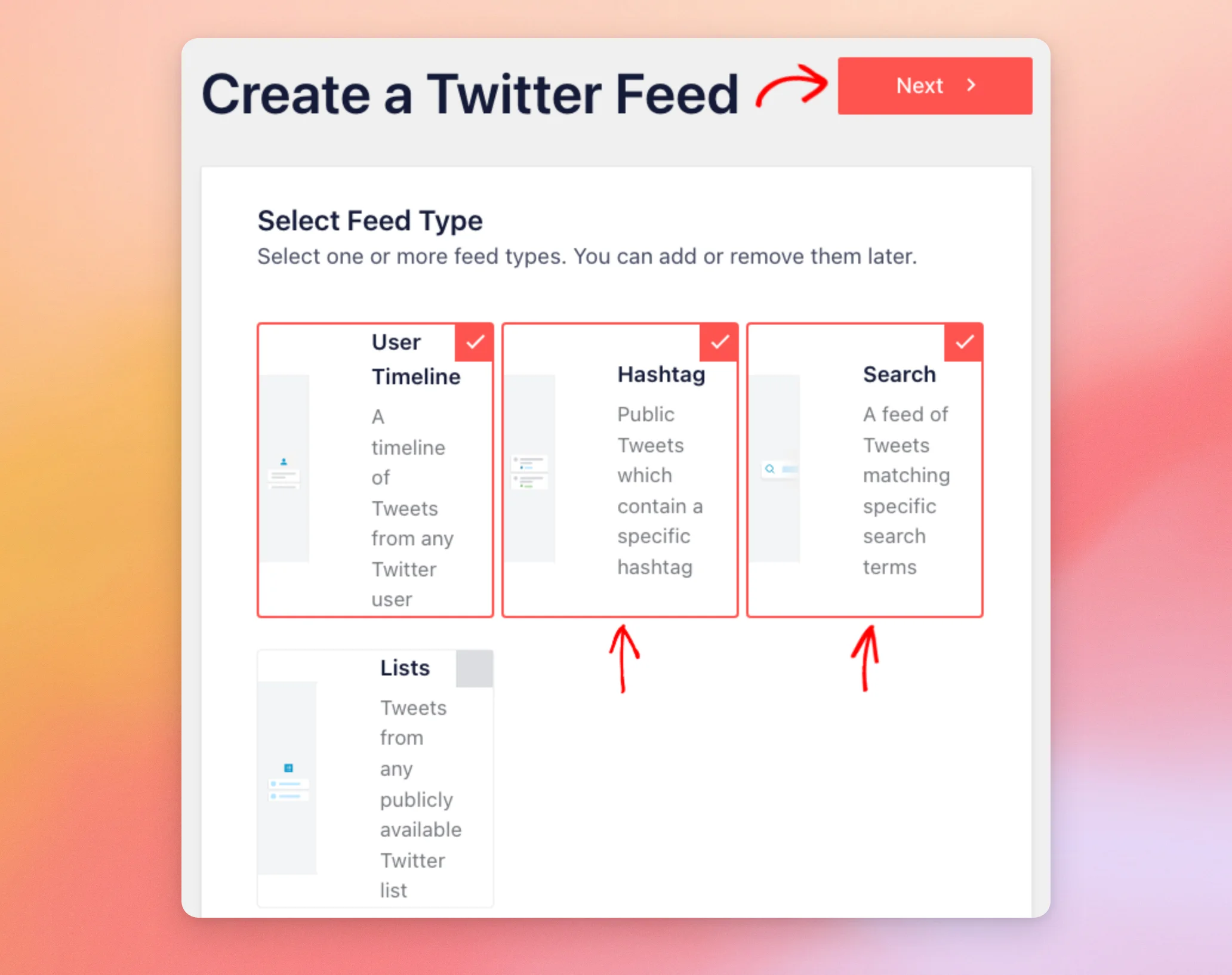
The Select Feed Type step lets you select one or more feed types, and you can add or remove them later. User Timeline is already selected. To combine it with the other types, click Hashtag and Search. A check mark shows on each type you’ve selected. Then, click Next.
Now that your feed types are chosen, you’re ready to add a term for each one.
Adding a Term for Each Type
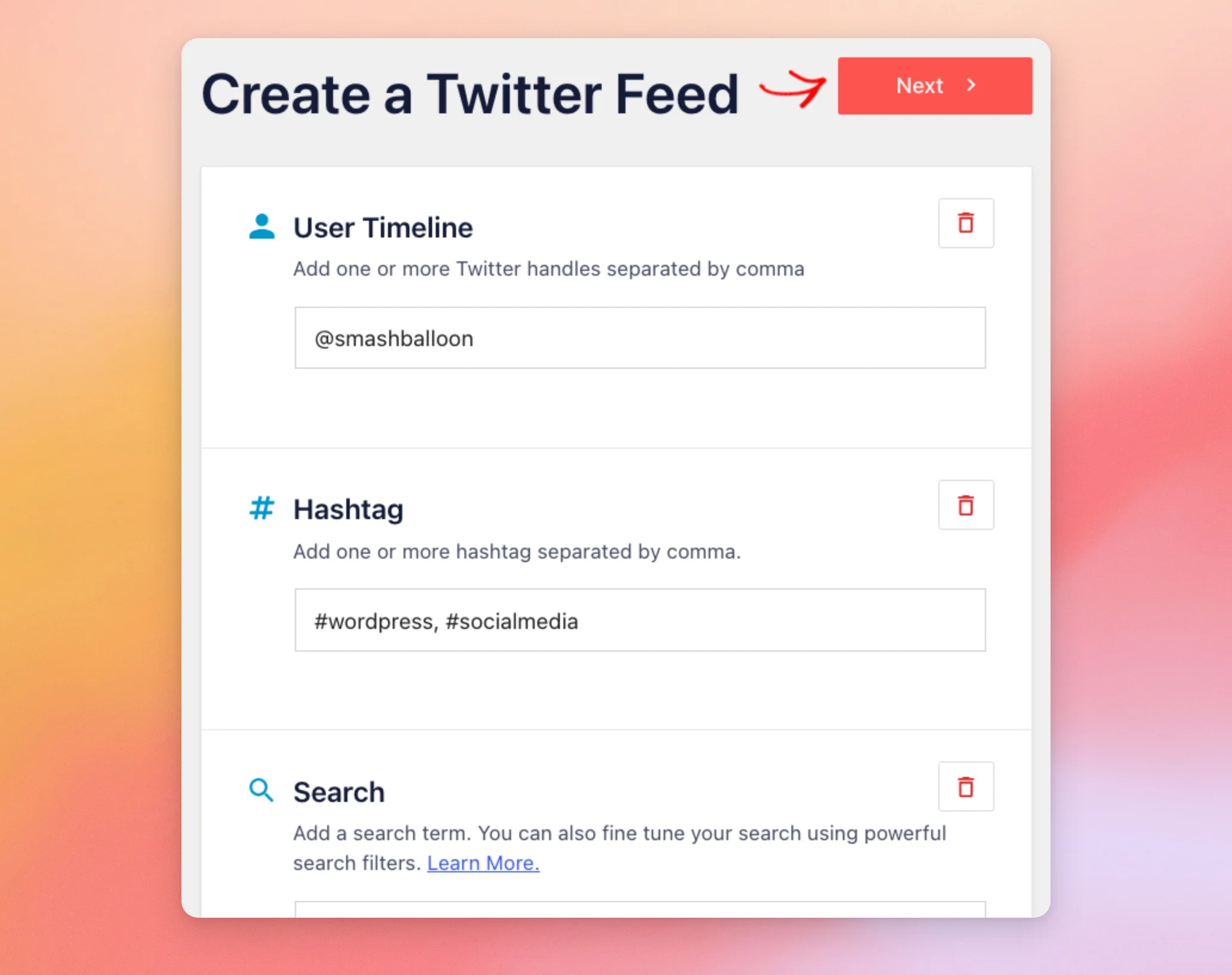
The next step shows one box for each type you selected. In each box, type what you want that type to show.
- In the User Timeline box, type one or more handles separated by commas, such as
@smashballoon. - In the Hashtag box, type one or more hashtags separated by commas, such as
#wordpress, #socialmedia. - In the Search box, type a search term.
When every box is filled in, click Next.
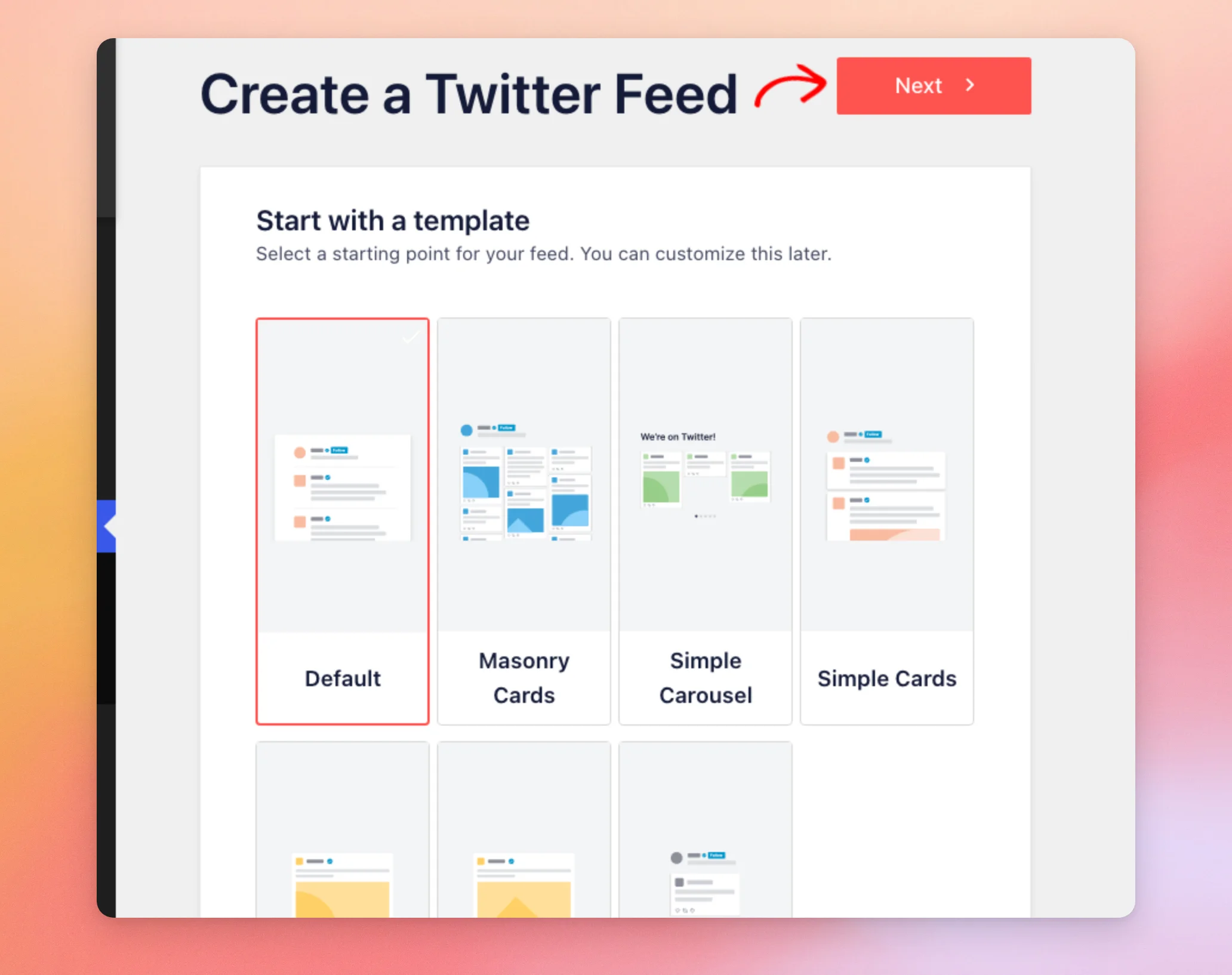
The next step asks you to start with a template. The Default template is already selected, and you can change it later. To continue, click Next.
The plugin creates your feed and opens it in the feed customizer. When you’re happy with how the feed looks, click Save.
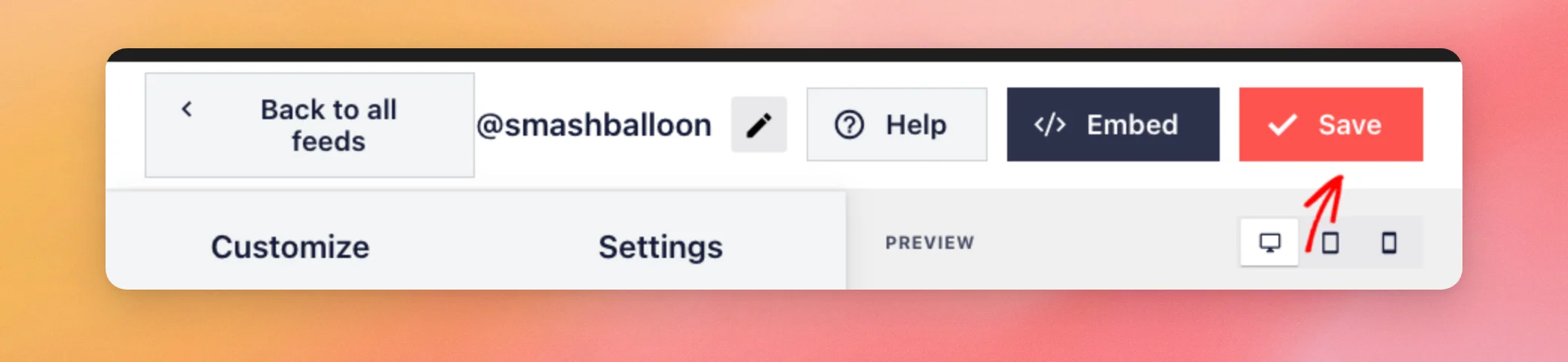
Your feed now uses every type and term you added.
Adding Another Type to an Existing Feed
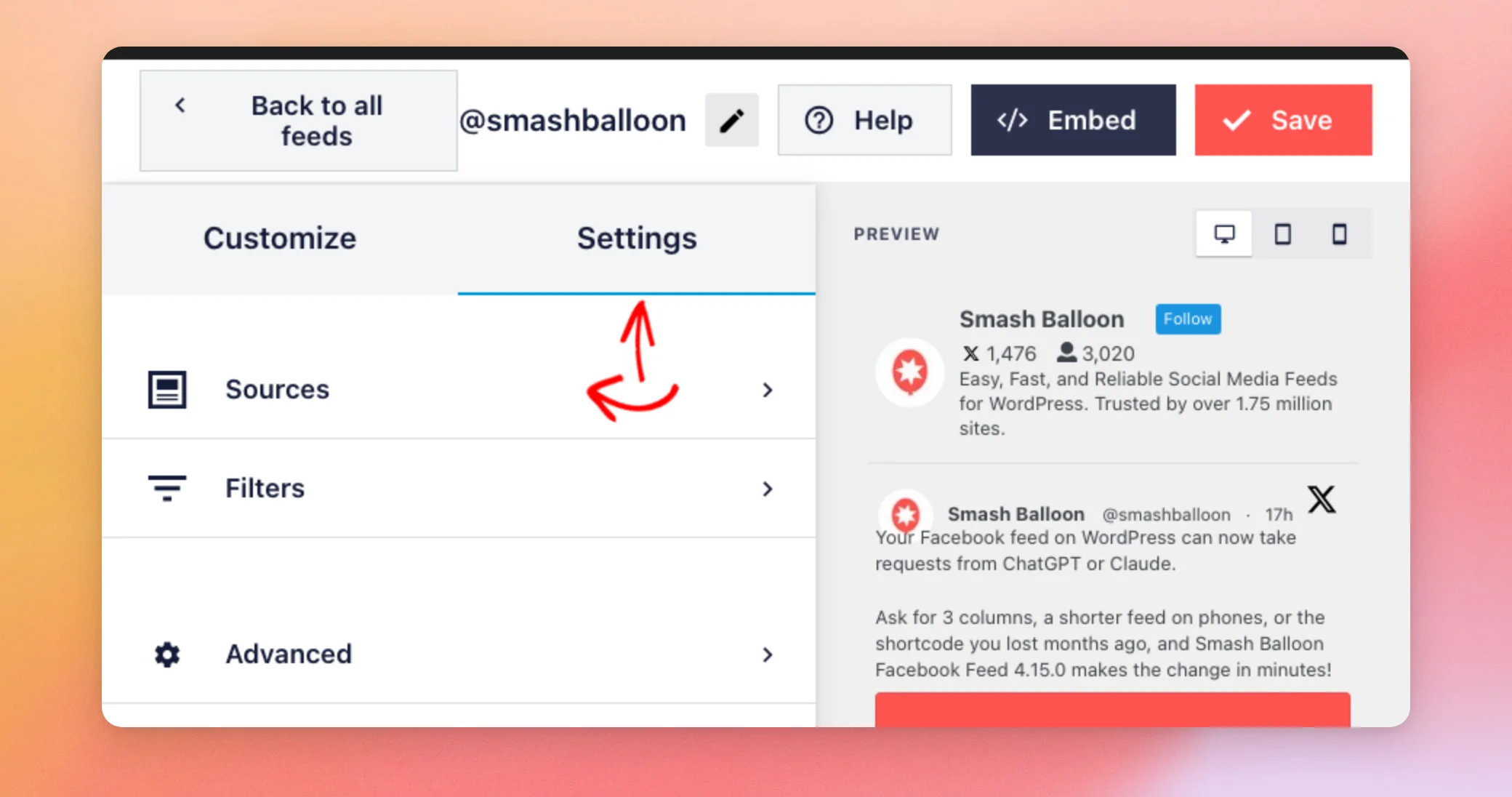
You can also add a type to a feed you’ve already built. In the feed customizer, click the Settings tab. Then, click Sources.
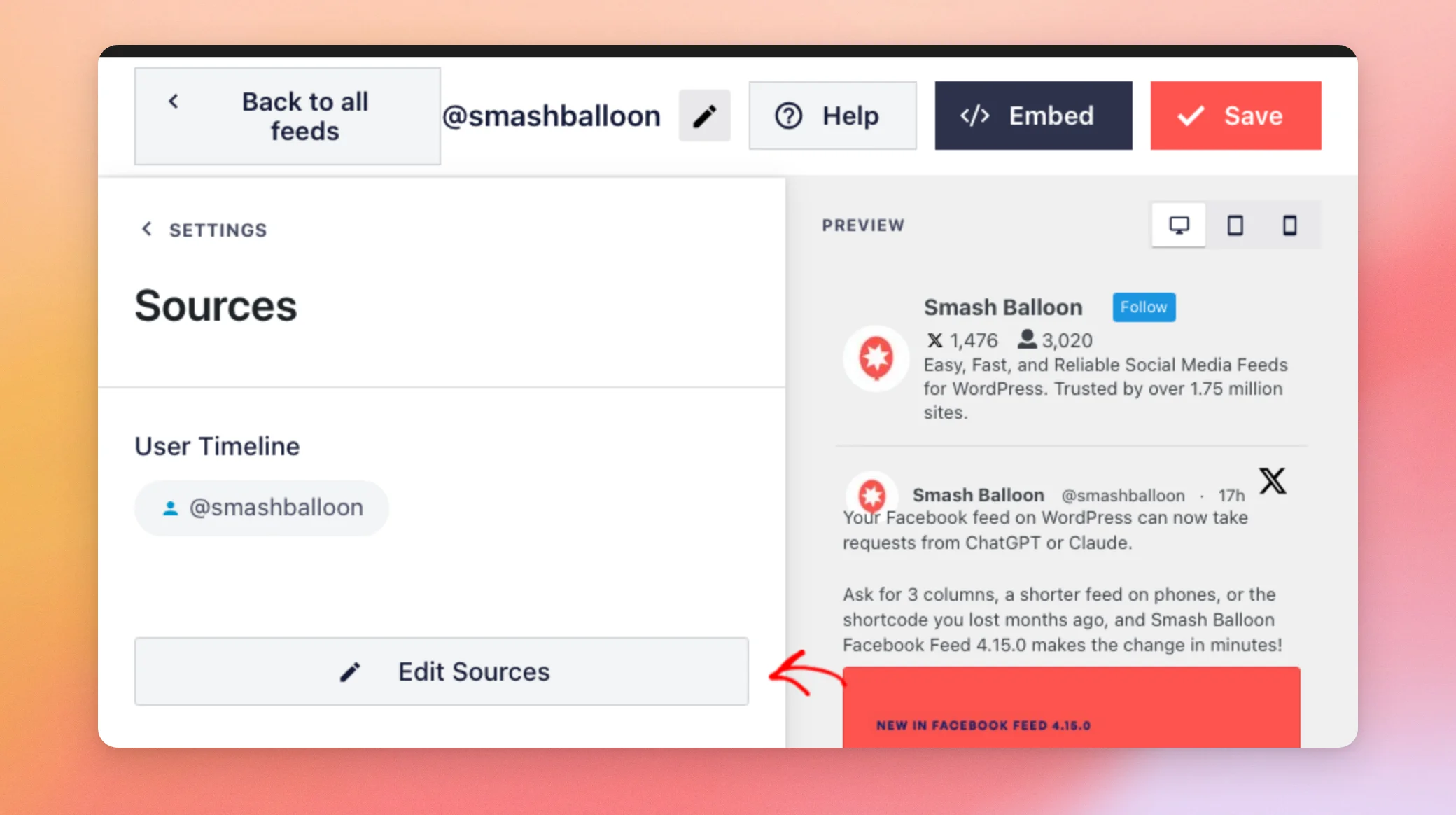
The Sources section lists the types and terms your feed uses. To change them, click Edit Sources.
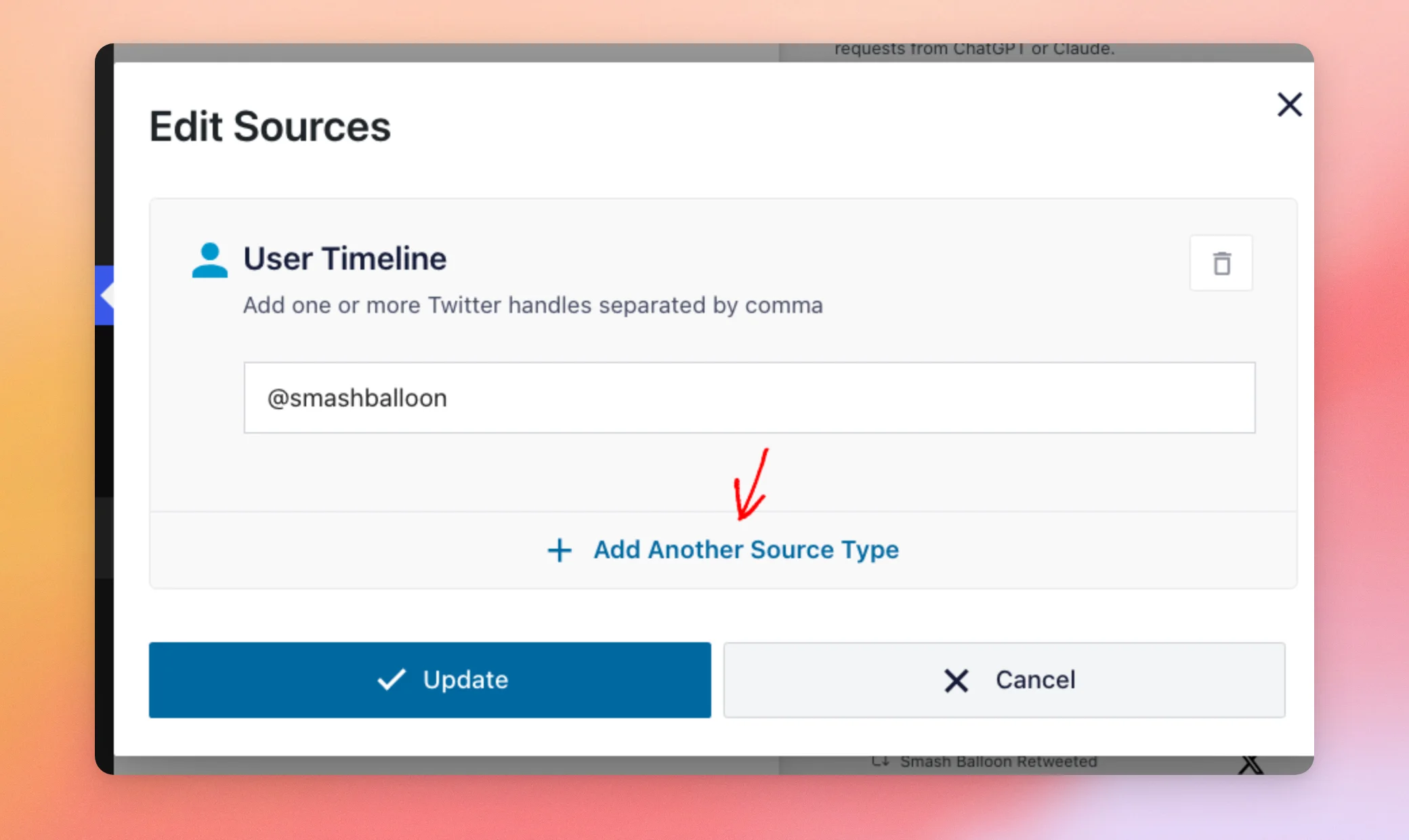
In the Edit Sources window, click Add Another Source Type.
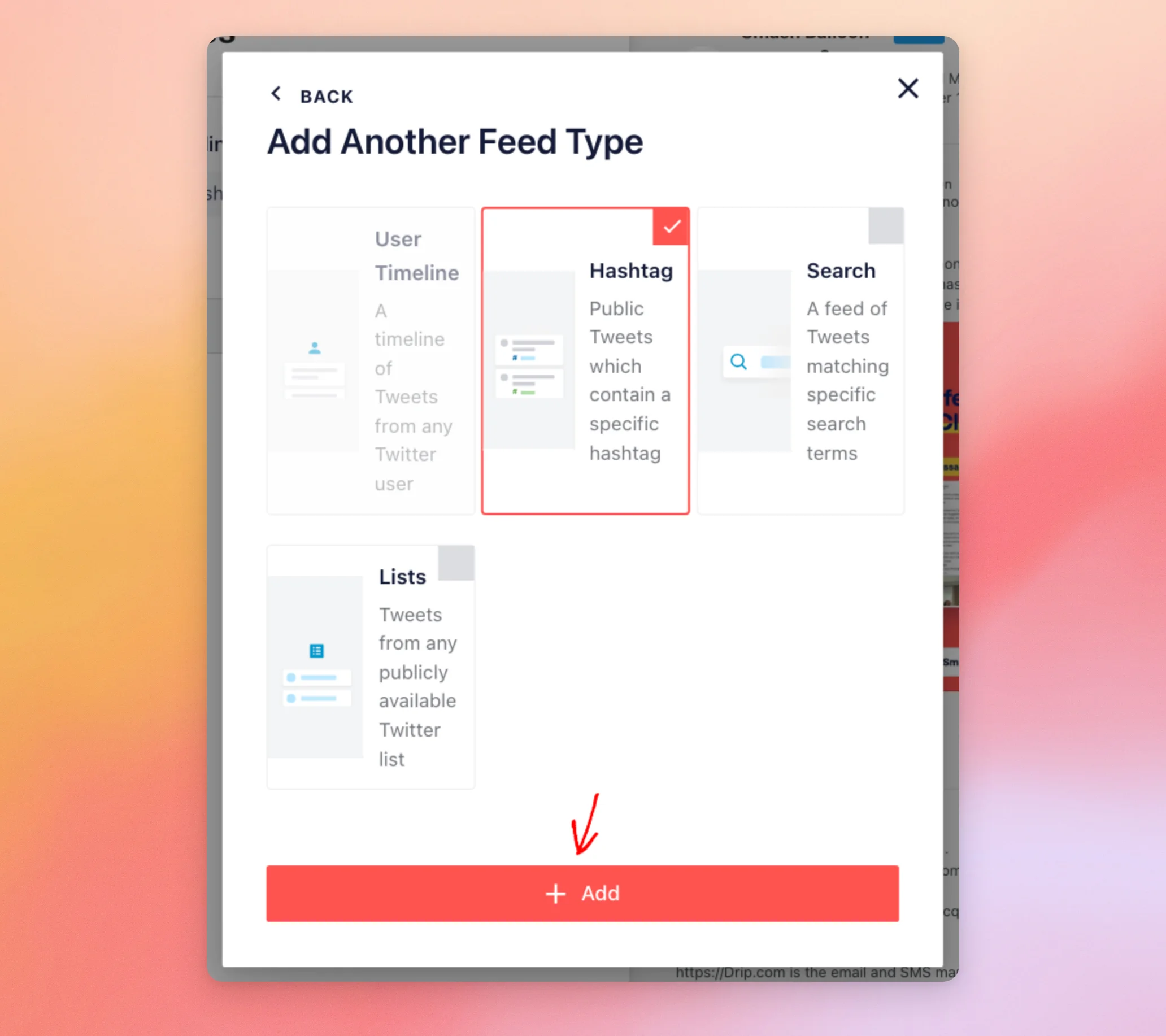
The Add Another Feed Type window shows all four types, and the ones your feed already uses are greyed out. In that window, click the type you want, such as Hashtag. Then, click Add.
A box for the new type appears in the Edit Sources window. Next, type your term in the new box. Then, click Update.
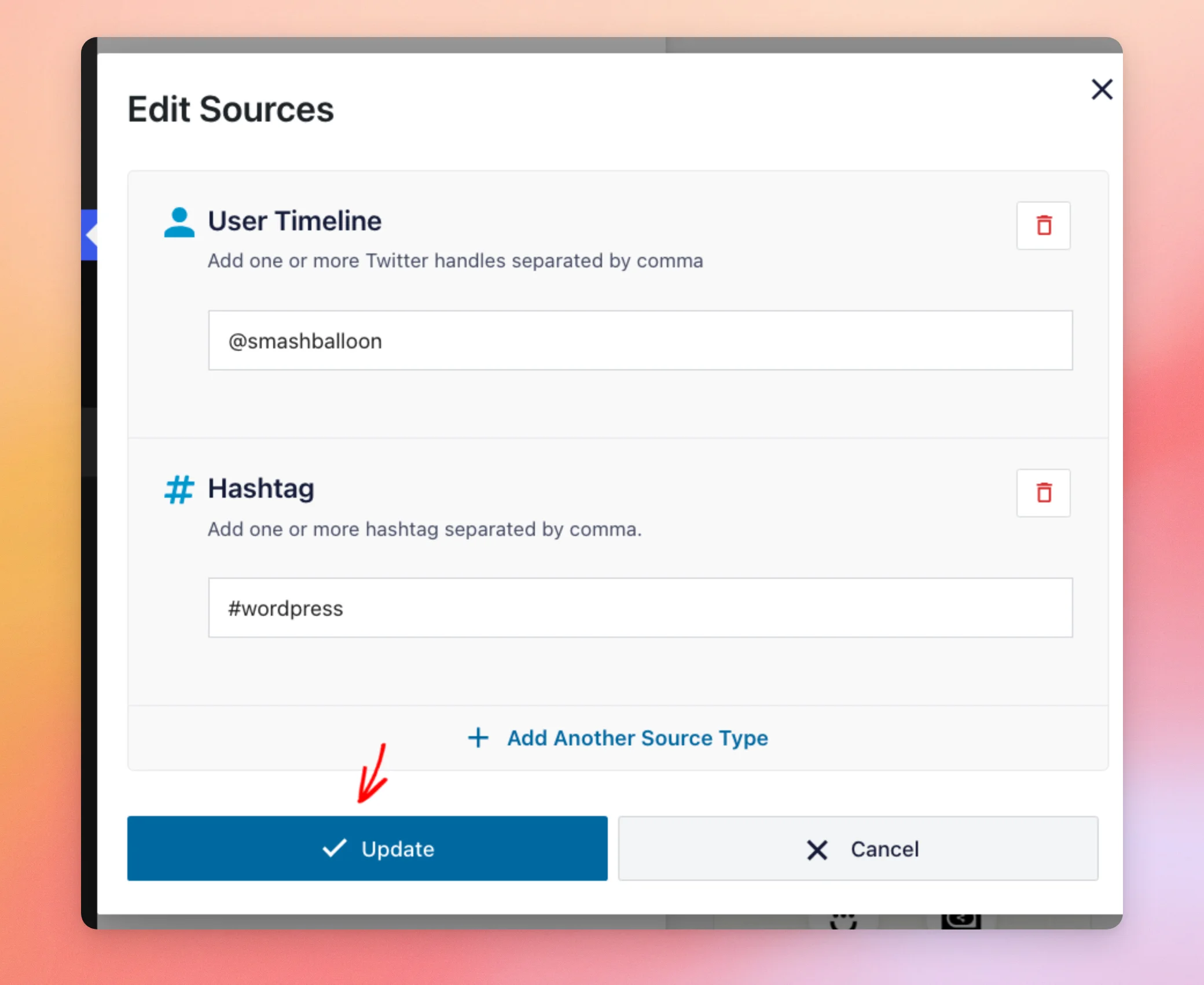
Update applies your change to the feed in the customizer. To keep it, click Save at the top of the customizer, as we did earlier.
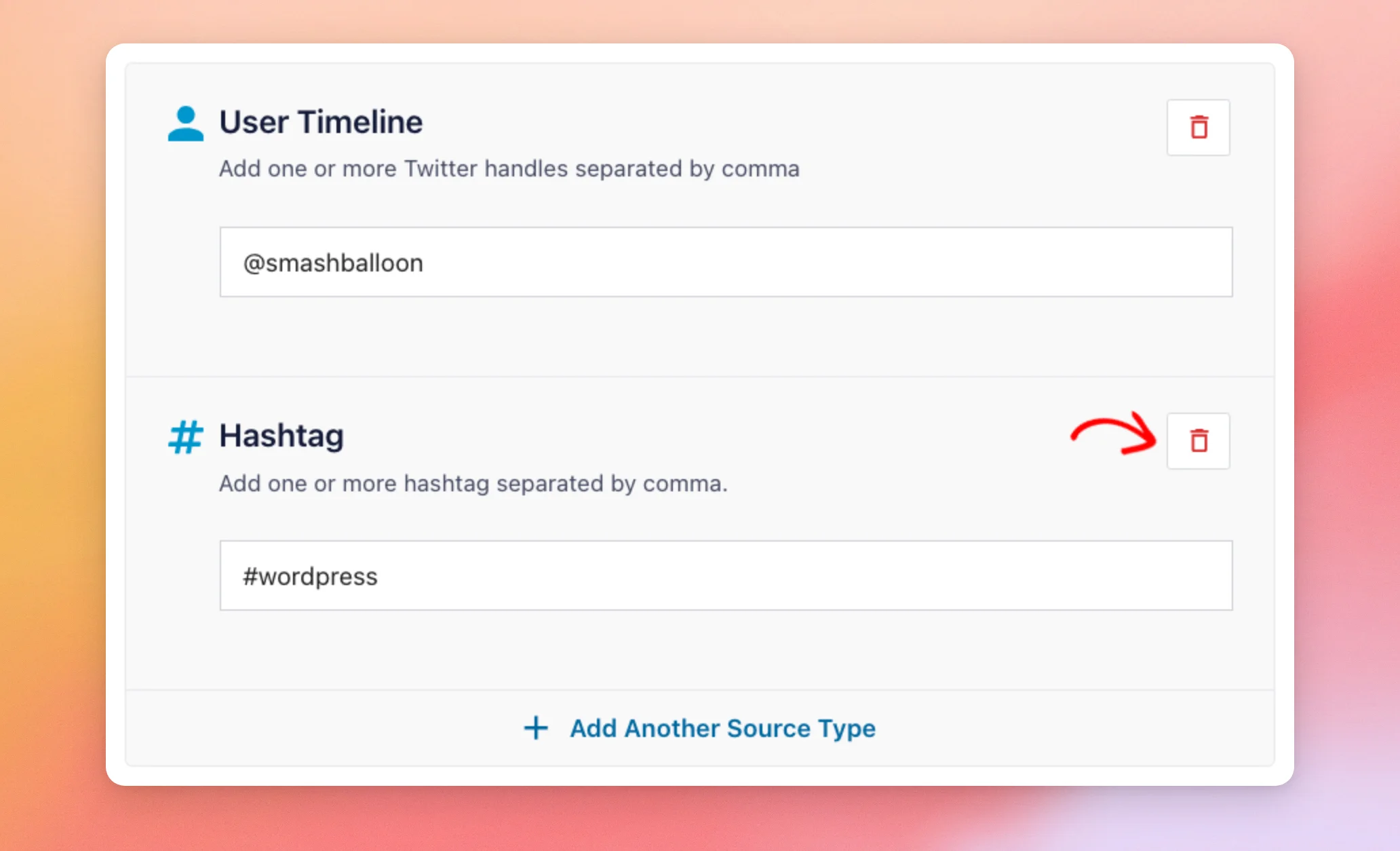
To remove a type, click the trash icon next to it in the Edit Sources window. A feed always keeps at least one type.
Next, we’ll look at how many types and terms one feed can hold.
Staying Within the Limit
One feed can use up to ten types and terms in total. Each handle and each search term counts as one. All the hashtags in the Hashtag box count as one together. If your feed goes over ten, the plugin doesn’t use the extra ones.
That’s it! You’ve combined more than one feed type in a single feed.
Next, see our guide on showing posts from one account that include a hashtag. To add the feed to your site, see the steps for embedding the feed.
Frequently Asked Questions
Below, we’ve answered some of the most common questions about combining feed types.
Which license level do I need to combine feed types?
Each feed type has its own license level, so the types you can combine depend on yours. User Timeline works on every paid license level. Hashtag feeds need the plus license level or higher. Search and Lists feeds need the elite license level. The basic license level includes only User Timeline, so combining types starts at the plus license level. For the full list, see our guide on the differences between the free and paid versions.
Can I combine feed types in the free version?
Combining feed types is a feature of the paid version. The free version gives you one feed from one account. To see what each version includes, see our guide on the differences between the free and paid versions.
How many types and terms can one feed use?
One feed can use up to ten types and terms in total. Each handle and each search term counts as one. All the hashtags in the Hashtag box count as one together.
Can I use more than one handle or hashtag in the same box?
Yes. The User Timeline and Hashtag boxes accept several entries separated by commas, such as @smashballoon, @wpbeginner. Each handle counts toward the limit of ten, while all the hashtags in the Hashtag box count as one.
How do I remove a feed type from my feed?
Open Edit Sources in the customizer, as shown in the steps above. The trash icon next to a type removes it, and Update and Save then apply the change. A feed always keeps at least one type.




