


 Social Wall
 Feed Analytics


This guide outlines the process of creating an Instagram Access Token and User ID using our Instagram Access Token tool. This can be used if you have been asked to provide one for setting up a Instagram Feed on a website.
Would you like to connect an Instagram account to a client’s website, now that our access token tool is gone?
Due to changes in Meta/Instagram’s data protection policies, we are no longer able to offer our tool for retrieving an access token.
This guide shows you four other ways to connect your client’s account. It also explains what to do if you already have an access token.
Before you get started, make sure Instagram Feed is installed and activated on your site.
- Connecting a Business Profile Through Facebook
- Letting an Administrator Connect Their Account
- Giving an Editor Access to the Settings Page
- Sharing Your Screen With Your Client
- If You Already Have an Access Token
- Frequently Asked Questions
Connecting a Business Profile Through Facebook
This method works when your client’s Instagram account is linked to a Facebook Page. Your client gives you a role on that Page. Then, you connect the Instagram account in the plugin with your own Facebook profile.
Our guide on connecting through Facebook covers this kind of connection.
To connect it, follow the steps in Letting an Administrator Connect Their Account from your own WordPress dashboard.
On the connection page, choose My posts and more and click Continue with Facebook. Then, log in with your own Facebook profile when asked.
Next, we’ll look at what your client can do when they are an Administrator on your site.
Letting an Administrator Connect Their Account
If your client is an Administrator on the WordPress site, they can connect their account themselves.
Note: To connect, your client’s Instagram account needs to be set up as a Business or Creator account. If it’s still Personal, see our guide on converting an Instagram Personal profile into a Professional account first.
- In the WordPress dashboard, go to Instagram Feed » Settings.
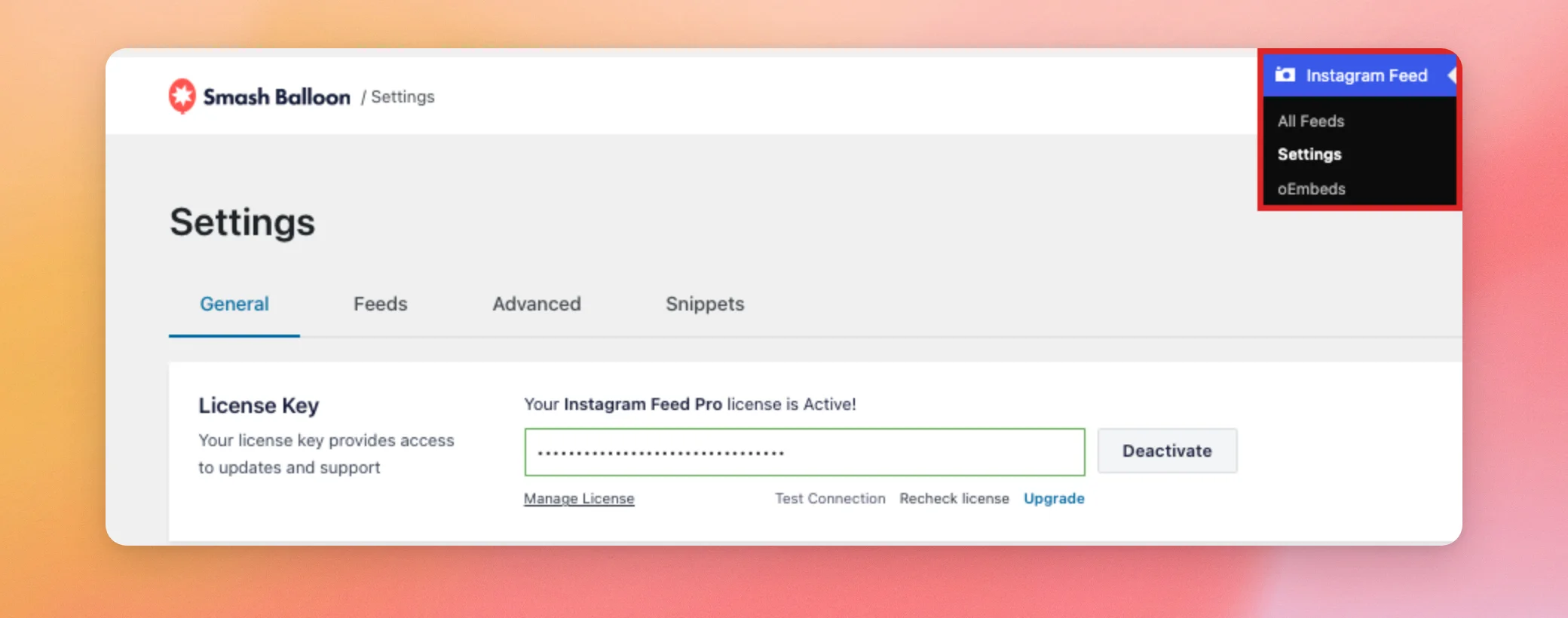
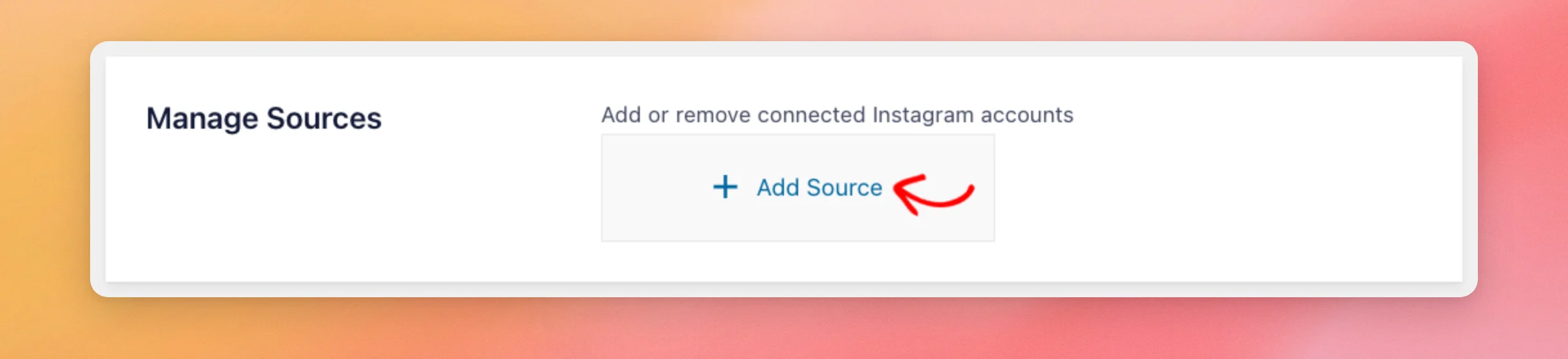
- On the General tab, find the Manage Sources box. Then, click Add Source.
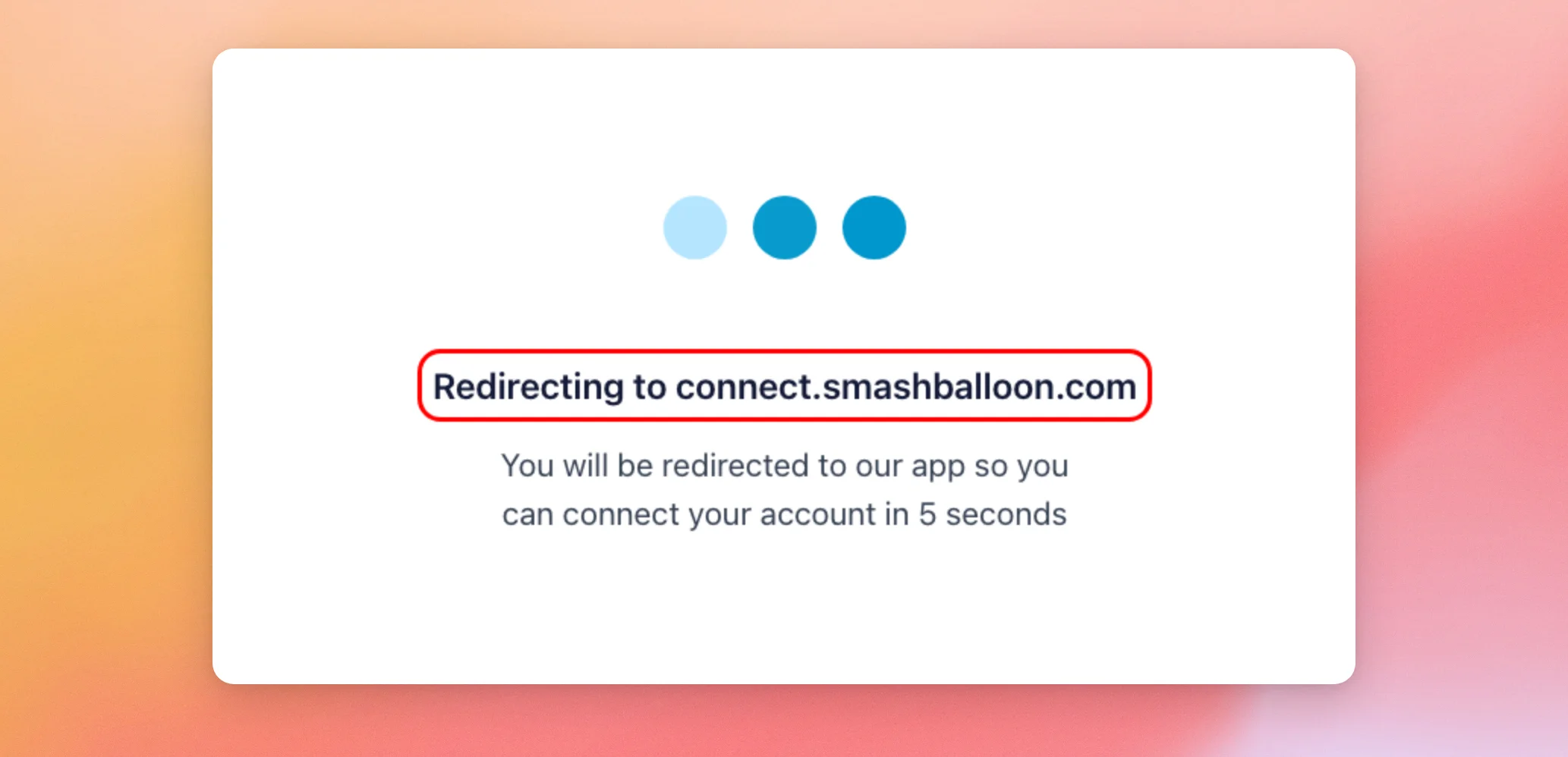
- Instagram Feed then opens a window with a redirect message. After a few seconds, it sends you to Smash Balloon’s connection page on its own.
- On the connection page, choose Just my posts and click Continue with Instagram for a feed of your client’s own posts. For Hashtag or Tagged feeds, choose My posts and more and click Continue with Facebook instead.
- If you chose Just my posts, log in with the Instagram account and click Allow. If you chose My posts and more, log in with Facebook and follow the prompts instead.
- When you return to the connection page, it asks you to confirm your site under “Let’s make sure this is you.” Then, click Yes, it is my website.
- If you chose My posts and more, check the account in the Select an Instagram Account window back in WordPress. Then, click Add.
Some sites still see the older connection page, which calls these options Business Basic and Business Advanced.
When the connection finishes, the account shows in the Manage Sources box on the General tab.
Next, we’ll cover clients who have the Editor role.
Giving an Editor Access to the Settings Page
If your client is an Editor on the WordPress site, you can give the Editor role access to the plugin’s Settings page. By default, only Administrators can open it.
The sbi_settings_pages_capability filter changes which capability the page checks. Our guide on allowing editors access to the Instagram plugin settings shows how to use it.
To learn what each role can do, see Beginner’s Guide to WordPress User Roles and Permissions.
When the Editor can open Instagram Feed » Settings, they can connect their account with the steps in Letting an Administrator Connect Their Account.
Next, we’ll look at clients who have no access to your dashboard.
Sharing Your Screen With Your Client
If your client does not have any access to the WordPress dashboard, start a screen-sharing session with them.
You can do the steps below in a private or incognito window. That way, the connection does not use any previously logged-in Instagram session. Your client’s session is also not saved in your browser.
- On your computer, go to Instagram Feed » Settings in the WordPress dashboard.
- Give your client control of your screen.
- Let them log in with their own account while they connect it, using the steps in Letting an Administrator Connect Their Account.
Finally, we’ll cover what to do if you already have an access token.
If You Already Have an Access Token
The connection page no longer has the Add Account Manually button. If you already have an Account ID and an access token for a Business or Creator account, contact support and our team can help you add it.
That’s it! You now know how to connect a client’s Instagram account without our access token tool. To learn more about My posts and more, see our guide on connecting through Facebook.
Frequently Asked Questions
Below, we’ve answered some of the most common questions about connecting a client’s account.
Can I still add an account with an Account ID and an access token?
Not from the connection page, which no longer has the Add Account Manually button. Contact support and our team can help you add the account. See the If You Already Have an Access Token section above.
How do I let an Editor open the Instagram Feed Settings page?
The plugin checks the capability through the sbi_settings_pages_capability filter, so you can change which capability opens the page. For the steps, see our guide on allowing editors access to the Instagram plugin settings.




