


 Social Wall
 Feed Analytics


How to give editors access to the Instagram plugin settings, using a role editor plugin or the manage_instagram_feed_options capability.
Would you like to let your Editors manage the Instagram Feed settings without making them Administrators?
In this guide, we’ll show you the one snippet that opens the plugin’s menu and Settings page to Editors.
Before you get started, make sure Instagram Feed is installed and activated on your WordPress site.
Adding the Snippet
To get started, we’ll add a short snippet that changes which capability the plugin checks.
By default, only Administrators can open the Instagram Feed pages. Before it shows each page, the plugin checks for a capability. A capability is a permission that WordPress gives to one or more user roles. The sbi_settings_pages_capability filter lets you swap in a different capability. Once you do, any user who has that capability can open the pages.
- To start, open your theme’s
functions.phpfile, or add a new snippet in a code snippets plugin such as WPCode. - Next, add the snippet below. If you’ve never pasted code into WordPress, see Beginner’s Guide to Pasting Snippets from the Web into WordPress.
- When you’re done, save the file or the snippet.
- Finally, log in as an Editor and check that Settings now shows under Instagram Feed in the WordPress menu.
/* Give Editors access to the Instagram Feed settings */
function sb_editor_settings_capability( $capability ) {
	return 'edit_others_posts';
}
add_filter( 'sbi_settings_pages_capability', 'sb_editor_settings_capability' );
The snippet makes the plugin check for edit_others_posts instead of its own capability. By default, WordPress gives that capability to Editors and Administrators. Both can open the plugin’s pages, including Settings. Authors and Contributors don’t have it. They still can’t open the pages.
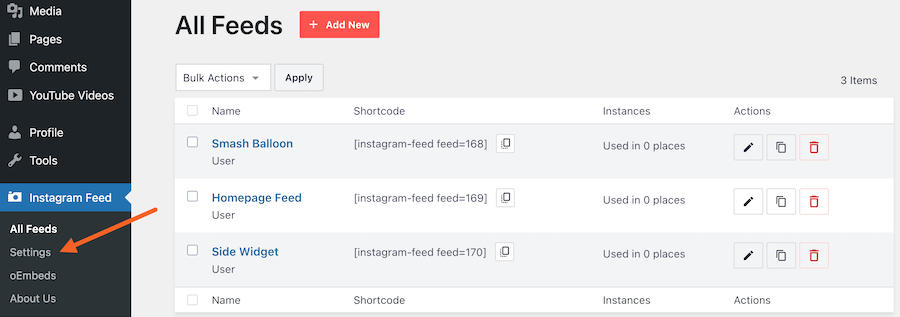
Next, we’ll look at opening the pages to other roles.
Choosing a Different Role
To open the pages to a different group of users, change the capability the function returns. For example, edit_posts also covers Authors and Contributors. To learn which role has which capability, see Beginner’s Guide to WordPress User Roles and Permissions.
Keep in mind that the filter changes the check for everyone, not only for one role. Anyone with the capability you return can open the Instagram Feed pages and change the plugin’s settings.
That’s it! Your Editors can now open the Instagram Feed menu and the Settings page. If your Editor is a client who needs to connect their own Instagram account, see our guide on connecting an Instagram account for a client.
Frequently Asked Questions
Below, we’ve answered some of the most common questions about giving Editors access to the plugin.
Can I give a role access by adding the manage_instagram_feed_options capability instead?
Not for the Settings page. The plugin adds manage_instagram_feed_options to Administrators and uses it for most of its pages. The Settings page checks a separate capability that the plugin never grants to any role. A role with only manage_instagram_feed_options can open the plugin’s other pages, such as All Feeds. It doesn’t see Settings. The snippet above covers every page.
Can I use the snippet in both the free version of Instagram Feed and Instagram Feed Pro?
Yes. Both versions read the sbi_settings_pages_capability filter for their menu and settings pages.
Can I let an Editor connect an Instagram account once they have access?
Yes. The actions that save a connected account use the same capability check, so an Editor who can open Settings can add a source there.




