Social Wall
 Feed Analytics


Would you like to check that your Smash Balloon feed plugins are new enough to work with Social Wall?
This guide shows you the lowest version of each source plugin that Social Wall accepts. It also shows you how to check the versions on your site and what you see when a plugin is too old.
Before you get started, make sure Social Wall and at least one of its source plugins are installed and activated on your WordPress site.
Requirements: Social Wall is included in the All Access Bundle. Each source plugin also needs its own paid license, which the bundle covers.
- Finding the Lowest Version Each Plugin Needs
- Checking Your Plugin Versions
- How Does Social Wall Check Its Own Version?
- Adding Feeds From Your Source Plugins
- Seeing What Happens When a Plugin Is Too Old
- Frequently Asked Questions
Finding the Lowest Version Each Plugin Needs
Social Wall shows the feeds you build in your other Smash Balloon plugins. It checks the version of each source plugin. A plugin below the number in this table is left out of your wall.
| Source plugin | Lowest version Social Wall accepts |
|---|---|
| Instagram Feed | 5.6.5 |
| Facebook Feed | 3.18 |
| X (Twitter) Feed | 1.8.2 |
| YouTube Feed | 1.1.5 |
| TikTok Feeds | 1.0.2 |
Any version at or above the number in the table works. For example, Instagram Feed passes the check at version 5.6.5 or any later version. Next, you’ll look at how to find the versions on your own site.
Checking Your Plugin Versions
To see which versions you have, open the Installed Plugins page in your WordPress admin. Each plugin’s version number appears under its description. The source plugins are listed by their full names, such as Feeds for YouTube Pro Elite and TikTok Feeds Pro Elite.
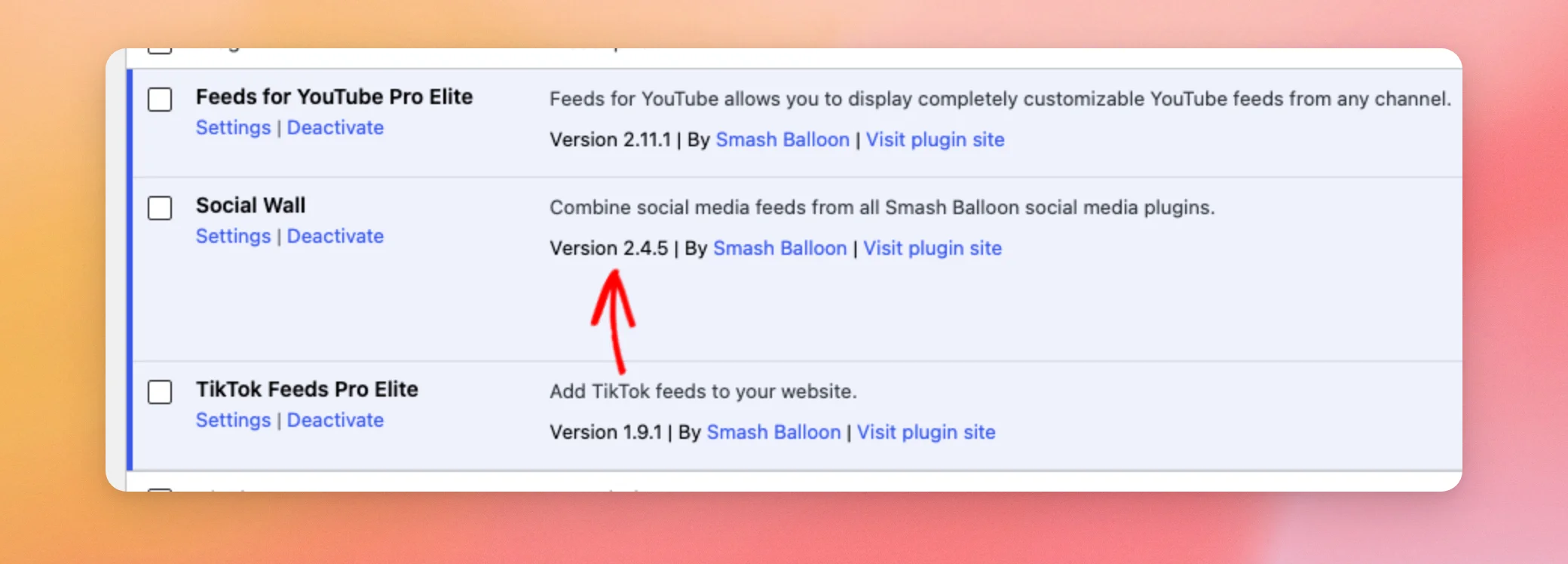
Compare each number with the table above. If a plugin is lower, update it before you build your wall. Social Wall can then use its feeds. See How to Properly Update WordPress Plugins for a step-by-step guide.
How Does Social Wall Check Its Own Version?
The check works in both directions. Each source plugin also names the lowest version of Social Wall it works with. Social Wall compares its own version against that number.
In the releases we checked, Instagram Feed, Facebook Feed, X (Twitter) Feed, and YouTube Feed ask for Social Wall 1.0 to 1.0.7. A current copy of Social Wall passes. TikTok Feeds sets a higher bar. Version 1.9.1 asks for Social Wall 2.2 or higher.
With your versions in order, you can add your source plugins’ feeds to a wall.
Adding Feeds From Your Source Plugins
Social Wall lists the source plugins in 2 places.
To see them in the menu, hover over Social Wall in your WordPress sidebar. Instagram Feed, Facebook Feed, Twitter Feed, YouTube Feed, and TikTok Feeds sit underneath it. The menu shows all 5 names even when a plugin isn’t installed. The Add New page is where you see which ones Social Wall can use.
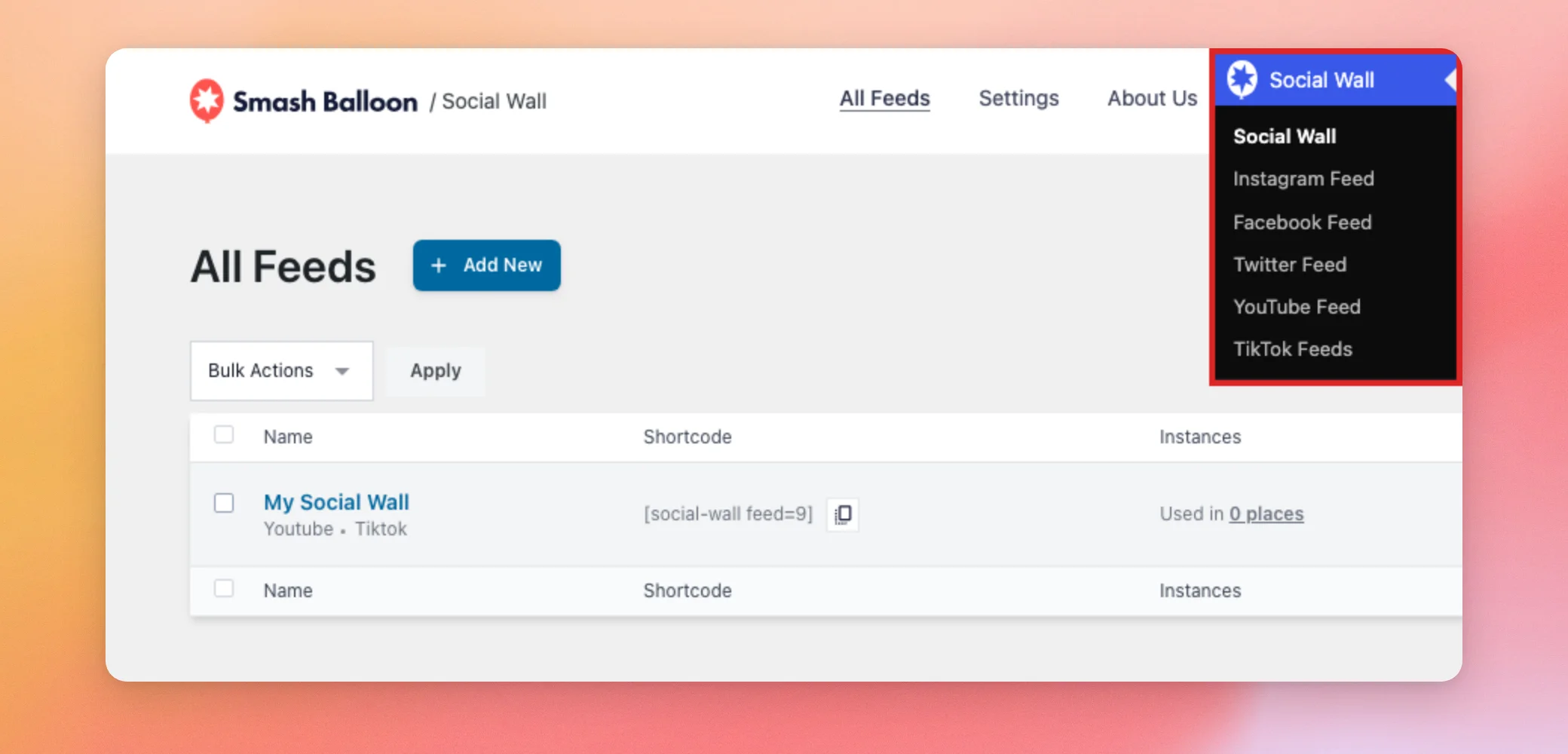
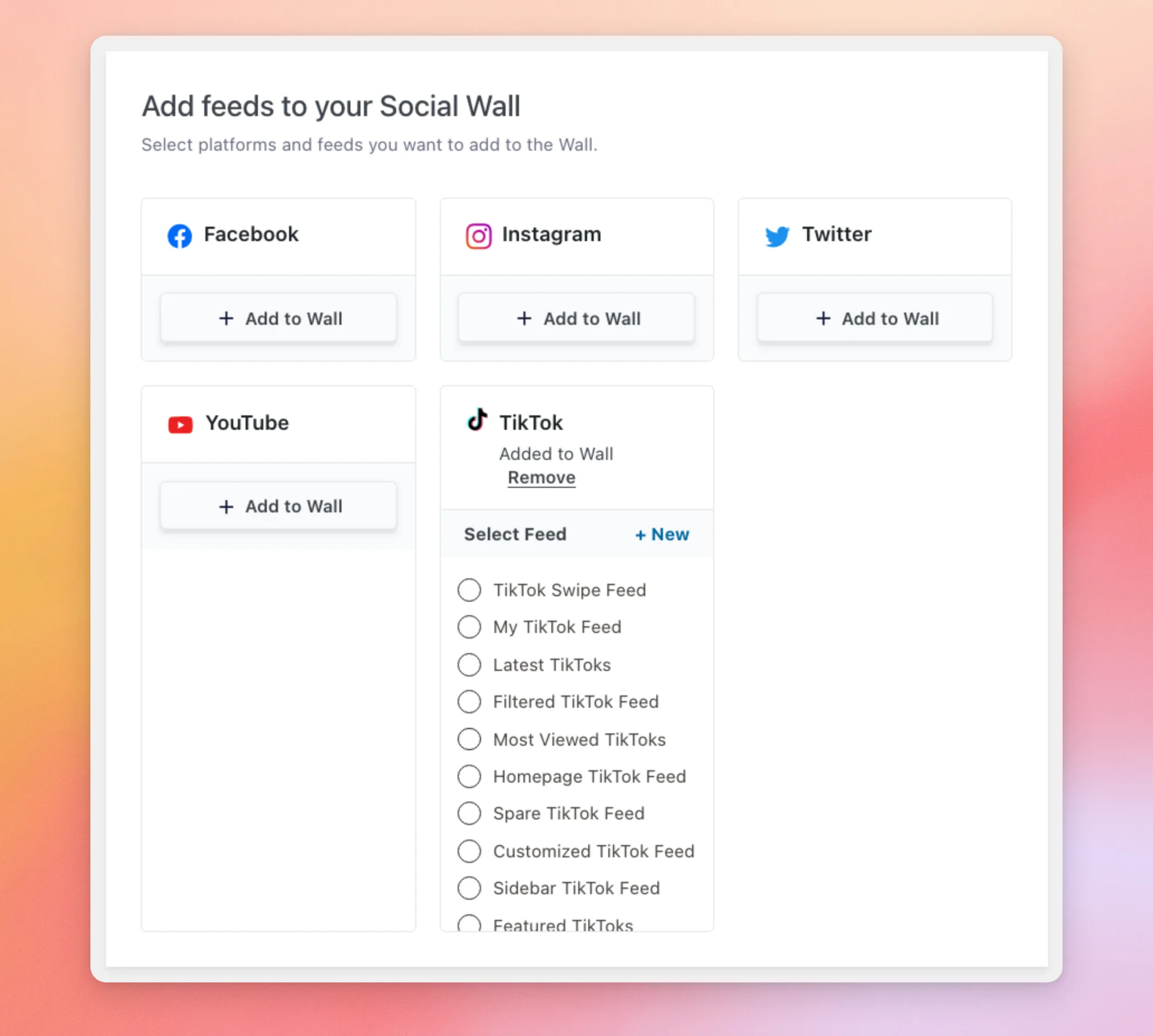
The Add New page, reached from Social Wall » All Feeds, lists Facebook, Instagram, Twitter, YouTube, and TikTok, each with an Add to Wall button. Social Wall uses the name Twitter for the X plugin here.
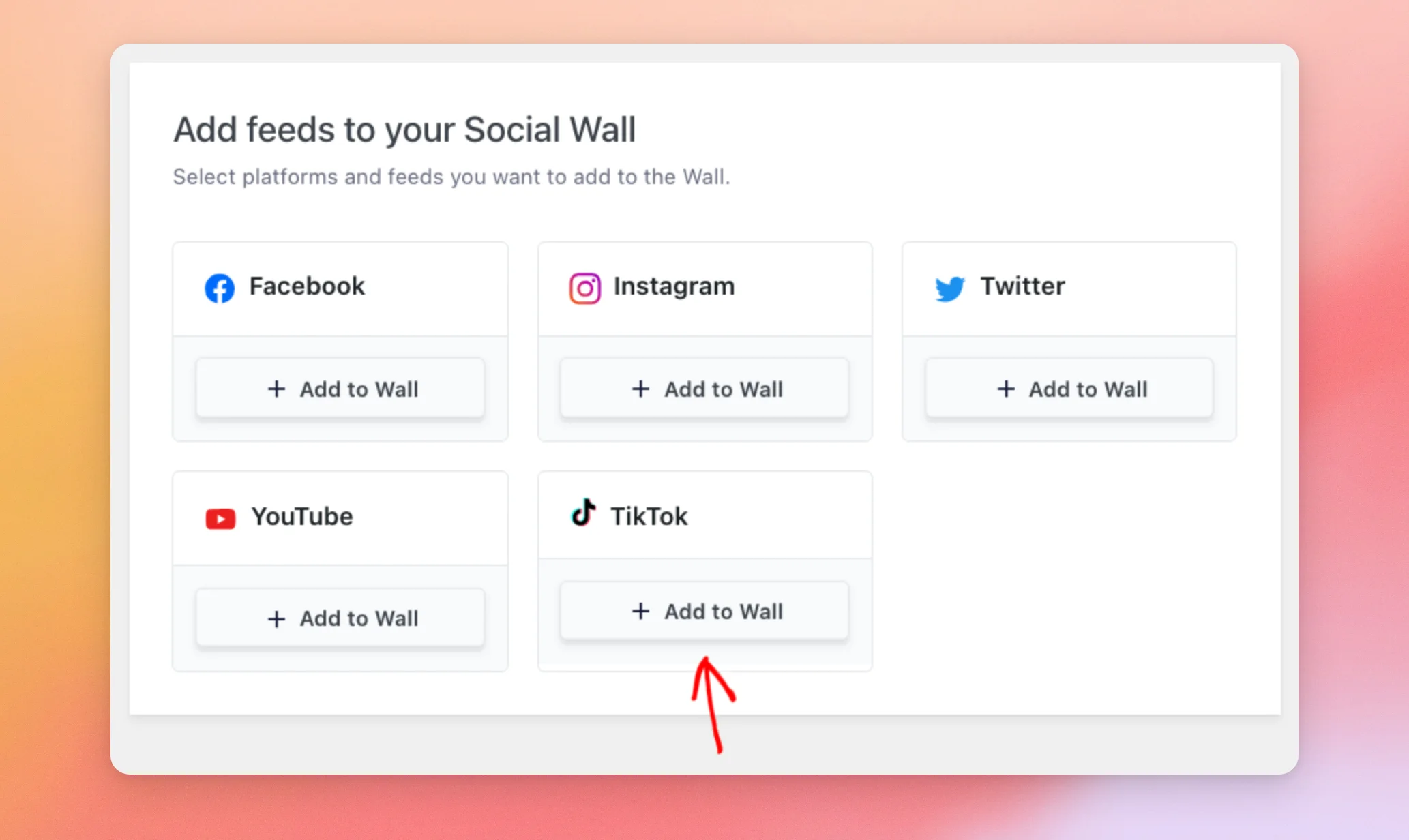
When the plugin is installed, activated, and new enough, the card changes to “Added to Wall” and a Select Feed list opens. It shows the feeds you built in that plugin.
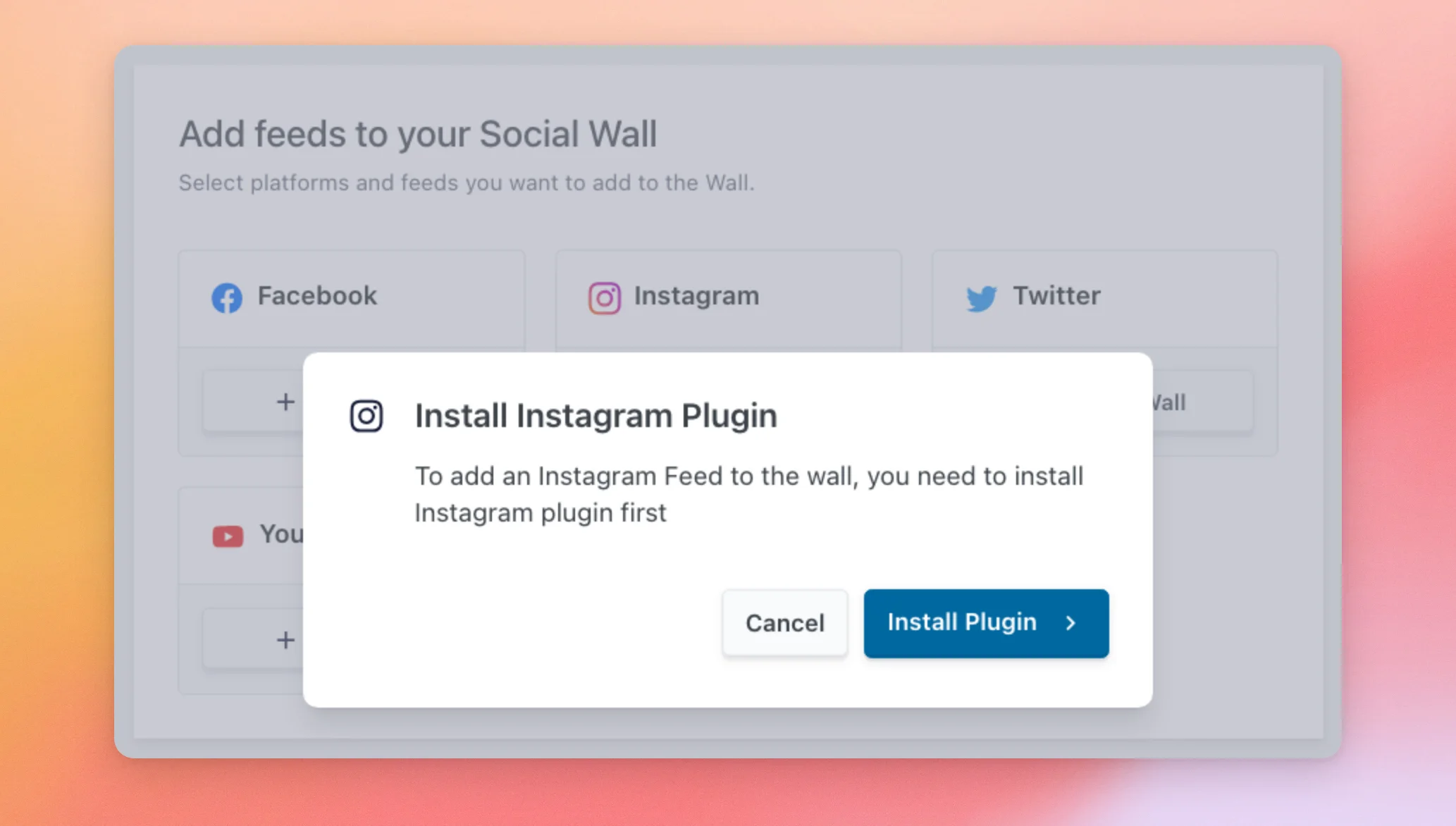
When Social Wall can’t find the plugin, clicking Add to Wall opens a prompt instead. It reads “Install” followed by the plugin name, with a message that you need to install the plugin first. The prompt has Cancel and Install Plugin buttons. Don’t use Install Plugin for a paid plugin. It installs a free plugin from WordPress.org, which Social Wall doesn’t count as a source. Install the paid plugin from your Plugins page instead.
Social Wall counts only the paid version of each plugin as a source.
Next, here’s what Social Wall does when a plugin doesn’t meet the version requirement.
Seeing What Happens When a Plugin Is Too Old
When a plugin is below the lowest version in the table, Social Wall:
- Leaves that plugin out of your wall. Posts from your other sources still show.
- Shows “No existing” followed by the plugin name and “feeds found” in that plugin’s Select Feed list, even when you have feeds in the plugin.
- Shows a note that reads “No posts are available for this feed” to WordPress administrators when no source has any posts. Visitors don’t see the note.
A plugin that is installed but not activated gets a prompt when you click Add to Wall. A plugin that is too old gets no such prompt, so the Installed Plugins page is the first place to look.
That’s it! You now know which plugin versions Social Wall needs and how to check them on your site. Next, learn how to create a Social Wall feed.
Frequently Asked Questions
Below, we’ve answered some of the most common questions about the plugin versions Social Wall needs.
Do I need all 5 source plugins to use Social Wall?
No. You choose the feeds for each wall from the source plugins you have.
Can I use the free versions of the source plugins with Social Wall?
Social Wall counts only the paid version of each plugin as a source. For your wall, use the paid plugins.
Why does the Select Feed list say no feeds were found when I have feeds in that plugin?
Social Wall leaves out the feeds of a plugin that is below the lowest version for that plugin. Next, check the version on the Installed Plugins page and update the plugin if it is lower.
Do I need to keep Social Wall up to date too?
Yes. Each source plugin names the lowest Social Wall version it works with. See How Does Social Wall Check Its Own Version? above for the numbers.