


 Social Wall
 Feed Analytics


Would you like to move a Facebook feed to another site, or send its settings to our support team?
In this guide, we’ll walk you through exporting a feed’s settings to a file and importing that file to make the same feed again. All you need is a feed you’ve made with Custom Facebook Feed.
Before you get started, make sure Custom Facebook Feed is installed and activated on your WordPress site.
The Custom Facebook Feed settings page has two boxes for this. Export Feed Settings saves one feed’s settings to a file, and Import Feed Settings makes a new feed from that file. The Support page has the same export, so you can send a feed’s settings to our support team.
Here is what we will cover.
Exporting a Feed
To get started, we’ll export your feed’s settings to a file.
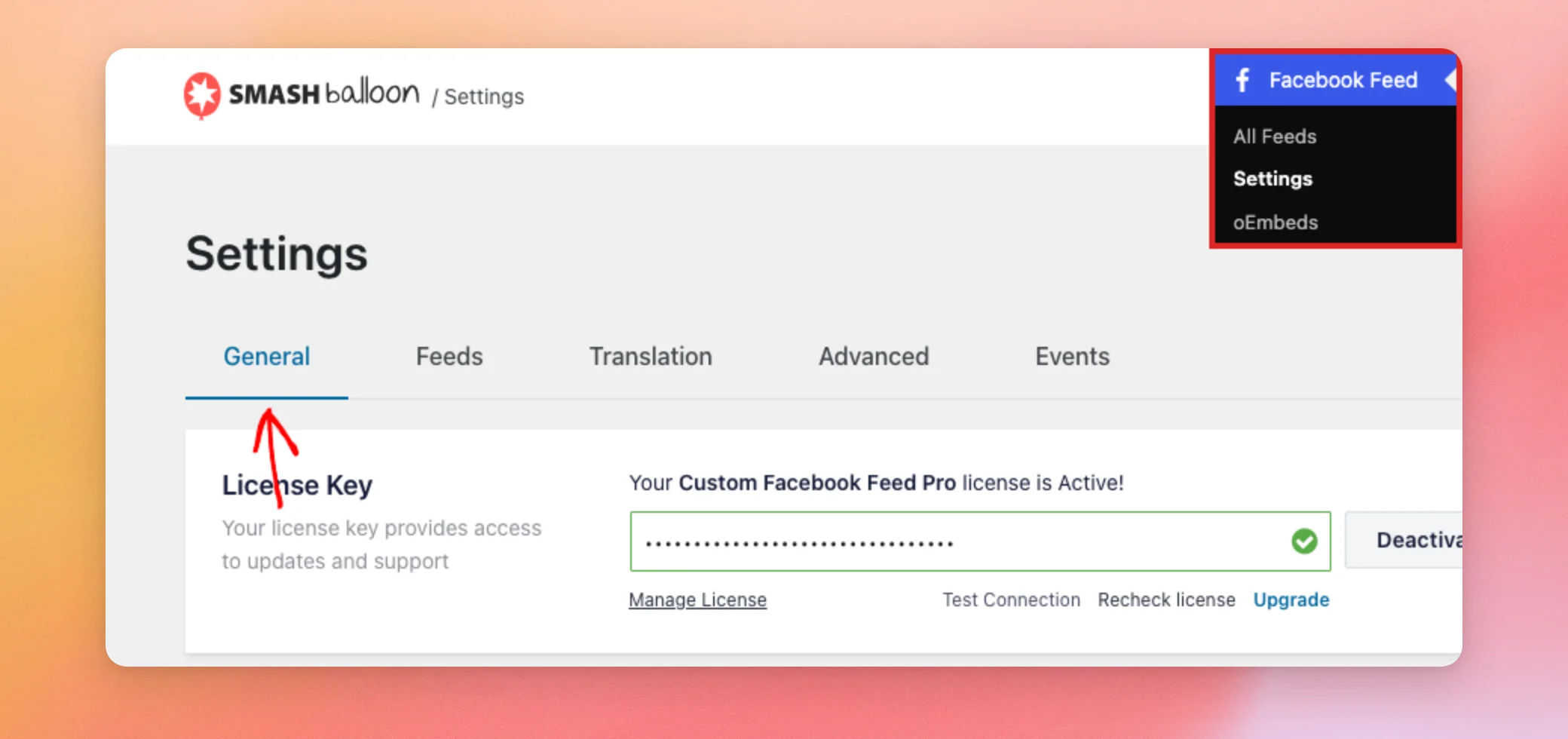
In your WordPress dashboard, go to Facebook Feed » Settings. The page opens on the General tab.
Next, scroll down to the Export Feed Settings box. From the dropdown that says Select Feed, pick the feed you want to export. Then, click Export.
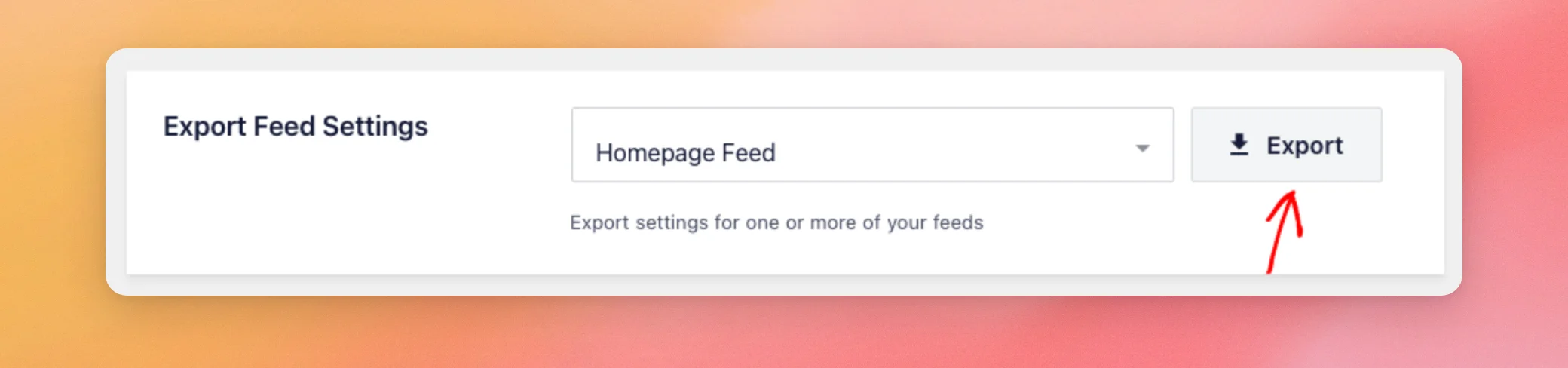
You can only click Export once you’ve picked a feed. Your browser then downloads a file with the feed’s settings. The file name starts with cff-feed-, then your feed’s name in lowercase, and ends in .json.
Note: The file also holds the connection data for the Facebook Page your feed uses. Treat it like a password. Share it only with the Smash Balloon support team.
Now that you have the file, we’ll use it to make a new feed.
Importing a Feed
If you’re importing the feed on another site, connect the same Facebook Page on that site first. The imported feed uses the Page it was exported with. To learn how, see our guide on connecting your Facebook account.
On the site where you want the feed, open the same Settings page. In the Import Feed Settings box, just above the Export Feed Settings box, click Import.
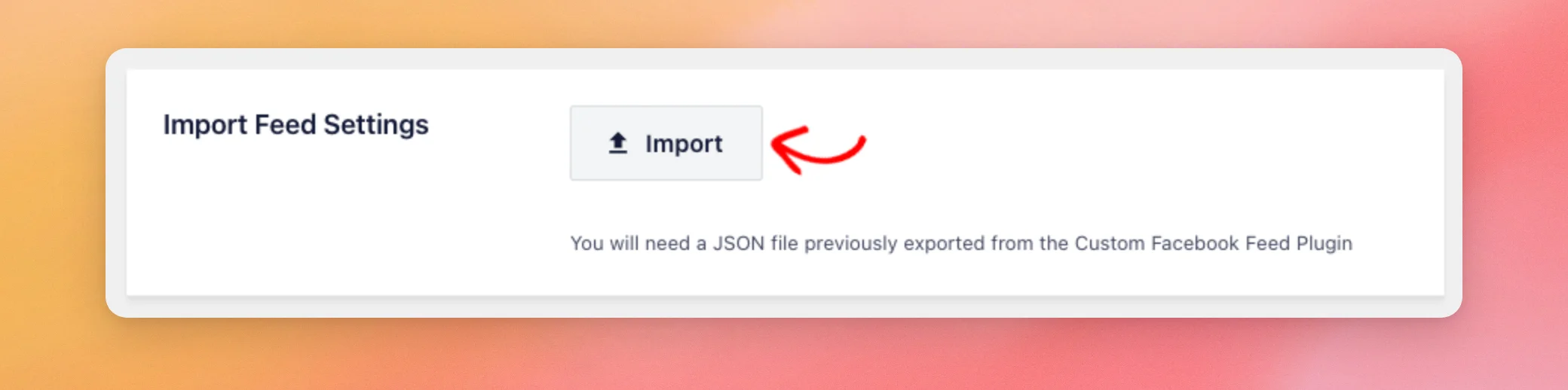
A window opens where you can pick a file from your computer. Then pick the .json file you exported. Custom Facebook Feed starts the import as soon as you pick the file. There’s no other button to click.
When the import is done, a Feed imported successfully message appears for a few seconds. Your new feed then shows in the All Feeds list, with the same name as the feed you exported. If the import doesn’t work, you’ll see Failed to import feed instead.
To show the new feed on your site, see our guide on displaying your feed.
Sending Your Feed Settings to Support
Our support team may ask for your feed’s settings to see how the feed is set up. You can export them from the Support page too.
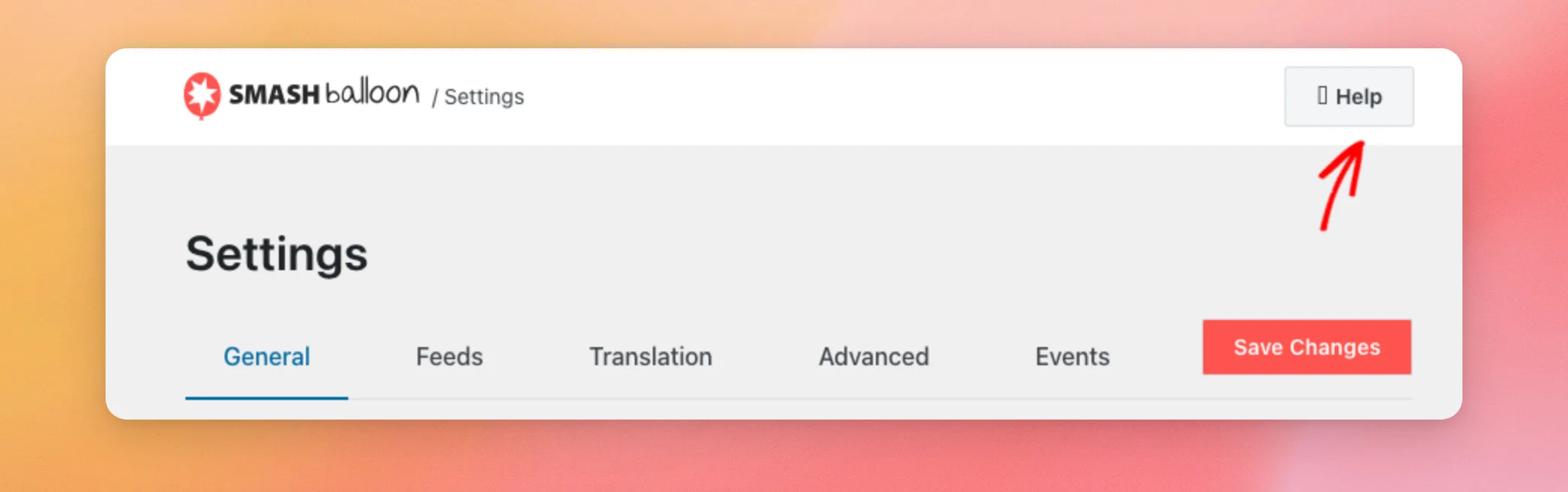
At the top of the Facebook Feed settings page, click Help. This opens the Support page.
Next, scroll down to the Export Settings box, below the System Info. From the dropdown that says Select Feed, pick your feed. Then, click Export.
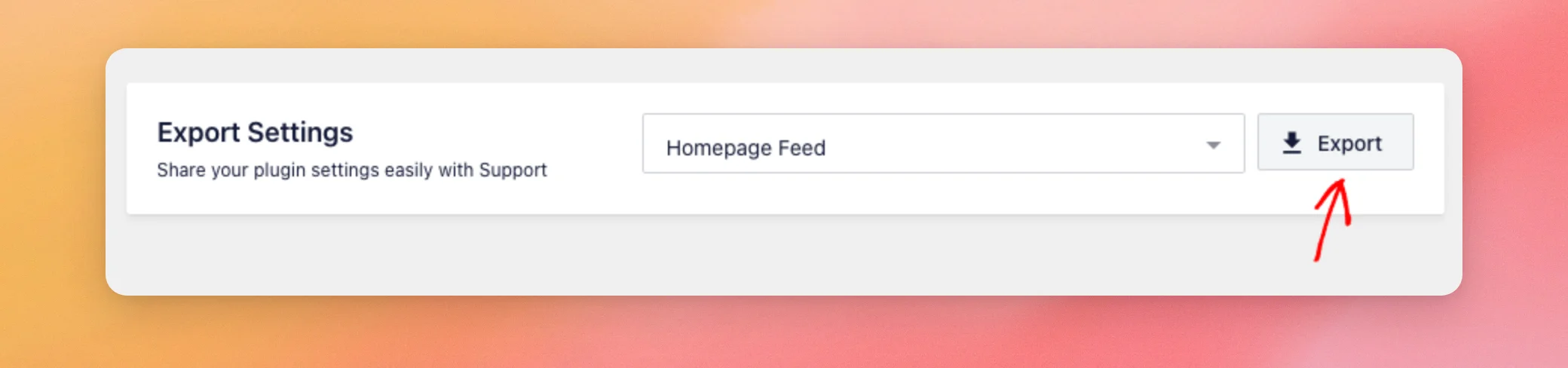
You’ll get the same file as the export on the Settings page. Then send it to our support team when they ask for it.
They often ask for your System Info too. To learn how to copy it, see our guide on getting your System Info.
That’s it! You now know how to export a Facebook feed’s settings and import them to make a new feed. If you’re moving your feeds to a new site, take a look at our guide on how our licenses work to move your license too.
Frequently Asked Questions
Below, we’ve answered some of the most common questions about importing and exporting Facebook feed settings.
Does importing a feed replace a feed I already have?
No. Every import makes a new feed. Your other feeds keep their settings, even one with the same name.
How do I move several feeds?
Export and import them one at a time. Each export file holds the settings of one feed. You’ll get one file for each feed.
Why do I see Failed to import feed?
The import stops when the file is empty or doesn’t include the feed’s source. In that case, check that you picked the .json file you got from the Export button.




