


 Social Wall
 Feed Analytics


Would you like to control which of your TikTok videos show first in your WordPress feed, mix up their order, or bring videos from more than one TikTok account into the same feed?
In this guide, we’ll walk you through the Sort settings in a TikTok feed and how to combine sources. All you need is TikTok Feeds with a connected TikTok account and a feed that shows your videos.
Requirements: Sorting by date is available on every license level, including the free plugin. Randomize requires the plus license level or higher. Sorting by views or likes and combining sources require the elite license level.
Before you get started, make sure TikTok Feeds is installed and activated on your site. You will also need a TikTok feed that shows your videos.
Here is what we will cover:
- Choosing How Your Videos Are Sorted
- Randomizing the Order of Your Videos
- How Does Sorting Work With Filters and the Number of Videos?
- Combining Sources in One Feed
- Frequently Asked Questions
Choosing How Your Videos Are Sorted
To get started, we’ll open the feed you want to sort.
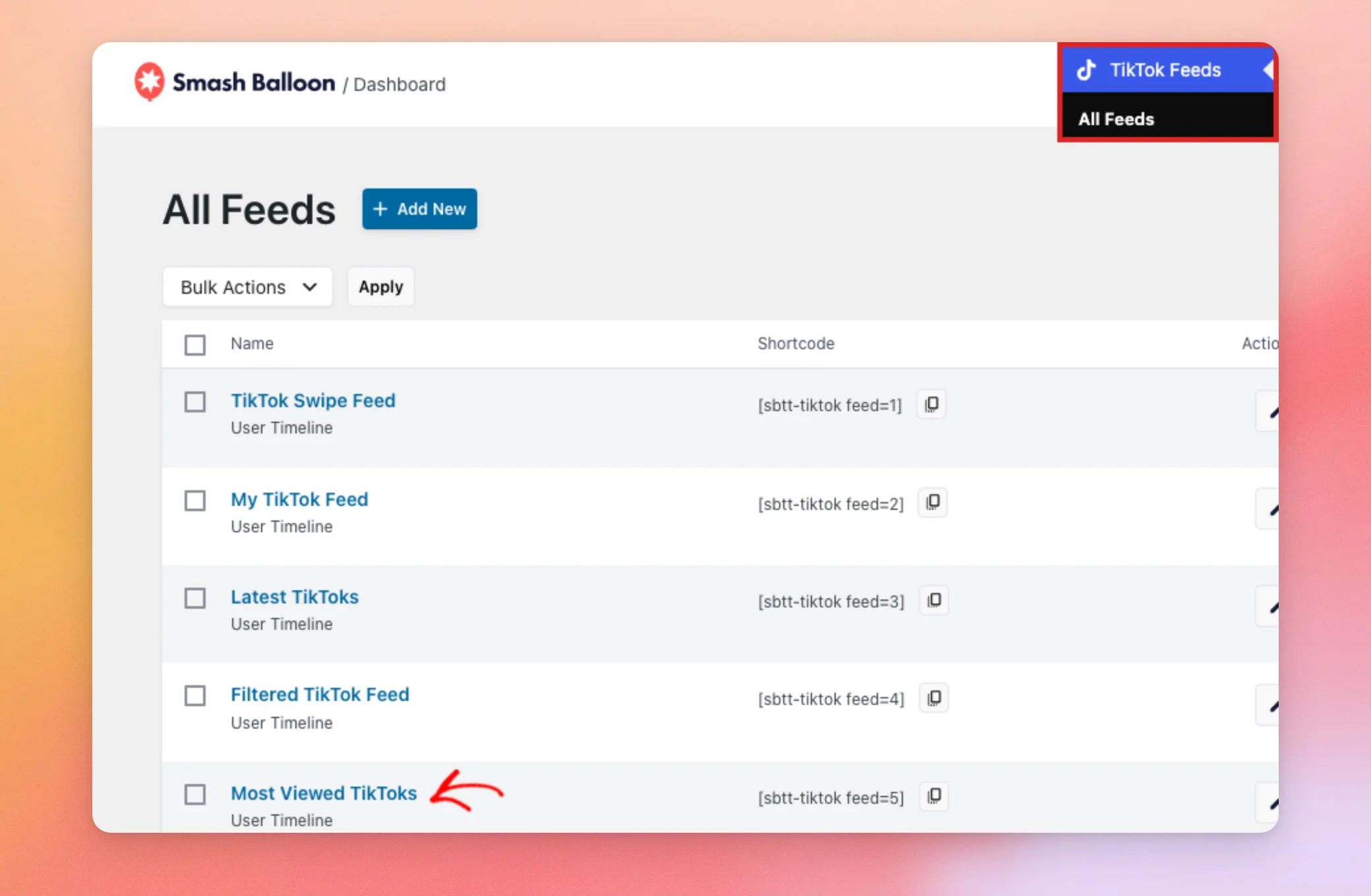
From your WordPress admin sidebar, go to TikTok Feeds » All Feeds. Then, click the name of the feed.
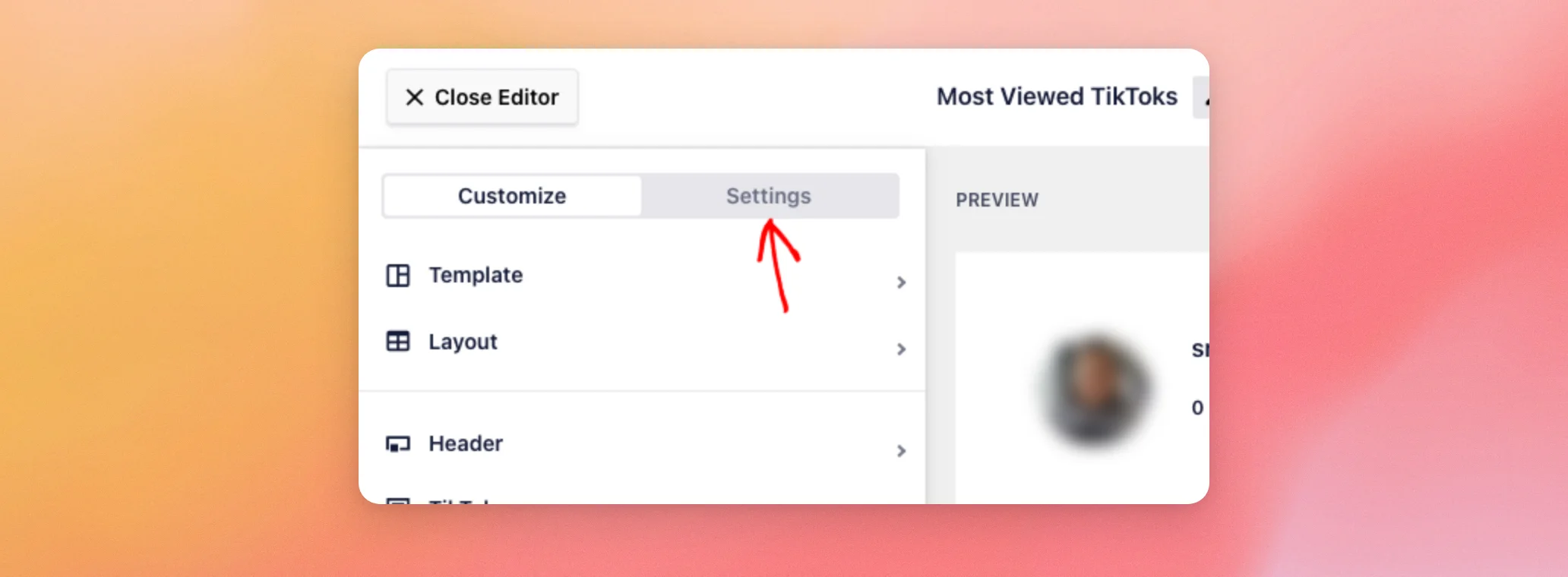
Your feed opens in the feed editor. At the top of the left panel, click the Settings tab.
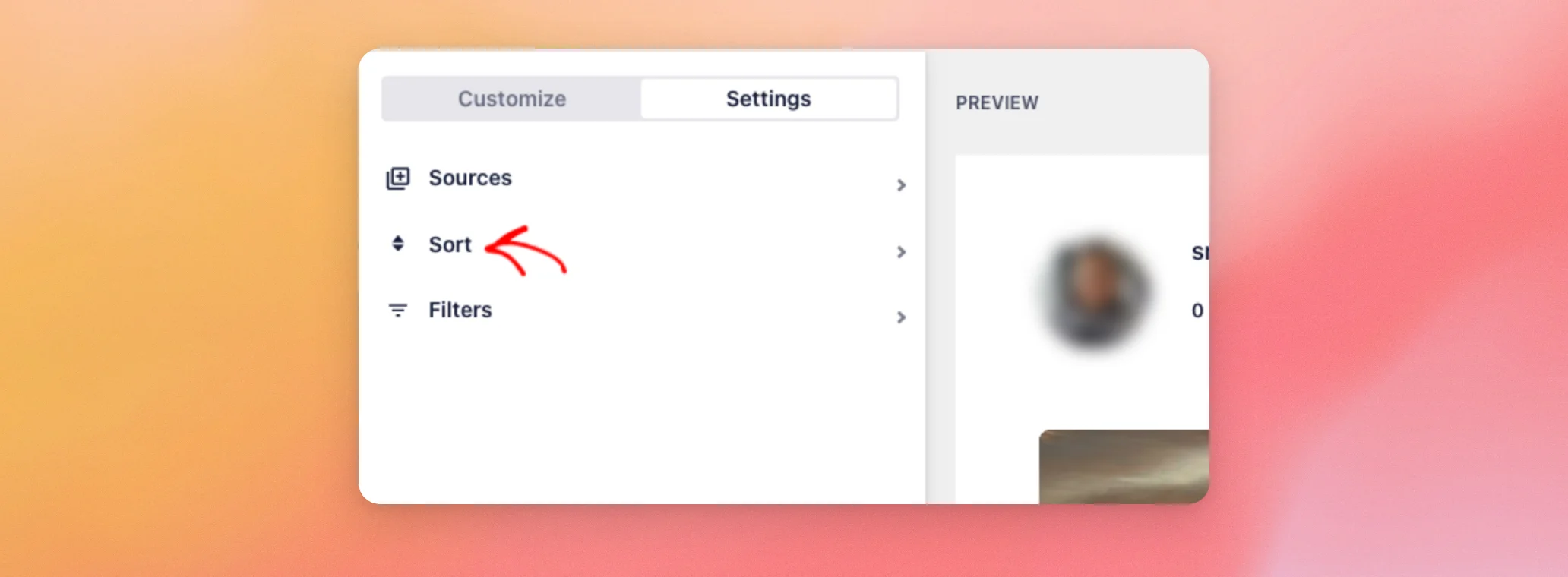
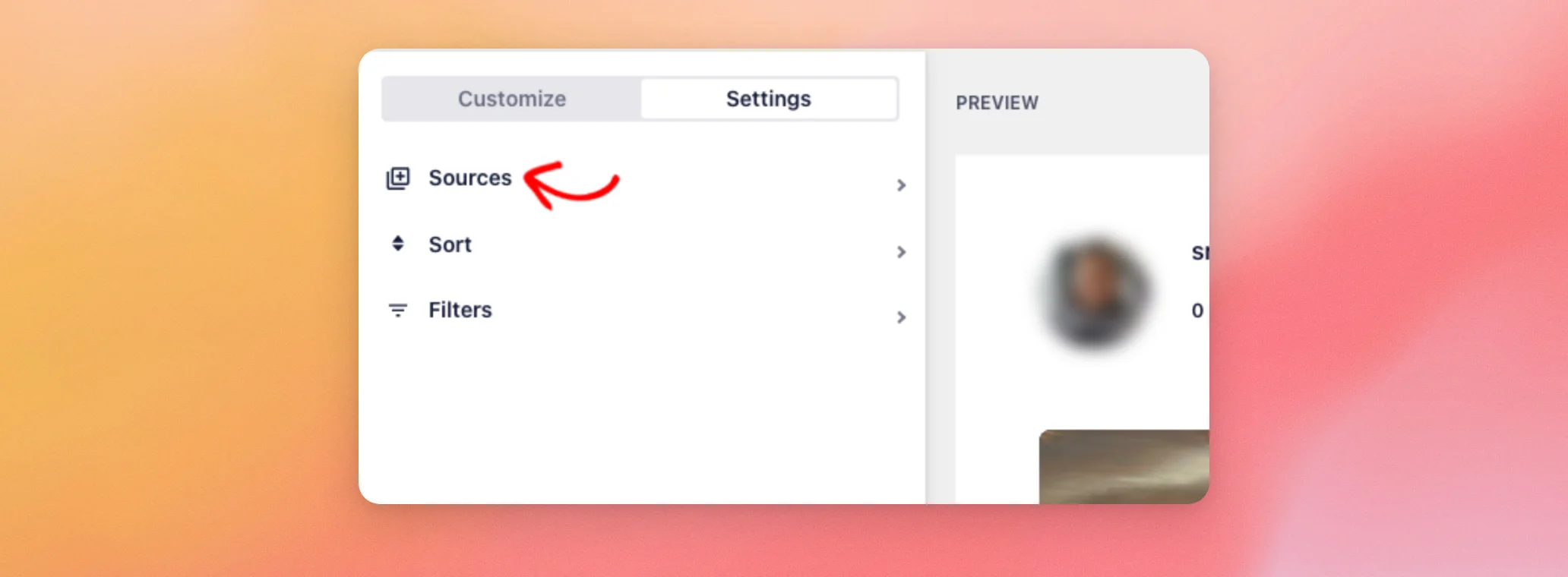
The Settings tab has 3 sections: Sources, Sort, and Filters. Next, click Sort.
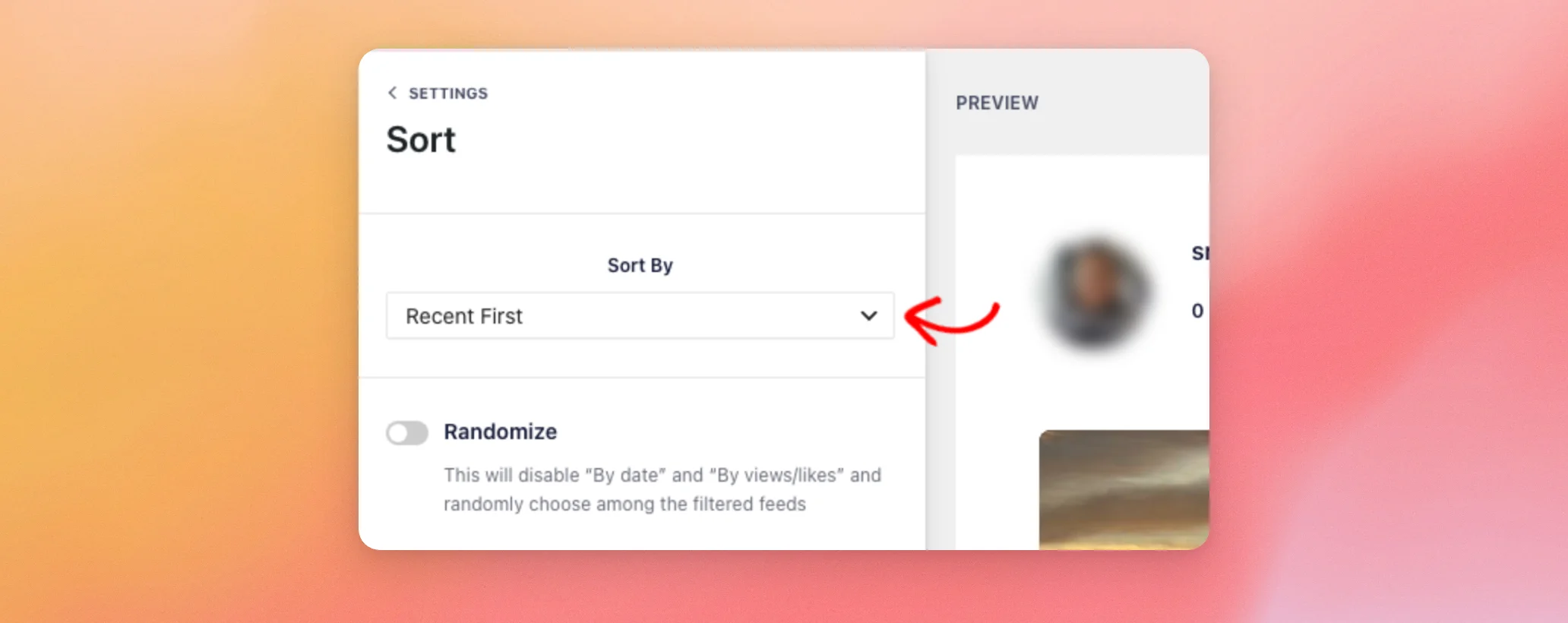
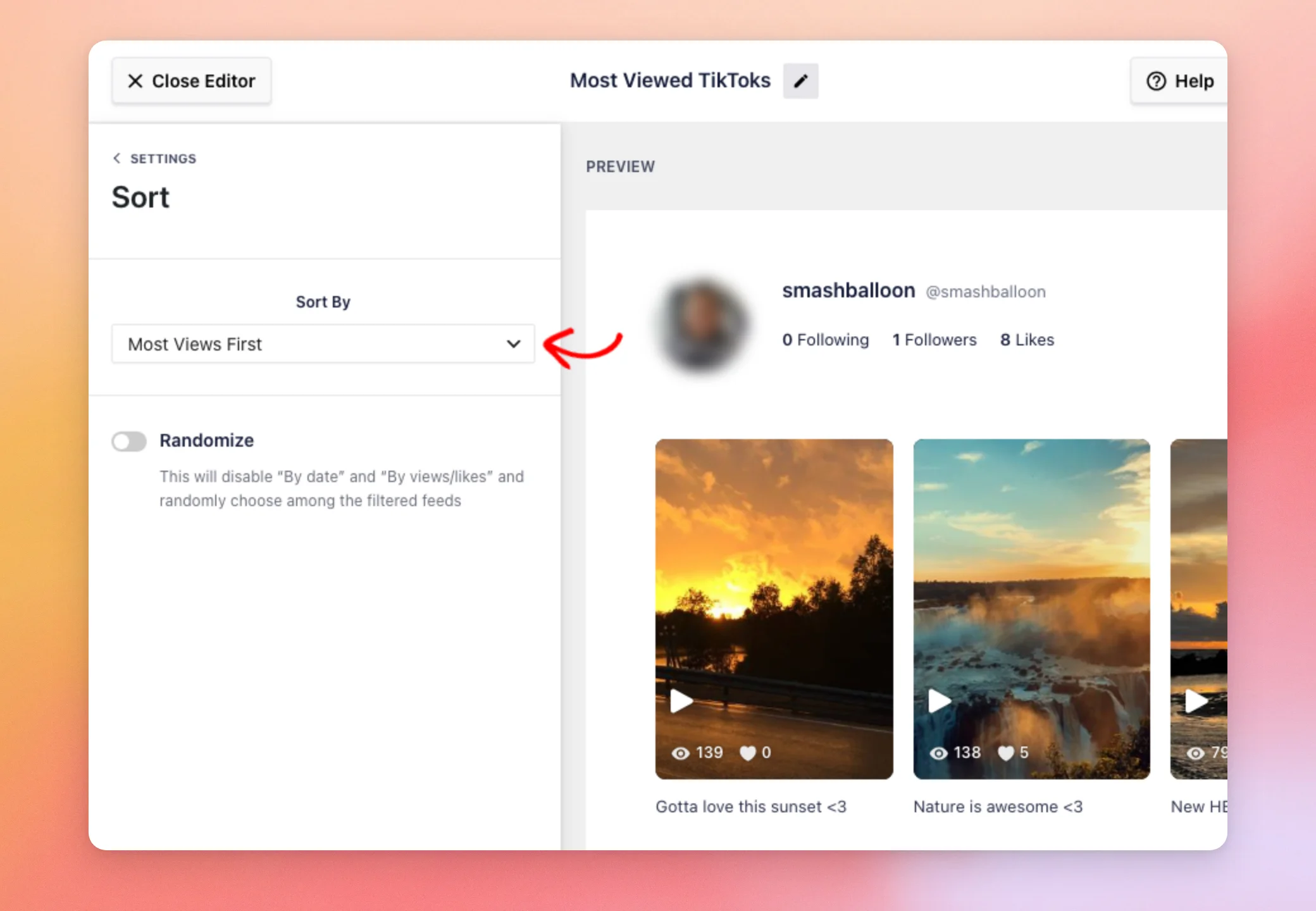
The Sort section opens with a Sort By menu. New feeds start with Recent First, so your newest videos are the first thing visitors see.
The menu offers these options:
- Recent First shows your newest videos first. This option is available on every license level.
- Oldest First shows your oldest videos first. This option is available on every license level.
- Most Views First shows the videos with the highest view counts first. This option requires the elite license level.
- Most Likes First shows the videos with the most likes first. This option requires the elite license level.
Recent First and Oldest First sort by the date each video was posted to TikTok.
Next, choose the option you want. The preview on the right updates right away.
In this example, we chose Most Views First. The video with the most views now comes first.
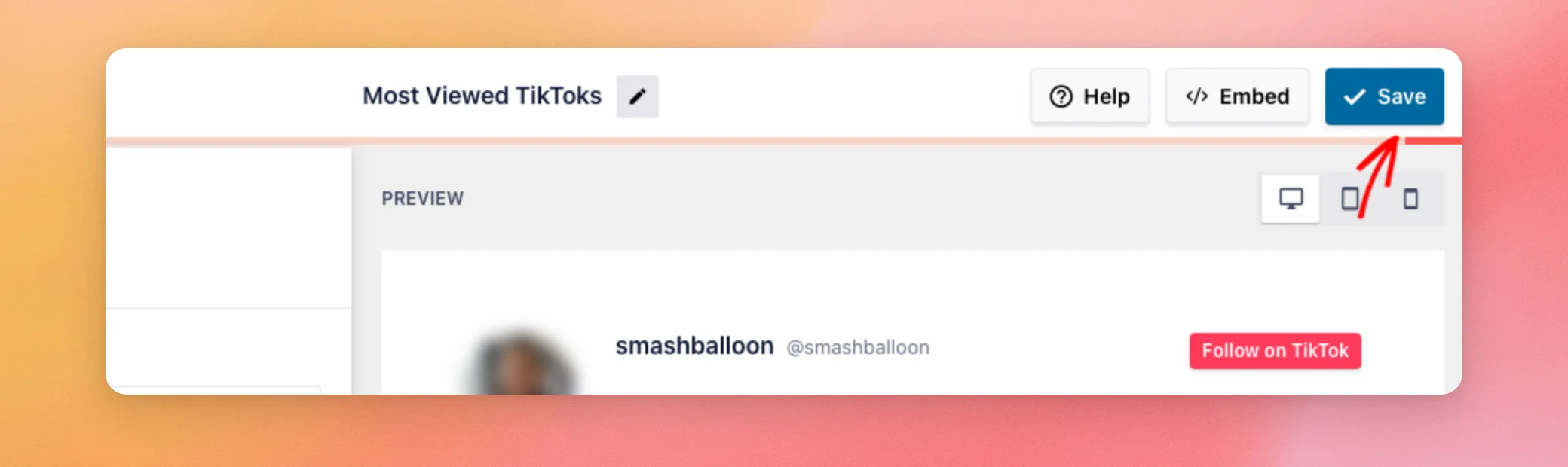
When you’re happy with the order, click Save in the top-right corner of the editor.
Your feed now shows its videos in that order wherever it appears on your site.
Randomizing the Order of Your Videos
If you’d rather mix up the order of your videos, use Randomize instead of Sort By. In the same Sort section, turn on the Randomize switch.
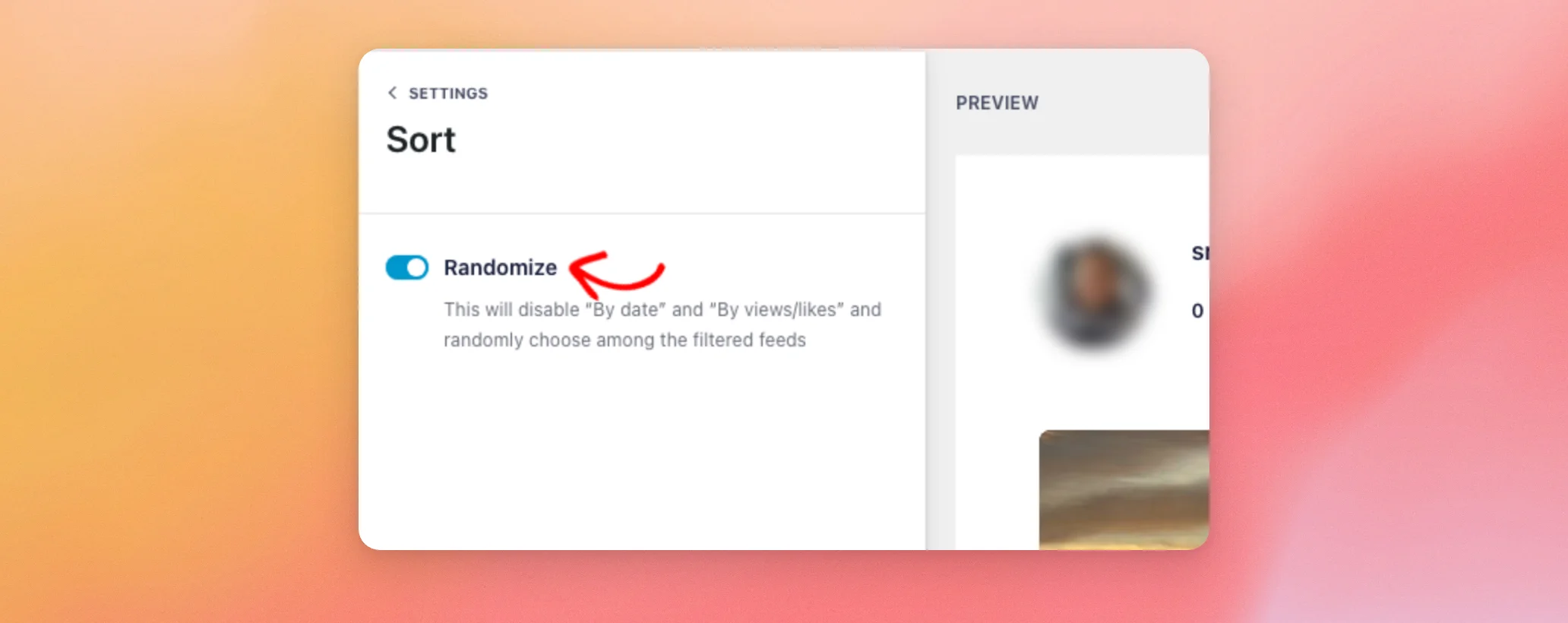
When Randomize is on, the Sort By menu disappears. The two settings don’t work together. When Randomize is off, the Sort By menu appears and your feed uses the order you picked there.
Next, save your feed again as we did above to keep the change.
Randomize mixes up the videos in the first set your feed shows. That set holds as many videos as the largest of the desktop, tablet and mobile numbers under Number of posts to display, in the Layout section of the feed’s Customize tab. Videos that visitors load afterward with a Load More button keep their original order.
How Does Sorting Work With Filters and the Number of Videos?
Your feed applies its settings in a set order, which helps you predict what shows up:
- The plugin gets your videos from TikTok. It stops asking for more once it has 200 videos for a feed.
- It applies your word filters.
- It sorts the videos that are left by the option you picked in Sort By.
- It shows the number of videos you set for your feed. The rest appear when a visitor uses Load More, in the same sorted order.
This means Most Views First shows the most viewed videos of everything the feed fetched, not only the most viewed of the first few. It also means sorting only works with the videos that pass your filters. To learn how to set them up, see our guide on filtering the videos in your TikTok feed.
Combining Sources in One Feed
A source is a connected TikTok account. With the elite license level, a feed can show videos from several sources at once.
The plugin gets the videos from every source you choose and puts them in a single list. It then filters and sorts them together. For example, with Recent First, videos from all of your accounts appear together by date.
From the feed editor, open the Settings tab as we did above. Then, click Sources.
The panel lists the sources the feed uses. Below the list, click Add another Source.
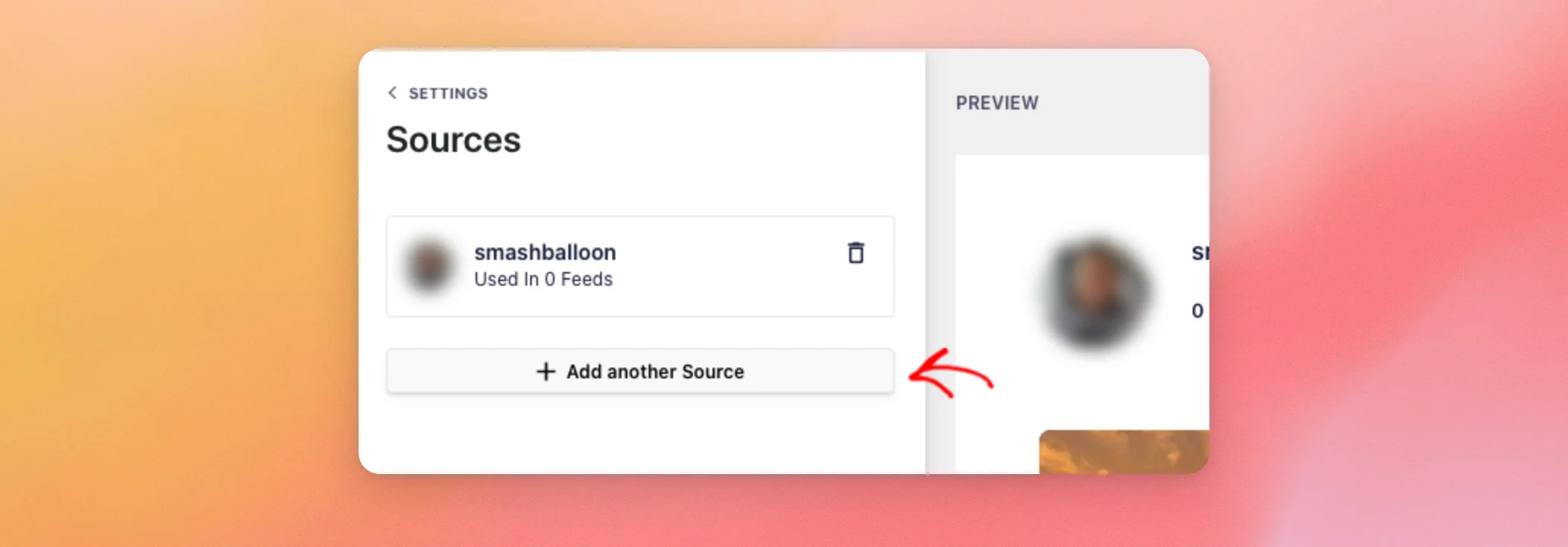
A window called Add Sources opens with a checkbox for each TikTok account connected to your site. With the elite license level, you can check more than one account. Then, click Add to put them in the feed.
On the other license levels, the window lets you pick only one account for the feed. The total number of accounts you can connect to your site also depends on your license level. The limits are 1 on the free plugin, 5 on basic, 10 on plus, and 25 on elite.
Before an account can appear in this window, you need to connect it. To learn how, see our guide on connecting another TikTok account.
Once the feed lists the sources you want, save your feed as we did above to keep the change.
That’s it! You now know how to sort your TikTok videos, randomize their order, and combine accounts in one feed. Next, learn how to choose how your videos open when a visitor clicks one.
Frequently Asked Questions
Below, we’ve answered some of the most common questions about sorting and combining sources in a TikTok feed.
Can I use Randomize and Sort By together?
No, the two settings don’t work together. To switch between them, see the Randomizing the Order of Your Videos section above.
Does Randomize mix up all of my videos?
No, only the first set of videos your feed shows. To learn how that set works with Load More, see the Randomizing the Order of Your Videos section above.
Where does the plugin get the view counts I sort by?
The plugin sorts by the view count and like count it receives from TikTok for each video.
Why can’t I see Most Views First or Most Likes First in my Sort By menu?
Those two options require the elite license level. On other license levels, the menu shows Recent First and Oldest First.




