


 Social Wall
 Feed Analytics


Would you like to back up a TikTok feed, copy it, or move it to another site?
This guide shows you how to export a feed’s settings to a JSON file and import that file later as a new feed.
Before you get started, make sure TikTok Feeds is installed and activated on your site and that you have created a feed.
Exporting a Feed
To get started, we’ll find the export and import boxes on the Settings page.
From your WordPress admin sidebar, go to TikTok Feeds » Settings. The General tab opens first. Then scroll down to the Import Feed Settings and Export Feed Settings boxes.
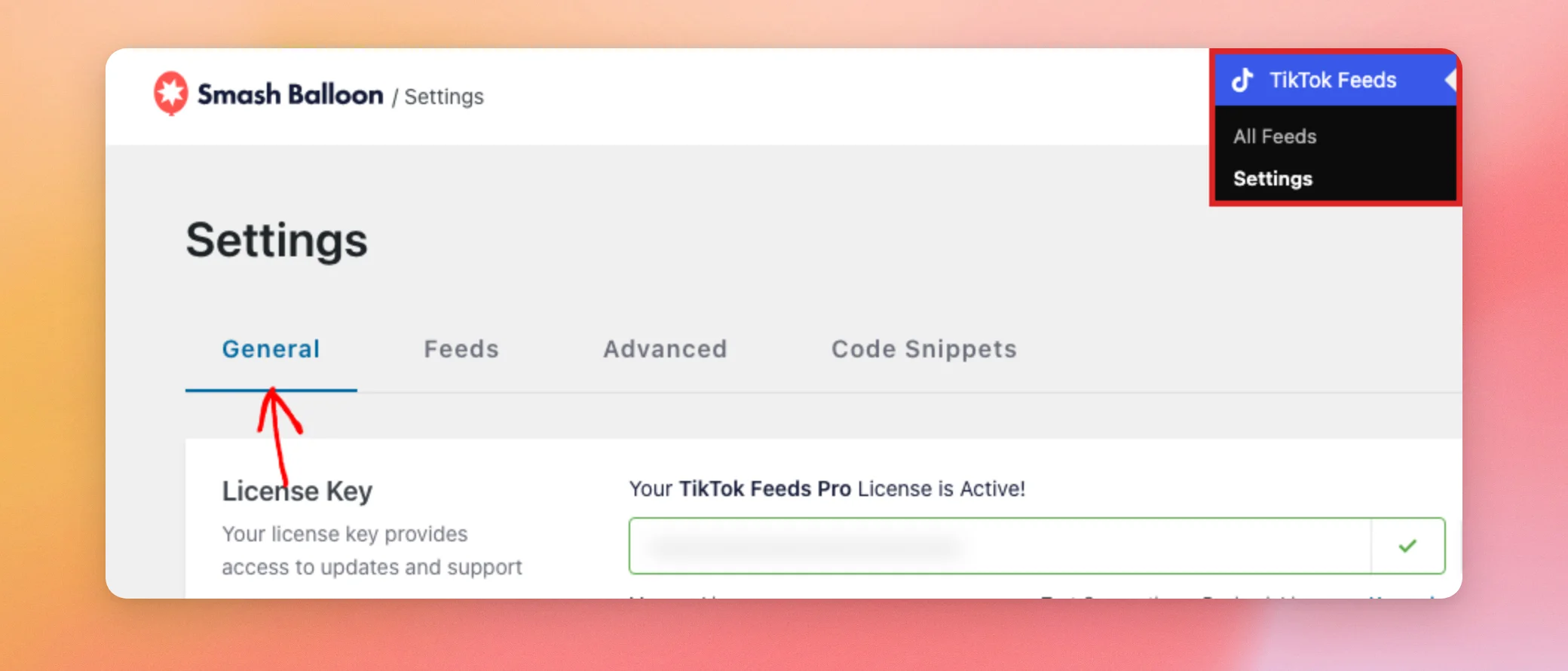
- In the Export Feed Settings box, open the Select Feed dropdown and choose the feed you want to export.
- Next, click Export.
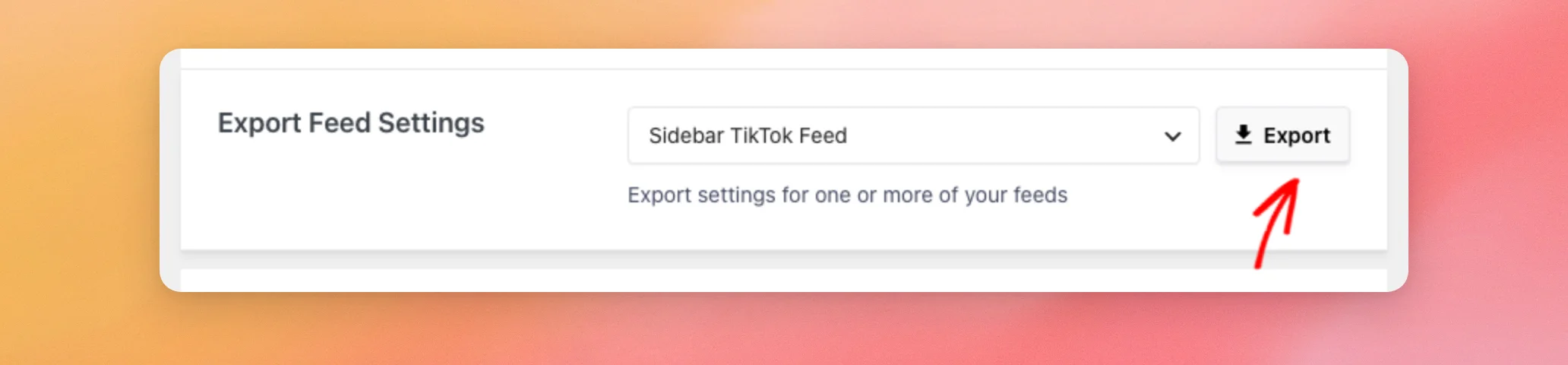
Your browser downloads a file named sbtt-feed- followed by the feed’s ID, such as sbtt-feed-9.json. Each file holds the feed you selected. To export another feed, repeat these steps with a different feed.
The file holds the feed’s name, its settings, and its styling. It also includes the connection details of the TikTok account the feed uses.
Important: Treat the exported file like a password. Keep it private and don’t post it or send it to anyone you don’t trust.
Once you have the file, you can import it as a new feed.
Importing a Feed
The Import Feed Settings box is on the same General tab. You stay on the Settings page.
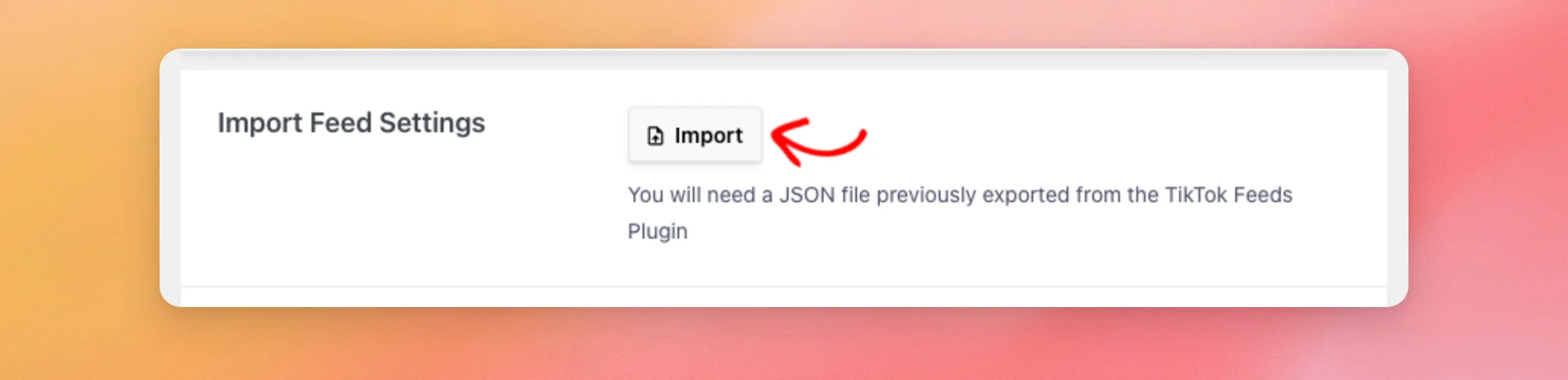
- In the Import Feed Settings box, click Import.
- Next, choose a JSON file that you exported from TikTok Feeds. Only files ending in
.jsonwork.
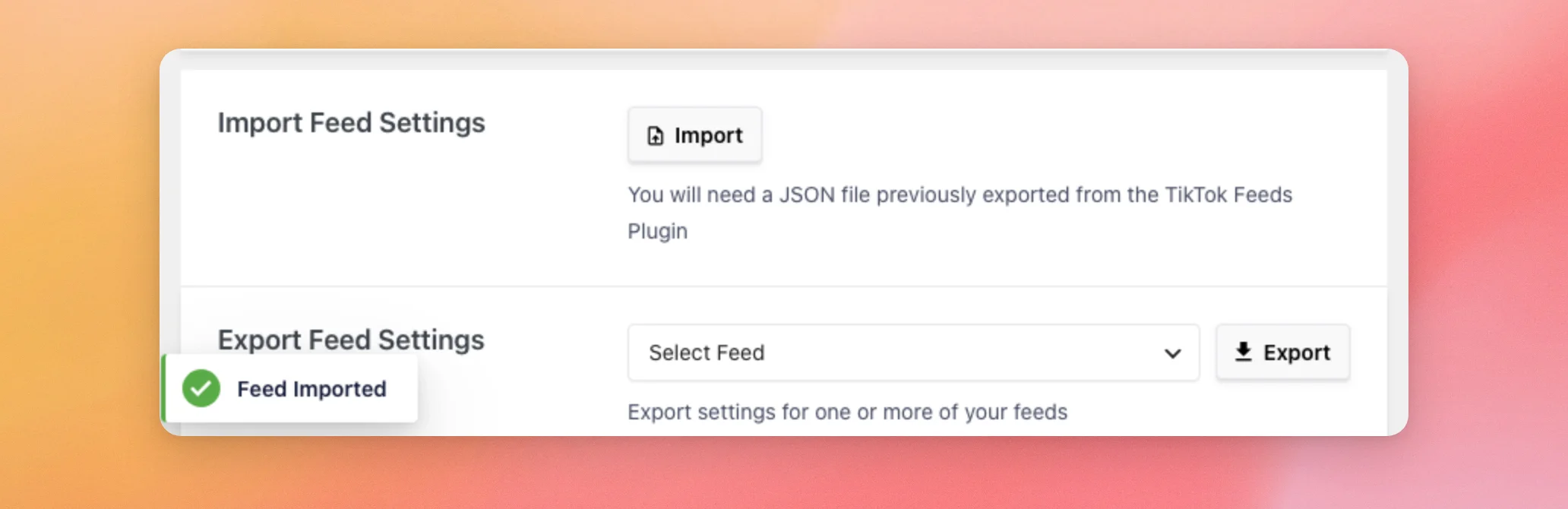
When the import finishes, a Feed Imported message appears at the bottom left of the page. It disappears after a few seconds. If you miss it, check All Feeds before you import the file again, because every import adds another feed.
The import always creates a new feed. It never replaces a feed you already have. The new feed keeps the name of the exported one.
Next, go to TikTok Feeds » All Feeds to find the new feed. If you imported on the same site, you now have 2 feeds with the same name. The copy gets a new feed ID, which shows in its shortcode. The shortcodes tell you which feed is which.
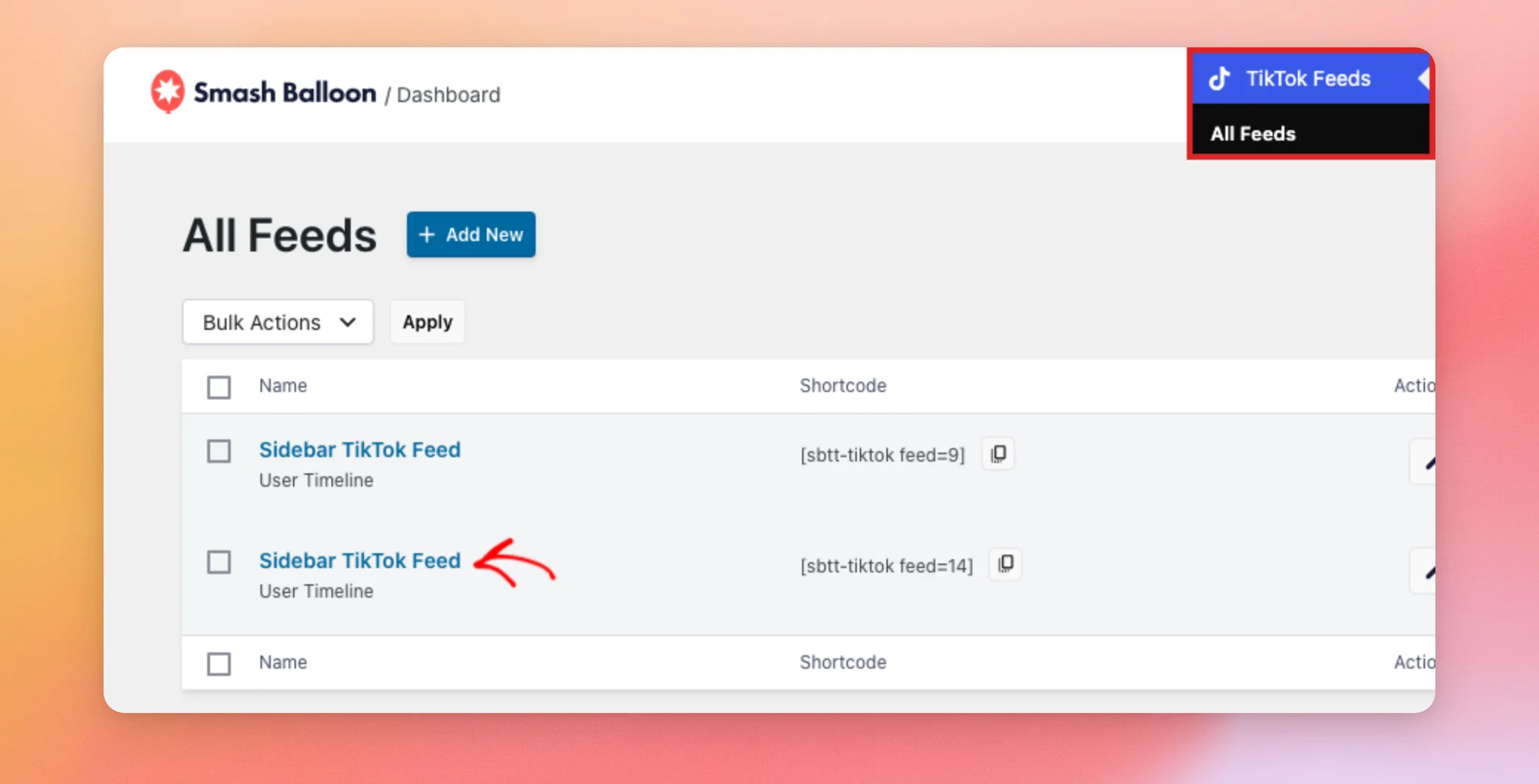
To show the new feed on a page, follow the steps in adding your feed to a page.
You can also use the same file on a different site.
Using an Exported Feed on Another Site
You can import a feed file on a different site that has TikTok Feeds. The import copies the feed’s settings and styling.
To show videos on the new site, connect your TikTok account on that site as well.
To learn more about connecting accounts, see our guide on keeping your account connected.
That’s it! You now know how to export a feed and import it as a new one. Next, see our guide on every setting on the TikTok Feeds Settings page.
Frequently Asked Questions
Below, we’ve answered some of the most common questions about exporting and importing feeds.
Can I export and import feed settings with the free plugin?
Yes. The free plugin has the same Import Feed Settings and Export Feed Settings boxes on its General tab.
Will importing replace one of my feeds?
No. Every import creates a new feed. Your existing feeds stay as they are. See the Importing a Feed section above.
How do I export several feeds?
The Export box exports the feed you select in the dropdown. To export several feeds, repeat the steps in Exporting a Feed for each one.
Why won’t my file import?
The file must end in .json and come from the Export button in TikTok Feeds. If it has no account details, the plugin shows a Feed Import Failed message. This can happen when the feed’s TikTok account wasn’t connected on the original site when you exported it. To fix this, reconnect the same TikTok account on the original site with our guide on keeping your account connected. Then export the feed again and import the new file.




