


 Social Wall
 Feed Analytics


Would you like to create and change your review feeds just by asking an AI assistant like ChatGPT or Claude?
In this guide, we’ll walk you through connecting Reviews Feed to your AI assistant and deciding whether it can make changes. All you need is Reviews Feed and a WordPress site your assistant can reach.
Requirements: AI Agents requires Reviews Feed version 2.16.0 or higher, in the free or paid version, and WordPress 6.9 or higher.
Before you get started, make sure Reviews Feed is installed and activated on your WordPress site. You’ll also need at least one review source, such as a Google or Yelp source.
Your assistant works with the sources you’ve already added in your dashboard. To add a source, see our guide on creating a reviews feed.
Reviews Feed works with AI assistants through WPVibe, our free plugin that connects AI assistants to WordPress. Your assistant can always read your feeds, sources, and settings. It can only make changes after you turn on MCP Write Access.
Here is what we will cover:
- Connecting Your AI Assistant with WPVibe
- Letting Your AI Assistant Make Changes
- Prompts You Can Copy
- Deleting Feeds with Your AI Assistant
- Frequently Asked Questions
Connecting Your AI Assistant with WPVibe
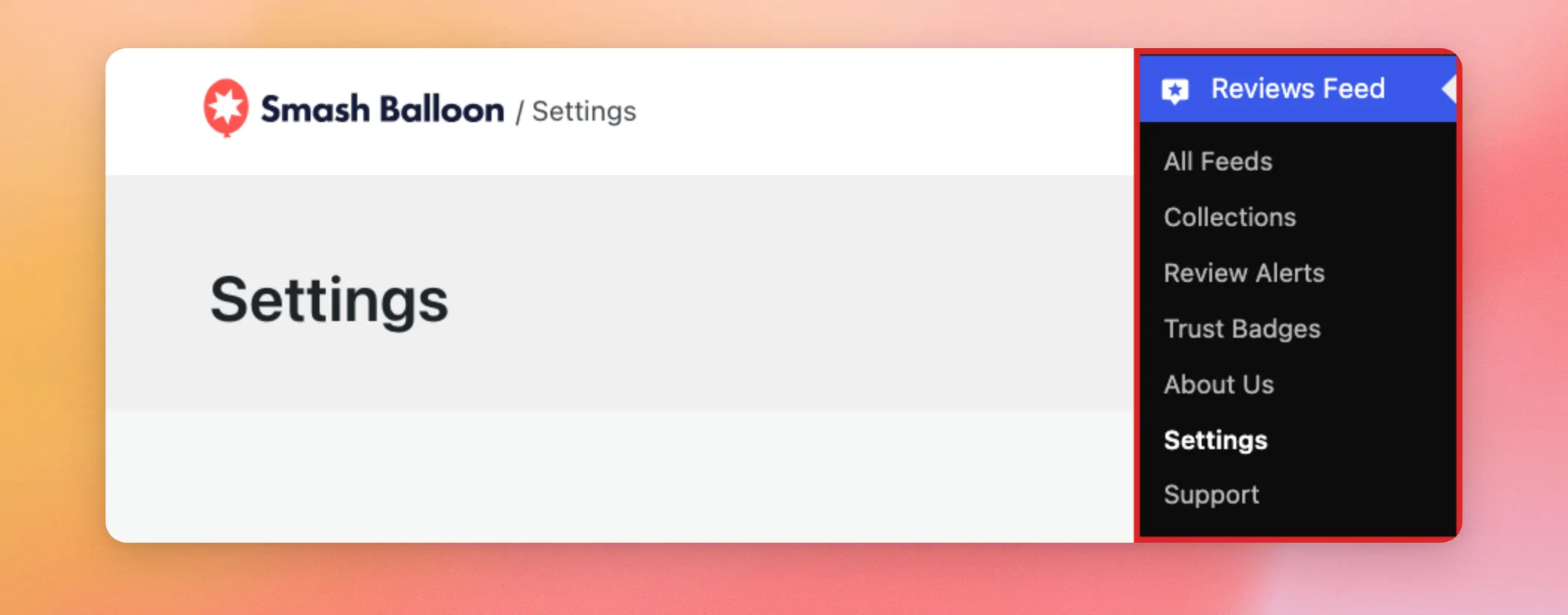
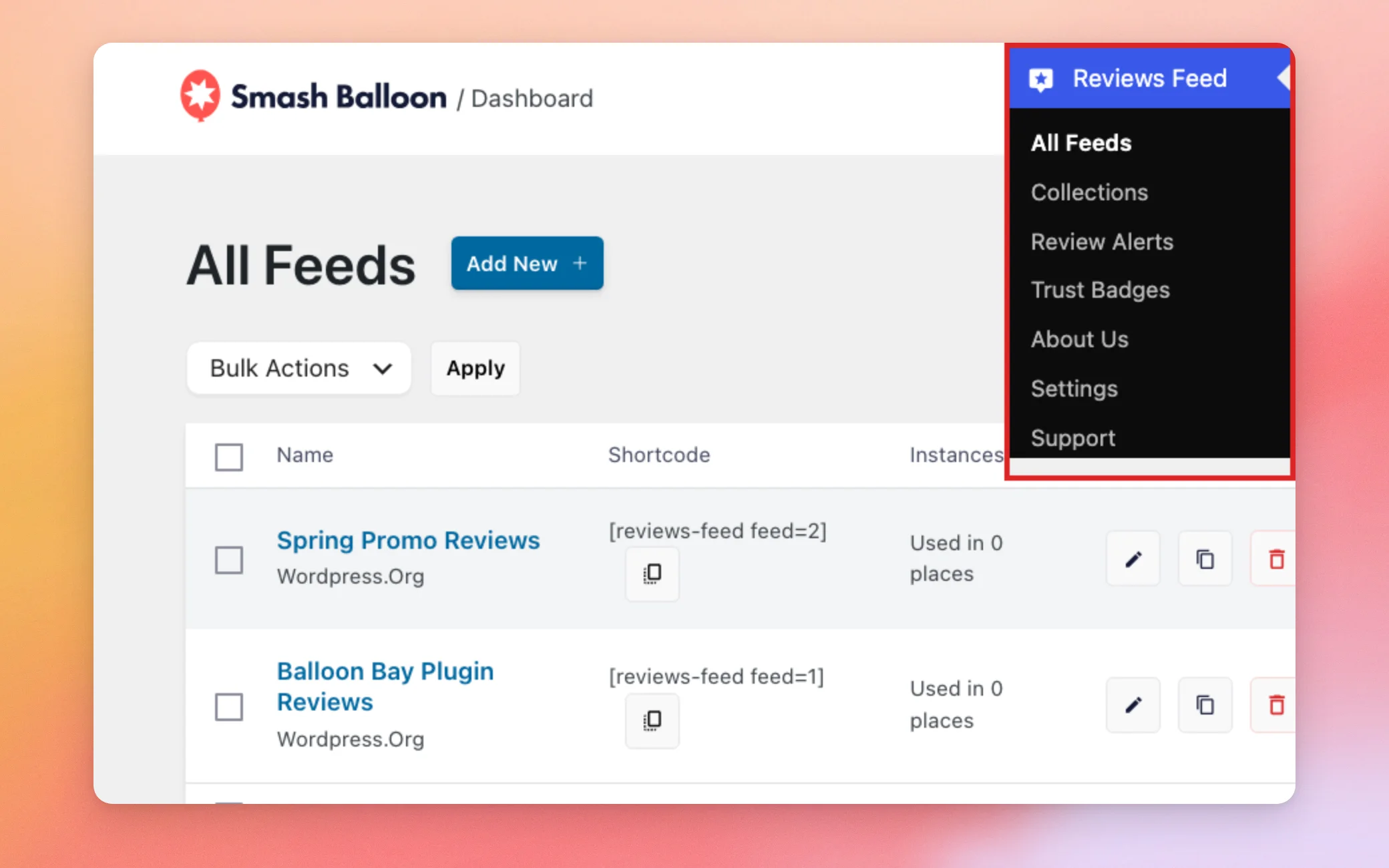
To get started, go to Reviews Feed » Settings in your WordPress dashboard.
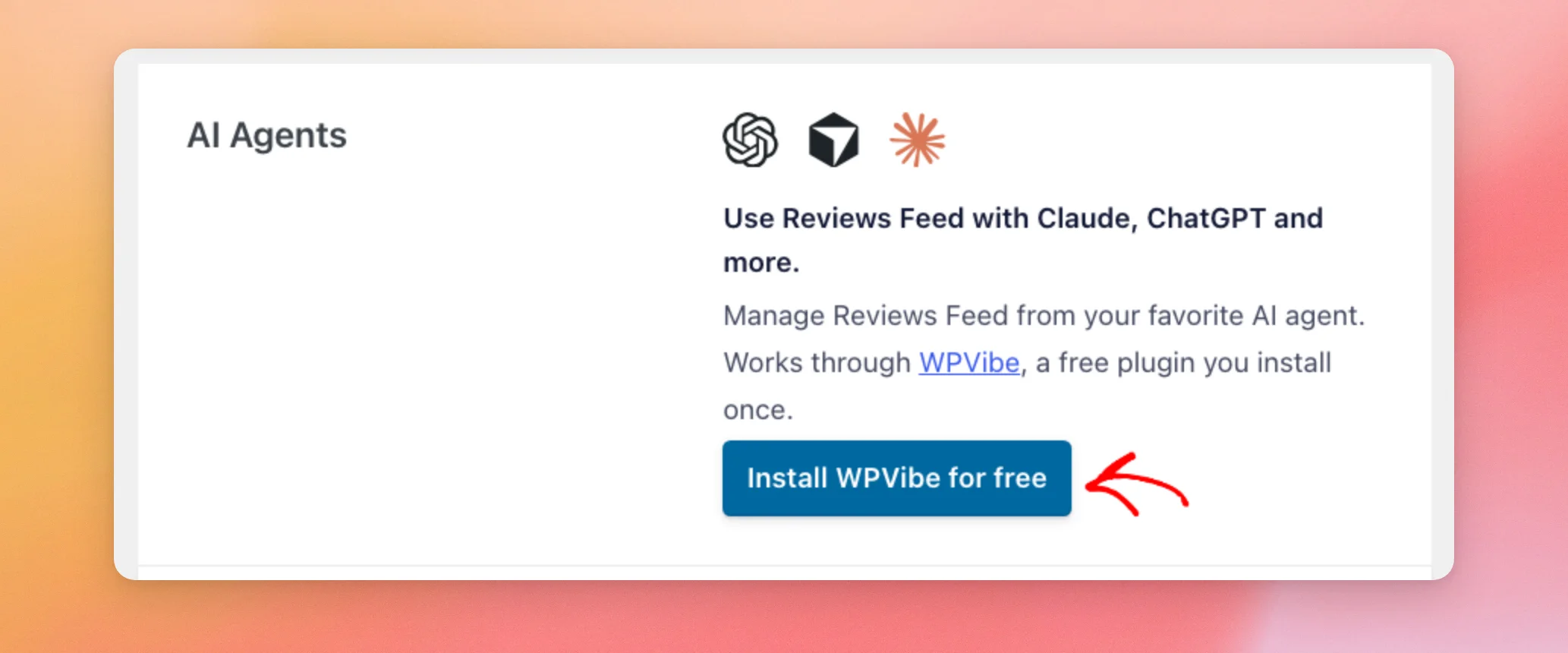
On the General tab, find the AI Agents section. If WPVibe isn’t installed yet, click Install WPVibe for free. Reviews Feed installs and activates WPVibe for you and reloads the page.
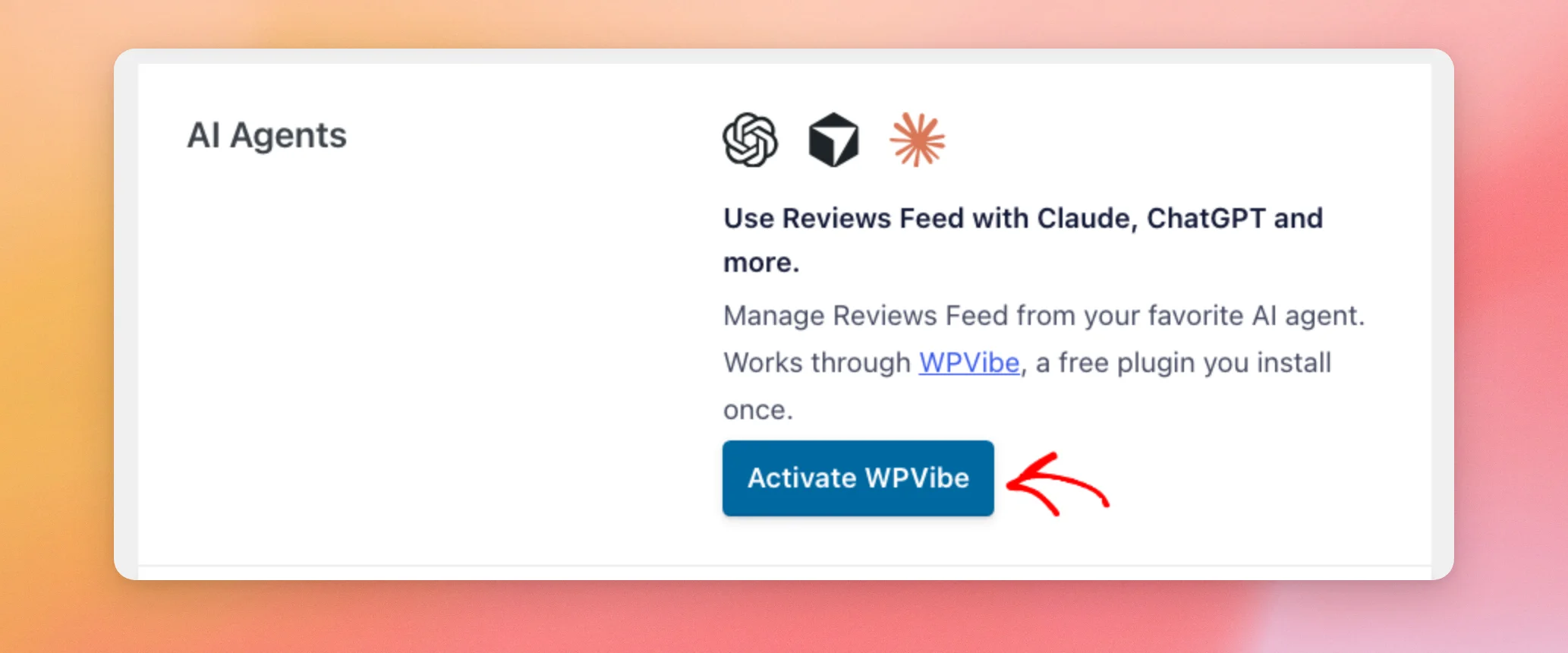
If WPVibe is installed but not active, the same button reads Activate WPVibe instead. In that case, click it to turn WPVibe on.
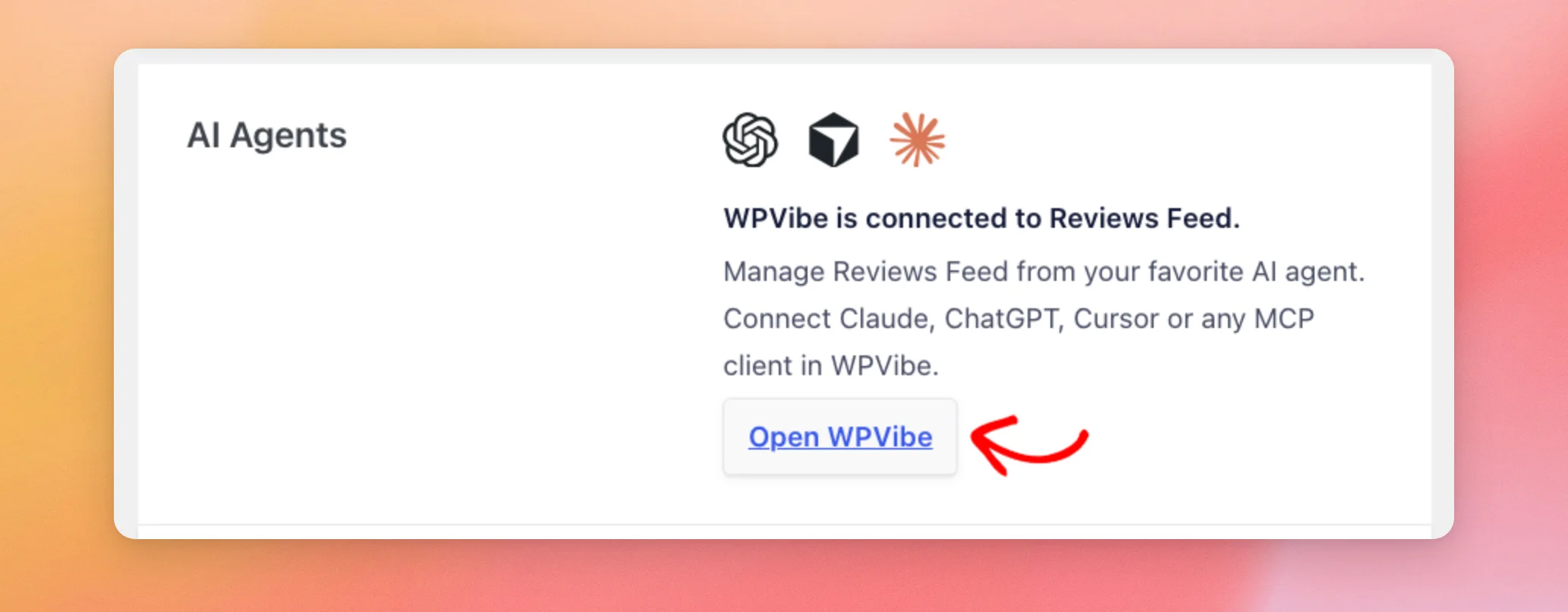
Once WPVibe is active, the section reads “WPVibe is connected to Reviews Feed.” This means WPVibe is ready on your site. Your AI assistant isn’t connected until you finish the steps in WPVibe.
Next, click Open WPVibe.
On the WPVibe page, follow the steps to add WPVibe to your AI assistant and connect your site.
For step-by-step instructions for each assistant, see WPVibe’s guide on setting up your AI client.
Note: Your site needs to be publicly reachable over HTTPS, because WPVibe connects to it over the internet. If your site doesn’t use HTTPS yet, see How to Properly Move WordPress from HTTP to HTTPS for a step-by-step guide.
To test the connection, ask your assistant which review sources are connected to your site.
Letting Your AI Assistant Make Changes
Reviews Feed gives your AI assistant read-only access by default. It can look at your feeds, settings, and review sources without changing anything. You decide when it can make changes.
To let it make changes, such as creating and editing feeds, go back to the Reviews Feed Settings page. Just below the AI Agents section, turn on the MCP Write Access switch.
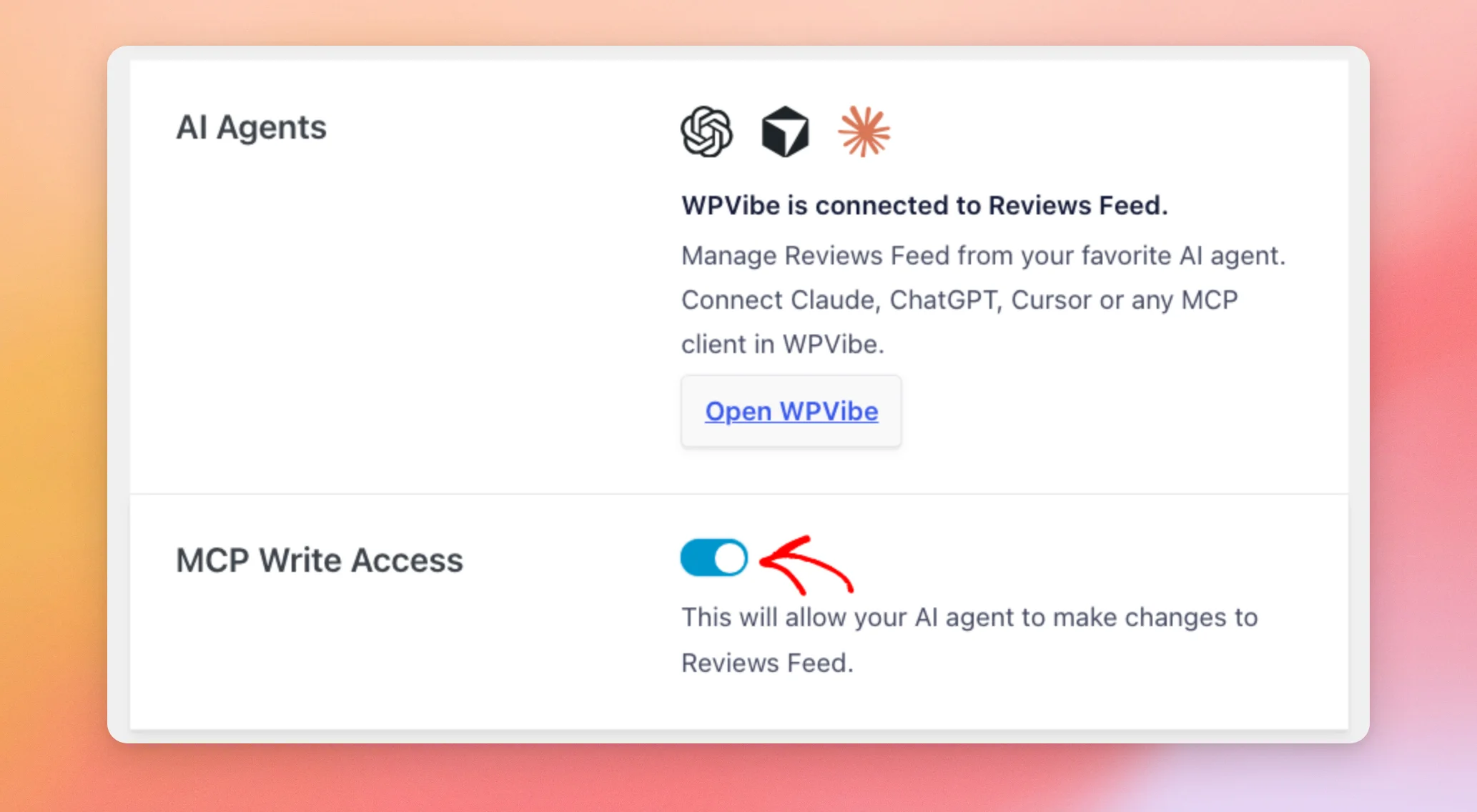
Then, click Save Changes at the top of the page.

After you save, the switch is still on when you reload the page. With MCP Write Access on, your assistant can create feeds and change your feeds and settings when you ask.
If you turn the switch off again, Reviews Feed turns down any change your assistant asks for. Your feeds and settings stay as they are.
For more about this switch, see the MCP Write Access section of our settings reference.
Prompts You Can Copy
Once your assistant is connected, you can ask it for things in plain language. Here are a few requests to try:
- See your review sources:
Which review sources are connected to my site? - List your feeds:
List my Reviews Feed feeds. - Create a feed:
Create a reviews feed called Homepage Reviews from my Google source. - Change a feed:
Change my Homepage Reviews feed to the masonry layout and show the highest-rated reviews first. - Change the header button:
Make the Write a Review button in my Homepage Reviews feed link to https://example.com/leave-a-review/. - Change a plugin-wide setting:
Turn on GDPR mode for Reviews Feed.
Before you send them, replace the feed name, source, and link in these examples with your own.
The first two requests work even while MCP Write Access is off, because they only read your site. The others make changes and need MCP Write Access turned on.
Note: A new feed starts with the layout from Reviews Feed’s default template. To use a different layout, ask for it after the feed is created, as in the Change a feed example.
To see the feeds your assistant creates, go to Reviews Feed » All Feeds. Each feed is listed with its shortcode and its source.
To show a feed on your site, see our guide on displaying your reviews feed.
Deleting Feeds with Your AI Assistant
Your AI assistant can’t delete a feed on its own. When you ask it to delete one while MCP Write Access is on, it gives you a confirmation link instead. The link works once and expires after 15 minutes.
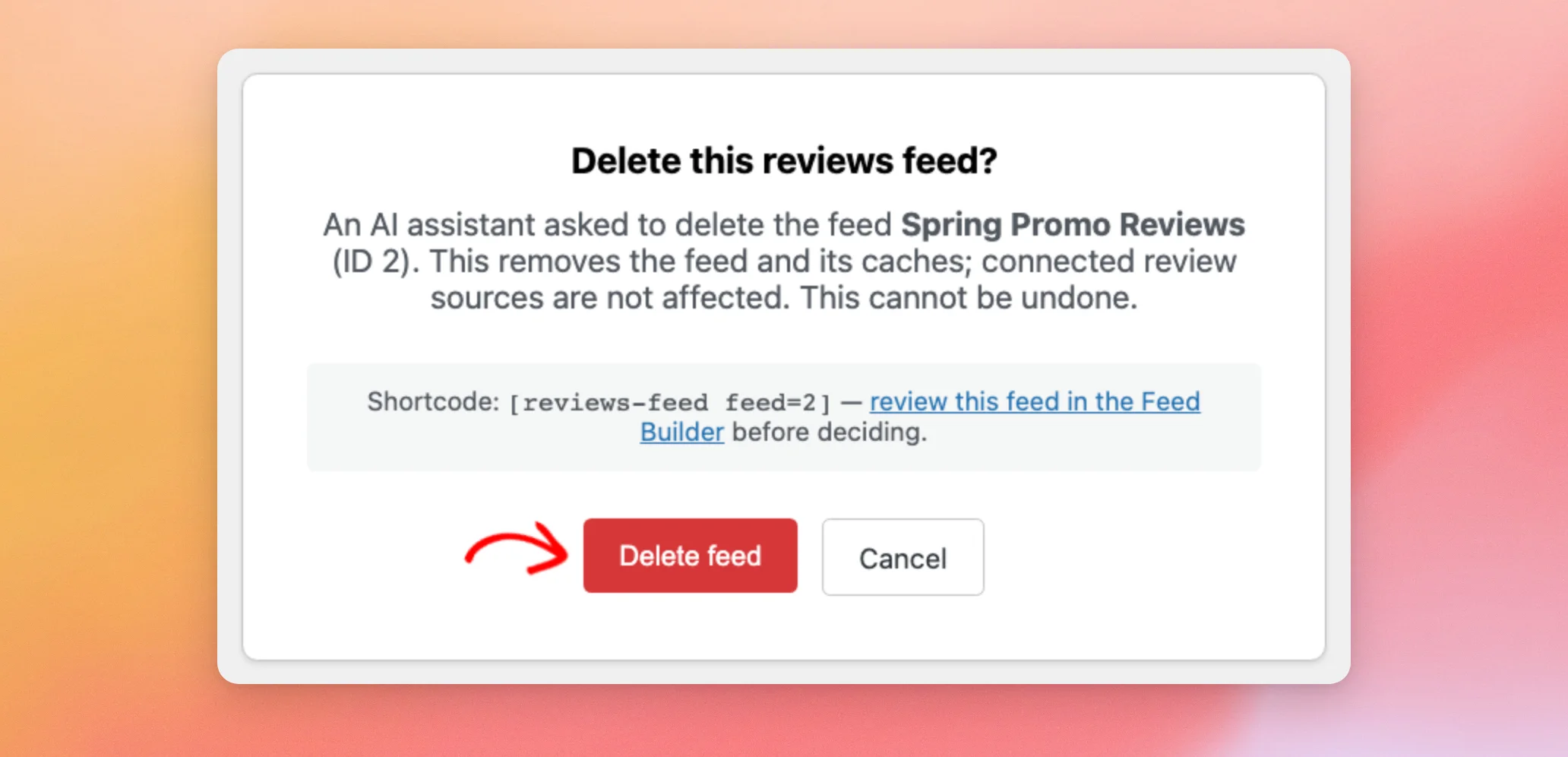
Next, open the link in the browser where you’re logged in to WordPress. The confirmation page shows the feed’s name and shortcode, and says deleting the feed can’t be undone. If it’s the feed you want to remove, click Delete feed.
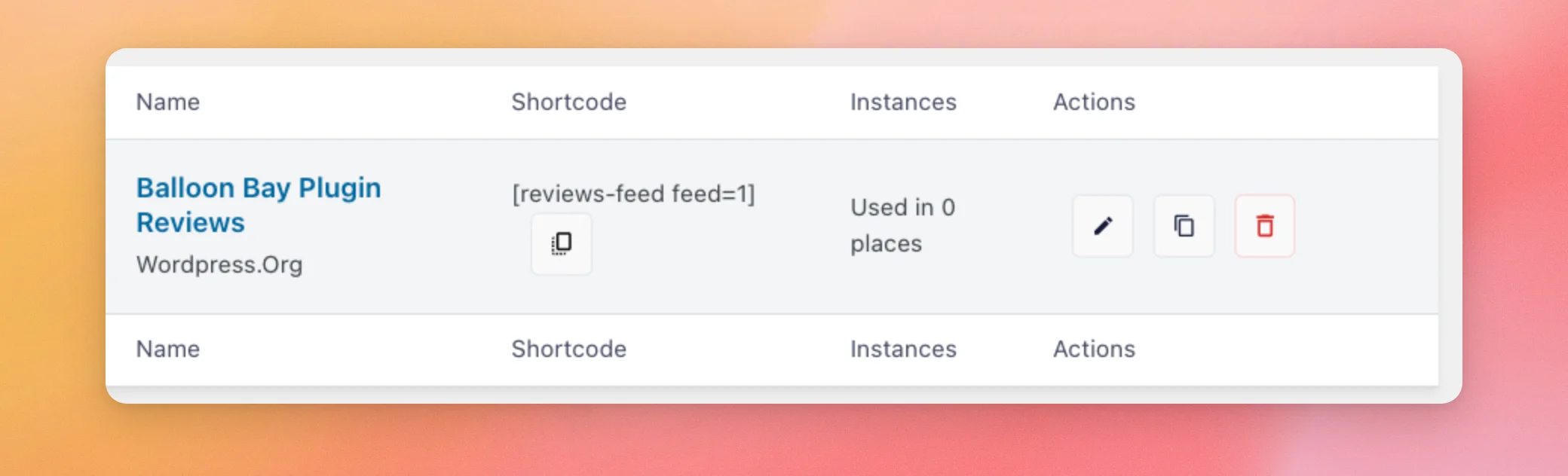
Deleting the feed takes you to the All Feeds page, where the feed is no longer listed. Your review sources stay connected.
Nothing is deleted until you confirm. The confirmation page also has a Cancel button. It takes you back to All Feeds and leaves the feed as it is.
Note: Only one feed can wait for confirmation at a time. A new deletion request replaces the link that’s waiting. To delete several feeds, confirm each one before you ask your assistant to delete the next.
That’s it! You’ve connected Reviews Feed to your AI assistant and decided whether it can make changes. Next, take a look at our guide on customizing the look of your reviews feed to fine-tune the feeds your assistant creates.
Frequently Asked Questions
Below, we’ve answered some of the most common questions about managing Reviews Feed with AI assistants.
Which AI assistants can I use?
You can use any assistant that connects to WordPress through WPVibe, such as Claude, ChatGPT, and Cursor, or any other MCP client.
What can my AI assistant do while MCP Write Access is off?
It can read your feeds and their settings, your plugin-wide settings, and your connected review sources. For each source, it sees the provider, the source’s name, and the rating. It also sees the number of reviews, which feeds use the source, and whether it has an error.
What can my AI assistant change once MCP Write Access is on?
It can create feeds and change a feed’s settings, such as its layout and the order of its reviews. It can also choose which of your connected sources a feed shows. In a feed’s header, it can set where the Write a Review button links to.
Beyond feeds, it can change four plugin-wide settings: image optimization, loading the plugin’s JavaScript in the page head, rich snippets, and GDPR mode. In the paid version, it can also set up Moderation Mode for a feed.
Can my AI assistant see my API keys?
No. Reviews Feed never shares API keys or access tokens with your assistant. You add review sources yourself in your WordPress dashboard, and your assistant works with the ones you’ve added.
Can I use this with the free version of Reviews Feed?
Yes. The free version has the AI Agents section and the MCP Write Access switch too. Your assistant can work with your Google and Yelp sources. If you ask for a feature that needs a paid license level, your assistant gets a message that says so.
What if my deletion link doesn’t work?
Each deletion link works once and expires after 15 minutes. It also works only for the WordPress user who requested it. It stops working if you turn MCP Write Access off. Asking to delete another feed replaces the link that’s waiting.
If a link doesn’t work, ask your assistant for a new one.
How do I stop my AI assistant from changing my review feeds?
In your WordPress dashboard, go to Reviews Feed » Settings. From here, turn off the MCP Write Access switch. Then, click Save Changes. Your assistant can still read your feeds and settings.
Can I use this on a local test site?
A site that only runs on your computer needs a public address first, because WPVibe reaches your site over the internet.
For more details, see WPVibe’s guide on connecting a local site.




