Social Wall
  Feed Analytics

How Reviews Feed describes your reviews to search engines so they can be eligible for star ratings in Google, and where the setting lives.
Would you like your customer reviews to be eligible for star ratings in Google search results?
In this guide, we’ll explain how Reviews Feed describes your reviews to search engines. We’ll also cover where its setting lives and how to verify that your pages are ready for rich results.
Requirements: Rich snippet schema requires Reviews Feed version 2.10.0 or higher.
Before you get started, make sure Reviews Feed is installed and activated on your WordPress site.
Starting with version 2.10.0, Reviews Feed automatically adds schema.org markup alongside every feed you display. There’s nothing to switch on and nothing to set up per feed: the feeds you already built are covered from the moment you update.
- What Does Reviews Feed Add to Your Pages?
- Turning Rich Snippet Schema On or Off
- How Is the Schema Type Chosen?
- Working With SEO Plugins
- Verifying Your Markup With the Rich Results Test
- Frequently Asked Questions
What Does Reviews Feed Add to Your Pages?
On every page that displays a reviews feed, the plugin writes a structured description of that feed into the page’s code. That description covers your average rating, your total review count, and a sample of the reviews themselves. Each review in the sample carries its own rating, plus the author, date, and review text where the review includes them.
Search engines read this markup to understand what’s on the page, which makes the page eligible for star ratings in search results. If you are new to rich snippets, see How to Use Rich Snippets in WordPress for a beginner-friendly overview.
The markup is invisible to visitors. Your page and your feed look exactly the same as before.
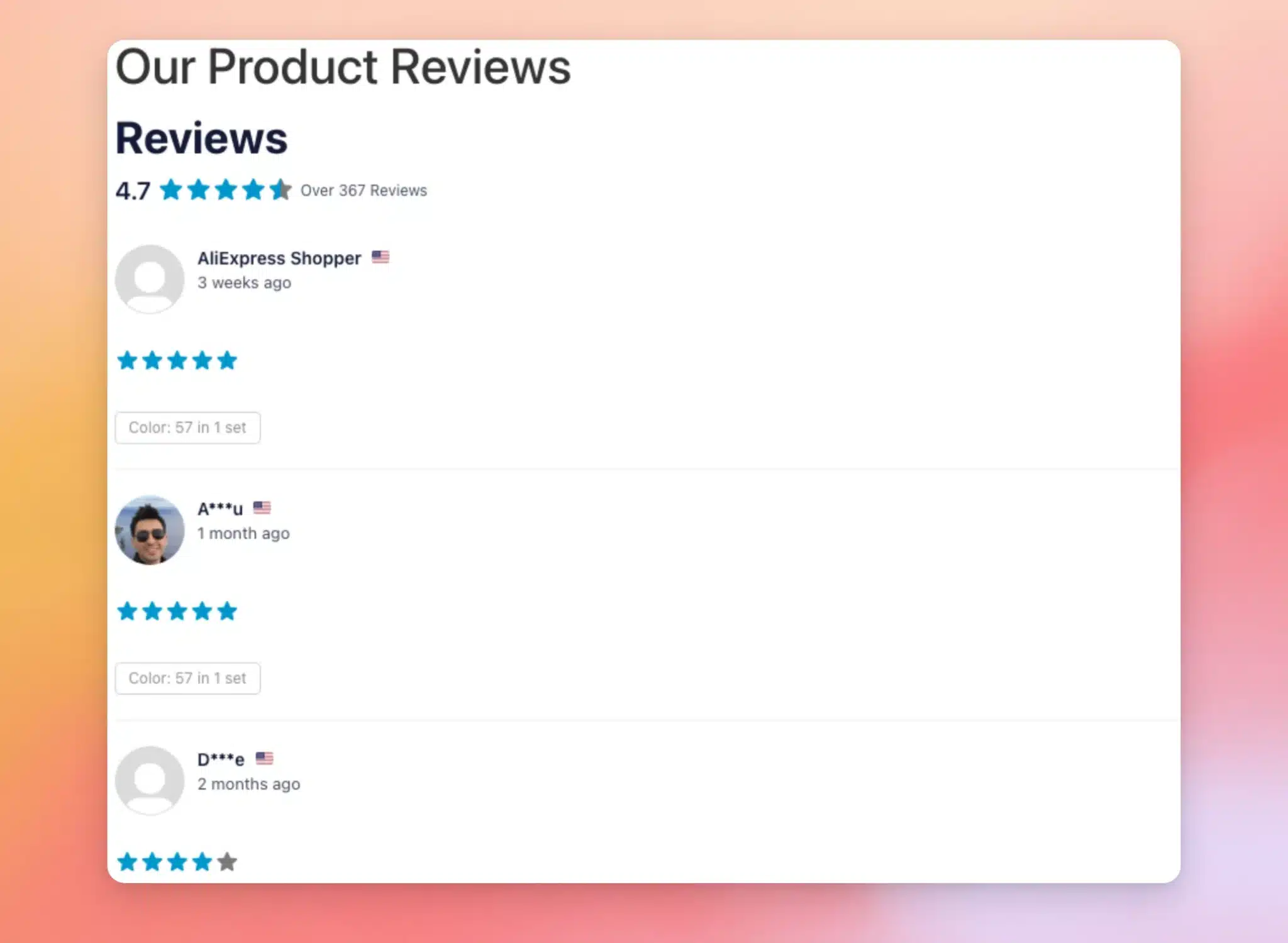
The numbers in the markup always match what your visitors see. If your feed header shows a 4.7 average from over 367 reviews, that’s exactly what the page reports to search engines. The markup includes a sample of up to 20 reviews, while the rating and review count always carry your true totals.
This works however you’ve placed the feed: with the block editor, Elementor, a shortcode, or a Review Collection. If a page has no feed on it, or its feed has no rating to report, no markup is added.
Turning Rich Snippet Schema On or Off
The markup is on by default, so there’s nothing to enable.
If you ever need to turn it off, go to Reviews Feed » Settings in your WordPress dashboard.
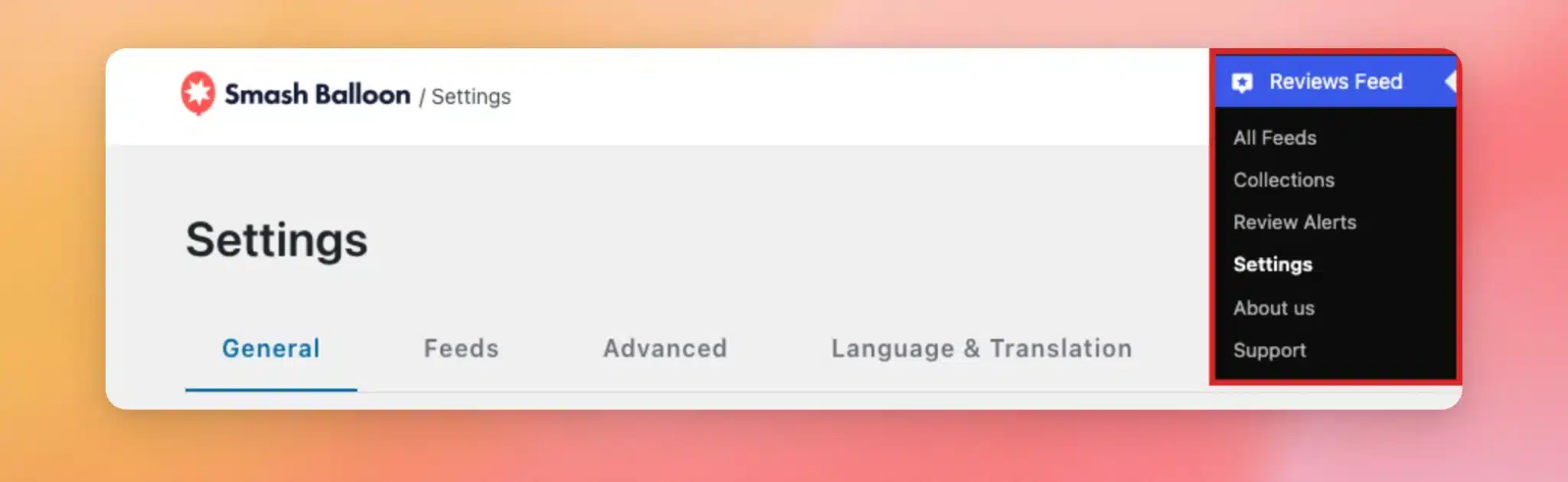
Then, select the Advanced tab. You’ll find the Rich Snippets (SEO Schema) setting with its toggle enabled.
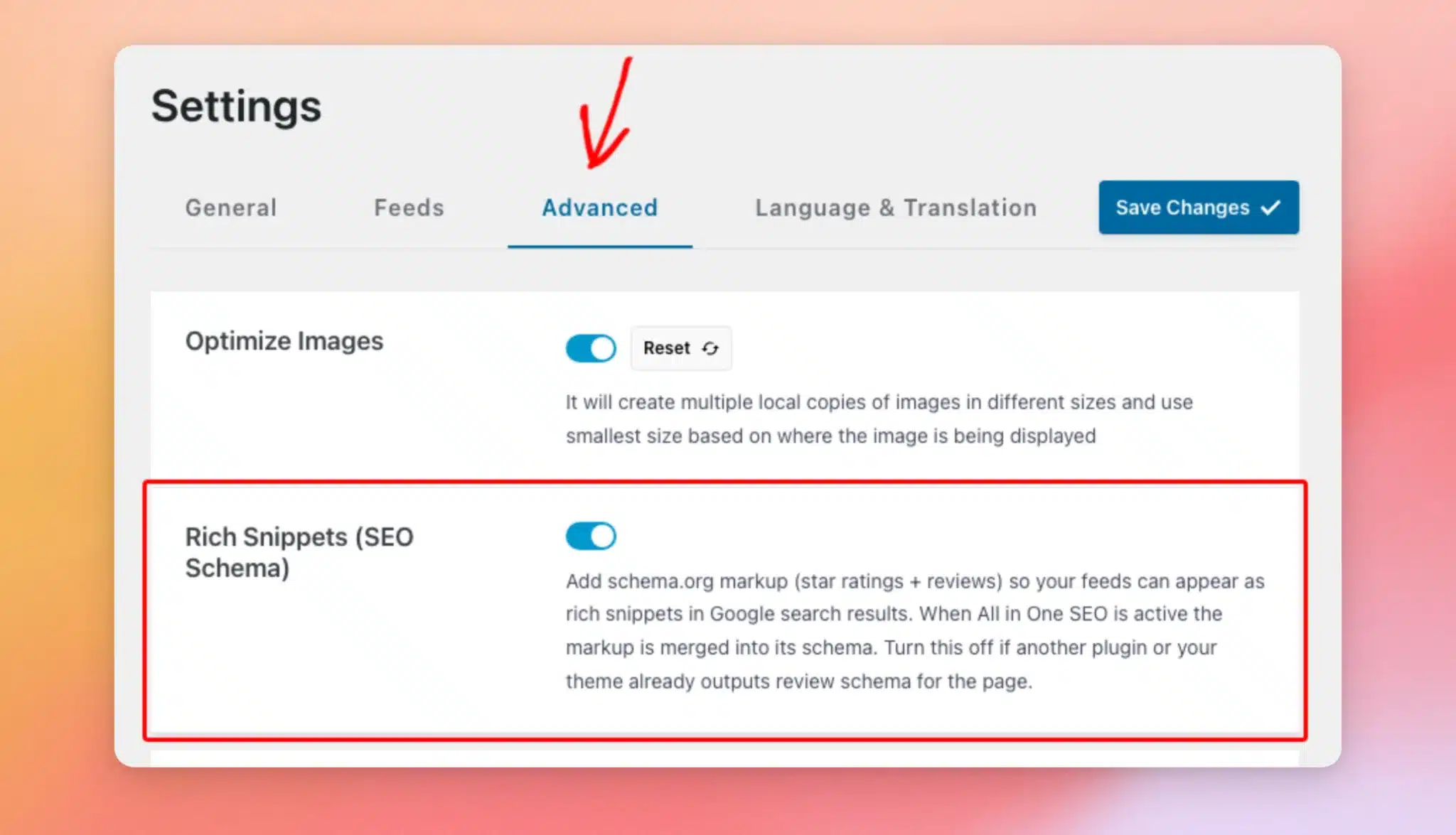
With the toggle off, Reviews Feed stops adding its markup to your pages. The only reason to turn it off is if your theme or another plugin already adds review schema for the same pages.
Two descriptions of the same reviews can confuse search engines. In that case, keep whichever one you prefer and turn the other off. If you use an SEO plugin, see Working With SEO Plugins below first.
Start by switching the toggle off. Then click Save Changes.
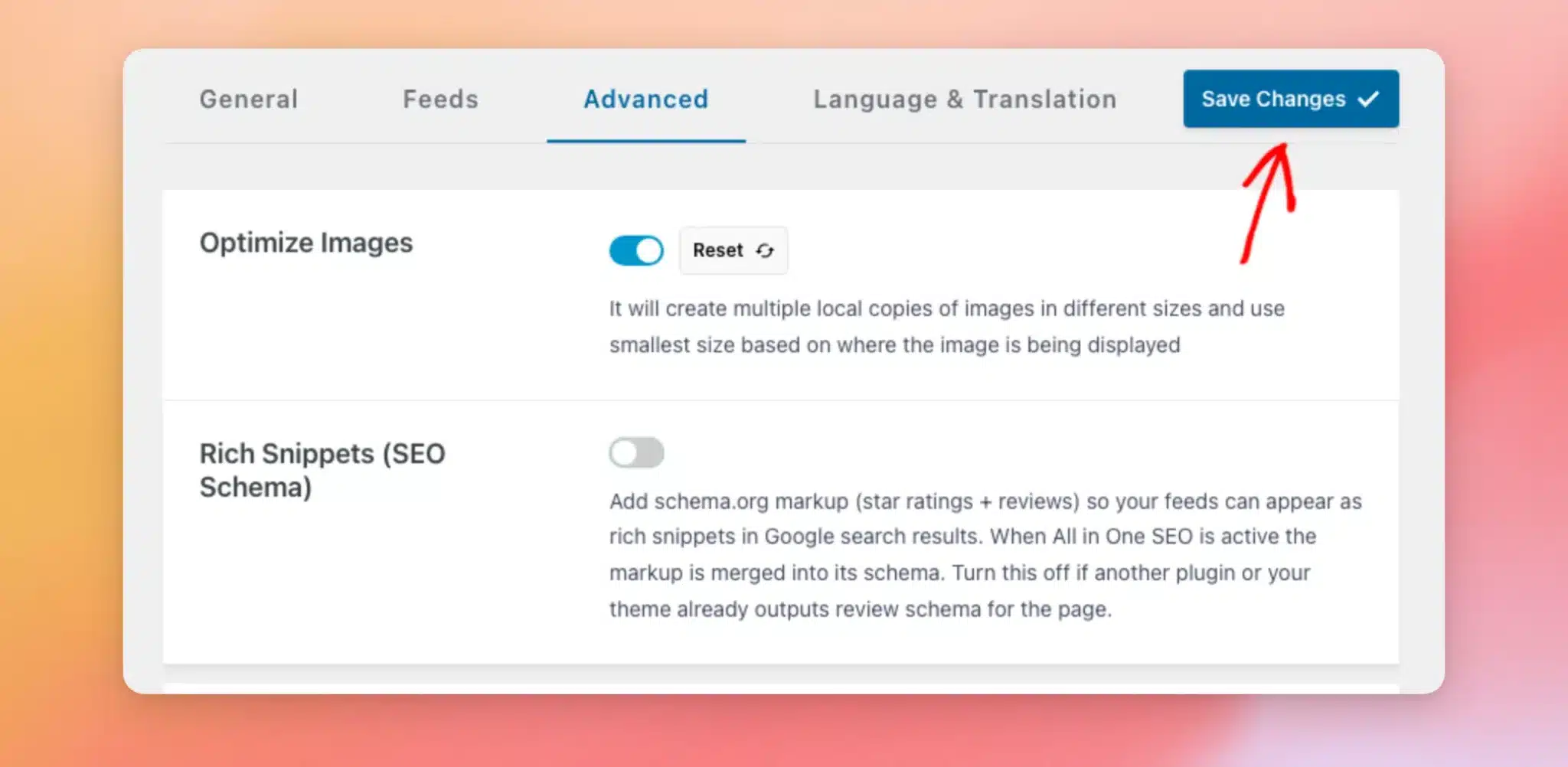
Reviews Feed confirms that your settings were saved. Your pages stop carrying the plugin’s markup from that point on.
How Is the Schema Type Chosen?
Reviews Feed reads which sources are in each feed and describes the page to match. You don’t have to set anything:
- Product: feeds with a WooCommerce, Easy Digital Downloads, or AliExpress source. Product pages are the case where Google shows star ratings most consistently.
- Lodging business: feeds with an Airbnb or Booking.com source, since those reviews describe a place to stay.
- Local business: feeds from the other sources, such as Google, Yelp, Trustpilot, Facebook, TripAdvisor, and WordPress.org.
When one feed mixes source types, a product source decides which type the page gets.
The availability of each review source depends on your license level.
Working With SEO Plugins
Reviews Feed adapts to your SEO setup on its own.
If our SEO plugin, All in One SEO, is active, Reviews Feed hands your review data to AIOSEO. AIOSEO includes it in the single schema description it already builds for the page. Your page then describes your reviews once rather than twice, so you don’t need to turn either one off.
If you use Yoast, Rank Math, another SEO plugin, or none at all, Reviews Feed adds its own markup alongside them.
Either way, there’s nothing to connect or set up. If you switch SEO plugins later, Reviews Feed picks the right path automatically.
Verifying Your Markup With the Rich Results Test
Confirming that your pages are ready for rich results takes a couple of minutes.
First, open any published page or post that displays one of your feeds. Product pages are a great place to start. From your browser’s address bar, copy the page’s URL.
Then, go to Google’s Rich Results Test. On that page, paste your page’s URL. Because the test fetches the page itself, your site needs to be publicly reachable.
With the URL in place, click Test URL. The test usually takes under a minute.
In the results, look for Review snippets under Detected structured data, with the number of valid items found beside it. Valid items are eligible for Google’s rich results.
In this example, the same list also shows a Product snippets row. Because this feed pulls from a product source, the page itself is described as a Product. Which description your page gets depends on your feed’s sources, as covered in the How Is the Schema Type Chosen section above.
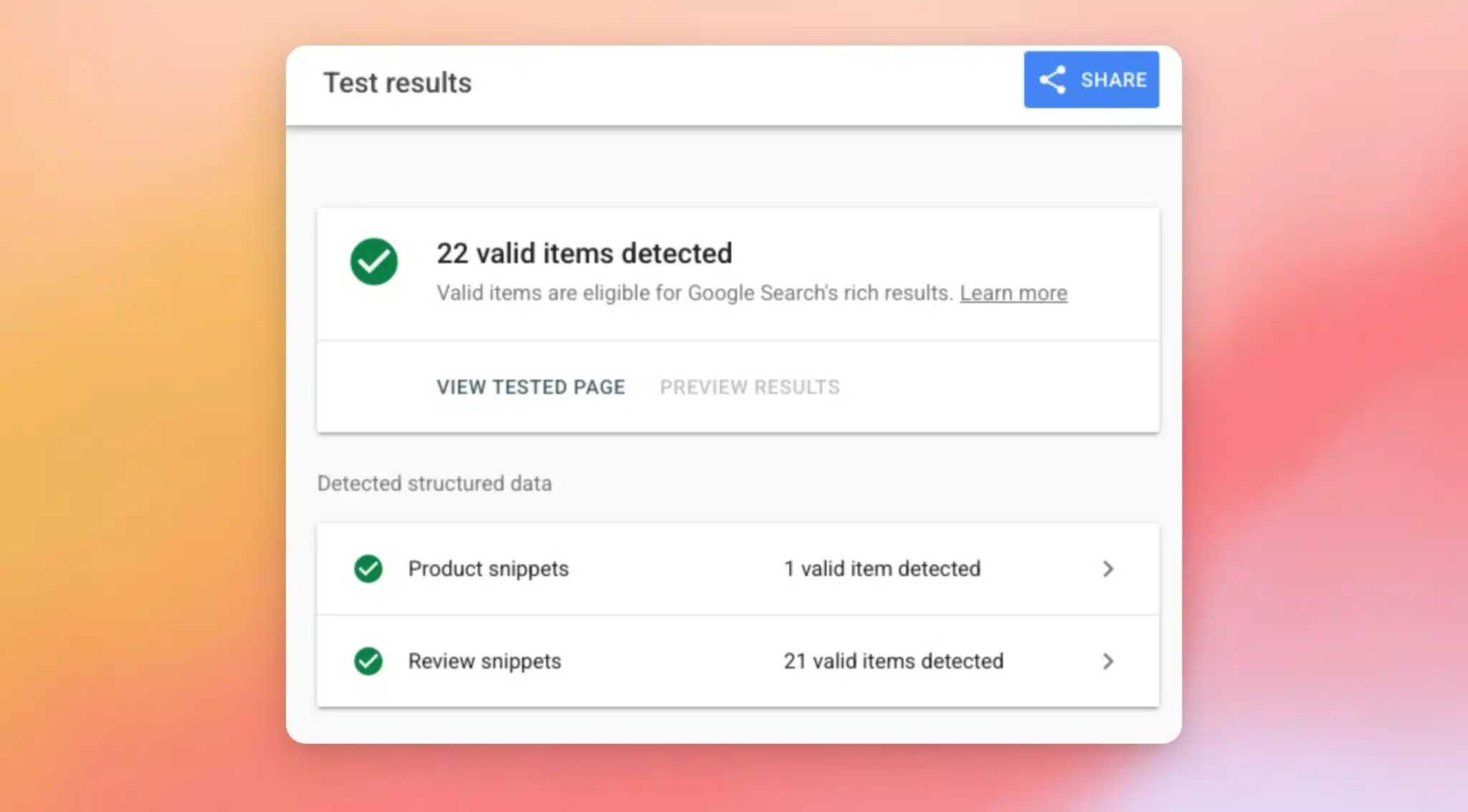
Note: Valid markup makes your page eligible for star ratings. Google decides which eligible results display them.
That’s it! Your reviews feeds now include rich snippet schema, which makes your pages eligible for star ratings in Google search results. Next, check out our guide on displaying your reviews feed to make the most of the reviews your visitors see on the page.
Frequently Asked Questions
Below, we’ve answered some of the most common questions about rich snippet schema in Reviews Feed.
Will my reviews definitely show as stars in Google?
Valid markup makes your page eligible, and Google decides which results get stars. Product pages are the most dependable case, so feeds pulling from WooCommerce, Easy Digital Downloads, or AliExpress have the best odds. Reviews about your own business are described correctly too, and Google is more selective about displaying those.
Why does the Rich Results Test show fewer reviews than my feed has?
The markup includes a sample of up to 20 reviews per feed, which is what search engines need. The rating and review count always carry your true totals, so a feed with 3,000 reviews still reports 3,000. In the test itself, the count beside Review snippets includes your page’s overall rating alongside each review in the sample. That’s why it reads slightly higher than 20.
Do I need to enable the markup for each feed?
No. There’s one setting for the whole plugin, and it’s on by default. Every feed you display is covered automatically, including feeds you built before updating. Each feed on a page gets its own description.
What if I use Yoast or Rank Math?
They work fine alongside Reviews Feed, which writes its own review markup when another SEO plugin is handling the page. For the full picture, see the Working With SEO Plugins section above.
Why does the Rich Results Test find nothing on my page?
The markup is only added to pages that display a feed with a rating to report. It is also limited to individual posts and pages, so a blog index or category archive will not carry it. Start by checking that the page shows one of your feeds and that the feed has reviews with ratings. Also confirm that the Rich Snippets (SEO Schema) setting is still enabled under Reviews Feed » Settings » Advanced.