Social Wall
  Feed Analytics

Every Smash Balloon plugin ships an Elementor widget, so you can place a feed visually without shortcodes.
If you build pages with Elementor, the Smash Balloon social-feed plugins ship dedicated Elementor widgets that let you drop a feed onto any page visually. There are widgets for Instagram, Facebook, YouTube, TikTok, and Twitter/X; each one works the same way: search the widget panel, drag the widget to the canvas, pick which saved feed to display from a dropdown, and publish the page. No shortcodes, no code.
This guide covers the general pattern across the Smash Balloon Elementor widgets, with a link to the per-plugin walkthrough for Instagram Feed at the bottom.
The Smash Balloon Elementor widgets ship with the free social-feed plugins. The Instagram Feed Elementor widget has been in the free Instagram Feed plugin since version 6.2.9, and similar widgets ship with the free versions of Facebook Feed, YouTube Feed, TikTok Feed, and Custom Twitter Feeds. You don’t need Elementor Pro either: the widgets work in both Elementor Free and Elementor Pro.
Before You Start
Two things need to be in place on your site for any of these widgets to appear in the widget panel:
- The relevant Smash Balloon plugin is installed and active. For Instagram feeds, that’s Instagram Feed (free or Pro); for Facebook, the Custom Facebook Feed plugin; and so on for the other platforms.
- At least one feed exists in that plugin’s All Feeds dashboard. The Elementor widgets display feeds you’ve already created in the Smash Balloon admin; they don’t create new feeds. If you haven’t built one yet, follow the create-feed walkthrough for that plugin first.
With those in place, the plugin’s Elementor widget will appear in Elementor’s widget panel as soon as you open a page for editing.
Step 1. Open A Page In Elementor
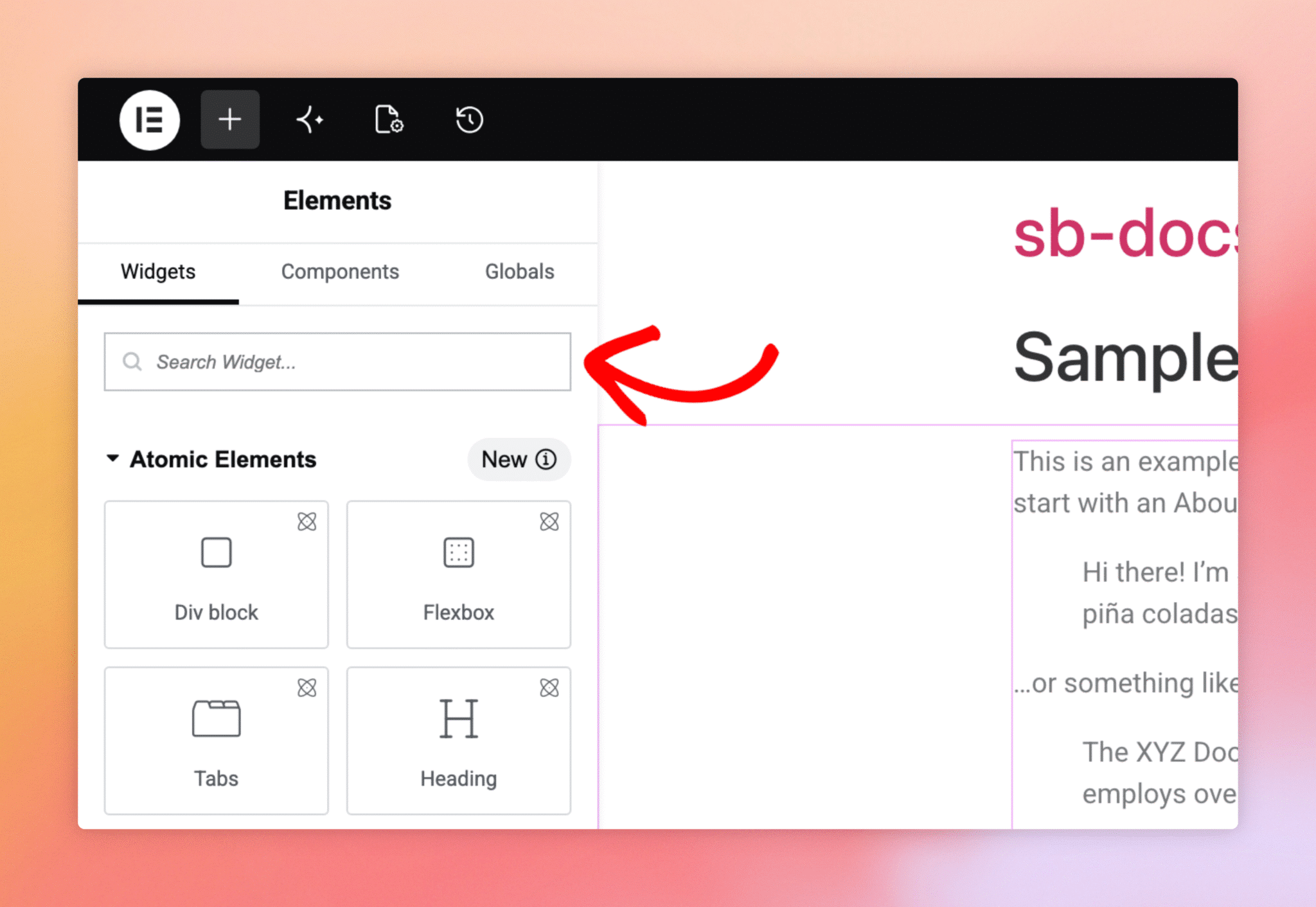
In the WordPress admin sidebar, click Pages, pick the page where you want a feed, and click Edit with Elementor. The Elementor editor opens with the widget panel on the left and a live preview on the right. The top of the widget panel has a Search Widget input which is the fastest way to find Smash Balloon widgets.
Step 2. Search For A Feed Widget
Type feed into the search box and the widget panel filters down to feed-style widgets. The Smash Balloon set appears as a row of cards: Instagram Feed, Facebook Feed, YouTube Feed, Twitter Feed (X), and TikTok Feed. Each one is the dedicated Smash Balloon widget for that plugin, not a generic Elementor embed element.
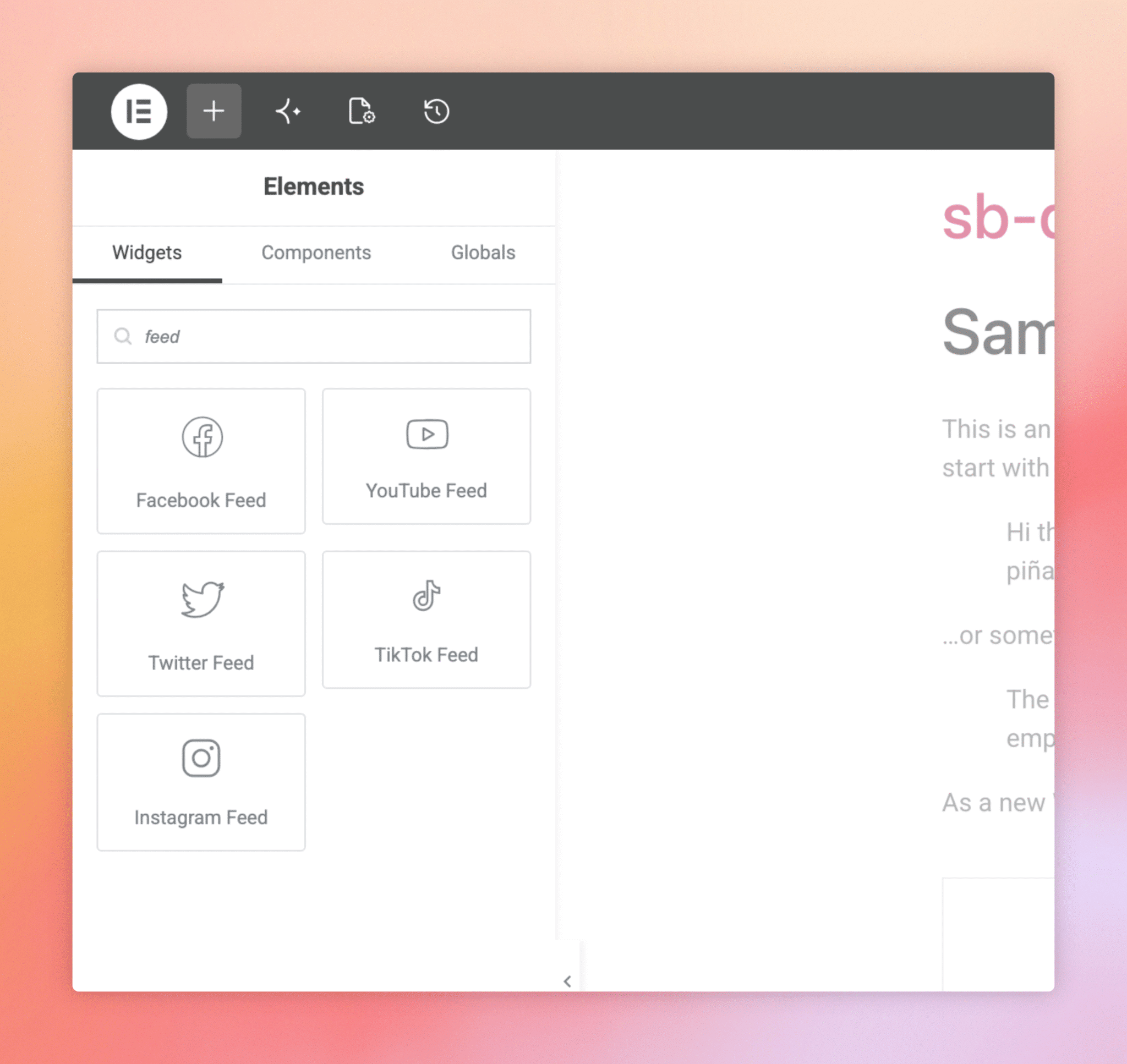
If a widget you expect doesn’t appear at all, the plugin isn’t installed. If it appears faded out, the plugin is registered with Elementor but isn’t currently active. Either install or activate it, then refresh the editor and the widget becomes draggable.
Drop The Widget And Pick A Feed
Drag the widget you want from the panel onto the section of the page where the feed should appear. Elementor highlights drop zones as you drag, so you can drop it inside an existing container or as a new section. The widget settings panel opens automatically.
Each Smash Balloon widget has a Select a Feed dropdown at the top of its settings. Pick the feed you want to display, and the preview pane on the right refreshes with the real content. The styling, layout, header, and customizations you set up in the Smash Balloon customizer carry over; Elementor renders the feed exactly as it would look on a non-Elementor page.
Click Publish or Update at the bottom-left of the Elementor panel to save. The feed is now live on that page.
Per-Plugin Walkthroughs
For detailed step-by-step instructions on the Instagram Feed Elementor widget specifically, see the “Embedding Instagram Feed Pro In Elementor” guide on this docs site. The walkthroughs for the Facebook, YouTube, Twitter/X, and TikTok widgets follow the same shape; check the plugin-specific docs for any platform-specific notes.
Will the widgets work with Elementor Free?
Yes. None of the Smash Balloon Elementor widgets require Elementor Pro. They work in both Free and Pro.
Can I have multiple feed widgets on the same page?
Yes. Drop the widget multiple times into different sections (or different widgets for different plugins on the same page) and pick a different feed for each.
Why is the widget faded out in the panel?
It means the Smash Balloon plugin for that platform isn’t currently installed or active. Install or activate the plugin and the widget becomes available.
Do I configure feed styling in Elementor or in the Smash Balloon customizer?
Feed-level styling (header, layout, colours, post count) is controlled in the Smash Balloon customizer for each saved feed. Elementor’s role is placement: where on the page the feed appears.
Can I mix feeds from different Smash Balloon plugins on one page?
Yes. Each plugin’s widget is independent, so you can have an Instagram feed in your hero, a YouTube feed in a sidebar, and a Facebook feed at the bottom of the same page.
Is there an Elementor widget for the Reviews Feed plugin?
Not currently. To embed a feed from Reviews Feed Pro inside an Elementor page, use Elementor’s Shortcode widget with the feed’s shortcode (e.g., [reviews-feed feed=1]).