Social Wall
  Feed Analytics

How to turn a static Instagram grid into a self-rotating carousel, which suits a homepage hero better than a fixed grid.
A static grid of Instagram posts is fine for a sidebar widget, but on a homepage hero or a tall landing page, it can sit there inert; visitors see one frame and move on. Carousel mode turns the feed into a self-rotating slideshow: posts cycle through automatically, the layout takes up far less vertical space, and visitors see more of your account without scrolling. Instagram Feed Pro builds this into the Feed Layout section, with separate controls for rotation interval, navigation arrows, and pagination dots.
This guide walks through switching a feed to carousel layout and turning on automatic rotation.
This feature requires Instagram Feed Pro. Auto-rotating carousels are a pro-tier feature; the free Instagram Feed plugin renders feeds as a static grid only.
Before You Start
Carousel mode looks best with at least 5–10 recent posts on the connected account. With fewer posts, the carousel will rotate through the same images quickly and feel repetitive. If your account is brand new, post a few items before continuing so the customizer preview shows meaningful rotation.
You’ll also want to decide how aggressive the rotation should be. The default interval is 5 seconds per slide, which suits most homepage uses; faster rotation can feel busy, slower is fine for content visitors might want to read (like captions).
Step 1. Create a New Feed (or Open an Existing One)
If you don’t already have a User Timeline feed, create one. From the WordPress admin sidebar, click Instagram Feed → All Feeds, then click the Add New button in the top-right.
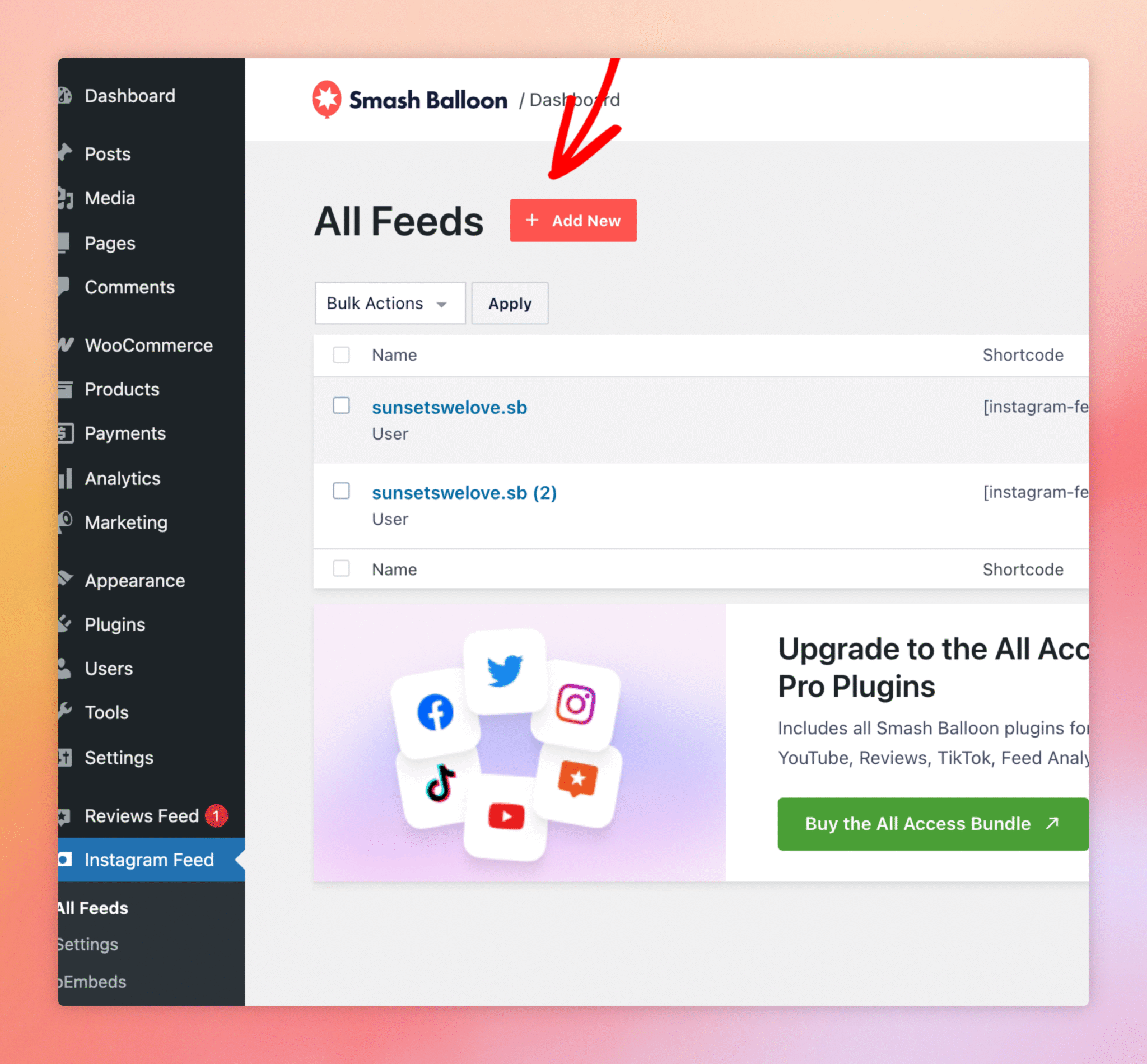
Step 2. Pick the User Timeline Feed Type
In the feed-type picker, choose User Timeline and click Next. On the next screen, select your connected Instagram account as the source and continue through the wizard until the feed opens in the customizer.
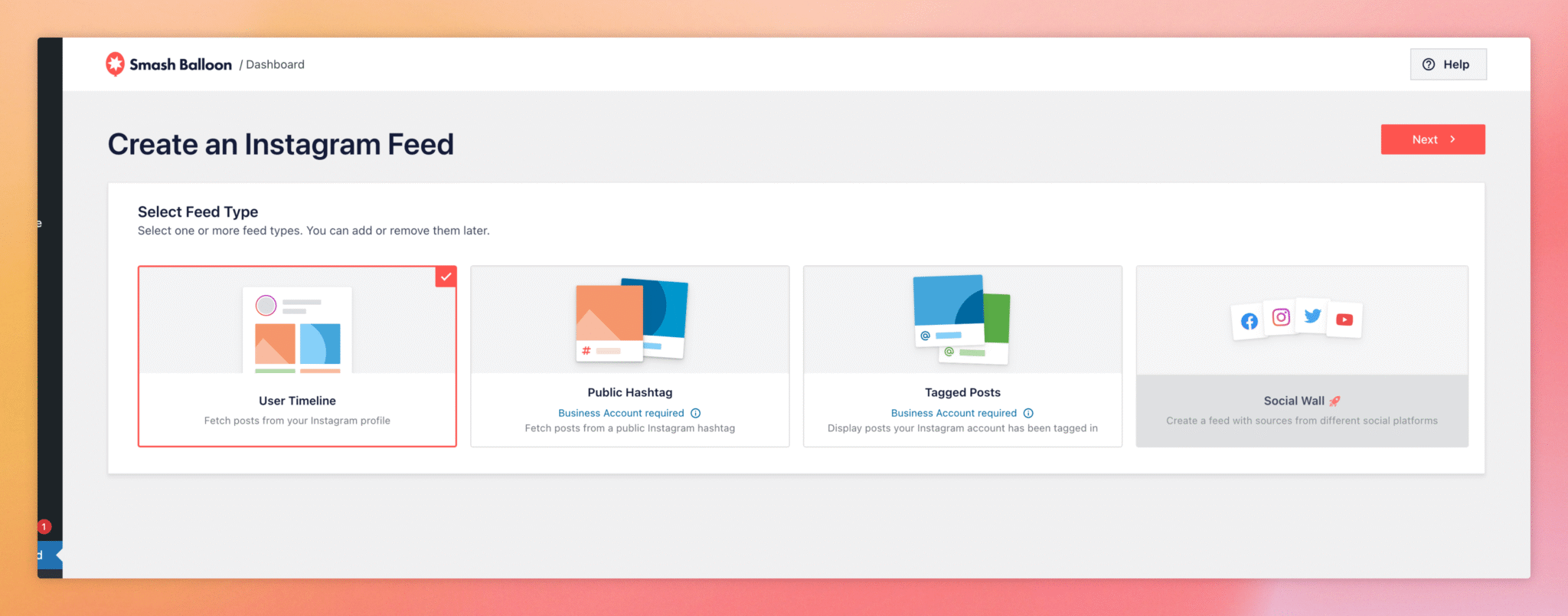
If you have an existing feed instead, click its name on the All Feeds page to open it directly in the customizer.
Step 3. Open the Feed Layout Section
Once the feed is open in the customizer, look at the left sidebar. Layout controls, including the choice between Grid, Carousel, Masonry, and Highlight, live inside the Feed Layout section. Click Feed Layout to open the panel.
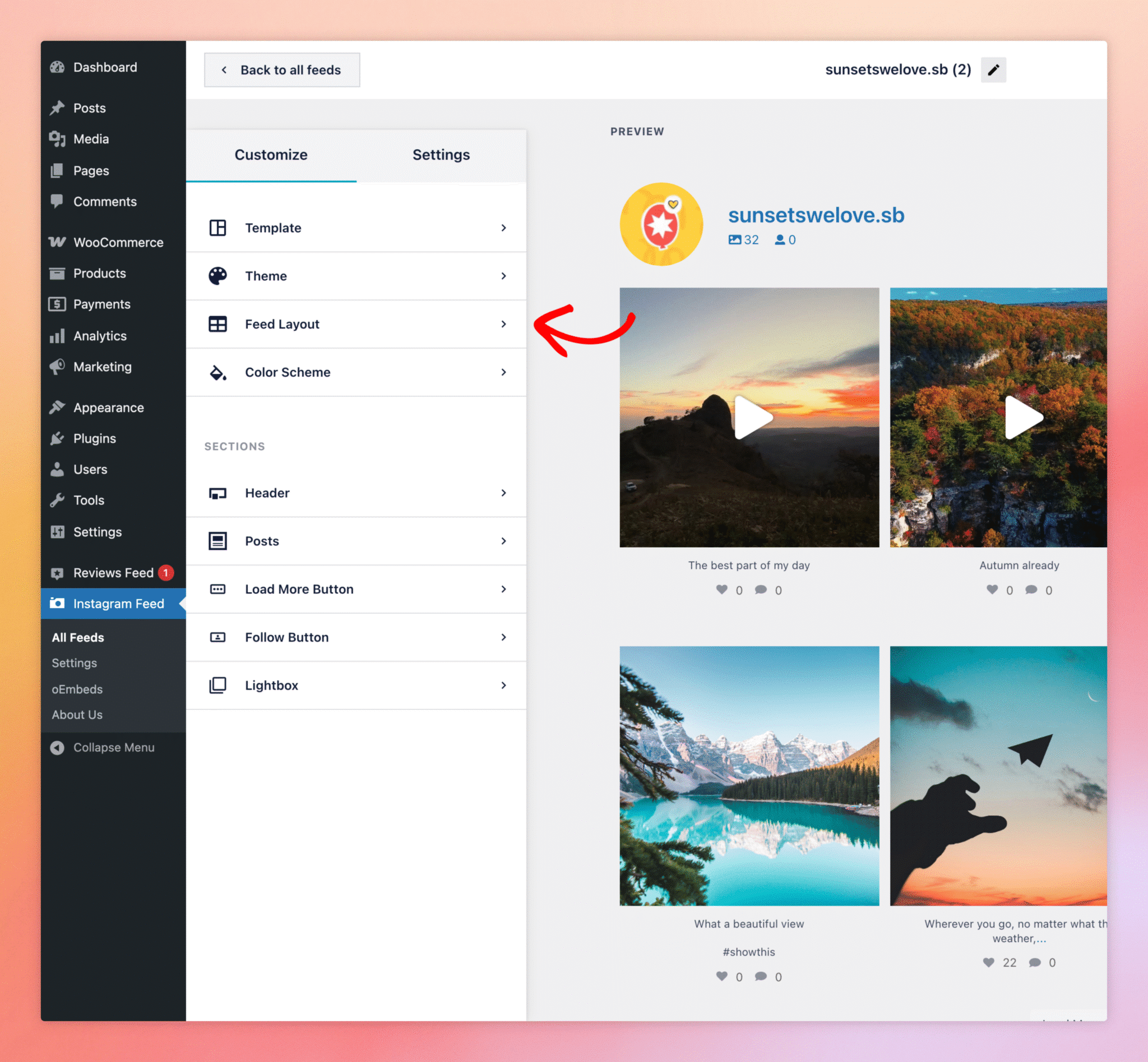
Step 4. Switch to Carousel and Enable Autoplay
At the top of the Feed Layout panel, you’ll see four layout options: Grid, Carousel, Masonry, and Highlight. Click Carousel. The preview pane refreshes to show your posts rotating through one or two at a time, and a new Carousel Settings group appears below the layout picker; that’s where Autoplay lives.
Scroll down to find the “Enable Autoplay” control and switch it on. Posts will start rotating automatically in the preview, on the interval set in Carousel Settings → Interval Time (5 seconds by default).
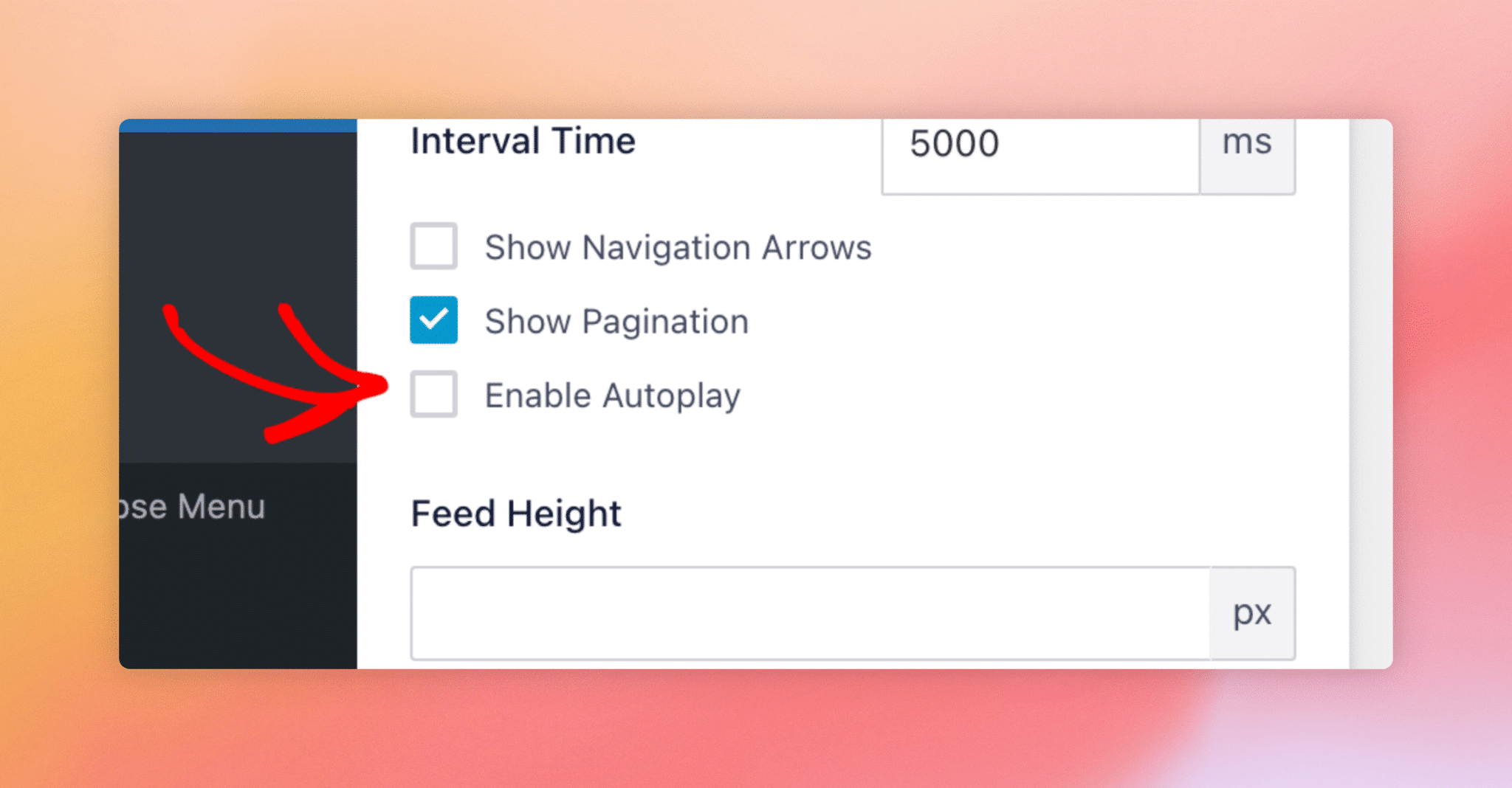
While you’re there, you can also tune Interval Time (how long each slide stays visible), Loop Type (whether the carousel restarts from the first slide or scrolls through smoothly), and Show Navigation Arrows / Show Pagination (whether visitors get arrow buttons and dot indicators to manually advance the carousel).
Save the feed with the Update button in the top-right of the customizer. The carousel will auto-rotate on every page where the feed is embedded. The recommended way to embed it is via the Instagram Feed block: click Embed, then Add to a Page to launch the WordPress block editor with the feed already inserted. The shortcode (e.g., [[instagram-feed feed=1]]) is also available for the Classic Editor or custom theme templates.
Will the carousel auto-rotate on mobile devices?
Yes. Autoplay works on both desktop and mobile. Touch devices also support swiping the carousel manually, even when autoplay is on.
Does autoplay pause when the visitor hovers over the carousel?
Yes — pausing on hover is the default behaviour. Visitors can read a caption without the carousel moving on them, and rotation resumes when they move the cursor away.
Can I set different rotation speeds for different feeds?
Yes. Each feed has its own Carousel Settings, so a hero-image carousel can rotate every 3 seconds while a testimonials carousel rotates every 8.
Does autoplay affect SEO or accessibility?
Auto-rotating carousels with pause-on-hover are considered accessible if visitors can also control them manually — keep Show Navigation Arrows and/or Show Pagination on so keyboard users can advance the carousel themselves.
Why don’t I see Carousel Settings?
It only appears after you’ve selected the Carousel layout option. With Grid, Masonry, or Highlight selected, the Carousel Settings group stays hidden because it doesn’t apply.