Social Wall
  Feed Analytics

How to set up a WooCommerce reviews feed with Reviews Feed Pro, so product reviews appear anywhere on your site, not just one product page.
WooCommerce stores live or die on social proof, and the product reviews customers leave on each product page are some of the most credible content you can put in front of a new visitor. The problem is that those reviews stay buried at the bottom of the product page, where most shoppers never scroll. Reviews Feed Pro fixes that by pulling your WooCommerce reviews into a customizable feed you can place anywhere on your site, your homepage hero, a dedicated testimonials page, a sidebar, or a checkout reassurance block.
This guide walks through creating that feed for the first time.
This feature requires Reviews Feed Pro. The free Reviews Feed plugin does not include the WooCommerce module. If you’re on the free version, upgrade from your account dashboard before continuing.
Before You Start
Make sure WooCommerce reviews are enabled on your store. In your WordPress admin, go to WooCommerce → Settings → Products and confirm Enable product reviews is checked. Reviews Feed Pro reads the same review data WooCommerce already stores; it doesn’t bypass that setting, so any feed you create will only display reviews that WooCommerce itself recognizes.
You’ll also want at least one published review on a product. If your store is brand new, leave a test review on a product before you start so you have something to preview in the customizer.
Step 1. Open the All Feeds Dashboard.
From the WordPress admin sidebar, click Reviews Feed → All Feeds. This is the central list of every Reviews Feed Pro feed on your site. To create a new one, click the Add New button in the top-right.
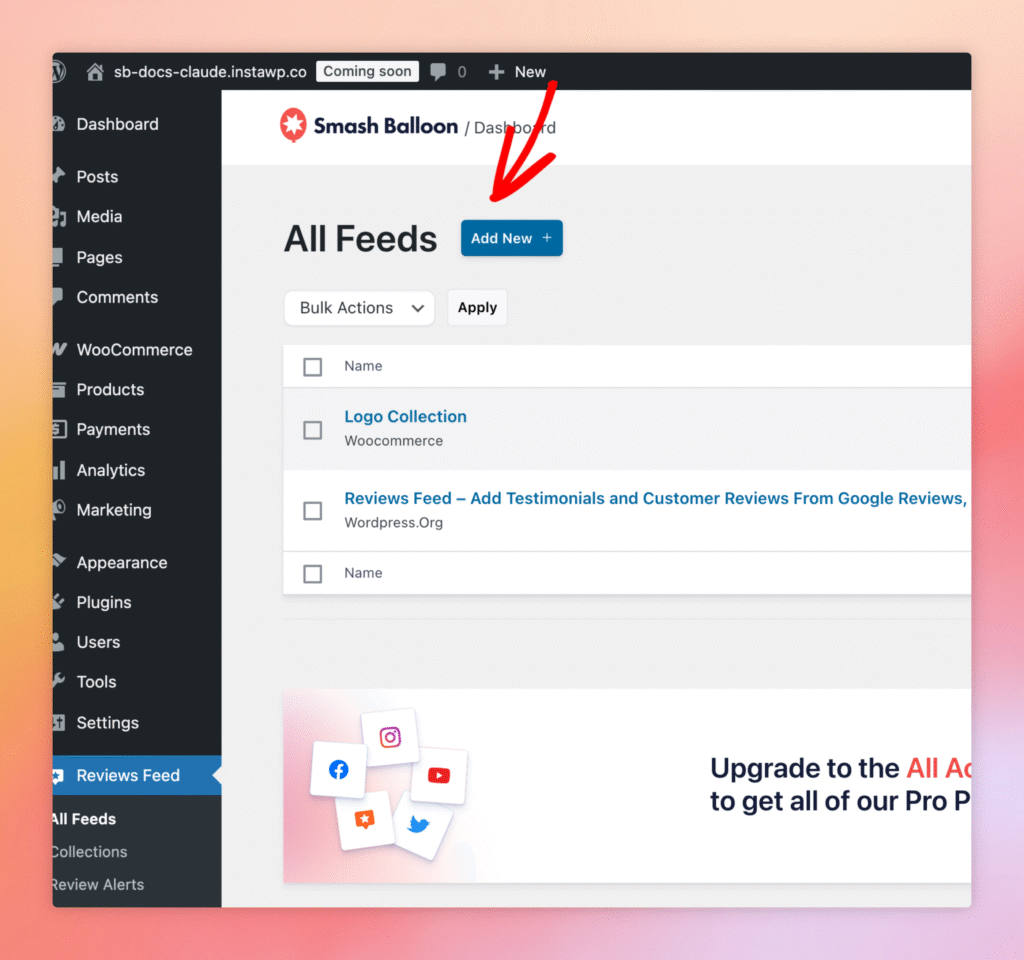
The All Feeds dashboard. Click Add New to start a fresh feed.
Step 2. Pick WooCommerce as the Source
The next screen asks you which source to pull reviews from. Reviews Feed Pro supports several, Google, Yelp, Trustpilot, WordPress.org, and WooCommerce among them, but for a WooCommerce store, you want the WooCommerce option specifically. Click Add New to register a new source.
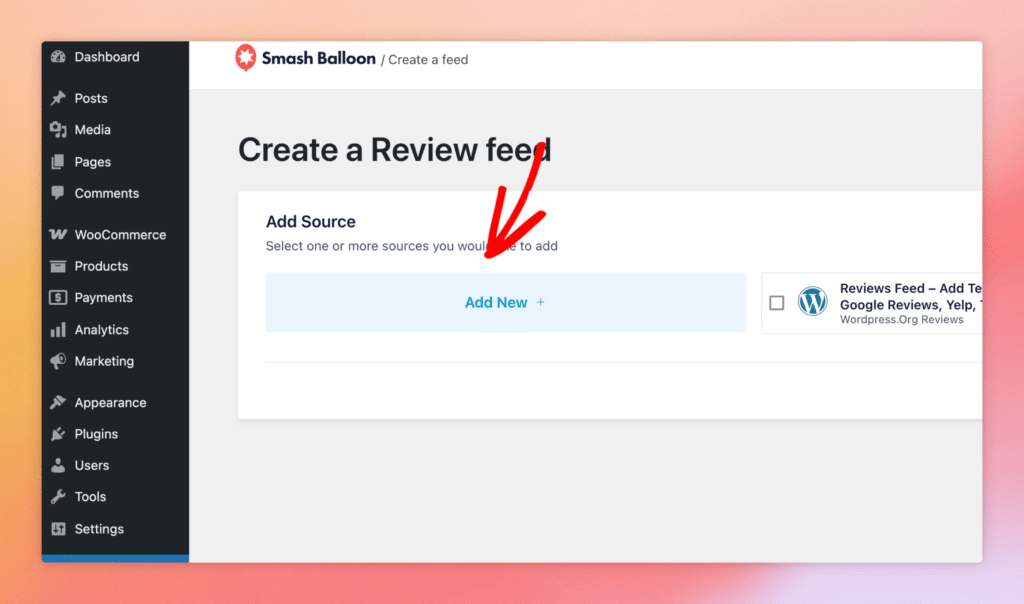
The source picker. Add New starts the WooCommerce source flow.
Once the source is set up, Reviews Feed Pro will fetch every approved review from your WooCommerce products and make them available to the feed you’re building.
Step 3. Review the Feed in the Customizer
After the source is added, the feed opens in the customizer. The left sidebar holds the Templates, Layout, Header, Reviews, and Load More Button sections, each one a separate panel for tuning how the feed looks. The right side shows a live preview of how your feed will render on the front end, including the reviewer’s name, date, star rating, review text, and avatar image.
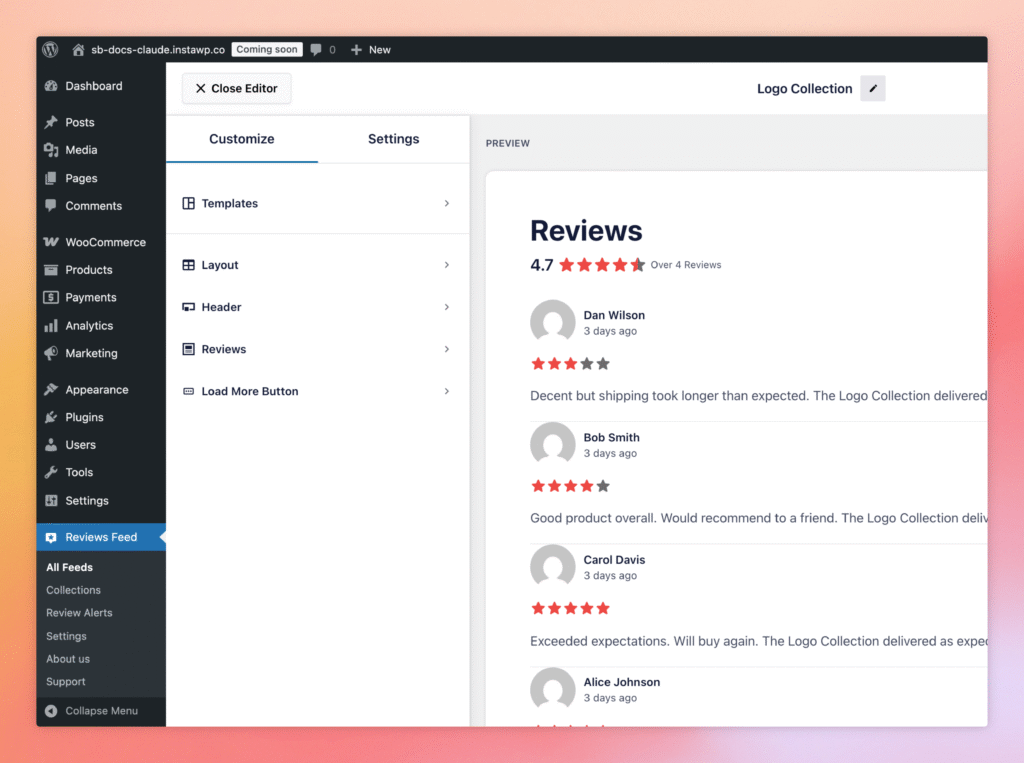
The customizer for an active feed. Use the sidebar sections to tune layout, header, and review styling.
You can save the feed at any point with the Save button in the top-right of the customizer. Once it’s saved, the feed is ready to embed on a page
Step 4. Embed the Feed on a Page
Once the feed is saved, click Embed in the customizer header to open the embed dialog. The recommended way to add your feed is with the Reviews Feed block, clicking Add to a Page launches the WordPress block editor with the Reviews Feed block already inserted, so you can place it visually wherever you want on the page. The shortcode is also available for custom themes, the Classic Editor, or any context where the block editor isn’t a fit.
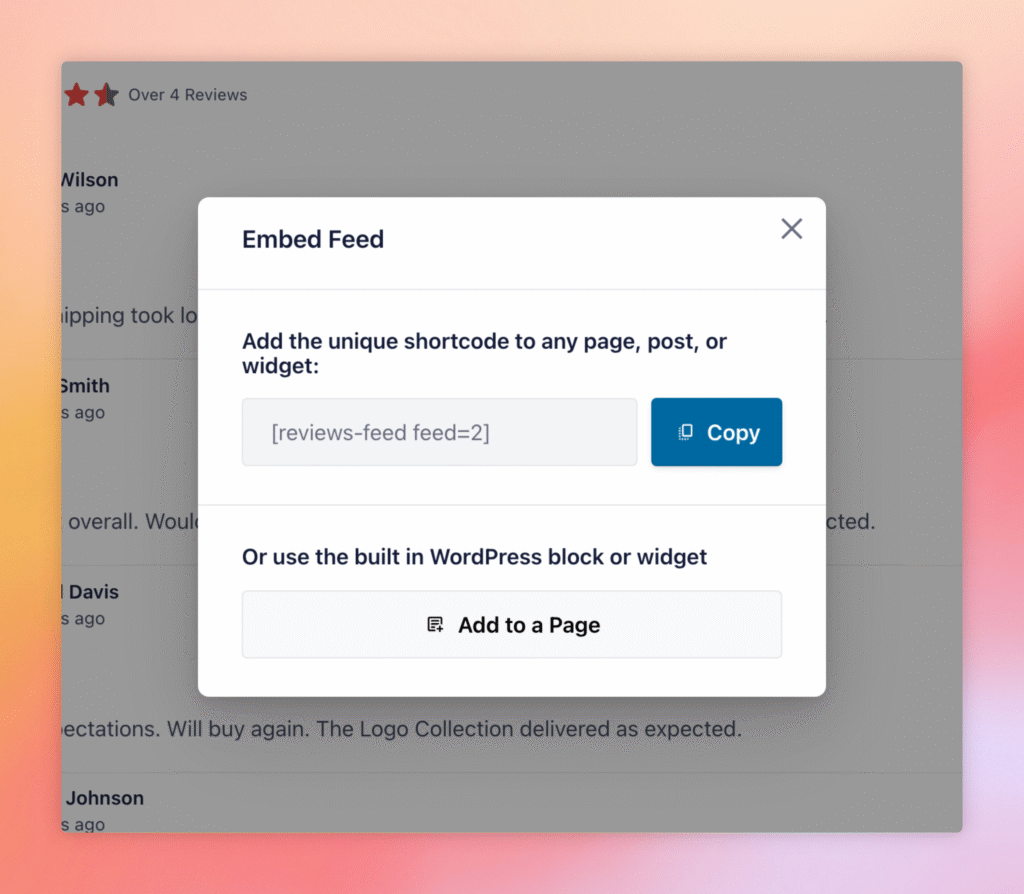
The Embed dialog. Use Add to a Page to insert the feed via the WordPress block editor.
- Add to a Page (recommended): Click the button to launch the WordPress block editor with the Reviews Feed block already inserted. Pick the page you want, save it, and the feed goes live.
- Shortcode: Copy the shortcode (e.g.,
[reviews-feed feed=2]) and paste it into any page, post, or widget. Use this when you’re working in the Classic Editor, a custom theme template, or another spot where the block editor isn’t available.
Do I need a separate Reviews Feed Pro plan for WooCommerce?
No. The WooCommerce module is included with Reviews Feed Pro at all plan tiers.
Will Reviews Feed Pro show reviews that are pending moderation?
No. Only reviews that WooCommerce has approved show up in the feed.
Can I create multiple WooCommerce feeds for different product categories?
Yes. Each feed has its own source filter, so you can scope one feed to a single product, a category, or your whole catalogue.
Does the feed update automatically when new reviews are submitted?
Yes. Reviews Feed Pro re-reads the WooCommerce review data on a schedule and updates the feed; you don’t need to refresh anything manually.