Social Wall
  Feed Analytics

Review Alerts show real customer reviews as a small animated popup on any page, pulling from the reviews already in your plugin.
Review Alerts let you display real customer reviews as a small animated popup on any page of your WordPress site, no separate social proof tool required. The popup pulls from the reviews already connected to your plugin, so there’s nothing extra to set up.
Review Alerts is available on Pro Plus and Elite plans. If you’re on a Basic plan and would like access, you can upgrade from your account dashboard.
Creating Your First Review Alert
To get started:
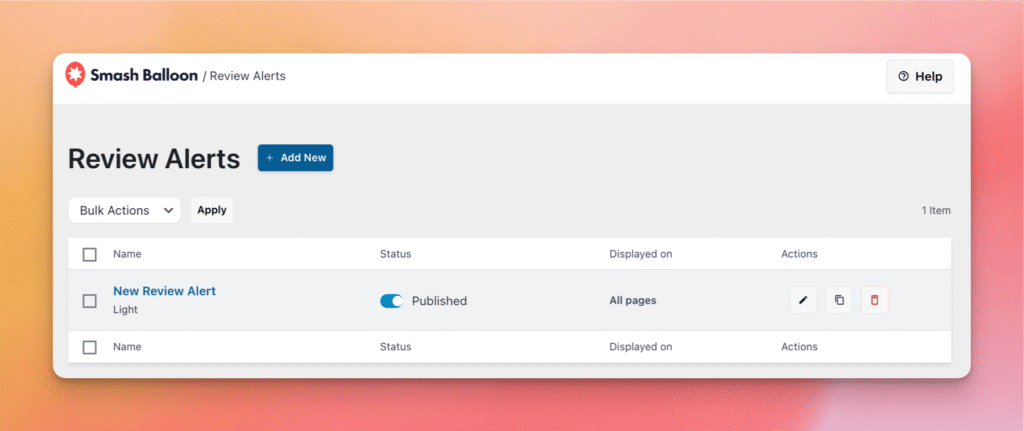
- From your WordPress dashboard, go to Reviews Feed → Review Alerts.
- Click Add New.
- Choose a popup style, either Recent Reviews or Aggregate (see below).
- Adjust your filtering, page targeting, theme, and timing settings as needed.
- Click Save. The popup will go live on your site immediately.
Choosing a Popup Style
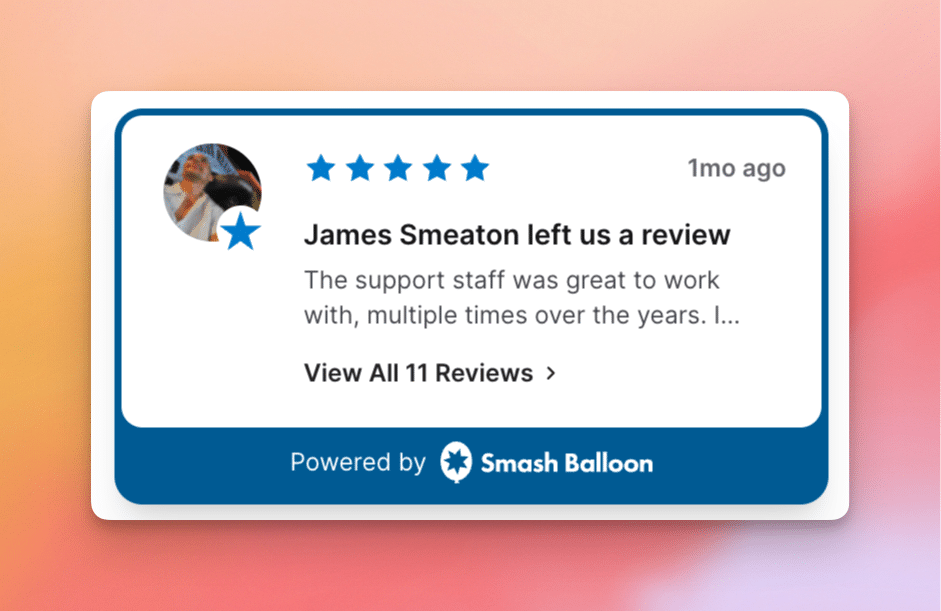
Recent Reviews
Cycles through individual reviews one at a time. Each card shows the reviewer’s avatar, name, star rating, and a short snippet of their review.
Best for: Highlighting specific customer experiences and creating a sense of real, ongoing activity on your site.
Aggregate
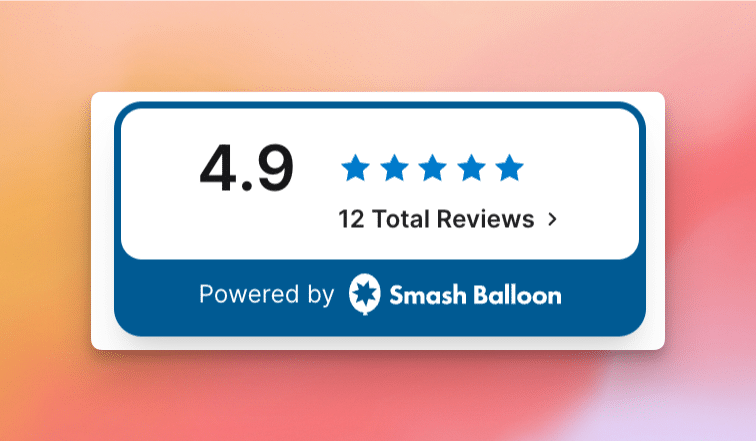
Shows a summary of your overall star rating and total review count across all connected sources. Visitors can click the popup to expand it into a full review feed.
Best for: Leading with credibility when your total review count or average rating is your strongest selling point (e.g., “4.9 stars · 320 reviews”).
Not sure which to pick? If you have strong individual reviews, go with Recent Reviews. If your overall numbers speak for themselves, go with Aggregate.
Filtering Which Reviews Appear
You can control which reviews show up in the popup using the same filters available in your main feed:
- Star Rating — Only show reviews above a minimum star threshold.
- Keywords — Include or exclude reviews that contain specific words or phrases.
- Review Length — Filter by character count to ensure snippets are readable.
- Date — Limit reviews to a specific time range.
- Random — Shuffle which reviews are shown on each page load.
Controlling Where the Popup Appears
By default, the popup shows on every page of your site. You can narrow this down — or exclude specific pages — using the Page Targeting settings.
Standard Targeting
- Specific pages or posts
- Post categories or tags
- The homepage
- Archive pages
WooCommerce Targeting
If WooCommerce is installed, you can also target:
- Individual product pages
- Product category pages
- The main shop page
- Cart and checkout pages
Themes & Appearance
There are six built-in themes to choose from, covering a range of visual styles from minimal to bold. Select the one that best fits your site’s design.
You can also set a custom accent color to match your brand. The accent color is applied to highlights and interactive elements within the popup.
Timing Settings
- Display Delay — How many seconds after page load before the popup first appears.
- Display Duration — How long each popup card stays visible before cycling or closing.
- Pause Between Popups — The gap between one popup closing and the next one appearing.
- Compact Mode — Anchors the popup near the page footer so it doesn’t overlap your main content. Useful on pages where the popup might get in the way.
Expanded View (Aggregate Style)
When using the Aggregate style, visitors can click the popup to open a full review feed inline — without leaving the page. You can customize the button label that triggers this expanded view (e.g., “Read All Reviews” or “See What Customers Say”).
Branding
The popup includes a small “Powered by Smash Balloon” label by default. If you’d prefer to remove it, you can turn it off in the popup settings.
Frequently Asked Questions
I’m on a Basic plan. Can I use Review Alerts?
Review Alerts requires a Pro Plus or Elite plan. If you’re on Basic, you’ll need to upgrade to access this feature. You can do that from your account dashboard.
Do I need to reconnect my review sources for the popup?
No. The popup uses the review sources you’ve already connected to Reviews Feed. There’s nothing extra to configure on the connection side.
Can I show the popup on only certain pages?
Yes — use the Page Targeting settings to choose exactly where the popup appears or doesn’t appear. You can target specific pages, post types, or WooCommerce pages.
Will the popup cover my content?
The popup is designed to sit in the corner of the page without blocking your main content. If you’re concerned about overlap on a particular page, enabling Compact Mode in the timing settings will anchor it near the footer instead.
Can I remove the “Powered by Smash Balloon” label?
Yes. You can disable it from the popup settings at any time.