


 Social Wall
 Feed Analytics


The plugin loads its CSS on every page so browsers can cache it. How to limit that to chosen pages instead.
Would you like to load the Smash Balloon plugin files only on the pages that show your feeds?
In this guide, we’ll show you which plugins already do this on their own. We’ll also cover the setting that does it for Instagram Feed and a short code snippet for the other plugins.
By default, some Smash Balloon plugins add their stylesheet (the CSS file that controls how a feed looks), and sometimes their JavaScript file, to every page of your site. That way, a feed works on any page you add it to. If your feeds are only on a few pages, you can keep these files off the rest of your site.
Before you get started, make a list of the pages that show each feed. For the code snippet, you’ll need each page’s slug, the last part of its address. For example, the slug of yoursite.com/gallery/ is gallery. You can see it in your browser’s address bar when you view the page.
Here is what we will cover.
- Using the Built-In Settings
- Dequeuing the Plugin Files With a Code Snippet
- Frequently Asked Questions
Using the Built-In Settings
Each plugin handles its files a little differently. Here is what each one loads by default.
- Facebook Feed loads its stylesheet and its JavaScript file on every page. To load them only on your feed pages, use the Facebook Feed snippet.
- Instagram Feed loads its stylesheet on every page and its JavaScript file only on pages with a feed. A setting can load the stylesheet only with a feed too. The steps are below.
- Custom Twitter Feeds and Reviews Feed load their stylesheet on every page and their JavaScript file only on pages with a feed. To load the stylesheet only on your feed pages too, use the Custom Twitter Feeds snippet or the Reviews Feed snippet.
- Feeds for YouTube, TikTok Feeds and Social Wall load their files only on pages that show one of their feeds. You don’t need to change anything for them.
To load the Instagram Feed stylesheet only on pages with a feed, follow these steps. The setting is in both the free and paid versions of Instagram Feed.
- In your WordPress dashboard, go to Instagram Feed » Settings.
- Next, click the Advanced tab.
- Then, turn on Enqueue CSS only on pages with the Feed.
- Finally, click Save Changes.
This setting changes only the stylesheet. The Instagram Feed JavaScript file already loads only on pages with a feed.
There is one exception for the JavaScript files. The Enqueue JavaScript in head setting in Instagram Feed and Reviews Feed loads that plugin’s JavaScript file on every page. The Enqueue JS in header fix setting in Custom Twitter Feeds does the same.
These settings are off by default. If you turned one on, the snippet for that plugin also removes the JavaScript file from the pages you don’t list.
Dequeuing the Plugin Files With a Code Snippet
For Facebook Feed, Instagram Feed, Custom Twitter Feeds and Reviews Feed, a short PHP snippet can remove the plugin’s files from every page except the ones you list. This is called dequeuing the files. Each snippet runs right after the plugin adds its files, and it removes them on any page that isn’t in its list.
Pick the code for your plugin below and change the page slug in it, as shown in Choosing the Pages. Then, add it with the steps in Adding the Snippet With WPCode. If you use more than one of these plugins, add the code for each one. They can all go in the same snippet.
Facebook Feed
This code removes the Facebook Feed stylesheet and JavaScript file from every page except the one you list.
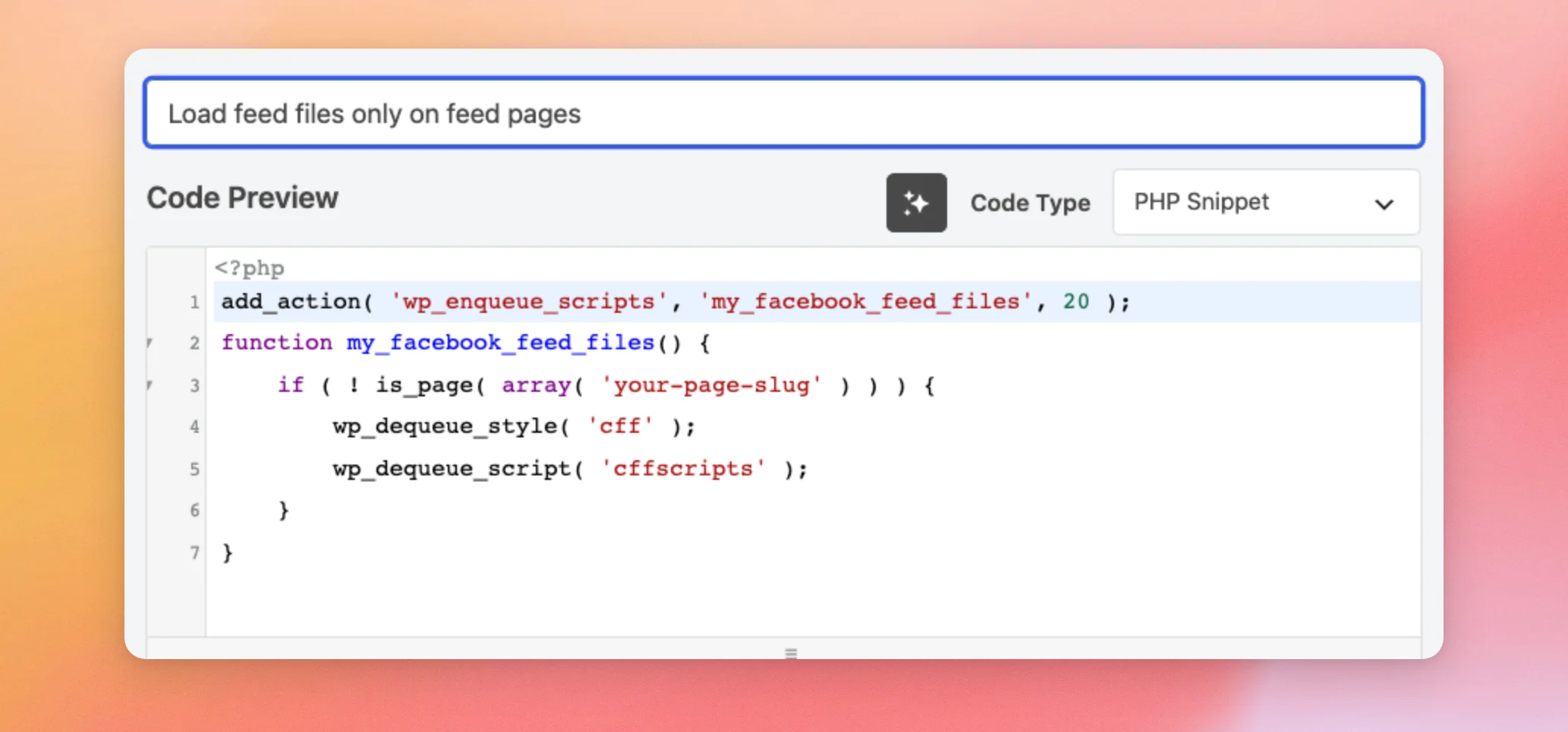
add_action( 'wp_enqueue_scripts', 'my_facebook_feed_files', 20 );
function my_facebook_feed_files() {
	if ( ! is_page( array( 'your-page-slug' ) ) ) {
		wp_dequeue_style( 'cff' );
		wp_dequeue_script( 'cffscripts' );
	}
}
Instagram Feed
This code removes the Instagram Feed stylesheet and JavaScript file from every page except the one you list. If you turned on the built-in setting above and left Enqueue JavaScript in head off, you don’t need this code.
add_action( 'wp_enqueue_scripts', 'my_instagram_feed_files', 20 );
function my_instagram_feed_files() {
	if ( ! is_page( array( 'your-page-slug' ) ) ) {
		wp_dequeue_style( 'sbi_styles' );
		wp_dequeue_script( 'sbi_scripts' );
	}
}
Custom Twitter Feeds
This code removes the Custom Twitter Feeds stylesheet and JavaScript file from every page except the one you list.
add_action( 'wp_enqueue_scripts', 'my_twitter_feed_files', 20 );
function my_twitter_feed_files() {
	if ( ! is_page( array( 'your-page-slug' ) ) ) {
		wp_dequeue_style( 'ctf_styles' );
		wp_dequeue_script( 'ctf_scripts' );
	}
}
Reviews Feed
This code removes the Reviews Feed stylesheet and JavaScript file from every page except the one you list.
add_action( 'wp_enqueue_scripts', 'my_reviews_feed_files', 20 );
function my_reviews_feed_files() {
	if ( ! is_page( array( 'your-page-slug' ) ) ) {
		wp_dequeue_style( 'sbr_styles' );
		wp_dequeue_script( 'sbr_scripts' );
	}
}
Feeds for YouTube
Feeds for YouTube adds its files only to pages that show a YouTube feed and to the video pages the plugin creates. You don’t need a snippet for it.
TikTok Feeds
TikTok Feeds adds its files only to pages that show a TikTok feed. You don’t need a snippet for it.
Social Wall
By default, Social Wall adds its files only to pages that show a social wall. You don’t need a snippet for it.
Choosing the Pages
Each snippet uses the WordPress is_page function to check the page a visitor is on. The files stay on the pages in its list and are removed everywhere else. This function matches only the pages listed under Pages in your WordPress dashboard. For a feed in a blog post, use the WordPress is_single function with the post’s slug in place of is_page.
In each snippet, replace your-page-slug with the slug of the page that shows your feed. Keep the single quotes around it. To list more than one page, put each slug in its own single quotes and separate them with commas, as in the example below. You can also use a page’s ID or its title instead of its slug.
is_page( array( 'gallery', 'events' ) )If your feed is on your site’s front page, use the WordPress is_front_page function instead. Replace is_page( array( 'your-page-slug' ) ) with is_front_page(), as in this example for Instagram Feed. This code replaces the Instagram Feed code above, so add only one of them.
add_action( 'wp_enqueue_scripts', 'my_instagram_feed_files', 20 );
function my_instagram_feed_files() {
	if ( ! is_front_page() ) {
		wp_dequeue_style( 'sbi_styles' );
		wp_dequeue_script( 'sbi_scripts' );
	}
}
If your feed is on the front page and on other pages too, put both checks in the snippet’s if line. For example, this line keeps the files on the front page and on the gallery page.
if ( ! is_front_page() && ! is_page( array( 'gallery' ) ) ) {Adding the Snippet With WPCode
We’ll use the free WPCode plugin to add the snippet. It keeps your custom code in one place, apart from your theme.
- First, install and activate the WPCode plugin.
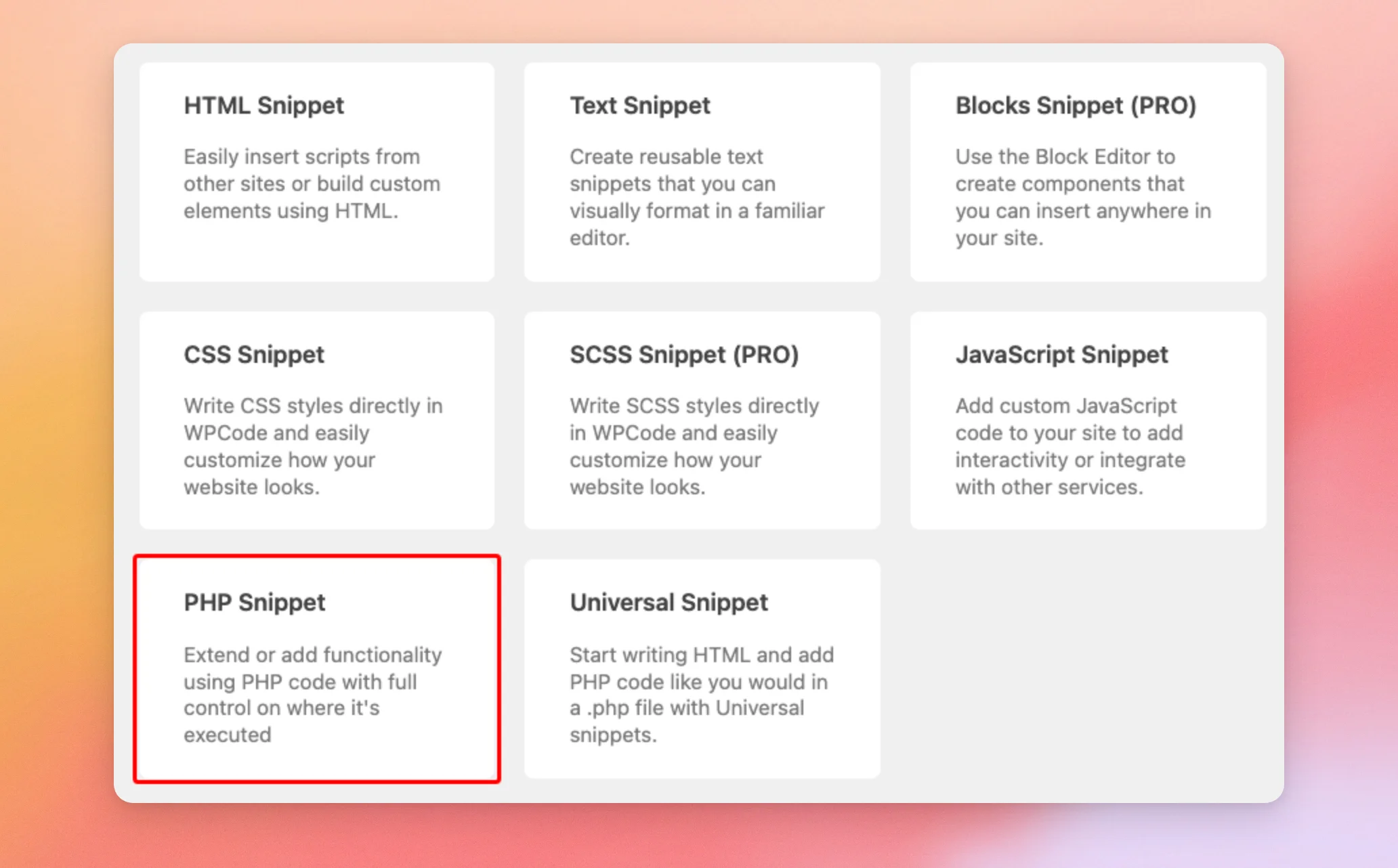
- Next, open the Code Snippets menu in your WordPress dashboard and add a new custom snippet. Choose PHP as its code type.
- Then, give the snippet a title, such as Load feed files only on feed pages, and paste your code into the code box.
- Finally, make the snippet active and save it.
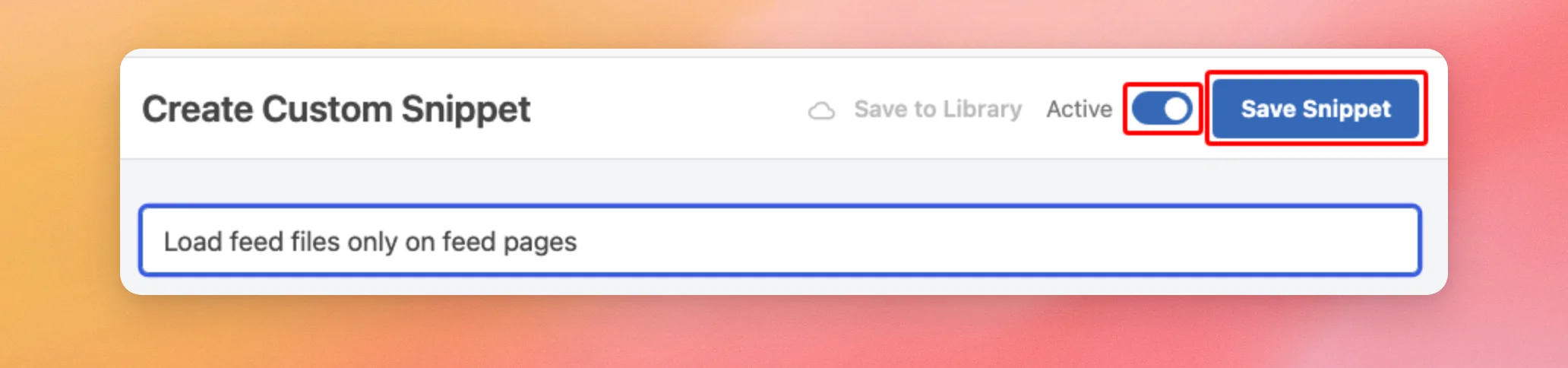
Now, open a page that shows your feed and check that it looks and works as before. Then open a page that isn’t in your list. The plugin’s files no longer load there. To go back to the default behavior later, deactivate the snippet in WPCode.
That’s it! Your Smash Balloon plugin files now load only on the pages that show your feeds.
If a feed’s files don’t load on a page where they should, see The plugin’s CSS and JavaScript files aren’t being included in my page.
Frequently Asked Questions
Below, we’ve answered some of the most common questions about loading the plugin files on specific pages.
Why does my feed look unstyled after I added the snippet?
The page that shows your feed is most likely missing from the list in the snippet, so the snippet removes the plugin’s stylesheet there. Add that page’s slug to the list and update the snippet. With Facebook Feed, the snippet also removes the JavaScript file on that page, so the feed’s buttons may not respond either.
Can I use the snippet with a feed in a widget or a page builder?
Yes, as long as the page that shows the feed is in the list. The snippet checks which page a visitor is on, not where the feed sits on it. A feed in a sidebar or footer widget shows on every page that has that widget area, so each of those pages needs the files. In that case, leave that plugin’s code out of your snippet so its files keep loading on every page.




