Social Wall
  Feed Analytics

How to connect your Airbnb listing and display its guest reviews on WordPress, each with the guest star rating and feedback.
Would you like to display your Airbnb guest reviews on your WordPress site? With Reviews Feed, you can connect your Airbnb listing and show its guest reviews anywhere on your site. Each review includes the guest’s star rating and comments.
In this guide, we’ll walk you through connecting Airbnb as a review source and building a feed to display those reviews.
Requirements: Airbnb is available on the Elite license level of Reviews Feed.
Before you get started, make sure Reviews Feed is installed and activated on your WordPress site.
Here is what we will cover:
- Connecting Airbnb as a Review Source
- Building Your Airbnb Feed
- Displaying Your Feed
- Frequently Asked Questions
Connecting Airbnb as a Review Source
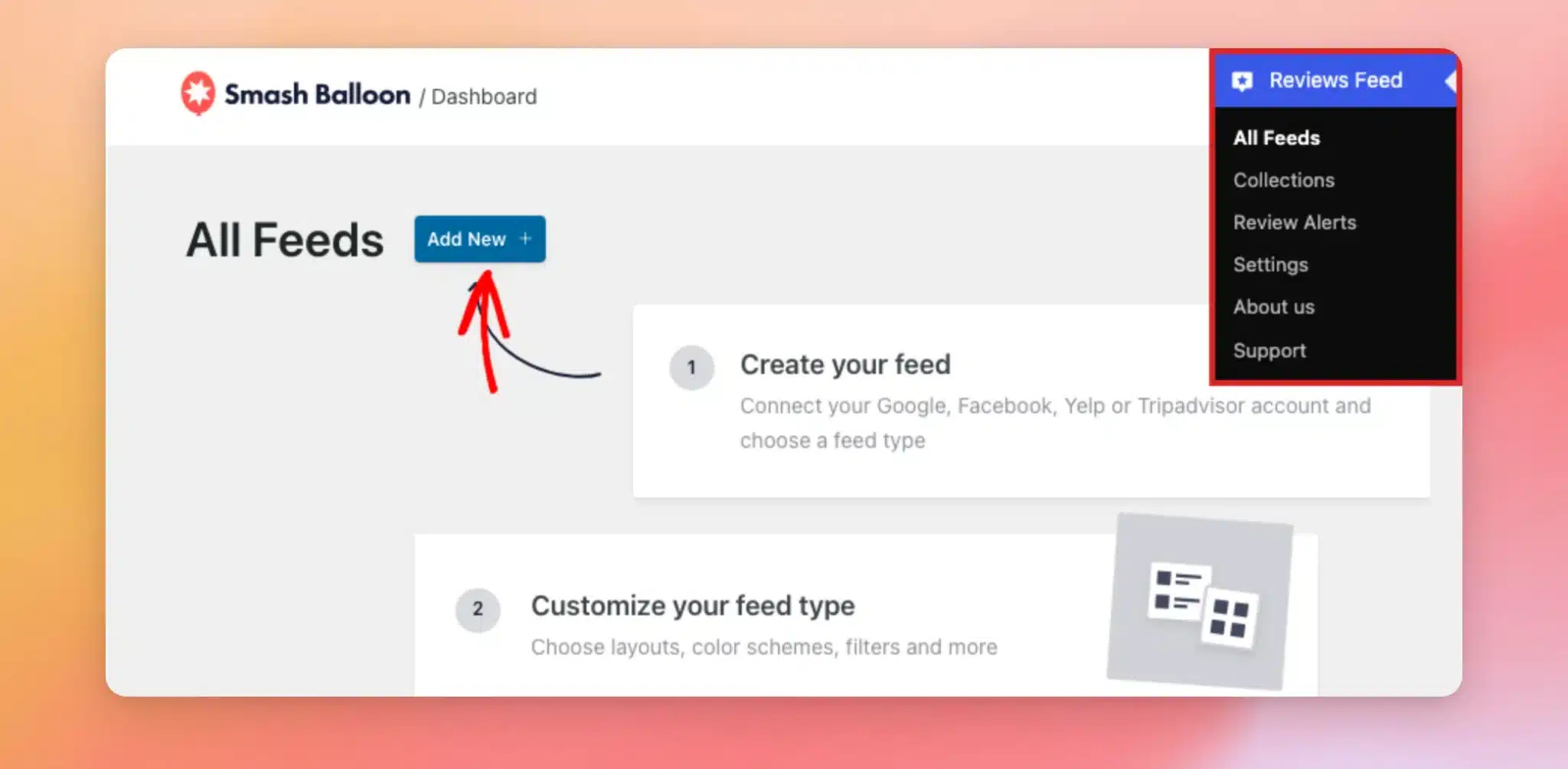
To get started, we’ll connect Airbnb as a new review source. Go to Reviews Feed » All Feeds in your WordPress admin sidebar. Then click Add New.
Note: You don’t need an Airbnb account or an API key. Your listing’s public Airbnb page is all that’s required to connect the source.
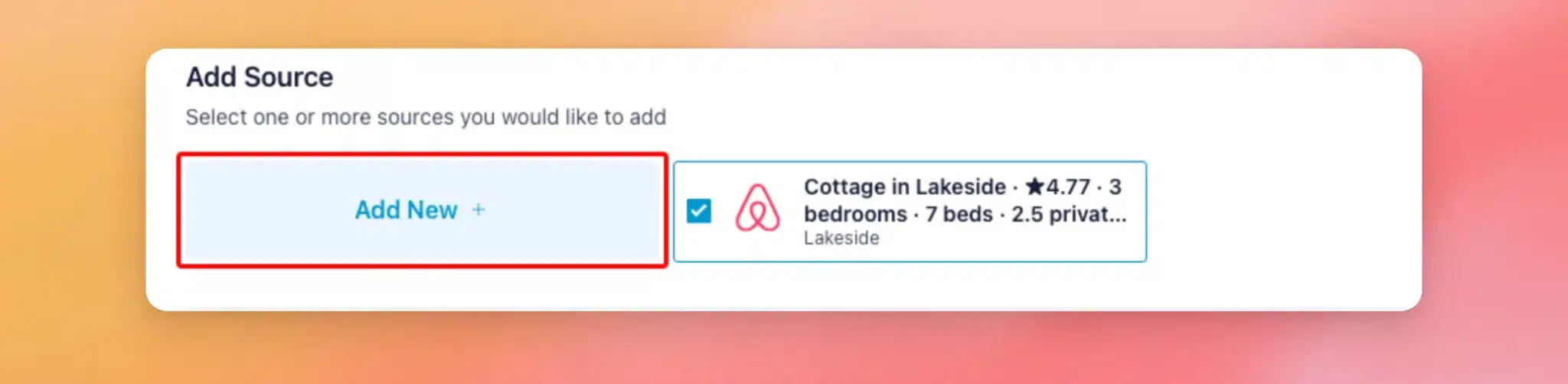
On the Add Source screen, click the Add New tile to connect a new source.
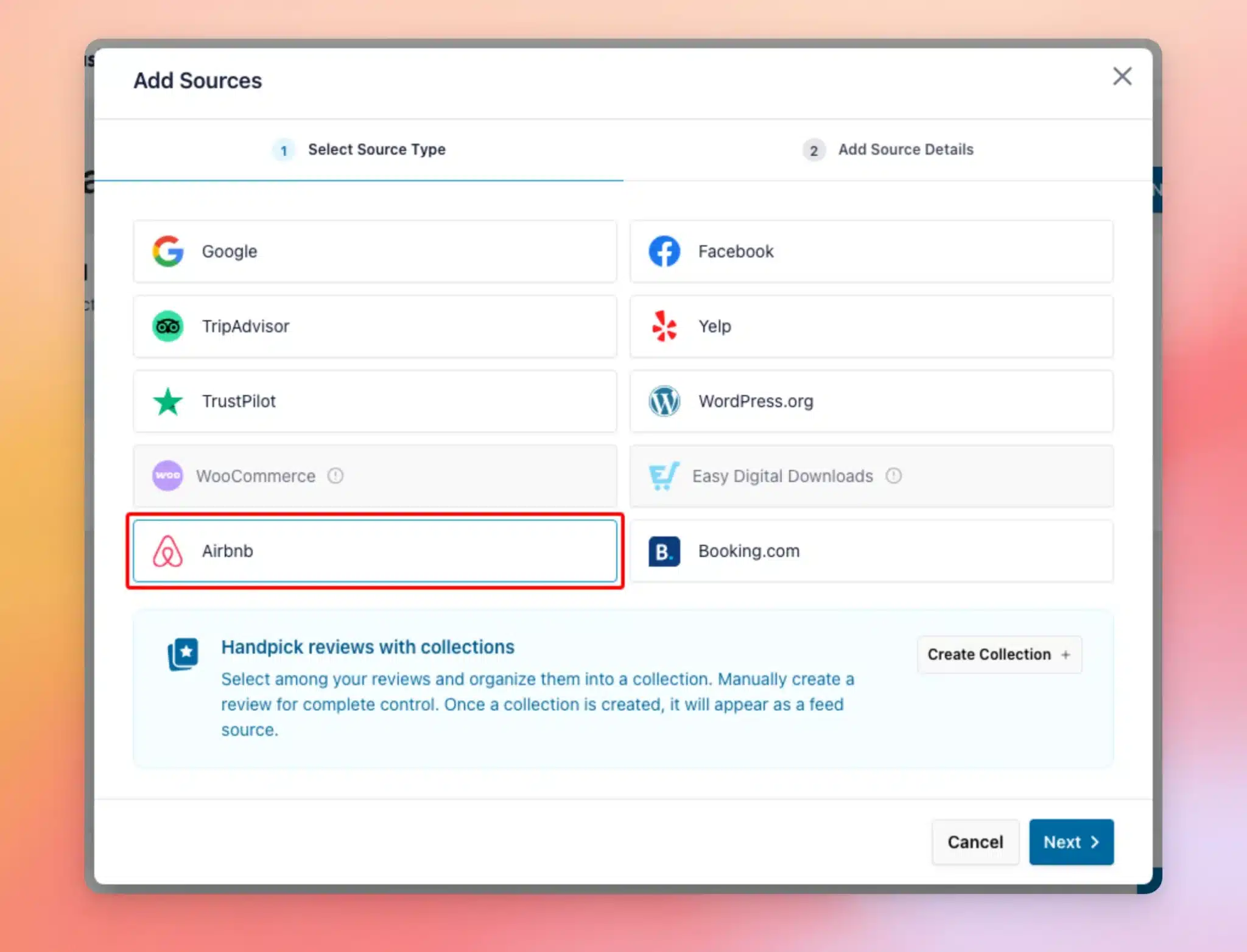
In the Add Sources window, choose Airbnb as your source type. Then click Next.
Next, paste your listing’s address into the Listing URL field. This is the web address of your listing’s page on Airbnb.
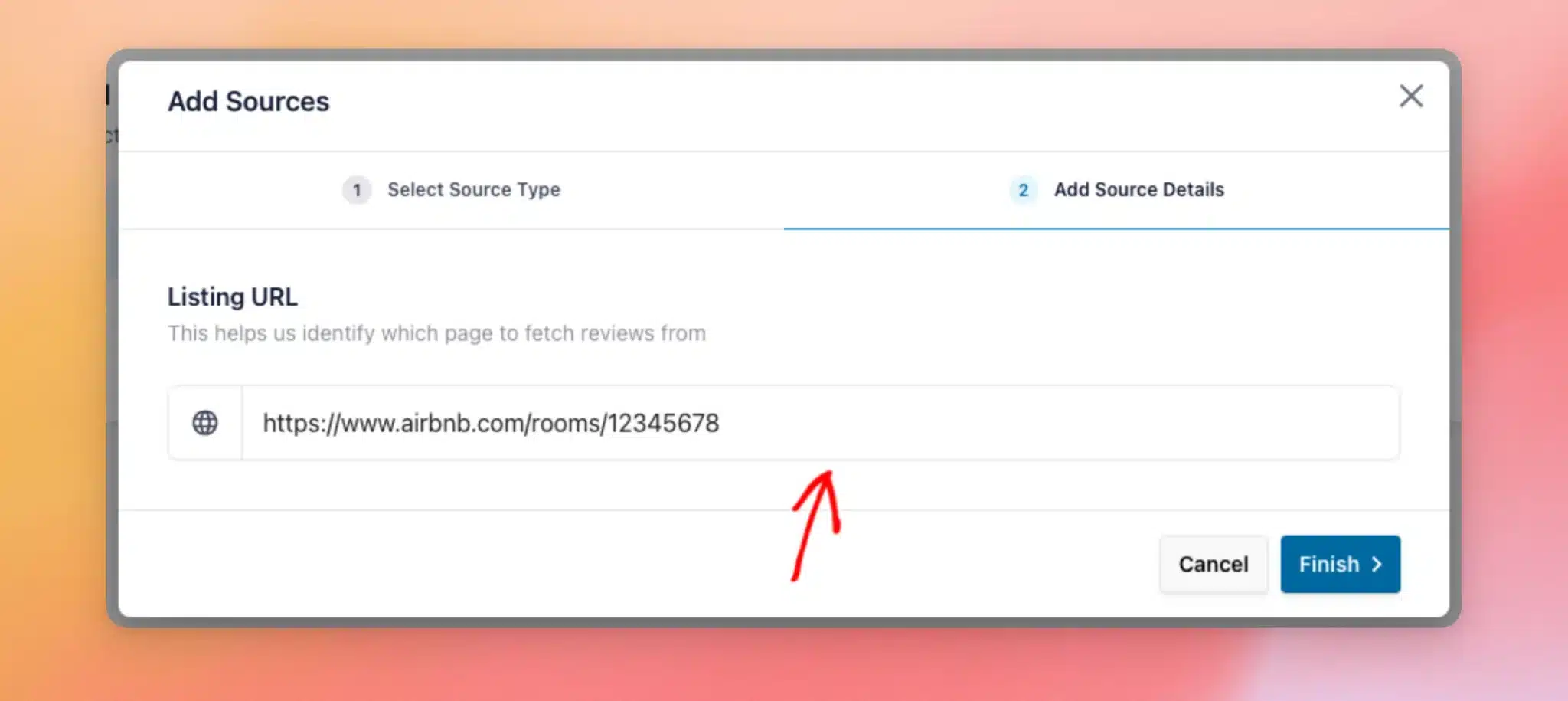
Once you’ve added the URL, click Finish. Reviews Feed connects to Airbnb and pulls in your listing’s reviews.
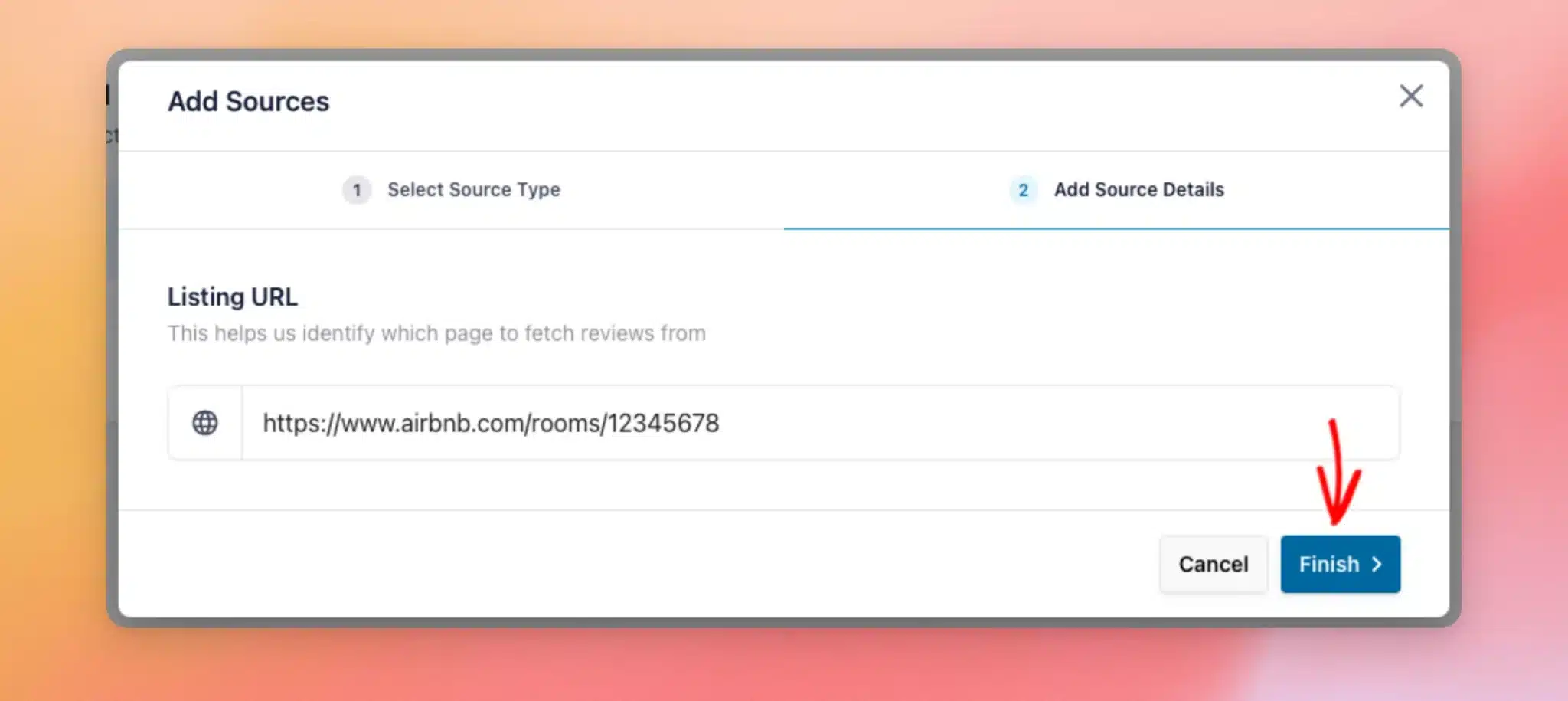
Now that Airbnb is connected as a source, you’re ready to build your feed.
Building Your Airbnb Feed
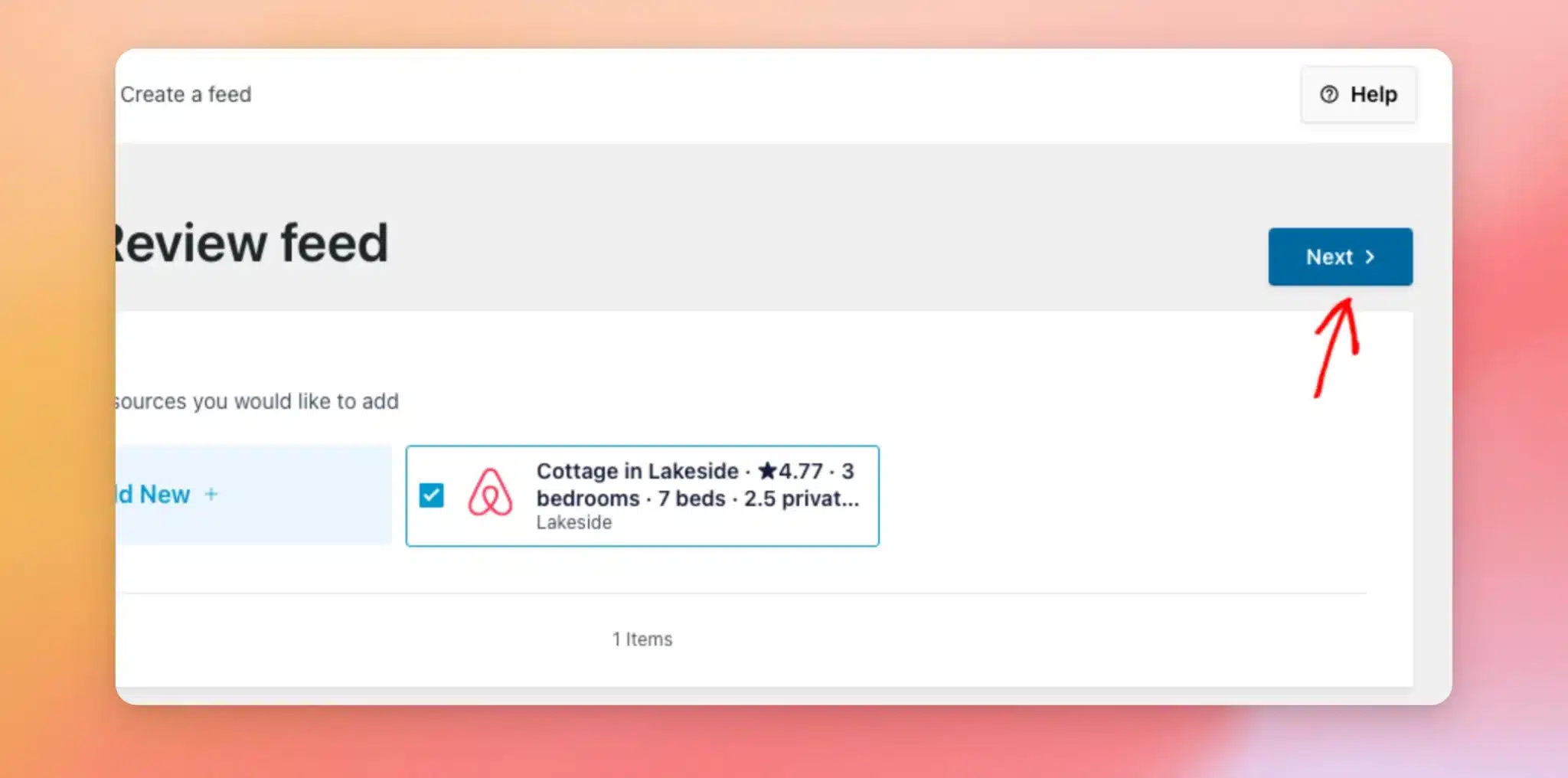
Your Airbnb source now appears on the Add Source screen, already selected. Then click Next to continue.
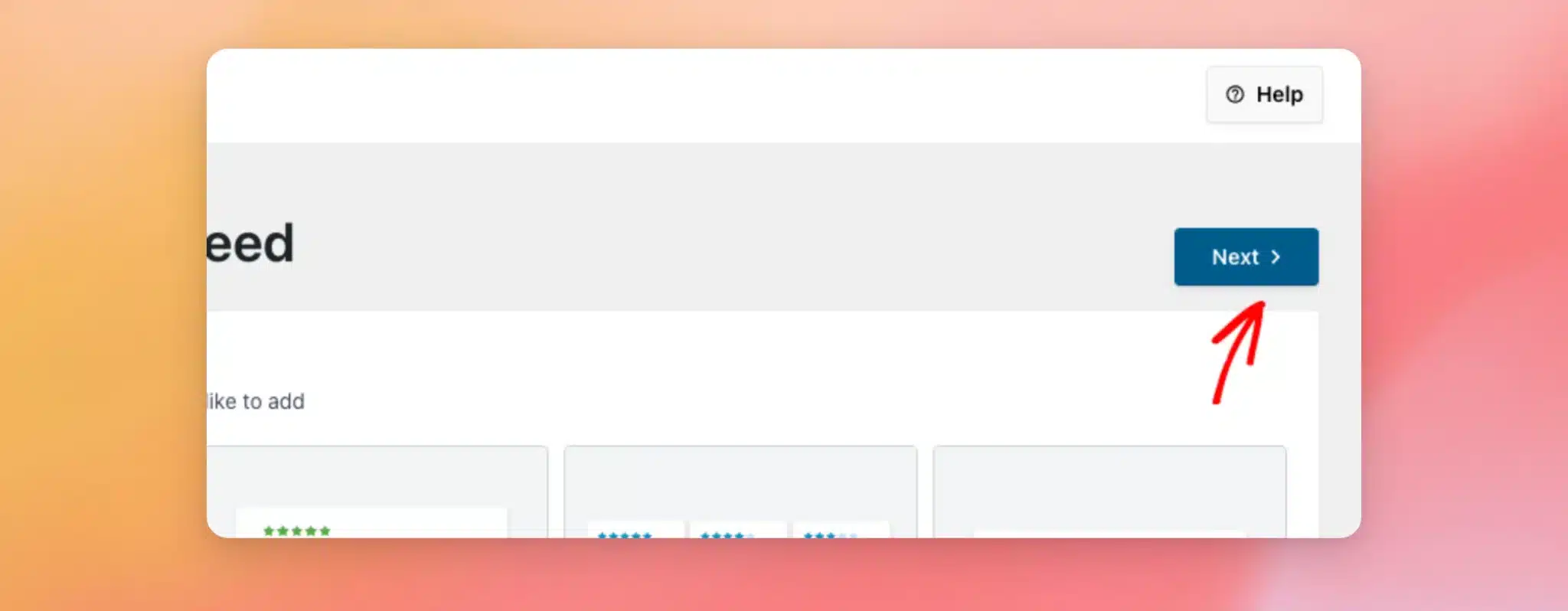
Now, choose a template for your feed. The Default template works well for most sites. After you pick a template, click Next.
Reviews Feed opens the feed editor with a live preview of your Airbnb reviews. When you’re happy with how the feed looks, click Save.
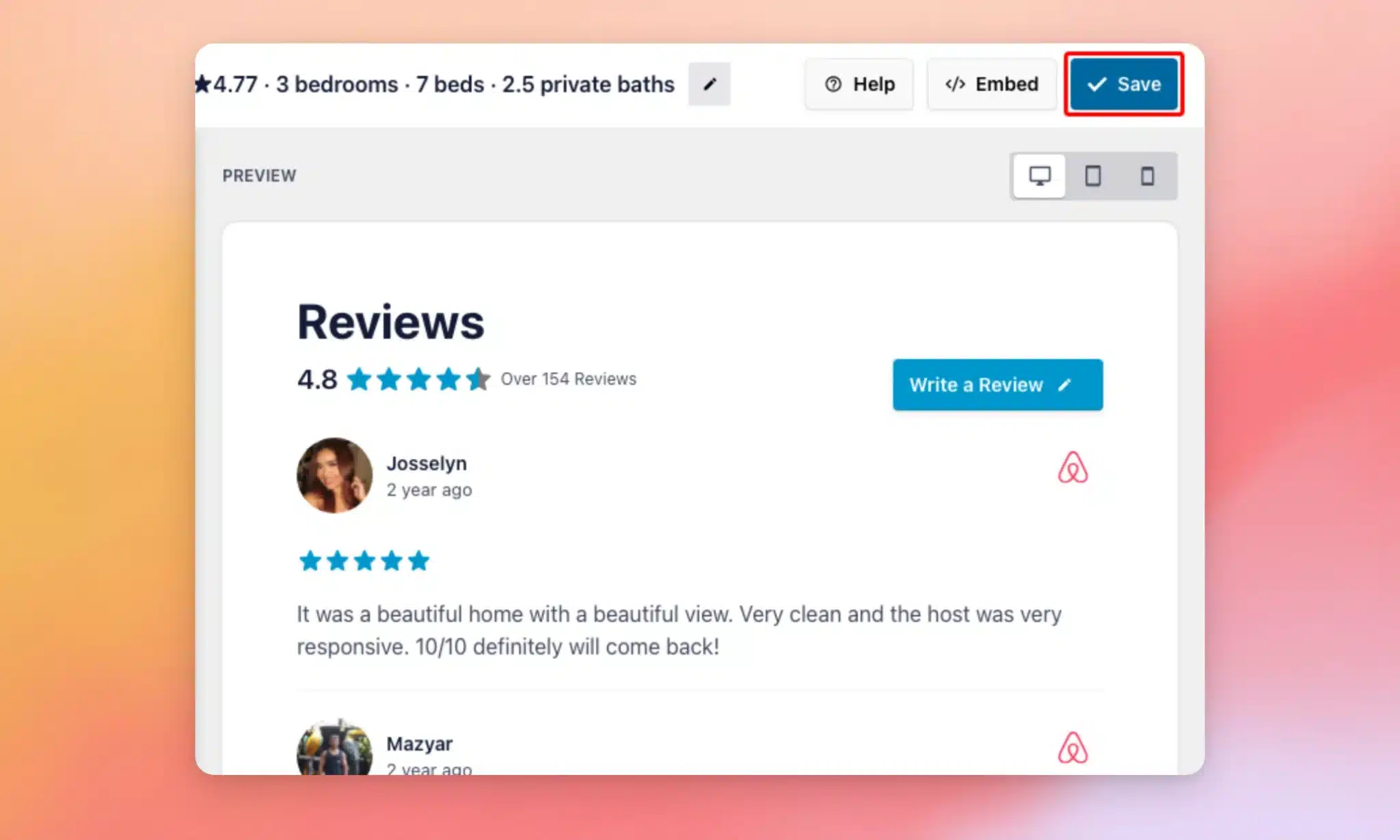
Your Airbnb feed is ready. Each review shows the guest’s star rating, their name and photo, and the comments they left. When you have replied to a review on Airbnb, your reply appears with it.
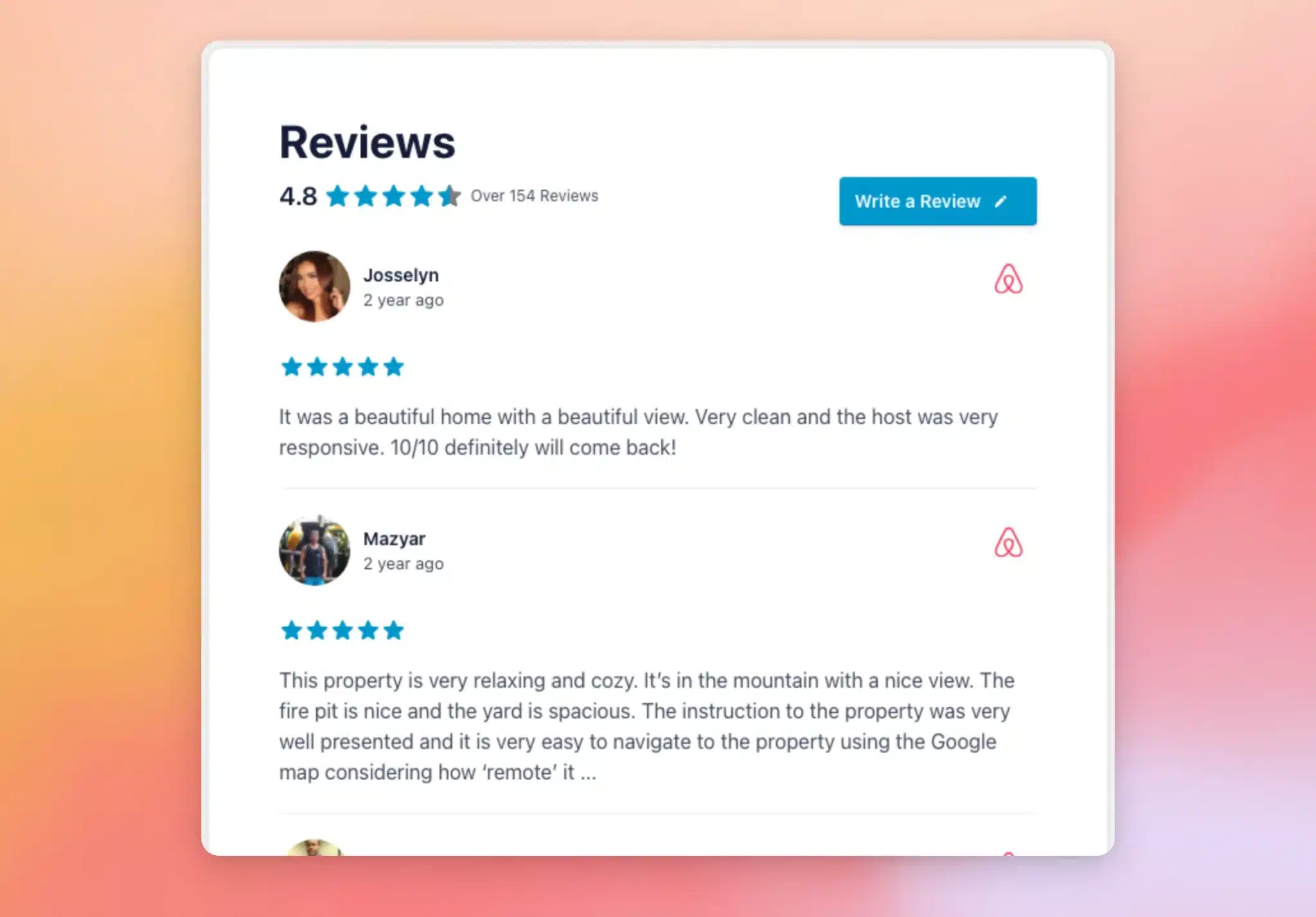
Now that your feed is built, you’re ready to display it on your site.
Displaying Your Feed
Every feed you build has its own shortcode, like [reviews-feed feed=123], which you can add to any page, post, or widget to display your reviews. See How to Add a Shortcode in WordPress for a step-by-step guide.
Reviews Feed also includes a block for the WordPress block editor and a widget for Elementor. This lets you add your feed visually without copying a shortcode.
For step-by-step help, see our guide on adding a reviews feed with the block editor. We also have guides on adding a reviews feed with the Elementor widget and displaying your reviews feed.
That’s it! You’ve connected Airbnb and built a feed of your listing’s guest reviews. To learn more about placing your feed exactly where you want it, see our guide on displaying your reviews feed.
Frequently Asked Questions
Below, we’ve answered some of the most common questions about adding an Airbnb reviews feed.
Do I need an Airbnb account or an API key?
No. You only need your listing’s Airbnb page. Reviews Feed handles the connection for you, with no account login or API key required.
Where do I find my listing’s Airbnb URL?
To find it, open your listing’s page on Airbnb and copy the address from your browser’s address bar. Paste that address into the Listing URL field when you add the source.
Why don’t all my reviews show right away?
Reviews Feed pulls a first batch of reviews when you add your source. Then it gathers more of your listing’s history in the background. Your feed keeps filling in and stays up to date on its own.
Can I show Airbnb reviews alongside other sources?
Yes. When you create a feed, you can select more than one source. This means you can combine Airbnb with Booking.com, Google, or any other connected source in a single feed.