Social Wall
  Feed Analytics

How to place a review feed on a page visually with the Reviews Feed block, without touching a shortcode.
Would you like to showcase your customer reviews on a page without touching a single line of code? With the Reviews Feed block, you can place any of your feeds onto a page or post visually, right inside the WordPress block editor. There is no shortcode to copy and nothing to paste.
This guide will walk you through the steps to add a reviews feed to a page using the block editor.
Before you get started, make sure Reviews Feed is installed and activated on your WordPress site. You will also need to have already created the feed you want to display.
Here is what we will cover:
- Adding the Reviews Feed Block
- Selecting Your Feed
- Publishing and Viewing Your Feed
- Testing Your Feed
- Frequently Asked Questions
Adding the Reviews Feed Block
To get started, we’ll add the Reviews Feed block to your page.
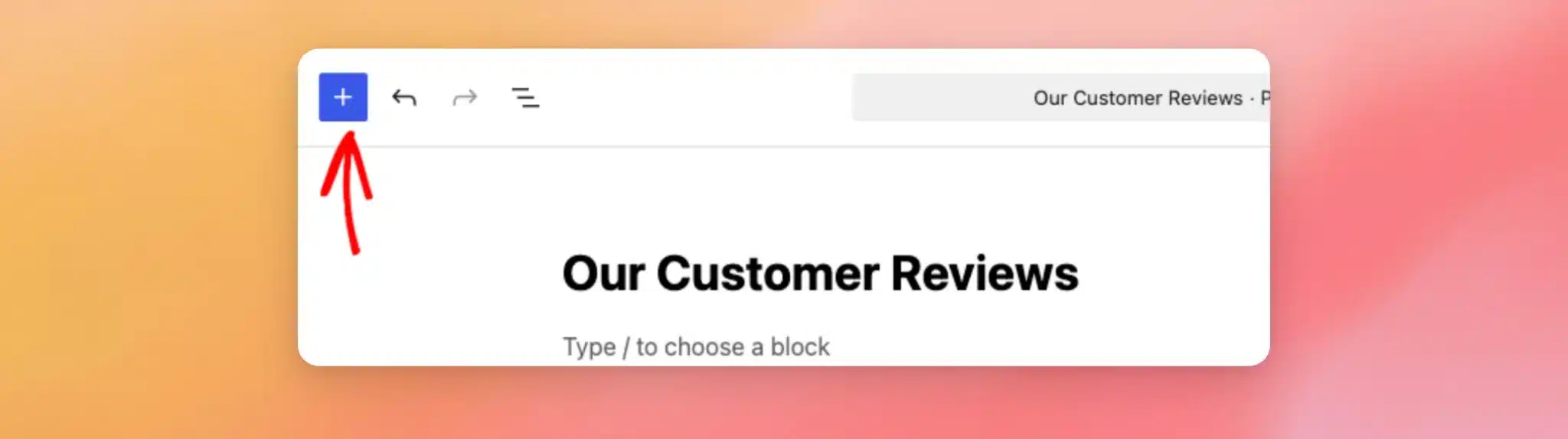
First, open the page or post where you want your reviews to appear, or create a new one. Once you are in the editor, click the block inserter (the + icon) in the top-left corner.
If you are new to working with blocks, see How to Use the WordPress Block Editor for a beginner-friendly walkthrough.
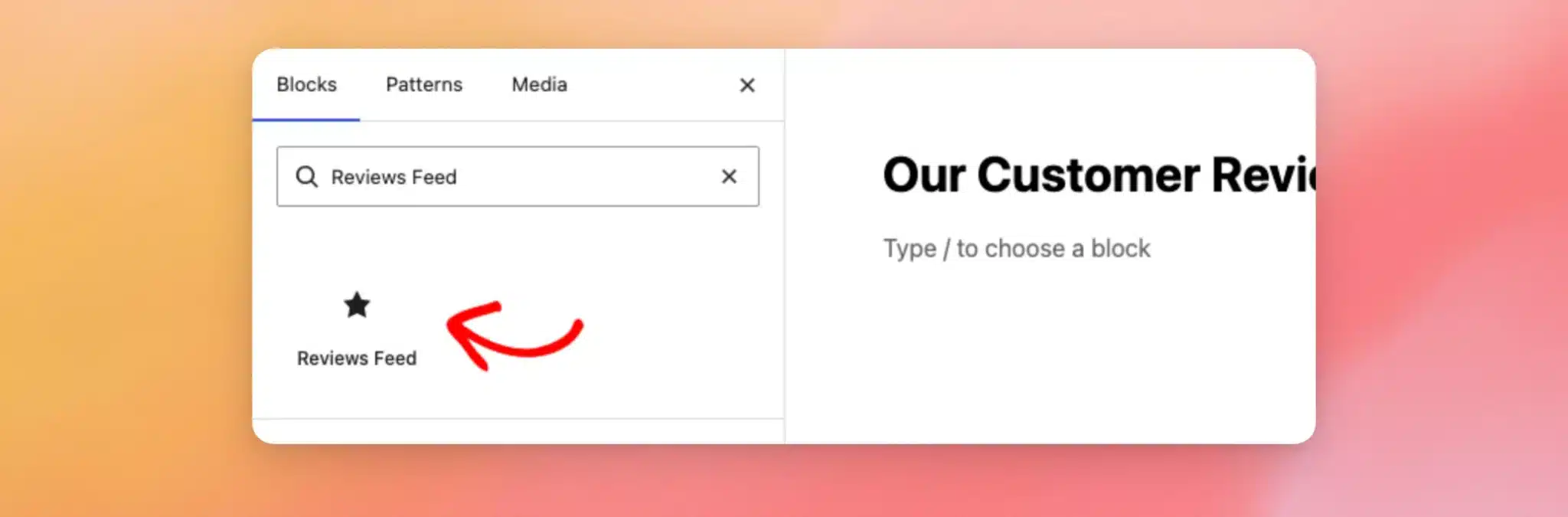
Next, type Reviews Feed into the search box. When the Reviews Feed block appears in the results, click it to add it to your page.
The block is now in place on your page, ready to be connected to one of your feeds.
Selecting Your Feed
As soon as you add the block, it shows a Select a Feed dropdown. This is where you tell the block which of your feeds to display.
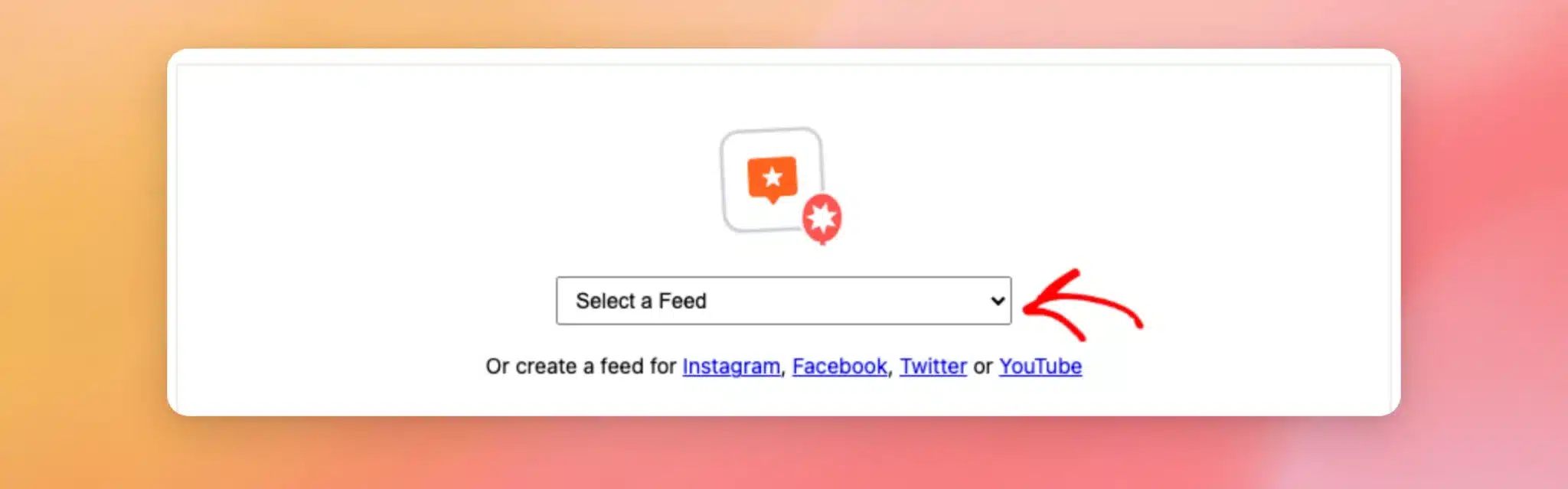
From the Select a Feed dropdown, choose the feed you want to show. The block then loads a live preview of your reviews. This lets you confirm you picked the right feed before you go any further.
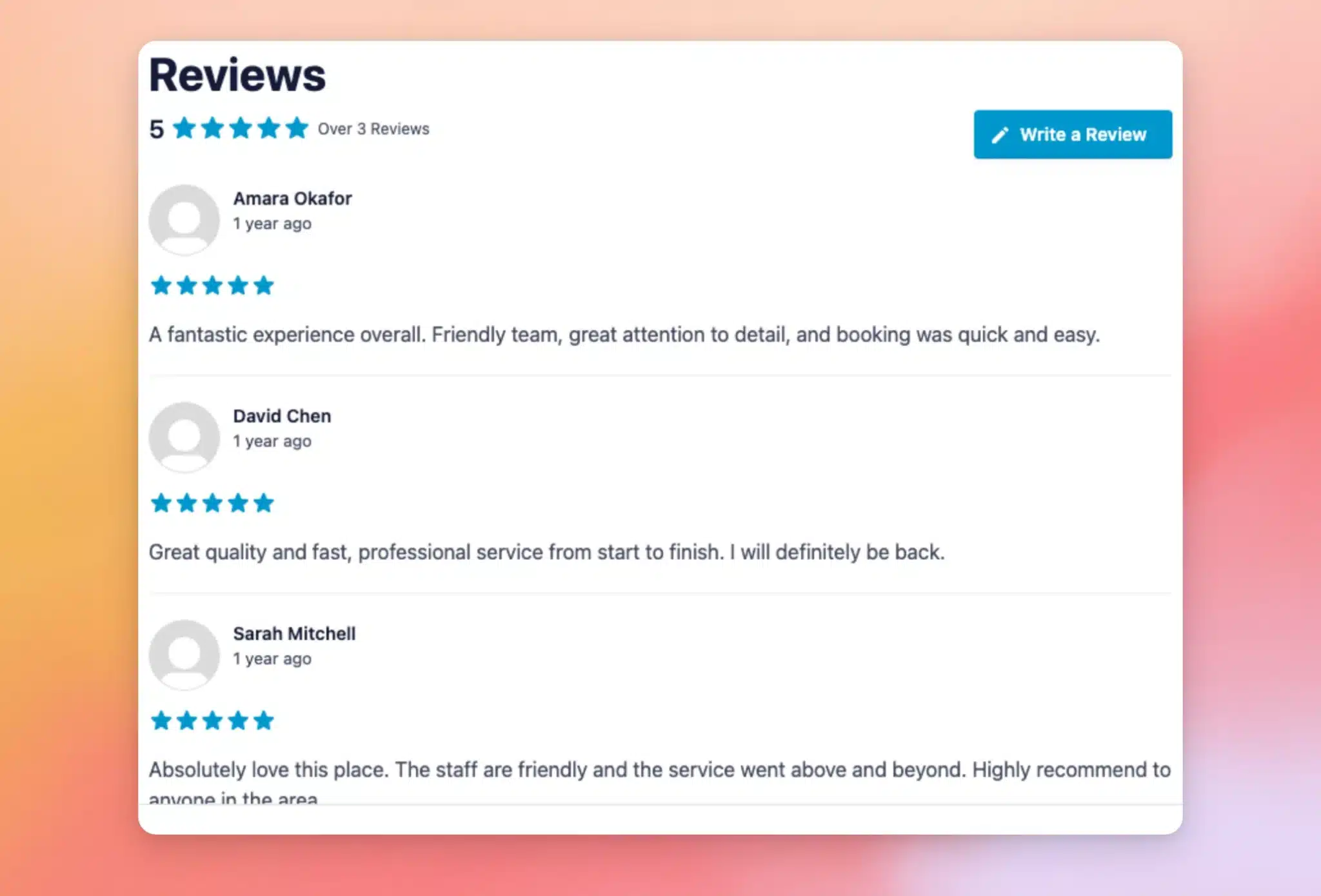
Once the preview shows the reviews you expect, you are ready to make the page live.
Publishing and Viewing Your Feed
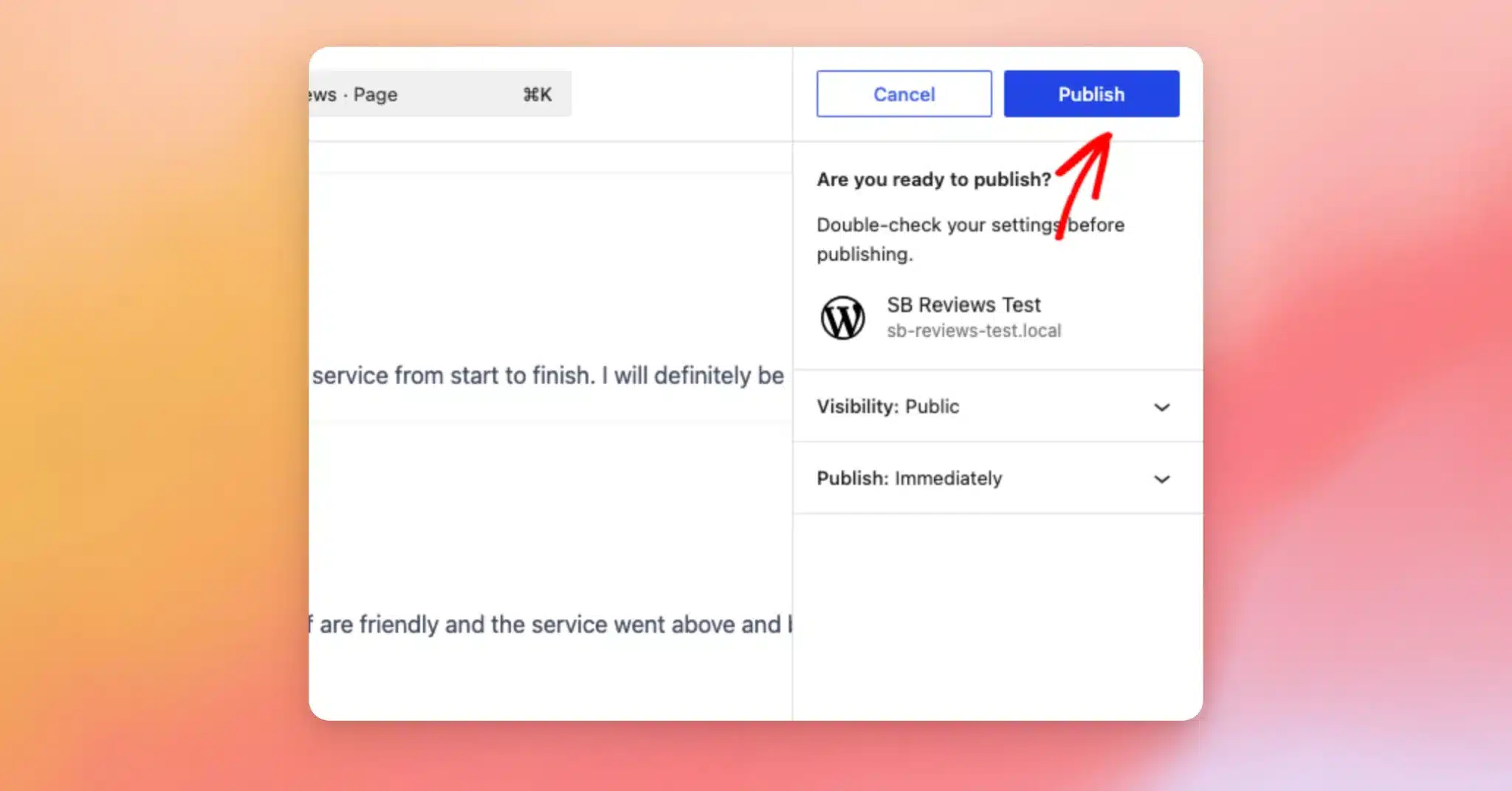
When your feed looks the way you want, click Publish in the top-right corner to make the page live. For a brand-new page, the editor asks you to confirm by clicking Publish once more. If you are adding the feed to a page that is already published, the button reads Update or Save instead, depending on your WordPress version.
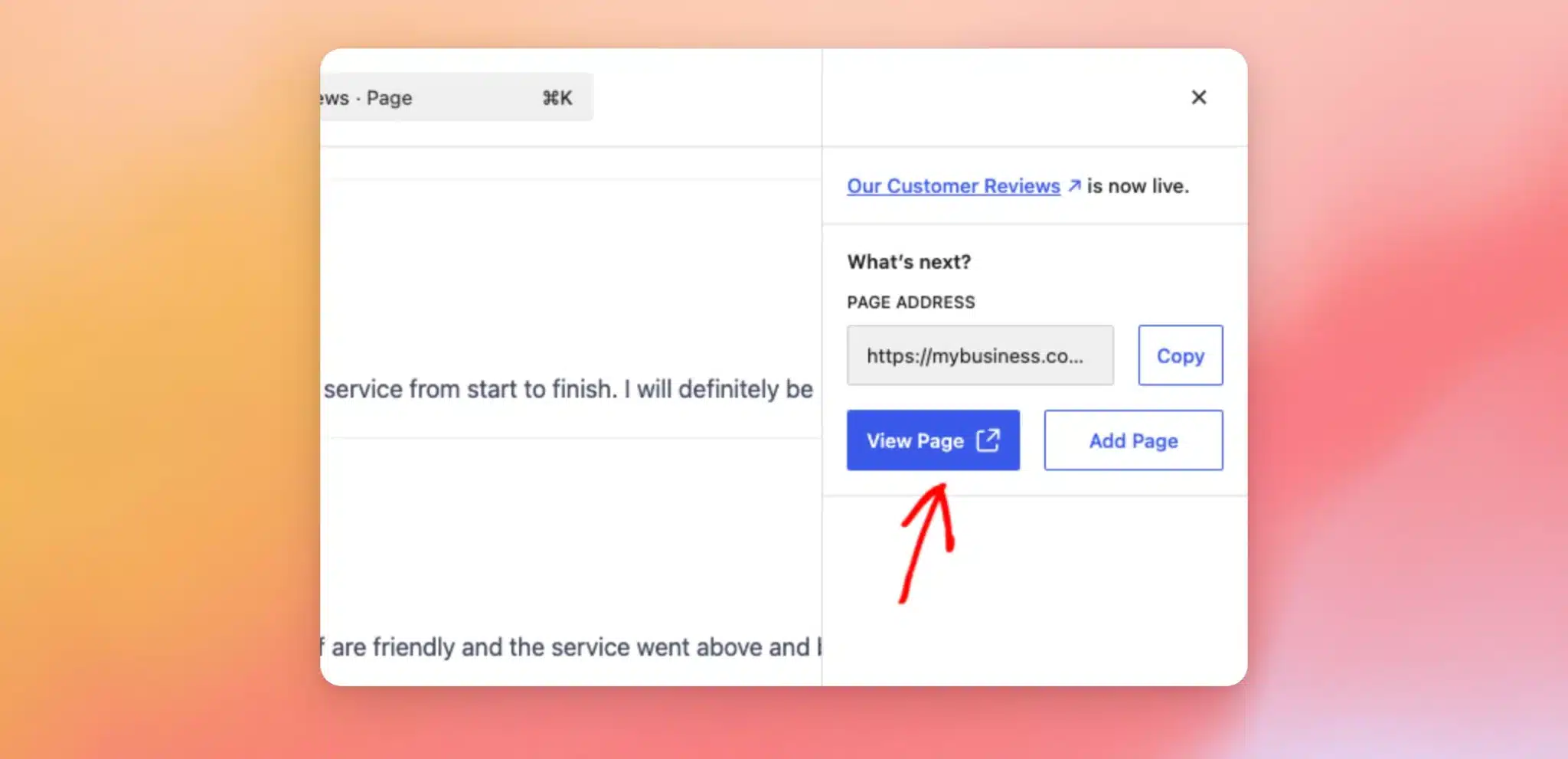
After the page is published, click View Page to open it.
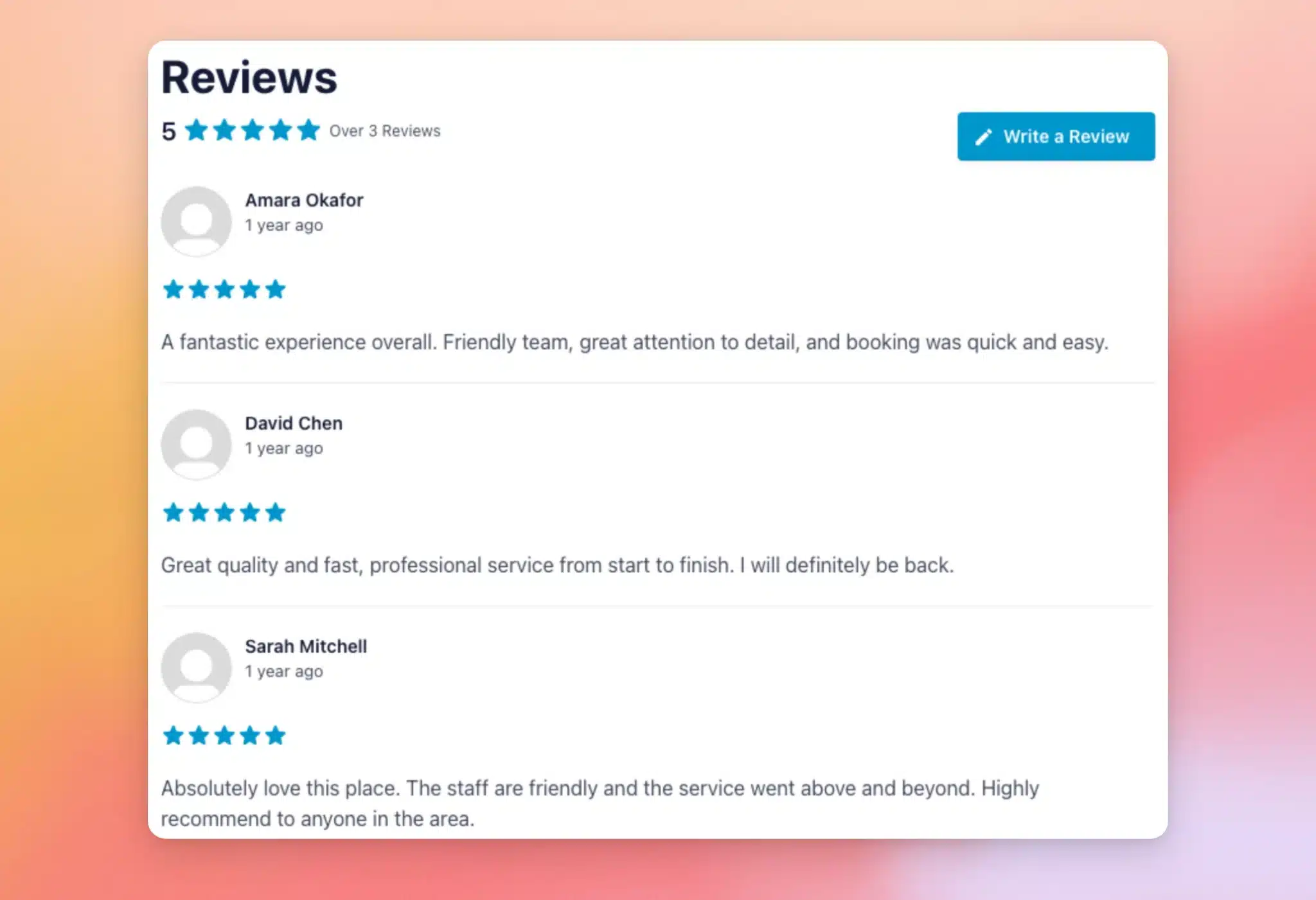
Your reviews feed is now on the live site, exactly as your visitors will see it.
Now that the page is live, there is one final check worth doing.
Testing Your Feed
Before you move on, it helps to open the page in a private browser window or while logged out. This way, you can confirm the feed looks right to visitors, not just to you as an administrator.
Note: If the feed appears for you but not in the private window, your site may be showing visitors a cached copy of the page. If you use a caching plugin, clear its cache and reload the page.
That’s it! You have added a reviews feed to your page using the block editor, no shortcode required. You can fine-tune how your reviews look at any time by opening your feed in the feed editor.
Frequently Asked Questions
Below, we’ve answered some of the most common questions about adding a reviews feed with the block editor.
Do I need a shortcode to use the block?
No. The Reviews Feed block lets you select and display your feed visually. This means there is no shortcode to copy or paste.
Can I show more than one feed on the same page?
Yes. You can add the Reviews Feed block more than once on a page and choose a different feed in each block.
For more details, check out our doc on displaying multiple reviews feeds.
How do I change which feed the block displays?
First, select the Reviews Feed block on your page. Then pick a different feed from the Select a Feed dropdown, or from the Feed Settings panel on the right. The preview updates right away.