Social Wall
  Feed Analytics

Instagram Feed Pro ships an Elementor widget, so you can drop a feed onto any page without shortcodes or code.
If your site uses Elementor as its page builder, you can drop a Smash Balloon Instagram feed onto any page without touching code or pasting shortcodes. Instagram Feed Pro ships a dedicated Elementor widget that appears in the widget panel alongside the rest of Elementor’s elements. You drag it to a section, pick which feed to display from a dropdown, and the preview pane fills in with your real Instagram posts straight away.
This guide walks through adding the Instagram Feed widget to an Elementor page for the first time.
This feature is available in both the free Instagram Feed plugin and Instagram Feed Pro. The dedicated Instagram Feed Elementor widget ships with the free plugin from version 6.11.0 onward, so you don’t need Pro to drag your feed into an Elementor page. Pro unlocks additional feed types (hashtag, tagged posts) and customizer options that the embedded widget will then display.
Before You Start
Make sure of two things on your site:
- Instagram Feed (free or Pro) is installed and activated at version 6.11.0 or higher, which is when the Elementor widget was added. Most installs already meet this.
- Your Instagram account is connected as a source under Instagram Feed, Settings, Sources.
- At least one feed already exists in Instagram Feed, All Feeds. The Elementor widget picks from feeds you’ve already created in the Smash Balloon admin; it doesn’t create new feeds. If you haven’t built one yet, follow the create-feed walkthrough first, then come back here.
If both are in place, the Instagram Feed widget will appear in Elementor’s widget panel as soon as you open a page for editing.
Step 1. Open Your Page in Elementor
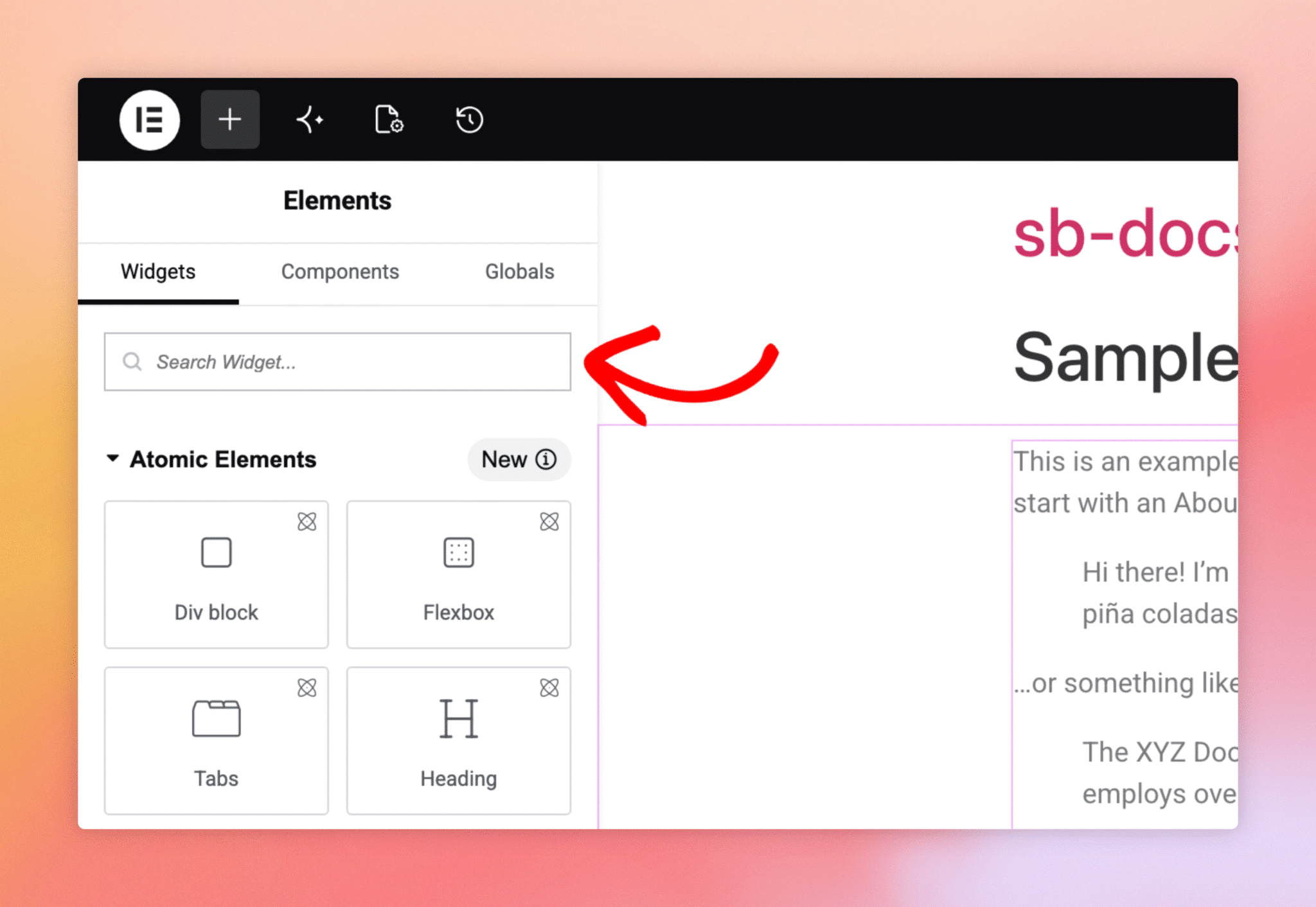
In the WordPress admin sidebar, go to Pages, pick the page you want the feed on, and click Edit with Elementor. The Elementor editor opens with the widget panel on the left and a live preview of your page on the right. The top of the widget panel has a search box labelled Search Widget, which is where you’ll find the Smash Balloon widget.
Step 2. Search for the Instagram Feed Widget
Click the Search Widget field and type instagram. The widget list filters down as you type, and the Instagram Feed widget (with the small Instagram icon) appears at the top of the results. This is the dedicated Smash Balloon widget, not the built-in Elementor “Instagram” embed.
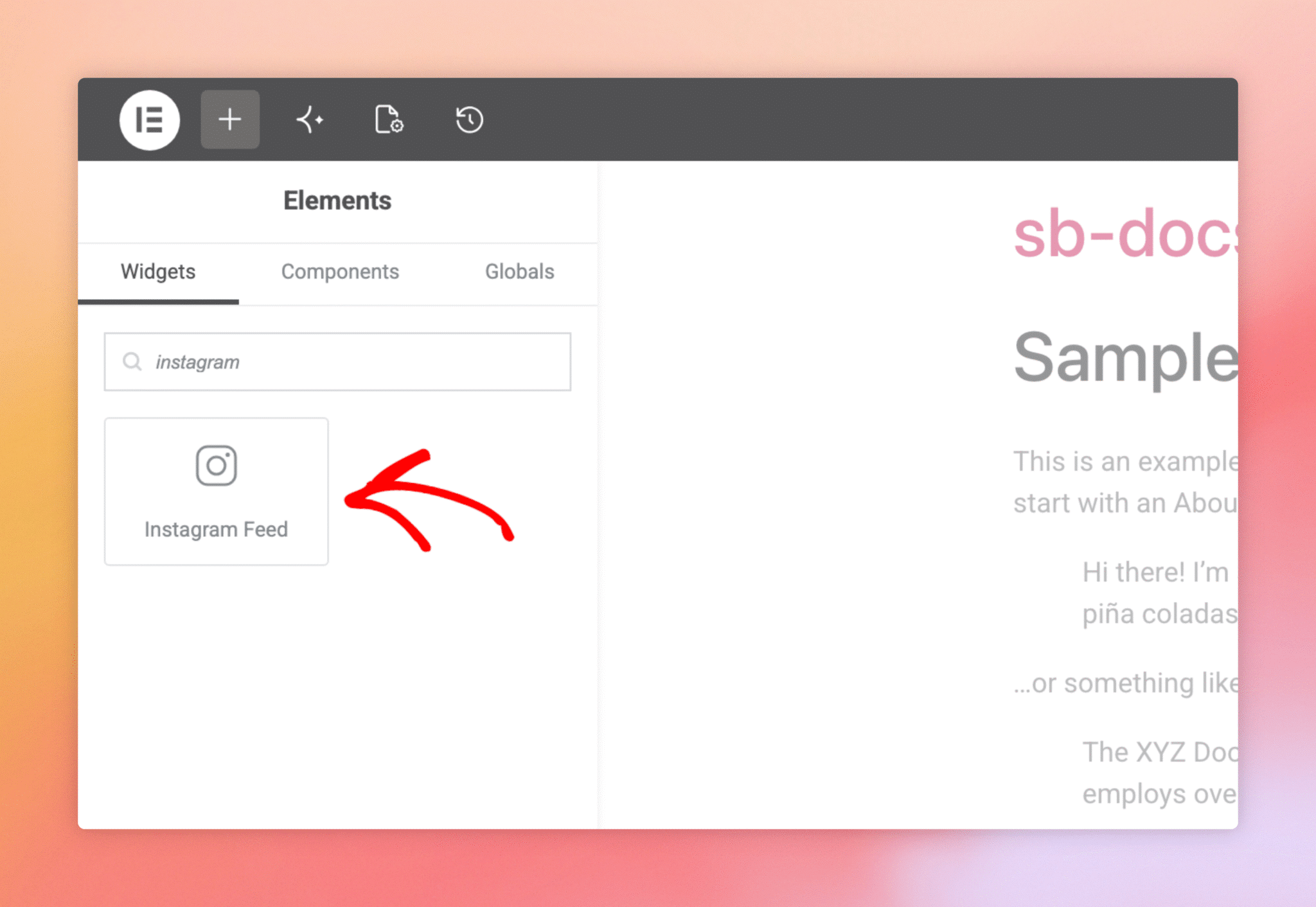
Drag the Instagram Feed widget from the panel onto the section of the page where you want the feed to appear. Elementor highlights drop zones as you drag, so you can drop it inside an existing container or as a new section. The widget settings panel opens automatically once it’s placed.
Step 3. Pick Your Feed
The widget settings panel is split into two tabs: Content and Advanced. On the Content tab you’ll find the Instagram Feed Settings group with a single setting at the top: Select a Feed. Click the dropdown and pick the feed you want to display. Every feed you’ve created in Instagram Feed, All Feeds is listed here by name.
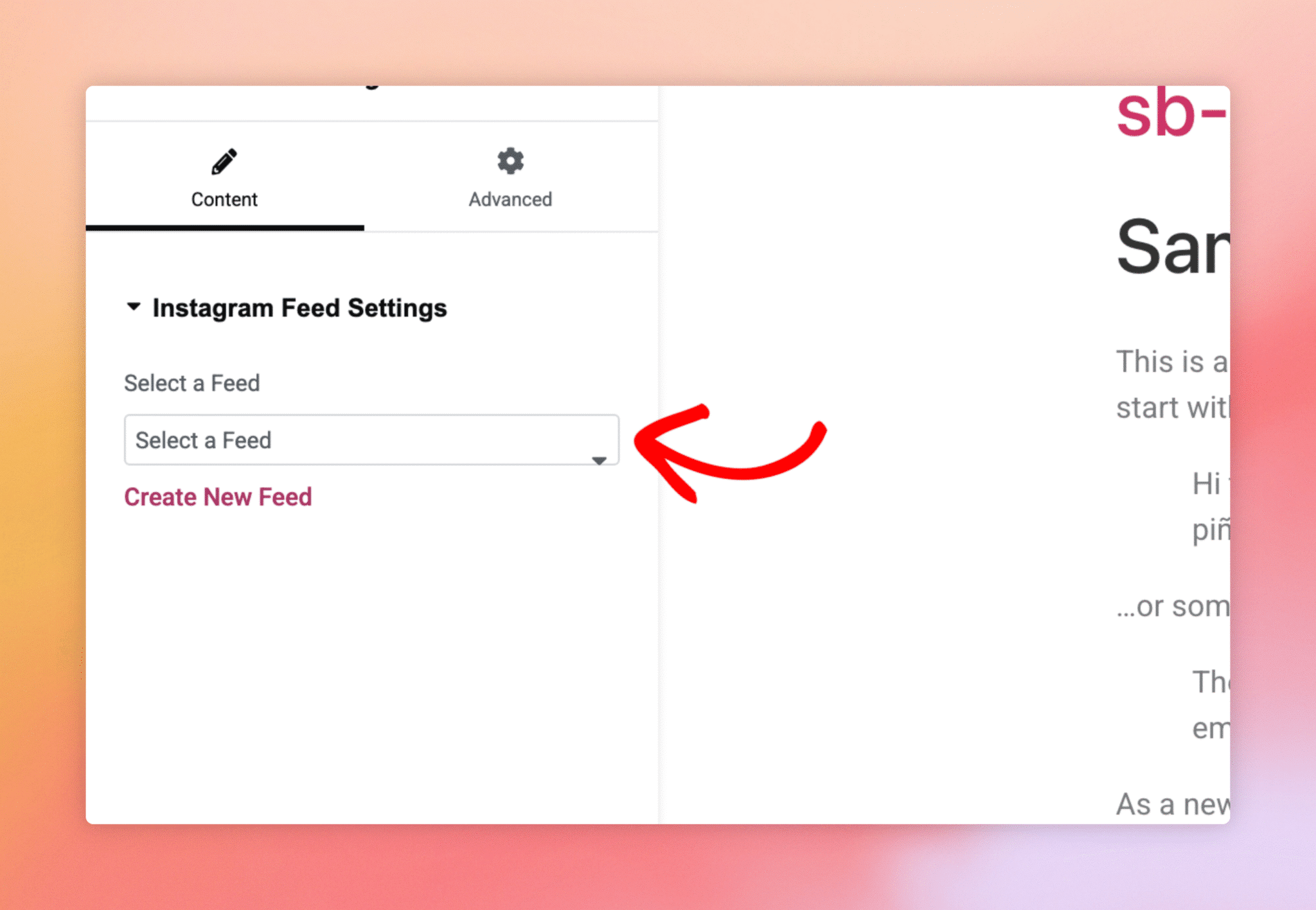
As soon as you pick a feed, the preview pane on the right refreshes and shows the real Instagram posts pulled in by that feed. The styling, layout, header, and any customizations you set up in the Smash Balloon customizer are preserved; Elementor renders the feed exactly as it would appear on a non-Elementor page.
Click Publish (or Update, if you’re editing an existing page) at the bottom-left of the Elementor panel to save the page. The Instagram feed is now live wherever the page is visible to visitors.
Can I drop the widget into a column inside a section?
Yes. Elementor lets you drag the widget into any column, container, or full-width section. The feed adapts to whatever width its parent column gives it.
Will the feed I picked stay in sync if I change settings in the Smash Balloon customizer later?
Yes. The widget displays whichever feed you selected, with all the styling from that feed’s customizer settings. If you later update the feed’s layout, header, or post count in Instagram Feed, All Feeds, the Elementor-embedded version updates automatically.
Can I add multiple Instagram feeds to one Elementor page?
Yes. Drop the widget multiple times into different sections, and pick a different feed for each one. Useful when you want a hero account at the top of a page and a hashtag feed lower down.
Why don’t I see the Instagram Feed widget in the panel?
The most common cause is an outdated Instagram Feed plugin version. The Elementor widget was added in version 6.2.9, so older installs won’t have it. Updating Instagram Feed (free or Pro) to the latest release resolves this. The plugin also needs to be active, of course.
Does this widget work with Elementor Free or only Elementor Pro?
The Instagram Feed widget works in both. You don’t need Elementor Pro to use it.
Can I configure feed styling from inside Elementor instead of the Smash Balloon customizer?
No. Feed-level styling (header, layout, colours, post count) is controlled by the Smash Balloon customizer for each saved feed. Elementor’s role is placement: where on the page the feed appears.