Social Wall
 Feed Analytics


Is there a Legacy Feeds box on your Social Wall All Feeds page, and are you wondering what to do with the walls you made before version 2.0?
In this guide, we’ll explain what legacy feeds are and when the Legacy Feeds box shows on your All Feeds page. We’ll also cover how to edit those feeds or create new ones instead.
Before you get started, make sure Social Wall is installed and activated on your WordPress site.
- What Are Legacy Feeds?
- Knowing When You See the Legacy Feeds Box
- Editing Legacy Feed Settings
- Creating a New Feed
- Frequently Asked Questions
What Are Legacy Feeds?
Before version 2.0, Social Wall had one set of settings for every wall on your site. Version 2.0 added the feed builder. There, each wall is its own feed with its own settings.
A wall you made before version 2.0 is called a legacy feed. It uses the older, shared settings. The shortcode for it doesn’t include a feed ID.
Knowing When You See the Legacy Feeds Box
The Legacy Feeds box shows on the Social Wall » All Feeds page, under the Add New button. It shows on sites that used Social Wall before version 2.0. A new site doesn’t see it.
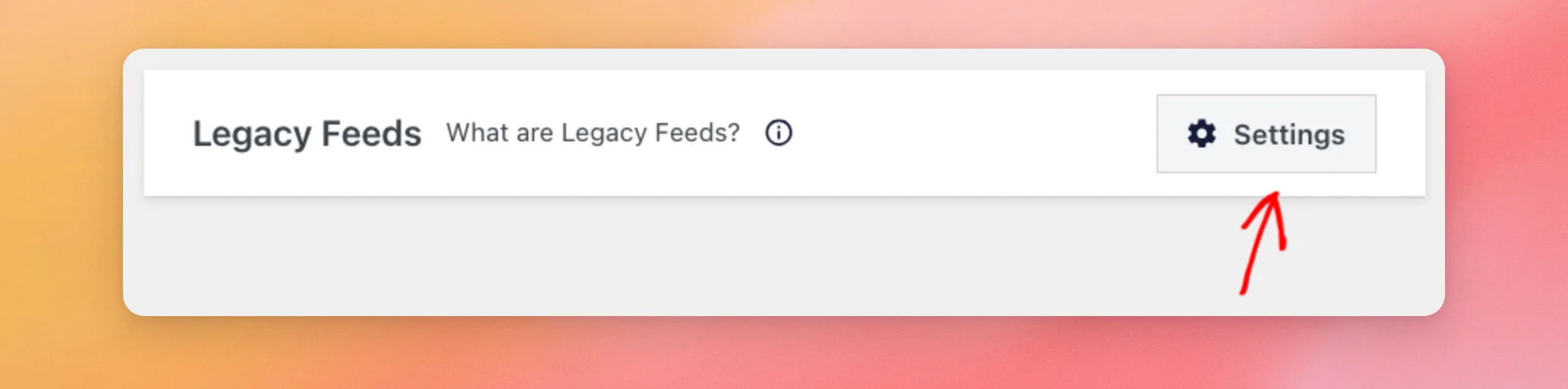
The box has a Legacy Feeds title, a “What are Legacy Feeds?” label with an info icon, and a Settings button.
Social Wall checks for legacy feeds once, the first time version 2.0 or higher loads on your site. It looks for posts that Social Wall cached for your walls before the update. If it finds any, it marks your site as having legacy feeds.
After that, the box shows only while Social Wall has cached posts for at least one of your walls, old or new. Cached posts are temporary, so the box can be missing for a while, for example after the Social Wall cache is cleared. It shows again once one of your walls loads on your site and its posts are cached.
Editing Legacy Feed Settings
To change a legacy feed, click the Settings button in the box. It opens the editor for the legacy settings.
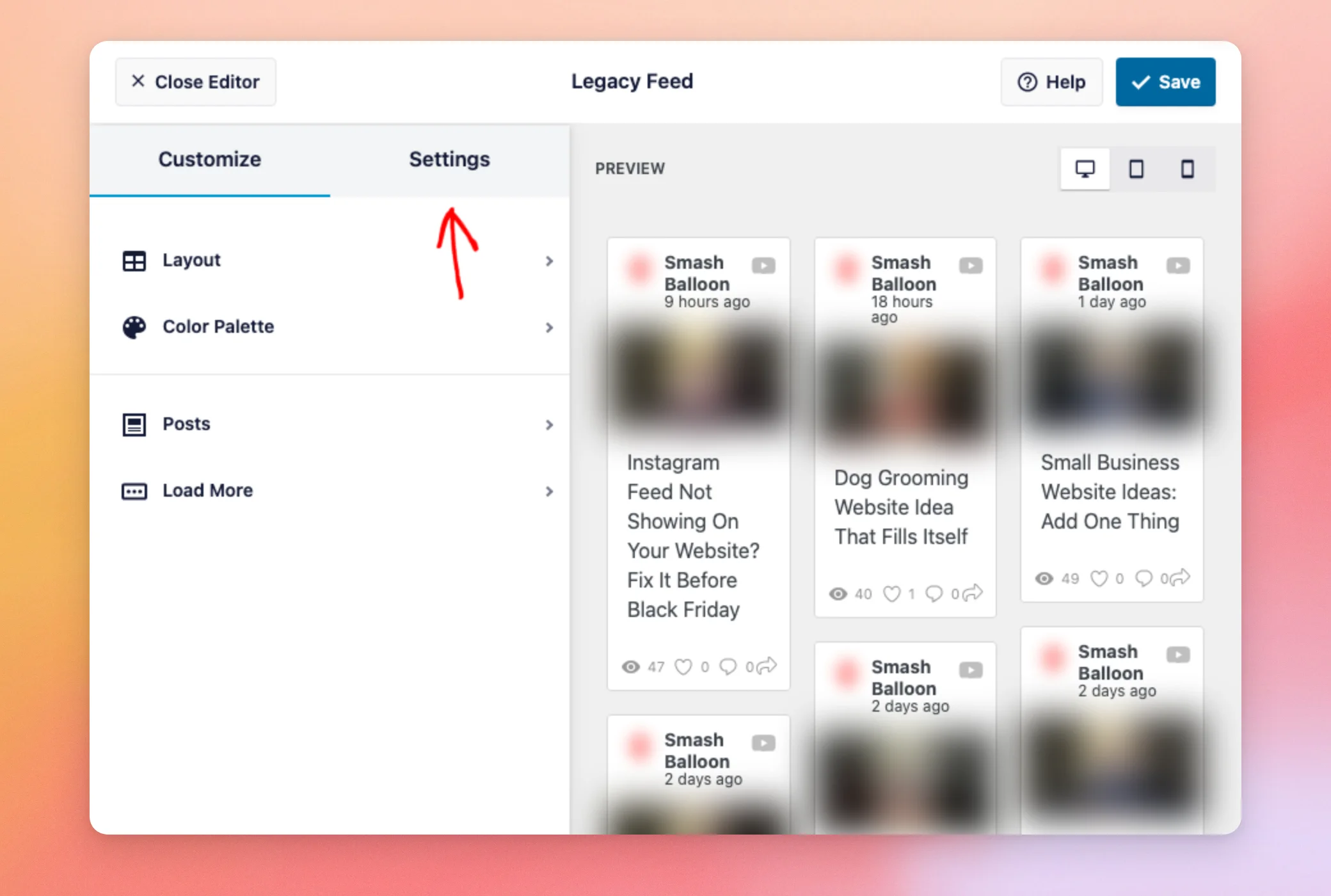
These settings apply to every legacy feed on your site. They work as they did before version 2.0. Two things work differently here than in a new feed:
- The Embed button is for feeds with a feed ID. The legacy editor leaves it out.
- Sources work differently. To see how, open the Settings tab in the editor and click Sources.

Instead of a list of sources, the Sources view shows the message “Source control is disabled for legacy feeds”.
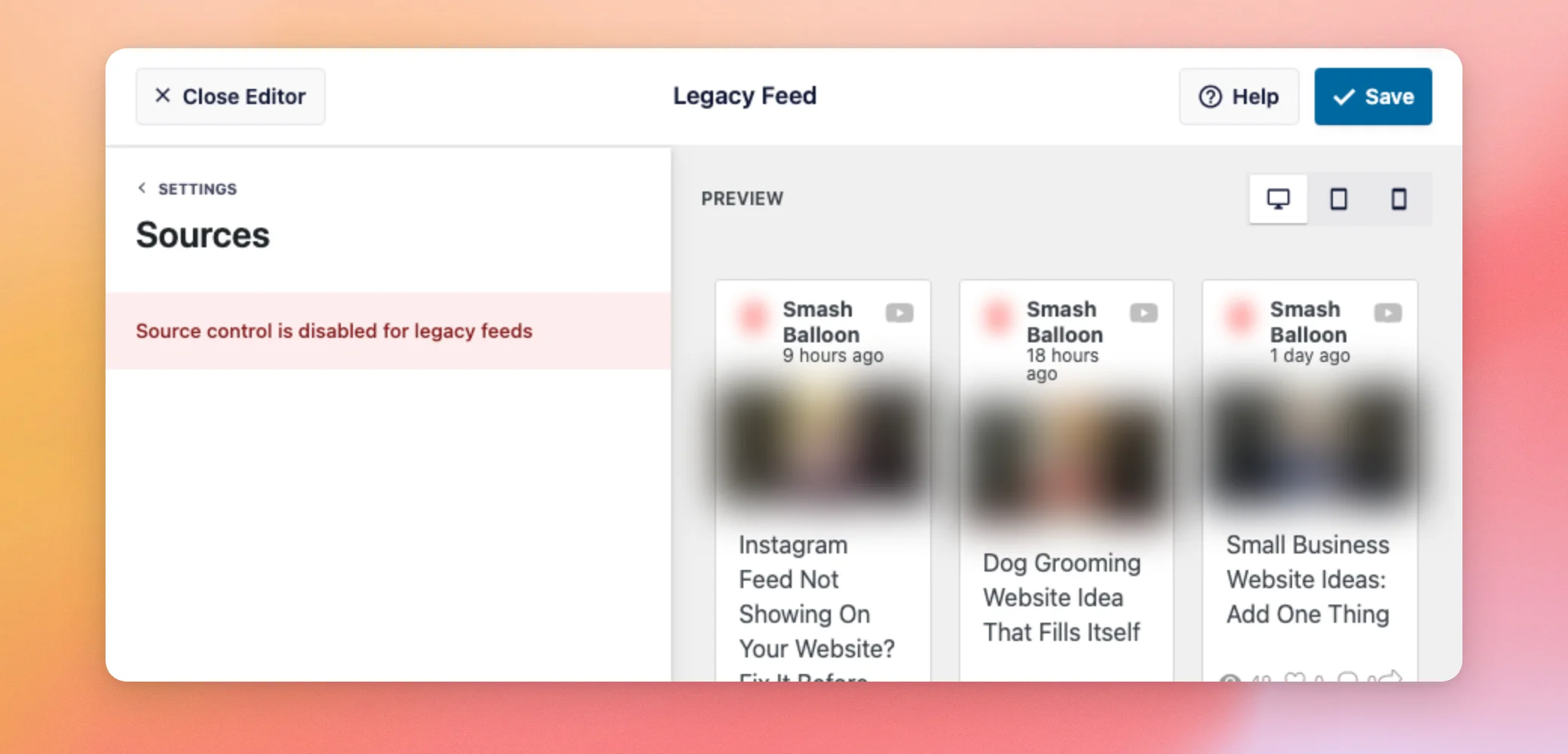
To use different sources, create a new feed. We’ll cover that next.
Creating a New Feed
New feeds don’t use the legacy settings. Each one has its own. Changing one feed doesn’t change any other.
To make one, click Add New at the top of the All Feeds page.
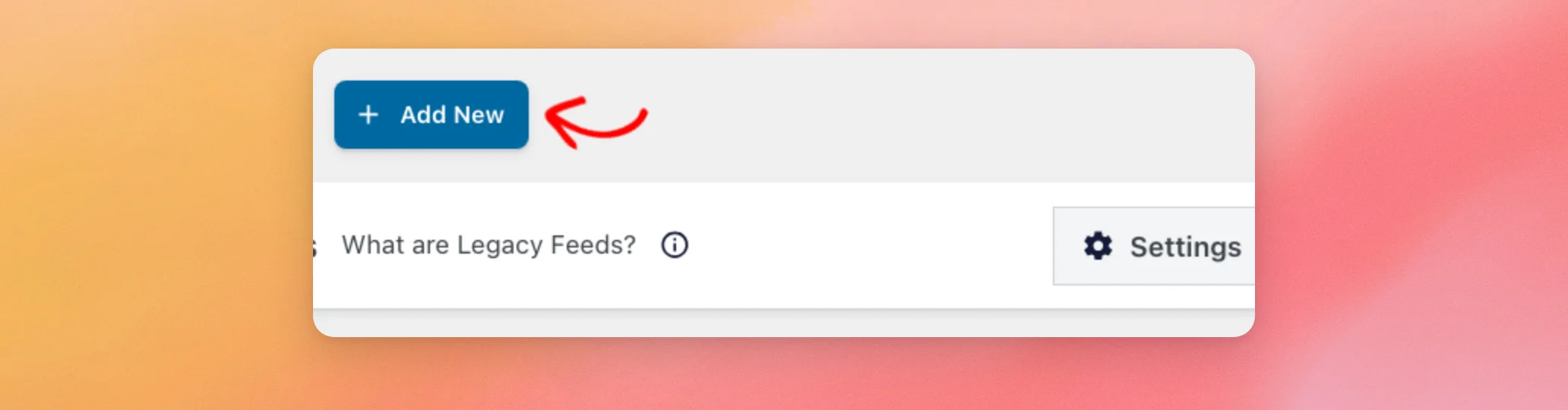
A new feed’s shortcode includes its feed ID, for example [social-wall feed=1]. For the steps, follow our guide to create a Social Wall feed.
That’s it! You now know when the Legacy Feeds box shows, how to edit the shared legacy settings, and how to create a new feed when you need different sources. If you need the minimum plugin versions for your wall, see which plugin versions Social Wall needs.
Frequently Asked Questions
Below, we’ve answered some of the most common questions about legacy feeds in Social Wall.
Why don’t I see the Legacy Feeds box?
The box is for sites that used Social Wall before version 2.0. A new site doesn’t see it. It also shows only while Social Wall has cached posts for at least one of your walls. If the cache was just cleared, the box comes back once one of your walls loads on your site.
Will changing a new feed change my legacy feed?
No. A new feed has its own settings. Changing it doesn’t affect any other feed, including your legacy feed.
Can I change the sources of a legacy feed?
In the legacy editor, the Sources view shows “Source control is disabled for legacy feeds”. To use different sources, create a new feed. See the Creating a New Feed section above.
Where is the Embed button in the legacy editor?
The Embed button belongs to new feeds, which have a feed ID. A legacy feed’s shortcode has no feed ID. The legacy editor leaves the button out.