


 Social Wall
 Feed Analytics


Would you like to add a TikTok feed to a page without pasting a shortcode?
In this guide, we’ll show you 2 ways to do it. You can use the TikTok Feed block in the WordPress block editor, or the TikTok Feed widget in Elementor.
Before you get started, make sure TikTok Feeds is installed and activated, and that you have created at least 1 feed. Our guide to creating a feed covers that. It also shows how to place a feed with a shortcode, in adding your feed to a page.
- Adding the TikTok Feed Block
- Choosing a Feed in the Block
- Saving the Page With the Block
- Adding a Feed With Elementor
- Frequently Asked Questions
Adding the TikTok Feed Block
To get started, open the page or post where you want the feed in the block editor. Next, click the + button to add a block.
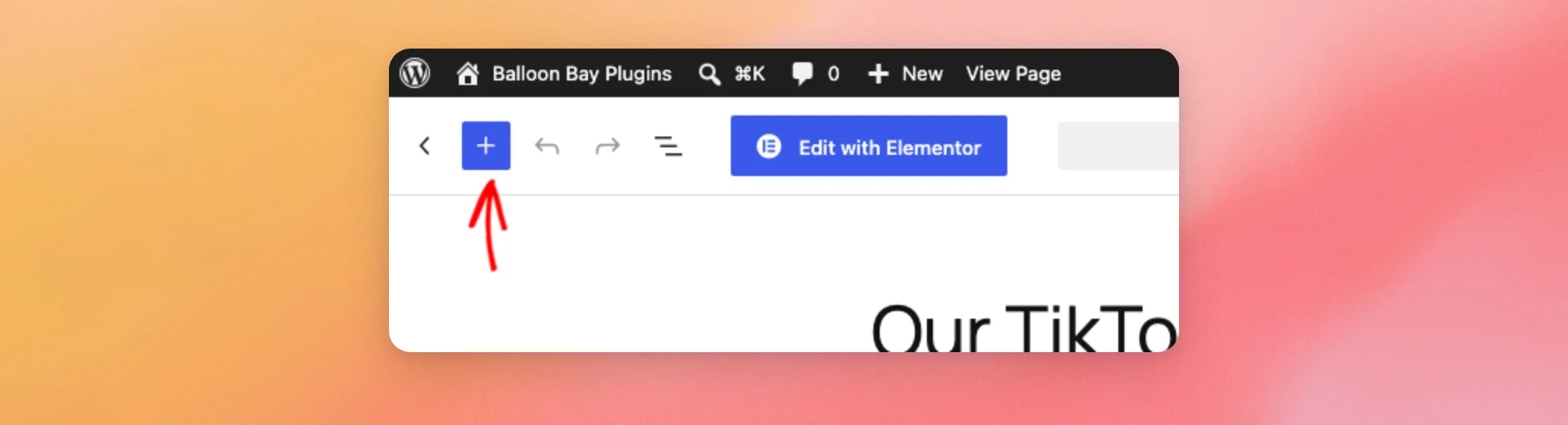
In the search box, type TikTok Feed. Then, click the TikTok Feed block to add it to the page.

With the block on the page, you are ready to choose which feed it shows.
Choosing a Feed in the Block
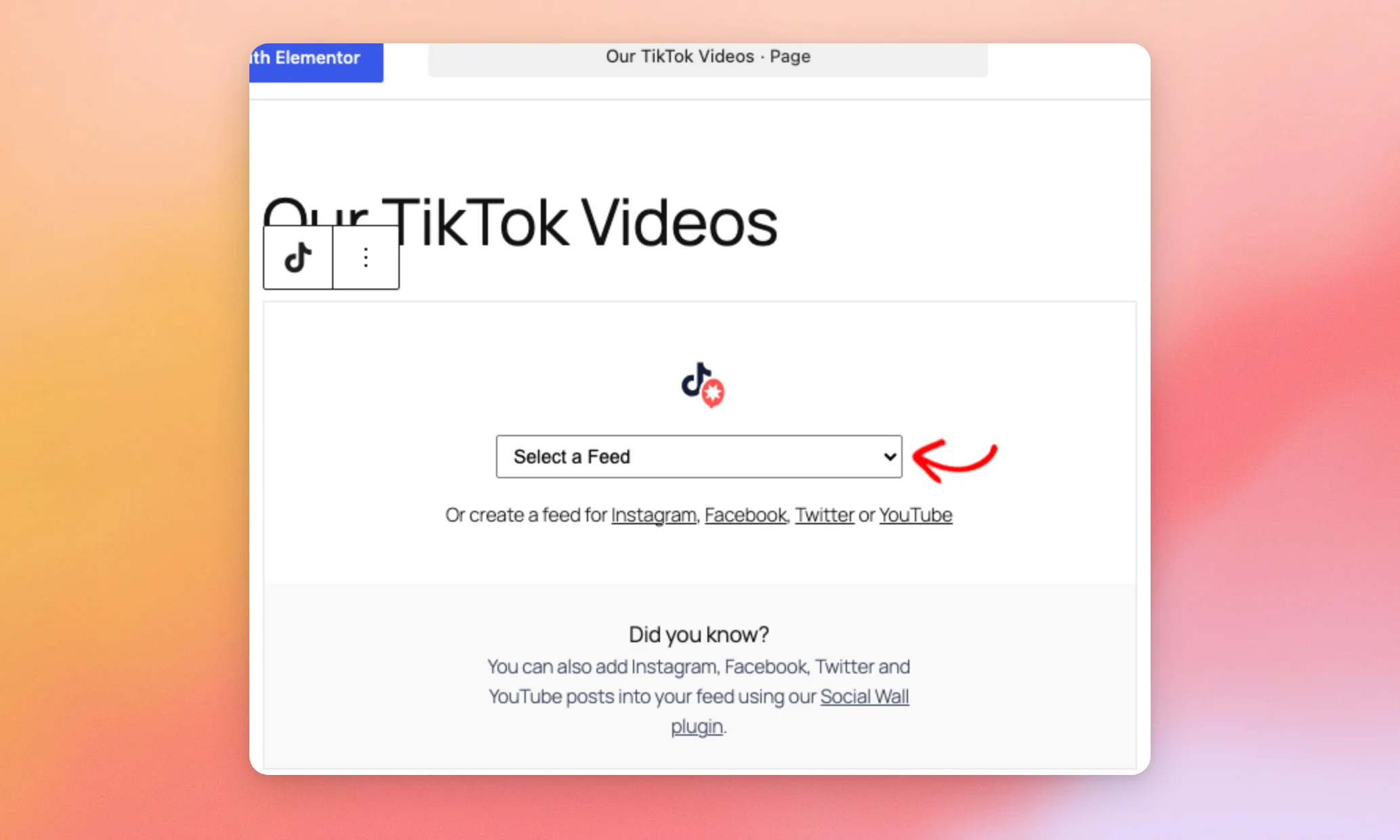
The new block shows a Select a Feed dropdown. Next, click it and choose the feed you want to show.
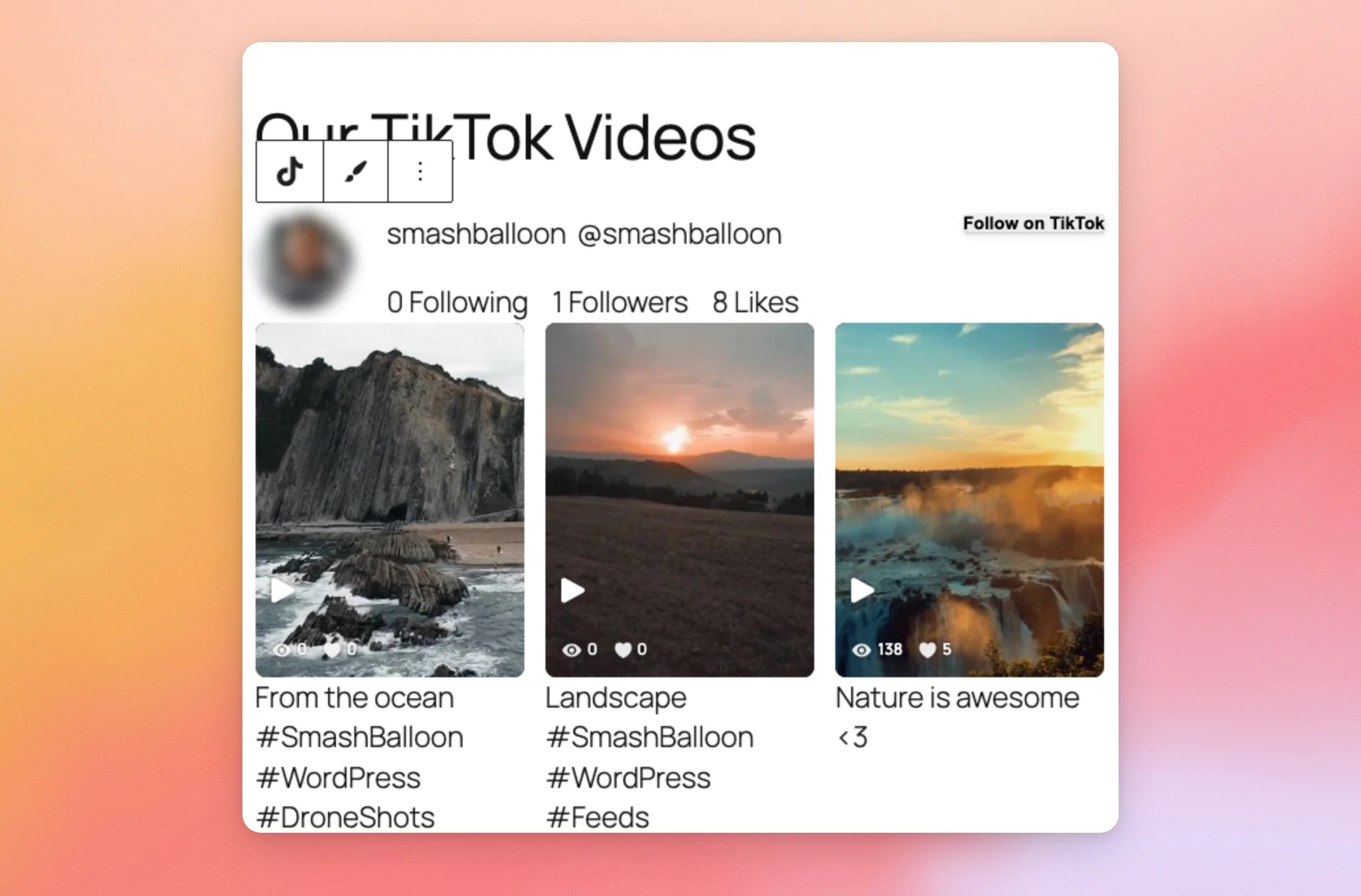
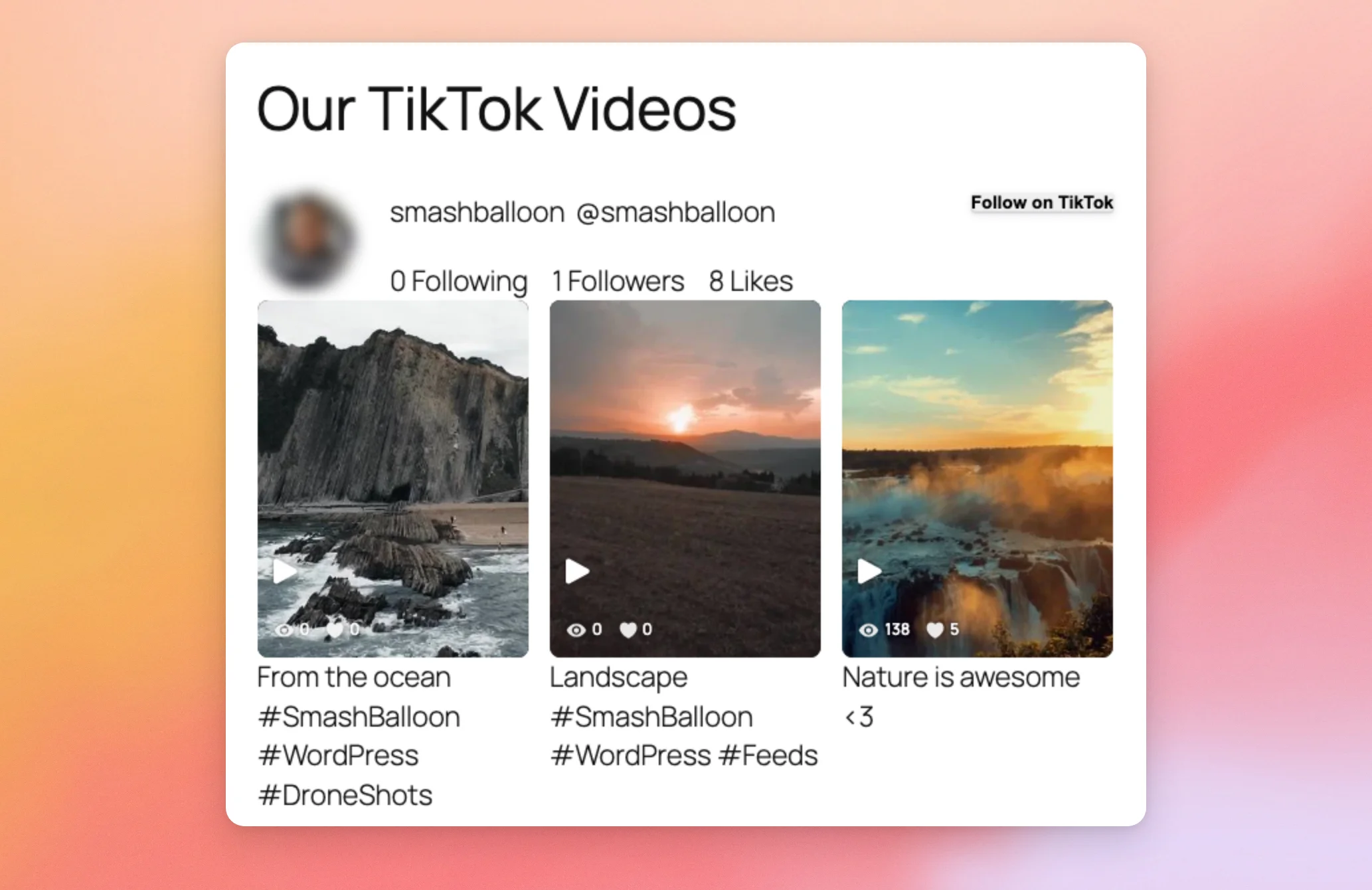
The videos from that feed appear in the editor preview right away.
Once a feed is chosen, the block toolbar also shows a brush icon. Next, click it to open the feed in the Customizer.
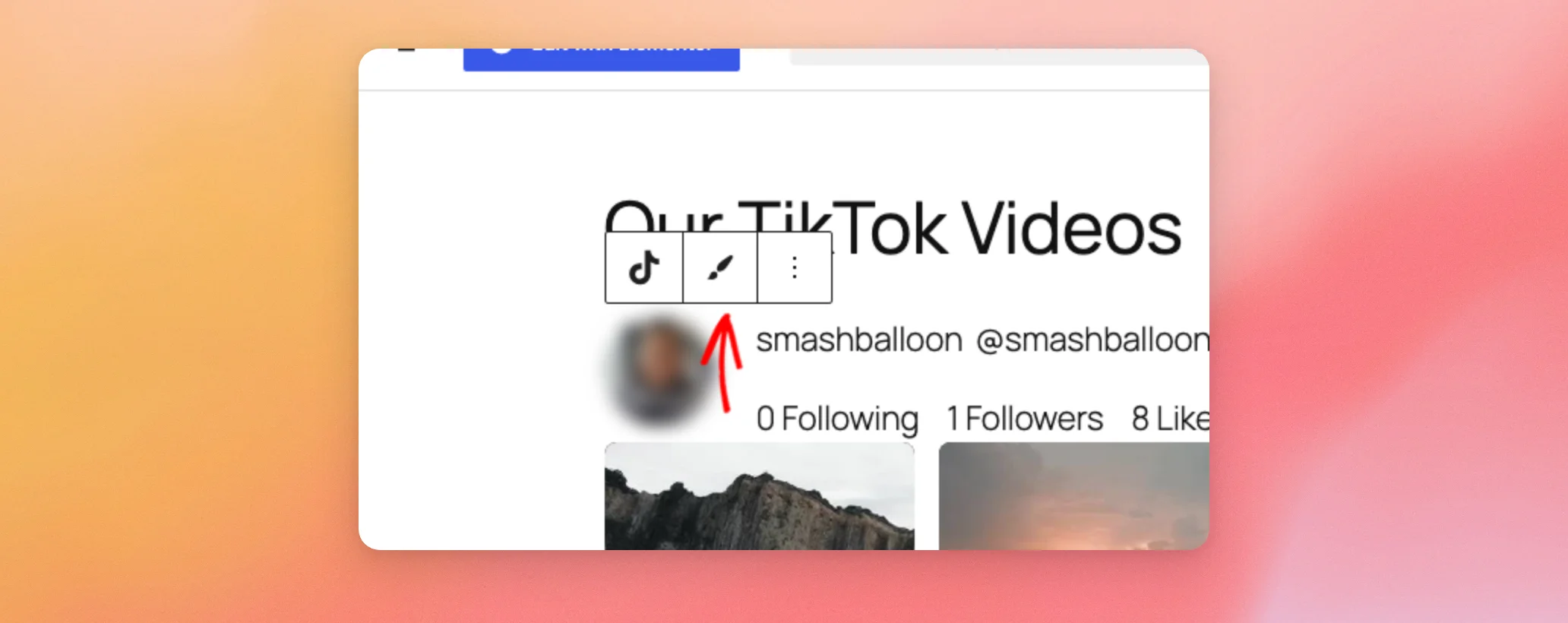
The Customizer opens in a new browser tab. Your page stays open in the editor. To learn what each Customizer setting does, see our feed editor reference.
Saving the Page With the Block
When you’re happy with the preview, click Save at the top of the editor. If you haven’t published the page yet, this button says Publish instead.
Then, open the page on your site. The feed now shows on the front end.
If you build your pages with Elementor, there is a widget for that as well.
Adding a Feed With Elementor
First, the Elementor plugin must be installed and activated on your site. We tested the steps below with the free Elementor plugin from WordPress.org. If you need help with the installation, see How to Install a WordPress Plugin.
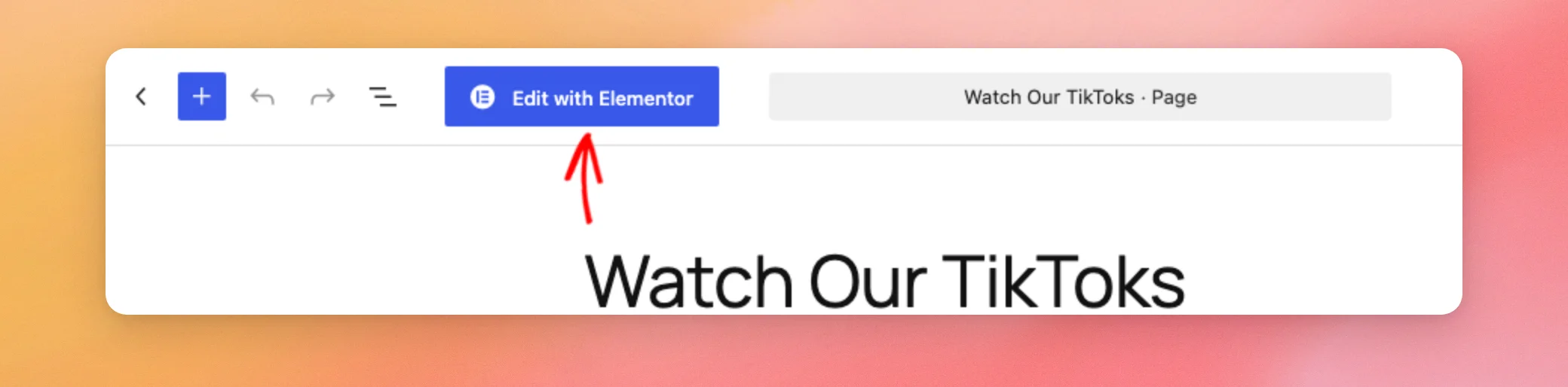
Next, open the page where you want the feed in the block editor. Then, click Edit with Elementor.
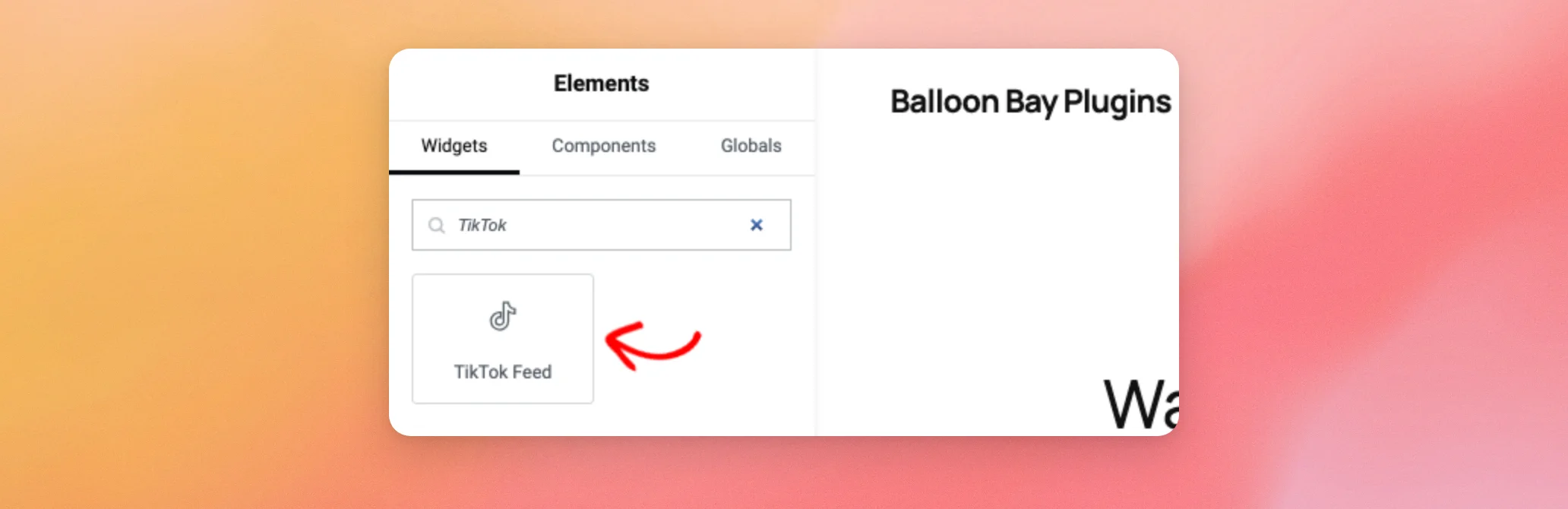
In the search box at the top of the Elements panel, type TikTok. The TikTok Feed widget appears in the results.
Next, drag the TikTok Feed widget onto the page. The panel on the left switches to the widget’s settings. In the TikTok Feed Settings section, use the Select a Feed dropdown to choose your feed.
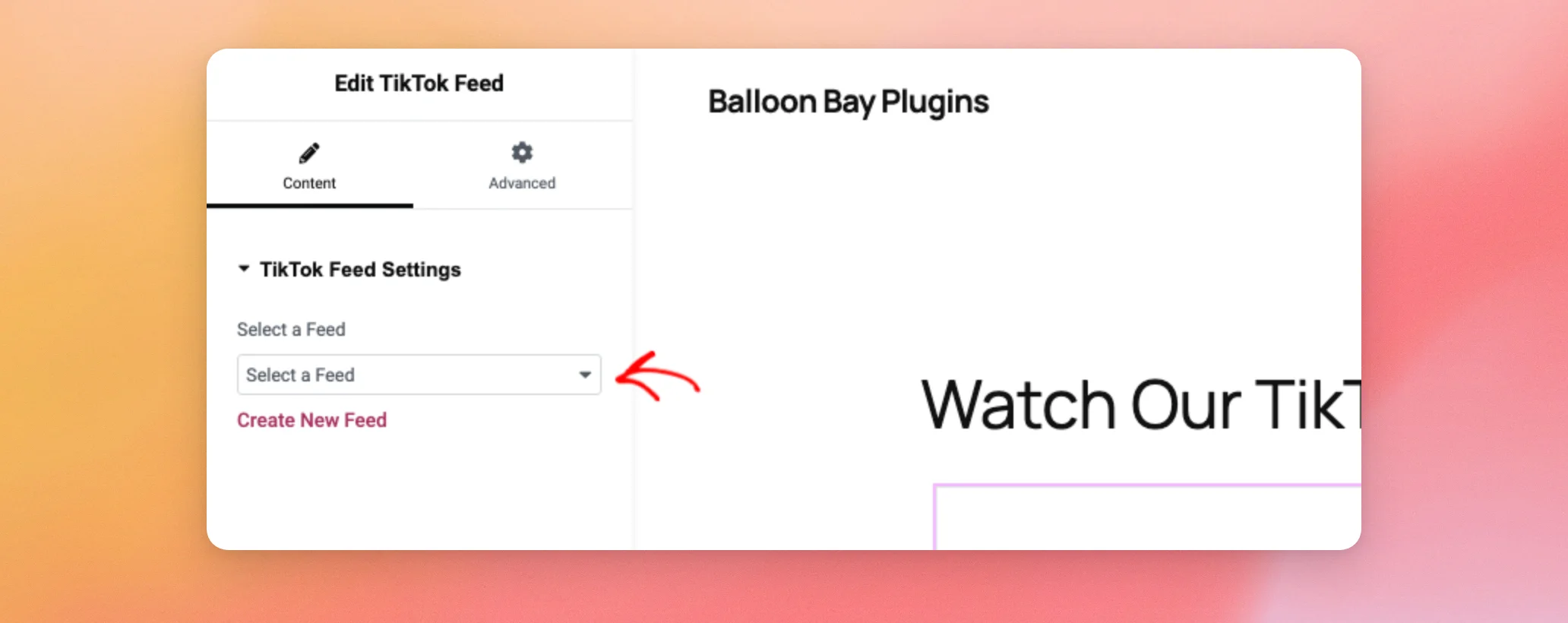
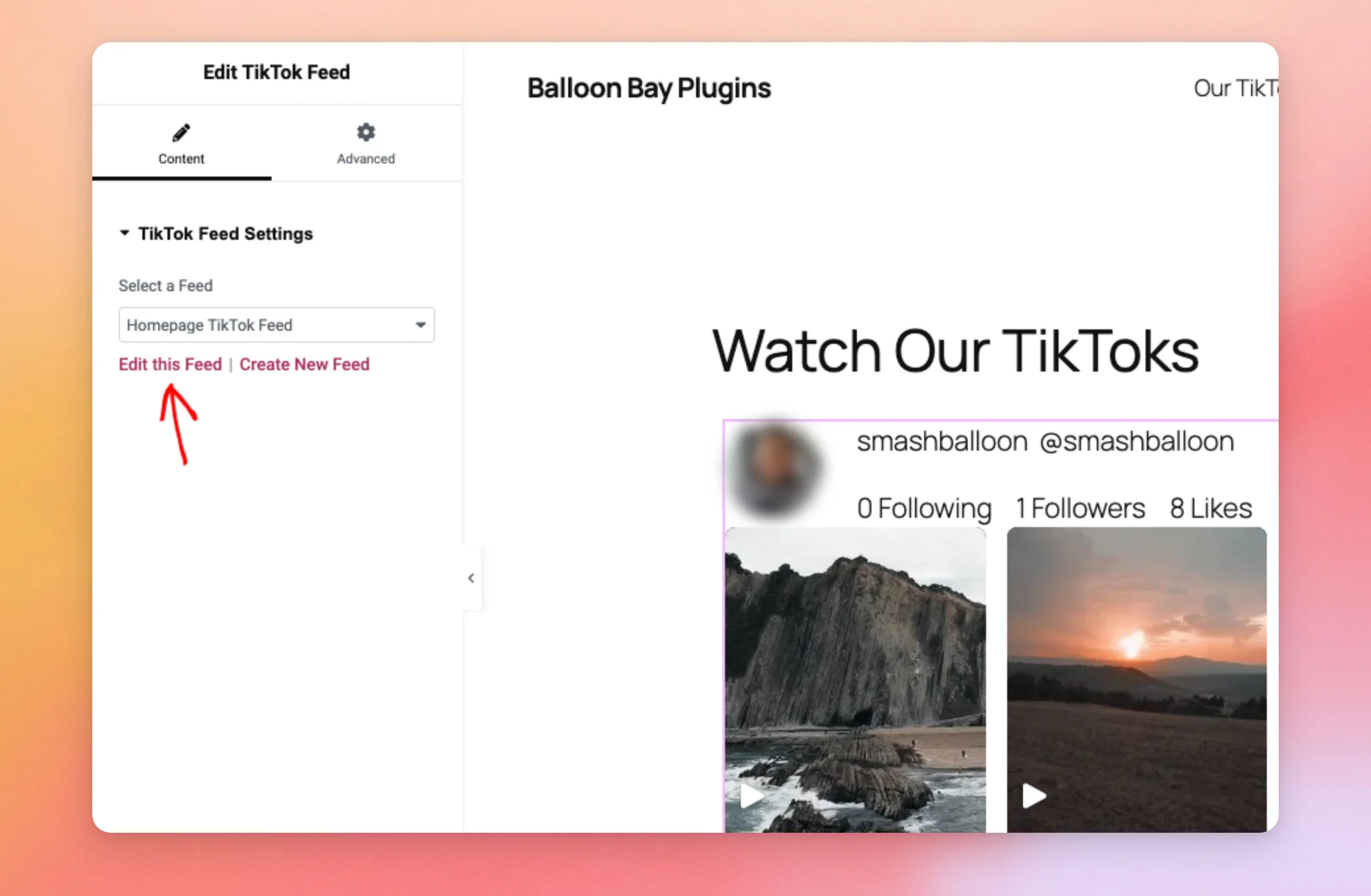
The feed appears in the page preview. Below the dropdown, Edit this Feed opens the feed in the Customizer. Create New Feed opens the TikTok Feeds » All Feeds page, where you can add a new feed. Both links open in a new browser tab. The Edit this Feed link shows up once a feed is chosen.
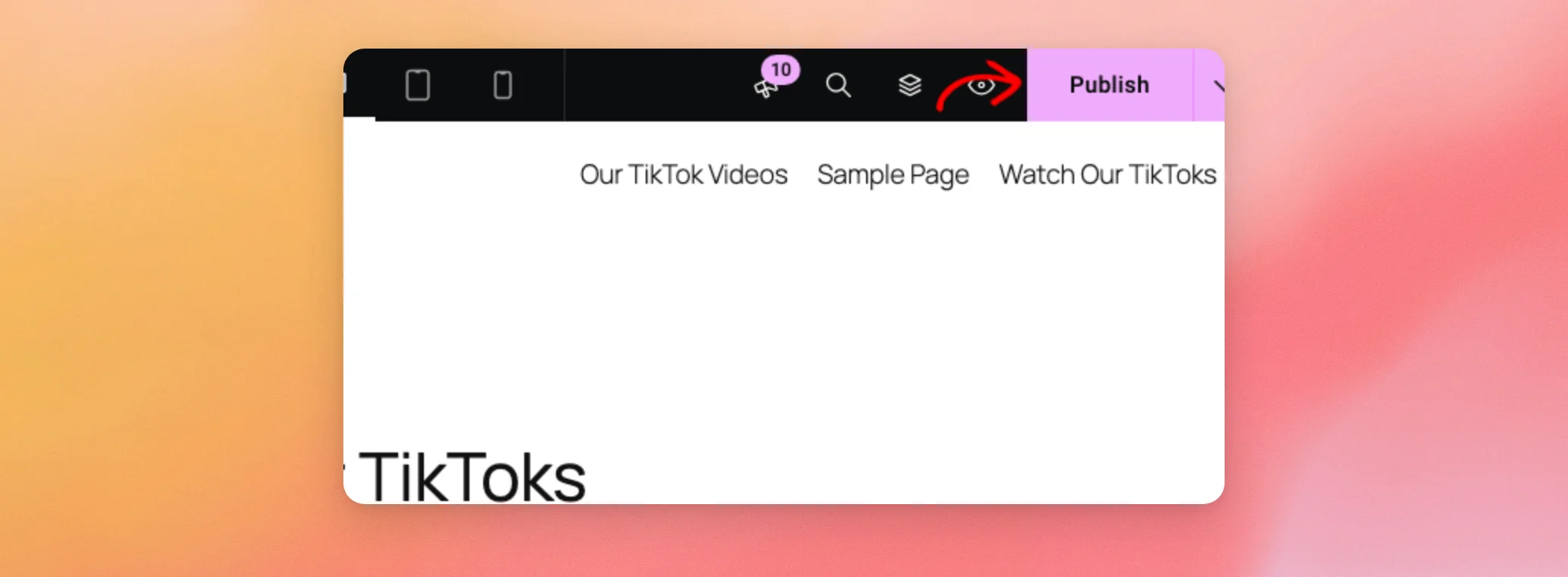
When you’re ready, click Publish in the top bar of the Elementor editor.
Then, open the page on your site to see the feed.
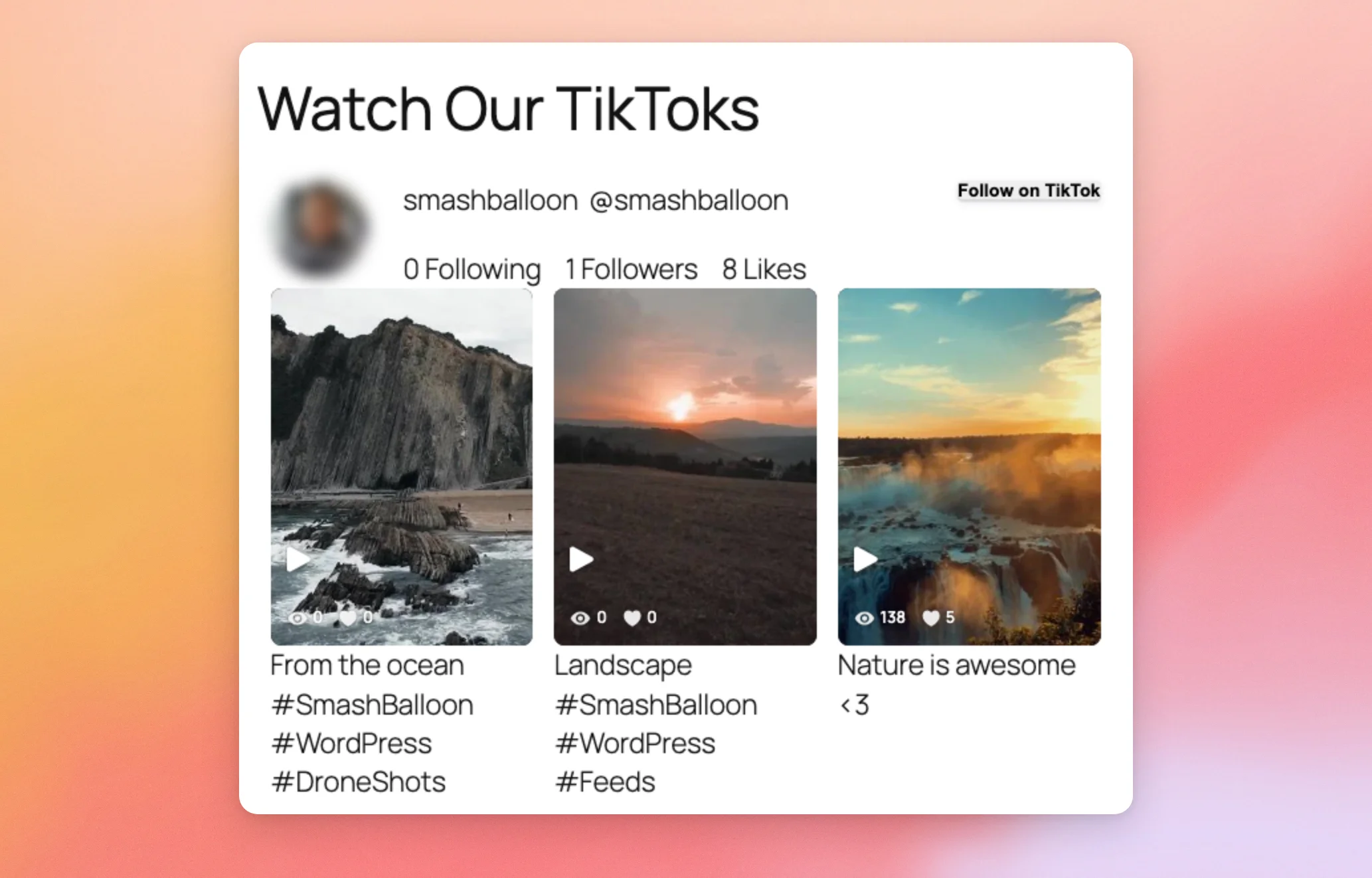
That’s it! You’ve added a TikTok feed to your page with the TikTok Feed block or the Elementor widget. Next, see our feed editor reference to change how your feed looks in the Customizer.
Frequently Asked Questions
Below, we’ve answered some of the most common questions about the block and the Elementor widget.
I searched for the plugin name and the block didn’t show up. Where is it?
The block is named TikTok Feed. Try searching for that name instead. Adding the TikTok Feed Block above covers the search.
I don’t see the brush icon in the block toolbar. Why?
The brush icon appears only after you choose a feed with the Select a Feed dropdown. Choosing a Feed in the Block above covers the dropdown and the icon.
Do I need a certain license level to use the block or the Elementor widget?
No. Both come with the TikTok Feeds plugin. No particular license level is needed.
I don’t see Edit this Feed under the Select a Feed dropdown in Elementor. Why?
The Edit this Feed link shows up once you’ve chosen a feed. Until then, only Create New Feed shows. Adding a Feed With Elementor above covers both states.




