


 Social Wall
 Feed Analytics


Instagram requires a Business Profile connection for hashtag feeds. How to convert your account and create the feed.
Would you like to display posts from a public Instagram hashtag on your website?
In this guide, we’ll walk you through creating a hashtag feed with Instagram Feed and adding it to your site. We’ll also cover the limits that Instagram sets for hashtag feeds, and what to do when posts are missing or a shortcode shows the wrong feed.
Before you get started, make sure Instagram Feed is installed and activated on your site.
Requirements: Hashtag feeds need the Plus license level or higher and a source connected with Business Advanced, which Instagram’s API requires for hashtag feeds. To connect one, see our guide on Instagram Business Advanced.
Here is what we will cover.
- Creating a Hashtag Feed
- Adding Your Hashtag Feed to Your Site
- Understanding Hashtag Feed Limits
- Posts Are Missing From My Hashtag Feed
- I’m Trying to Display a User Feed or Hashtag Feed but It Won’t Work
- Frequently Asked Questions
Creating a Hashtag Feed
First, we’ll create the feed. Once you have a Business Advanced source connected, you can create a hashtag feed in the feed builder.
- In your WordPress dashboard, go to Instagram Feed » All Feeds.
- Click Add New.
- On the Select Feed Type screen, select Public Hashtag. It is marked Business Account required. Then, click Next.
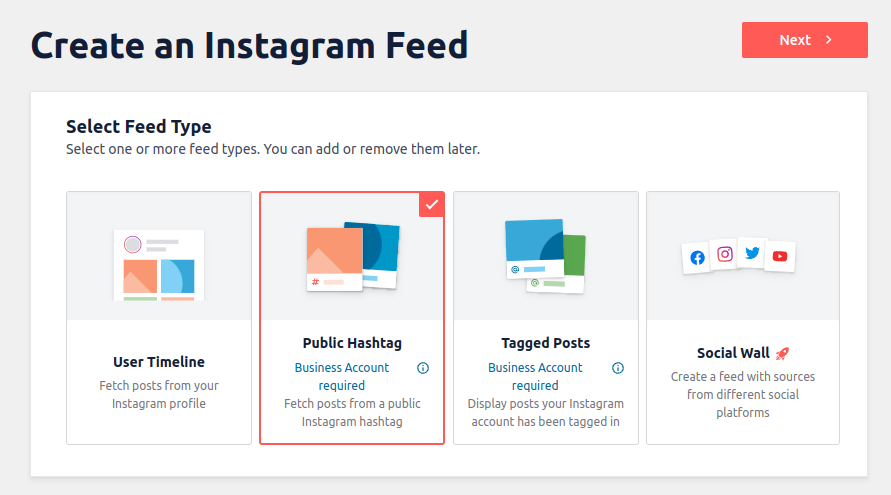
- Next to Fetch posts that are, select Most recent or Top Rated. To learn how Instagram returns Most recent posts, see Recent Posts below.
- In the hashtag box, enter one or more hashtags, separated by commas.
- Follow the prompts to finish setting up the feed.
Adding Your Hashtag Feed to Your Site
Now we’ll add the feed to your site. Once you’ve finished setting up the feed, you can click Embed at the top of the feed editor to open the Embed Feed window. Next, click Copy to copy the feed’s shortcode. You can also find the shortcode in the Shortcode column on the All Feeds page.
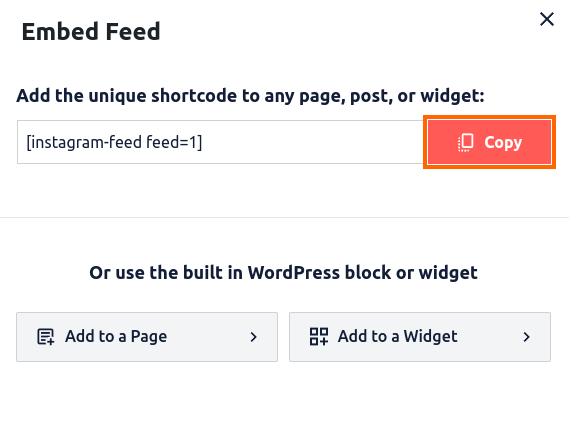
Then, paste the shortcode into any page, post, or widget area. The Embed Feed window also has an Add to a Page button and, if your theme supports widgets, an Add to a Widget button, which use the WordPress block or widget instead.
To see a hashtag feed in action, view our hashtag feed demo.
Understanding Hashtag Feed Limits
There are some limits when displaying an Instagram hashtag feed on your website.
Recent Posts
When you display a Most recent feed, Instagram only returns the most recent hashtag posts from the past 24-hour period. Because of this, when you create a new Most recent hashtag feed, posts from Instagram’s “Top posts” section are retrieved first, sorted by date, and saved. Then going forward, new recent posts are added to your feed as it updates, and the plugin stores these posts so that they can continue to be displayed indefinitely, creating a permanent feed of your posts.
30 Hashtags per Seven Days
In a seven-day period, each connected Business Profile has a unique hashtag search limit of 30 hashtags. When your connected accounts have used all their searches, Instagram Feed shows the error Error: Hashtag limit of 30 unique hashtags per week has been reached. For more on this error, see API error 18 in our error reference.
If you need to display more than 30 different hashtags, you can connect another Business Profile. Instagram Feed then starts using the 30 hashtag search “slots” of the additional account when the first account has used all its slots. Instagram Feed’s message for this error suggests an account from a separate Instagram identity and Facebook Page, and says that connecting another Instagram business account from the same Facebook Page won’t raise the limit.
Posts Are Missing From My Hashtag Feed
If posts are missing from your hashtag feed, check the following.
- The feed is a Most recent feed. Instagram only returns the most recent hashtag posts from the past 24-hour period, as described in the limits above.
- Your connected accounts have used their hashtag searches. The limit is 30 unique hashtags in seven days for each connected Business Profile, as described in the limits above.
- The posts are from a private account. Hashtag feeds only show publicly available posts. Get permission from the user to repost them under your own account so you can display them.
- Your feed has filters. Settings such as word filters or hidden posts can remove posts from a feed. To adjust them, see our guide on filtering the posts in your feed.
I’m Trying to Display a User Feed or Hashtag Feed but It Won’t Work
This can happen when the shortcode on your page doesn’t include the feed’s number. A shortcode without feed= shows feed 1, unless legacy shortcode support is on. Instagram Feed turns that support on when it updates from a version before 6 on a site that already had a connected account or legacy feeds. Without it, a shortcode such as [instagram-feed type=hashtag hashtag="#myHashtag"] loads the settings of feed 1, not those of your hashtag feed.
To show a particular feed, use the shortcode that the feed gives you.
- In your WordPress dashboard, go to Instagram Feed » All Feeds.
- Find your feed and copy the shortcode from the Shortcode column. It looks like
[instagram-feed feed=1], with your feed’s number afterfeed=. - Paste it into your page, post, or widget area in place of the old shortcode.
Options such as type= belong to the shortcodes that feeds used before version 6. To learn more about those feeds, see our guide on Instagram Legacy Feeds.
That’s it! You now know how to create a hashtag feed, add it to your site, and work within Instagram’s hashtag limits. Next, see how to filter the posts in your feed.
Frequently Asked Questions
Below, we’ve answered some of the most common questions about hashtag feeds.
Which license level do I need for hashtag feeds?
Hashtag feeds are part of the Plus and Elite license levels. The Basic license level doesn’t include them.
Can I create a hashtag feed with the free version of Instagram Feed?
No. In the free version, Hashtag Feeds appears as a feature you get by upgrading to Instagram Feed Pro.
Why does my source say “Source is not used yet”?
This is expected when a connected source only powers hashtag feeds. Hashtag feeds don’t need a source selected in the feed, so the message stays until a feed displays that source’s own posts.




