Social Wall
 Feed Analytics


A reference table of Instagram API error messages, what each one means and how to fix it. Also covers request delays and the error log.
Would you like to find out what an Instagram Feed error message means and how to fix it?
In this guide, we’ll walk you through the error messages Instagram Feed can show and the steps that fix each one. All you need is the text of the error on your site or in your WordPress dashboard. To find it quickly, press Ctrl+F (Cmd+F on a Mac) and search for part of the message.
Before you get started, make sure Instagram Feed is installed and activated on your site.
Here is what we will cover.
- Is Instagram Down?
- Why Are API Requests Being Delayed?
- Why Am I Seeing Error Messages That No Longer Apply?
- Instagram Feed Error Messages
Is Instagram Down?
If your feed stopped updating, first check whether Meta is reporting a problem on its status page. While Instagram can’t be reached, your feed keeps showing its saved posts. An alert tells you the feed is out of date.
For more on that alert, see our guide on getting alerts when your Instagram feed stops updating.
If the status page shows no problem, or your feed is still not updating after an hour, find your error message below. If it isn’t listed, contact support.
Why Are API Requests Being Delayed?
If your website makes several bad API requests in a short period of time, Instagram can temporarily block all requests from your website. To prevent this, Instagram Feed waits before it makes another API request after an error.
The wait depends on the error.
- 3 minutes after most API errors, including errors 1 and 2.
- 5 minutes after error 24.
- 15 minutes after error 18 and after a rate limit error.
- 60 minutes after error 368, which is a temporary block from Instagram.
You don’t have to wait it out. Saving the Instagram Feed Settings page ends the wait after most API errors, and so does the Clear All Caches button on the Feeds tab. Our Instagram Feed settings reference shows where that button is.
Why Am I Seeing Error Messages That No Longer Apply?
Instagram Feed logs API errors to help you troubleshoot connection issues. Only some of these errors clear on their own once the issue is resolved.
You can reset the log with the Reset Error Log setting on the Advanced tab of the Instagram Feed Settings page. Resetting it also clears your feed caches. For the steps with screenshots, see clearing an old error message.
A source marked Source Invalid stays marked after you reset the log. To clear it, reconnect the source.
For the steps, see our guide on reconnecting an invalid Instagram Feed source.
Instagram Feed Error Messages
Each heading below is the text of an error message. Where the error text includes an ID or a hashtag, it is shown here as XXXXXXXX.
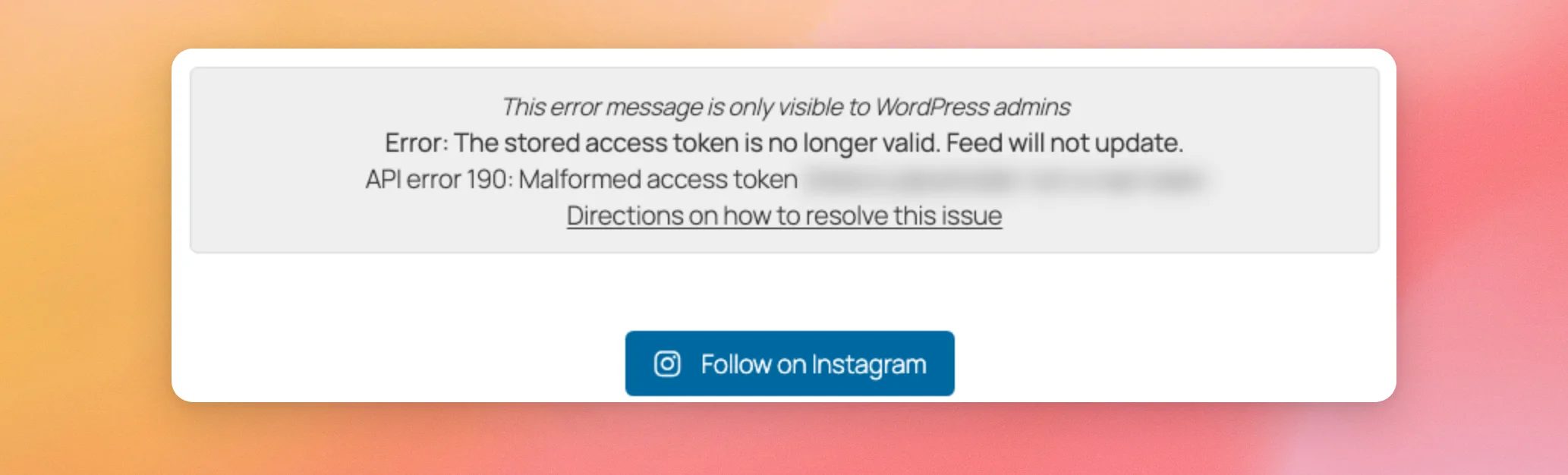
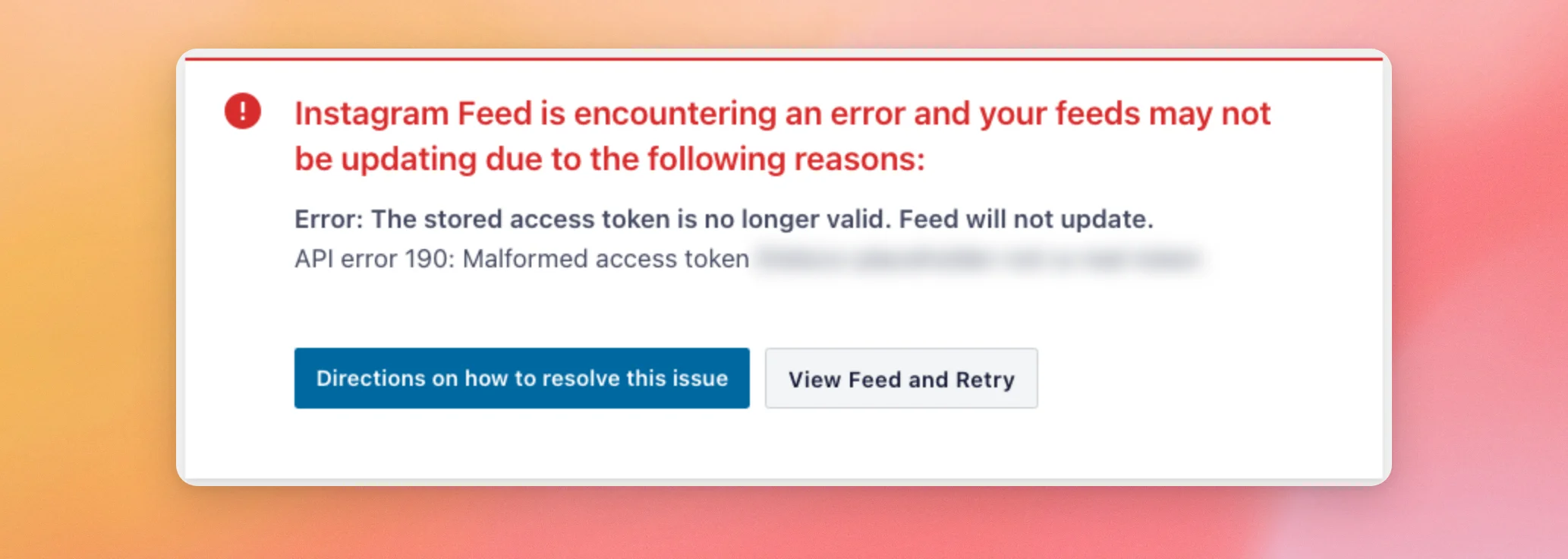
When a feed has an error, a box above the feed shows it to logged-in WordPress admins only, and the Instagram Feed settings can also show it in a notice.
Database Error: Insufficient ALTER permissions for your database user.
The plugin shows this as an admin notice titled Action Required: Unable to save or update feed sources. It means the plugin couldn’t update its database tables.
Please ensure your database user has ALTER permissions. The plugin also needs the SELECT, INSERT, UPDATE, DELETE, CREATE TABLE, DROP TABLE, and INDEX permissions.
If needed, contact your hosting provider. Once resolved, deactivate and reactivate the plugin to complete the update. The notice also has a Try creating database tables again button that tries to create the tables again.
API Error 400: Your account is connected to Facebook account, and your Facebook account’s future off-Facebook activity is currently turned off.
This error comes from a setting in Facebook, not from the plugin. If the future off-Facebook activity setting is turned off, the Instagram and Facebook API doesn’t let you use our Instagram or Facebook plugins to display a feed. This is a limitation of the API itself, and the plugin can’t get around it.
To connect the source and display the feed, you have to connect using a Facebook account, or an Instagram account with its connected Facebook account, that has this setting turned on.
For the steps, see Your activity off Meta technologies is currently turned off below.
You can find detailed information about off-Facebook activity on Facebook’s help page.
Your activity off Meta technologies is currently turned off
This error usually shows up when you connect your Instagram account using our plugin. It is related to a setting called “off-Facebook activity.”
The Instagram connection relies on the Instagram and Facebook API, and if this setting is turned off, your feed can’t be displayed. This is a limitation of the API itself, and we can’t change it.
To turn the setting on, follow these steps.
- Visit Facebook Settings.
- Look for the “Off-Facebook Activity” section.
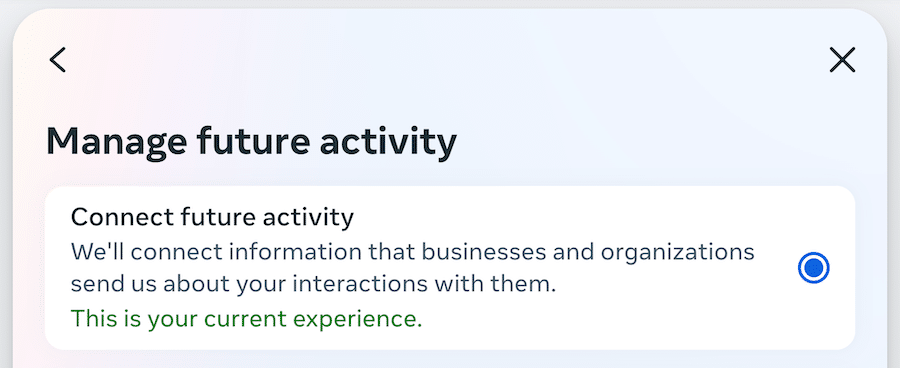
- Click Manage Future Activity.
- Click Connect future activity.
- Click Confirm.
Once the setting is turned on, connect your source again.
For the steps, see our guide on reconnecting an invalid Instagram Feed source.
Error: No posts found.
Instagram Feed shows this when it has no posts to display. The most common causes are below.
- User feed. The account has no posts made on Instagram.com.
- Recent hashtag feed. No posts have been made to this hashtag in the last 24 hours.
- Issue with your access token. For the fix, see API error 190.
- Too much filtering. Your feed’s filters, such as word filters or hidden posts, remove every post. To adjust them, see our guide on filtering the posts in your feed.
Your account is private: Access token will expire.
The plugin shows this as Error: Private Instagram Account. when a private account’s access token has less than 10 days left. Instagram requires private accounts to be reauthenticated every 60 days.
To fix this, make your account public on Instagram, or remember to reconnect the account once every 60 days.
For the steps, see our guide on reconnecting an invalid Instagram Feed source.
Error: Cannot retrieve posts for this hashtag: The Hashtag “XXXXXXXX” requested by the user either cannot be seen due to missing permissions, is invalid or doesn’t exist.
No public posts have been made with this hashtag. Once a post is made with this hashtag, this error will be resolved.
After this error, the plugin waits 5 minutes before it tries again.
For more on hashtag feeds, see our guide on displaying an Instagram hashtag feed.
API error 100: Tried accessing nonexisting field (media_product_type) on node type (Media)
Please ensure your plugin is up to date in your WordPress Dashboard » Plugins » Installed Plugins.
You will also need to reconnect your source. For instructions on how to do this, please see our reconnection guide.
API error 100: Unsupported get request.
The full message reads “API error 100: Unsupported get request. Object with ID ‘XXXXXXXX’ does not exist, cannot be loaded due to missing permissions, or does not support this operation.”
This can also be due to the source ID not matching the authenticated source for the access token. A settings change on Instagram or Facebook can cause this, such as the changes below.
- Changing the admin users of the related Facebook page.
- Changing the password for the Instagram or Facebook account.
- Changing your privacy settings for either Instagram or Facebook.
- Changing settings related to app permissions for either Instagram or Facebook.
To fix this, reconnect the source by following our reconnection guide.
Note: If the error message is still displayed after you reconnect, clear the error log, which can keep errors that no longer apply. The Reset Error Log setting on the Advanced tab of the Instagram Feed Settings page does this, as our guide on clearing an old error message shows.
API error 190: Error validating access token.
You have an issue with your access token. This can be due to changing the password in the connected account or other security changes.
Removing our app from the account’s Business Integrations causes it too. You may also have copied your access token incorrectly when connecting an account manually.
When the plugin can tell the cause, it shows one of these messages instead.
- Error: The Smash Balloon app is no longer authorized for this Instagram account. Feed will not update.
- Error: The account password was changed, which invalidated the stored access token. Feed will not update.
- Error: The stored access token has expired. Feed will not update.
- Error: The stored access token is no longer valid. Feed will not update.
- Error: Instagram has placed a security checkpoint on this account. The account owner needs to log in to Instagram to clear it.
- Error: This Instagram account is unconfirmed. The account owner needs to confirm it with Instagram.
For the security checkpoint and unconfirmed account messages, the account owner has to finish the step on Instagram before the feed can update.
To fix the other messages, reconnect the source. In the Manage Sources section of the Instagram Feed Settings page, a source with this error shows Source Invalid and a Reconnect link. Our guide on reconnecting an invalid source shows each step.
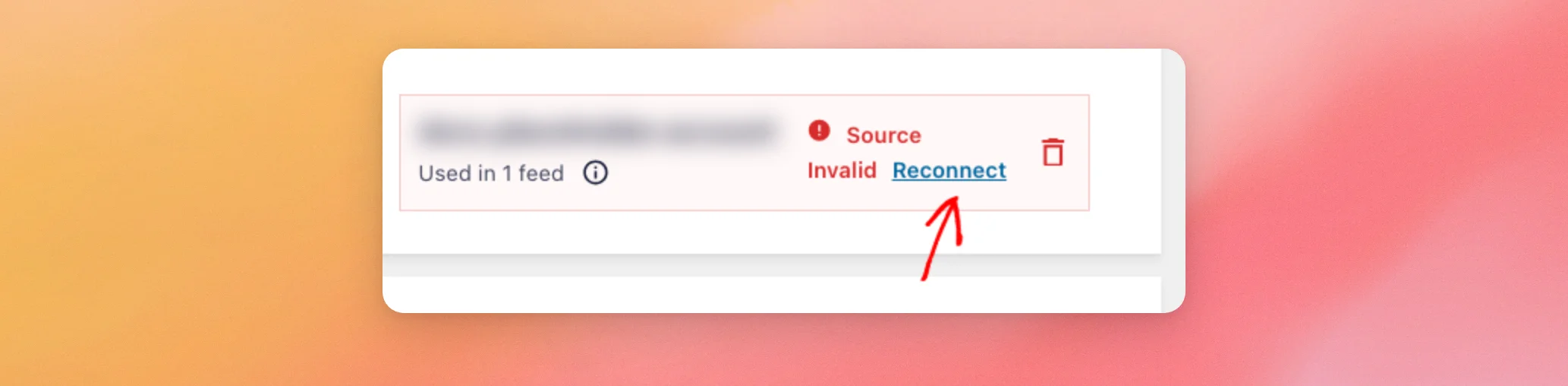
If the error remains, delete the source and add it again. The trash icon next to the source in Manage Sources deletes it once you confirm in the overlay that opens. Feeds that use the source stop getting new posts until you add it again.
Then add the source again with the Add Source button, shown in our Instagram Feed settings reference.
To learn how long a connection lasts and which sources renew on their own, see How Long an Instagram Connection Lasts and How It Renews.
Error: This account no longer has access to the connected page.
The plugin shows this for some 190 errors instead of the messages above. This happens when the connected account lost its administrator, editor, or moderator role on the linked Facebook page. It also happens when that page now requires Two Factor Authentication and the account hasn’t enabled it.
Reconnecting fixes neither. To fix it, restore the page role or enable Two Factor Authentication. Then retry the feed.
API error 18: Limit of 30 unique hashtag searches per week has been reached.
Instagram has a limit of 30 unique hashtag searches on a rolling weekly basis. The plugin shows this as Error: Hashtag limit of 30 unique hashtags per week has been reached. After this error, the plugin waits 15 minutes before it tries again.
If your site needs more than 30 hashtag feeds, connect an additional Instagram business account from a separate Instagram identity and Facebook page. Connecting an additional Instagram business account from the same Facebook page doesn’t raise the limit.
You connect it with the Add Source button in the Manage Sources section of the Instagram Feed Settings page. Our Instagram Feed settings reference shows where it is.
API error 1: An unknown error has occurred.
First, update Instagram Feed to its latest version. After this error, the plugin waits 3 minutes before it tries again.
If this error still appears, there may be an Instagram or Facebook API issue. To confirm, check the status page and, if the error continues, contact support.
API error 2: An unexpected error has occurred. Please retry your request later.
There may be a temporary issue with the Instagram or Facebook API. After this error, the plugin waits 3 minutes before it tries again.
Clearing your cache ends the 3-minute wait, so the plugin can try again right away. The Clear All Caches button is on the Feeds tab of the Instagram Feed Settings page, as our Instagram Feed settings reference shows.
If the feed still isn’t updating after a few hours, contact support.
Instagram is temporarily limiting requests from this site.
Instagram Feed shows this when Instagram reports that your site has reached a rate limit. Nothing is broken. You don’t need to reconnect your source.
Your feed keeps showing its saved posts. The plugin tries again on its own after 15 minutes.
The part of the message that only WordPress admins see adds that rate limits happen less often when you increase the caching time. That setting is in the Caching section of the Feeds tab, on the Instagram Feed Settings page. Our Instagram Feed settings reference explains each option.
The plugin treats these API error numbers as rate limits.
- API error 4
- API error 9
- API error 17
- API error 32
- API error 341
- API error 613
- API error 130429
API error 368: Instagram has temporarily blocked requests for this account.
The plugin shows this message for API error 368. This clears on its own, and you don’t need to reconnect. The plugin waits 60 minutes before it tries again.
Error 999: Access token could not be decrypted.
All Instagram data, including access tokens, is encrypted in your database with your site’s WordPress security keys. If you migrate your database from a site that uses different keys, such as a staging site, the plugin can’t decrypt the access tokens. You may need to reconnect your accounts for feeds to update.
The source can show Source Invalid or Encryption Error in the Manage Sources section of the Instagram Feed Settings page, with a Reconnect link. To fix this, reconnect the source as shown in our guide on reconnecting an invalid source.
If that doesn’t work, delete the source and add it again. The trash icon next to the source in Manage Sources deletes it once you confirm in the overlay that opens.
Then add the source again with the Add Source button, shown in our Instagram Feed settings reference.
If you reconnect your account but it keeps getting disconnected with error 999 showing again, follow the steps in our guide on fixing error 999.
Connection Error: http_request_failed – cURL error 7: Failed to connect to api.instagram.com port 443: Connection refused
Some hosts have restrictions or security settings that prevent remote requests to other websites. Usually your host can fix this or make an exception for your site. To get help, try contacting your host with a message like this.
“It looks like our Instagram plugin is encountering an error when trying to connect to the Instagram API. The developers asked us to contact you and mention that we are seeing the error http_request_failed – cURL error 7: Failed to connect to api.instagram.com port 443: Connection refused when trying to make remote connections to api.instagram.com.”
Connection Error: http_request_failed – cURL error 6: Could not resolve host: graph.facebook.com
Your server may not be connected to the internet, or your host may be blocking the connection. If you are using a local development environment, your computer must be connected to the internet.
On a hosted site, contact your host and mention that you see this error when connecting to graph.facebook.com.
Connection Error: http_request_failed – cURL error 28: Resolving timed out after 10000 milliseconds
Your server may have restrictions on connecting to the Instagram API. If this occurs when you connect a source, try reconnecting after about 10 minutes. If that doesn’t fix the problem, or it happens on and off, contact your host about this error when connecting to the Instagram API.
API error 200: Requires instagram_basic permission to manage the object, the app may have the permission but in order to use this API the app needs to be owned by a verified business.
This happens when the connection between a Facebook page and the Instagram business profile connected to the plugin is removed. To connect your source as an Instagram business profile, there must be a link to a Facebook page. To check that your account is set up correctly, see our guide on Instagram business profiles.
Then, reconnect your source in the plugin.
- First, delete the source. In the Manage Sources section of the Instagram Feed Settings page, the trash icon next to the source deletes it once you confirm in the overlay that opens.
- Next, add the source again with the Add Source button, shown in our Instagram Feed settings reference. On the connection page, choose My posts and more and click Continue with Facebook. When Facebook shows your connection settings, open Edit Settings and make sure every page, profile and permission is selected.
- Once your source has been added again, open your feed in the customizer and go to Settings » Sources. The account you reconnected must be selected for the feed.
If you’re still having trouble displaying your posts after trying the solutions above, please contact support for assistance.
That’s it! You now know how to look up an Instagram Feed error message and fix it. To get an alert when your feed stops updating, see our guide on getting alerts when your Instagram feed stops updating.